
Creative Studio
API
Resources
Features
About Us
Download

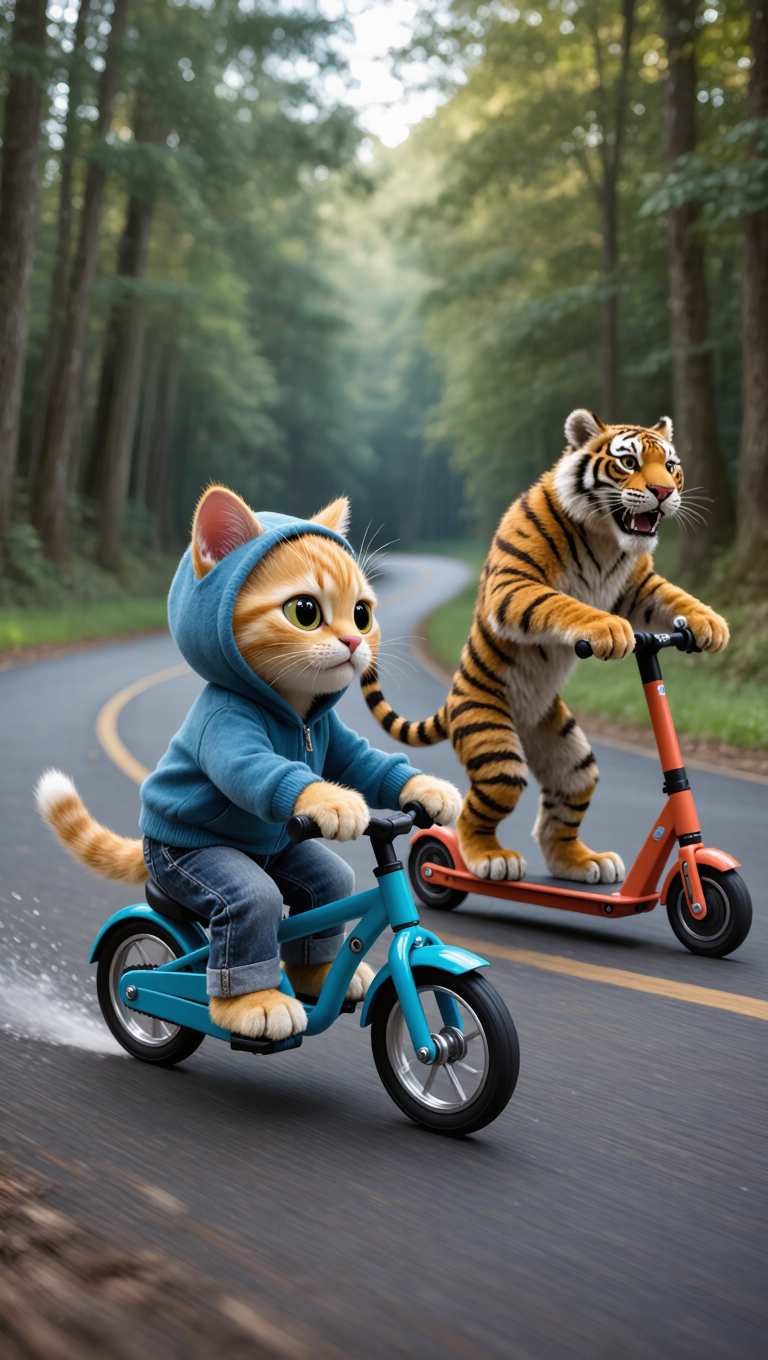
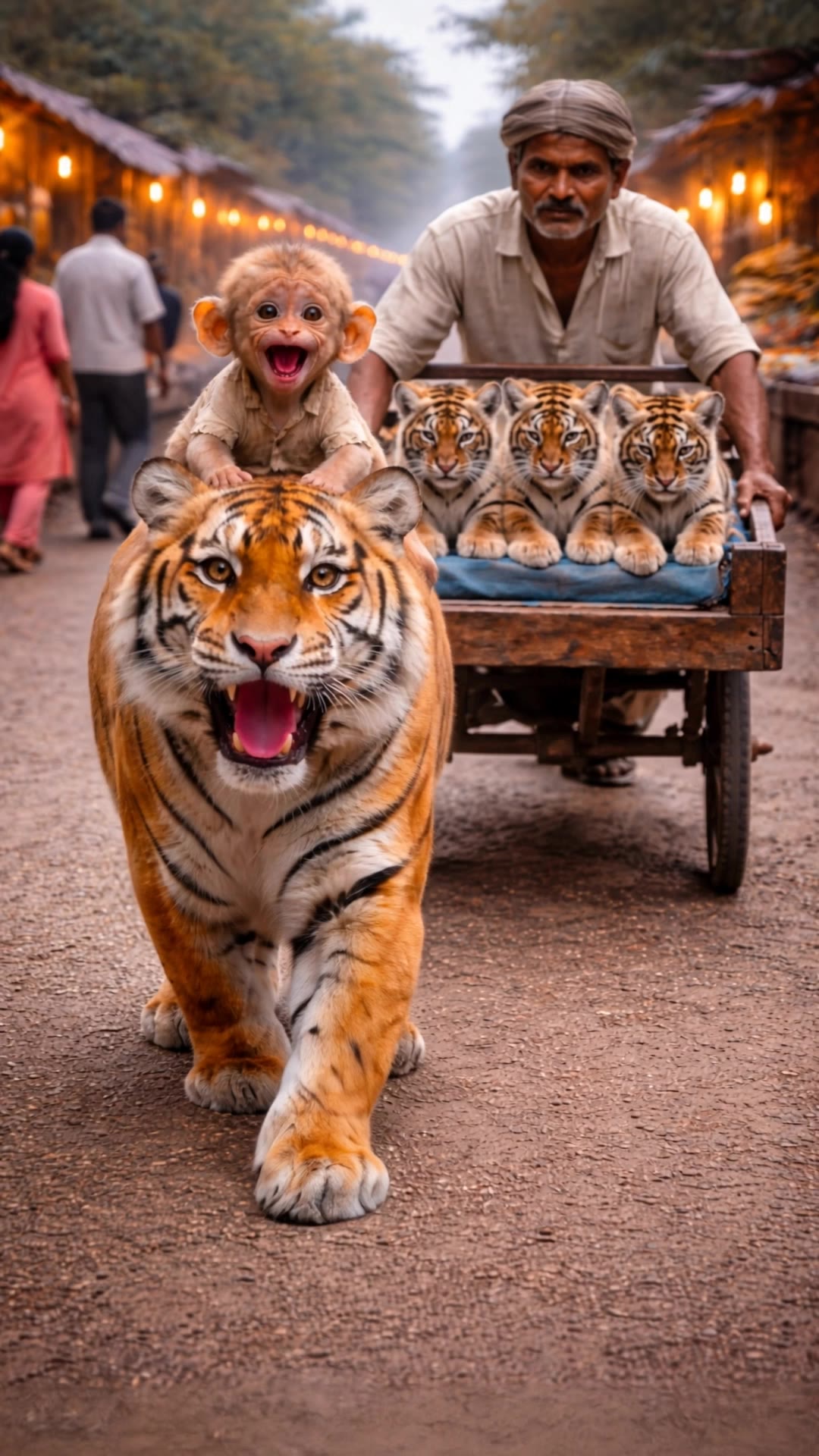
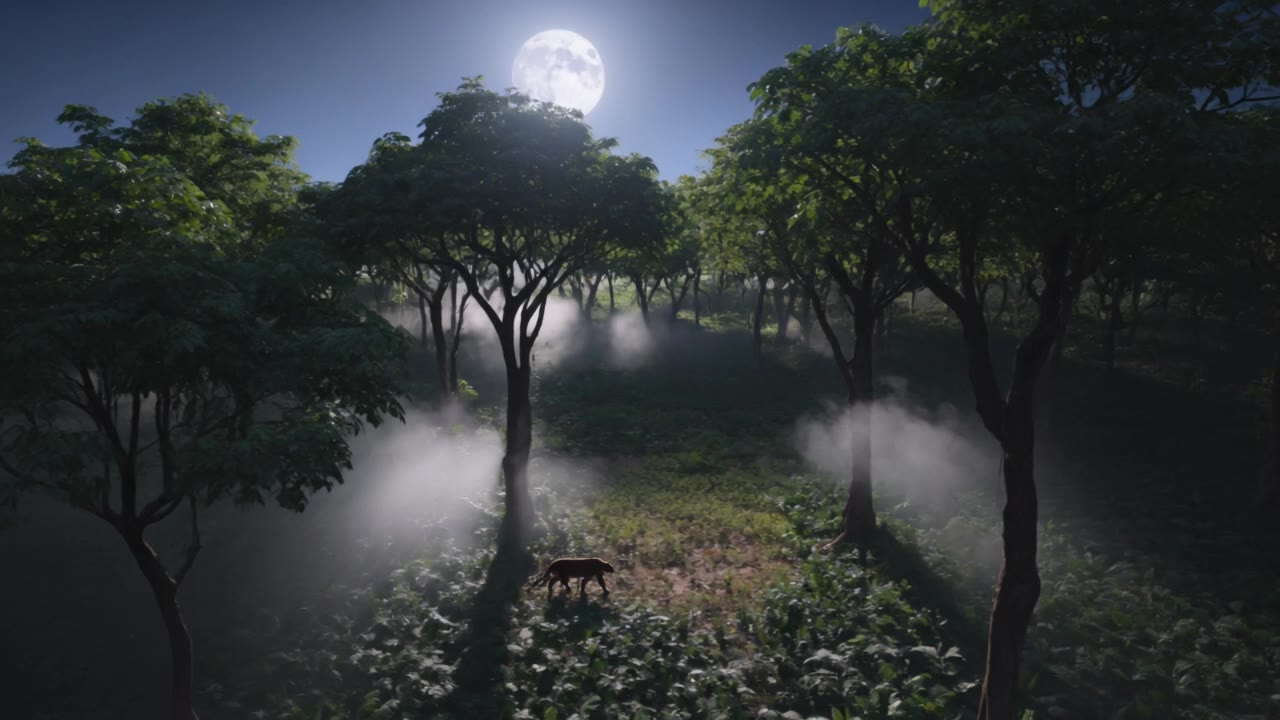
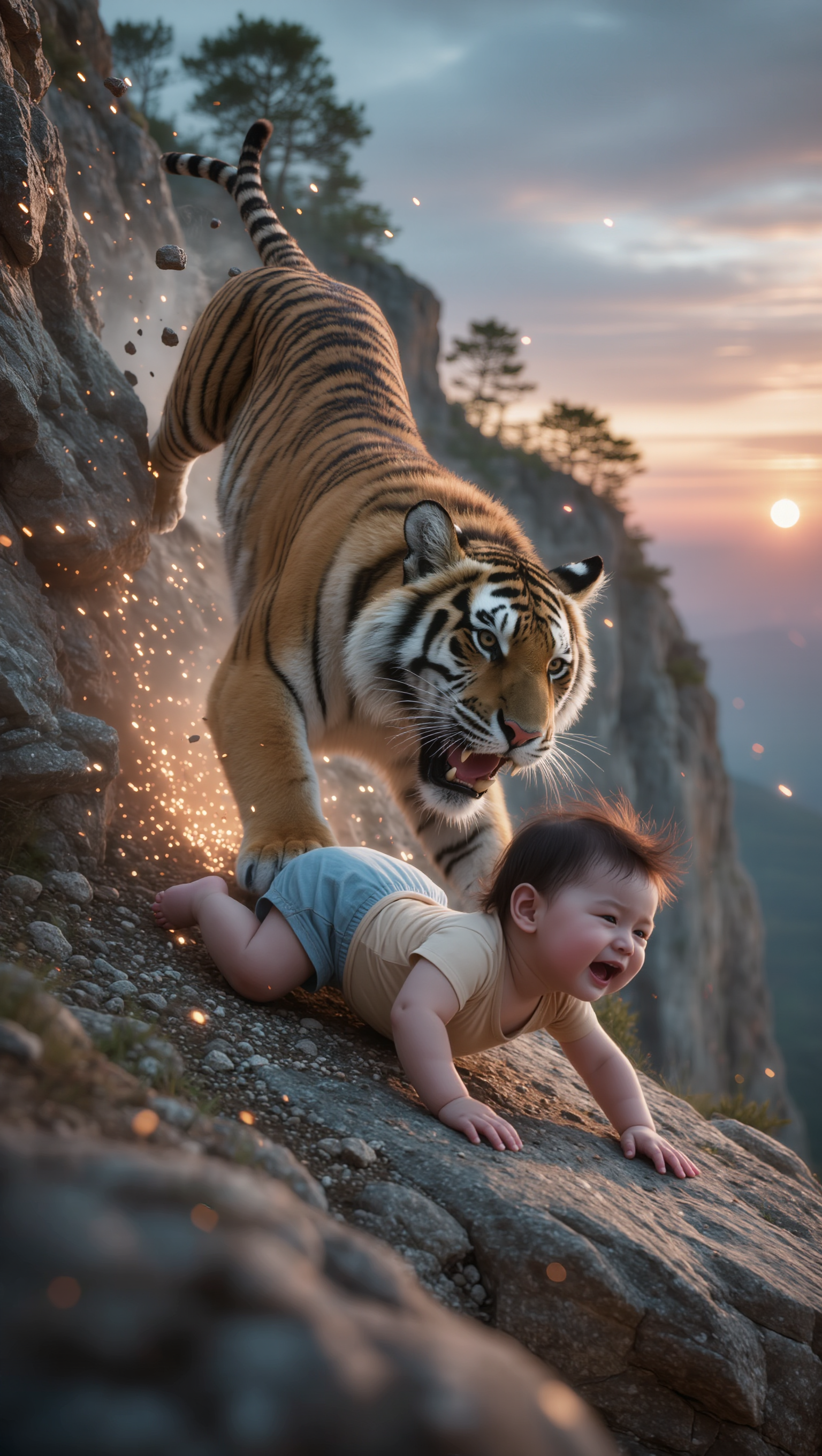
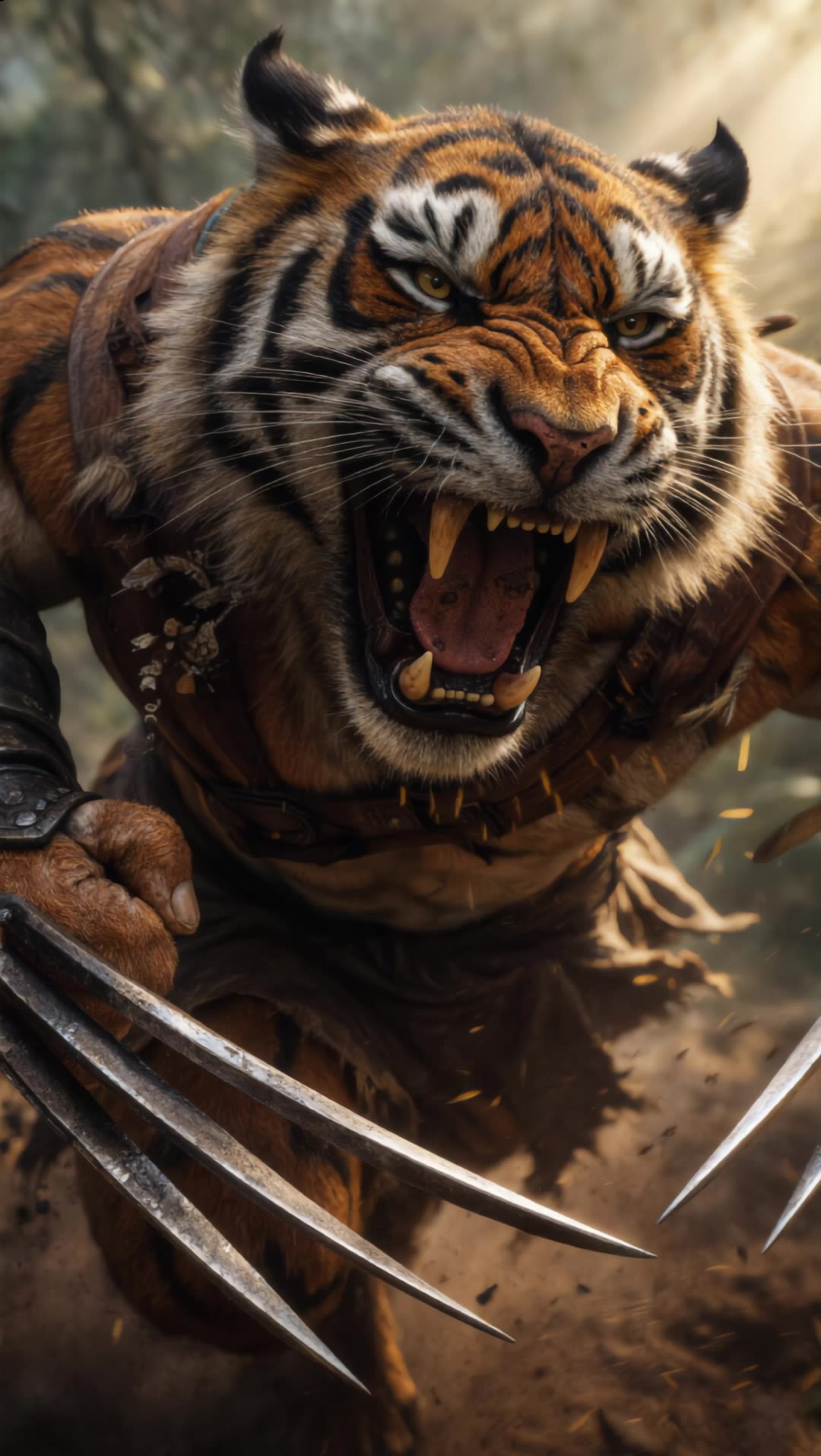
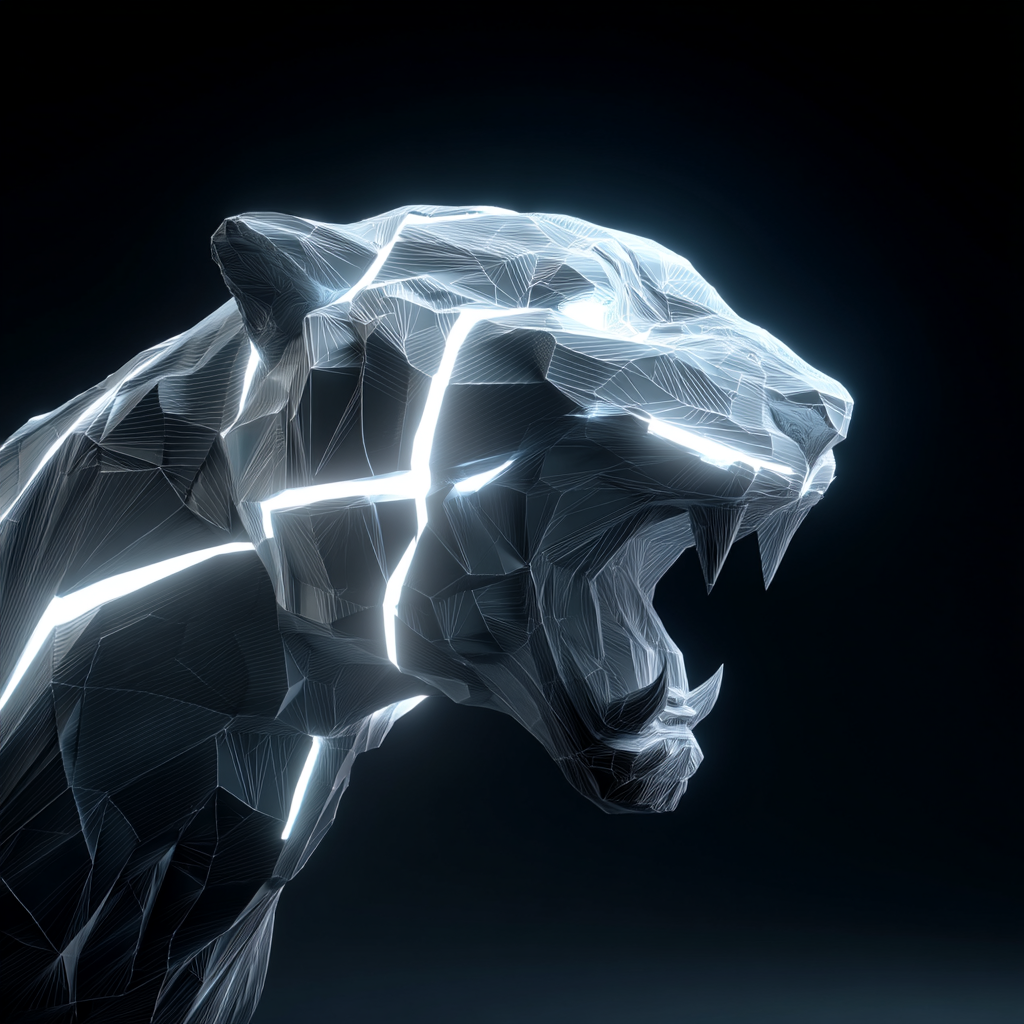
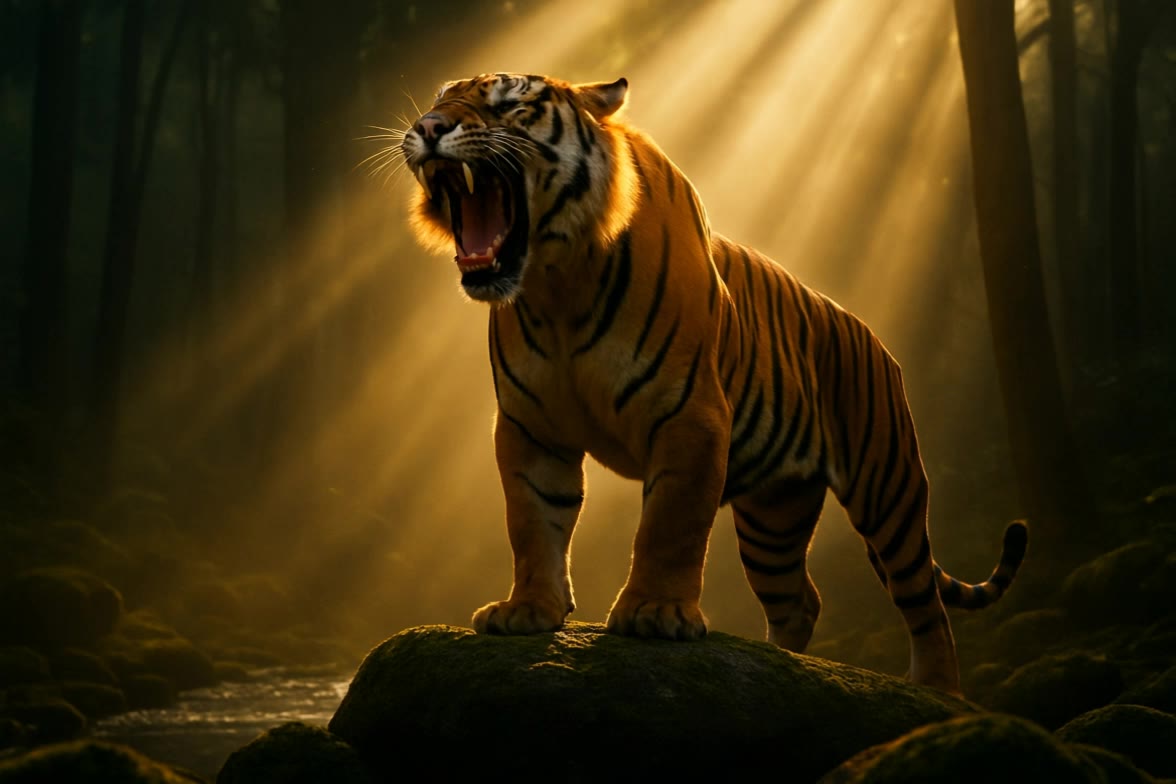
AI-generated tiger scene ideas – Wild inspirations

Discover AI-generated tiger scene ideas. Explore wild inspirations quickly and easily. Customize these AI-made visuals to fit your creative projects.
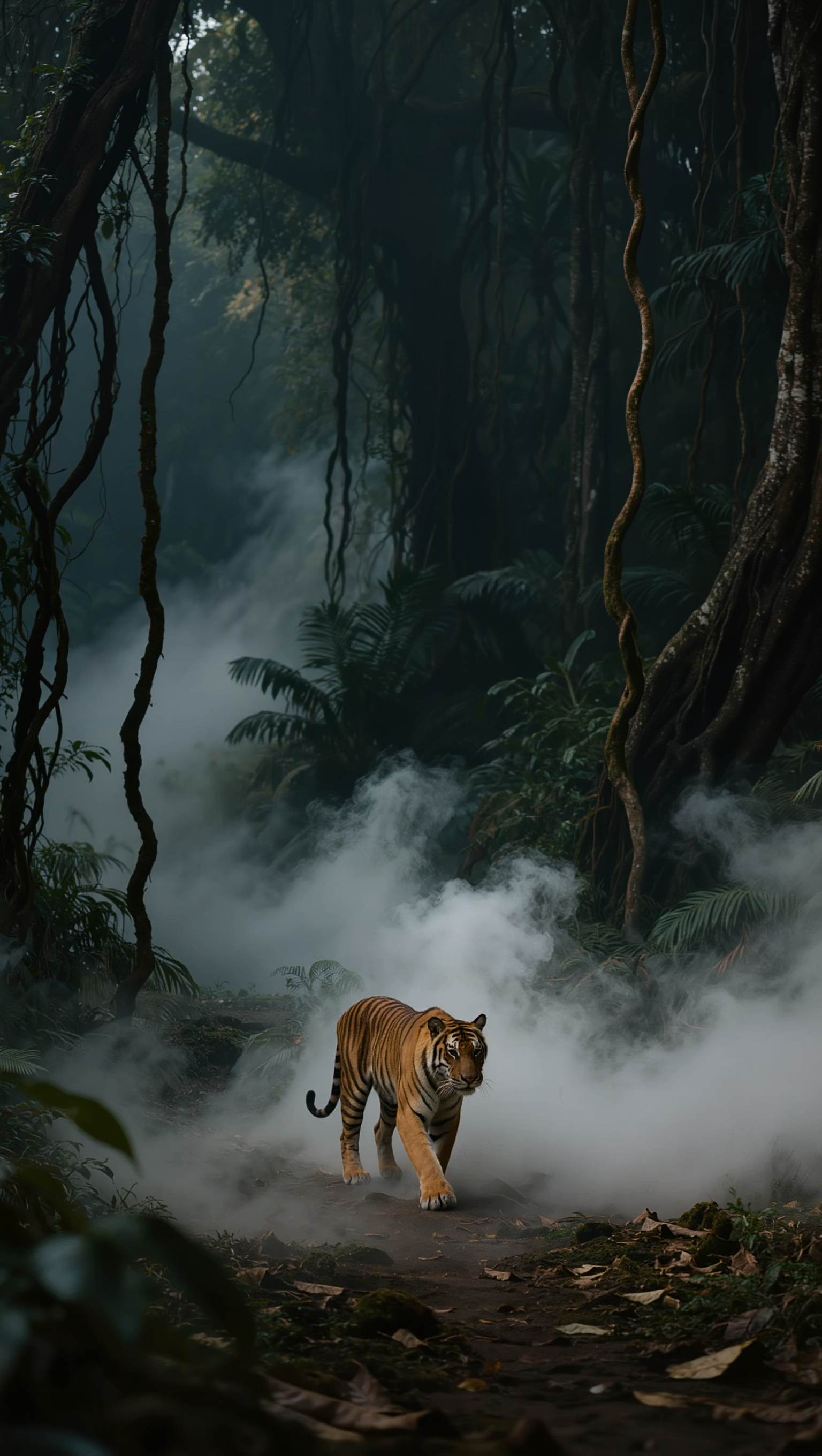
AI-generated tiger scene ideas – Wild inspirations

Recommended

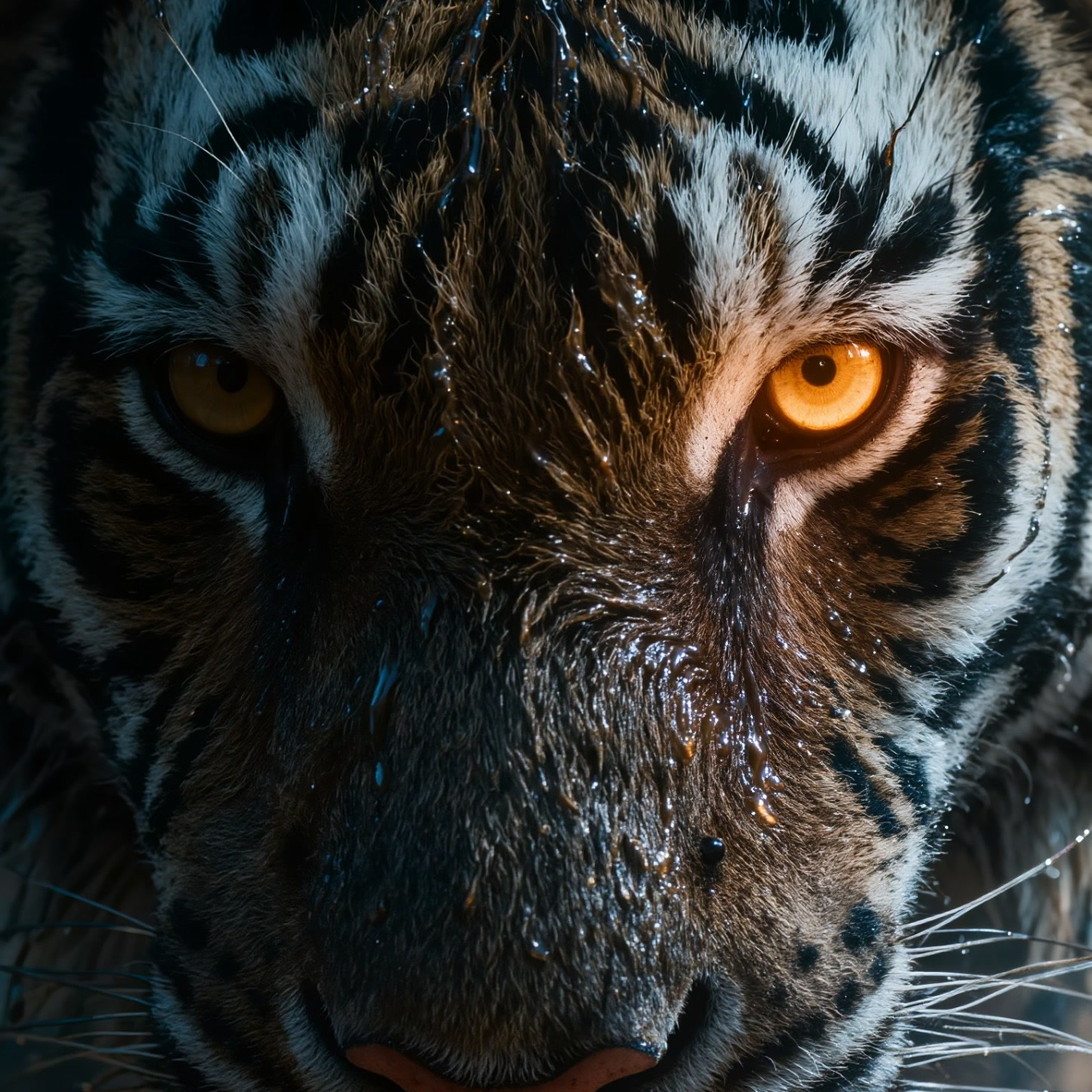
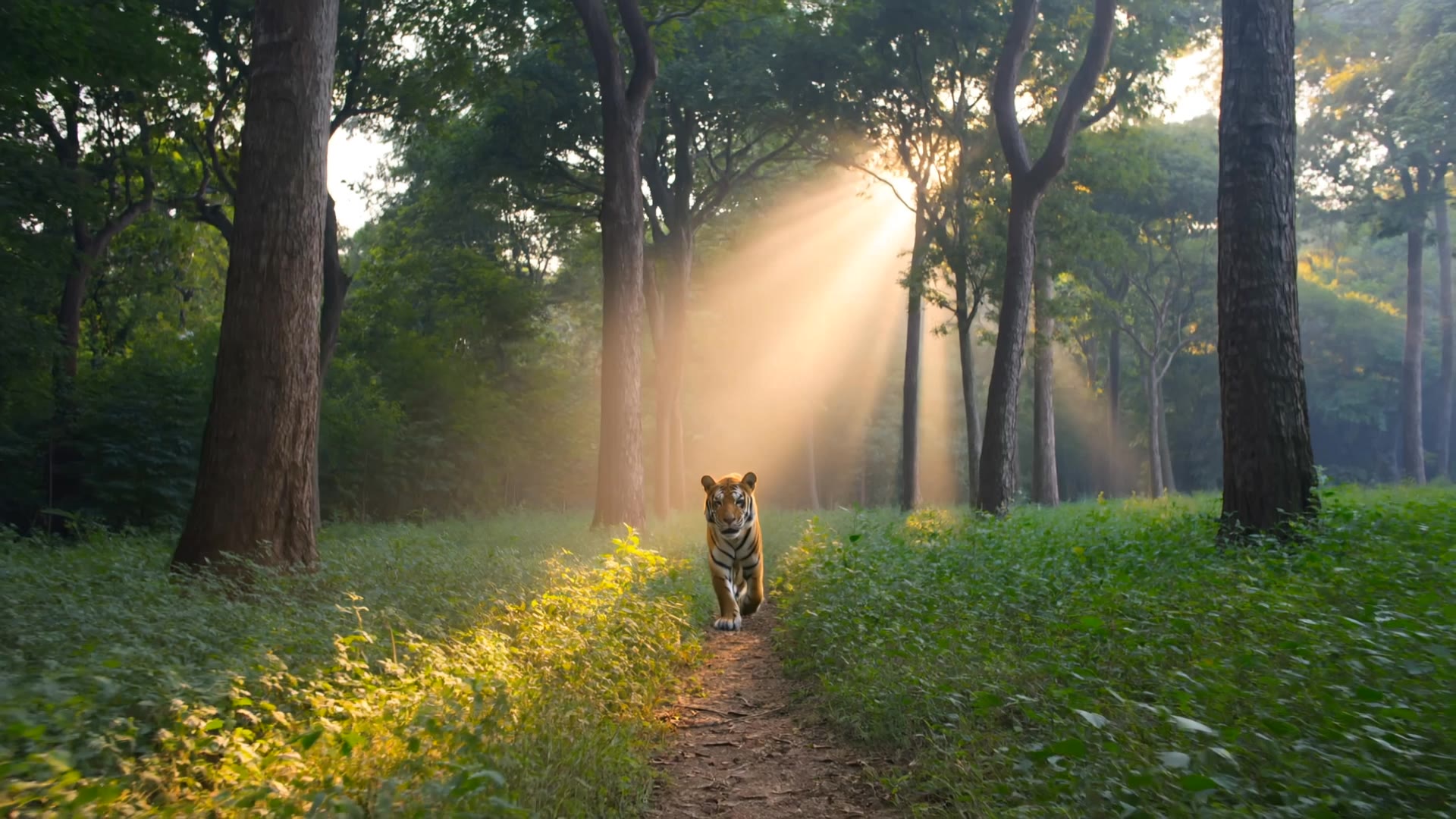
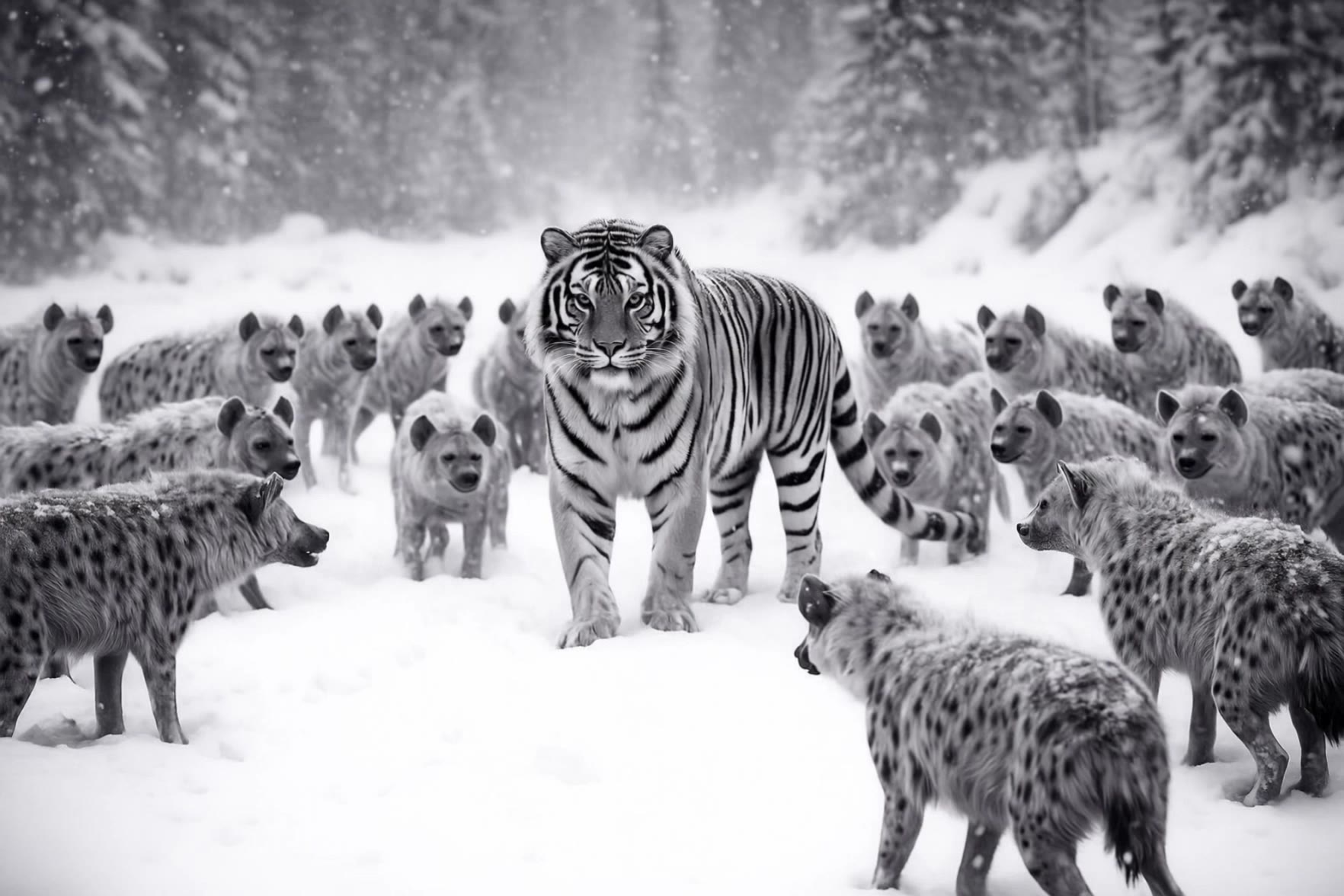
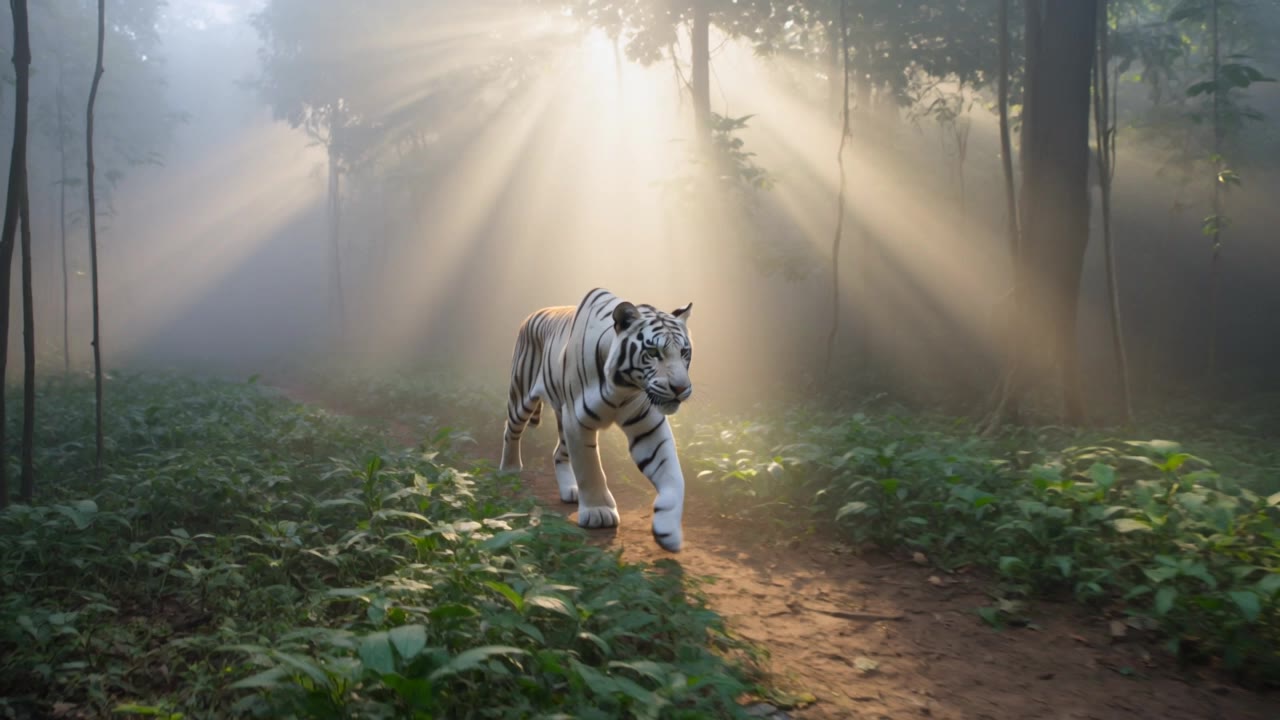
The Majesty of a white tiger. - tiger scene AI video
ZooLandia avatar
ZooLandia
Elite Creator
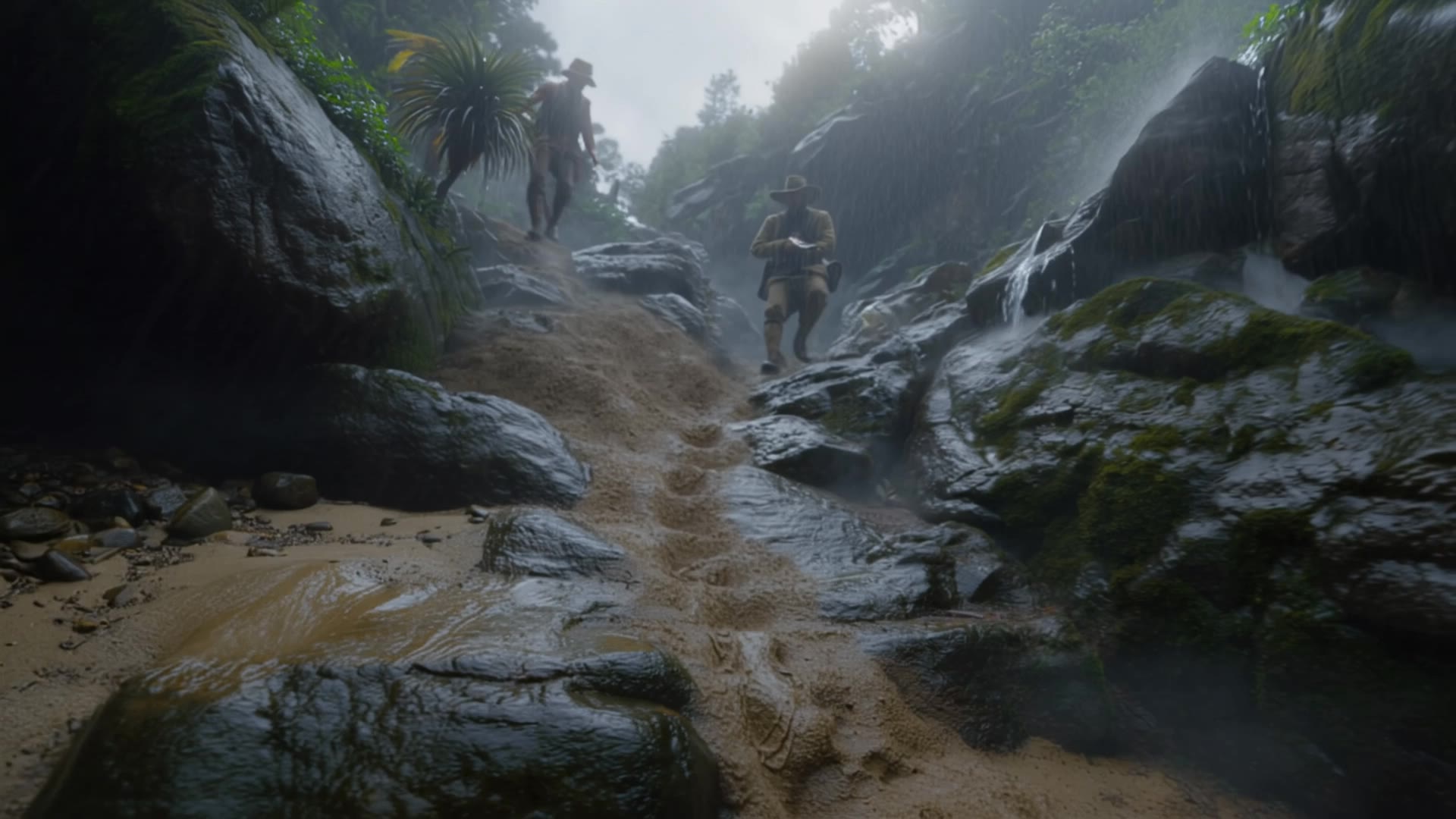
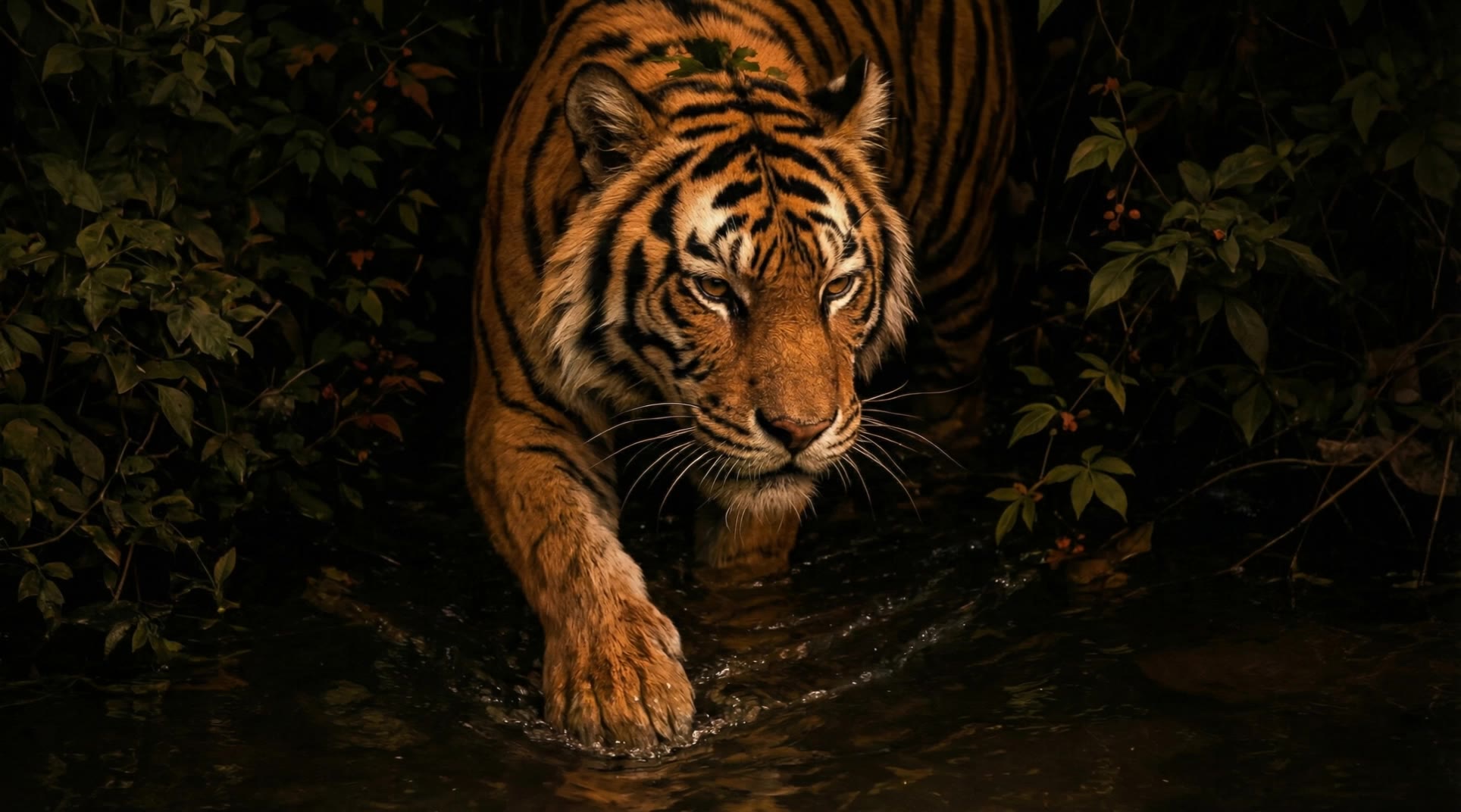
Tiger on the Prowl - tiger scene AI video
JasonGandyAI avatar
JasonGandyAI
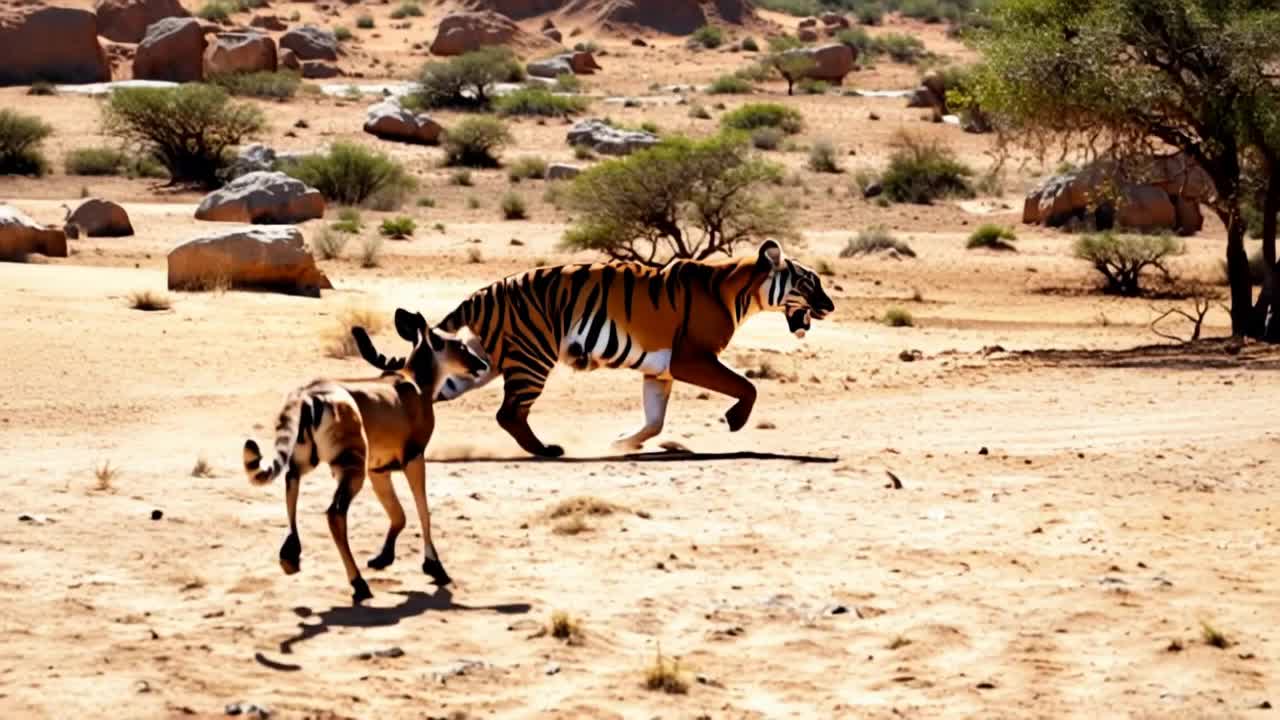
Kling AI work 289676333500775 - tiger scene AI video
shift.code.ai avatar
shift.code.ai
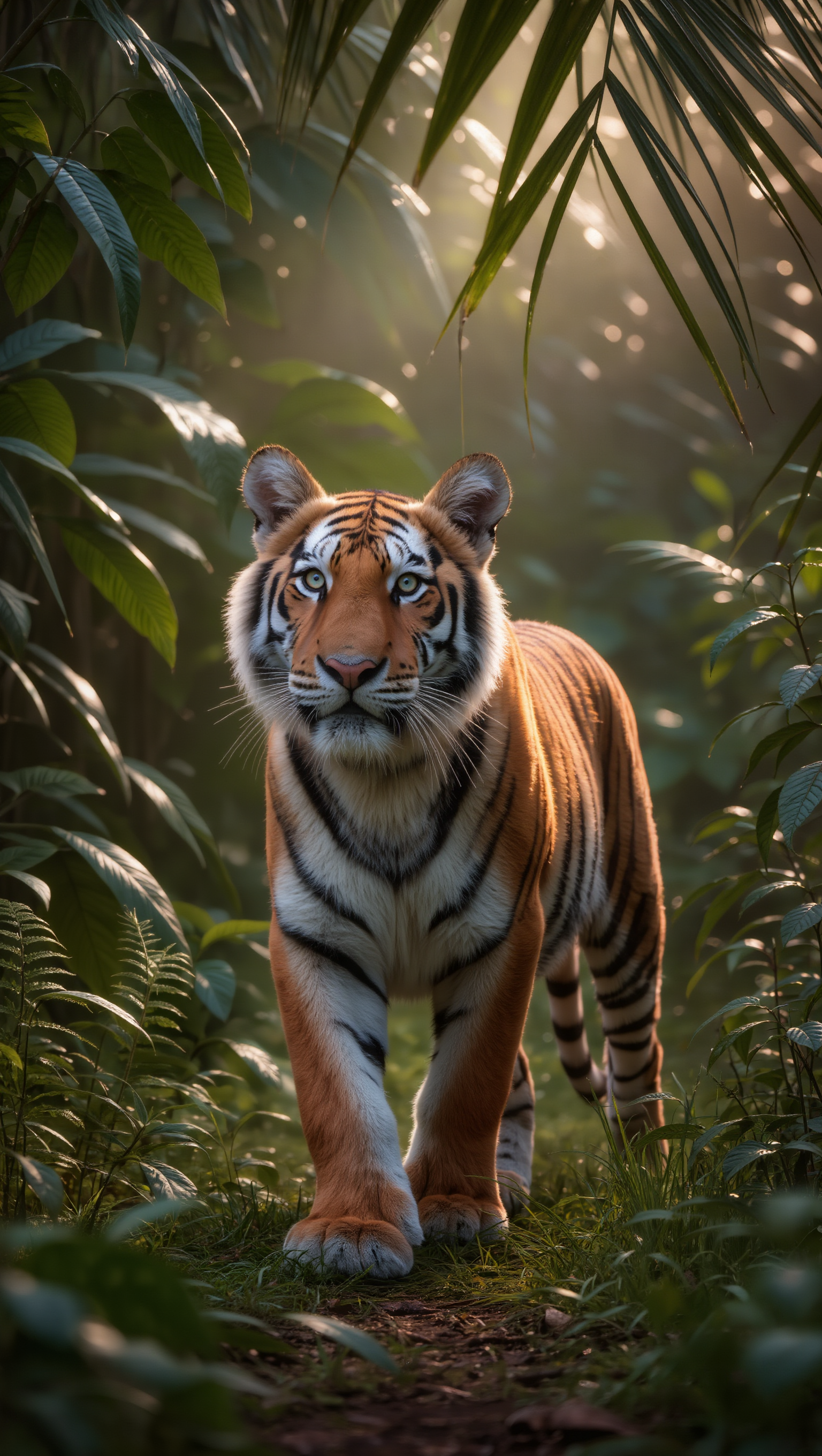
Kling AI work 295806533660265 - tiger scene AI image
Creater avatar
Creater
Kling AI work 311278695507305 - tiger scene AI video
fTKZIaof avatar
fTKZIaof
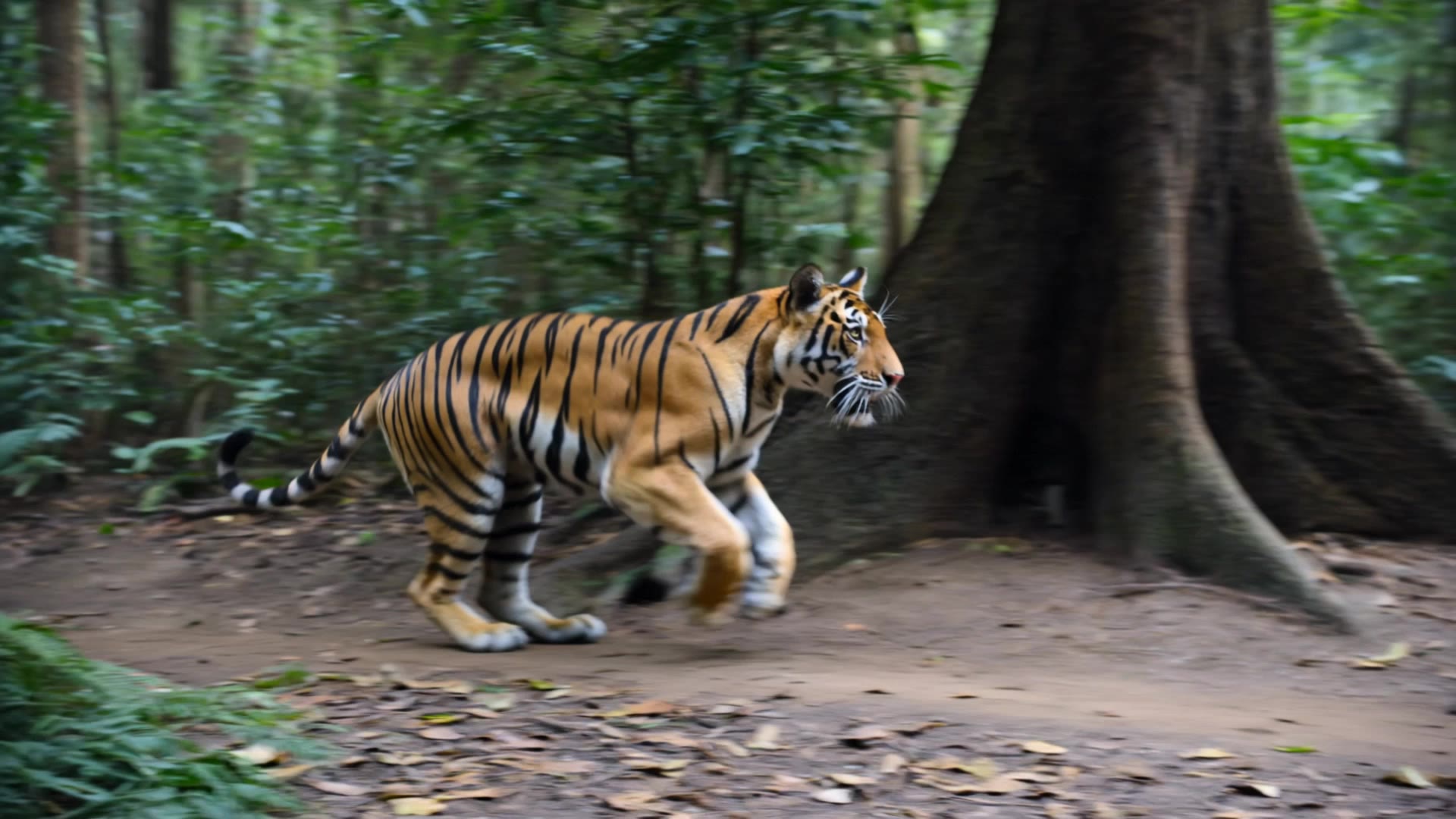
majestic tiger - tiger scene AI video
Maks_AI_Creator avatar
Maks_AI_Creator
Elite Creator
tiger - tiger scene AI video
I Am Frequency avatar
I Am Frequency
Kling AI work 289796076617566 - tiger scene AI video
shift.code.ai avatar
shift.code.ai
majestic briliant tiger - tiger scene AI video
Maks_AI_Creator avatar
Maks_AI_Creator
Elite Creator
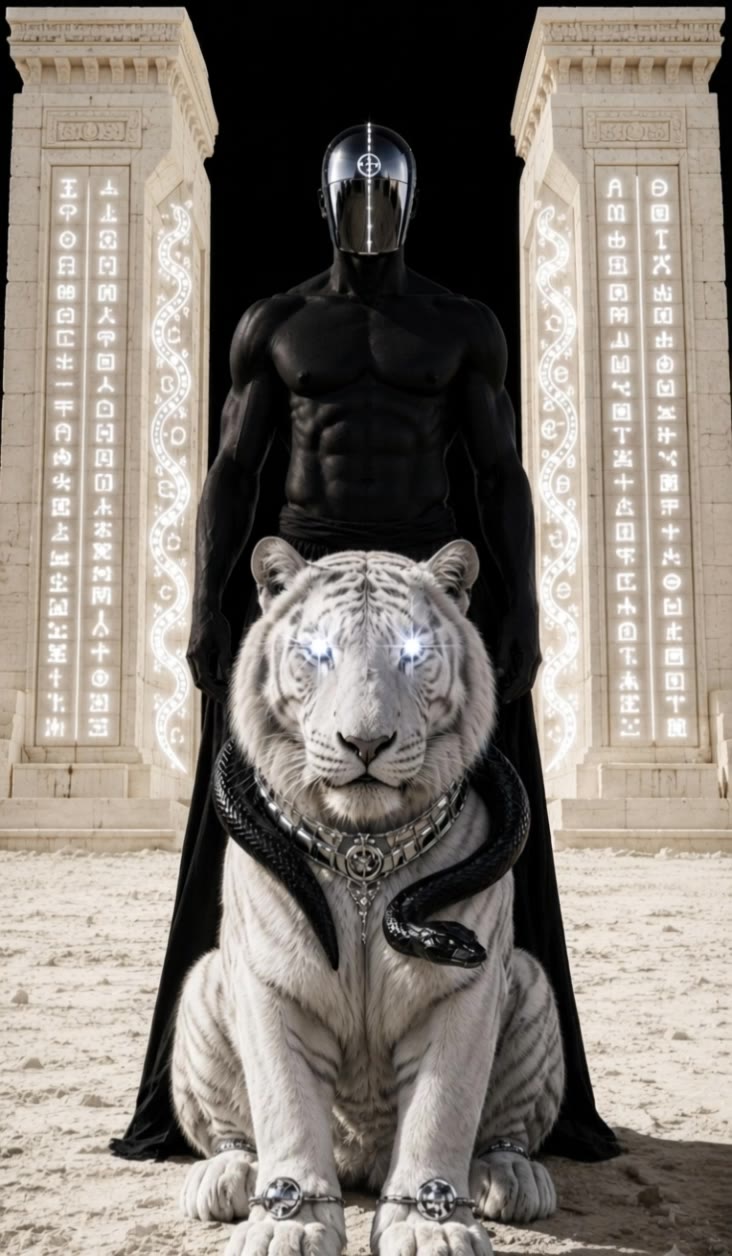
Anubis and white tiger - tiger scene AI video
KLING6928 avatar
KLING6928
Tiger warrior cinematic - tiger scene AI video
UN_RE_AI_vision avatar
UN_RE_AI_vision
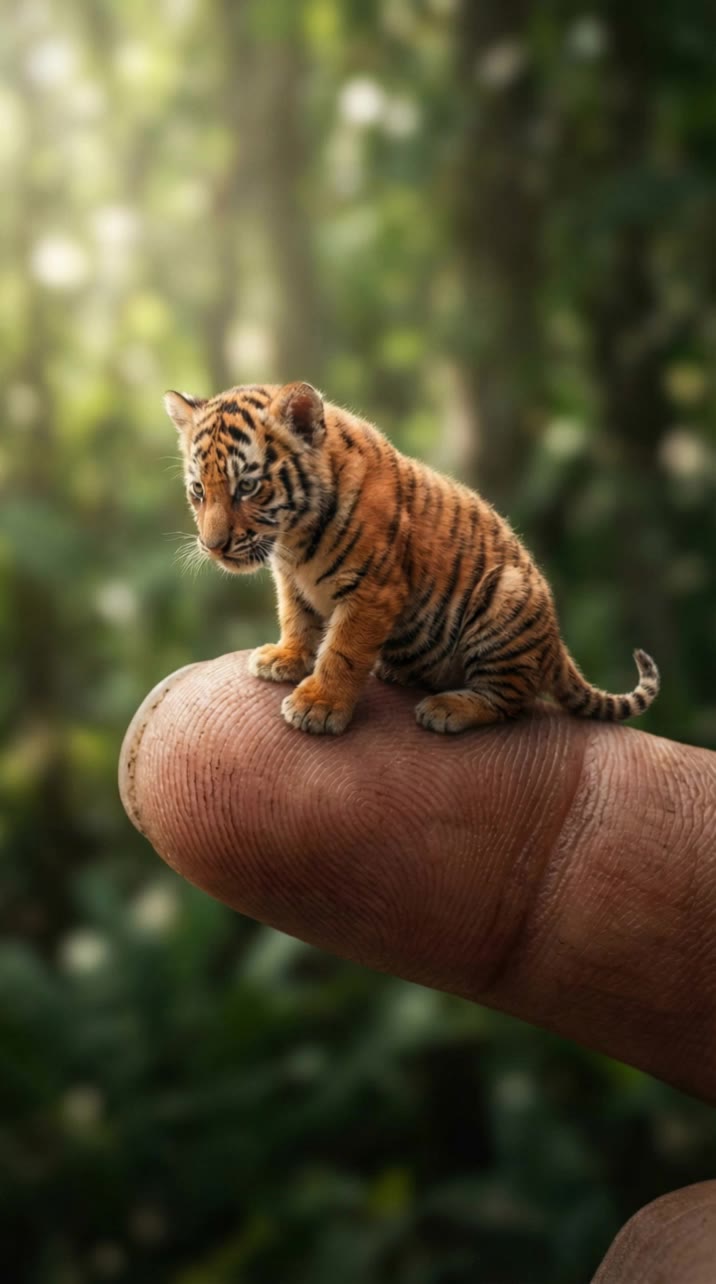
tiny tiger - tiger scene AI video
xaSRQRpb avatar
xaSRQRpb
Kling AI work 306143531651831 - tiger scene AI video
Adrian p avatar
Adrian p
Tiger Awakens 💛🖤 - tiger scene AI video
Ehab Raheem avatar
Ehab Raheem
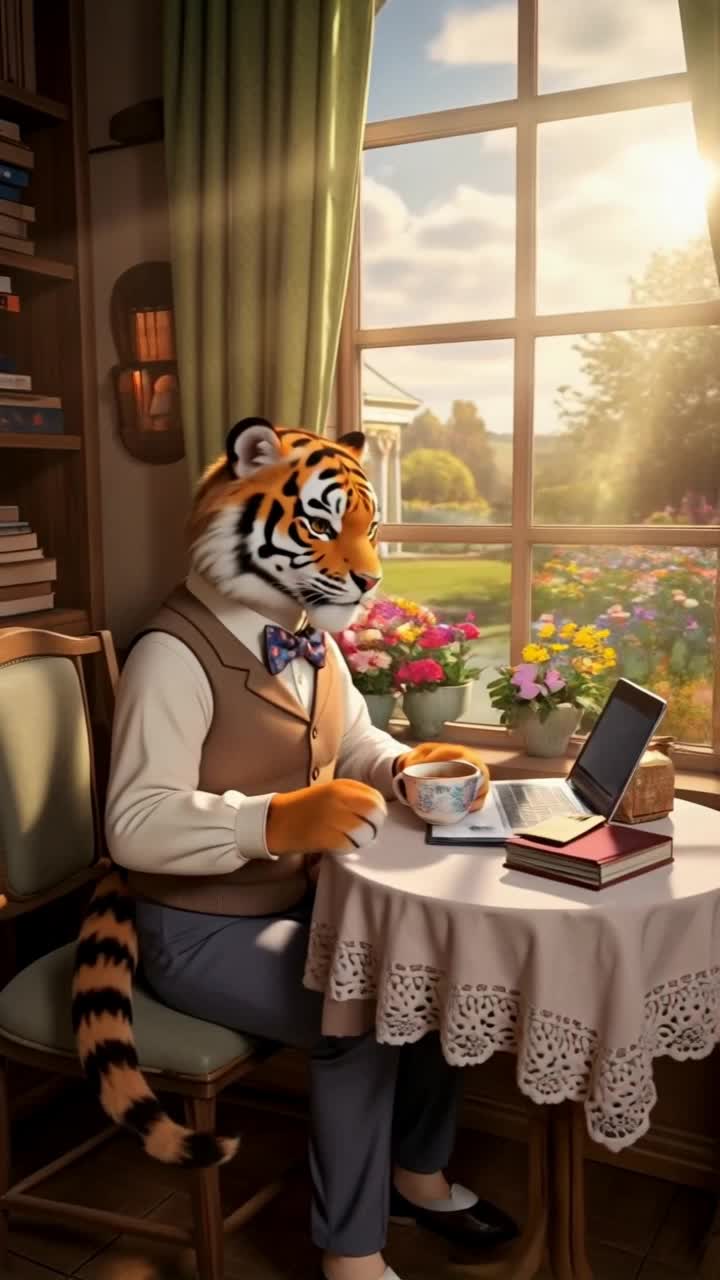
TIger man. - tiger scene AI video
ctrlaltdrama avatar
ctrlaltdrama
tiger - tiger scene AI image
yes kling avatar
yes kling
Kling AI work 309347103523281 - tiger scene AI image
nawtynetty avatar
nawtynetty
Tiger Test - tiger scene AI video
dIOkvNqc avatar
dIOkvNqc
Tiger Plane 🐯 - tiger scene AI video
Predmet_ai avatar
Predmet_ai
Creative Partner

How to Use Kling AI Text to Speech

Step 1: Enter the Video Generation Workspace

Step 1: Enter the Video Generation Workspace

Edit your prompt to set the scene, characters, and style, or upload a reference image to shape the look of your video.

Step 2: Add Dialogue and Speech Instructions

Step 2: Add Dialogue and Speech Instructions

Add dialogue to your prompt and clearly specify which character speaks each line. You can also describe the language or dialect, speaking pace, tone, and delivery style in the prompt to guide how each character sounds.

Step 3: Choose Your Settings and Generate

Step 3: Choose Your Settings and Generate

Choose your resolution (720p, 1080p, or 4K), video length (3–15 seconds), and aspect ratio (16:9, 9:16, or 1:1). Then click Generate to create your video.

Create Voices That Match Your Characters

Generate Character Voices Directly with the Video

Generate Character Voices Directly with the Video

Write the dialogue into your video prompt and let Kling generate the spoken performance together with the scene. Because voice, facial performance, mouth movement, visuals, ambience, and supporting sound are created in the same workflow, the dialogue feels connected to what the character is doing on screen rather than added as a separate layer afterward.

Create Dialogue Across Languages and Accents

Create Dialogue Across Languages and Accents

Create character voices in multiple languages, including English, Chinese, Japanese, Korean, and Spanish. You can also customize accents, dialects, and speaking styles to make characters sound more authentic for different regions, cultures, and story settings.

Keep a Character's Voice Consistent Across Scenes

Keep a Character's Voice Consistent Across Scenes

For recurring characters, Kling VIDEO 3.0 Omni lets you add voice to reusable Character Elements. A character can carry both recognizable visual traits and a connected voice into supported future generations. This makes it easier to build recurring presenters, fictional characters, or story leads that not only look familiar across scenes, but also keep a more consistent vocal identity.

Apps

Image to Video
Image to Video

Image to Video

Text to Video
Text to Video

Text to Video

Omni
Omni

Omni

Digital Human
Digital Human

Digital Human

Restyle
Restyle

Restyle

Text to Image
Text to Image

Text to Image

60M+
60M+
Users
600M+
600M+
AI Videos Generated
4.7 ★
4.7 ★
App Store
Industry-Leading
Industry-Leading
Cinematic 4K

Reviews

Huang Lu (Elson)

Huang Lu (Elson)

★★★★★

I’ve been using Kling AI since its initial release, and it’s remained one of the leading AI media generators ever since. With Kling AI, I’ve created hundreds of videos, collectively amassing millions of views.

Déborah

Déborah

★★★★★

I use Kling AI every day. It's amazing to see the almost daily progress it makes. I used AI for fun at first, and I now find that Kling AI's animations allow me to gain professional visibility, with three times more views on my animated posts than on my static posts.
Maria Rubtsova

Maria Rubtsova

★★★★★

I’m Maria Rubtsova, an AIGC digital artist passionate about creating stunning visuals in the worlds of fashion, aesthetics, and fantasy. I use KlingAi to bring imagination to life through video. My work is all about exploring beauty, emotion, and the limitless possibilities of digital art.

FAQ

Q1What is an AI watermark remover?
Q2Can I select a watermark manually instead of using a prompt?
Q3What types of watermarks can AI remove?

Remove Watermarks, Create Clean Visuals

Remove unwanted watermarks, logos, and distractions with Kling AI. Create cleaner visuals while keeping the important elements, style, and character that make your images unique.

Watermark Removal | Logo & Text Removal | 2K/4K output