
Creative Studio
API
Resources
Features
About Us
Download

AI-generated transition lipsync ideas – Explore smooth concepts

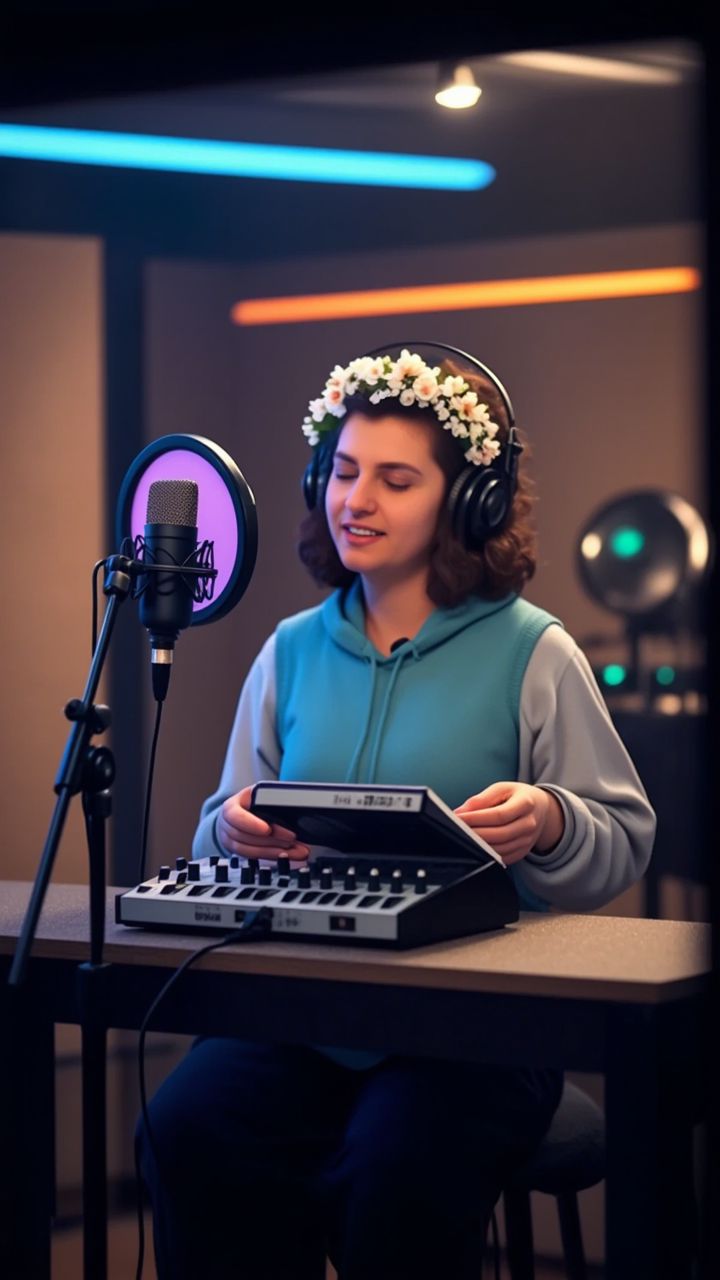
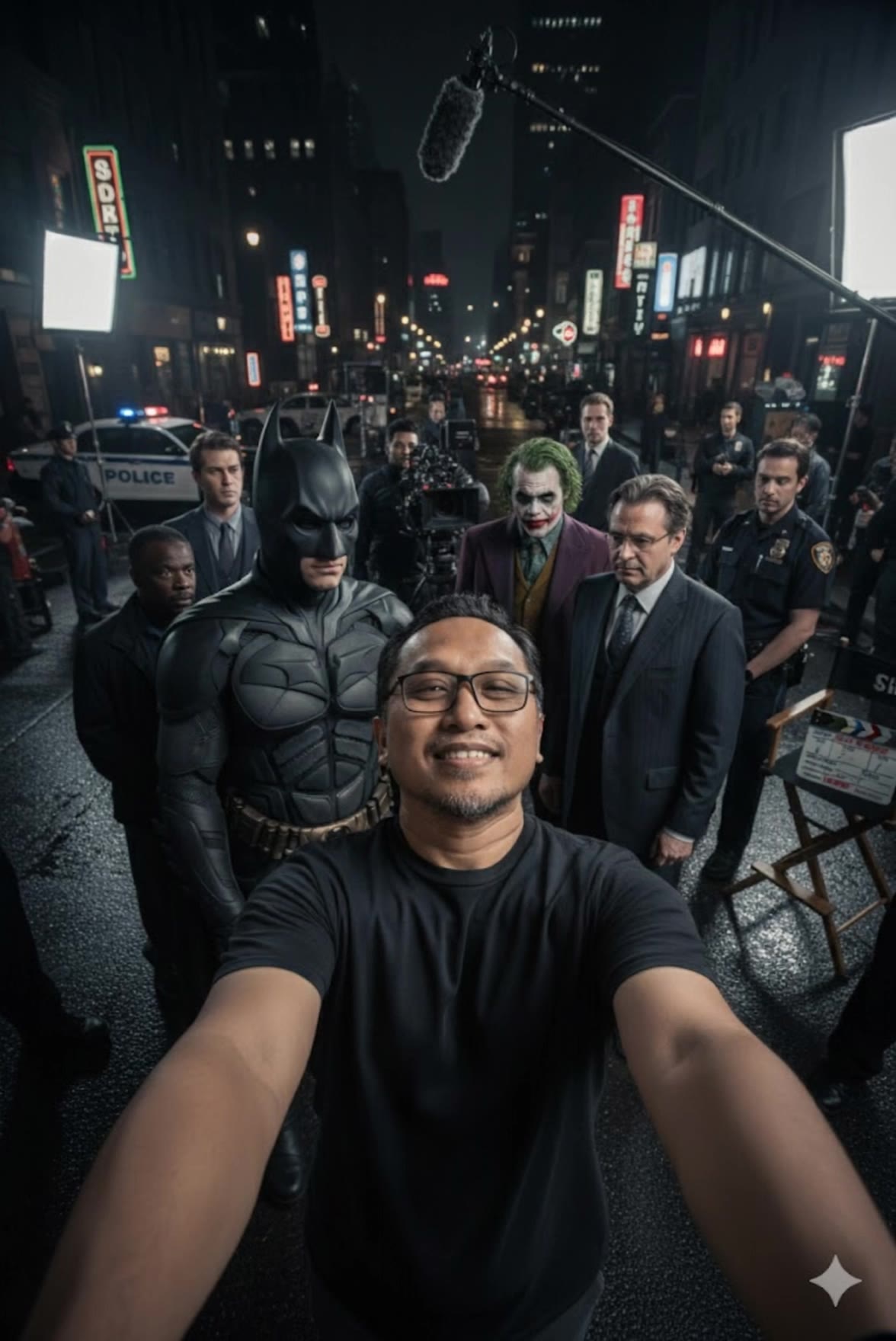
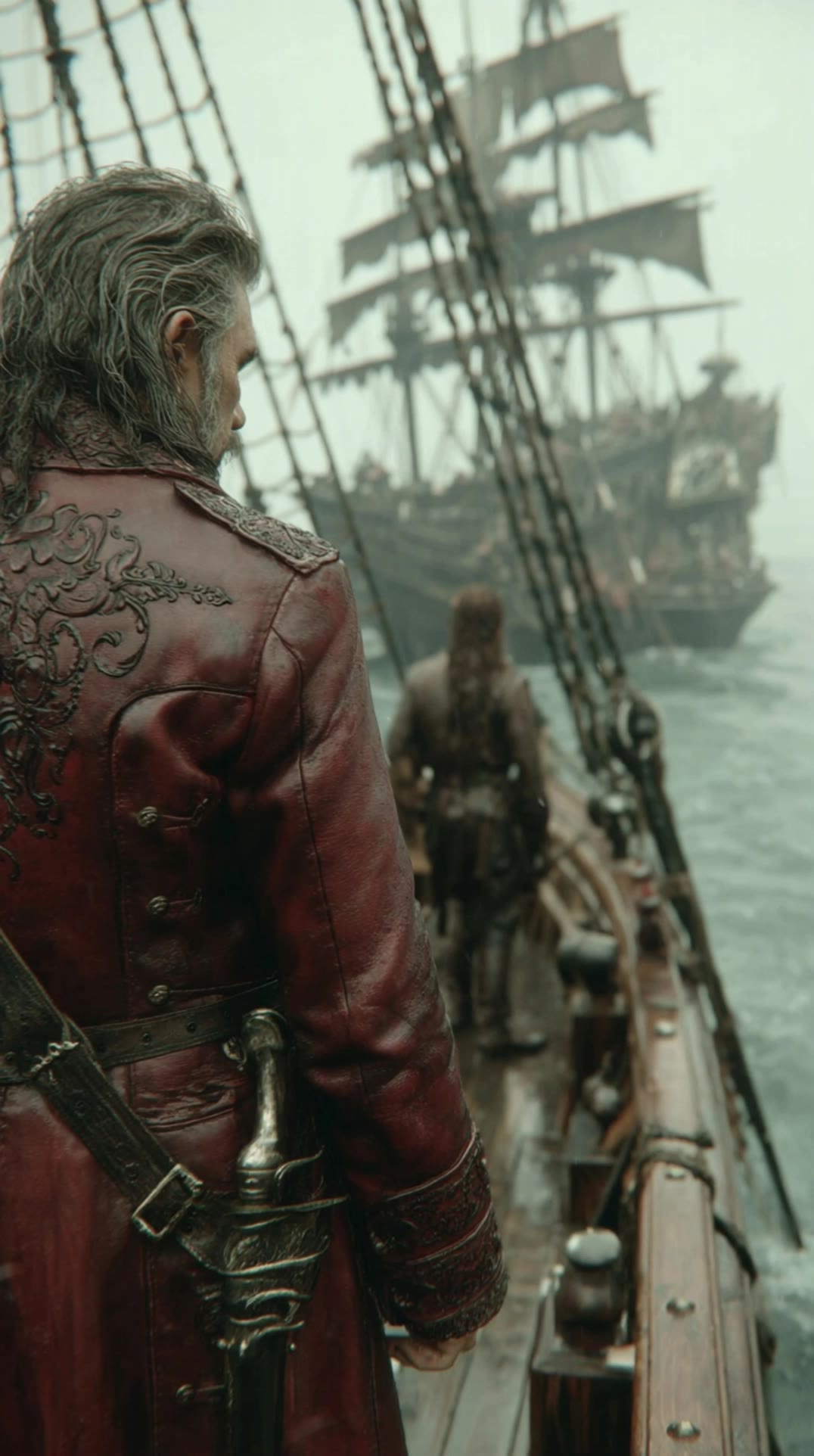
Transition lipsync ideas created with AI. Explore smooth and customizable concepts that can be adapted to your needs. AI helps you quickly explore different themes and styles.
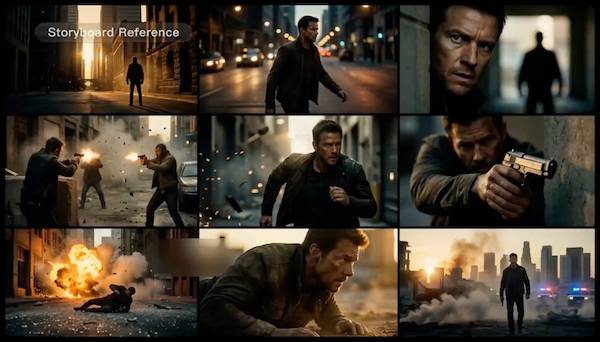
AI-generated transition lipsync ideas – Explore smooth concepts

Recommended

Kling AI work 314025682506009 - transition lipsync AI image
nAhYJkKb avatar
nAhYJkKb
Kling AI work 316216809611707 - transition lipsync AI video
yfKYYXUz avatar
yfKYYXUz
Nice transition - transition lipsync AI video
KLING9716 avatar
KLING9716
transition to another dimension - transition lipsync AI video
Whitefoxx1 avatar
Whitefoxx1
cinematic transition - transition lipsync AI video
xkoODRcJ avatar
xkoODRcJ
cinematic beach zoom transition - transition lipsync AI video
iRSigtEZ avatar
iRSigtEZ
fantasy transition - transition lipsync AI video
Maks_AI_Creator avatar
Maks_AI_Creator
Elite Creator
text for lip-sync in Greece - transition lipsync AI video
IoannisP_GR avatar
IoannisP_GR
podcast  galactic transition - transition lipsync AI video
QcIxkQMd avatar
QcIxkQMd
Kling AI work 314025682527012 - transition lipsync AI image
nAhYJkKb avatar
nAhYJkKb
transition - transition lipsync AI video
CKLadKUx avatar
CKLadKUx
SEAMLESS TRANSITION - transition lipsync AI video
QfjrIDkq avatar
QfjrIDkq
fantasy transition - transition lipsync AI video
Maks_AI_Creator avatar
Maks_AI_Creator
Elite Creator
Writing
Create a realistic anima - transition lipsync AI image
HFpYGnGE avatar
HFpYGnGE
CONCERT TRANSITION - transition lipsync AI video
wvhbSxqF avatar
wvhbSxqF
scene transition - transition lipsync AI video
Meeday avatar
Meeday
The transition of Dany  - transition lipsync AI video
Masias Xavier  avatar
Masias Xavier
Lip-sync Sample - transition lipsync AI video
POPONE avatar
POPONE
Elite Creator
Transition - transition lipsync AI video
Quân Nguyễn Editor avatar
Quân Nguyễn Editor

How to Generate AI Voices from Text with Kling AI

Step 1: Set Up Your Characters

Step 1: Set Up Your Characters

Start with a character in your prompt, or add a supported image, Character Element, or video reference when you already have a specific character in mind.

Step 2: Add Dialogue and Voice Direction

Step 2: Add Dialogue and Voice Direction

Write each character's dialogue and make the speaker clear in your prompt. Add directions for the language, accent, tone, emotion, or delivery when they matter to the scene. For scenes with multiple speakers, keep each character's name, line, and voice direction clearly connected.

Step 3: Generate Videos with Native Audio

Step 3: Generate Videos with Native Audio

Generate with Native Audio to create the dialogue as part of the video itself. Kling VIDEO 3.0 Omni produces voice, facial performance, lip movement, visuals, ambience, and supporting sound within the same generation.

Key Features of Kling AI Text-to-Image Generator

Create Detailed Images From Text Prompts

Create Detailed Images From Text Prompts

Turn your text descriptions into detailed images with Kling AI. Describe the subject, scene, style, and composition you want, and the model transforms your prompt into visuals that match your creative direction. Create realistic portraits, cinematic scenes, product visuals, and artistic images directly from text.
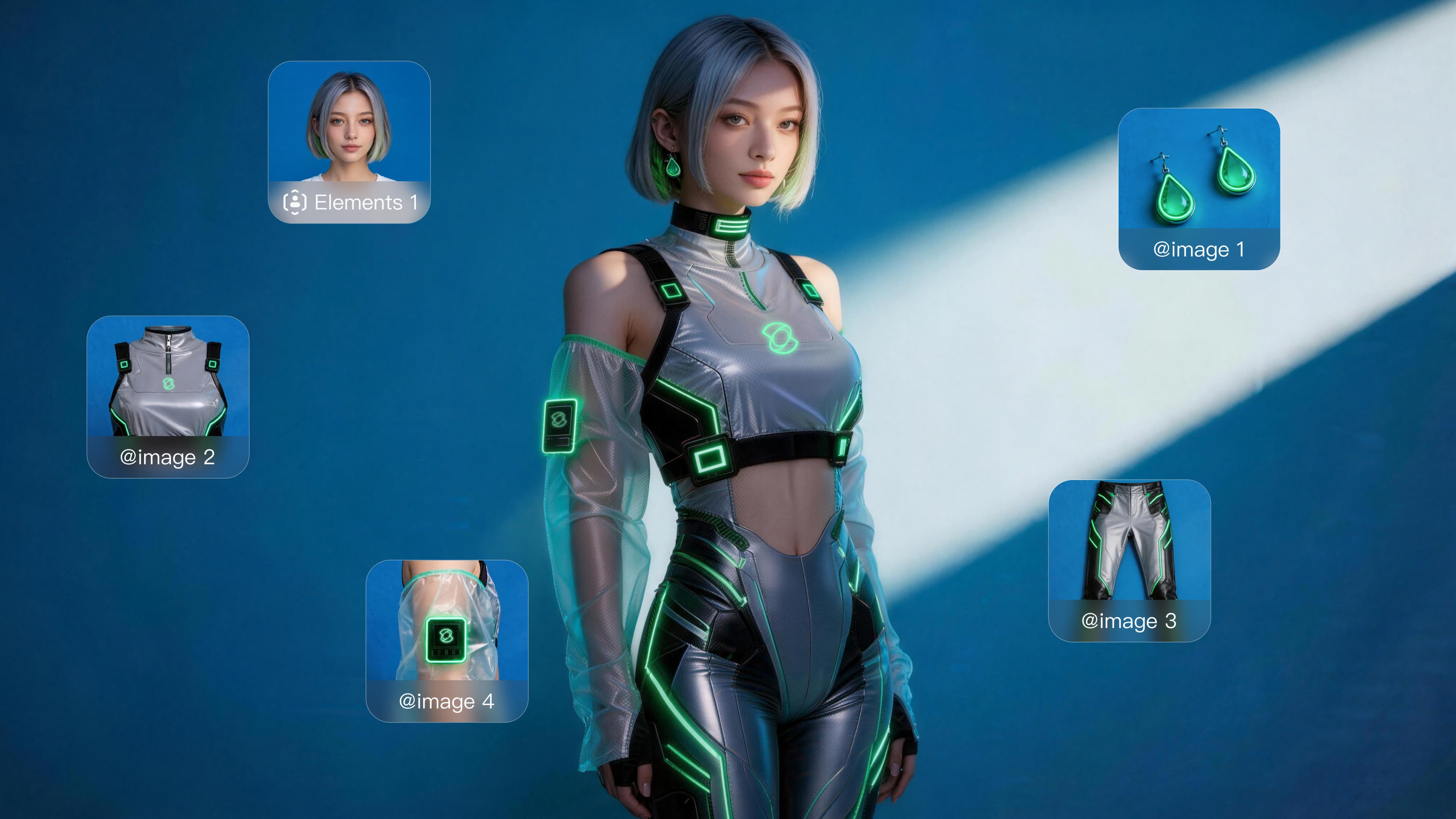
Keep Characters And Visual Elements Consistent

Keep Characters And Visual Elements Consistent

Create characters and visual concepts that remain consistent across different images. Kling IMAGE 3.0 uses reference images to preserve important details, including appearance, clothing, objects, and overall style. This makes it easier to create character designs, brand visuals, and image series with a consistent look.
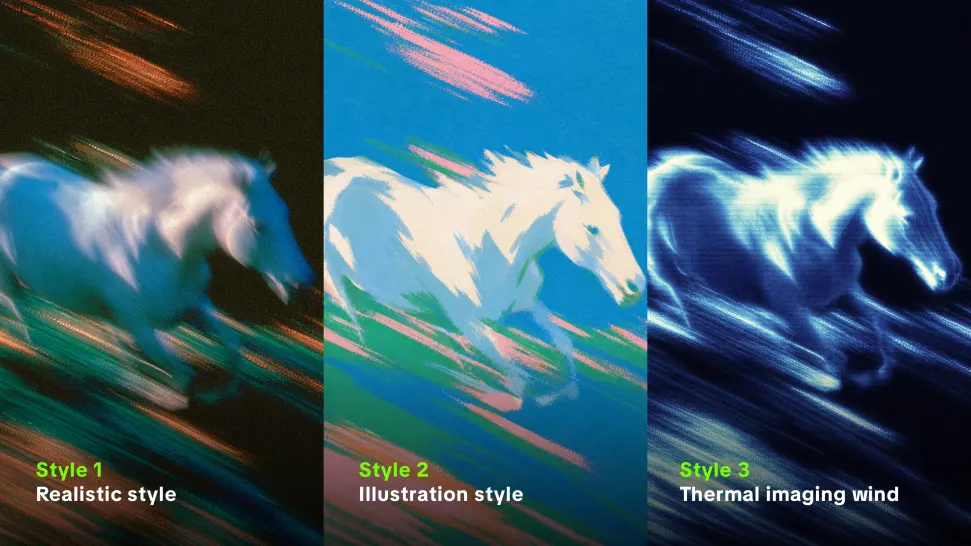
Explore Different Styles And Variations

Explore Different Styles And Variations

Explore different visual directions with prompts and reference images. Adjust composition, perspective, lighting, and style to create new variations while keeping the main concept consistent. This helps you test different ideas and develop visuals for artwork, marketing materials, and creative projects.
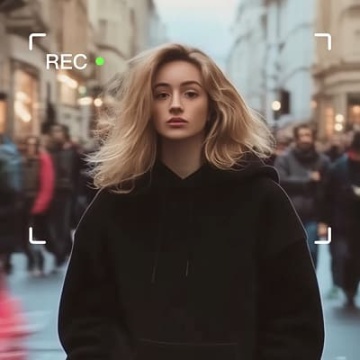
Apps

Image to Video
Image to Video

Image to Video

Text to Video
Text to Video

Text to Video

Omni
Omni

Omni

Digital Human
Digital Human

Digital Human

Restyle
Restyle

Restyle

Text to Image
Text to Image

Text to Image

60M+
60M+
Users
600M+
600M+
AI Videos Generated
4.7 ★
4.7 ★
App Store
Industry-Leading
Industry-Leading
Cinematic 4K

Reviews

Huang Lu (Elson)

Huang Lu (Elson)

★★★★★

I’ve been using Kling AI since its initial release, and it’s remained one of the leading AI media generators ever since. With Kling AI, I’ve created hundreds of videos, collectively amassing millions of views.
James Phillips

James Phillips

★★★★★

Kling AI has transformed my workflow by collapsing timelines and democratizing production. It’s shifted my mindset from resource-dependent filmmaking to a boundless creative sandbox, where experimentation yields unexpected beauty.
Halim Alrasihi

Halim Alrasihi

★★★★★

I use AI daily and Kling AI is a crucial part of my workflow, whether for client work or personal projects. What I love most about using Kling AI is that it provides all the tools I need in one place, from keyframes to character references, elements and special effects.

FAQ

Q1Does AI image extension work with complex backgrounds?
Q2What kind of prompt works best for AI image expansion?
Q3What is an AI image extender?

Make Your Profile Picture Stand Out

Start with the photo you already have and turn it into something you feel better putting your name next to. Keep it professional, make it more personal, or give it a completely different mood—the final look is yours to shape.