AI-generated Vegeta desktop wallpaper ideas – quick and customizable
Browse AI-generated Vegeta desktop wallpaper ideas. Get quick and customizable designs with AI help. Ideal for fans of the character.
Browse AI-generated Vegeta desktop wallpaper ideas. Get quick and customizable designs with AI help. Ideal for fans of the character.


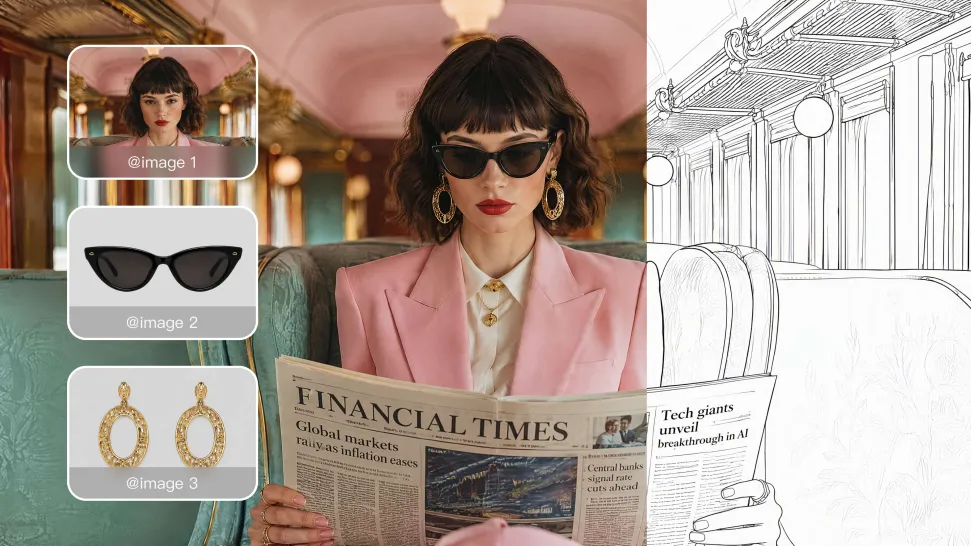
Start with words, a sketch, a photo, or the references that already capture part of your idea. IMAGE 3.0 can use up to 10 reference images, so you can bring a character from one image, an outfit from another, and a different setting or art style into the same creation. Use references for the details you want to keep, then use your prompt to decide what changes.
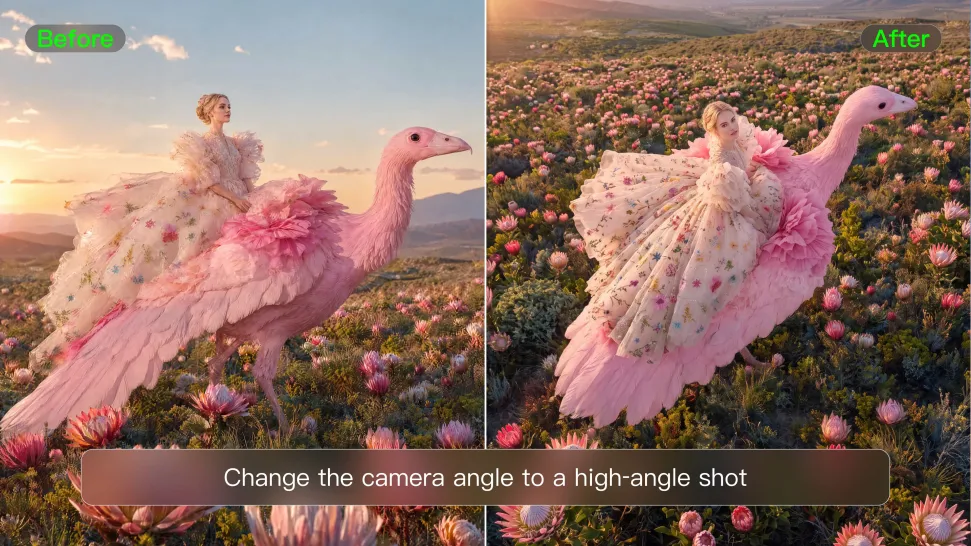
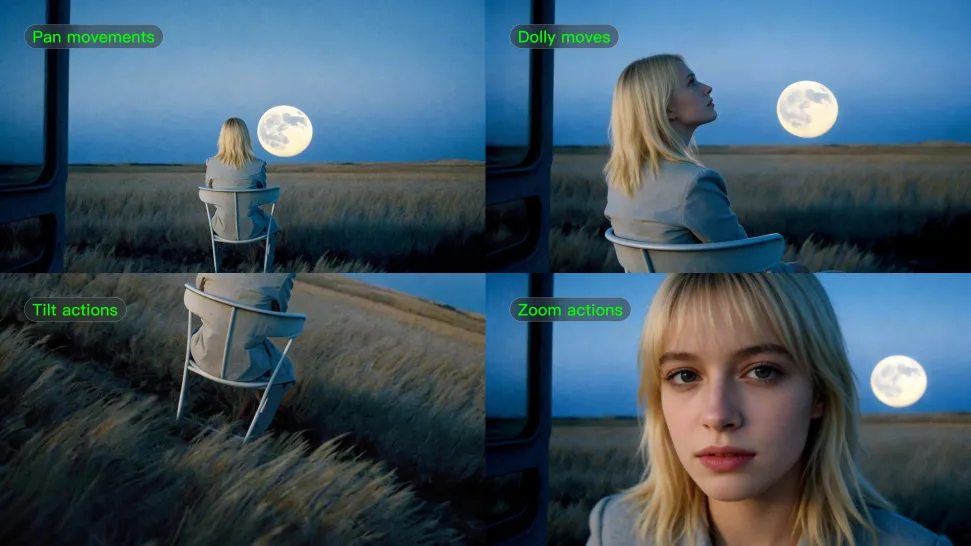
Create pencil drawings, watercolor paintings, anime art, comics, concept art, 3D-inspired images, and more. Try a completely different style, or fine-tune the one you already have. Kling AI also gives you control beyond the art style. Reframe the scene, shift the viewing angle, change the lighting or color palette, and keep refining the image until the whole piece comes together
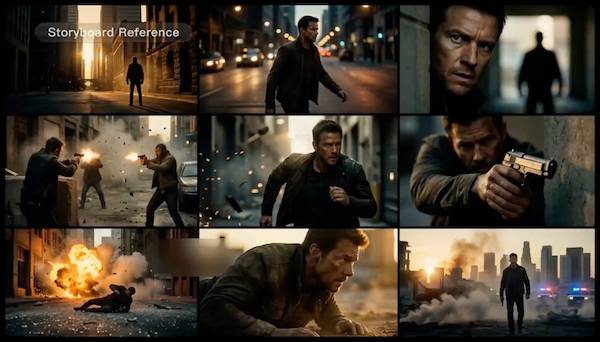
Keep a character, setting, or visual style recognizable across multiple pieces of artwork with IMAGE 3.0 Omni. Generate new poses, scenes, and compositions while keeping the details that tie the series together. It works especially well for character concepts, comics, storyboards, and other ideas that need to develop across several images. Generate in native 2K or 4K when you want more detail in the finished artwork.
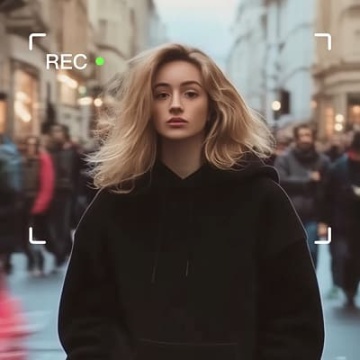

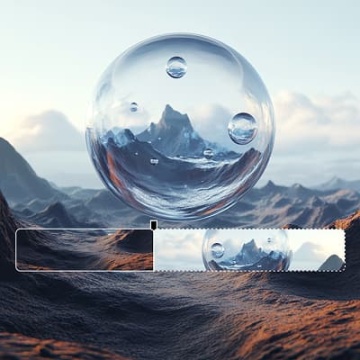



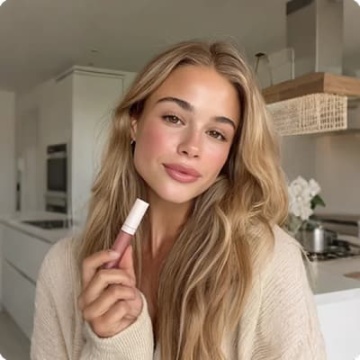

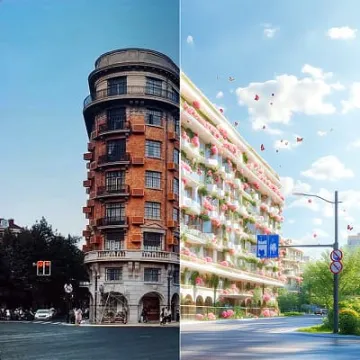

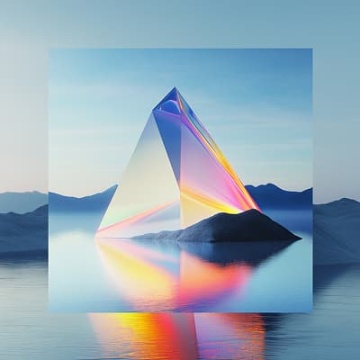





I’ve been using Kling AI since its initial release, and it’s remained one of the leading AI media generators ever since. With Kling AI, I’ve created hundreds of videos, collectively amassing millions of views.
Kling AI has made it easy for us to generate world class visuals for Fortune 500 companies, TV shows and music for big artists. We love the easy of use of the platform and the quality of the generations. My first time using Kling AI, I got 22 million views on just one video. It's that good.
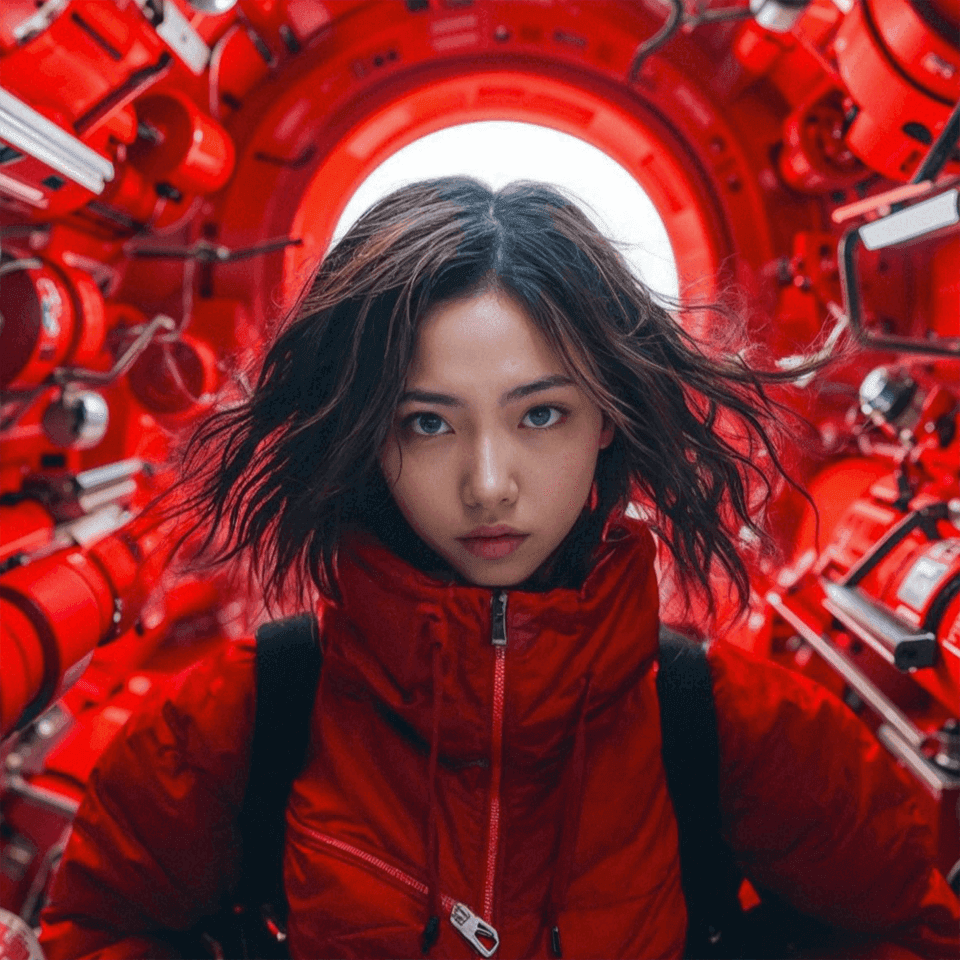
I have successfully collaborated with world-renowned artists and well-known companies that are recognized globally
Remove the background you do not want or move existing footage into a new scene - without rebuilding the shot frame by frame.