Vegeta KlingAI Wallpaper – Superhero AI Art
Dive into Superhero Vegeta KlingAI wallpapers. AI art offers quick, customizable designs for fans. Choose your favorite and showcase your love for the Prince of Saiyans.
Dive into Superhero Vegeta KlingAI wallpapers. AI art offers quick, customizable designs for fans. Choose your favorite and showcase your love for the Prince of Saiyans.
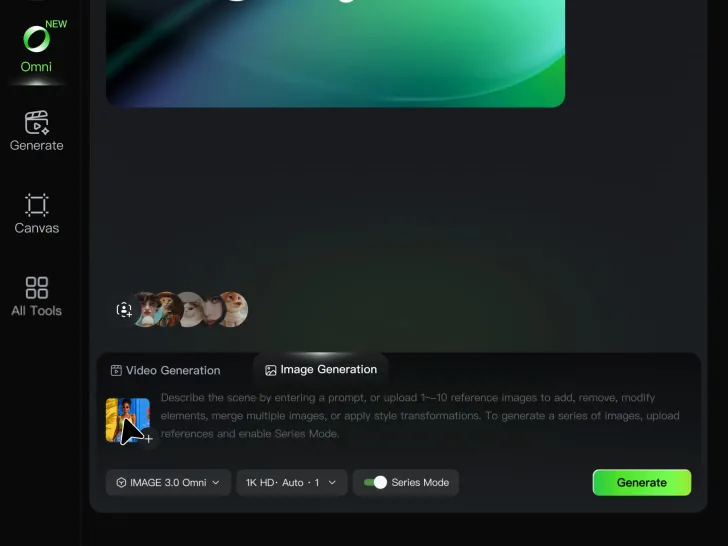
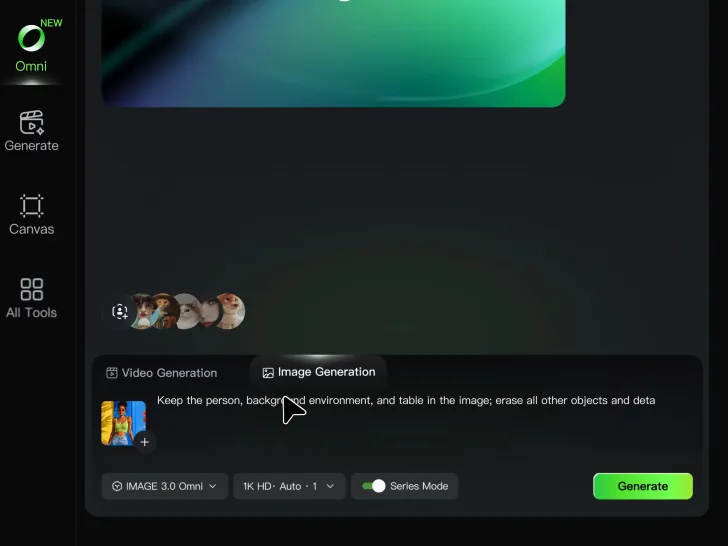
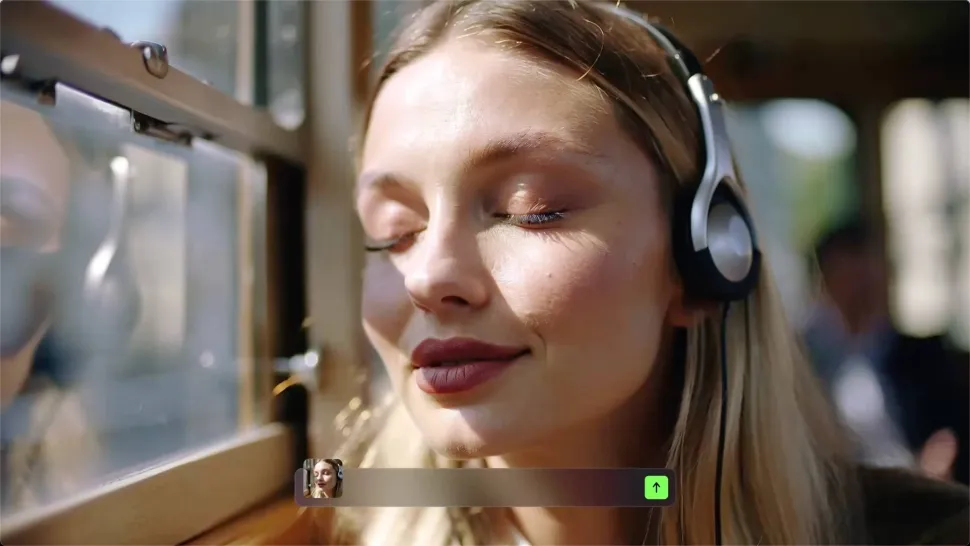
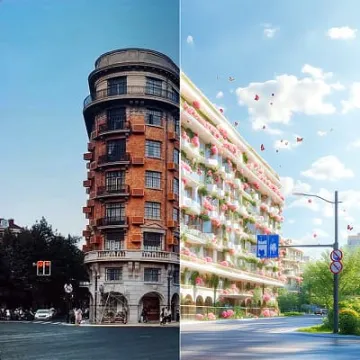
Keep what works and change what does not. Replace a character or product, update an outfit, remove a distraction, or move the action into a different setting. You can also change the weather, lighting, time of day, or overall look. With Kling VIDEO 3.0 Omni, you can start with a prompt and add a reference image when a face, product, or branded detail needs a closer match.
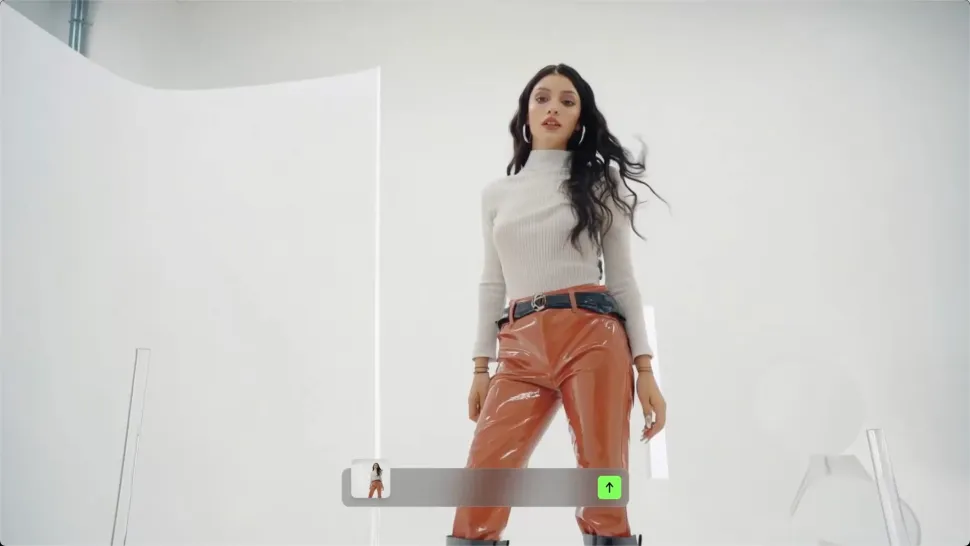
Keep the original action, then change how the moment is framed. Move in for a close-up, open to a wider view, shift the angle, or rebalance the composition around the subject. The source footage keeps the motion and scene context in place while your prompt sets the new framing.
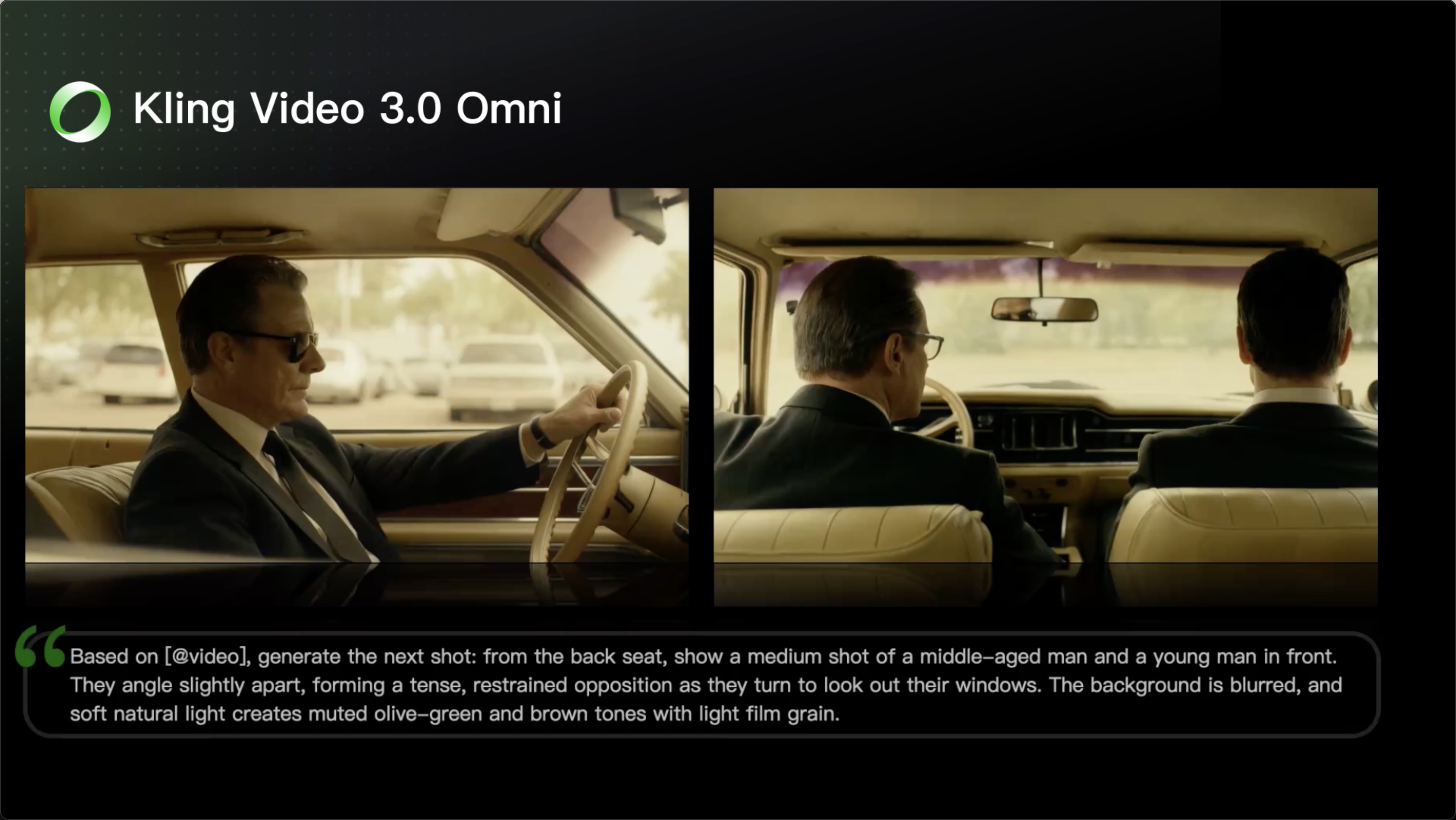
Continue a clip beyond its current ending without building the next scene from scratch. Kling carries the subject, motion, and setting into the new footage; add a prompt when you want to steer what happens next. Use Video Extension when a clip ends too soon, an action needs more time, or the next beat is still missing.
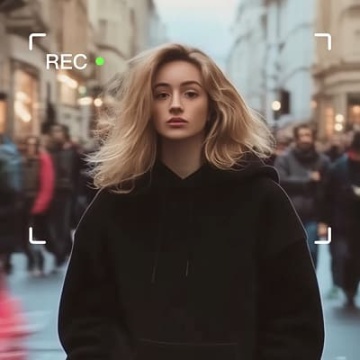

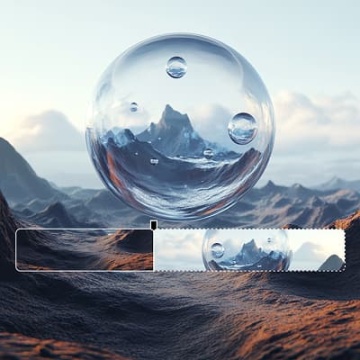



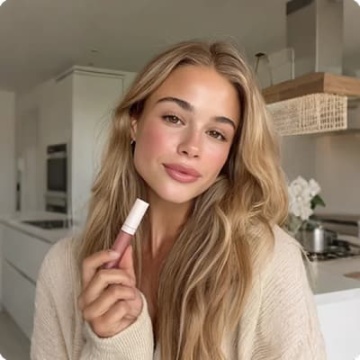


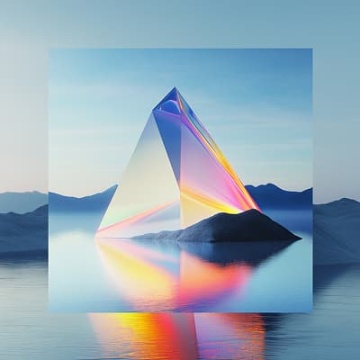






Kling AI has been instrumental in transforming my creative workflow, unlocking new dimensions of artistic expression that were once unimaginable. I use Kling AI extensively to develop high-concept visuals, animate surreal dreamscapes, and create AI-assisted films that blur the line between reality and fantasy. Kling AI’s deep learning capabilities have not only enhanced my creative efficiency but also inspired me to explore storytelling in ways I never thought possible.
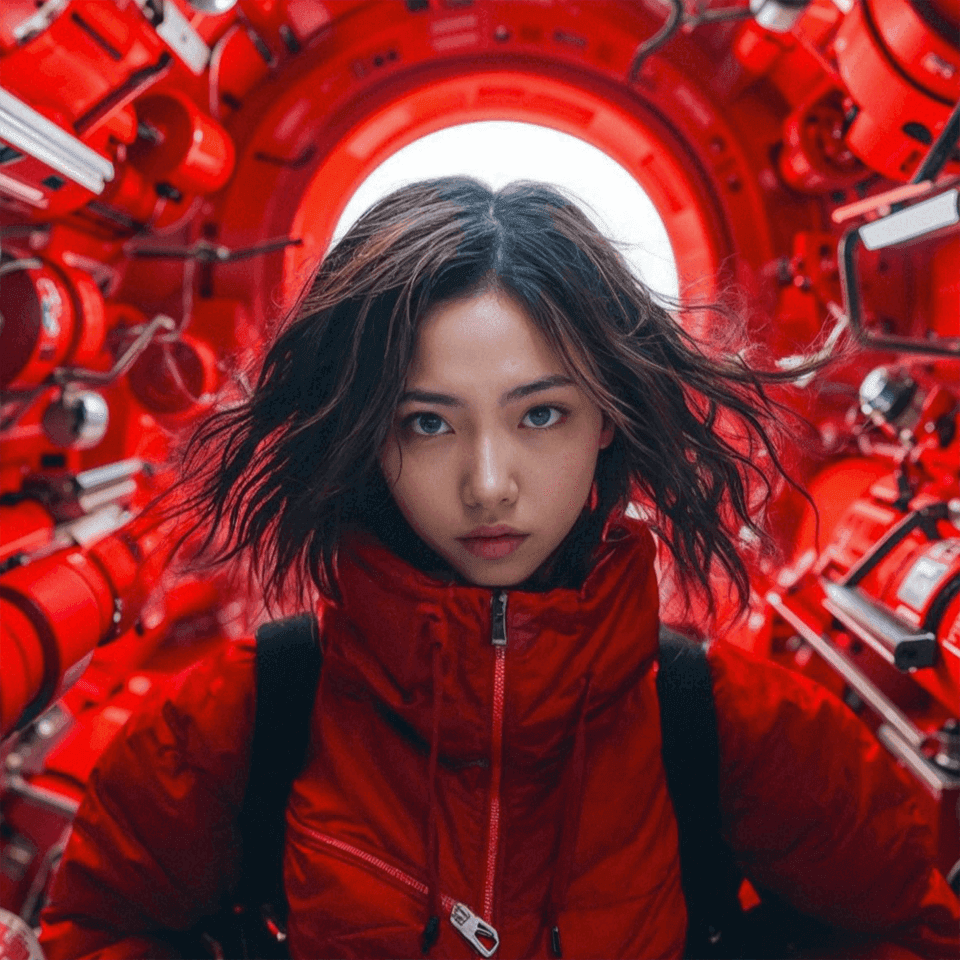
I have successfully collaborated with world-renowned artists and well-known companies that are recognized globally
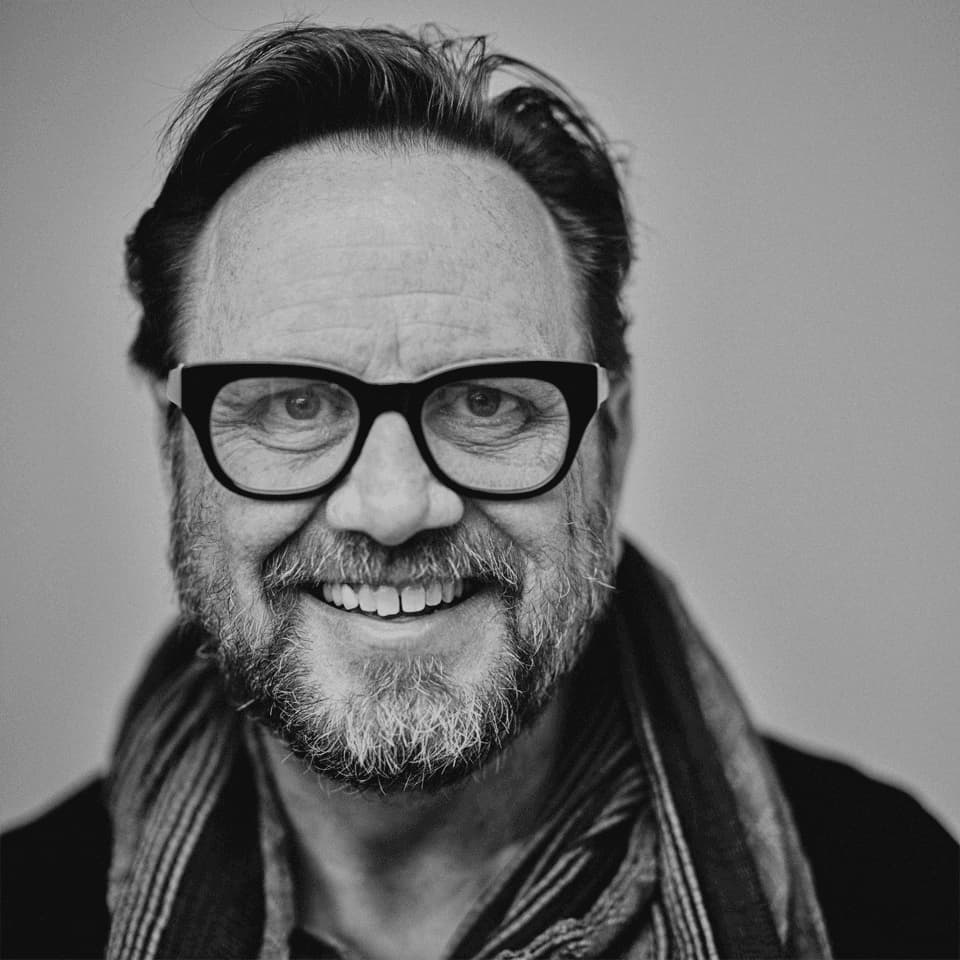
Kling AI has transformed my workflow by collapsing timelines and democratizing production. It’s shifted my mindset from resource-dependent filmmaking to a boundless creative sandbox, where experimentation yields unexpected beauty.
Start with the footage you already have. Improve visual quality, refine lighting and color with prompts, and choose 4K output when you need a higher-resolution result.