I. What's New in Kling Image 4.0
Kling Image 4.0 delivers significant improvements in visual realism, text rendering, instruction understanding, and consistency. It offers more natural lighting, clearer textures, more expressive text and graphic designs, and more accurate execution of complex creative ideas. Native 8K ultra-high-resolution generation brings out rich details, while coherent Image Sets allow you to create a complete set of images from a single prompt. Together, these capabilities provide more comprehensive support for detailed single-image creation and efficient multi-image generation.
1.1 Key Highlights
📷 Enhanced Realism & Native 8K: Natural Lighting, Stunning Detail
Enhanced realism brings natural lighting, skin texture, and material detail closer to the look of photos straight from a camera.
Native 8K image generation is now available, combining rich detail with refined textures and giving you more room for high-resolution displays and post-production cropping.
📃 Exceptional Text Rendering: Crisp Small Text, Creative Typography
A major upgrade to text generation and design, supporting up to 2,000 characters in a single image, with crisp small text and well-organized layouts for multiple text sections and complex compositions.
Choose from 70+ preset fonts or upload a font reference image to guide the style, bringing together clear communication and creative expression.
🧩 Consistent Image Sets & Long-Form Image Generation: Create Complete Sets, Design Full Pages
Generate up to 10 images in a series from a single prompt. Content is planned around your creative intent, with consistent subjects and visual styles, reducing repetitive steps and streamlining series creation.
Long-format image generation also supports e-commerce product detail pages and web page designs, bringing images and text together in cohesive, clearly structured layouts to create a complete page visual in one generation.
1.2 Core Capabilities & Specifications
Capability | Kling Image 4.0 Specifications |
Text-to-Image | ✅ |
Multi-Image Reference | Supports up to 10 reference images per input |
Text Input Length | Supports up to 15,000 tokens per input |
Output Resolution | Native image generation at 2K、4K、8K resolutions |
Text Generation | Reliably generates up to 2,000 characters in a single image |
Language Support | Supports text generation in Chinese, English, Japanese, Korean, Spanish, Portuguese |
Series Mode | Supports generating up to 10 consecutive images in a single generation |
Font Library | Offers 70+ commercially licensed fonts; also supports specifying a font or uploading a font reference image |
Layer Editing | Splits long images into layers, allowing individual image elements to be edited and regenerated |
Aspect Ratios | Auto, 3:4, 4:3, 9:16, 16:9, 2:3, 3:2, 21:9, 1:1 |
Unless otherwise specified, all parameters and capability descriptions in the following chapters of this guide refer to Kling Image 4.0.
II. Two Generation Modes: Default Mode / Series Mode
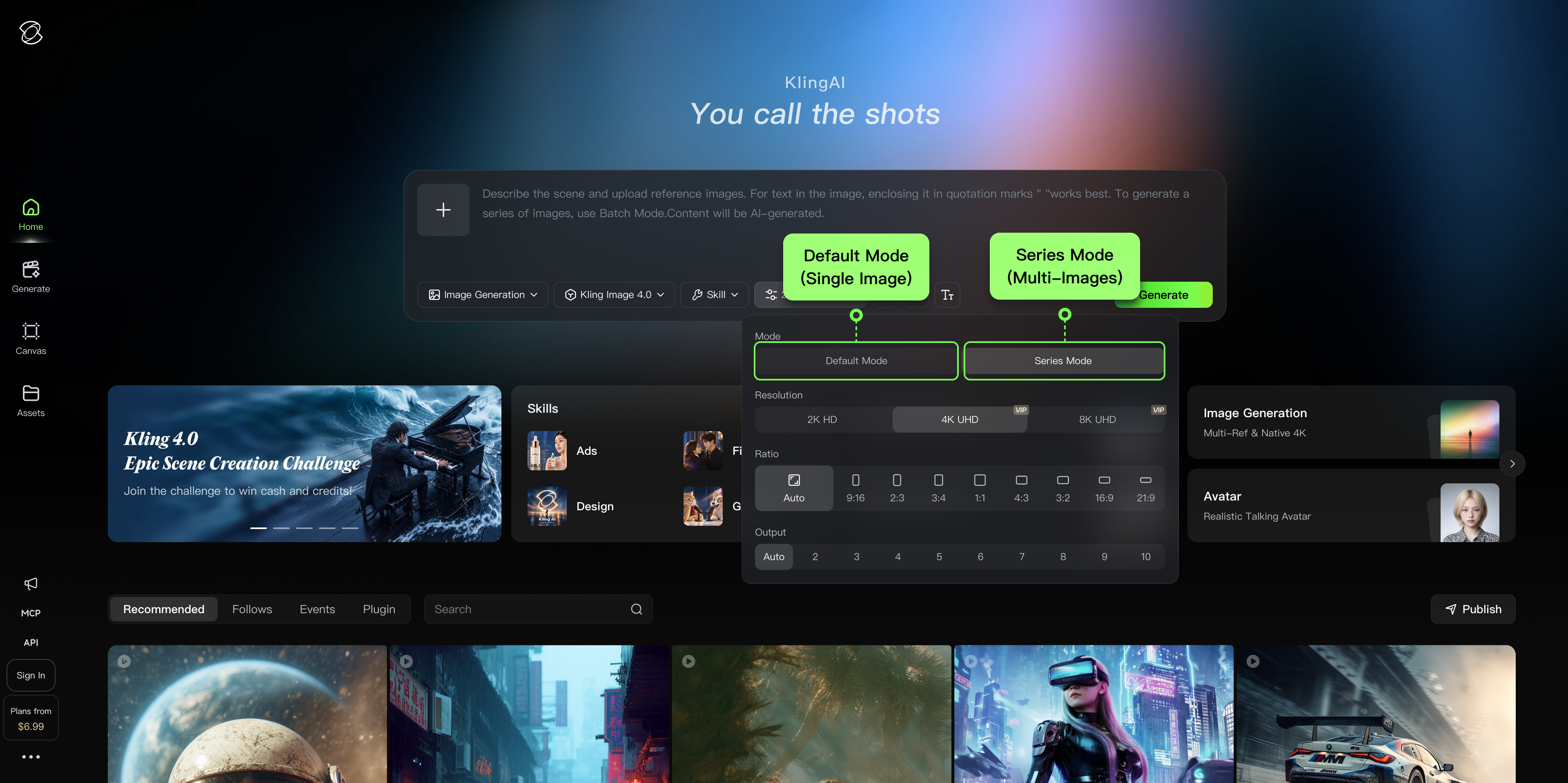
Kling Image 4.0 offers two image generation modes: Default Mode (Single Image) and Series Mode.
Default Mode (Single Image) | Series Mode (Multi-Images) |
| Generates one or multiple images at a time based on your prompt | Generates multiple related images in a single generation |
III. Prompt Guide
3.1 Content Creation
1️⃣ Natural Realism
Template (Ready to Use):
Subject + Action/State + Specific Setting + Smartphone Shooting Style
Trigger Words in prompt: shot on my phone、Shot on phone 、Real phone photo、Photorealistic 、Real photo look、Shot with rear phone camera、Shot with front phone camera、insta、IG、candid 、 candids、Phone snapshot、Candid phone shot、plandid、Unedited camera photo 、SOOC
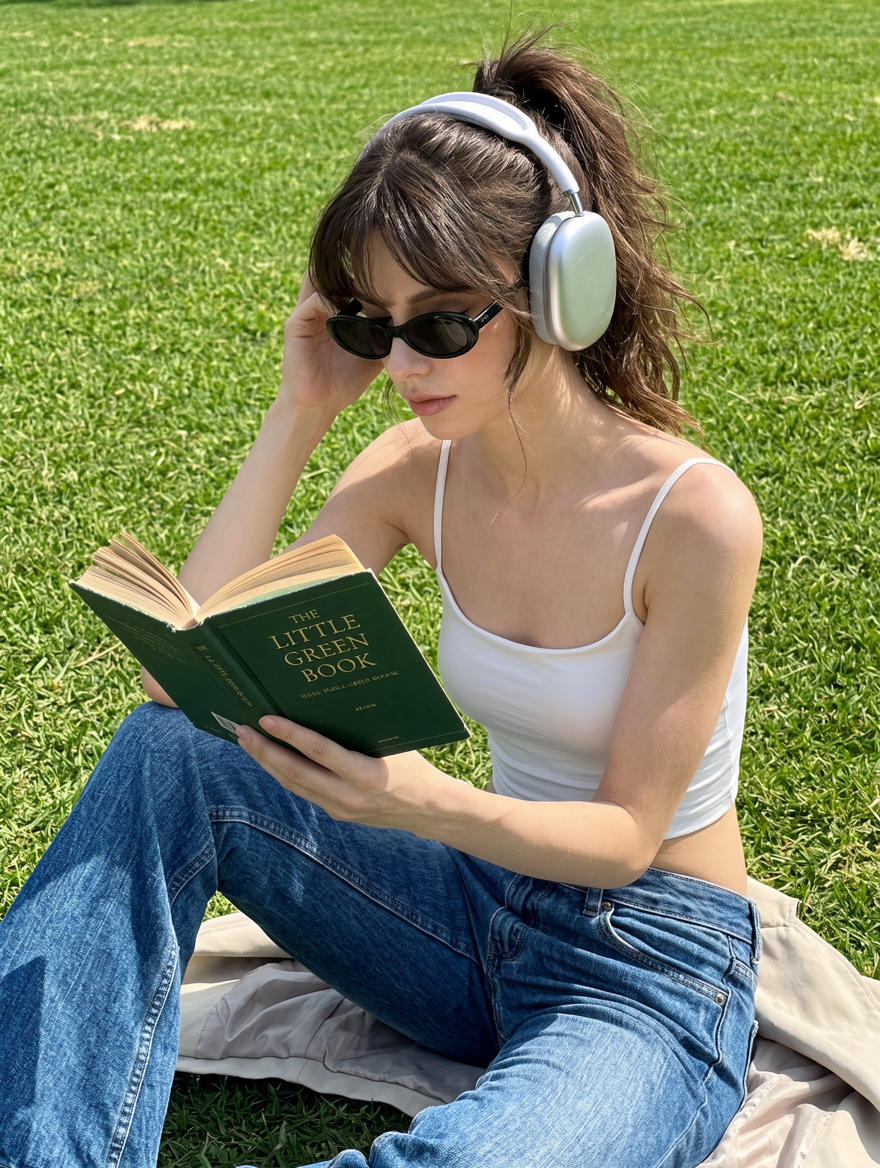 | 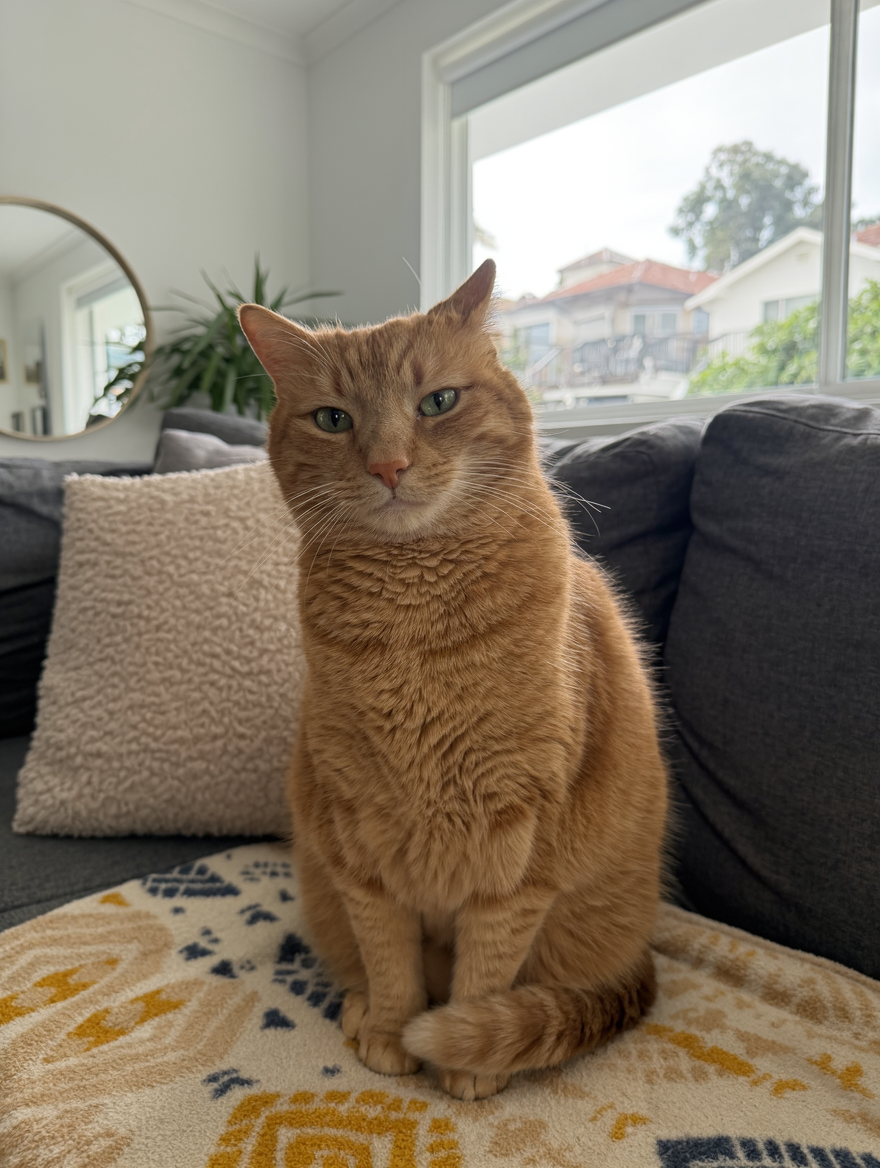 | 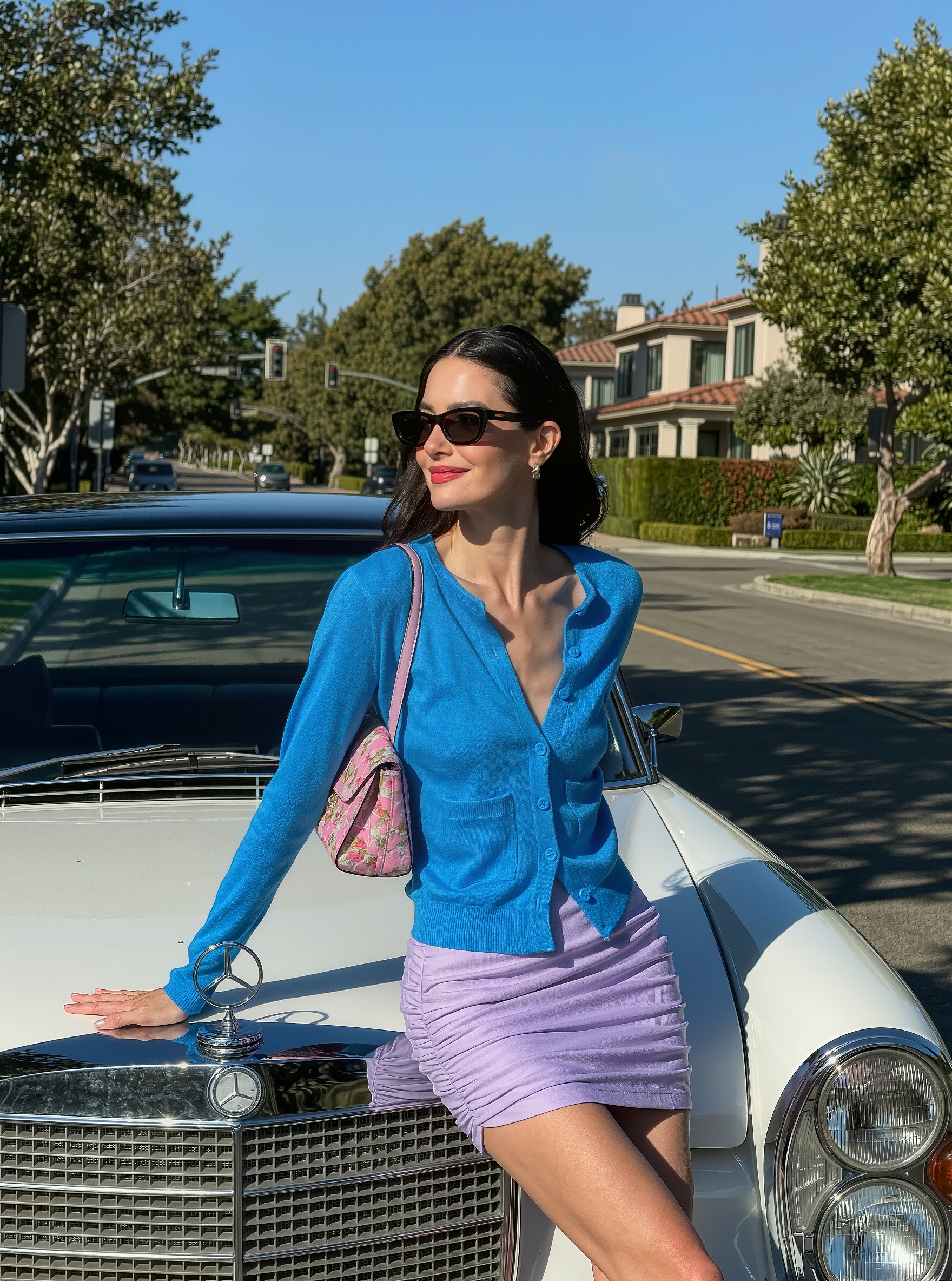 | 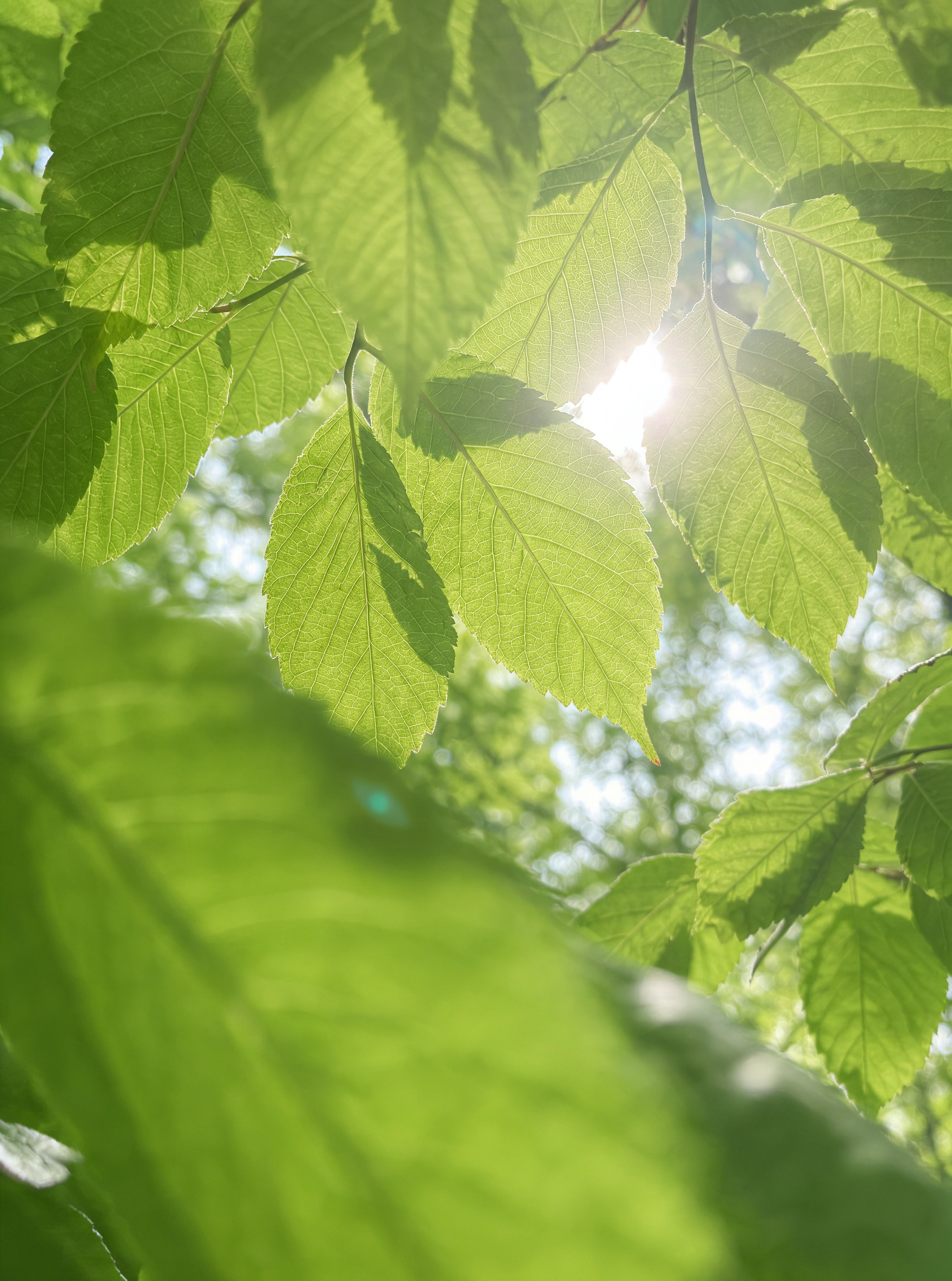 |
A young woman in her twenties sits alone on a lush green lawn on a sunny summer day, reading a book. She has naturally fair skin, delicate facial features, full lips, and long dark brown hair tied into a loose, voluminous high ponytail, with wispy, slightly messy bangs and a few strands framing her face. She wears narrow black oval sunglasses with dark gray lenses and large silver over-ear wireless headphones, creating a nostalgic early-2000s fashion aesthetic. She is dressed in a fitted white spaghetti-strap tank top and loose, low-rise blue wide-leg jeans with natural fading and soft fabric creases. Sitting on the grass with her legs naturally bent, she raises one knee close to her chest and leans slightly forward. Her left hand holds an open English novel with a dark green vintage-style cover and retro typography, while her right hand gently touches the headphone ear cup, as if adjusting the volume. She looks down at the book with a calm, focused expression and a relaxed posture. Setting: A spacious summer park with a large, vibrant green lawn. No prominent buildings or other people are visible in the background. The ground is covered in dense, evenly distributed grass, with a few scattered dry blades. A light beige jacket lies beside her, serving as an improvised seat and adding to the authenticity of the outdoor reading scene. Composition and camera angle: Vertical medium-close portrait, shot from a slightly elevated angle just above the subject's eye level. The woman is centered in the frame, cropped around her thighs and knees. Her head, headphones, sunglasses, and green book form the main focal points. Her raised knee occupies the lower-left corner, while her arms and book create a natural triangular composition. The background consists of an expansive, evenly textured green lawn, keeping the composition simple and highlighting her outfit and reading activity. Lighting and texture: Backlit by strong midday summer sunlight from behind, creating distinct warm highlights along her shoulders and arms. The metallic headphone exterior catches bright reflections, while the black sunglass lenses show realistic reflections of the surroundings. Natural shadows fall across parts of her face and book. The lawn appears richly saturated, with clearly visible grass textures under the sunlight. Slightly vintage warm color grading, natural skin texture, authentic ambient lighting, and high-contrast summer outdoor photography. Clean Girl aesthetic, casual Western street style, summer reading photo dump, authentic iPhone photography, Instagram lifestyle photography. Relaxed, bright, independent, and youthful. | A casual snapshot of an orange tabby cat in a cozy living room. A moderately built adult orange tabby sits upright on a dark gray fabric sofa, facing the camera with its head tilted slightly to one side and curious green eyes looking at the photographer. The cat has short, dense fur, round cheeks, a pink nose, and clearly visible whiskers. A cream-colored plush cushion sits beside it, while a soft blanket with yellow and dark blue patterns covers the foreground. In the background, a large bright window reveals neighboring houses and trees. A round wall mirror, green plants, and living room furniture are partially visible on the left. Natural daylight streams in through the window, creating a soft rim light around the cat. Vertical medium shot, authentic indoor iPhone photography, warm everyday atmosphere, realistic fur texture. | A young, elegant European woman casually poses while leaning against the front of a vintage white Mercedes-Benz. She wears a bright blue cardigan, a light lavender fitted mini skirt, narrow-frame sunglasses, and carries a pink floral shoulder bag. Her long dark hair falls naturally over her shoulders. The background features a sunlit suburban street in California, lined with leafy trees and luxurious mansions. Strong natural sunlight creates dramatic shadows, with her silhouette reflected across the car's hood. The scene captures an Old Money aesthetic and Beverly Hills elegance, with a luxurious lifestyle photography feel and fashion influencer street-style appeal. Ultra-realistic image, authentic skin texture, shot on an iPhone, rich details. | Looking upward from beneath the tree canopy, with large fresh green leaves covering most of the sky. Sunlight filters through the leaves from behind, revealing clearly visible leaf veins. The scene is bright and airy, evoking a summer afternoon. Naturally blurred leaves appear in the foreground, creating a fresh green atmosphere with a realistic smartphone photography aesthetic, shallow depth of field, warm sunlight, and a soothing mood. Realistic photography, smartphone shot, close-up low-angle view, sunlight filtering through foliage, shallow depth of field, blurred foreground, green plants, fresh natural colors, summer atmosphere, high detail, soft lighting. |
2️⃣ Character Creation
Character Design
Template (Ready to Use):
Age + Identity/Background + Body Type + Facial Features + Hairstyle + Clothing/Accessories + Personality/Expression
Describe Facial Features, Face Shape, and Hairstyle in Detail: The model can respond to a wide range of facial features, hairstyles, and hair colors to create distinctive characters with diverse appearances. For example, specify face shape, eye shape, hairline, freckles, or scars to highlight the character's defining features. Avoid relying on the same generic descriptions, such as "refined facial features," "a high nose bridge," or "a well-defined jawline."
Add Props Based on Character Traits to Reinforce Personality: For example, "holding a folder tightly with both hands, wearing a polite, subtle smile" or "standing upright with minimal movement and a steady gaze." Choose a single defining moment to visually convey the character's personality.
Describe the Background and Pose Based on the Intended Use: For basic character portraits, use a simple background, clearly visible facial features, and a natural standing pose. For professional or story-driven characters, incorporate representative settings, props, and actions. For full-body portraits, focus on physique and clothing; for close-ups, prioritize facial features and expression.
| Character | 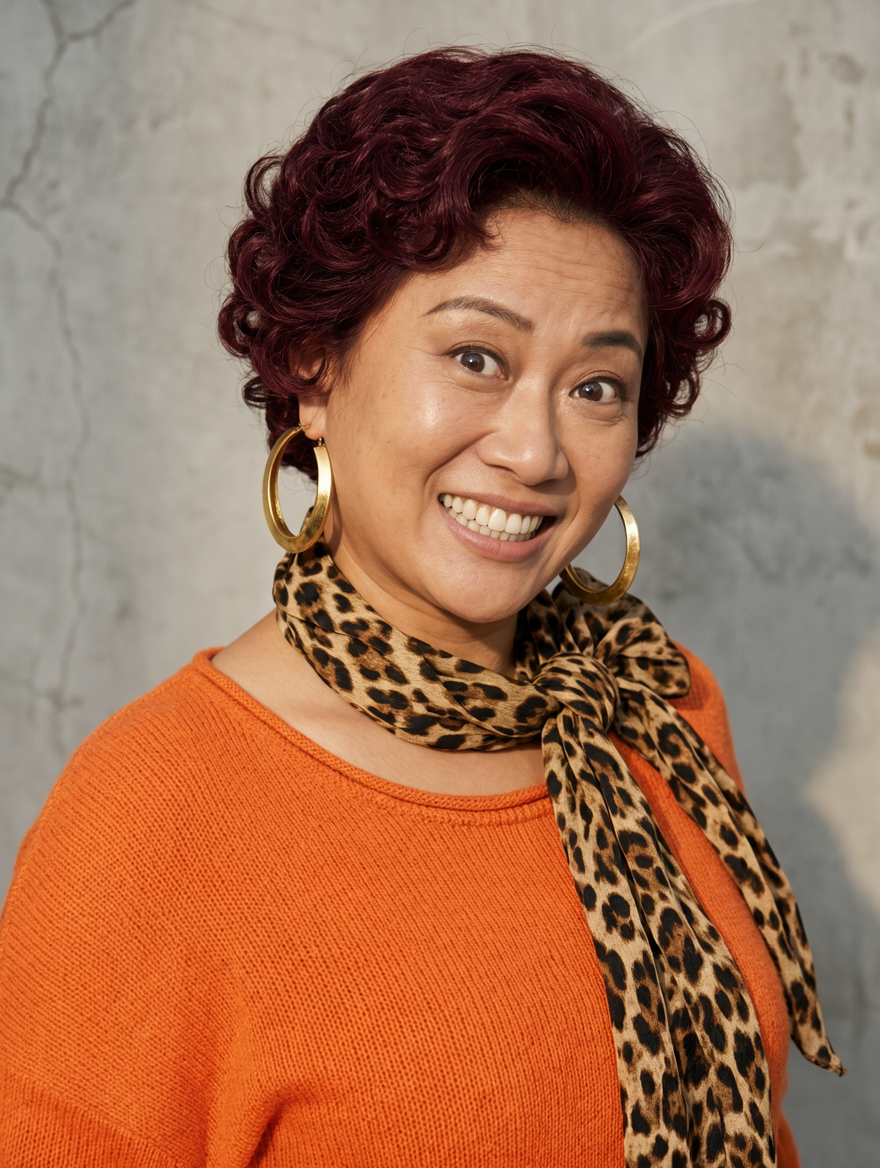 | 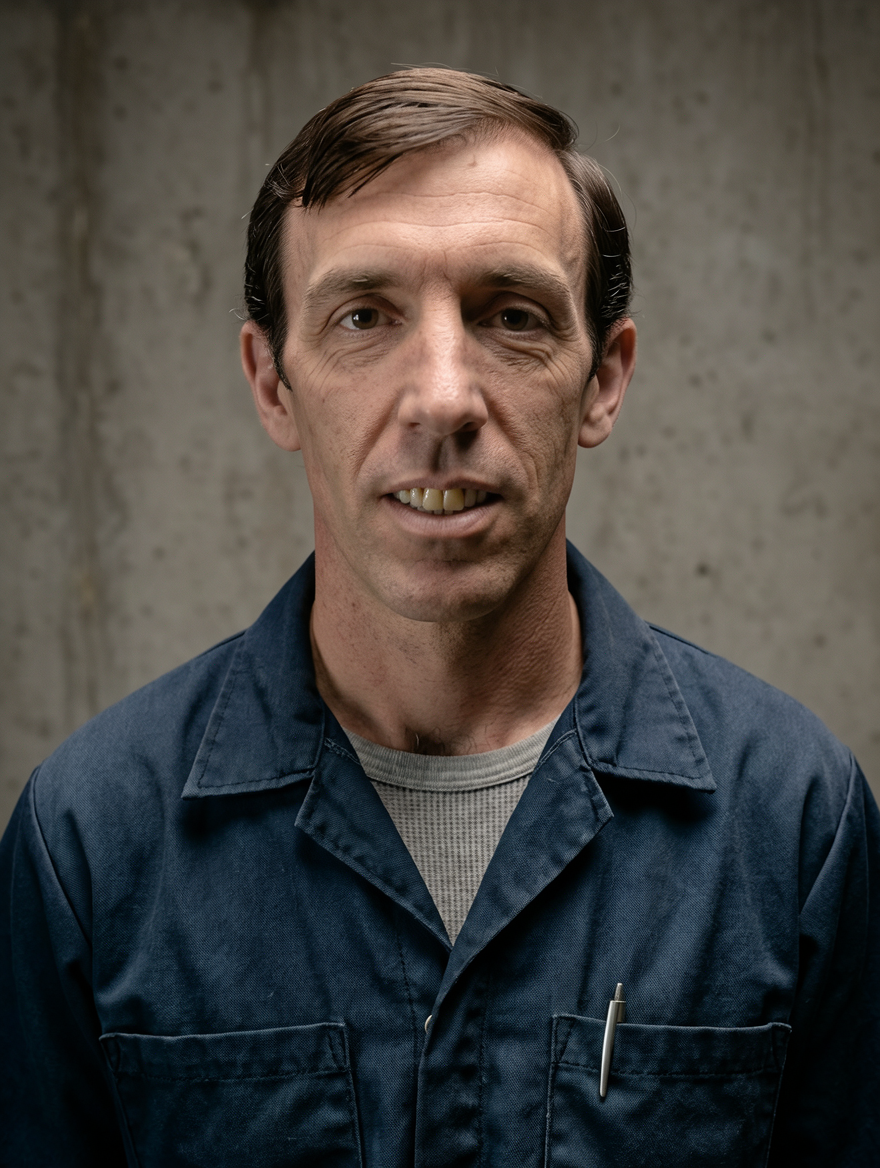 | 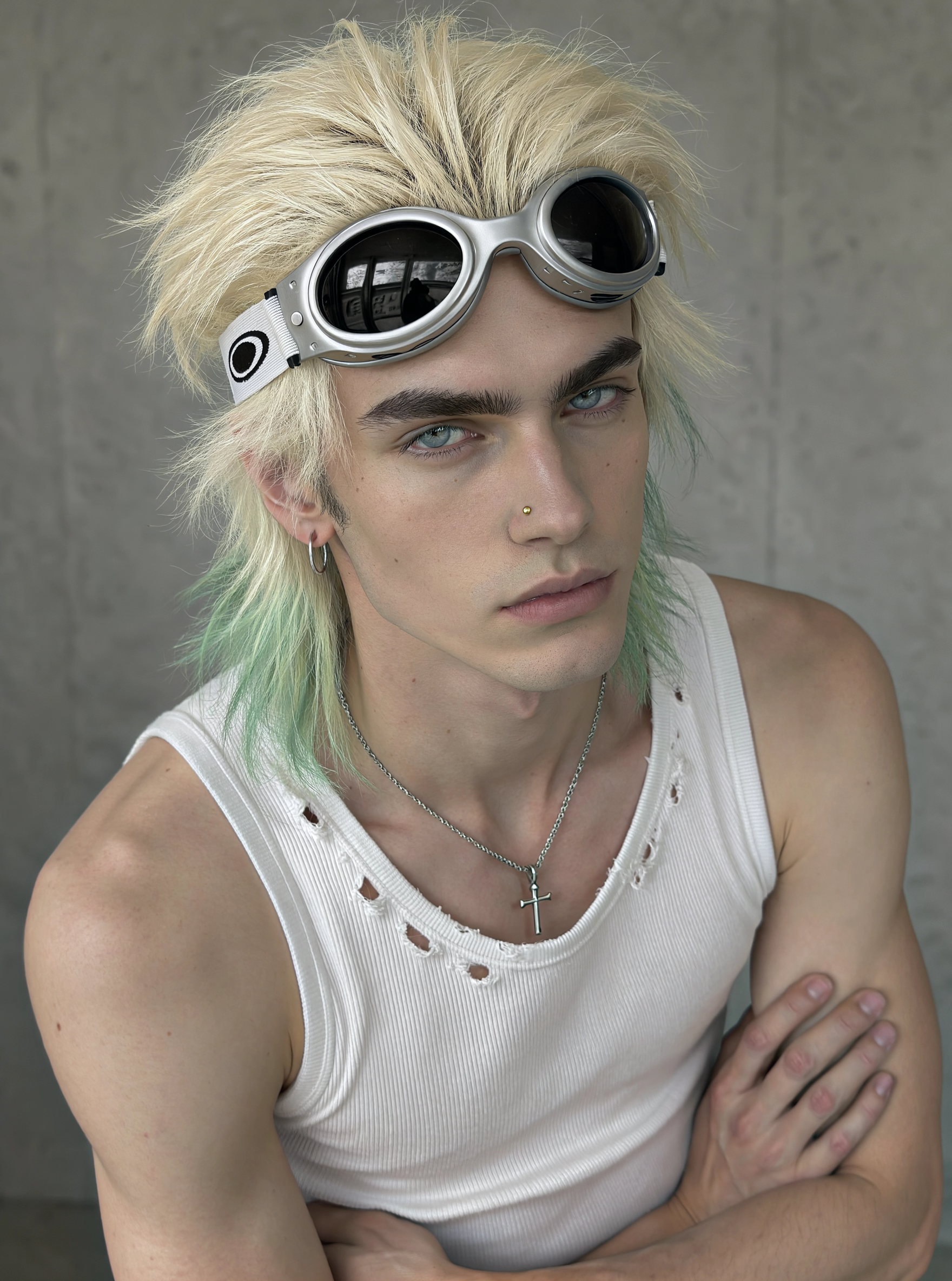 | 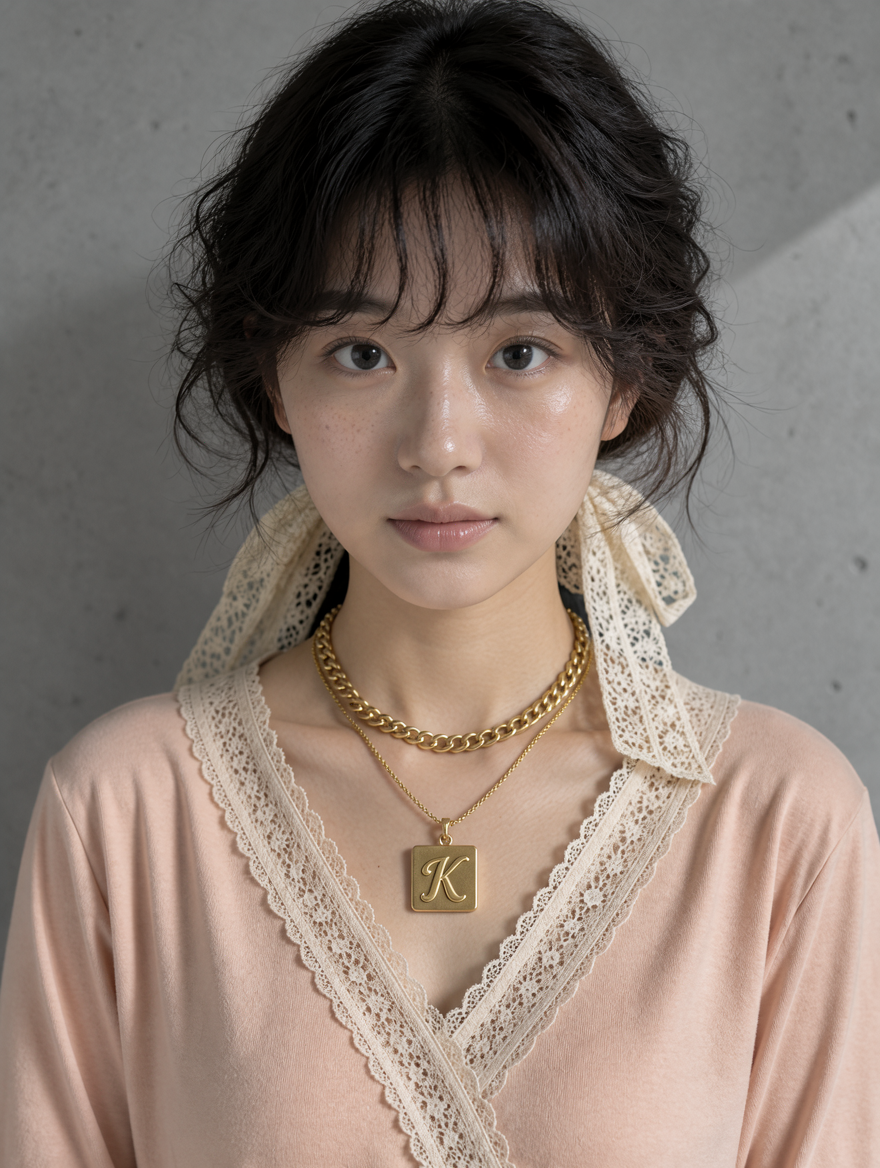 |
| Prompts / Input Images | Zhou Huizhen, 46, a former hostess at a county-town karaoke lounge. She has a curvy build, short permed hair dyed burgundy, and often wears brightly colored knit tops, leopard-print scarves, and oversized earrings. Outspoken, cheerful, chatty, and sociable, she knows everyone and never lets anyone take advantage of her. Realistic front-facing half-body portrait of a person, against a simple indoor background with a weathered gray wall. | Mark, 48, a Western mechanic. He has a narrow, elongated horse-like face, deeply sunken temples, and a broad, straight nose with a slightly flattened tip. His eyes are droopy, with very pronounced double eyelids and strongly downturned outer corners. His teeth are yellowed and slightly crooked. His hair is thinning, with a receding hairline and a side-parted fringe slicked down with hair gel. Realistic front-facing half-body portrait of a person, against a simple indoor background with a weathered gray wall. | A handsome young Western man stands with his arms crossed, his body turned slightly to the side and leaning forward a little. He stares directly into the camera with a cool, intense expression. He has a sharply defined face and jawline, smooth skin with a few small beauty marks, and tousled, voluminous light-blond short hair in a wolf-cut style, with pale green highlights at the tips. Thick dark brown eyebrows frame his narrow, light blue double-lidded eyes, which have a sharp gaze and distinct catchlights. He has a high nose bridge, a small gold nose stud on his right nostril, and pale pink lips with a defined Cupid's bow. A pair of silver-framed goggles with black oval lenses rests on his forehead. The white elastic strap features black oval patterns along the sides. He wears a fitted white ribbed cotton tank top with several small, worn holes around the neckline. A thin silver chain necklace with a cross pendant hangs around his neck, and a delicate silver hoop earring adorns his right earlobe. Realistic half-body portrait, simple indoor setting with a weathered gray wall. The entire subject is fully visible in the frame. | A beautiful young East Asian woman with a rounded face and fair skin, facing the camera directly with her body and face oriented forward. She has voluminous, naturally tousled black medium-length curly hair, with wispy bangs reaching her eyebrows. A cream-colored lace hair ribbon with openwork floral patterns is tied around the ends of her hair. Her skin has a natural, dewy finish. She has rounded eyes with dark pupils, thin dark gray eyebrows, gently curled eyelashes, and a calm gaze. Her nose has a high bridge and rounded tip. Her lips are naturally pink with a glossy finish and a defined Cupid's bow. She wears a soft blush-pink V-neck top with cream lace trim along the neckline. Around her neck are two layered gold necklaces: a chunky chain necklace on top and a delicate chain below, featuring a square gold pendant with a raised, three-dimensional, bold artistic letter "K" engraved in the center. Soft directional light from a 45-degree front-side angle creates catchlights in her eyes and diffused illumination across her face. Realistic front-facing half-body portrait, simple indoor setting with a weathered gray wall, professional camera photography aesthetic. |
| Character | 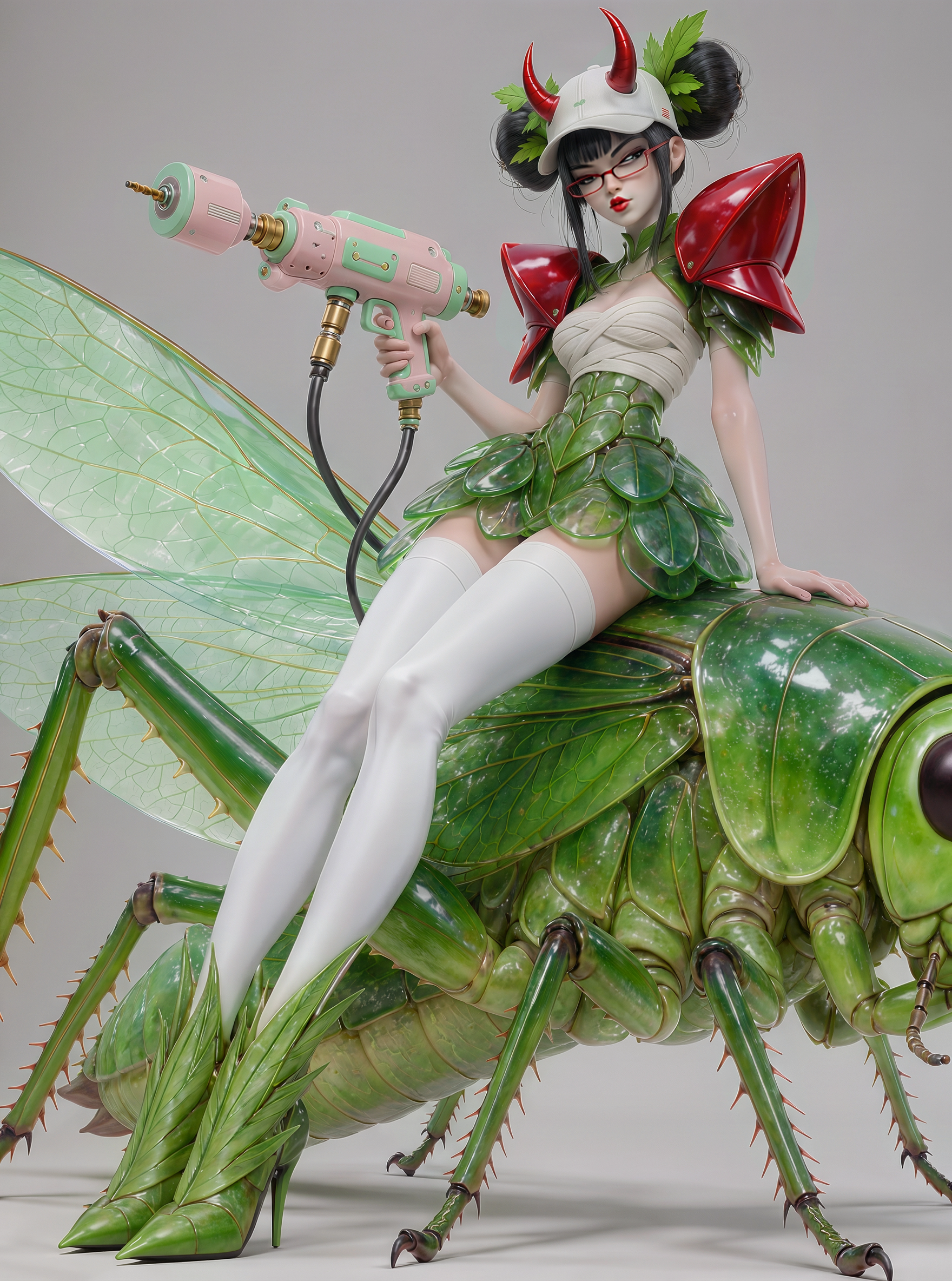 | 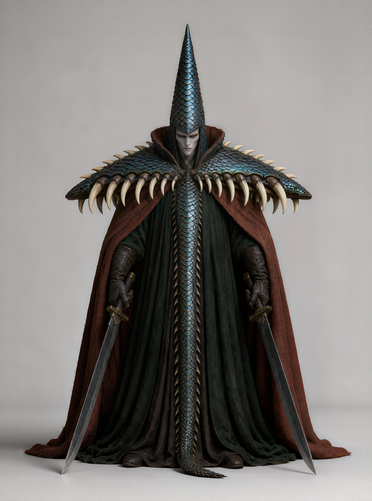 | 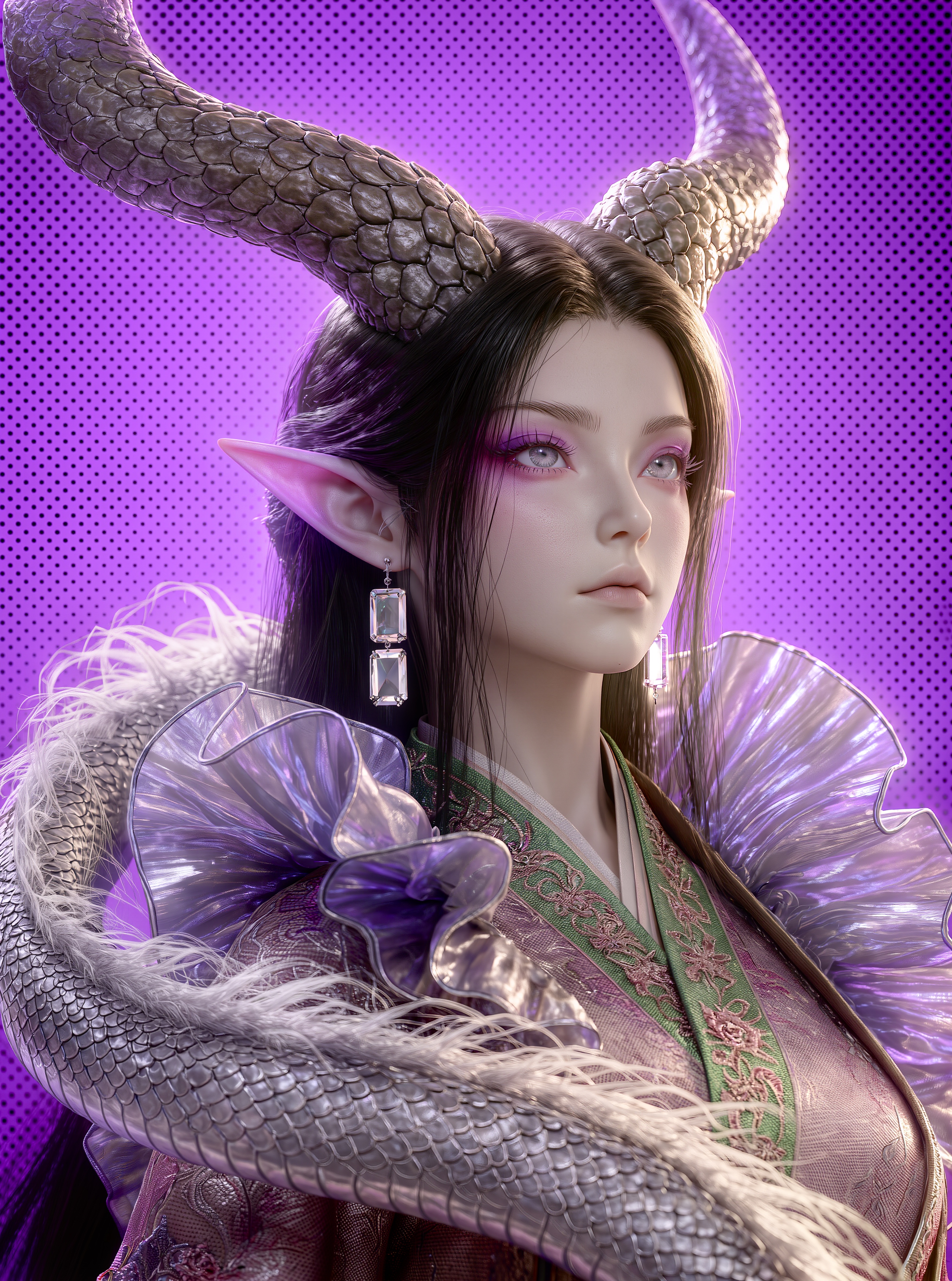 | 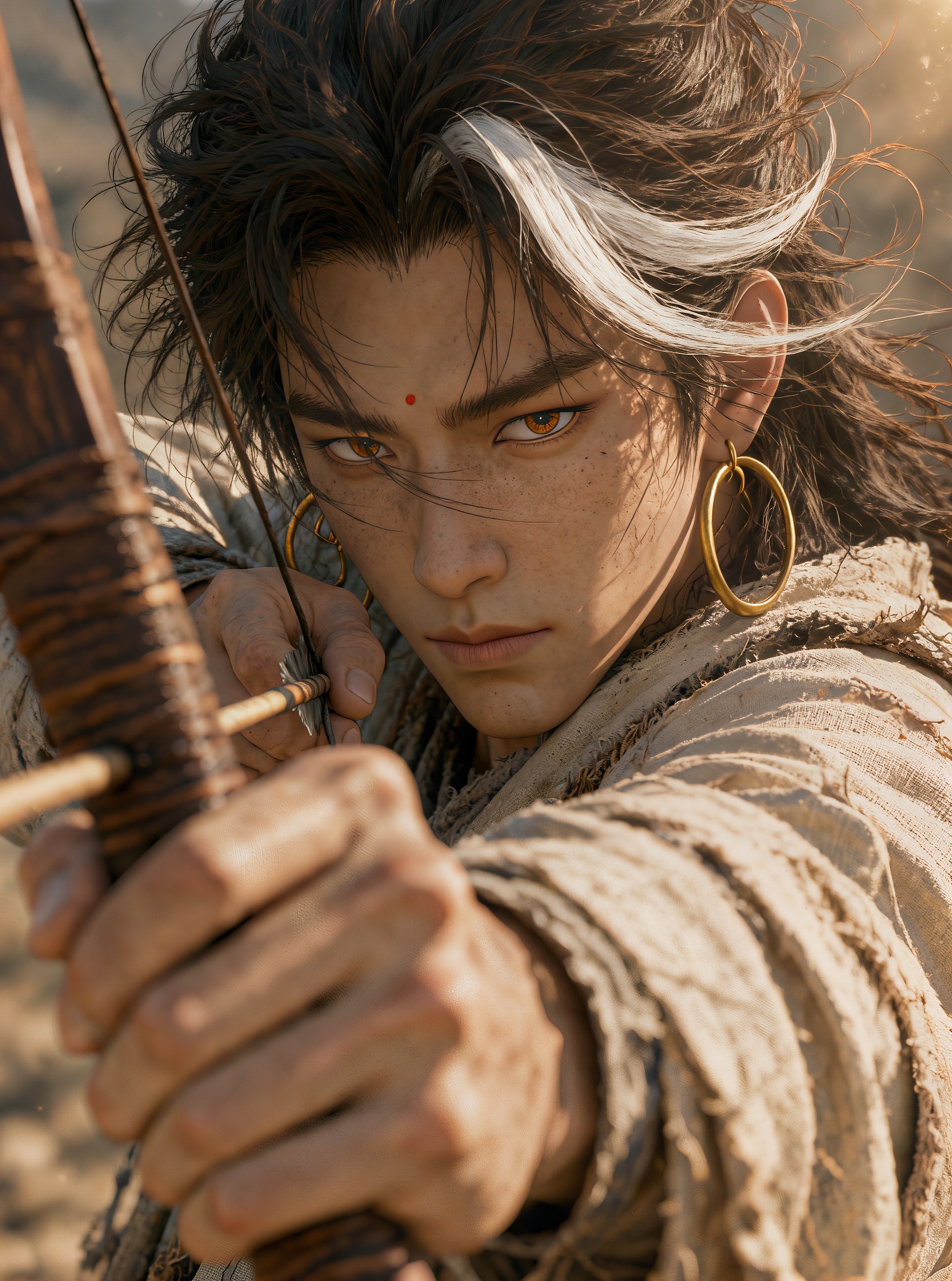 |
| Prompts / Input Images | A sweet-but-edgy demon-inspired insect girl riding on the back of a giant green grasshopper. Pure white background, full-body composition from a dramatic low angle. Her proportions resemble realistic fashion illustration, but with noticeably elongated legs, creating a silhouette that emphasizes a detailed upper body, long lower body, and playful seated pose. She has black hair styled in two buns and wears a white baseball cap adorned with two red devil horns and green leaf decorations. She wears narrow red glasses, has upturned outer eye corners, and puckered red lips. Her expression is provocative, disdainful, and slightly mischievous. Her outfit is constructed from translucent green leaves, with exaggerated glossy red armor plates on the shoulders. The chest resembles white wrapped bandages, while layered leaf armor forms the waist, hips, and skirt. Materials resemble translucent resin and insect wing membranes. She holds a pink-and-green mechanical spray gun with metallic connectors and flexible tubing, resembling a biotechnological weapon. Her legs are covered in pure white knee-high socks or tights, paired with green leaf-shaped high-heeled boots. The giant grasshopper beneath her has a bulky body covered in glossy, translucent emerald-green armor. Its limbs are sharp and angular, and its large mint-green translucent wings spread dramatically from the rear left. The grasshopper dominates the lower half of the composition, while the girl sits in the upper center, creating a striking contrast between a giant insect mount and a fashionable rebellious demon girl. High-precision 3D character concept art, glossy biological armor, trendy demon girl aesthetic, insect fantasy, futuristic fashion-tech styling. | A high-ranking inquisitor from a dark fantasy world, with a strong ritualistic aesthetic. Pure gray-white background, full-body frontal standing pose. The overall silhouette emphasizes an extremely tall pointed hat, oversized broad shoulder armor, and a heavy robe that hangs downward, creating an imposing presence. Adult human proportions, tall and slender build, with the costume shaping the figure into a massive triangular silhouette, broad at the top and grounded at the bottom. The character wears an extremely tall blue-black conical hat covered in overlapping scales resembling snake scales or fish scales, tapering sharply upward. The face is pale and elongated, with hard, cold features, lowered eyes, and a merciless, gloomy expression that conveys judgment. The defining shoulder piece is an enormous outward-flaring mantle of blue-green scales, edged with large beast fangs or tusks, creating a wide, aggressive silhouette. An outer reddish-brown heavy fabric cloak covers a deep green, almost black inner robe. Numerous heavy, hanging folds make the figure appear wrapped in darkness. A continuous strip of scale armor hangs down the center of the chest and abdomen, extending all the way to the ground like a lizard's tail, reinforcing the strong vertical centerline. Each hand holds a heavy, broad-bladed longsword, with both blades pointing downward. The pose is steady and expressionless, capturing the moment before an execution. High-precision 3D dark fantasy character concept art. Clearly differentiated textures of scales, aged leather, coarse fabric, bone fangs, and cold metal. Solemn, sinister, oppressive, and mysterious atmosphere. | A fantasy creature with the appearance of a young East Asian woman, standing with her body slightly turned sideways and her face angled toward the upper right of the frame. She has a calm, cold expression, a balanced face shape, a pointed chin, fair skin, and long, naturally falling black hair parted in the middle. A pair of enormous gray-brown horns grows from the top of her head. Their surfaces are covered in raised scale-like textures, curving upward. Her eyes feature heavily blended pink-purple eyeshadow, with relatively large light gray irises and an indifferent gaze. She has a high nose bridge, naturally pale pink thin lips, and pointed pink-purple elf ears angled diagonally upward. She wears an outfit with an oversized silver-purple ruffled collar featuring a translucent metallic sheen. Underneath, a traditional Chinese-style cross-collar garment is visible, decorated with interwoven green and pink embroidery around the neckline. Her left ear features a dangling earring made of two connected rectangular transparent crystals. A long silver-gray scaled tail wraps around from the left side of her body toward the front, with fine white hair-like fur along its edges. Well-balanced composition, medium-close portrait captured with a medium focal-length lens from a slightly elevated angle. Her body and horns form a diagonal arrangement, enhancing depth and movement. Bright overall exposure. A combination of 45-degree warm side lighting and purple accent lighting creates a warm-cool contrast, with high-key lighting and strong contrast. Studio lighting details include eye catchlights, hair highlights, and rim lighting. A vivid purple background covered in dense dark-purple halftone dots. Large-aperture shallow depth of field. Dark fantasy, modern Chinese-inspired costume design, cinematic 3D game CGI, and digital art aesthetic. | A young East Asian man draws a bow and arrow in an outdoor wilderness setting. He has a relatively square face, fair skin, and a well-proportioned build. His long, messy black hair blows in the wind, with a single white-highlighted strand falling across his forehead. Beneath his dark brown, sharply angled eyebrows are amber phoenix-shaped eyes with slightly upturned outer corners. His gaze is sharp and focused. He has a high nose bridge, tightly pressed lips, a small cinnabar mole between his eyebrows, and subtle freckles and dust marks across his cheeks. Large gold hoop earrings adorn both ears. He wears an off-white coarse-fabric robe with visible wrinkles, distressed areas, and signs of wear. His body leans forward, his face turned toward the front-left of the frame, with his eyes fixed on a distant target. He holds a dark brown wooden longbow with textured leather wrapping in both hands, gripping the bow with his left hand and pulling the string with his right. Bright overall exposure with high contrast and warm color grading. Strong natural sunlight from a 45-degree side angle creates dramatic light and shadow, accompanied by eye catchlights, hair highlights, and dappled lighting. Shallow depth of field with a large aperture. Close-up, eye-level shot from a first-person perspective. The character's face is positioned slightly left of center, while the bow and arrow stretch horizontally across the foreground. The background is heavily blurred into muted gray-brown tones. Film grain combined with cinematic 3D rendering and pronounced dimensionality. Prominent skin texture and grain detail, with a distinct CGI modeling aesthetic. |
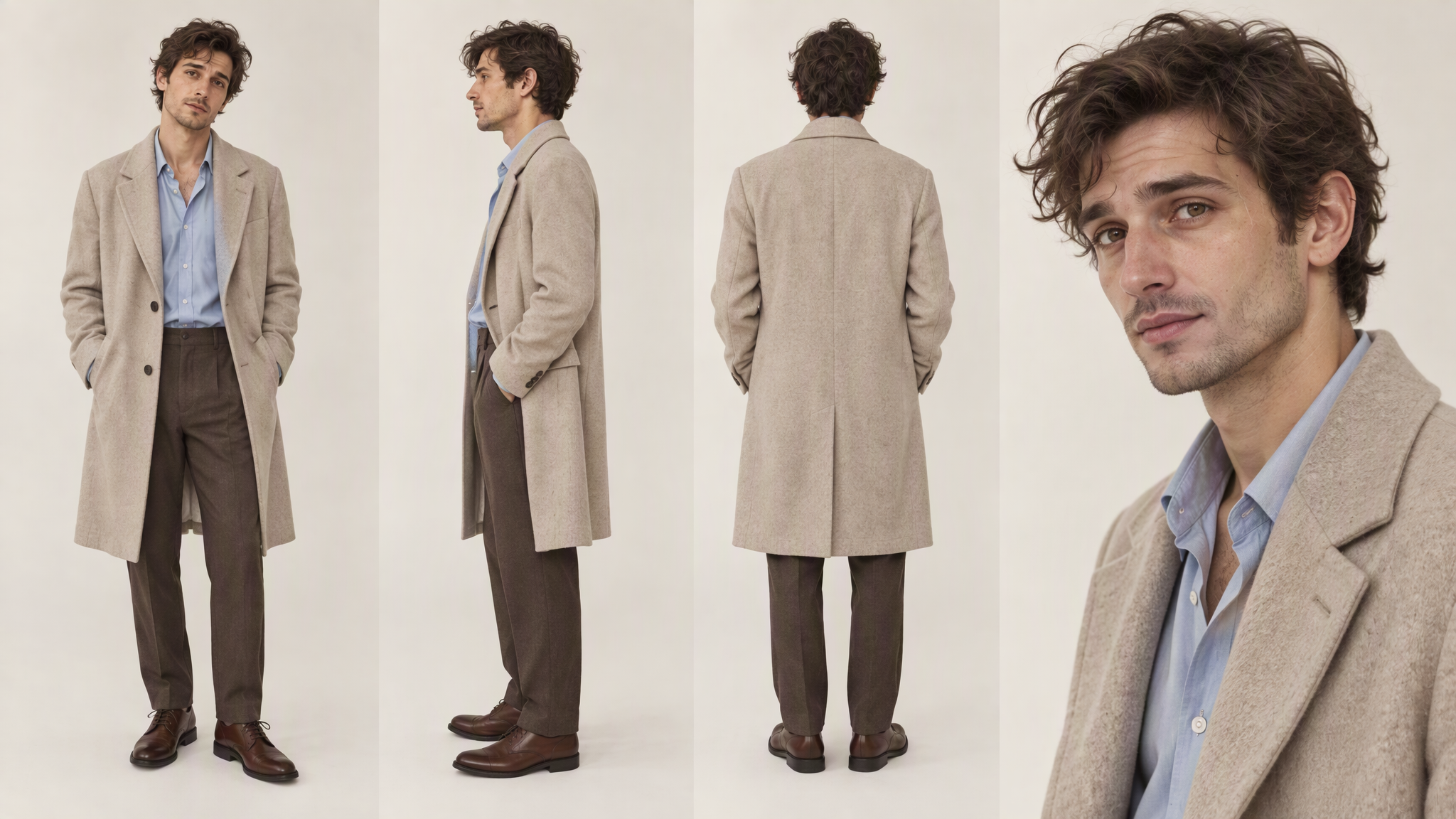
| Multi-View | 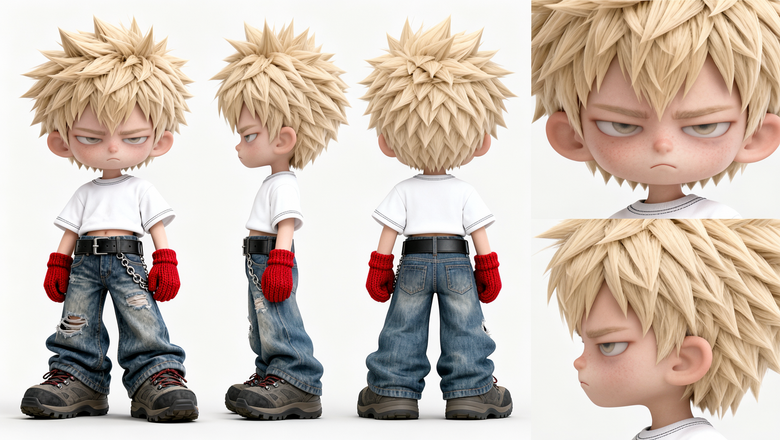 | 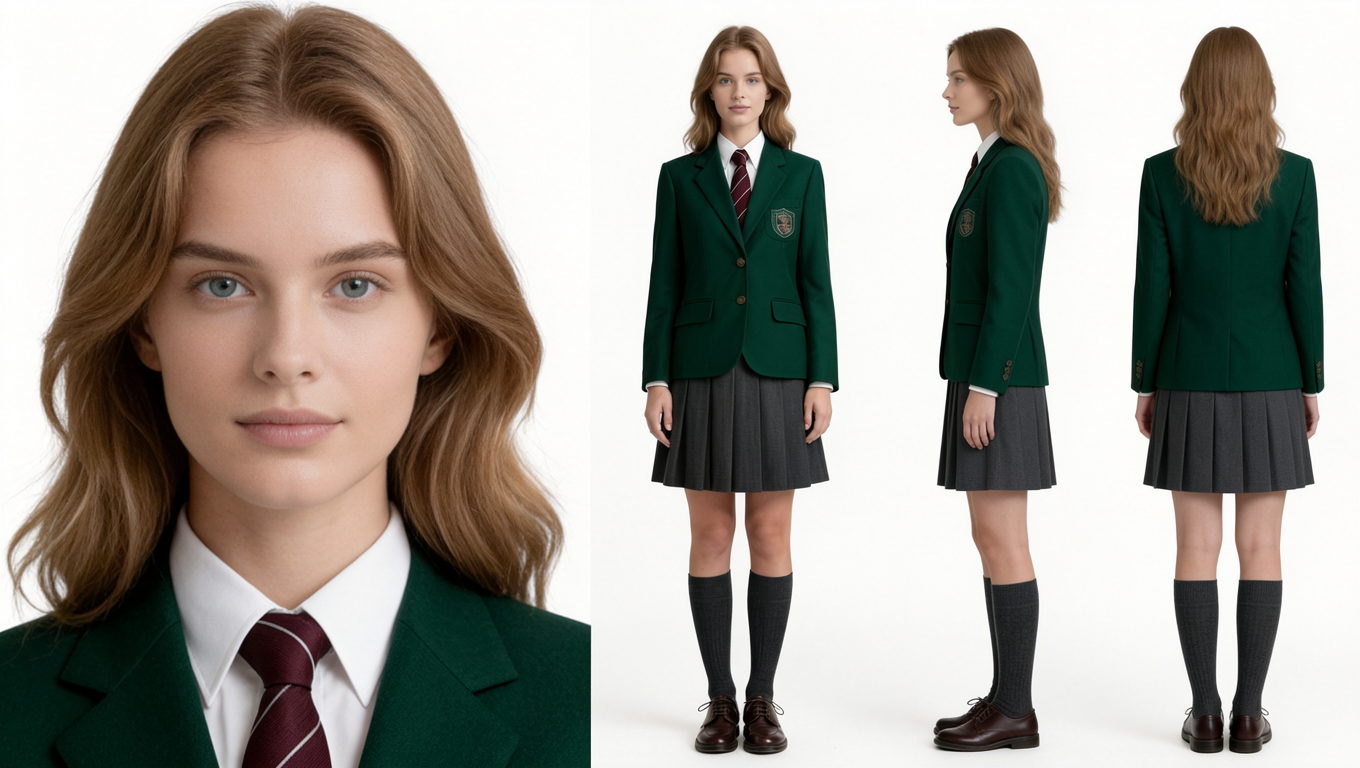 | ||
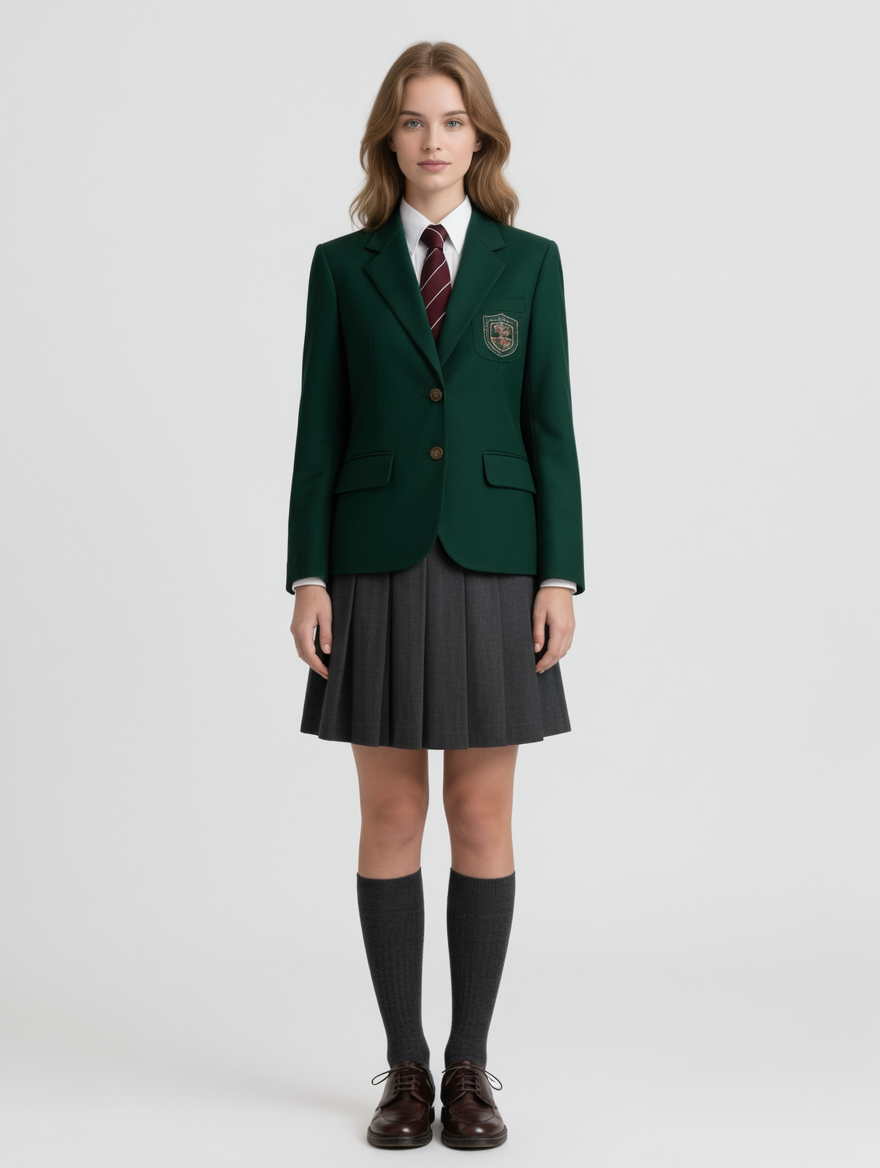
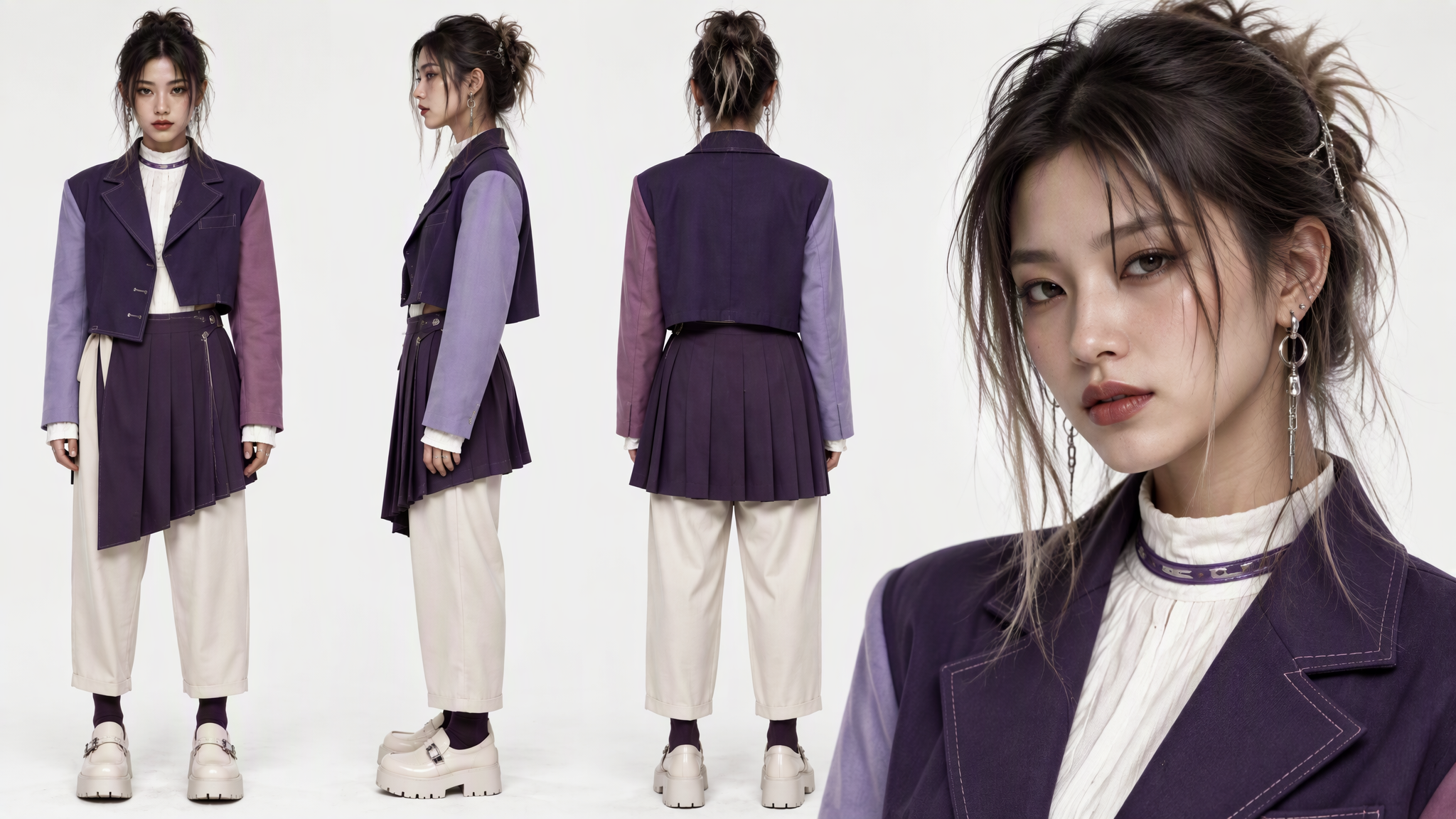
| Prompts / Input Images | 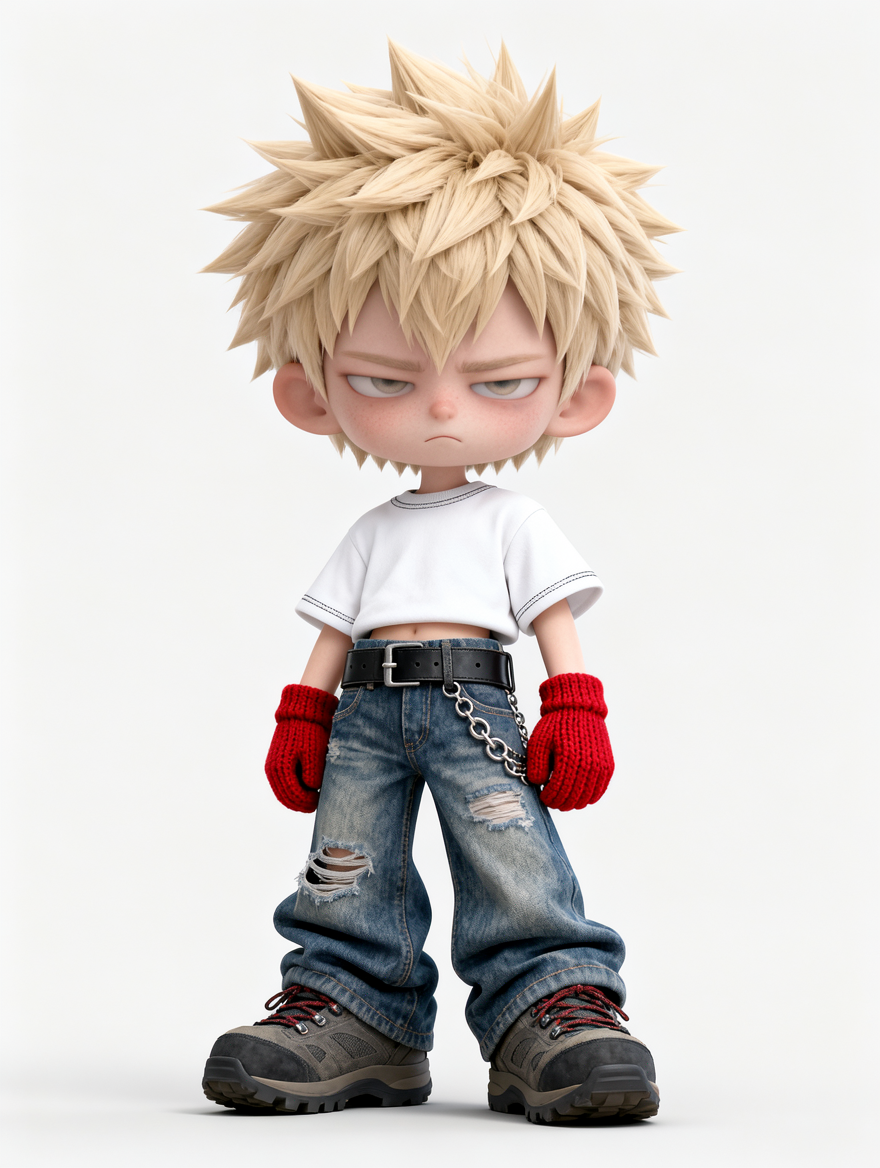 Generate a multi-view reference sheet of the character shown in the image. Pure white background, no shadows, and even lighting.
|
Based on the appearance of the person in the reference image, generate a standard three-view character sheet of the same character against a pure white background, showing the full-body front, side, and back views. Place a high-resolution close-up of the character's face on the left, with the three full-body views neatly arranged on the right. Maintain complete consistency in facial features, hairstyle, clothing, overall appearance, and visual style across all views.
| ||
The Toolbox also supports character design, with a variety of preset character templates to choose from.
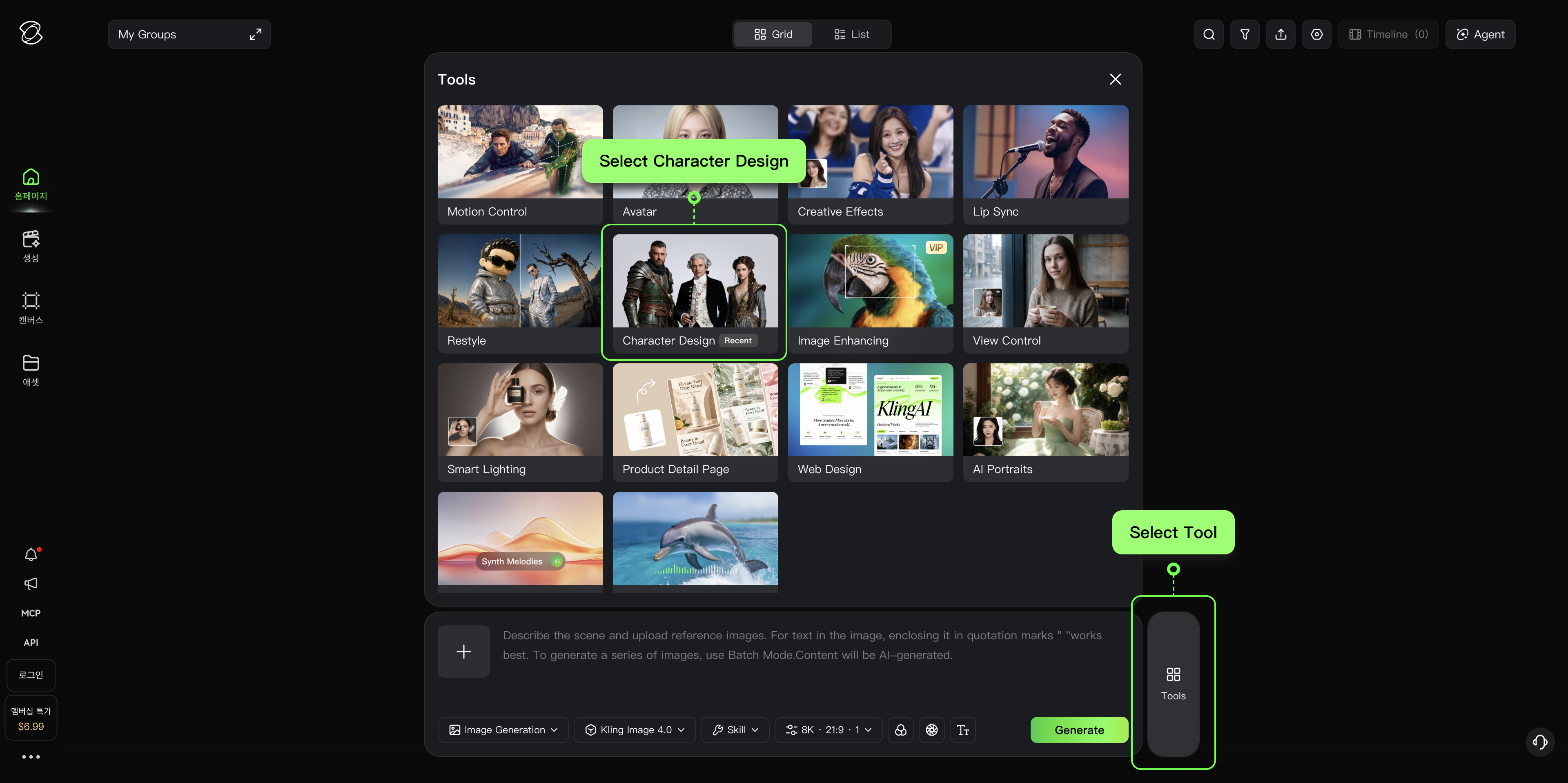
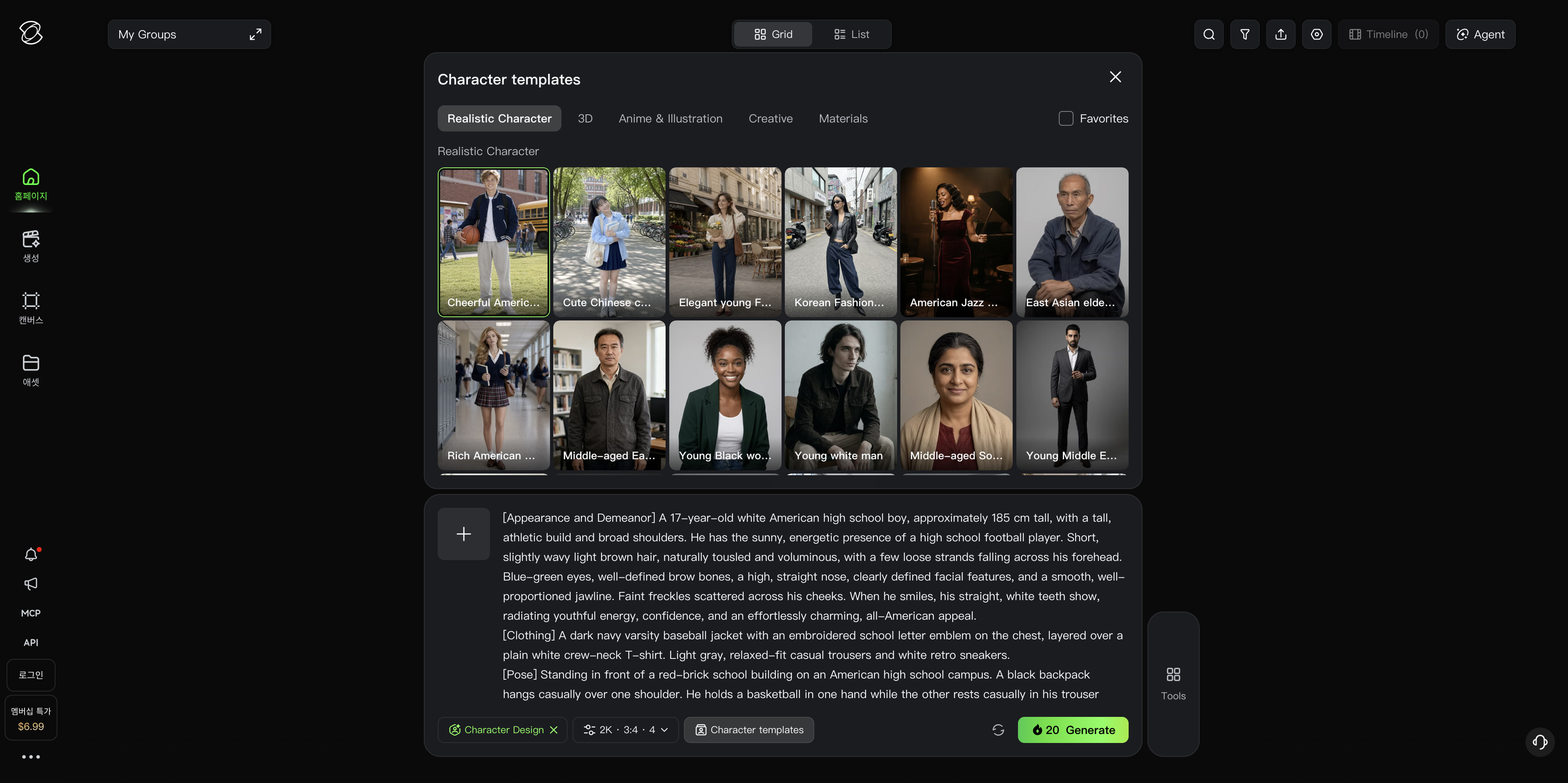
Character Design· Series Mode
Templates (Ready to Use):
Based on the visual art style of the [reference image], generate a set of images featuring different characters.
Following the close-up and three-view layout of the [reference image], generate a matching set of images featuring [number] additional characters that belong to the same character lineup.
| Cast Group Portraits | 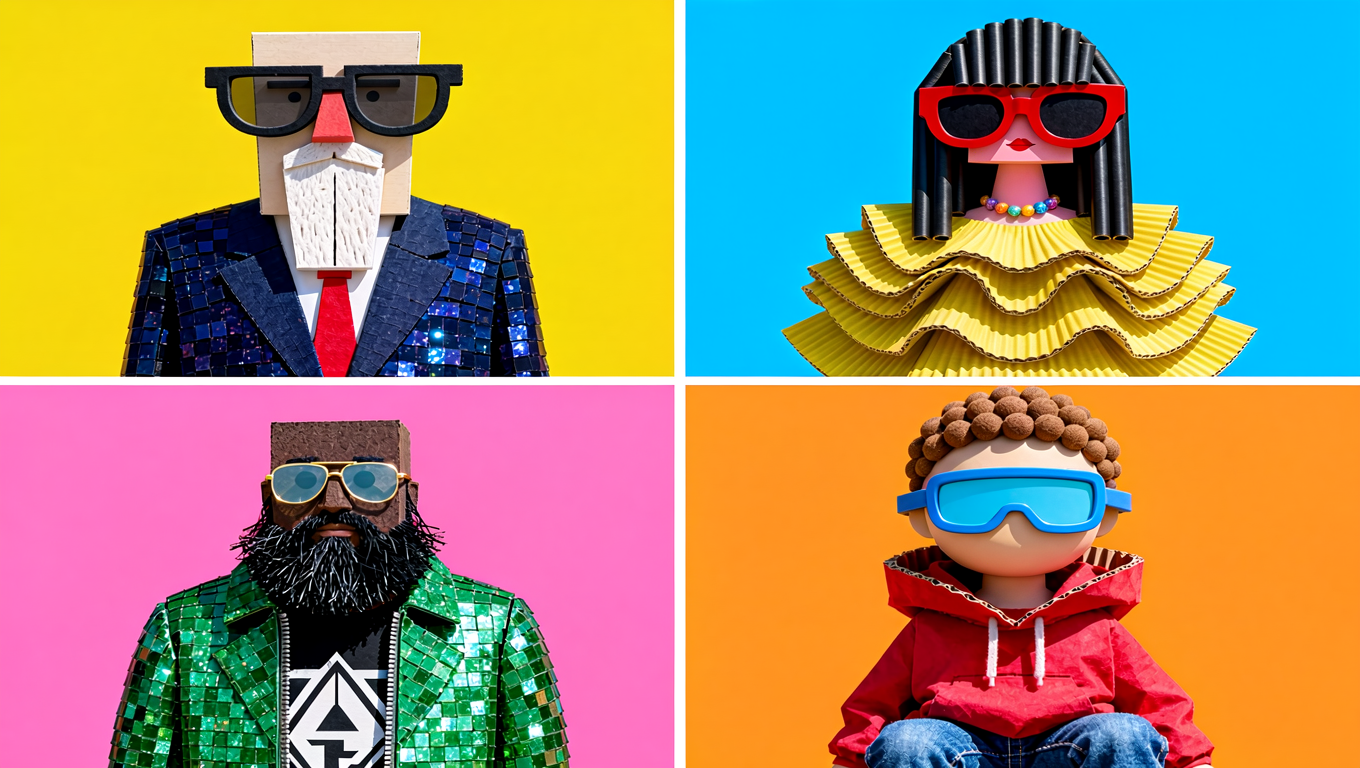 | 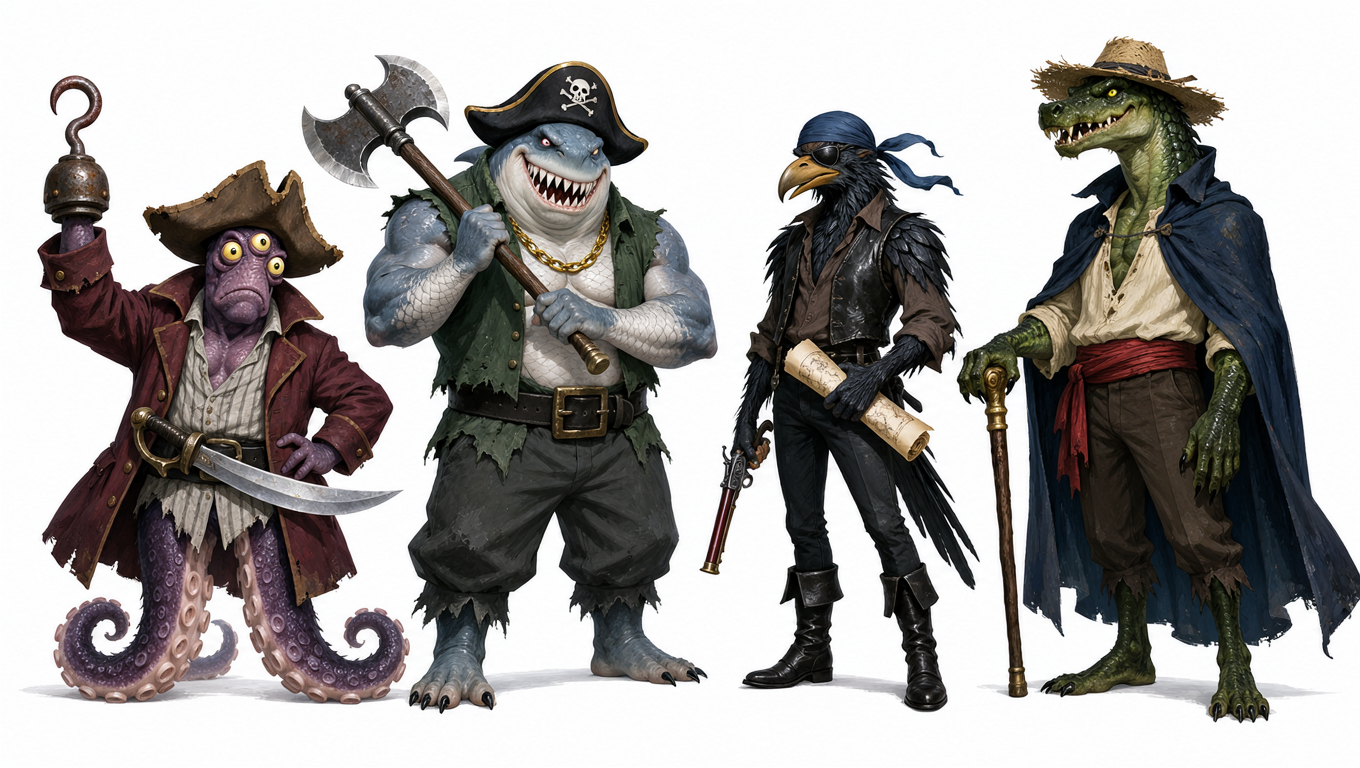 | ||
| Prompts / Input Images | 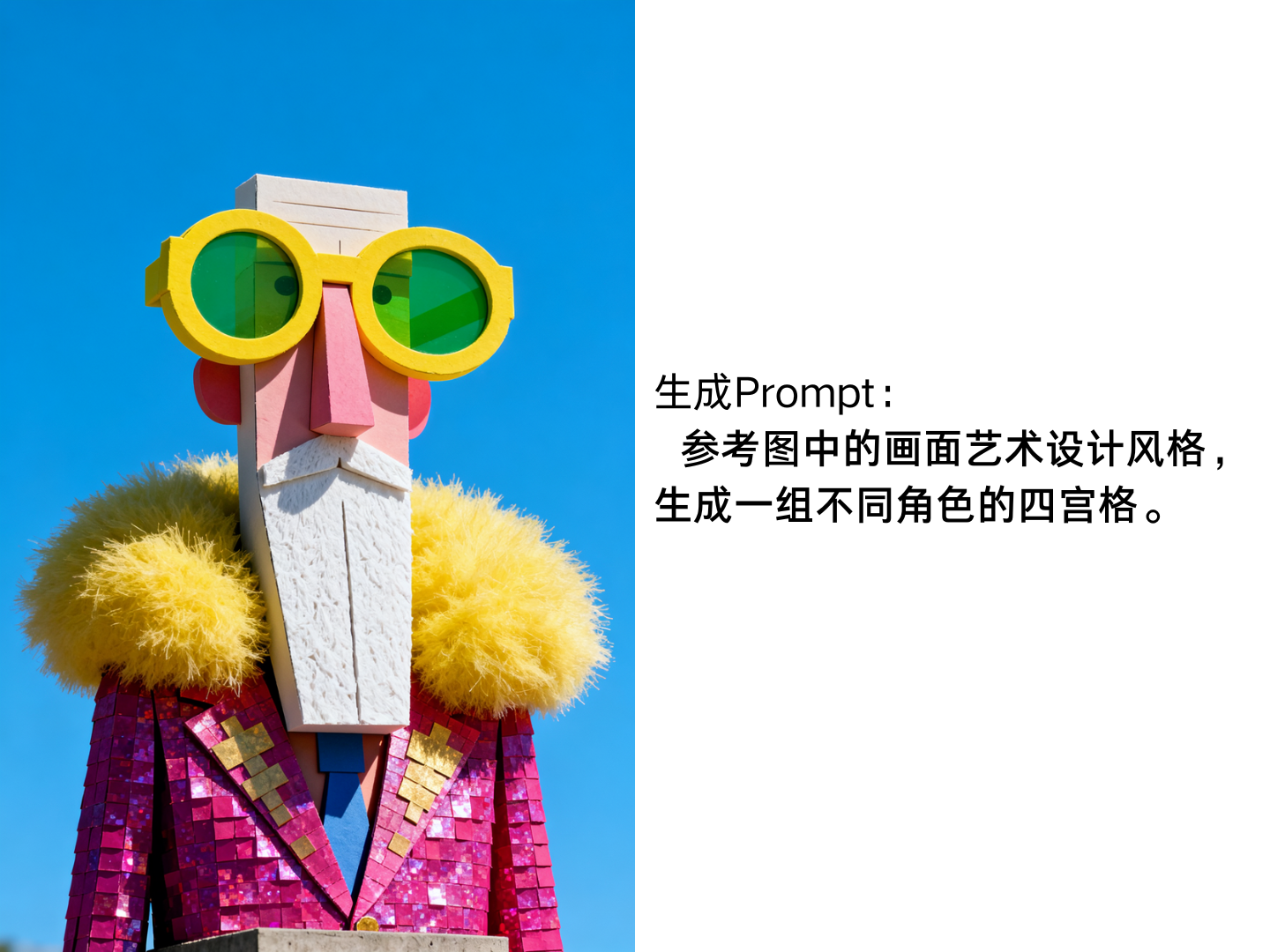 | Using the visual art style of the reference image, generate a 2×2 grid featuring four different characters. | 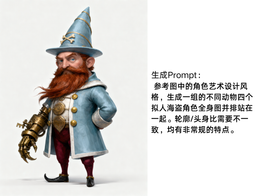 | Following the character art style of the reference image, generate a group of four different anthropomorphic animal pirate characters, shown in full-body views standing side by side. Each character should have a distinct silhouette, different body proportions, and unconventional features. |
| Multi-View |
|
| ||
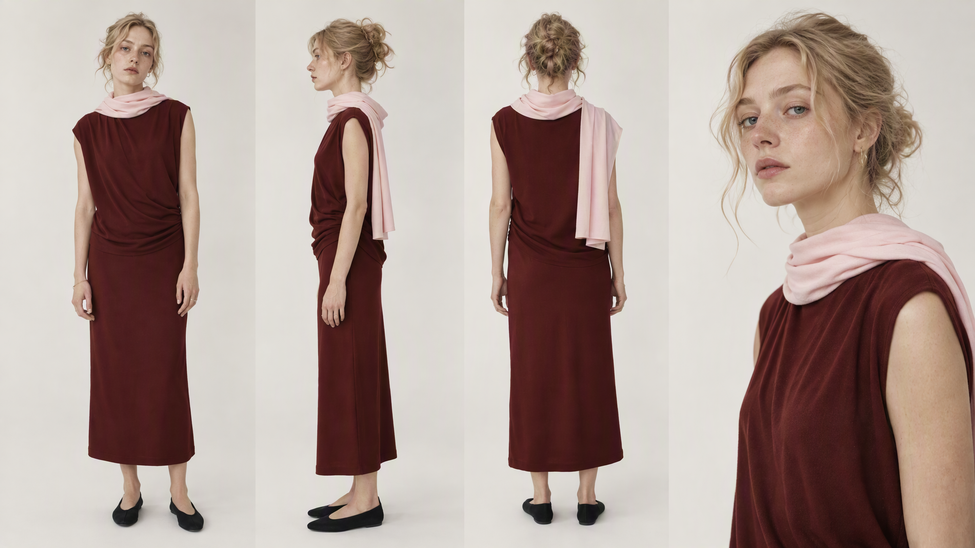
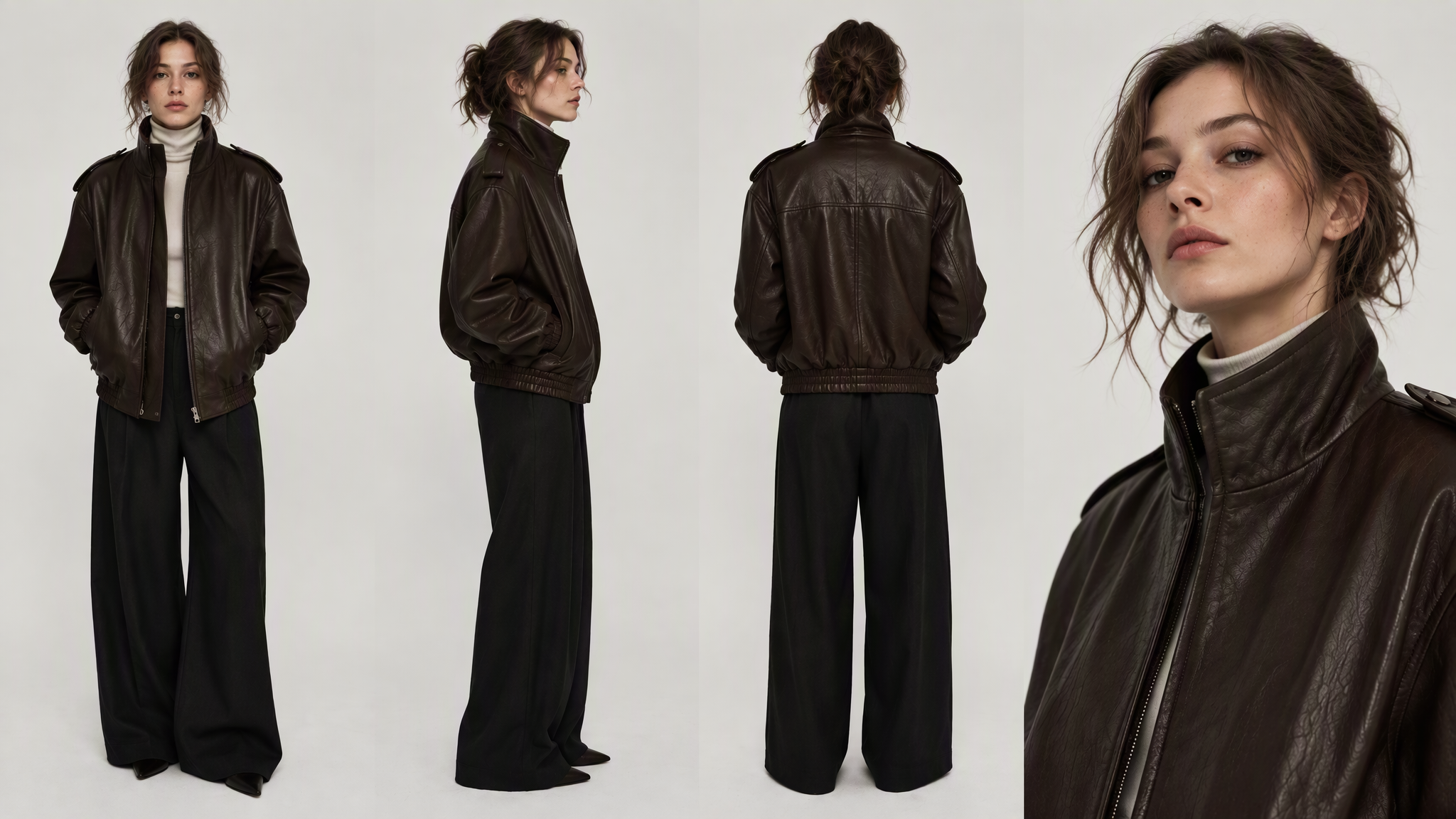
| Prompts / Input Images | 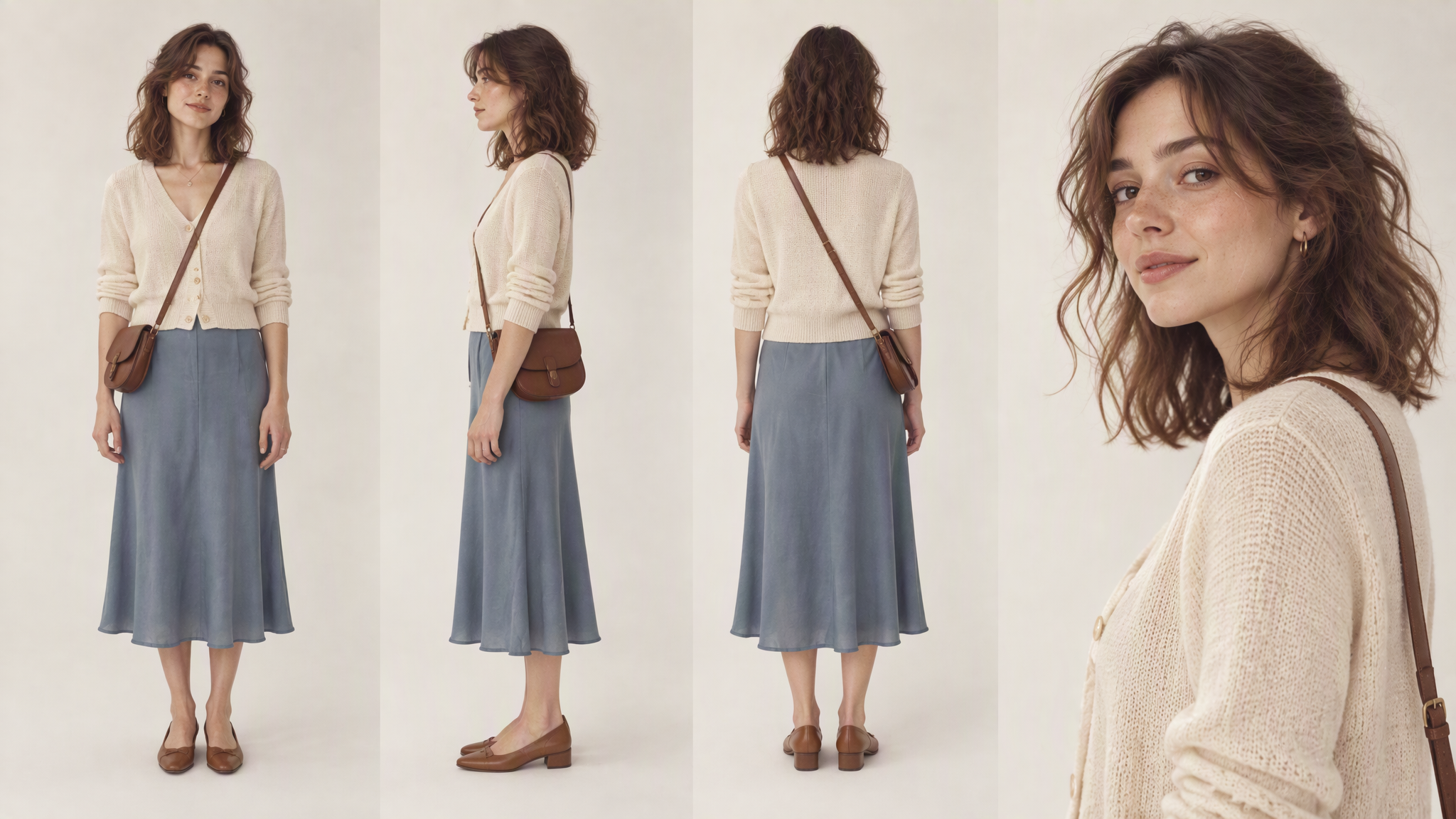 | Using the close-up and three-view layout of the reference character, generate a matching set of three additional characters. Character 1: A slim, tall adult Caucasian woman in her twenties with fair skin, light gray-blue eyes, an oval face, naturally light eyebrows, a straight nose, and naturally closed lips. Her ash-blonde hair is loosely tied into a messy bun at the back, with a few softly curled strands falling around her forehead and temples. Preserve subtle freckles, visible pores, and realistic skin texture. She wears minimal makeup and has a calm, reserved expression with a slightly relaxed, detached air. She wears a sleeveless, dark burgundy maxi dress with a round neckline and wide capped shoulders. The fabric is soft and matte, with natural diagonal draping around the waist and abdomen. The skirt has a relatively straight silhouette, ending at the lower calf, just above the ankles. A long, pale blush-pink scarf is loosely wrapped around her neck. It is smooth, soft, and unpatterned, with one end falling behind her shoulder to waist level. She wears black round-toe ballet flats, with no other prominent accessories. Character 2: A slim, tall adult Caucasian woman in her twenties with fair skin, light eyes with a subtle gray-green tint, naturally thick dark brown eyebrows, a straight nose, and well-defined natural lips. Her dark brown hair is tied into a loose low bun at the back, with a voluminous crown and irregular, softly curled strands falling around both sides of her face. She wears natural makeup, with subtle freckles, realistic pores, and visible skin details. Her expression is composed, confident, and slightly aloof. She wears a dark chocolate-brown leather cropped jacket with a relaxed fit, a relatively high stand collar, shoulder epaulettes, a front metal zipper, and an elasticated hem. The sleeves are loose with fitted cuffs. The leather has a soft sheen and realistic fine creases, not a glossy patent finish. The jacket is worn open over a fitted cream-white turtleneck knit top. She wears black high-waisted wide-leg trousers with a loose, flowing silhouette. The hems nearly touch the ground, partially covering black pointed-toe shoes. Character 3: A middle-aged Black man in his forties to fifties, with deep brown skin, a medium-to-tall slender build, naturally broad shoulders, and dark brown eyes. He has short, tightly curled black hair, slightly longer on top and tapered at the sides. His neatly trimmed short beard and mustache feature distinct silver-gray hairs around the chin and jawline, creating a natural mix of black and gray. Preserve fine forehead lines, under-eye texture, visible pores, and natural variations in skin tone. His expression is calm, warm, and confident, with naturally closed lips. He wears a charcoal-black casual wool-blend jacket with a matte texture, hip-length cut, notched lapels, front buttons, a single chest patch pocket, and long sleeves. The jacket has a relaxed, straight silhouette and is worn open over a gray-white shirt with a fine black micro-check pattern. The collar is unbuttoned, and the shirt hem hangs naturally below the jacket. He wears a long, thin brown cord necklace with a geometric silver pendant at chest level. His trousers are charcoal-black with a straight-leg cut, paired with dark brown, almost black lace-up leather shoes with layered brown detailing along the soles. No visible brand logos. |
| Using the close-up and three-view layout of the reference character, generate a matching set of three additional characters. Arina: A mature, elegant woman wearing a light lavender qipao and holding a traditional Chinese folding fan. She has a cool, commanding presence, an East Asian and mixed-heritage appearance, and a tall, graceful figure. Cris: A Mexican-American mercenary with a friendly, rugged appearance and a large, stocky build. He wears a military tactical vest, gloves, shorts, combat boots, and a military cap. He is slightly overweight, outgoing, easygoing, and unconcerned with formalities. Mia: A quintessential California girl with blonde hair and blue eyes. She is a cheerleading captain wearing a lively private-school cheerleading uniform, accessorized with pink and blue stars. |
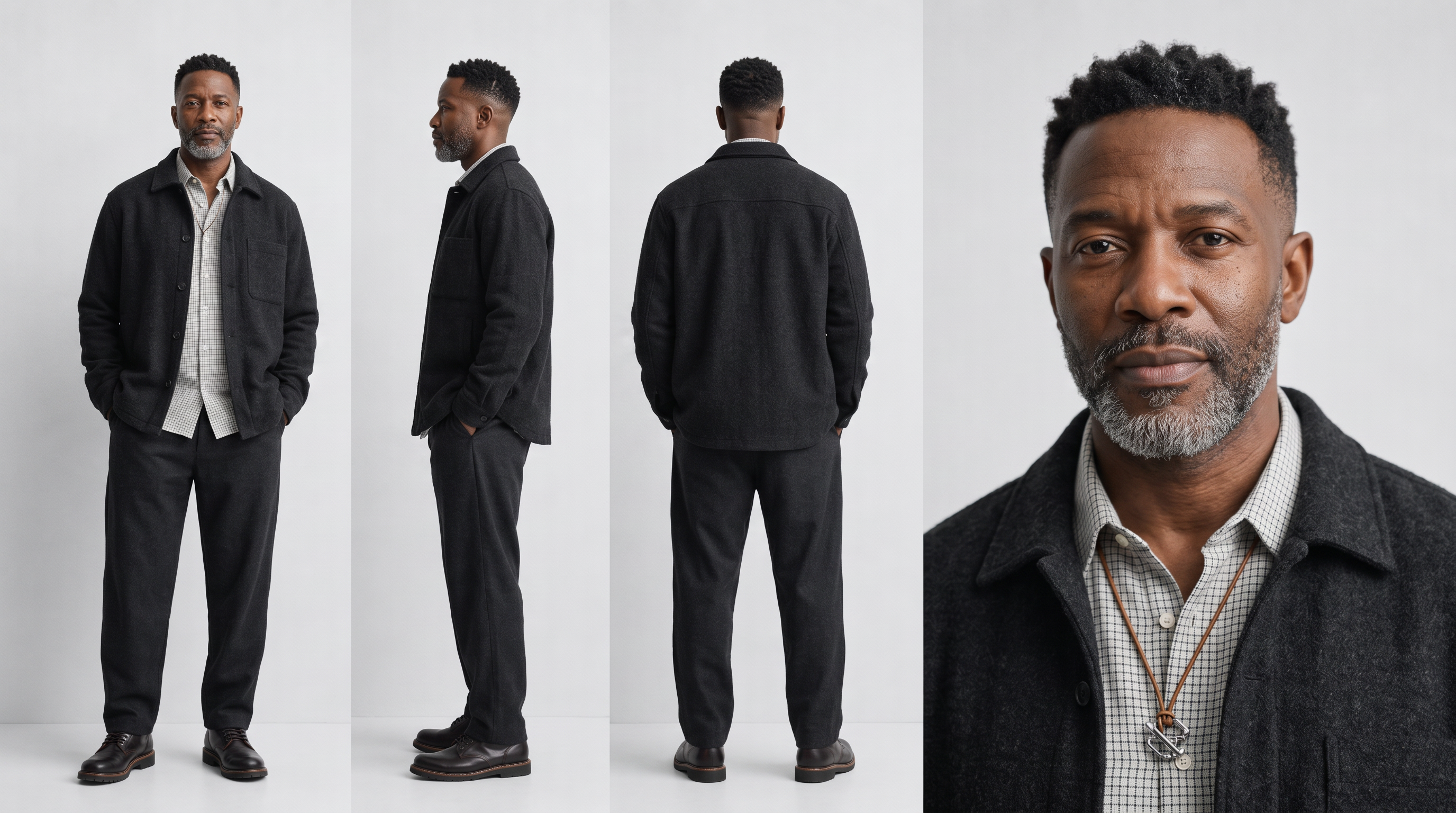
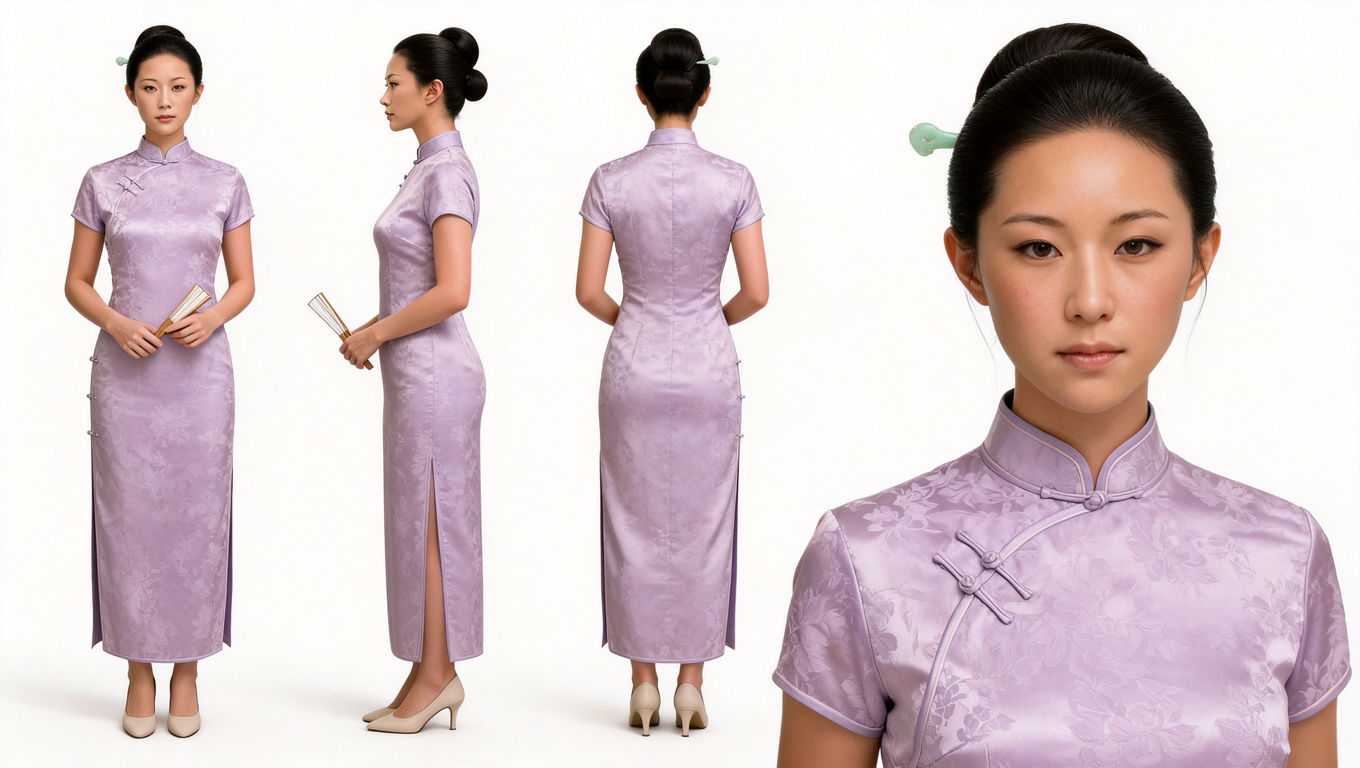
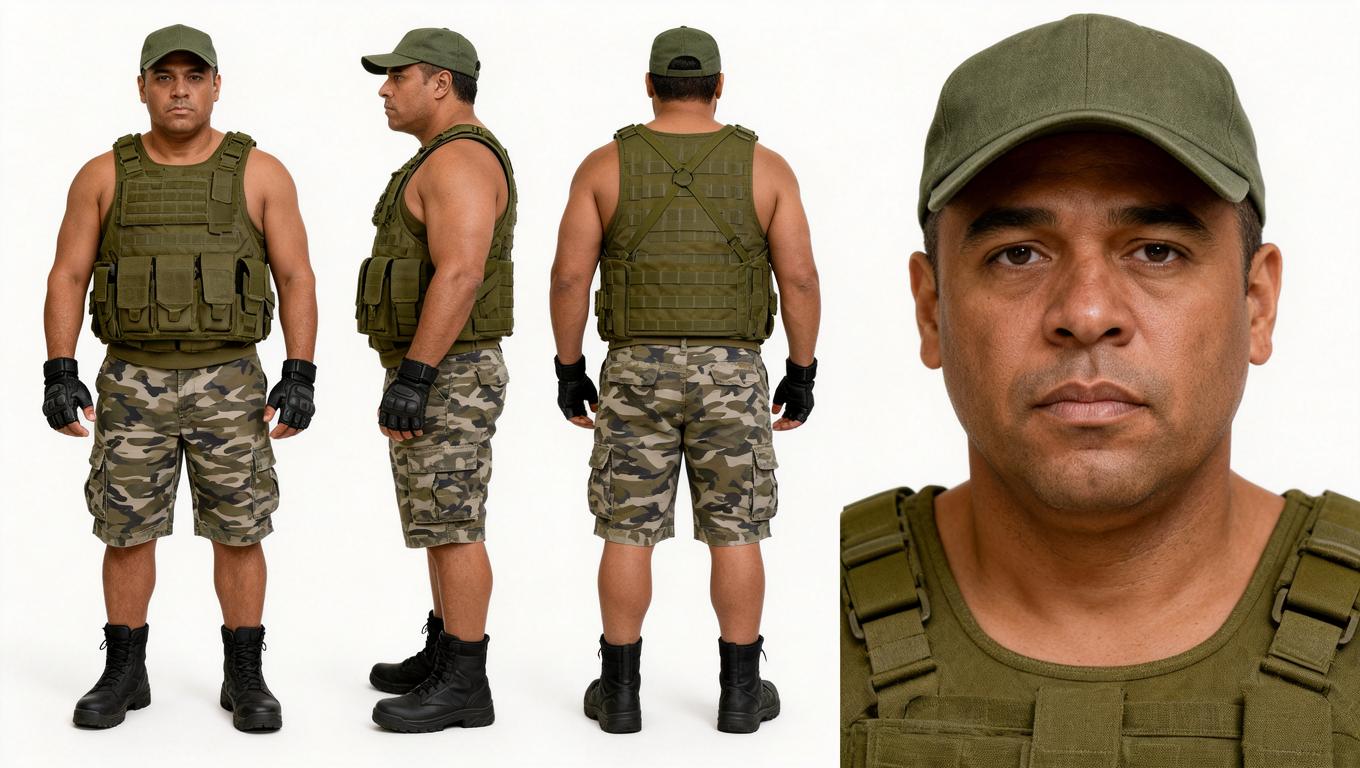
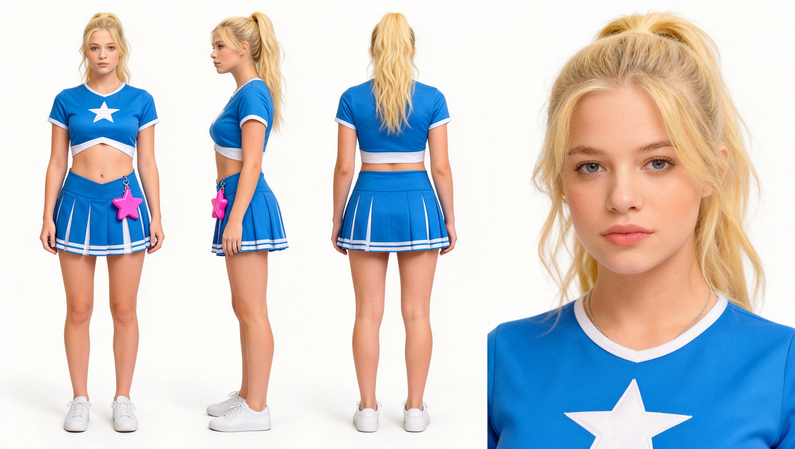
Group Portrait
Template (Ready to Use):
Number of people and group identity + individual differences + positioning and layout + actions and interactions + setting.
Detailed Prompt Formula: Number of people and group identity + overall styling theme + each person's position / appearance / outfit / action / gaze + interactions and occlusions between people + scene depth + camera angle and depth of field + consistent lighting and color tones + image quality.
Individual Character Description Formula: Position + distinguishing features + clothing + action + expression / gaze.
For example: "In the left foreground, a young man with short, light blond hair, wearing a white sports jersey, crouches while holding a camera, looking down at its screen."
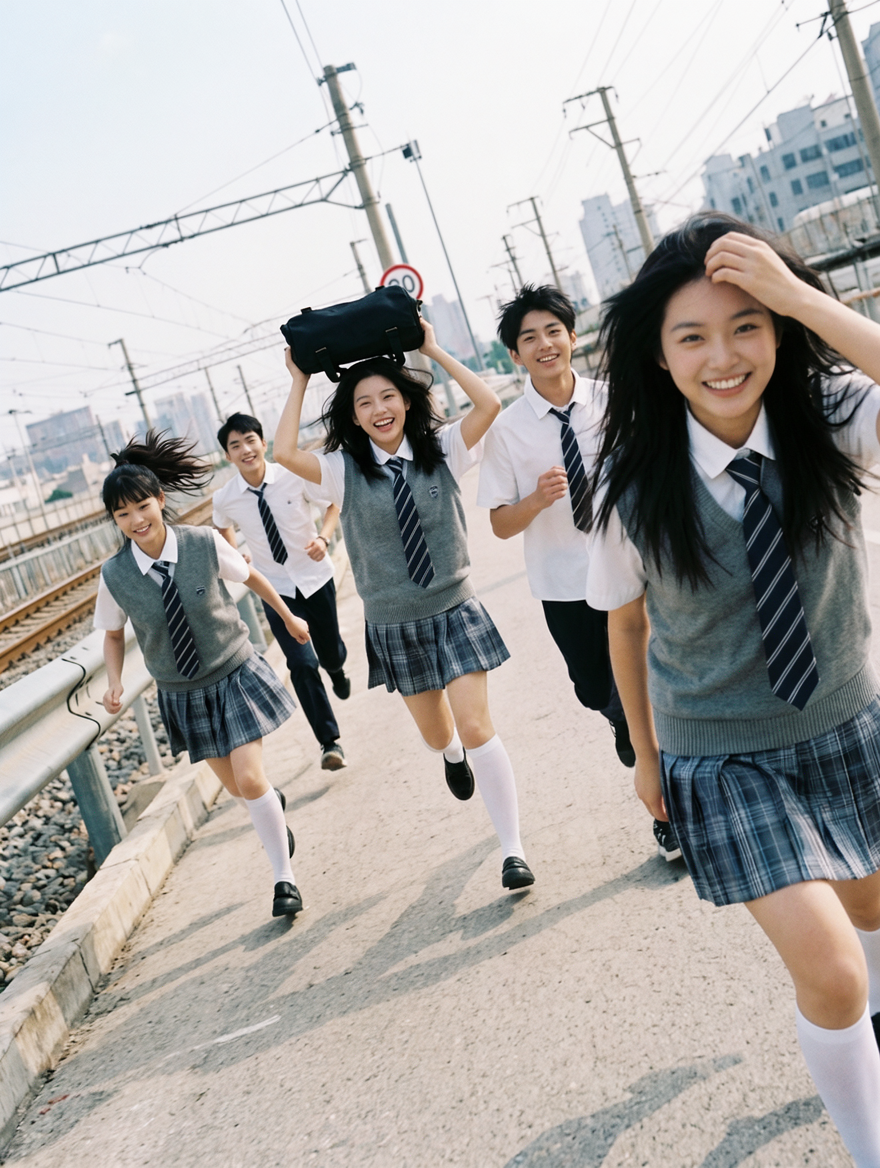 |  | 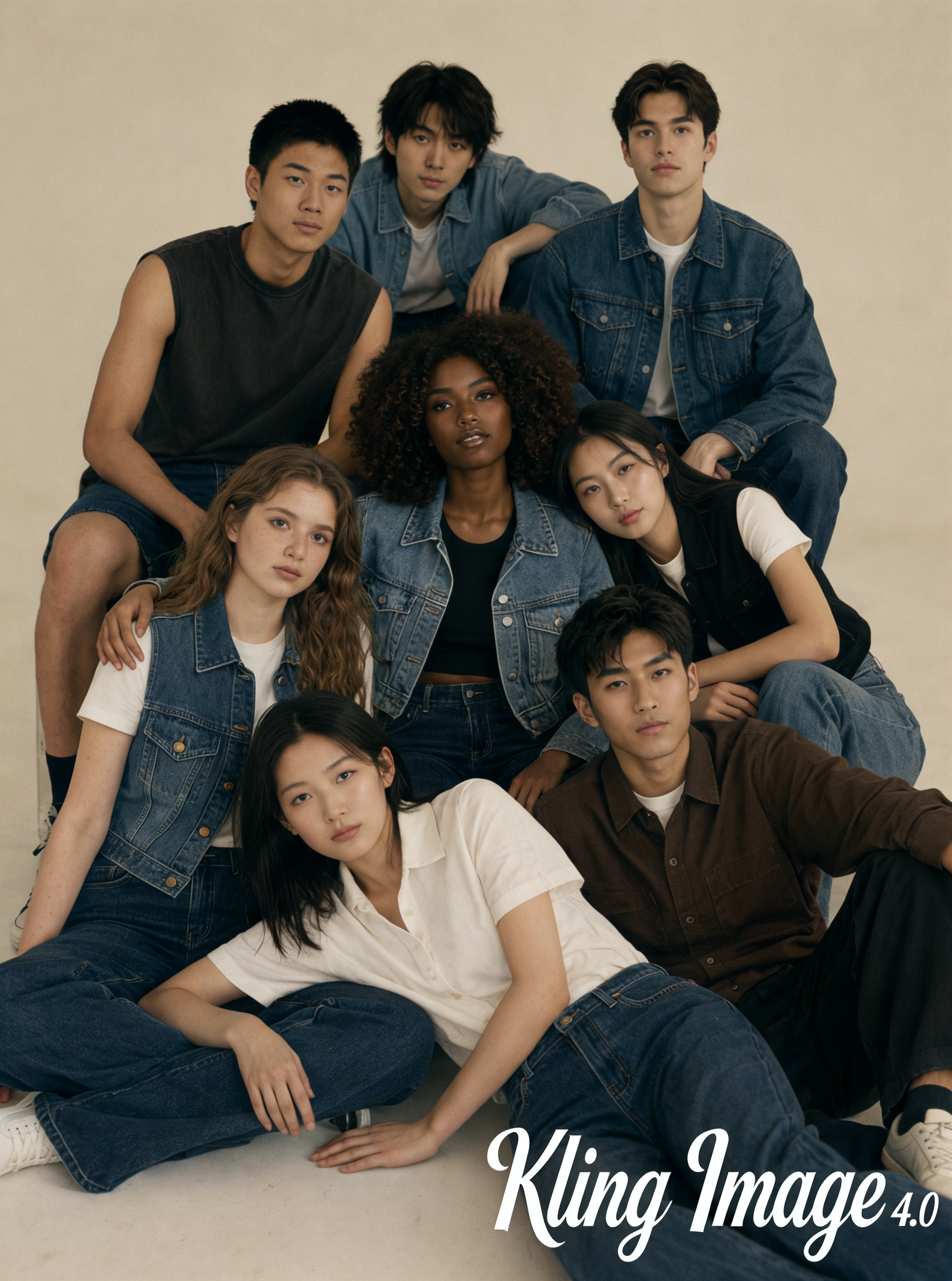 | 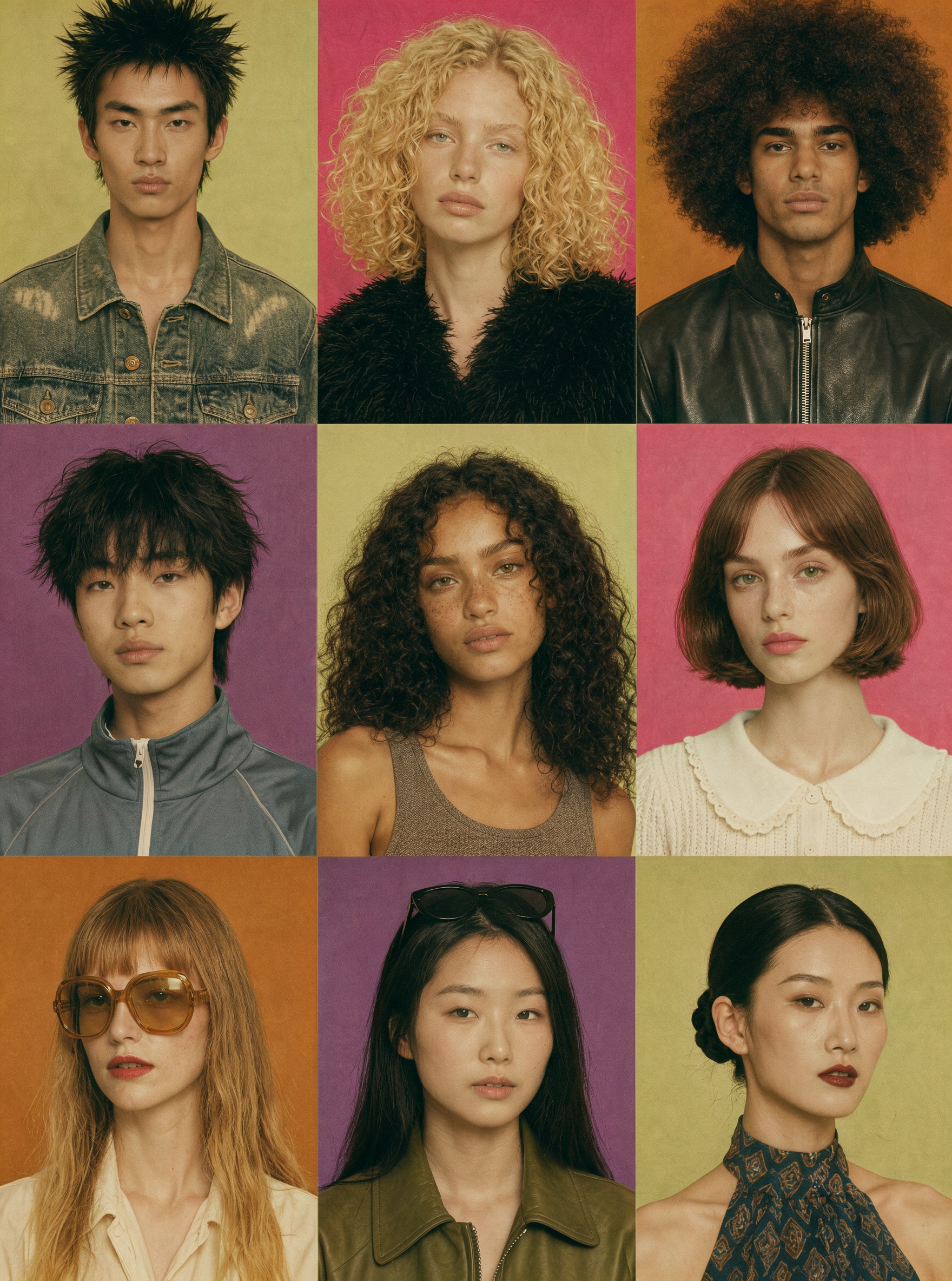 |
Five young East Asian students wearing matching summer school uniforms are running toward the camera along an open road beside railway tracks and a highway. They appear to be high school students, two boys and three girls, with a youthful, natural look. Their hair is blown by the wind, and they have bright smiles on their faces. Their uniforms mainly consist of white short-sleeved shirts, dark blue striped ties, gray knit vests, and dark trousers or blue-gray plaid pleated skirts. The girls wear white knee-high socks and black leather shoes. In the right foreground, one girl runs while holding her hair in place with one hand, leaning forward. The girl in the center raises a black backpack above her head with both hands and laughs joyfully. Another girl has straight bangs and a high ponytail, and wears a gray vest and plaid skirt. Two boys in the background are running after them, also smiling. Their movements are energetic and their poses varied, creating the feeling of a playful chase after school. The scene is set along a railway line on the outskirts of a city. The background is filled with utility poles, railway overhead wires, speed limit signs, guardrails, and distant urban buildings. The road recedes into the distance with diagonal perspective lines. Vertical composition, full-body group portrait, medium-long shot, slightly low camera angle, and a subtly tilted frame for a candid feel. Natural daylight on a sunny day, with an overall film-like color tone, slight overexposure, and subtle grain, reminiscent of a coming-of-age film or school photo shoot from the 2000s. | Eight young men and women gather in a photography studio, seated in overlapping layers and leaning against one another to form a compact triangular group composition. The group includes young people with diverse skin tones and facial features, all around 20 years old. They have natural-looking features, clean makeup, and mostly black or dark brown hair in a variety of styles, including short hair, long straight hair, and loose curls. Their outfits are built around blue denim, paired with black, white, and brown pieces, including denim jackets, jeans, white short-sleeved tops, black vests, shirts, and casual shoes. Two men sit in the back row: one wears a dark sleeveless top and shorts, while the other wears a blue denim jacket. Several women and men sit closely together in alternating positions in the middle. In the foreground, a woman wearing a white short-sleeved collared top reclines diagonally and looks directly at the camera. Their poses are natural and intimate. Some rest their hands on a companion's shoulder, some sit cross-legged, and others lean sideways against one another. The overall look resembles a youthful group fashion magazine cover. Most of the subjects look directly at the camera with calm, relaxed, slightly fashion-forward expressions. Vertical composition, medium-close to full-body group portrait, slightly high camera angle, with the subjects filling almost the entire frame. A clean, seamless off-white studio background, soft and even lighting, and low contrast. The overall aesthetic combines the youthful magazine style of the 1990s with retro film colors. The words "Kling Image Pro" appear in large artistic white lettering in the lower-right corner. | Eight young men and women gather in a photography studio, seated in overlapping layers and leaning against one another to form a compact triangular group composition. The group includes young people with diverse skin tones and facial features, all around 20 years old. They have natural-looking features, clean makeup, and mostly black or dark brown hair in a variety of styles, including short hair, long straight hair, and loose curls. Their outfits are built around blue denim, paired with black, white, and brown pieces, including denim jackets, jeans, white short-sleeved tops, black vests, shirts, and casual shoes. Two men sit in the back row: one wears a dark sleeveless top and shorts, while the other wears a blue denim jacket. Several women and men sit closely together in alternating positions in the middle. In the foreground, a woman wearing a white short-sleeved collared top reclines diagonally and looks directly at the camera. Their poses are natural and intimate. Some rest their hands on a companion's shoulder, some sit cross-legged, and others lean sideways against one another. The overall look resembles a youthful group fashion magazine cover. Most of the subjects look directly at the camera with calm, relaxed, slightly fashion-forward expressions. Vertical composition, medium-close to full-body group portrait, slightly high camera angle, with the subjects filling almost the entire frame. A clean, seamless off-white studio background, soft and even lighting, and low contrast. The overall aesthetic combines the youthful magazine style of the 1990s with retro film colors. The words "Kling Image Pro" appear in large artistic white lettering in the lower-right corner. | A retro fashion magazine-style nine-panel portrait grid, arranged in a neat 3×3 layout with no borders or spacing. Nine young male and female models aged 18–28, representing diverse ethnicities, genders, skin tones, and facial features. Each has a distinct appearance, naturally defined features, and a strong individual identity. Avoid generic, influencer-style faces. First Row: Second Row: Third Row: All subjects are photographed in consistent close-up portrait compositions, facing forward or at a slight angle. Eye-level camera, head-and-shoulders framing, with each subject looking directly into the camera and wearing a naturally reserved expression. The solid-color studio backgrounds alternate between pale yellow-green, magenta, caramel orange, and violet, creating a bold retro color-blocking effect. 1990s vintage fashion magazine photography, with soft frontal studio lighting, dimensional facial features, and realistic skin texture. Preserve natural pores, freckles, and individual strands of hair. Slightly yellowed overall color, warm and muted tones, 35mm film grain, subtle fading, and the texture of vintage printed paper. Vintage editorial aesthetic, with diverse appearances, varied hairstyles, and distinctive personalities. |
3️⃣ Storyboard· Series Mode
The storyboard series mode is suitable for storytelling projects such as short dramas, animations, and advertisements.
Template (Ready to Use):
[Overall Style and Aspect Ratio] + [Character Descriptions / Reference Images] + [Individual Frame Descriptions] + [Consistency Requirements]
Overall Style and Aspect Ratio: Specify the image type, visual style, and aspect ratio. For example, "A live-action xianxia short drama, 9:16 vertical aspect ratio" or "A 2D animated film, 16:9 horizontal aspect ratio." You can also add the color palette and atmosphere, such as "clear and natural, soft and romantic" or "cool tones, desolate yet hopeful."
Character Descriptions: Describe each character's appearance, hairstyle, clothing, and distinctive features. For example, "The female lead wears a white gauze dress and has long hair; the male lead has his hair tied back and wears a teal robe" or "A small robot with a round head and a copper-colored metal body." Describe each character individually when there are multiple characters. If using character reference images, you can simplify the descriptions and @mention the corresponding character reference images in the prompt.
Individual Frame Descriptions: Describe the characters' actions, expressions, and environmental lighting in each frame in sequence. Each frame should capture a single moment. You can vary the shot sizes (close-up, medium shot, long shot) to create a stronger sense of rhythm.
Consistency Requirements: Specify the elements that need to remain consistent. For example, "Maintain consistency in the characters' appearances, outfits, and visual style."
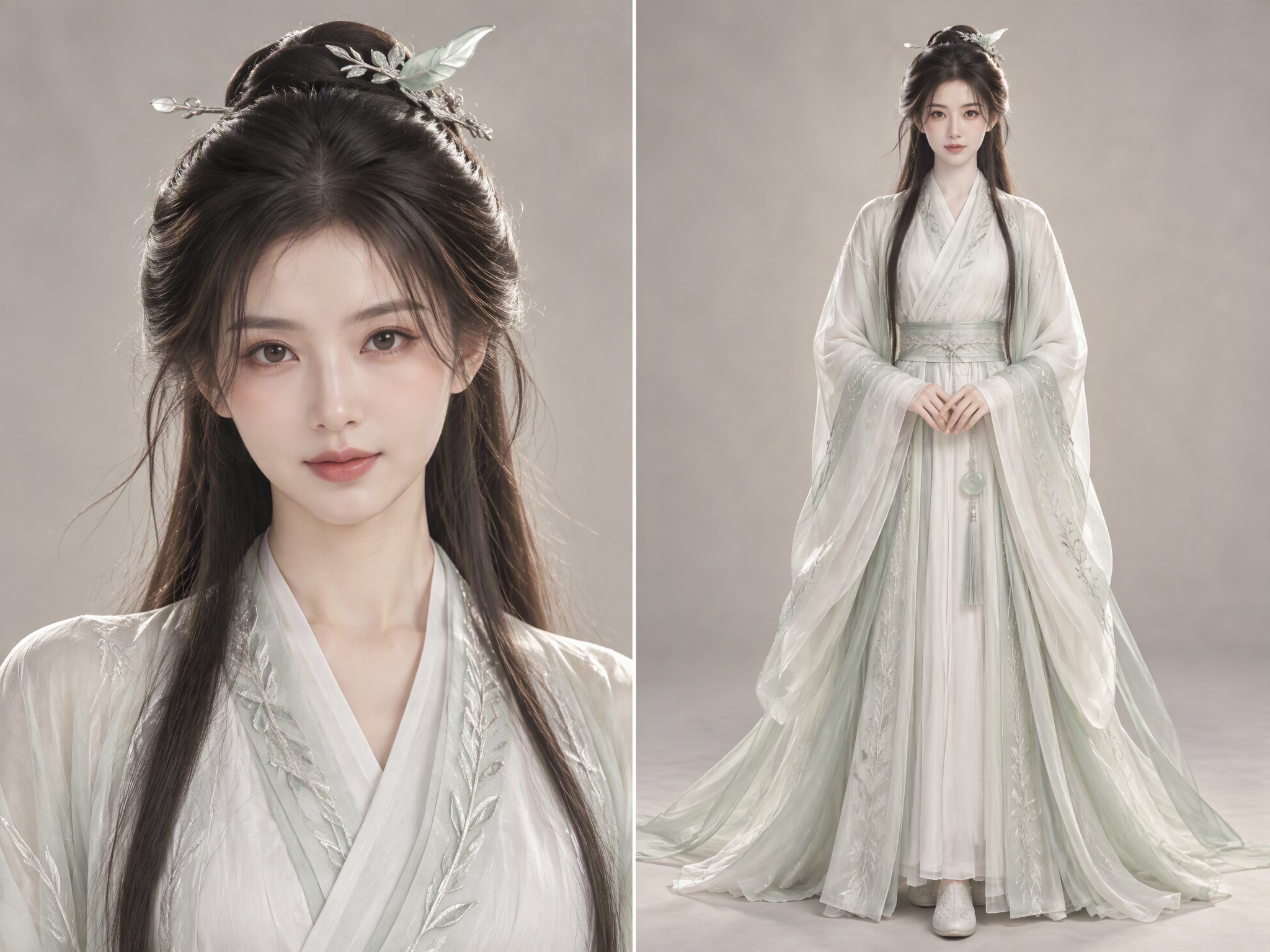
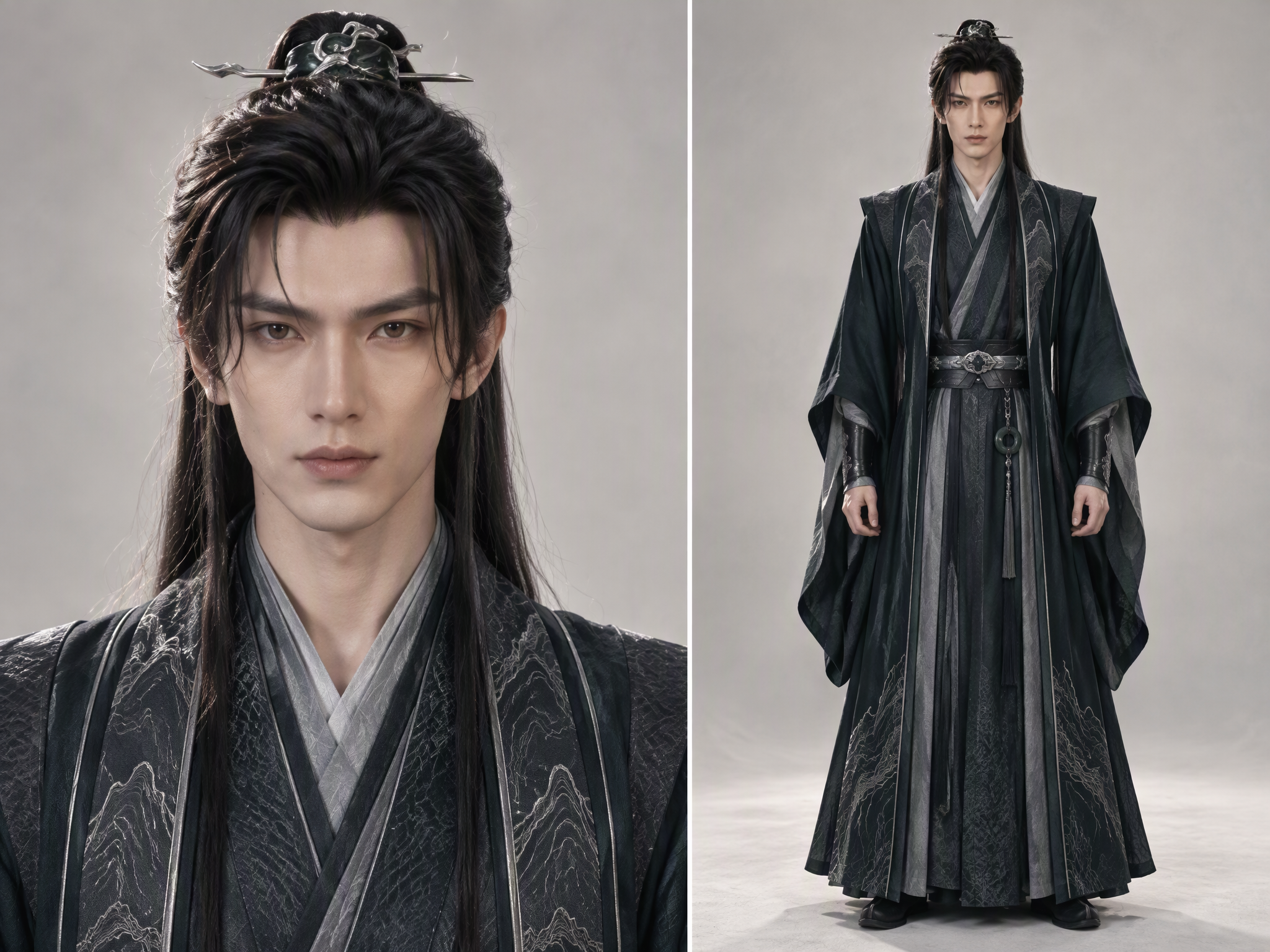
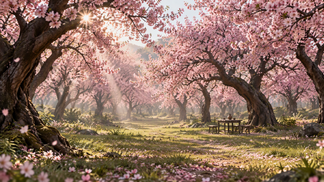
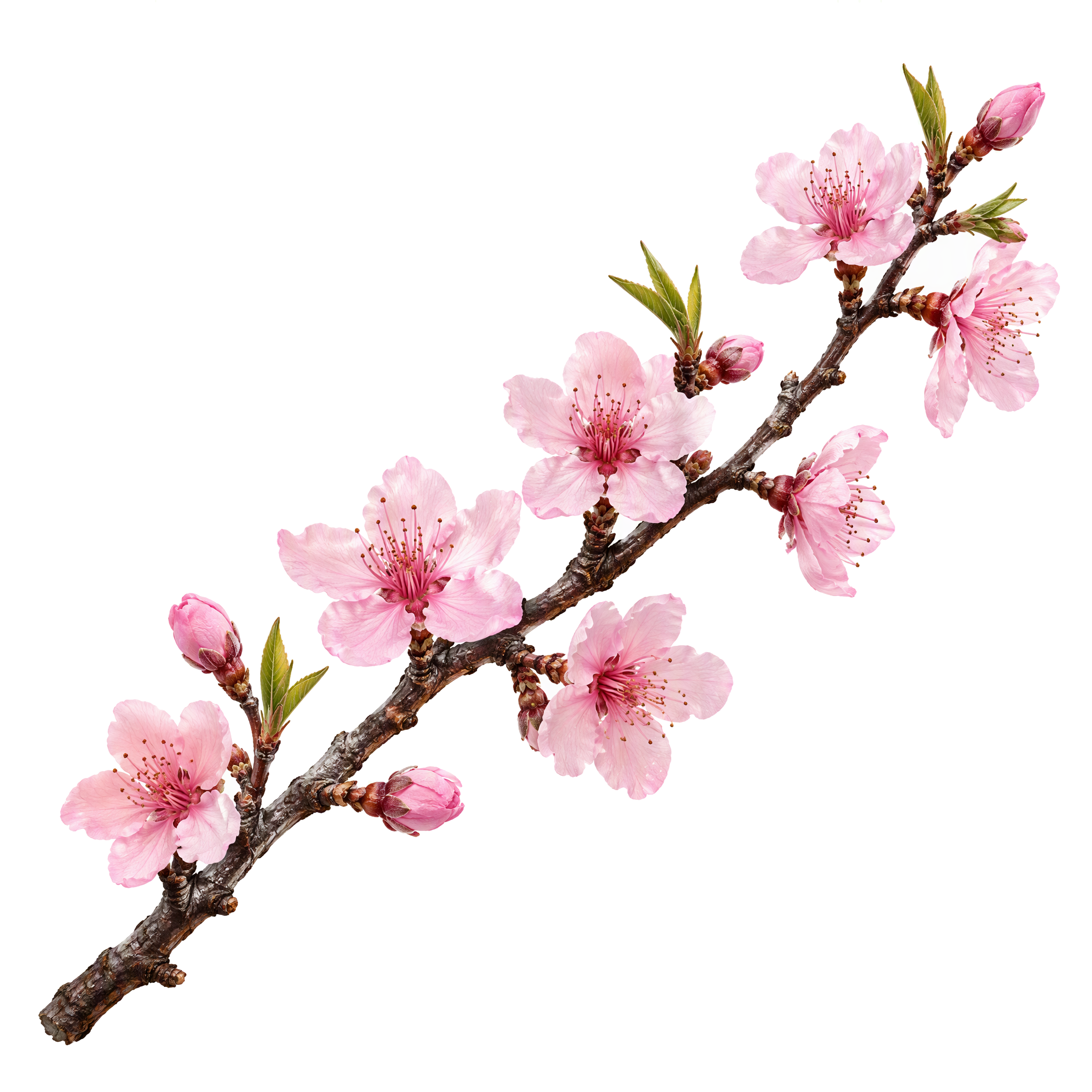
Reference Image 1 – Female Lead | Reference Image 2 – Male Lead | Reference Image 3 – Peach Blossom Grove | Reference Image 4 – Peach Blossom |
|
|
|
|
Example Prompt | |||
Generate [4] storyboard frames for [the content you want to create].
The main characters are [@character reference images], the setting is [@scene reference image], and the overall visual style is [describe the style you want here].
Frame 1: [@The female lead peeks out from behind @the peach tree and smiles at @the male lead.]
Frame 2: [@The female lead places @a peach blossom beside @the male lead's hair ornament.]
Frame 3: [@The male lead and @the female lead hold hands beneath the peach tree and gaze gently into each other's eyes.]
Frame 4: [@The female lead leans against @the male lead's shoulder, with @the peach blossom still in her hair ornament.] | |||
Film Storyboards Action Film | 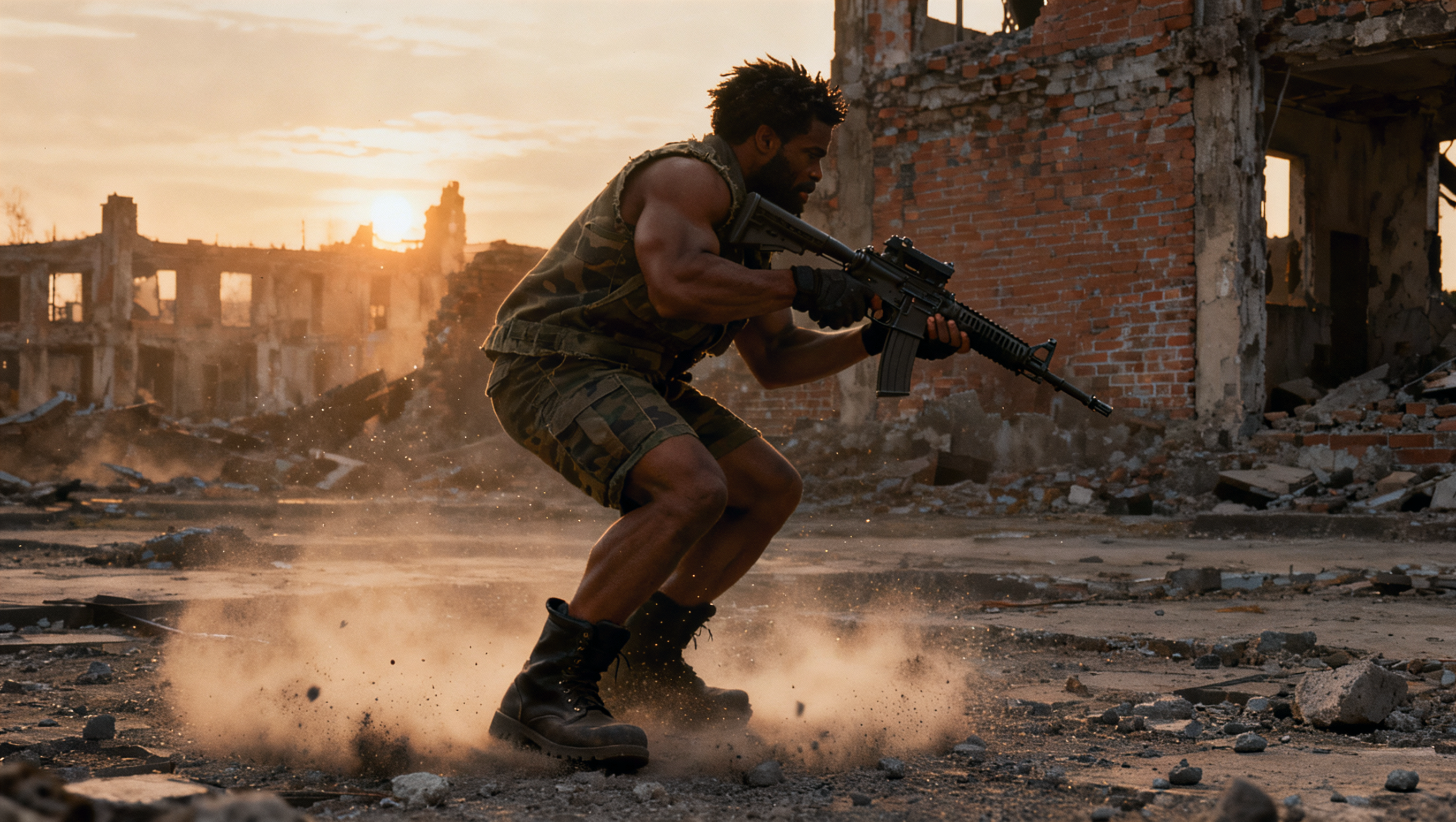 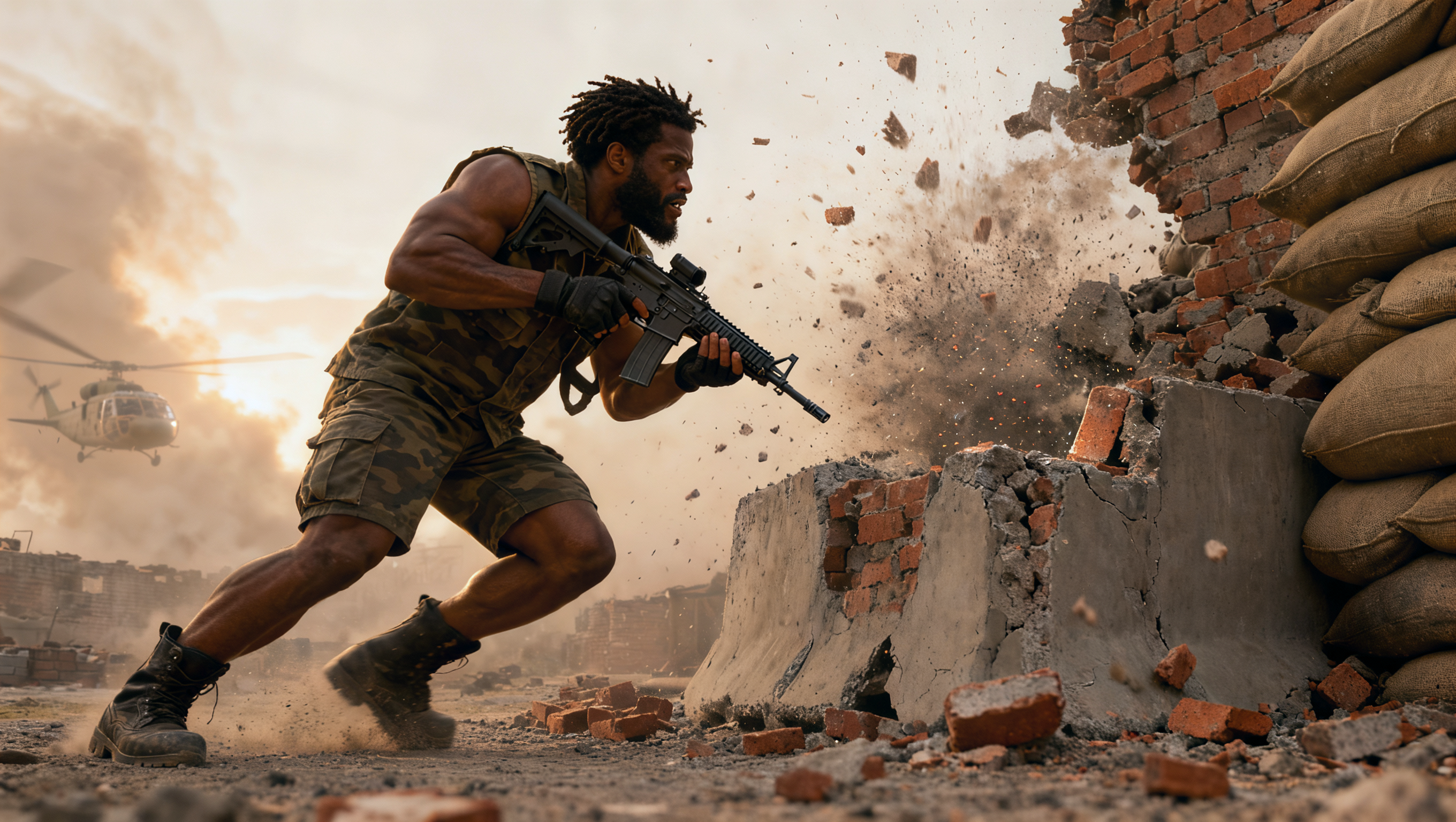 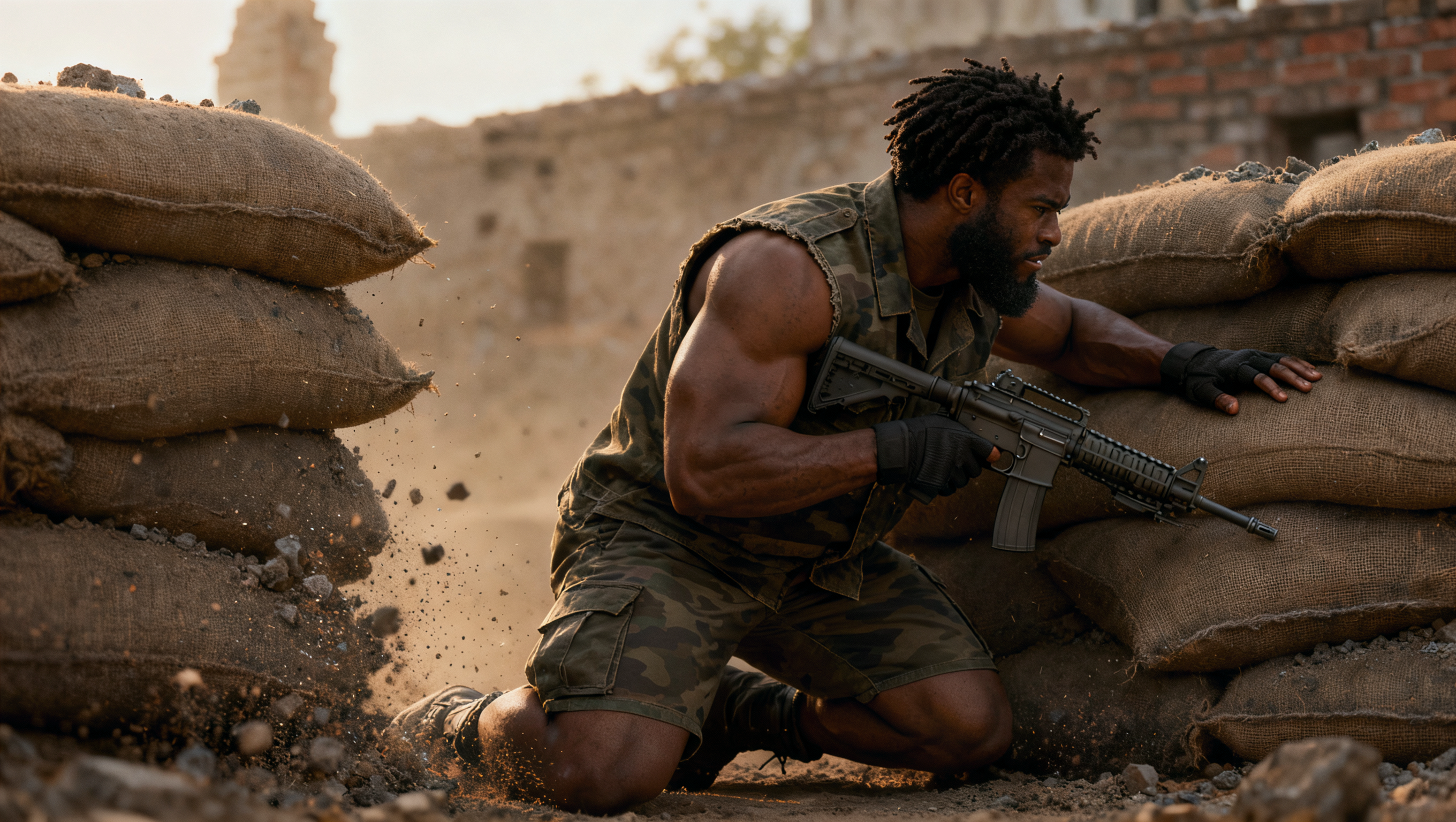 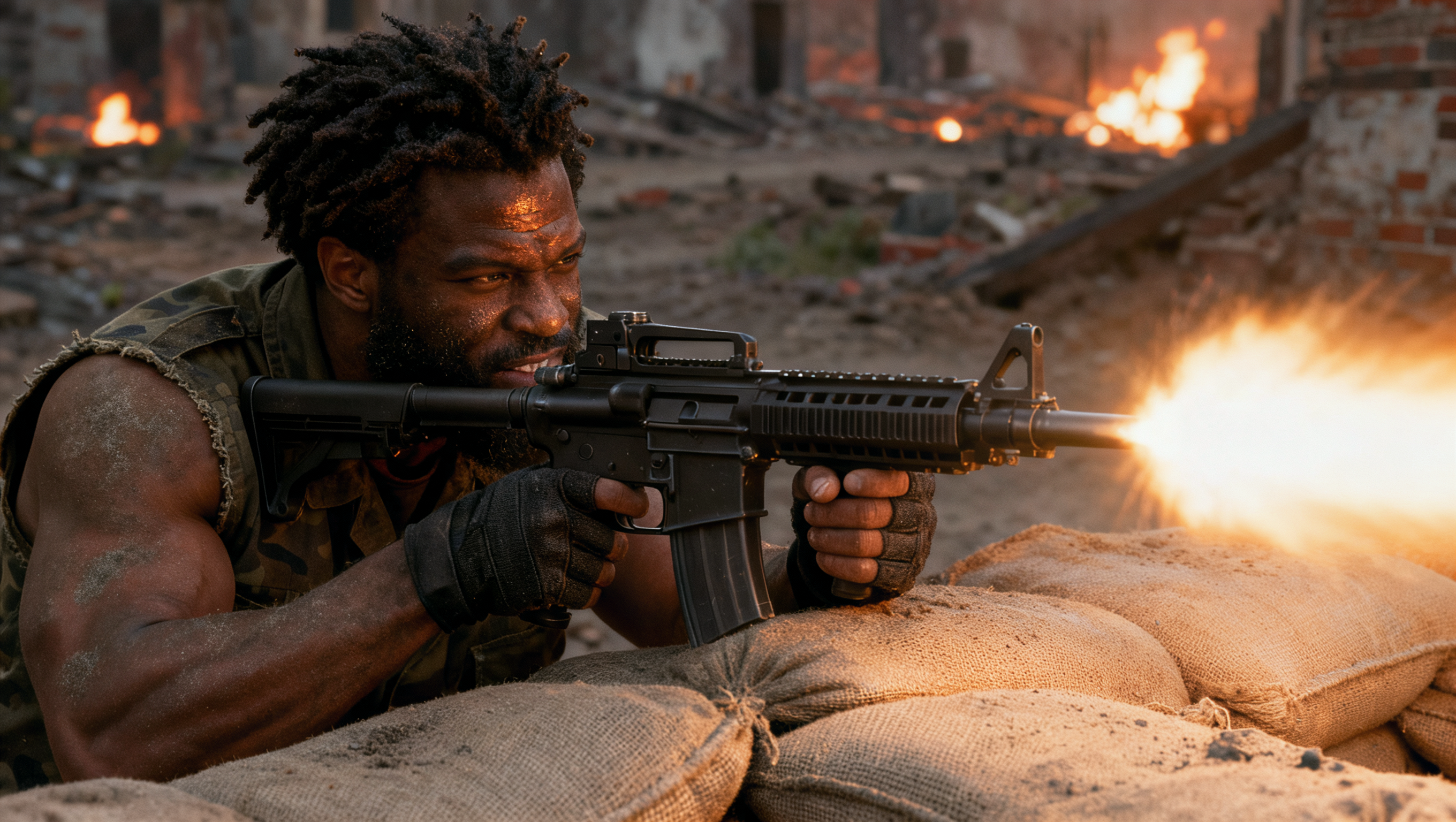 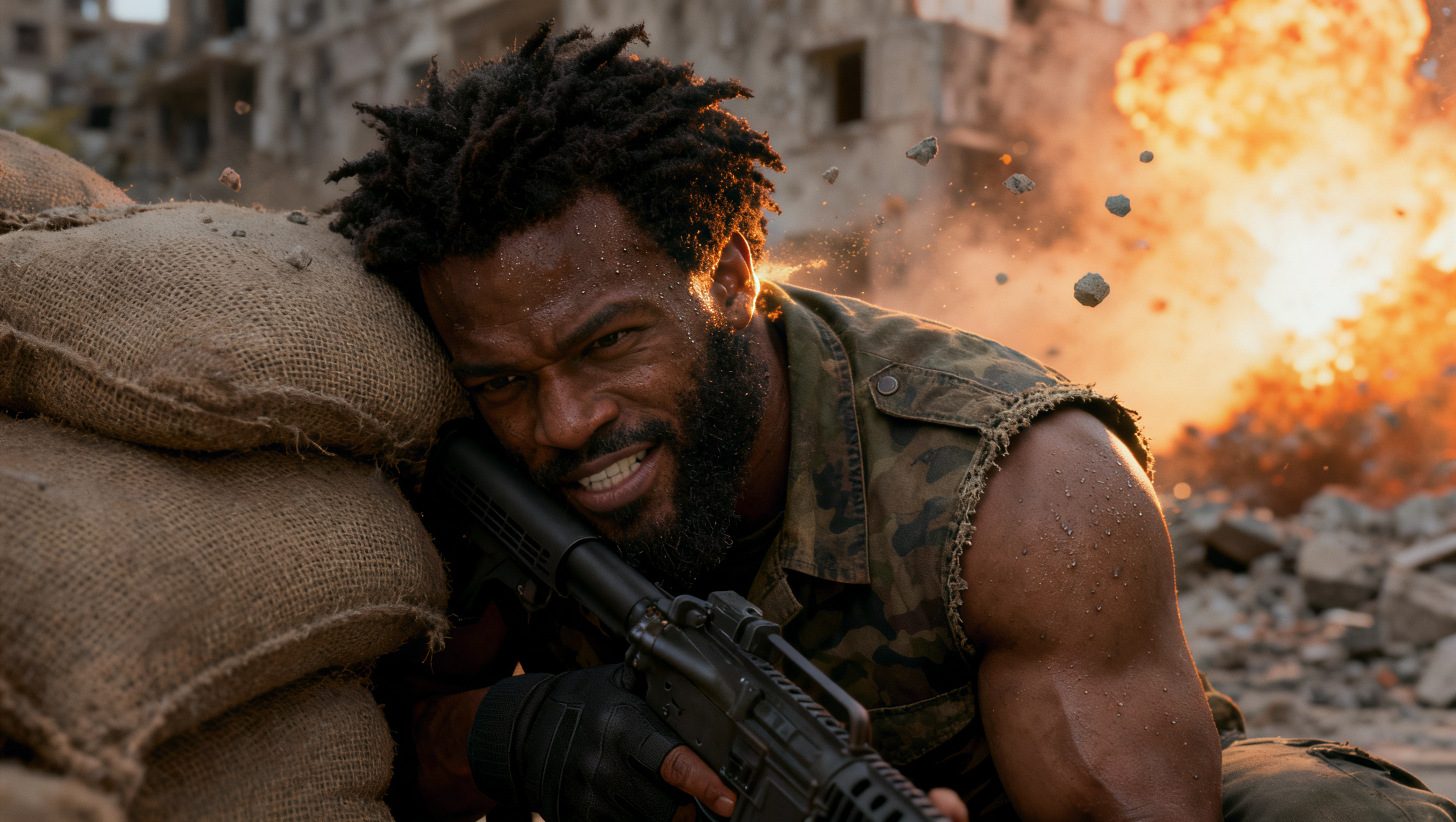  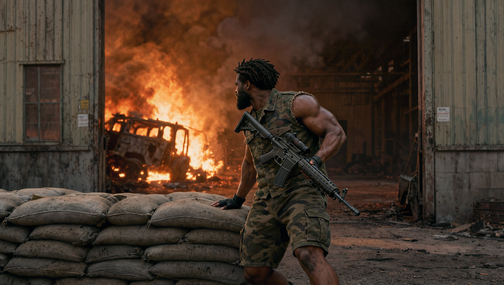 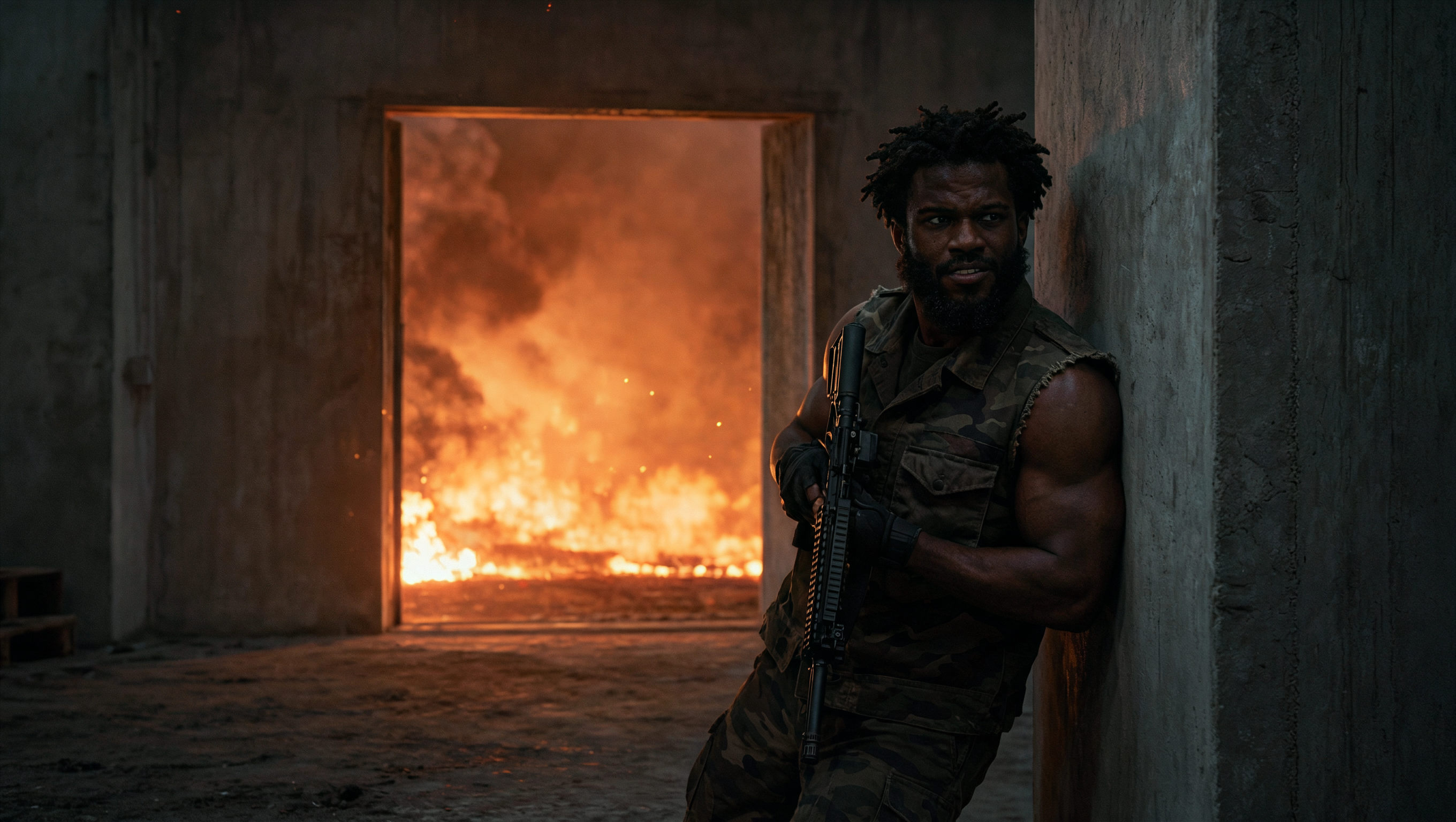 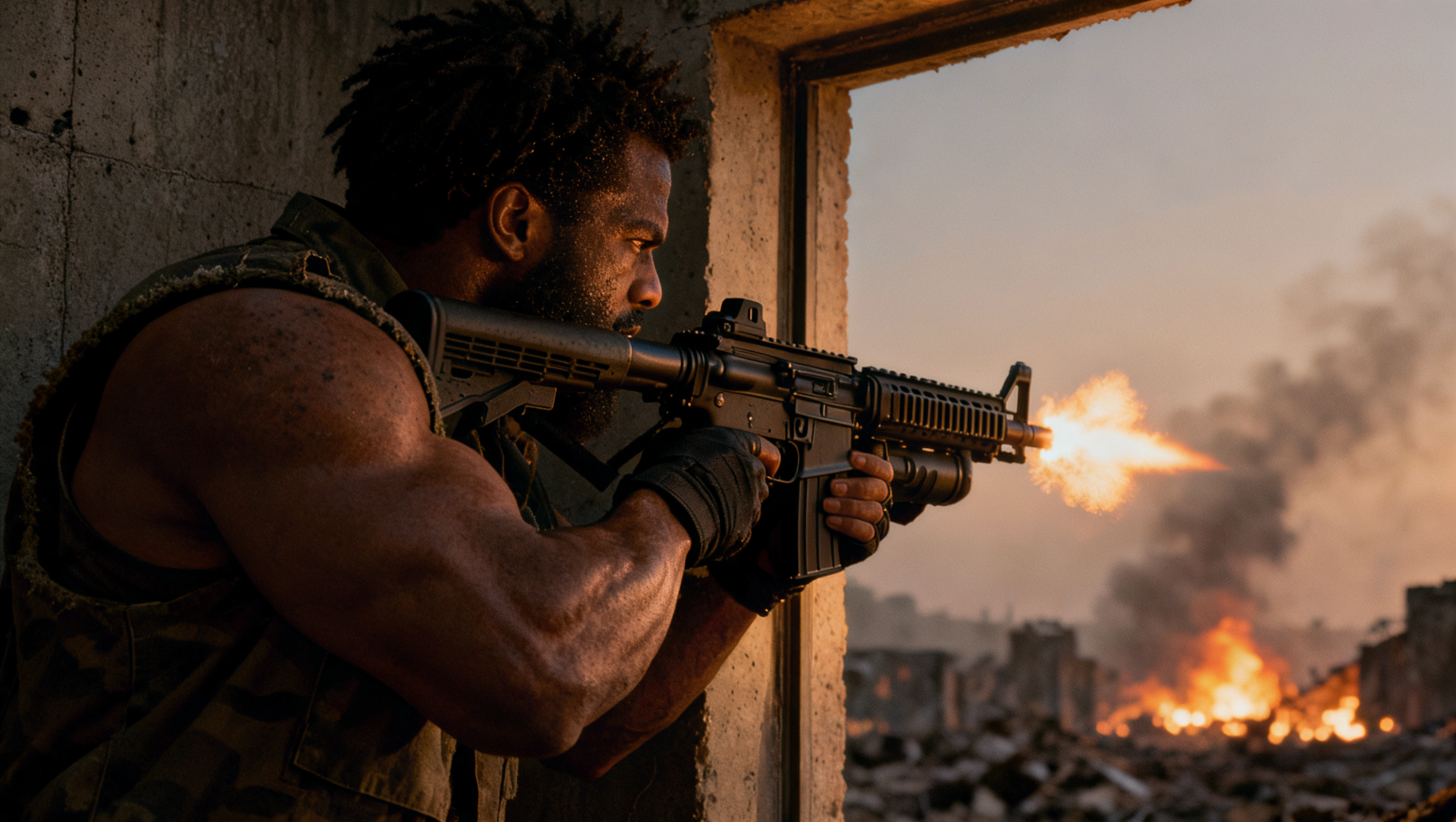 | |
Prompt / Input Image | 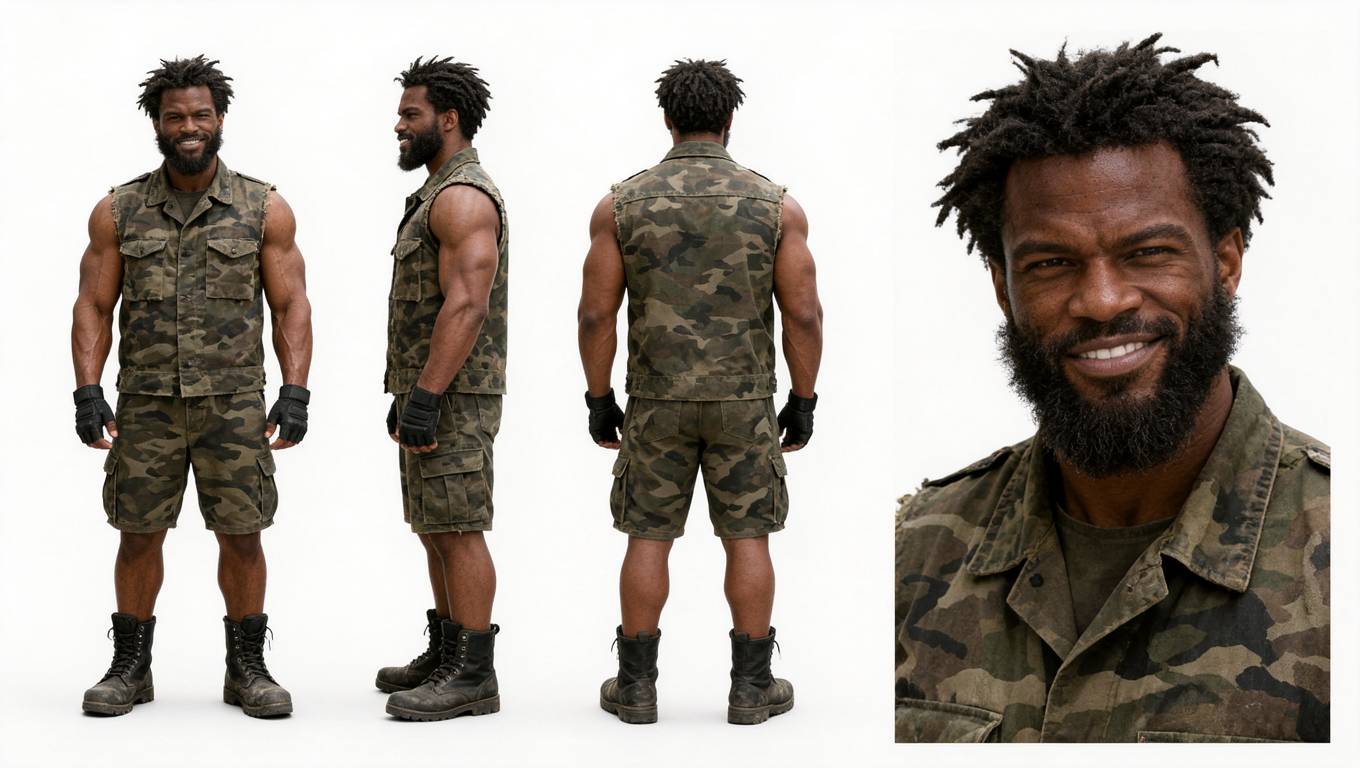 | A battle sequence set in an industrial wasteland at dusk, with warm golden backlighting, cool gray shadows, thick smoke, and firelight. Rough film texture, strong depth and visual impact, fast-paced action, and slightly shaky camera movement. The entire environment is filled with the background sounds of explosions and gunfire, creating an overwhelming sense of the protagonist entering a battlefield. 01 | Arrival – The protagonist arrives with a gun. Capture the moment their military boots hit the ground and their knees bend to absorb the impact. Their clothing flutters in the rotor wash as dust swirls around them. The same section of broken wall remains visible in the background. 02 | Charging Toward the Sandbags – Side medium shot. The protagonist rushes toward the sandbags a few steps away, holding a gun. The wall ahead is struck by gunfire, sending debris flying. Their body leans forward as they move at full speed. The helicopter disappears into the dust cloud in the left background. 03 | Taking Cover – Side medium shot. The protagonist is now behind the sandbags, bracing one hand against their edge. Bullet impacts kick up sand outside the cover, while flying debris passes through the foreground. Capture the tense moment just as the protagonist ducks behind cover. 04 | Leaning Out to Fire – Medium close-up. The protagonist leans out from the same edge of the sandbags and opens fire. Brief muzzle flashes illuminate the side of their face. Gunfire flashes from a distant factory building, while dust erupts nearby. The protagonist and their weapon form a powerful diagonal line in the composition. 05 | Ducking Under Fire – Tight close-up, continuing directly from the previous shot. The protagonist quickly lowers their body and presses their shoulder against the sandbags. Grains of sand fly past their helmet. Sweat mixes with dust on their face, and their eyes remain tense and alert. A sudden flash in the background illuminates half their face. 06 | Nearby Explosion – Ultra-wide shot from a low angle. An abandoned vehicle outside the sandbag barricade explodes, sending flames, black smoke, and a wave of earth into the air. The protagonist crouches low in the foreground, shielding their head with one arm. Debris flying in the opposite direction creates the sequence's peak moment of visual impact. 07 | Rising Through the Smoke – Side medium shot, continuing from the explosion. The protagonist pushes against the sandbags to stand up, turning toward a factory doorway a few steps behind them. Smoke and dust sweep across their shoulders and back. The vehicle is still burning, and the flames outline the silhouette of the lone protagonist. 08 | Dashing Through the Doorway – View from inside the doorway looking outward. The protagonist ducks and steps inside, pressing their shoulder and back against the wall beside the entrance, with their rifle held close in front of them. Sparks and dust sweep past outside. The dark, cool interior contrasts sharply with the brightly lit battlefield. 09 | Returning Fire from the Doorway – Medium close-up, continuing from the previous shot with the protagonist pressed against the wall. They lean sideways from the doorframe and open fire. The muzzle flash tears through the darkness, illuminating their face covered in sweat and dust. Thick smoke and flames churn outside, ending the sequence with the protagonist standing alone against the enemy. |
Animation Storyboards 2D Animation | 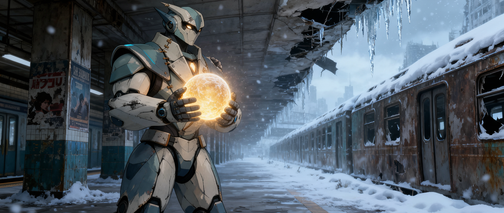 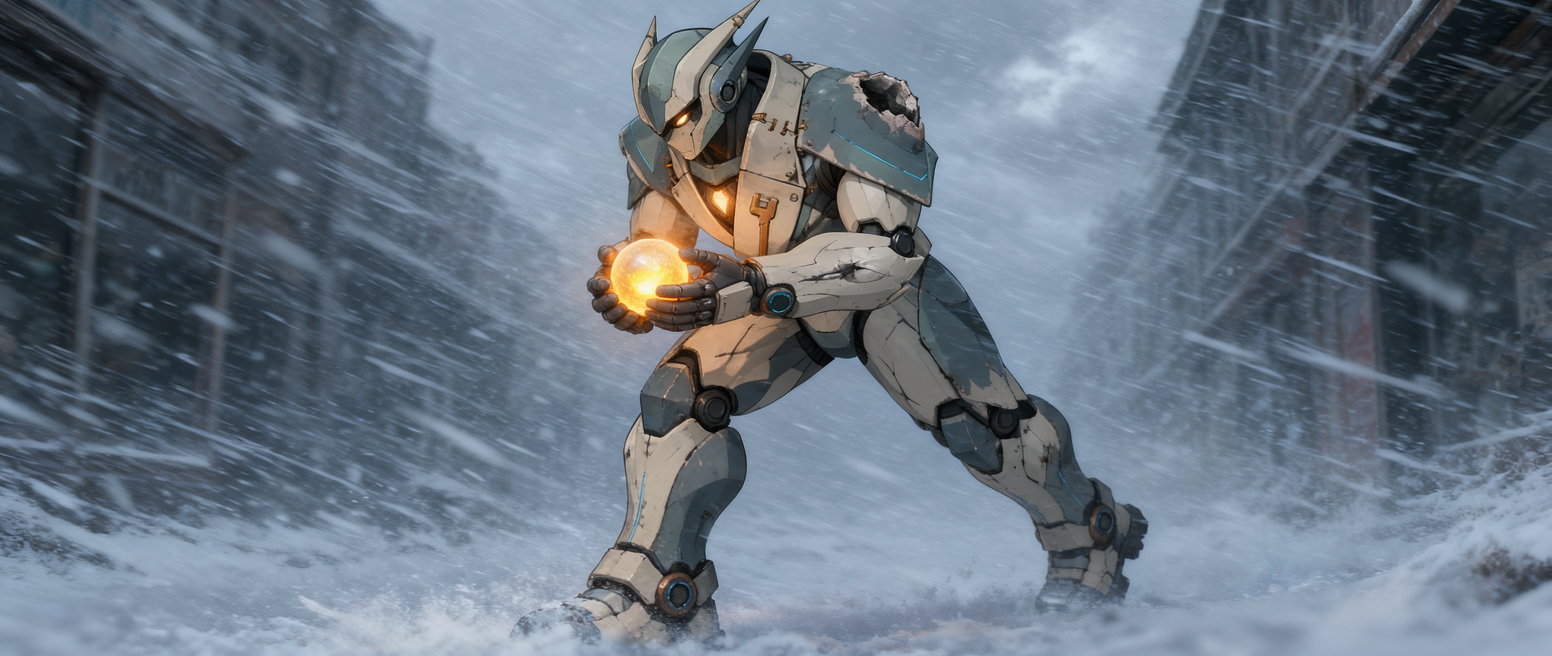  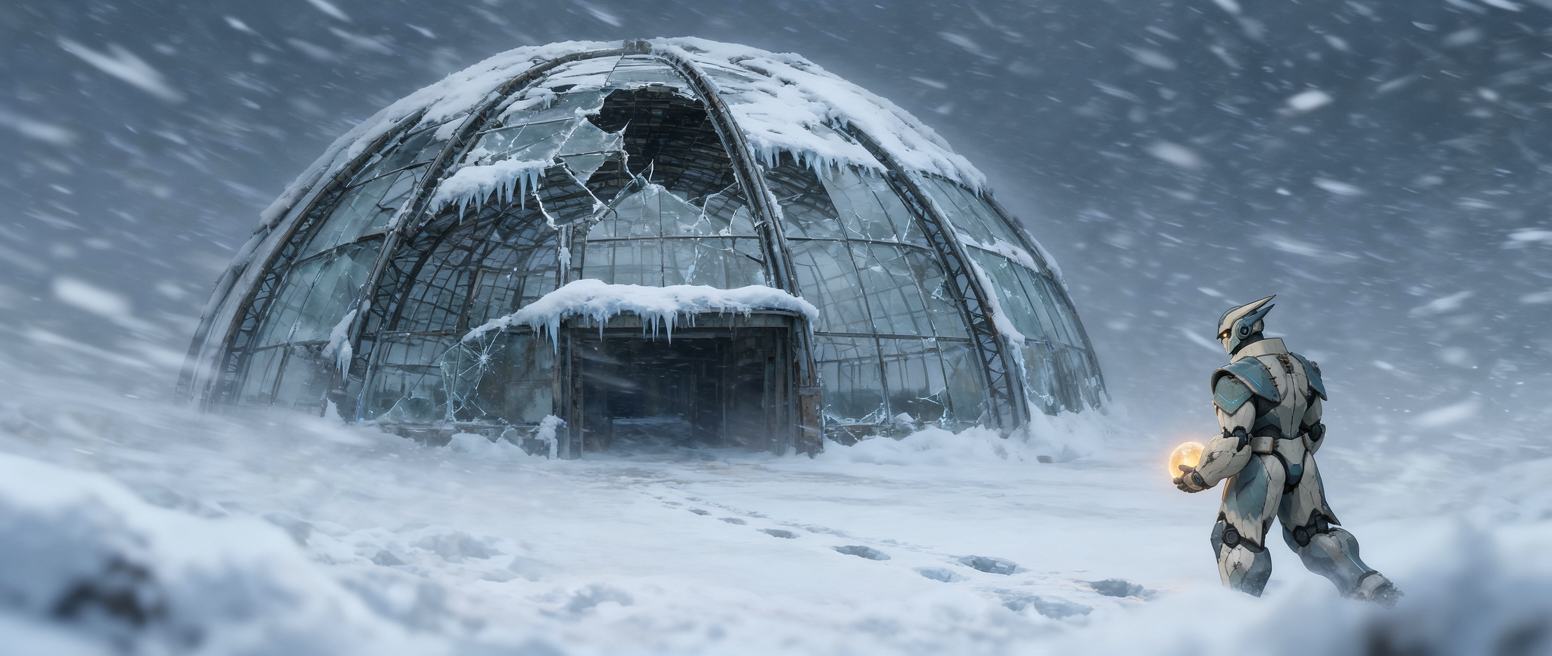 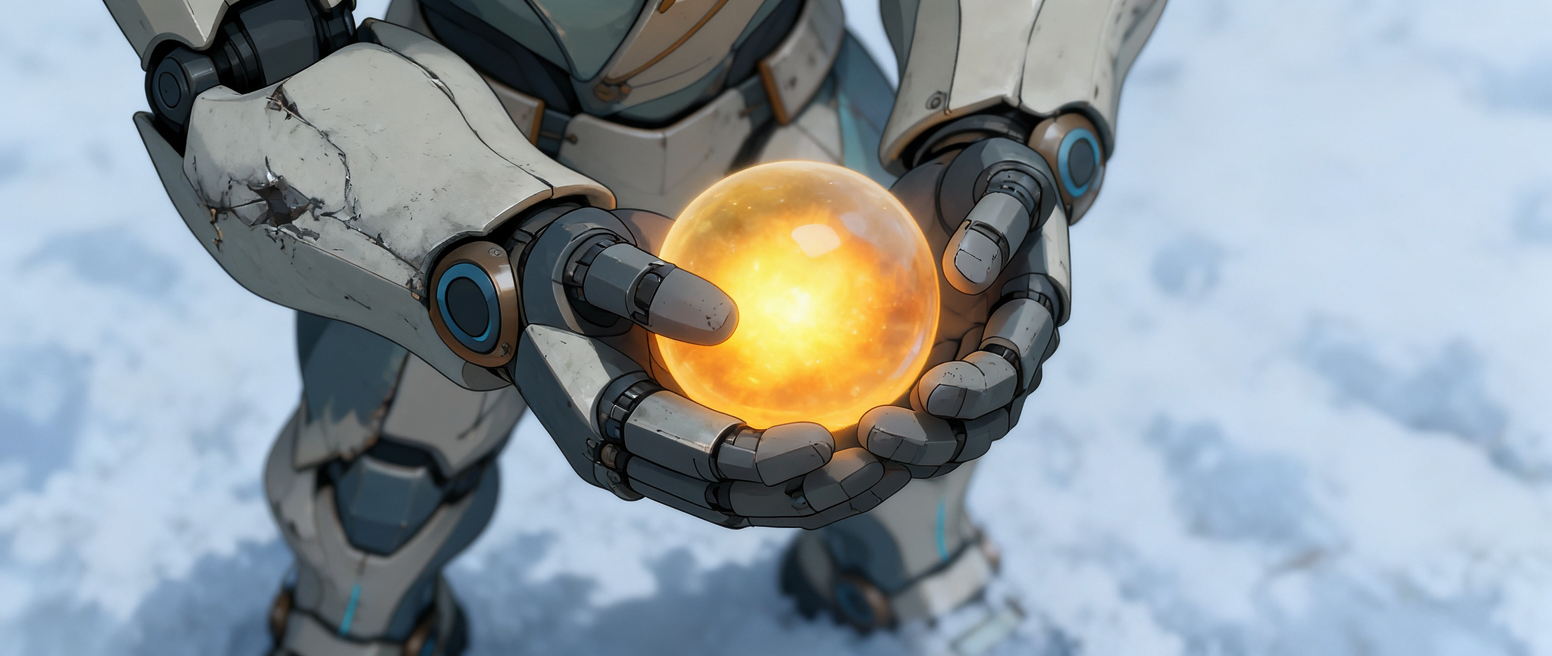 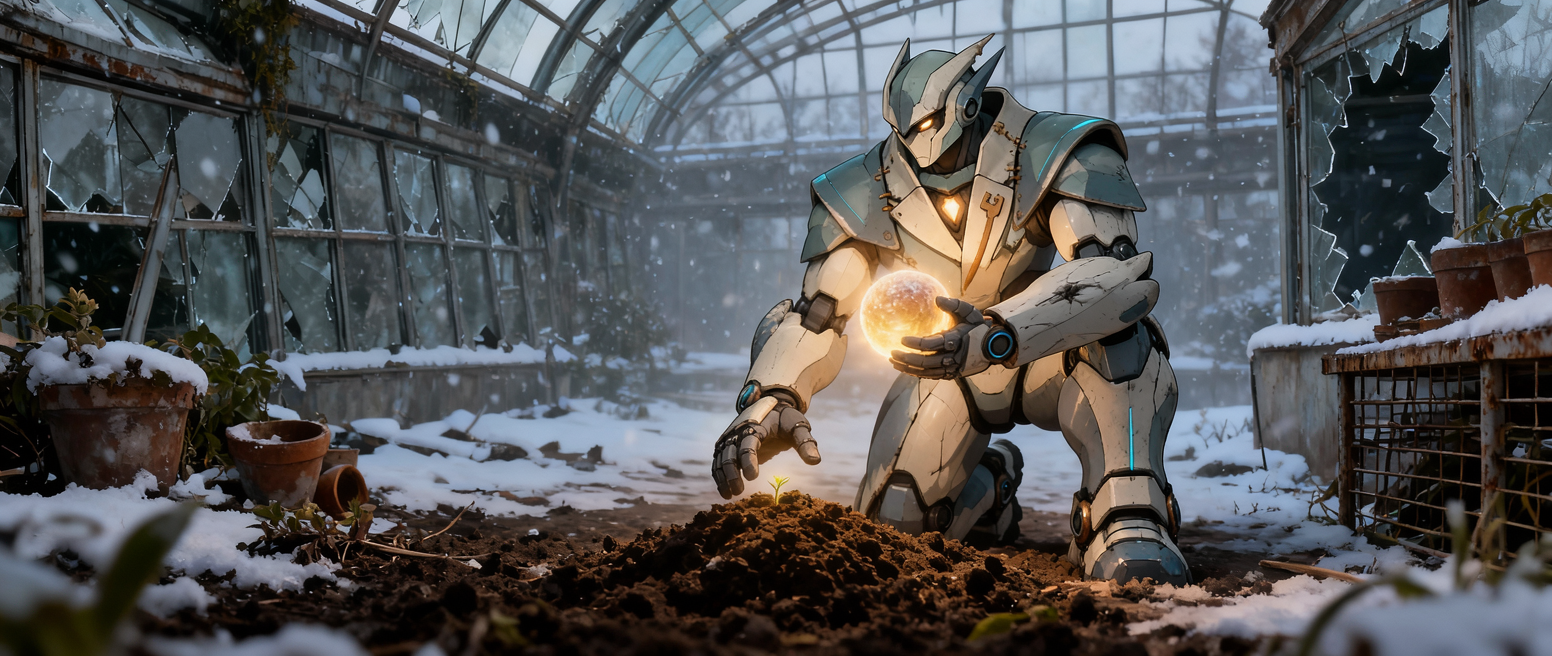 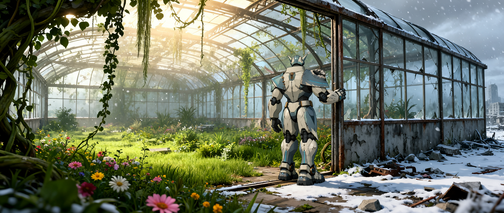 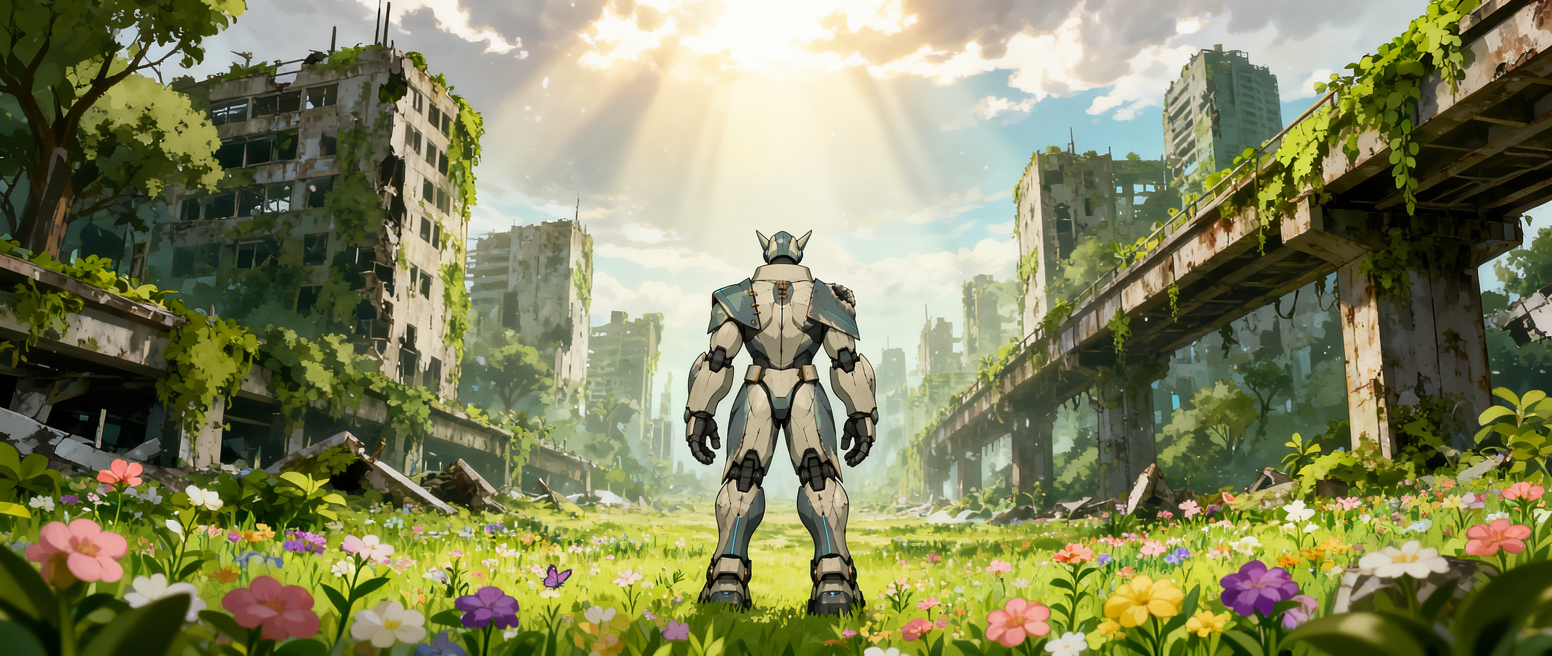 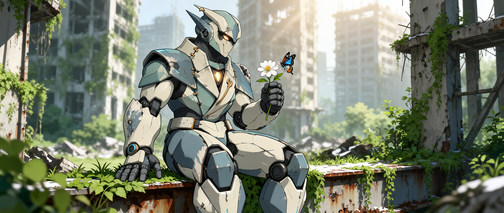 | |
Prompt / Input Image | 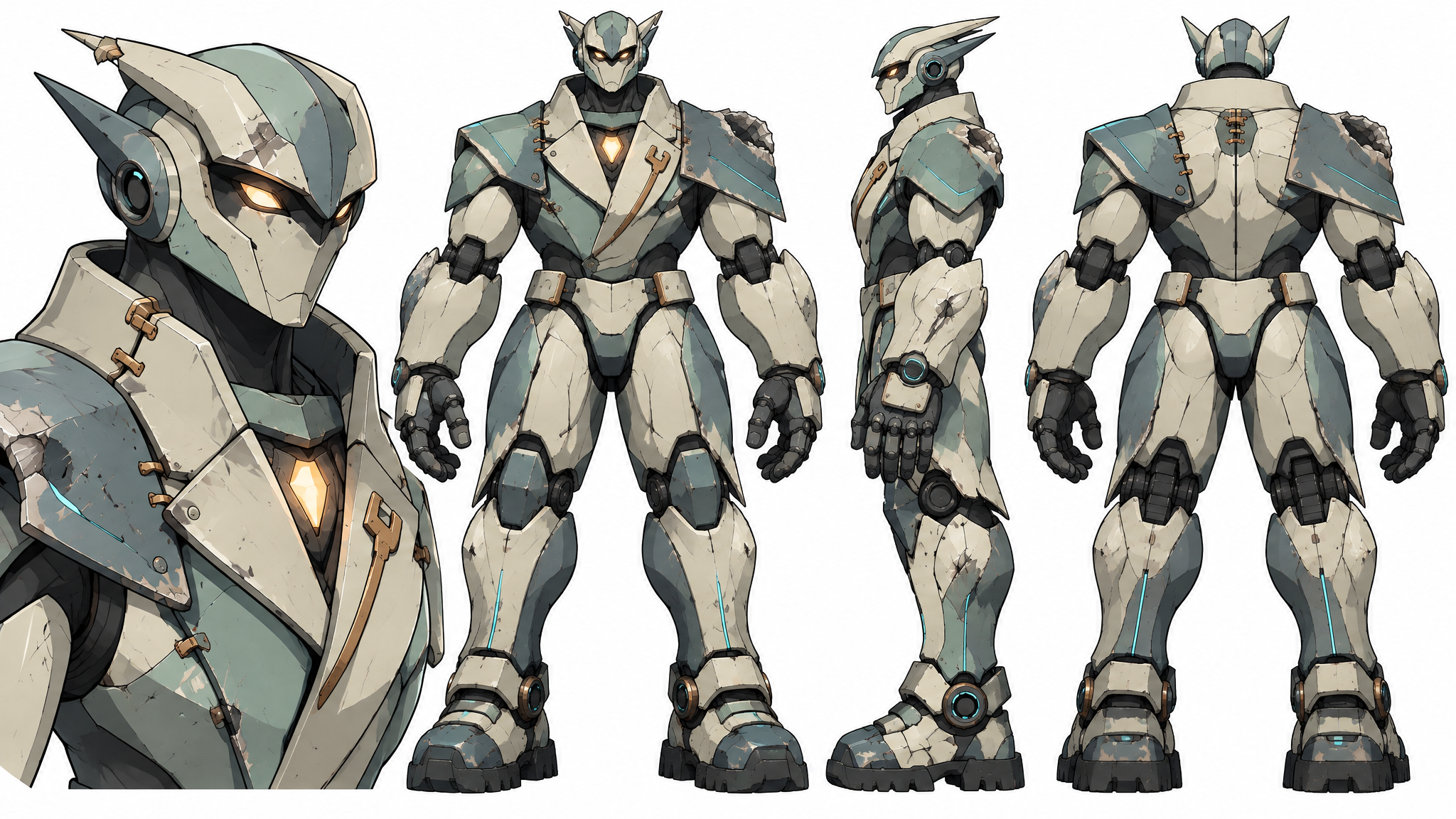 | Frame 1: An urban railway station, once bustling with life, is now buried beneath snow and ice. Humanity has long since disappeared. A robot holds a glowing orb of life in its hands and looks at the abandoned, snow-covered train before it. Frame 2: The robot struggles forward against the blizzard, cradling the glowing orb as it makes its way through streets buried in snow. Frame 3: The blizzard suddenly intensifies. The robot anxiously crouches down on one knee against the wind and snow, desperately shielding the glowing orb against its chest. Frame 4 – Wide Shot: Through the blizzard, the robot struggles toward an abandoned greenhouse. Frame 5 – Close-up: A close-up of the glowing orb in the robot's hands. Inside the greenhouse, the blizzard is temporarily kept outside. The robot looks down at the orb, worried about whether it is safe. Frame 6 – Medium Shot: The robot stands inside the greenhouse, with the blizzard temporarily sealed outside. The first tiny sprout breaks through the soil, illuminated by the glowing orb. The robot has completed its mission of protecting and delivering the orb. Frame 7: The little robot opens the door and steps outside. It looks on in disbelief as life begins to spread. Flowers and vegetation gradually drive away the winter. One half of the world remains covered in snow and ice, while the other half has begun to turn green. Frame 8: The snow and ice have completely receded. The original elevated roads, buildings, and streets are still there, but they are now covered with plants and flowers. The little robot looks up at the miracle of life unfolding around it. Frame 9: The little robot sits among the greenery of the ruins, holding a flower in its hand. A butterfly rests on the flower. |
Film Storyboards Musical Film | 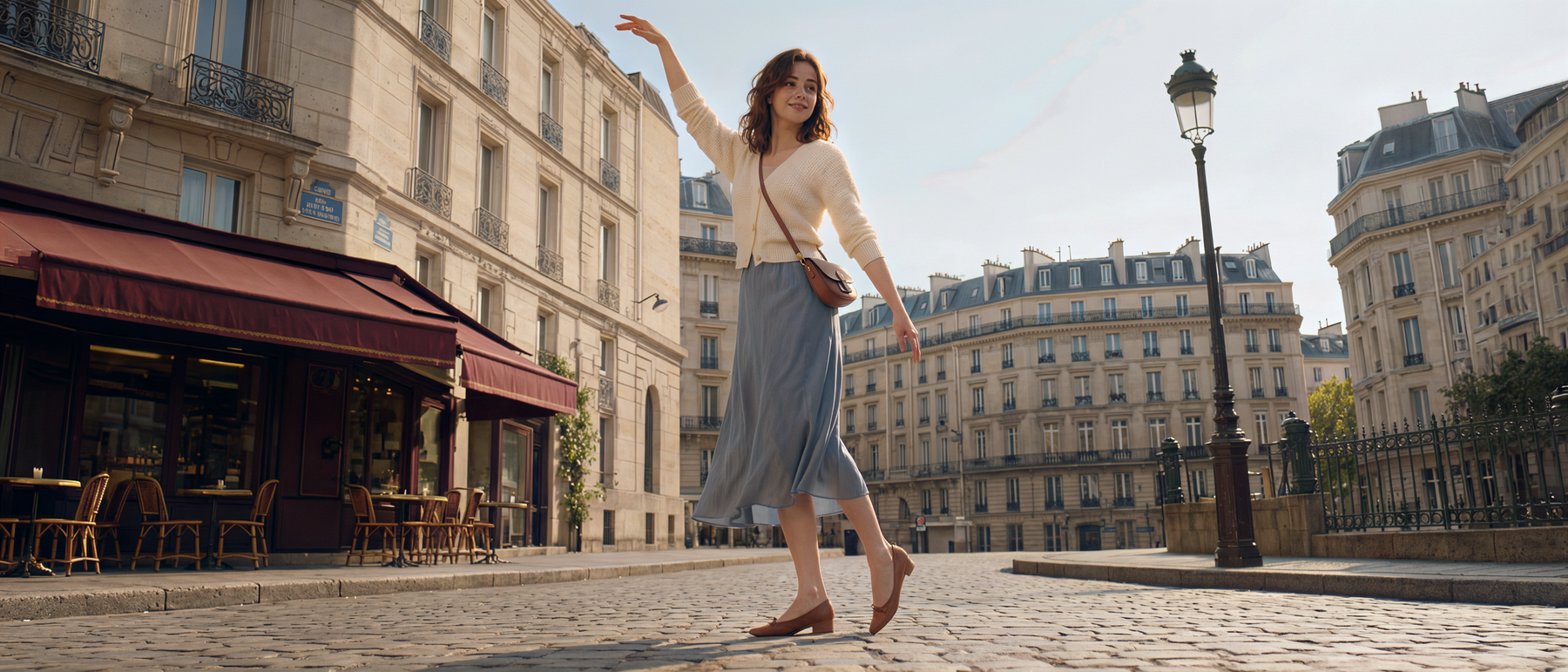 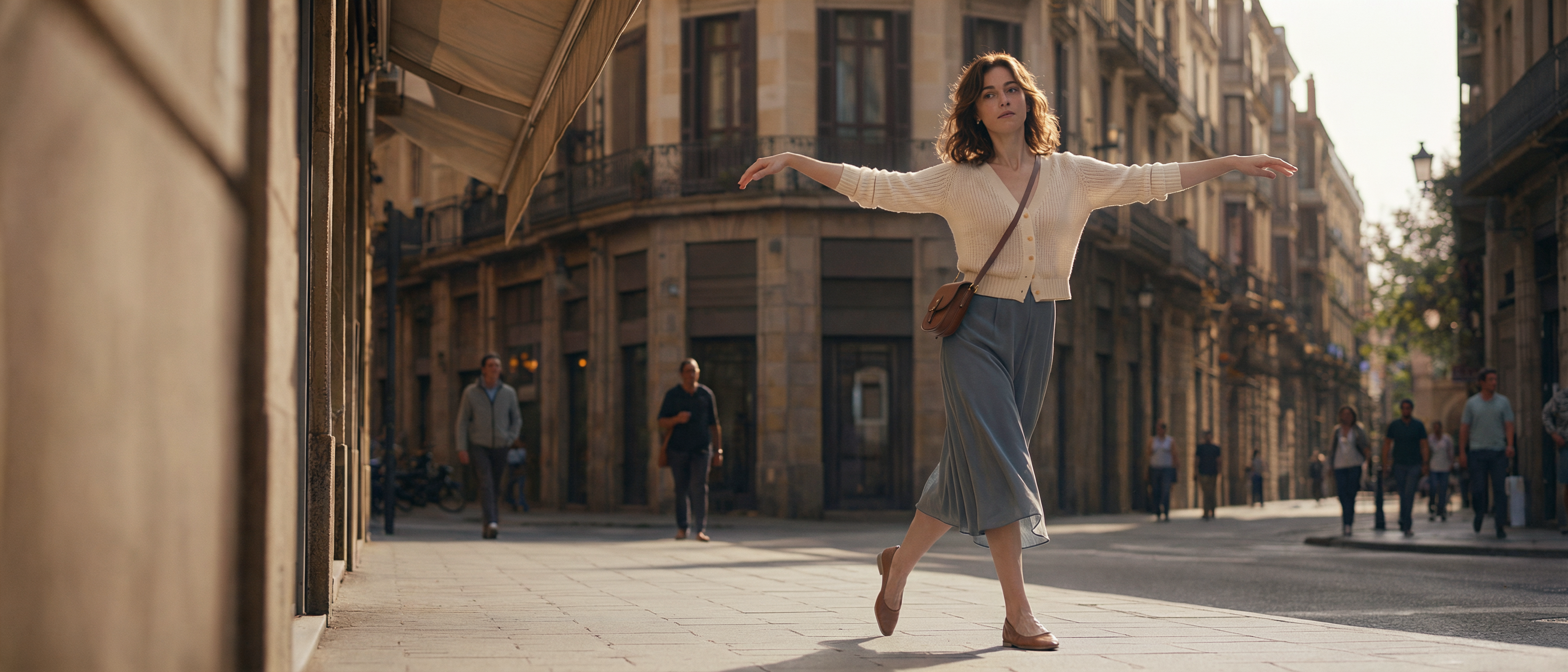 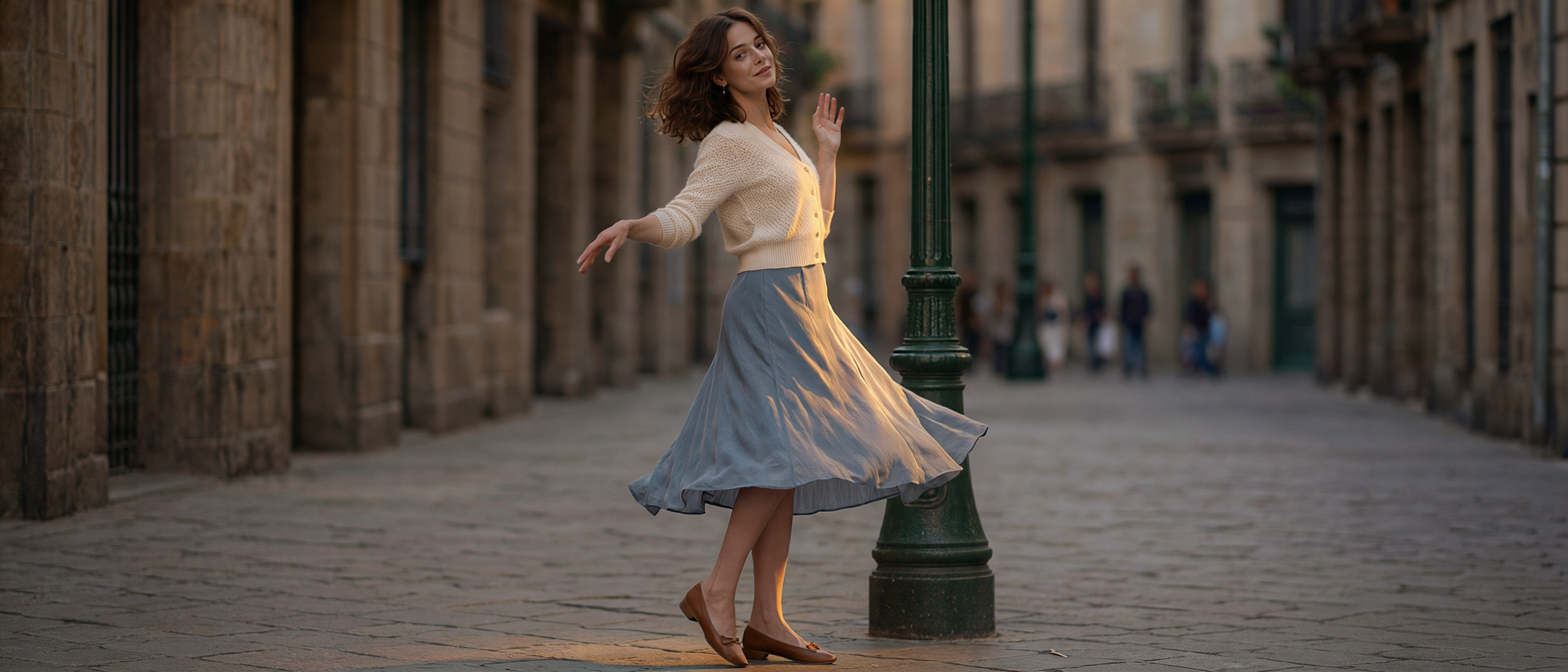 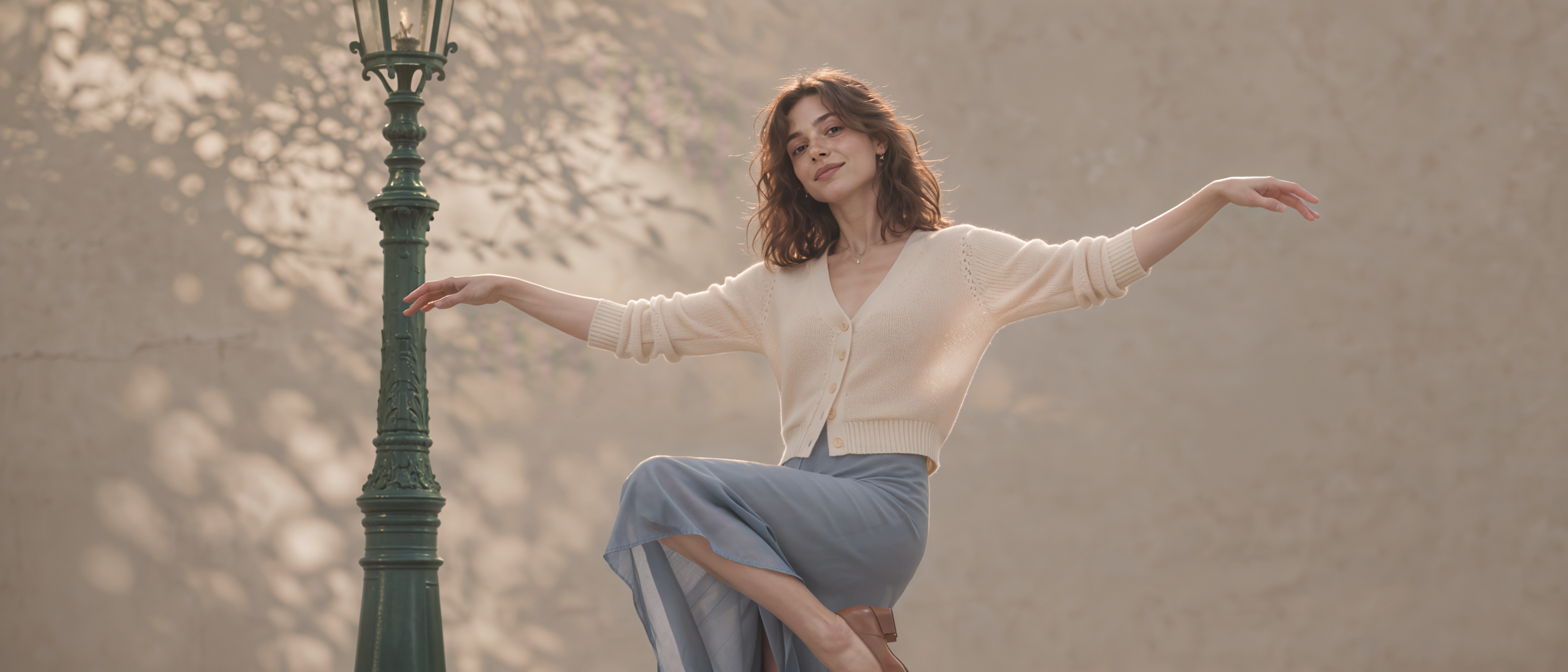 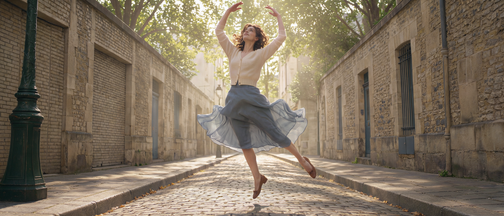 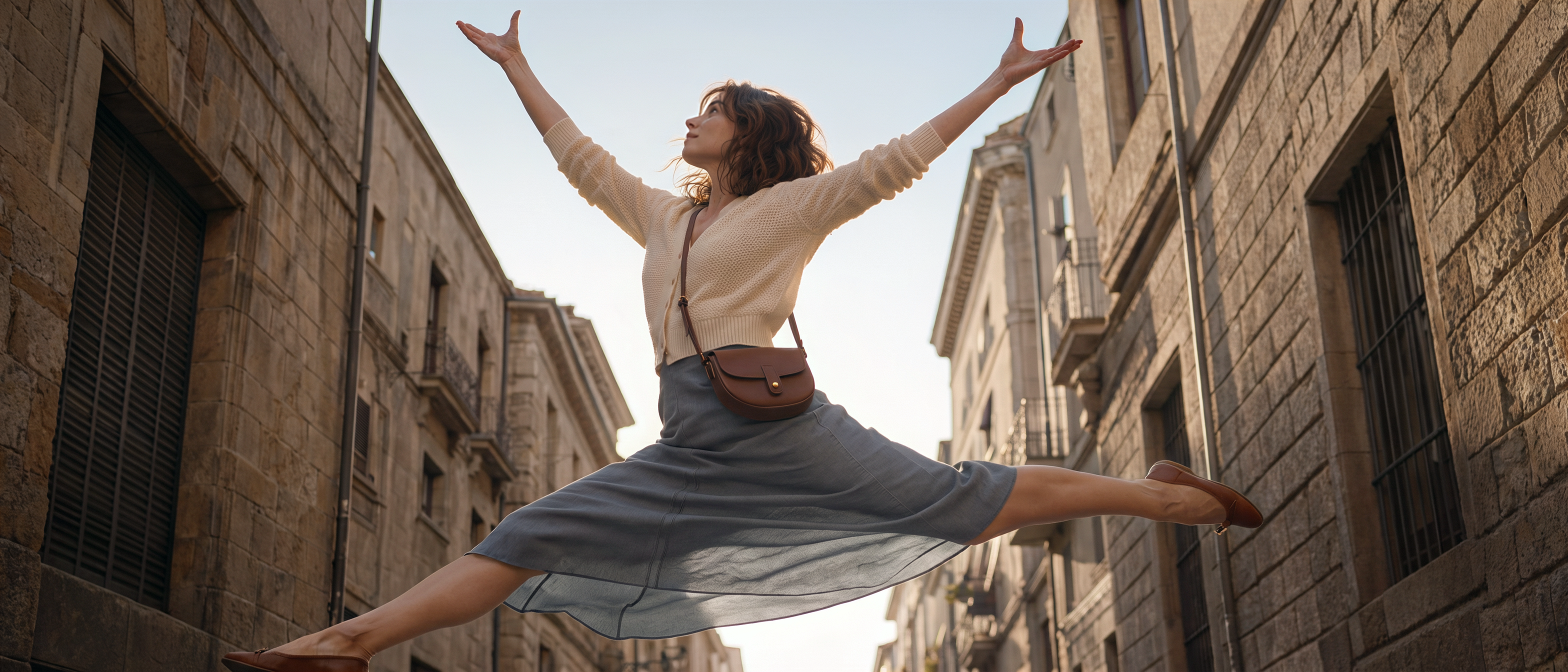 | |
Prompt / Input Image | | A storyboard for a French romantic musical film. All shots take place during one continuous dance sequence on a Parisian street. The setting features cream-colored stone buildings, burgundy café awnings, dark green street lamps, and light gray stone-paved sidewalks. Only a few distant pedestrians appear in the background, positioned so they do not obstruct the female lead. Changes in shot size should be achieved through natural and well-paced cuts. Show the female lead performing an elegant yet lively street dance, with a complete sequence of light, graceful minuet-style steps. |
Film Storyboards Horror Film | 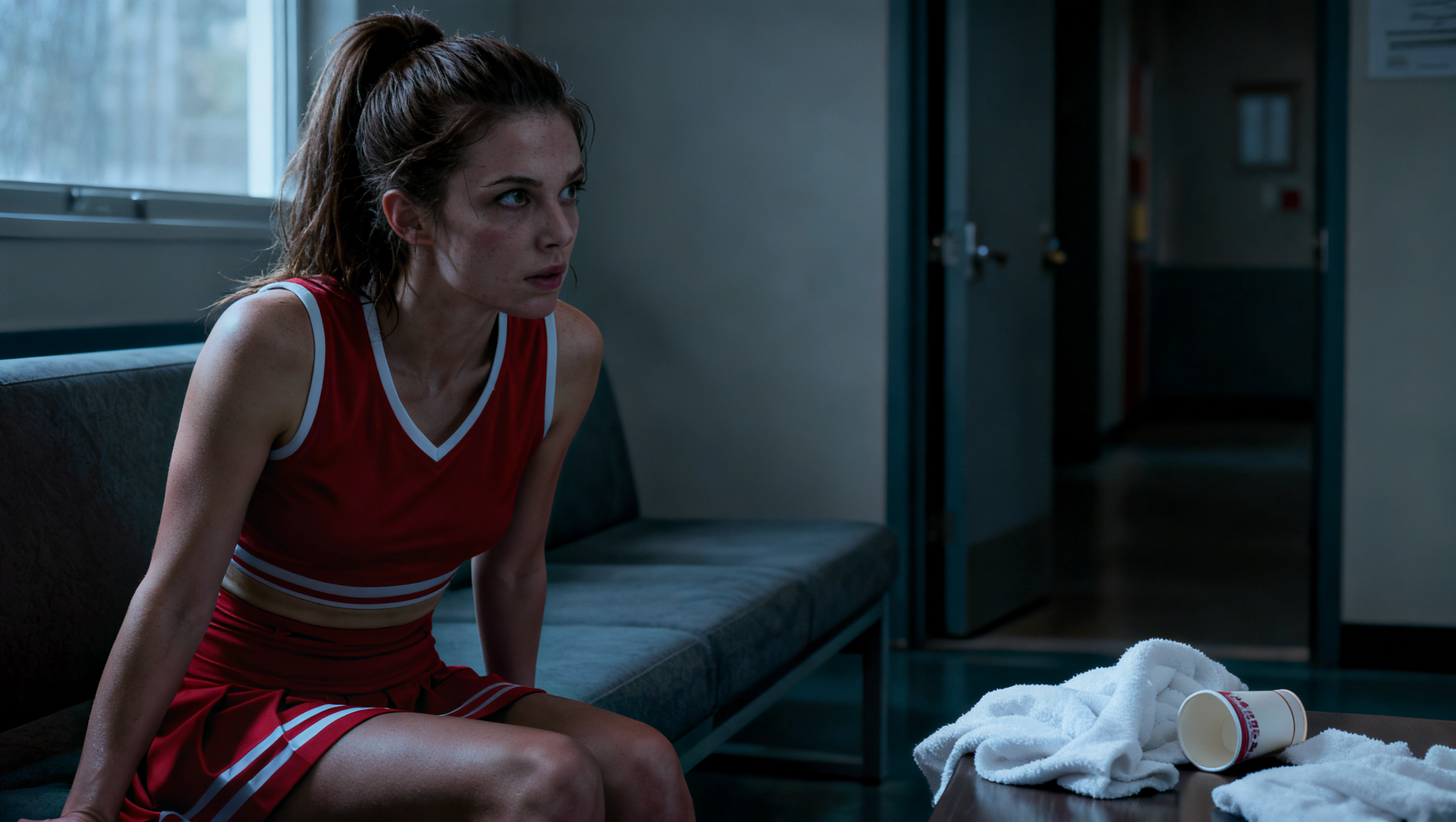 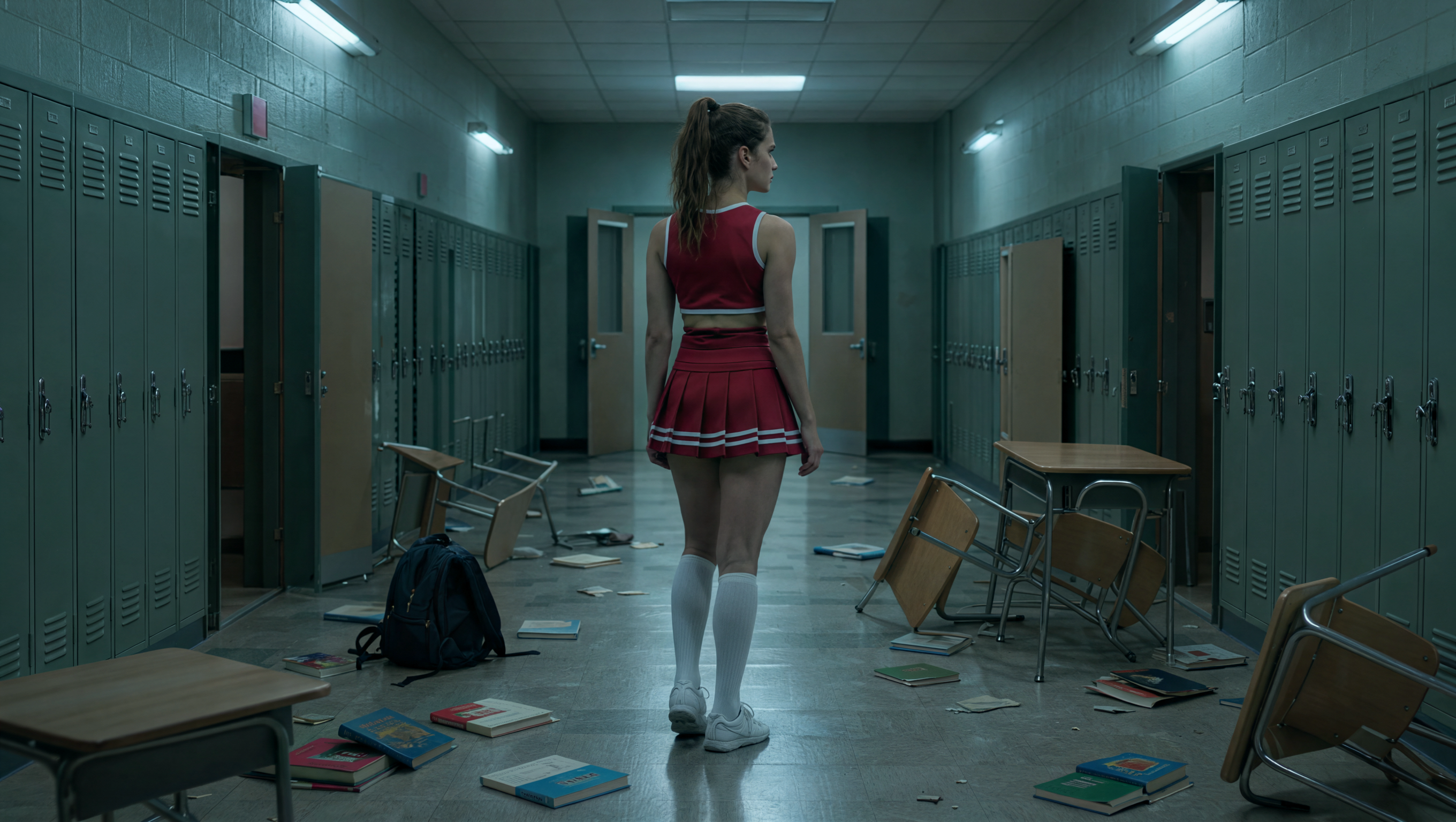 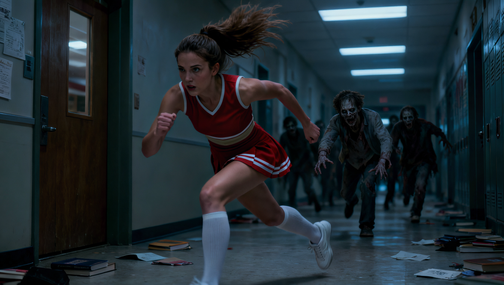 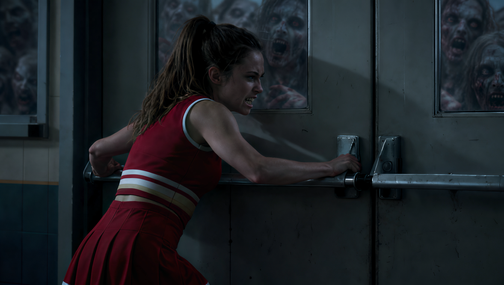 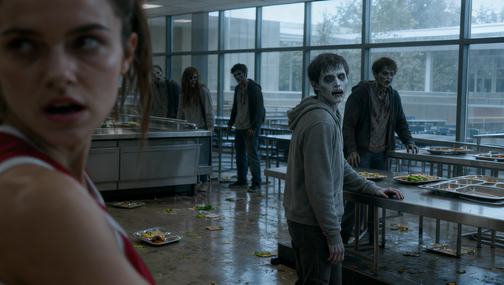 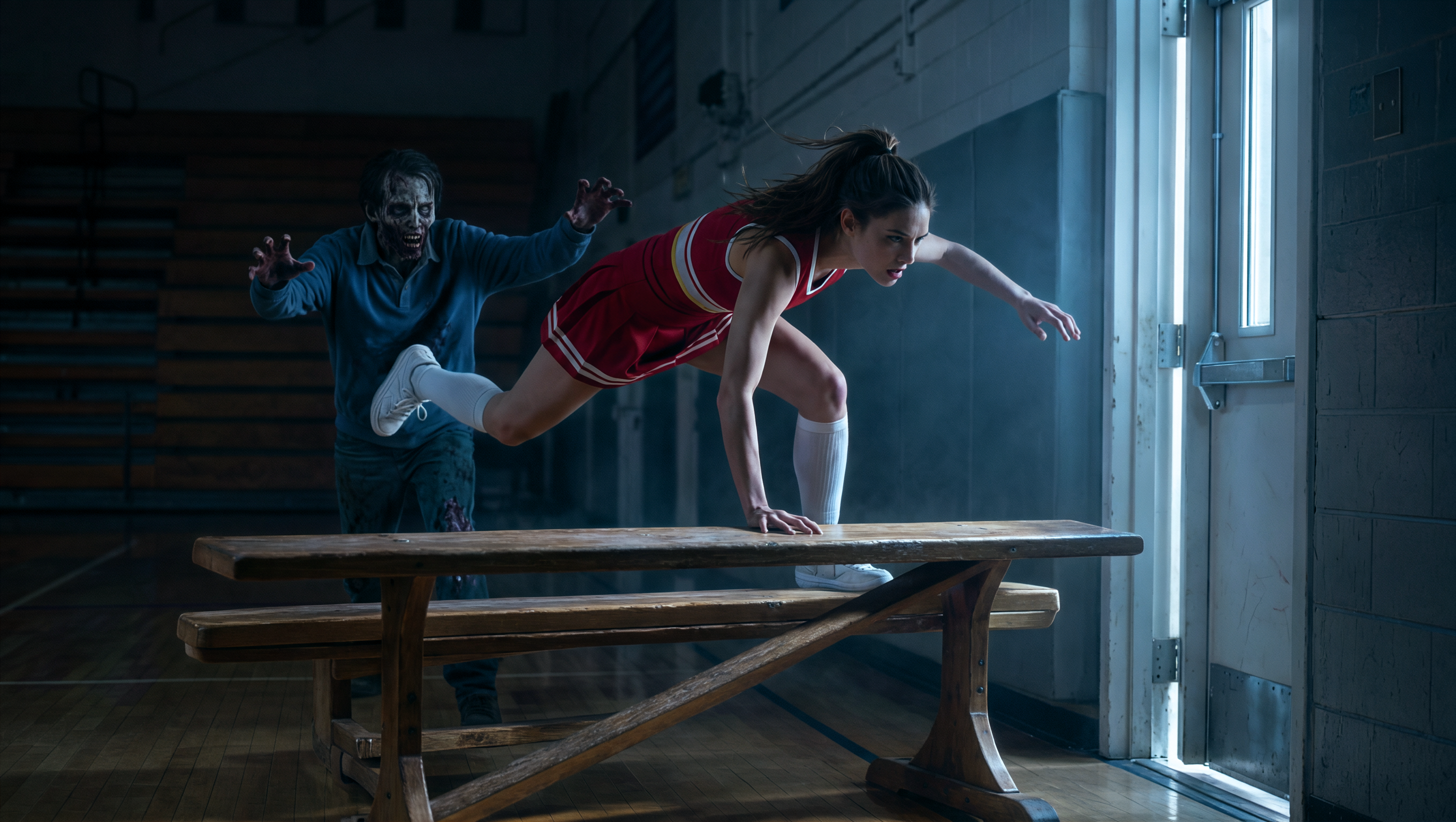 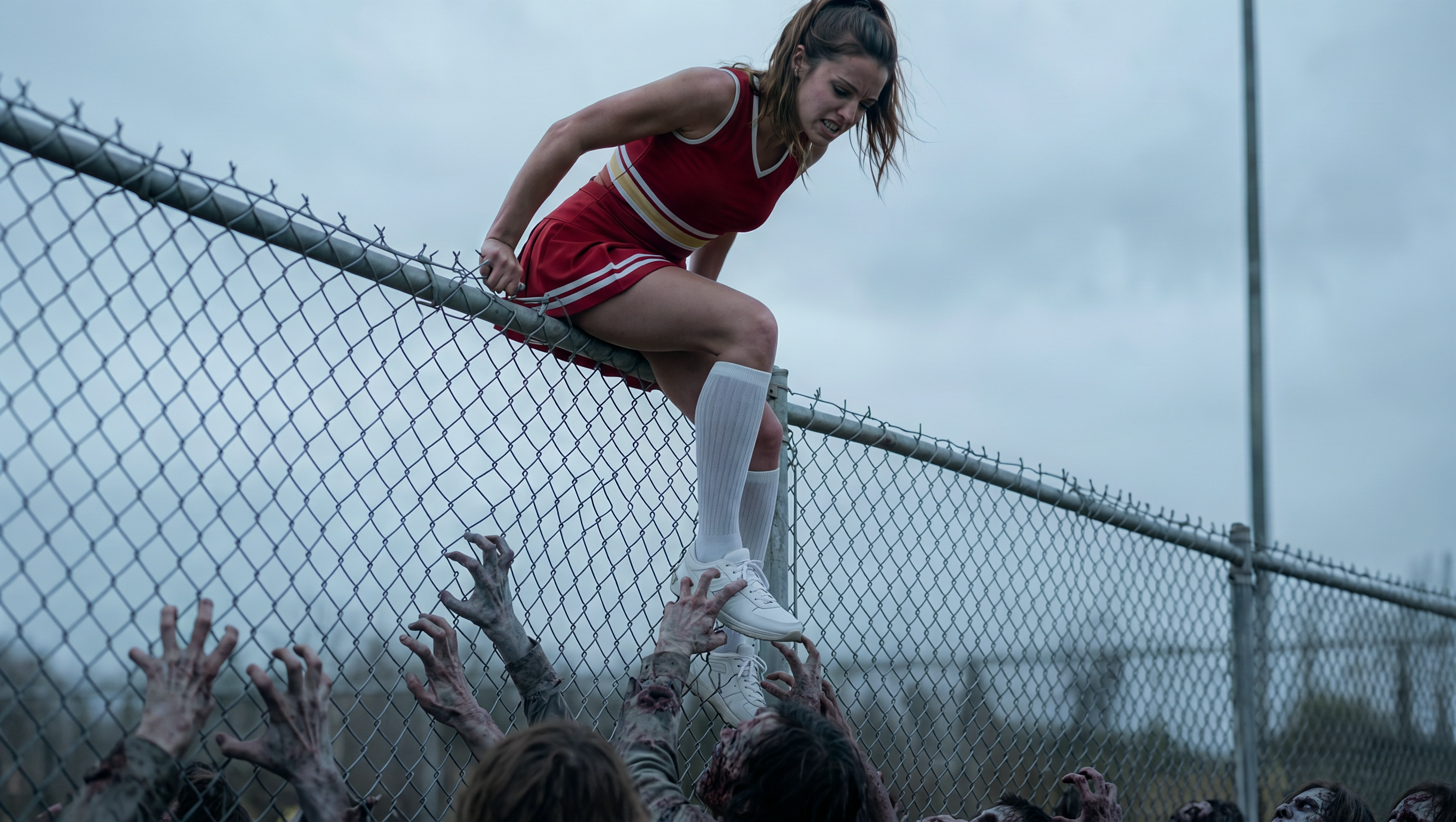 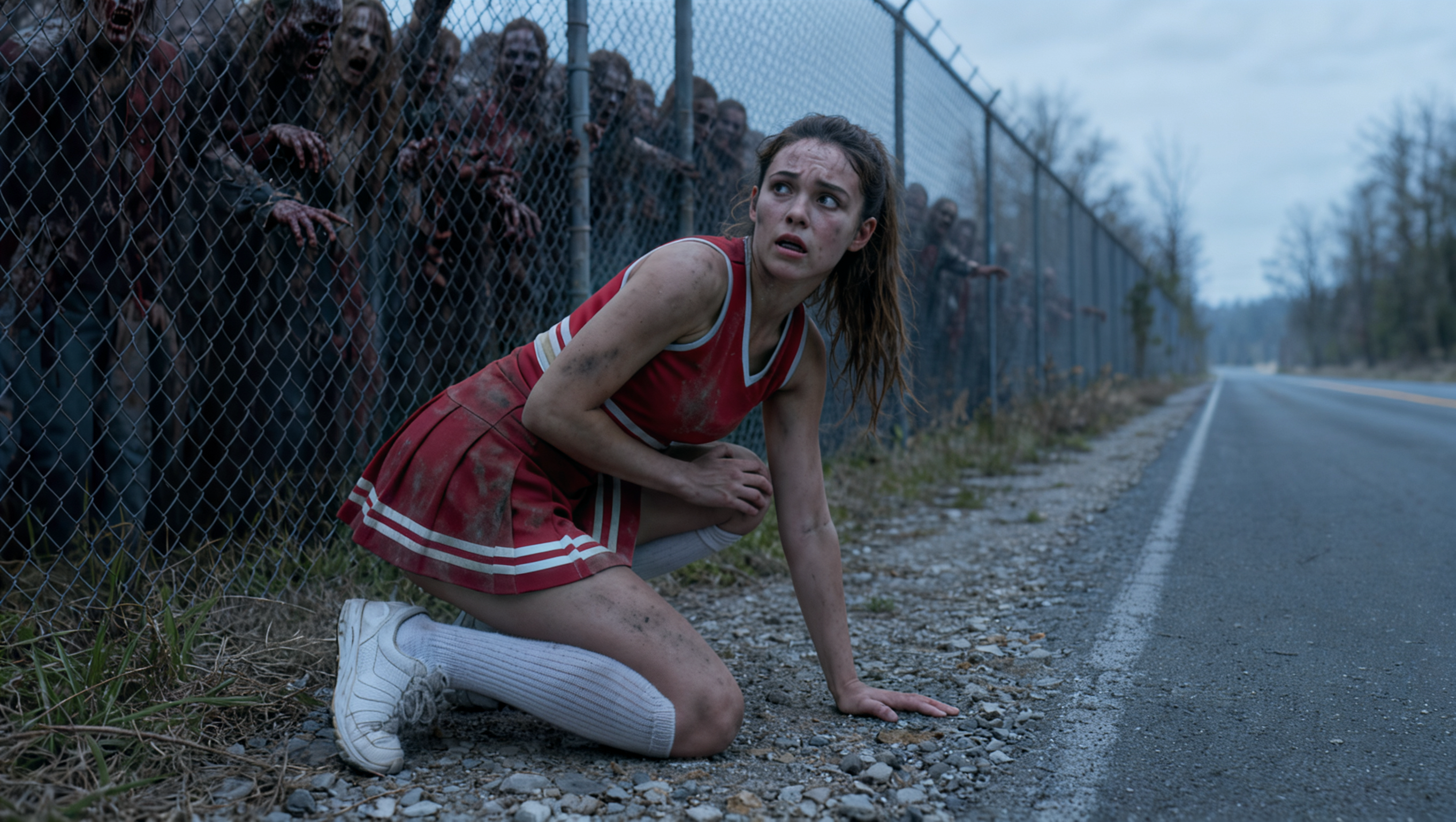 | |
Prompt / Input Image | 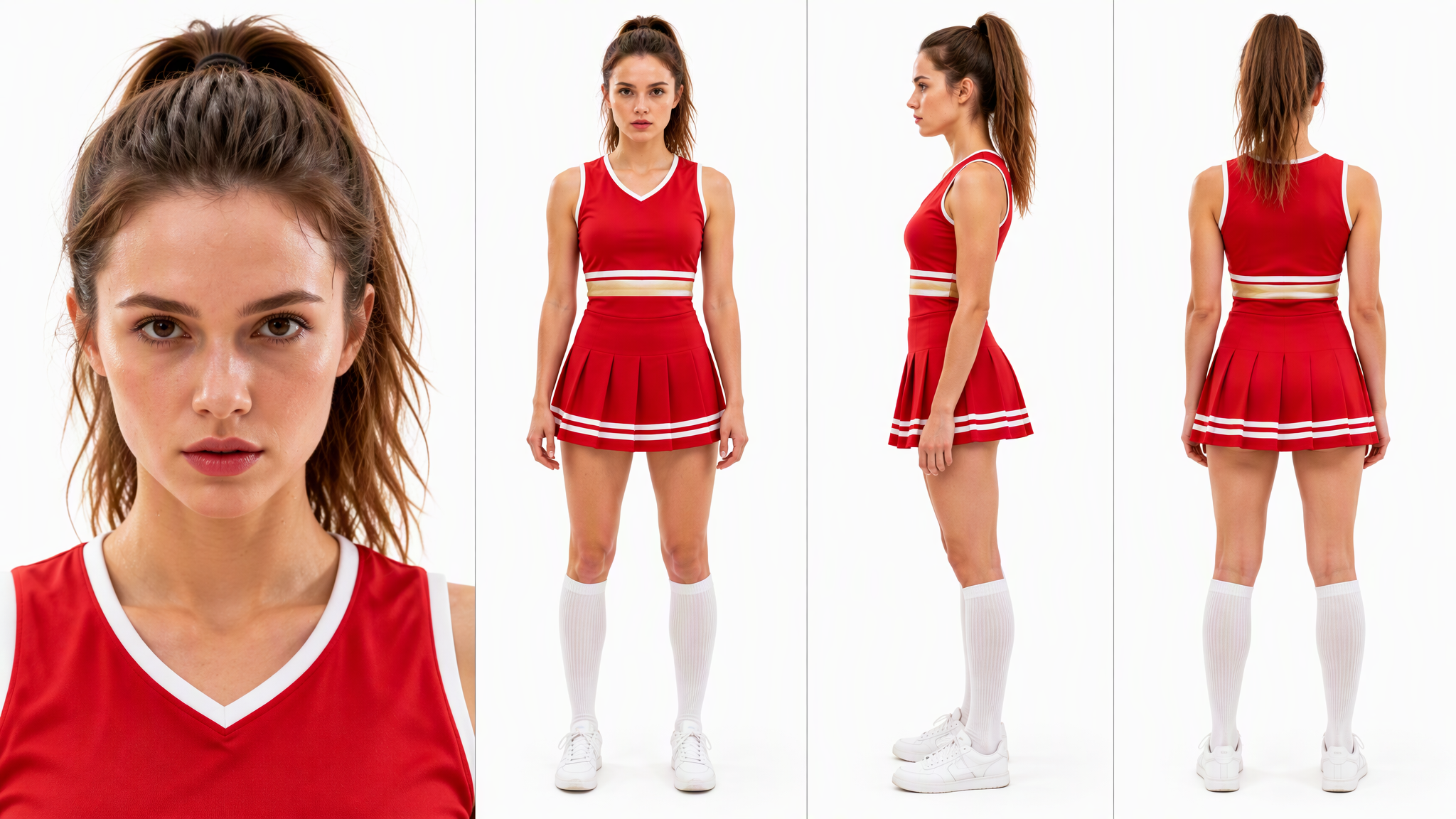 | Generate a set of 8 storyboard frames for an American college campus zombie horror film. Each frame should be an independent 16:9 horizontal cinematic still, presenting a complete story from the discovery of something unusual to the protagonist's escape from campus. Use realistic cinematic photography. The cool-toned campus environment should contrast sharply with the female lead's red sportswear. Create layered lighting and clearly defined characters and key actions. Build horror through composition, facial expressions, physical intensity, and the distance between the protagonist and her pursuers, rather than relying on excessive gore. The female lead is the adult female athlete shown in the reference image. She has a brown high ponytail and wears a red-and-white sleeveless athletic top, a pleated sports skirt, white knee-high socks, and white sneakers. Maintain consistency in her appearance and outfit, presenting her as a naturally healthy, athletic woman. All zombies are adult college students wearing ordinary campus clothing, with pale complexions, unnatural gazes, and awkward, unnatural postures. Each frame should capture one distinct moment rather than depict continuous action. Composition and environmental details may be adapted as needed. Frame 1 – Waking from a Nap: Inside a lounge, the female lead sits on the edge of a long sofa, leaning slightly forward with one hand resting on the seat cushion. She warily looks toward a half-open door. Her ponytail is slightly messy, and although her expression still shows traces of sleepiness, she has already sensed something is wrong. A training towel and a fallen paper cup lie in the foreground. The hallway outside the door is empty and silent. Pale afternoon light from a side window illuminates half her face, while the doorway remains in cool shadow. Use a medium close-up to emphasize the suspense between her expression and the dark entrance. Frame 2 – An Empty Campus: The female lead stands to one side of a university classroom building corridor, with her back to the camera and her head turned slightly as she looks ahead. There is no one else in the hallway. Lockers stand open, textbooks and backpacks are scattered across the floor, and overturned, damaged desks and chairs lie near classroom entrances, as if everyone had suddenly disappeared. Use a wide-angle establishing shot. Her red uniform stands out against the gray-green surroundings. The corridor's strong perspective lines lead toward a pair of half-open double doors in the distance, creating unease through the disruption of ordinary campus life. Frame 3 – Chased Down the Hallway: The female lead sprints down the corridor, captured at the moment her body leans forward and her arms swing powerfully. Her eyes are fixed on the exit ahead, and her ponytail flies behind her. Several zombies chase her from behind. The closest one reaches out toward her, while more figures crowd the corridor farther back. Use a diagonal front-facing medium-wide shot, keeping the female lead clearly in focus and arranging the pursuers along the corridor to create depth. A few books and sheets of paper are scattered across the floor. Harsh, cool lighting intensifies the approaching danger. Avoid excessive motion blur. Frame 4 – Holding the Door Shut: The female lead braces her back against a closed pair of double doors, planting her feet firmly and pushing against the doors with both hands. Her teeth are clenched, and her shoulders and arms are visibly tense. Several blurred zombie faces press against the glass panels in the doors. Side lighting emphasizes her struggle to hold back the pursuers, conveying the feeling of temporarily stopping the chase without being able to relax. Frame 5 – More Zombies on the Other Side: The female lead faces forward but turns her head to look back, her expression filled with fear. She is positioned at the edge of the foreground. Not far away stands an adult male student beside a dining table. His body is hunched, and he turns his face directly toward her. His skin is grayish and pale, his eyes cloudy, and his mouth slightly open. One hand rests on the edge of the table. Several other students in the background are also looking toward the entrance. Use a medium shot, with the focus on the first zombie's face and the female lead's shoulder in the foreground. Cool white window light illuminates the disordered cafeteria. Clearly reveal that the missing students have turned into zombies, showing the audience that the female lead is surrounded once again. Frame 6 – Clearing the Obstacle: While being chased by zombies, the female lead leaps over an overturned training bench. Capture the moment when one leg has already cleared the bench while the other remains behind it. One hand supports her on the bench, and her body leans powerfully toward the exit. The nearest zombie is blocked by the bench, reaching toward her but not yet managing to touch her. Use a side medium-wide shot to clearly show the relationship between the character, the obstacle, and the brightly lit exit. Emphasize the athlete's agility and the tension of narrowly escaping being caught with a natural, believable pose. Frame 7 – Escaping the Campus: The female lead straddles the top of a metal mesh fence surrounding the campus. Both hands grip the top rail, and her upper body faces outward toward the street. Her expression is strained but focused. Several zombies press against the fence from inside the campus, reaching toward her and creating a dense, oppressive mass. Use a medium shot from an oblique angle outside the campus. The fence separates the dangerous campus interior from the relatively open space outside. Emphasize that she has not fully escaped yet, showing the strain in her arms and the zombies closing in below. Use a normal camera angle; do not shoot from underneath the skirt. Frame 8 – She's Out: On a road outside the campus, the female lead has landed and is kneeling on one knee by the roadside, with one hand on the ground as she looks back toward the fence. Sweat and dust cover her face, and her expression shows lingering shock and exhaustion. Zombies are still crowding behind the fence in the background, but there is now a clear barrier between them and her. Use a medium close-up, focusing on her face and exhausted posture. The campus buildings in the distance are shrouded beneath a gray sky, while a road leading away from campus is visible on the other side of the frame. The lighting is slightly brighter than inside the campus. End the story with a sense of temporary escape, while making it clear that she still has to keep moving. Maintain continuity in the characters, campus layout, and the protagonist's level of exhaustion throughout the sequence. Allow natural variations in camera composition and secondary details. Avoid multi-panel collages, motion trails depicting continuous action, excessive motion blur, changes to the characters' faces, outfit changes, extra limbs, unnatural poses, exaggerated leaps, zombies arranged in neat rows, excessive gore, dismemberment, sexualized camera angles, text, subtitles, and watermarks. |
Film Storyboards Art-House Film | 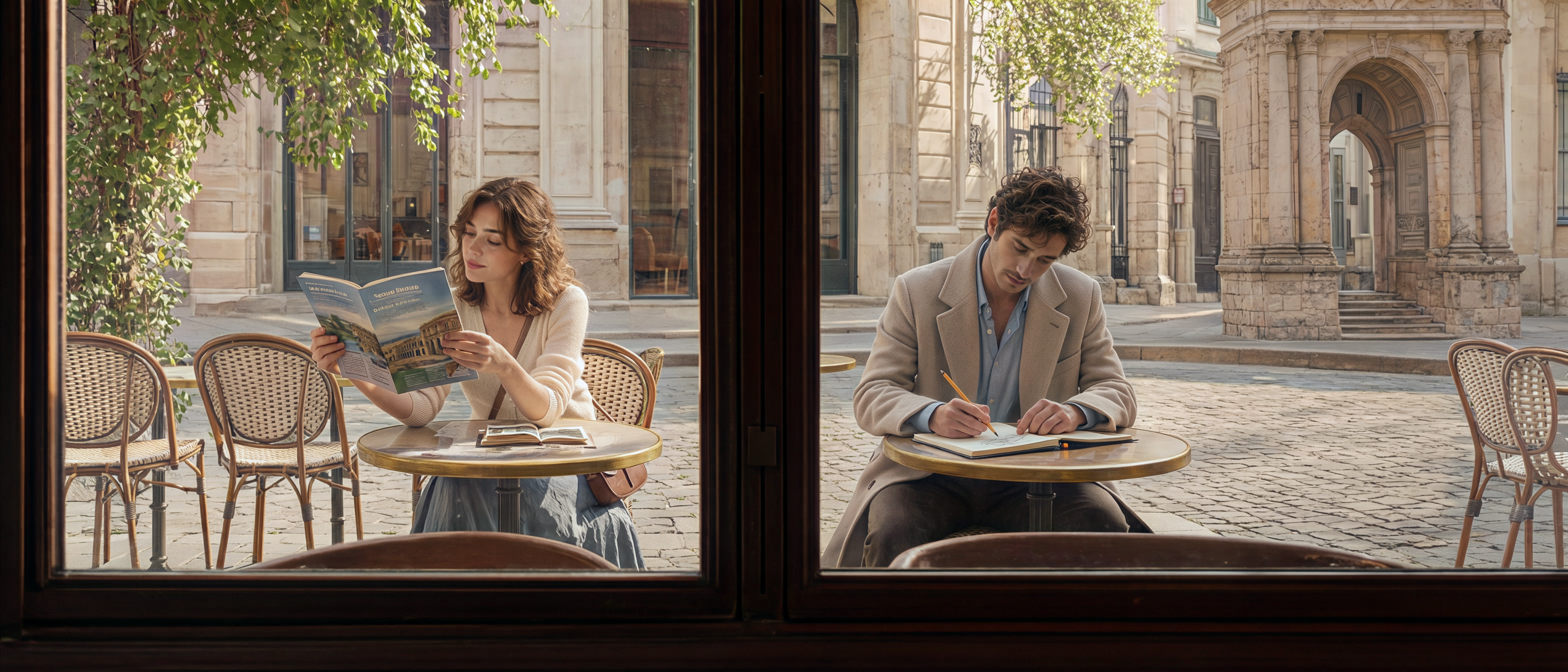 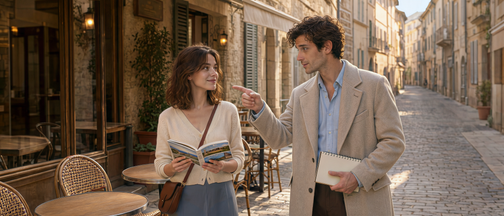 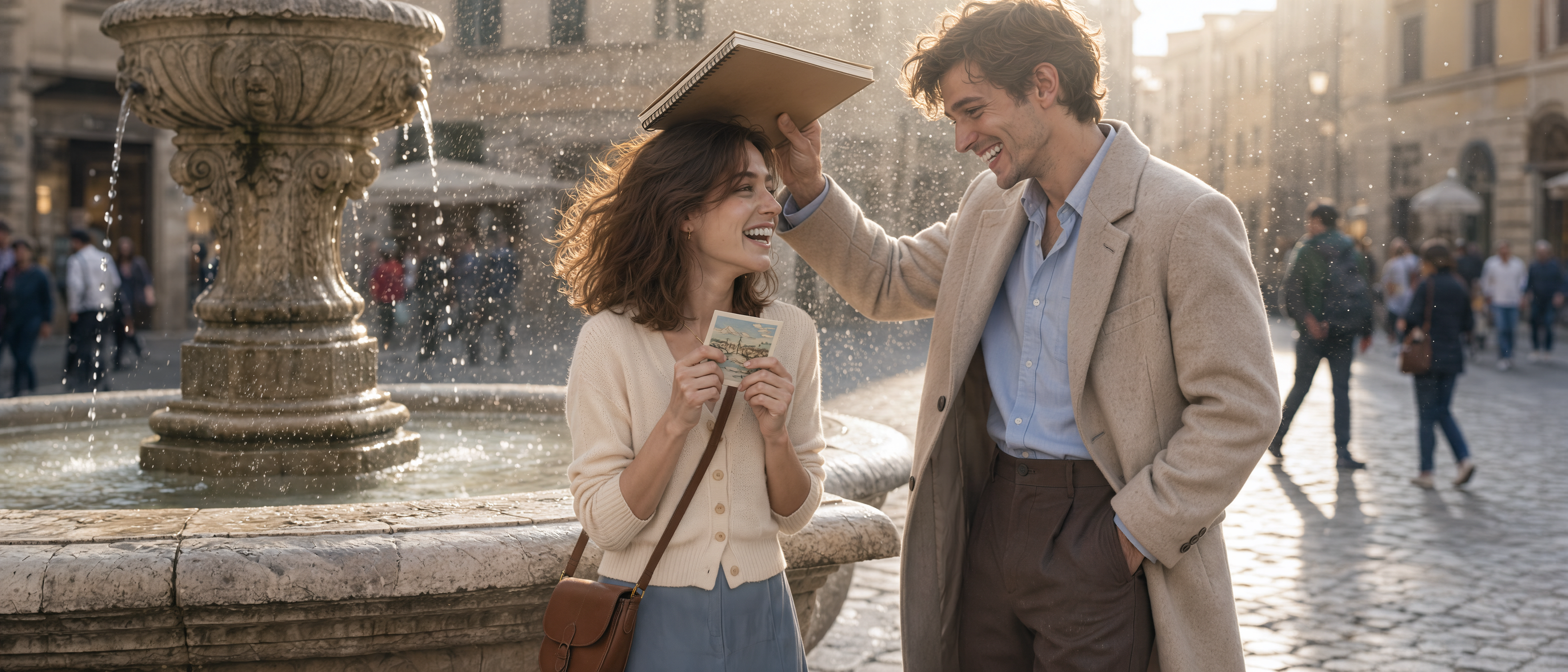 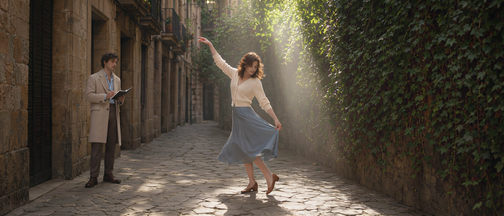 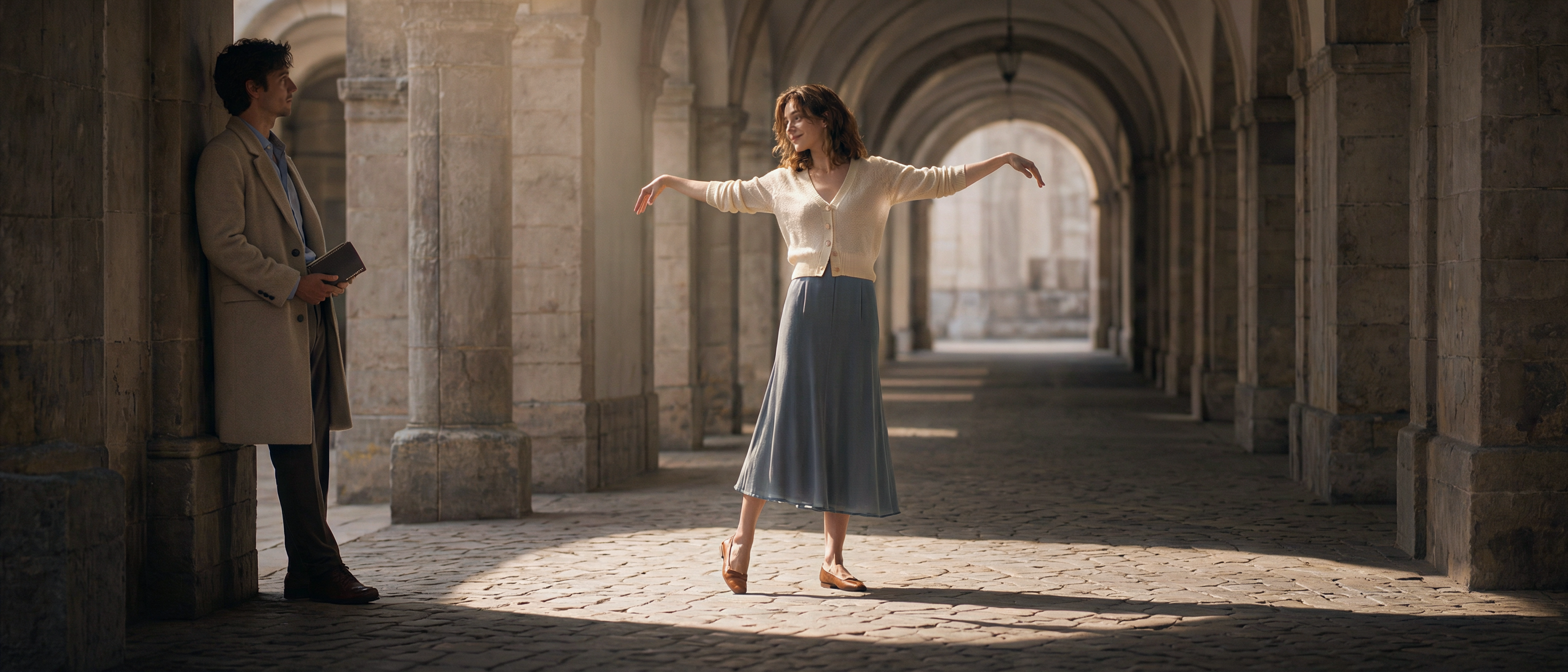 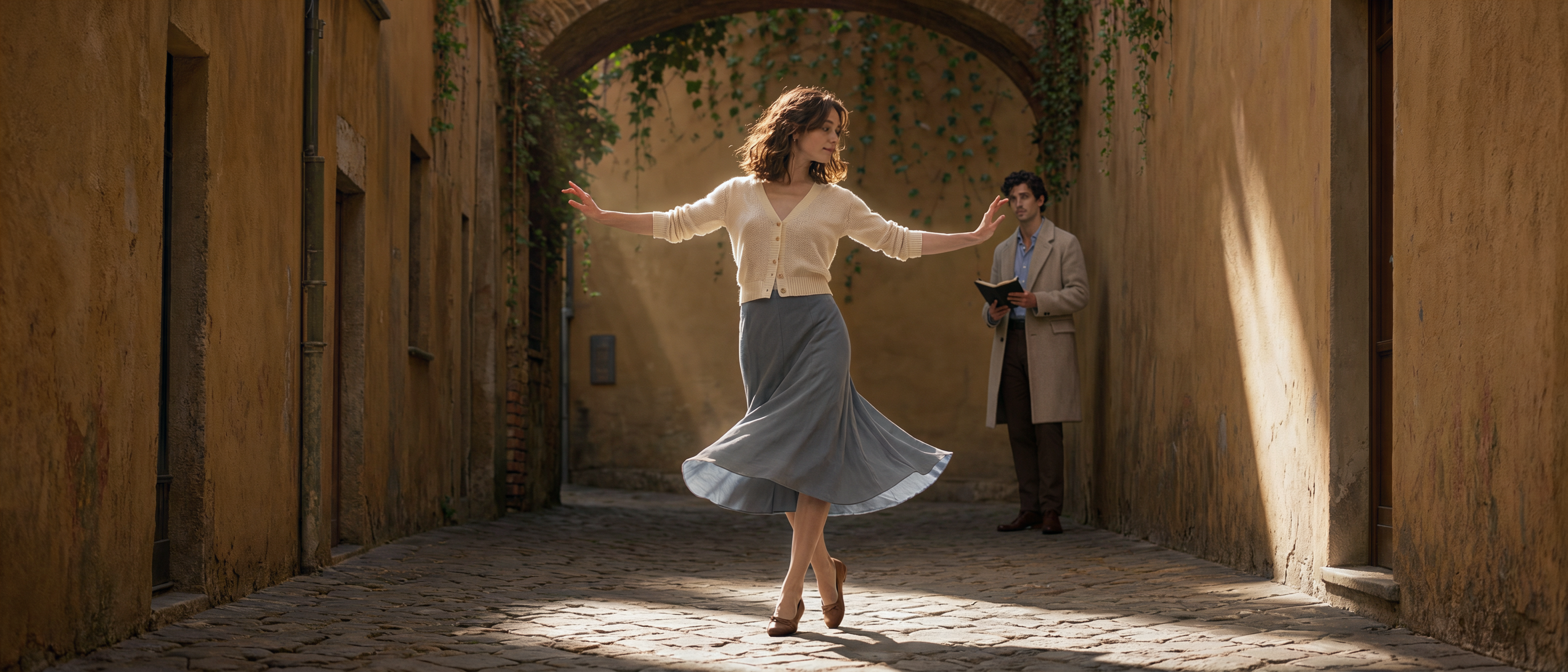 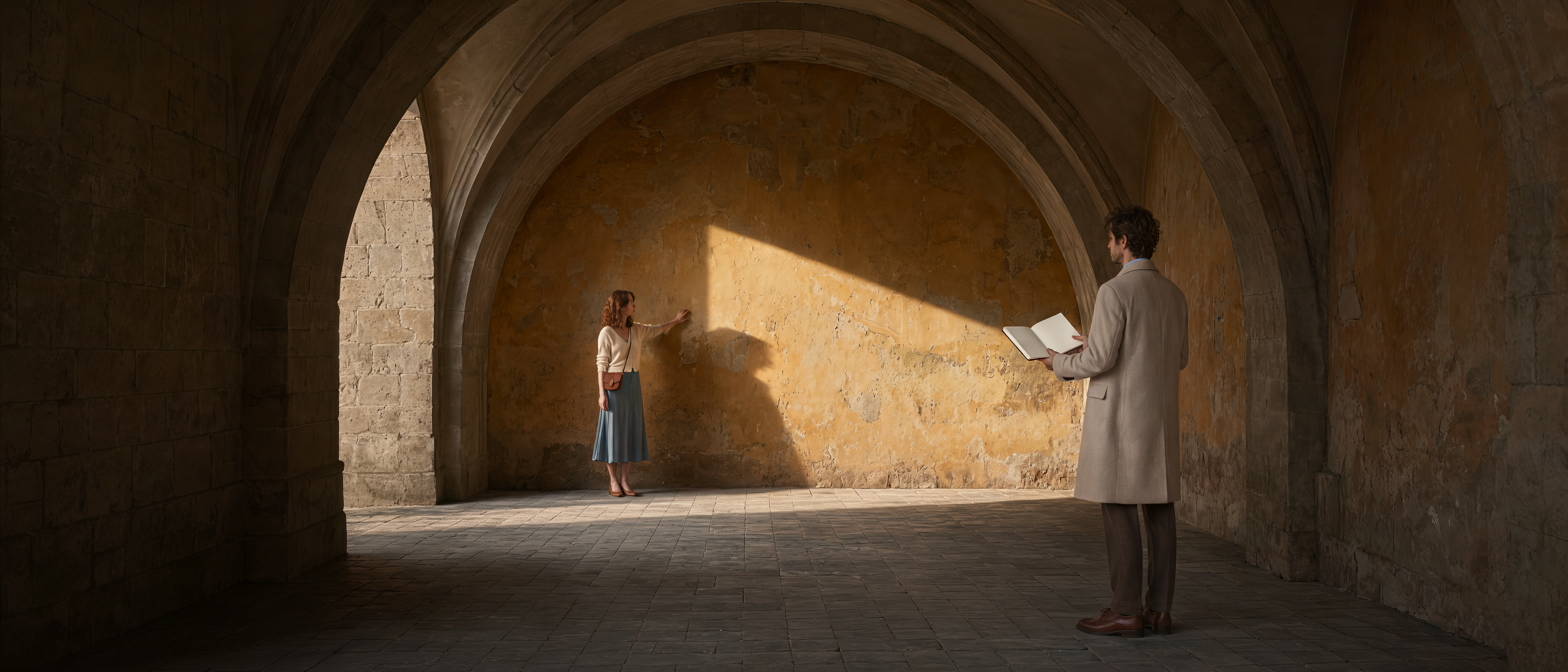 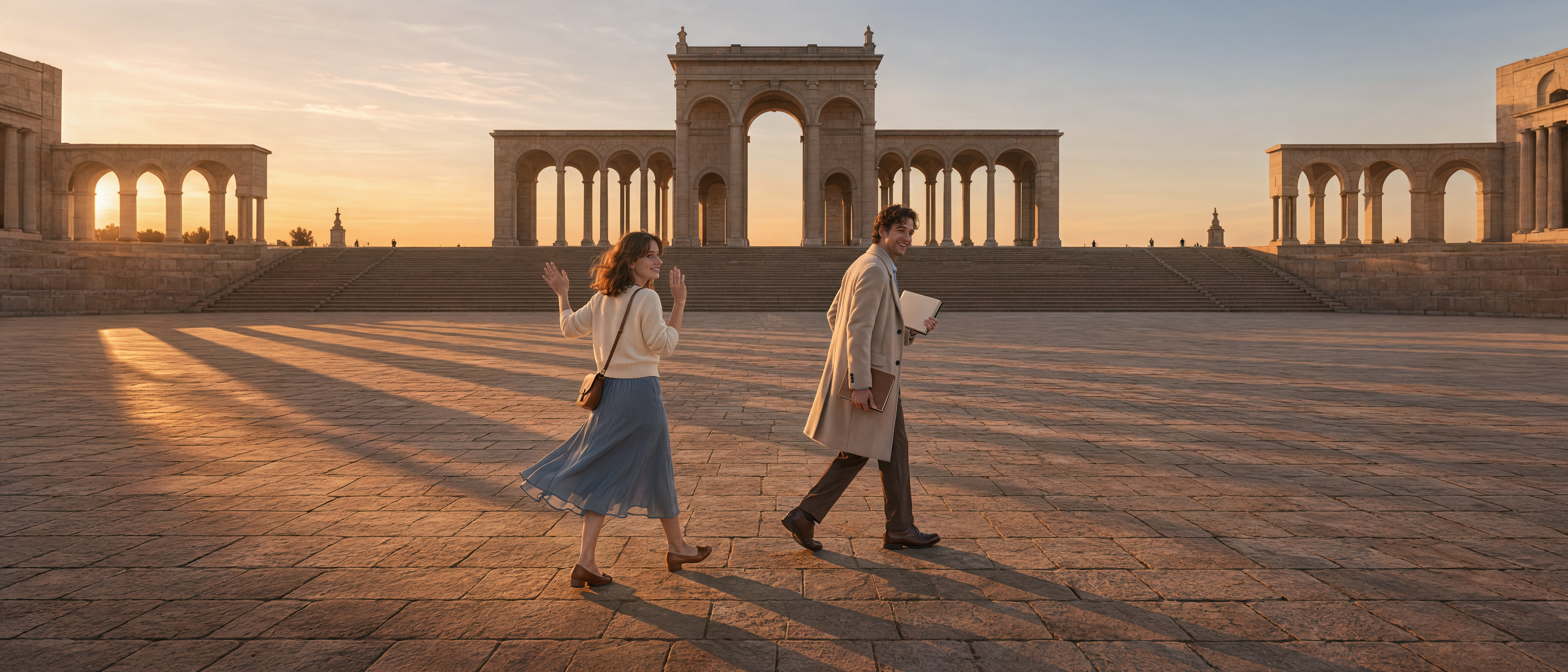 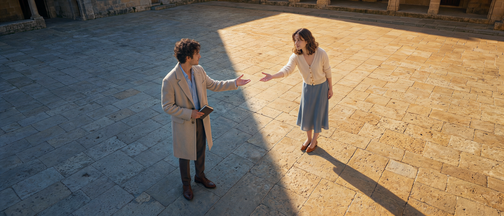 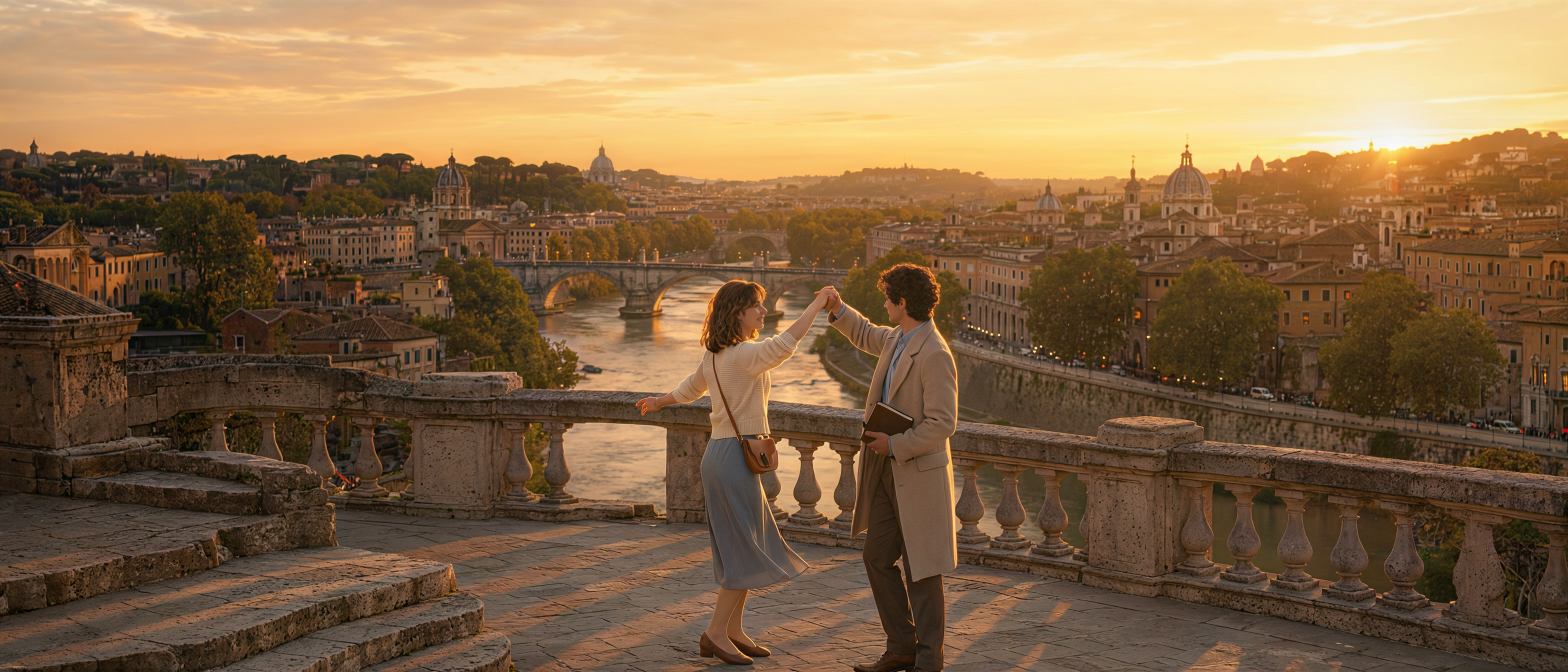 | |
Prompt / Input Image |
| Generate a set of 10 realistic cinematic storyboard frames in a horizontal 21:9 aspect ratio. Each frame should be a complete, independent image, generated in the numbered order below. Do not combine them into a nine-panel grid. Use the provided character reference images for the male and female leads. Maintain consistency in their facial features, hairstyles, and clothing. Do not redesign their appearances. The story takes place in a European old town with Roman-inspired architecture. Two strangers meet in a café, then walk together through a fountain square, a vine-covered alley, and stone arcades. They run through ancient Roman ruins and eventually hold hands and dance together on a terrace overlooking a river. Use realistic architectural and character photography, with delicate film grain. Maintain a consistent color palette of warm beige stone walls, soft blue-gray fabrics, and brown accessories. The lighting gradually transitions from a bright afternoon to a golden sunset as the story unfolds. The characters should have natural expressions and perform specific actions rather than simply standing still for posed photos. The female lead's travel guidebook and the male lead's hardcover sketchbook are recurring props throughout the story. During the dance, the travel guidebook can be put away in her bag when no longer needed. ① Frame 1 | Seated Across the Windows A wide horizontal medium-wide shot. The camera is positioned inside the dim interior of a café, looking through two adjacent floor-to-ceiling glass windows toward the outdoor seating area. Dark brown wooden window frames border all four sides of the image, with a wide vertical frame in the center separating the male and female leads into two distinct areas. This is one continuous, realistic setting, not a collage. The female lead sits at a small round table outside the left window, holding an open travel guidebook with both hands and reading with her head slightly lowered. A coffee cup, saucer, and open pages are on the table, while her brown bag hangs beside her. The male lead sits at another round table outside the right window. Leaning forward, he draws in an open sketchbook with a pencil in his right hand while holding the page down with his left. They have not spoken yet, each absorbed in their own activity. The blurred back of an indoor chair is visible along the bottom edge of the foreground. Outside, wicker chairs, the stone-paved street, and cream-colored buildings are clearly visible. An ornate stone archway with steps stands in the right background, while green branches hang down from the upper left corner. Afternoon sunlight illuminates the outdoor area, while the wooden window frames remain dark, creating a quiet opening with layered depth. ② Frame 2 | A Conversation Outside the Café An eye-level medium two-shot. The female lead stands on the left and the male lead on the right, about half a meter apart, with their bodies turned slightly toward each other. The female lead holds her open travel guidebook with both hands between her waist and chest. She looks up at the male lead with a curious smile. The male lead holds his sketchbook under one arm at his waist and raises his other hand, gently pointing with his index finger toward the street behind her, as if recommending a place to visit. He looks at her rather than at the camera. The background on the left retains the café's glass door, wicker chairs, and round tables. On the right, a narrow stone-paved street stretches into the distance, lined with light-colored old buildings, dark green shutters, and small wall lamps. Soft side lighting illuminates their faces, while the far end of the street is slightly out of focus. Capture the moment just after he has spoken and she has met his gaze. ③ Frame 3 | Laughter by the Fountain An eye-level medium two-shot. The female lead stands slightly left of center, and the male lead stands on the right. They are close together beside the edge of a circular stone fountain. The male lead raises the hand nearest to her, holding his closed sketchbook horizontally above her head to shield her from the fine mist drifting from the fountain. His other hand rests naturally in his trouser pocket. He looks down at her with a cheerful smile. The female lead draws her shoulders in slightly and holds her closed travel guidebook against her chest with both hands. She tilts her head up toward him and laughs, while the ends of her hair are gently blown by the breeze. An ornate stone fountain column and streams of falling water occupy the left side of the frame. The curved edge of the fountain pool extends from the lower left toward the figures behind them. A few blurred tourists and old-town buildings appear in the right background. Sunlight passes through the water droplets from behind and to the side, creating tiny golden highlights. Keep both faces softly illuminated and clearly visible. The scene should convey a relaxed, spontaneous sense of growing closeness. ④ Frame 4 | Their First Dance in the Vine-Covered Alley An eye-level full-body wide shot. A narrow stone-paved alley stretches from the foreground into the deep background. On the left are old stone walls and dark shutters; the entire wall on the right is covered in dense ivy. The female lead dances in a sunlit area slightly right of center. One arm extends diagonally upward with a relaxed wrist, while her other hand gently lifts the edge of her skirt. Her weight rests on one foot, while the heel of the other is raised and its toes lightly touch the ground. Her body turns slightly to the side as she looks down at her own steps. Her skirt forms a soft curve as she moves. The male lead stands near the wall on the left, about three meters away. He holds his open sketchbook with both hands, his pencil paused above the page as he looks up at her with a focused expression. Both characters must be fully visible from head to toe, including their shoes. A beam of warm light filters through the leaves above, illuminating the female lead's hair, shoulders, and the stone pavement beneath her feet. The male lead remains in the softer shadow beside the wall. Preserve the realistic textures of the leaves and old stone. ⑤ Frame 5 | Dancing in the Long Arcade A wide full-body shot. The camera faces an ancient stone arcade with strong depth. A series of arches and columns recede toward a central vanishing point in the distance. The floor is paved with irregular stone slabs. The male lead stands at the far left, leaning slightly against a large stone column nearby. He holds his closed sketchbook with both hands and turns his head to watch the female lead. The female lead stands in a patch of sunlight slightly right of center, smiling at him. Both arms extend outward to either side, slightly below shoulder height, with relaxed elbows and lowered fingertips. Her posture is upright but relaxed. One foot bears her weight, while the other lightly touches the ground with its toes, as if she has just completed a small turn. The two are about four meters apart, leaving open space between them for dancing. Warm sunlight enters through an archway on the left, creating bright patches and diagonal shadows across the floor. The female lead stands in the light, while the male lead remains in shadow. The far end of the arcade is softly blurred, emphasizing the dynamic between him watching and her responding. ⑥ Frame 6 | A Spin in the Ochre Alley A full-body shot taken from a slightly lower-than-eye-level angle. The female lead is positioned near the center of the foreground, while the male lead stands about four meters behind her on the right. The setting is a narrow alley lined with warm ochre-yellow walls. An old brick arch spans the alley overhead, with a few vines hanging down. A narrow doorway and vertical drainpipe are visible on the left, while a patch of angled sunlight falls across the wall on the right. Capture a single moment as the female lead turns. Both arms extend outward, her body rotates toward the right side of the frame, and her head turns with the movement. Her feet are close together, staggered and slightly crossed. Her blue-gray skirt flares outward in a flowing arc, while the ends of her hair follow the motion. Her expression is lively and carefree. The male lead stands beneath the arch in the background, holding his open sketchbook and looking up at her. His posture is natural, and he does not stand beside her. Keep the female lead sharply in focus from head to toe, with the male lead slightly softer in the background. Afternoon light catches her hair and skirt. Preserve the rich, weathered details of the stone pavement and walls. ⑦ Frame 7 | Looking Back Through the Archway A two-shot with strong foreground and background depth. The camera is positioned inside a dark archway, with the edges of the deep-colored stone arch framing the view from above and along the right side. The female lead occupies the left foreground, visible from approximately the waist or knees up. Her body was originally facing deeper into the corridor, but she has stopped and turned her head over her shoulder to look toward the camera. A subtle smile plays on her lips. Her brown shoulder strap and the bag hanging at her side are visible. The male lead appears full-body in the distance, slightly right of center, standing inside another archway several meters away. Facing her, he raises one hand in greeting while keeping his other hand naturally by his side. A bright, curved patch of light from the archway falls on the stone wall behind him, illuminating his upper body. Long shadows stretch horizontally across the corridor floor. Side lighting softly highlights the female lead's face and hair, while the surrounding space remains dark. Her glance back in the foreground and his wave in the distance create an invitation across the space between them. ⑧ Frame 8 | Running Across the Ruins An ultra-wide environmental establishing shot. The monumental facade of ancient Roman ruins fills the entire background, with a series of stone arches, damaged columns, and carved details clearly visible. The low evening sun shines through the central archway and into the square. The male and female leads are shown full-body in the lower center-right of the frame. The female lead runs slightly ahead on the left, while the male lead follows on the right, about one step behind. They are running from the right side of the frame toward the left across the open stone-paved square. The female lead holds her travel guidebook in one hand, while her other arm swings freely as she runs. Her body leans forward lightly, and her skirt and hair flow behind her. The male lead follows with his closed sketchbook in hand. The hem of his jacket lifts with his stride as he smiles and looks toward her. Capture the moment when both are mid-stride, with their shoes briefly off the ground. The characters should appear relatively small compared with the architecture, but their actions must remain clearly recognizable. The sunset bathes the stone walls in warm amber tones. Long bands of light extend through the archways, while the characters' shadows stretch toward the lower right corner of the frame. The scene conveys an emotional transition from initial reserve to freedom and spontaneity. ⑨ Frame 9 | Reaching Across the Light and Shadow A full-body two-shot from a high, diagonal angle. The camera looks down on the stone pavement of the same ruins square. The composition centers on a clear boundary between light and shadow on the ground: the left half is covered in cool gray shade, while the right half is bathed in golden sunlight. The male lead stands in the shaded area on the left, while the female lead stands in the sunlit area on the right. They face each other, about one and a half meters apart, having just stopped walking. The male lead holds his sketchbook against his abdomen with one hand and extends his other hand toward her, palm facing slightly upward. The female lead reaches toward the center with the hand closest to him. She leans forward slightly and looks up at him. Their fingertips remain several inches apart; they have not yet held hands. Show both characters fully from head to toe, leaving a large area of textured stone pavement around them. The female lead's shadow extends diagonally toward the lower right. Only a small portion of the stone column bases remains visible along the top edge of the frame, emphasizing this quiet but unmistakable turning point in their relationship. ⑩ Frame 10 | Dancing Together on the Sunset Terrace A wide full-body environmental shot. The camera is positioned on an elevated stone terrace. The female lead stands slightly left of center and the male lead slightly right of center, facing each other in front of an old stone balustrade. Their adjacent hands are now joined and raised between them above their heads, forming a small arch. The female lead is about to turn beneath their raised arms, while her free hand extends naturally to the left. The male lead stands firmly, watching her, with his sketchbook held at his waist in his free hand. Their expressions are tender and their movements light. Her skirt has just begun to move with the turn. Several worn stone steps occupy the lower-left foreground. The horizontal stone balustrade runs behind the characters. In the middle and far distance, a river winds through the city, with a porous stone bridge, riverside trees, densely packed rooftops, and several church domes. The sun is setting near the distant hills in the upper right. The golden sky is lightly clouded, and warm light reflects off the river. Preserve soft facial details rather than rendering the characters as pure black silhouettes. Delicate rim lighting outlines their hair and shoulders, while long shadows fall across the terrace paving. Balance the clearly visible hand-holding dance pose with the expansive city panorama. End the sequence with both characters finally moving together as one. Throughout the sequence, do not add subtitles, watermarks, or split-screen layouts. Maintain recognizable consistency in the characters and recurring props. Avoid stiff poses, duplicate characters, and obvious anatomical errors. |
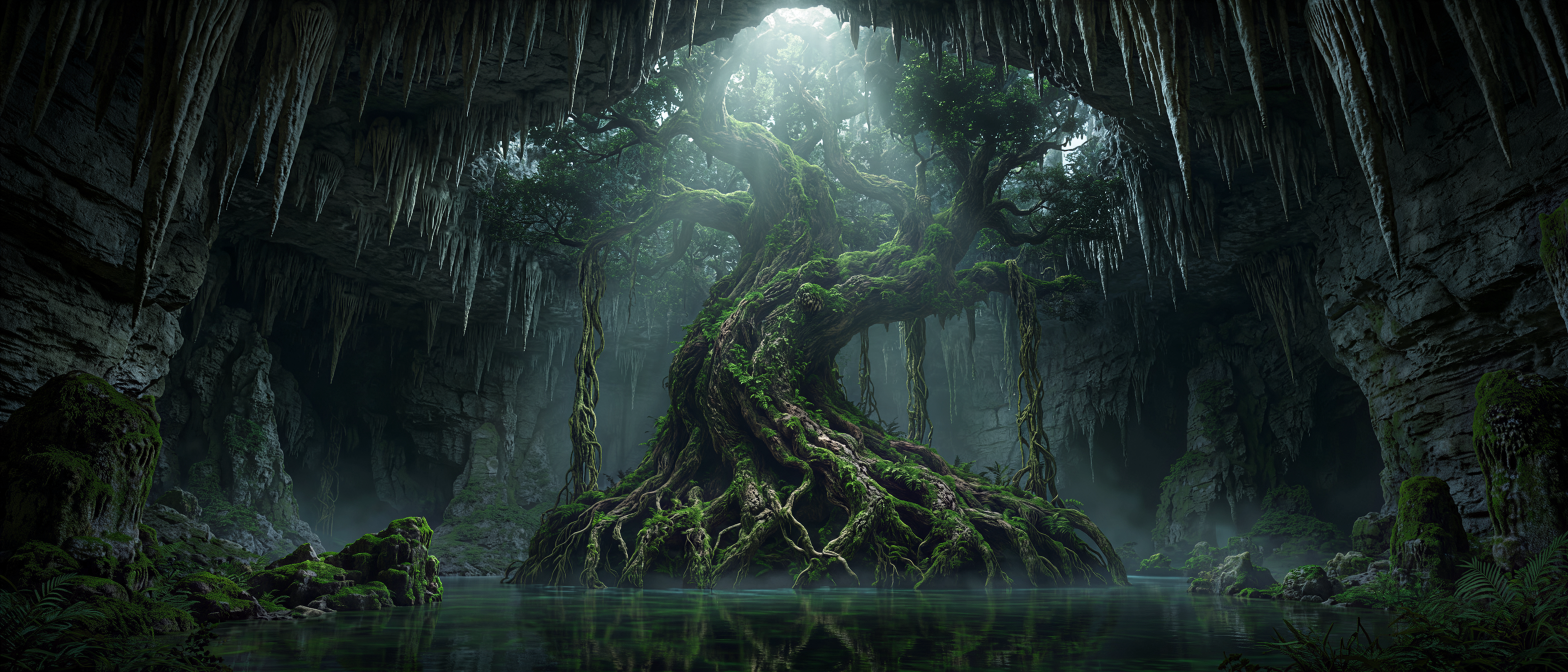
4️⃣ Scene· Series Mode
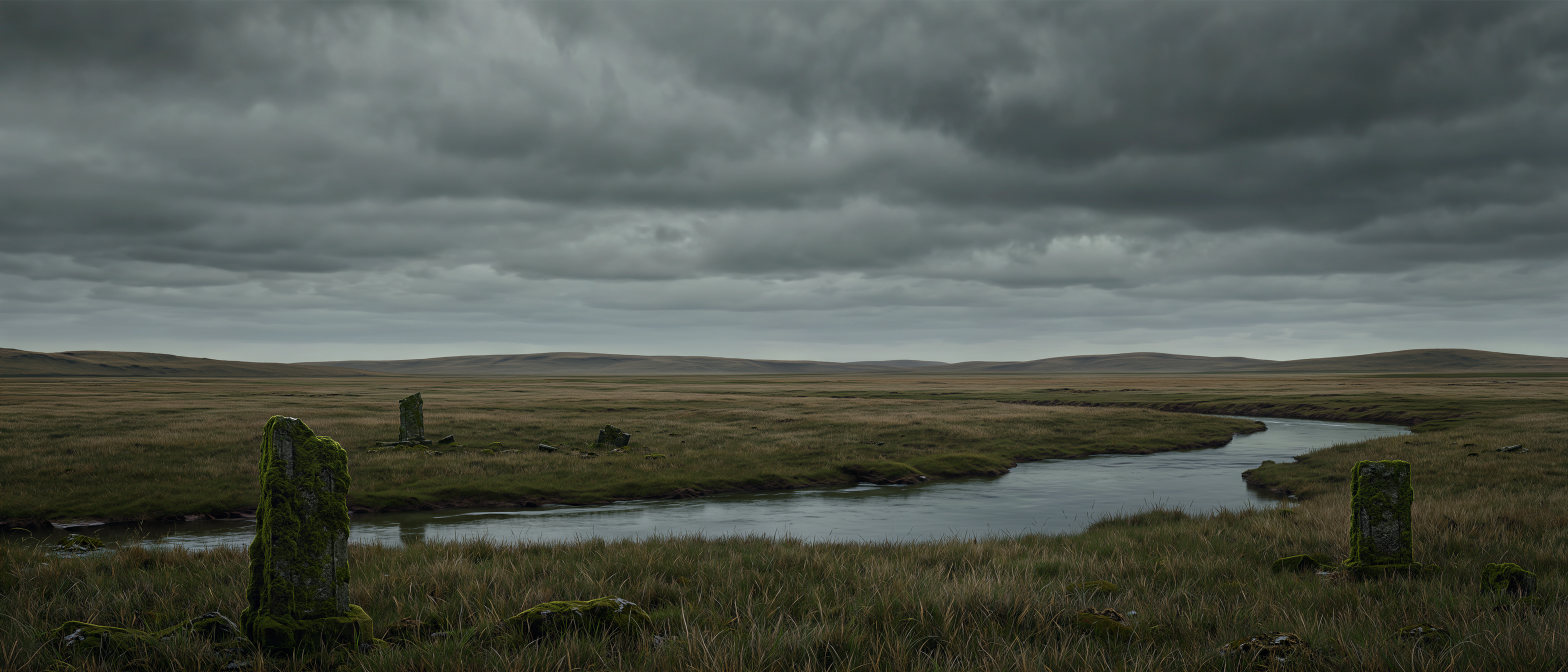
Generate a set of images using series mode, featuring different scenes in the same visual style, based on a core scene asset. This can cover variations in time of day and weather, unique landscapes, fantasy environments, and complex set designs.
Template (Ready to Use):
Using the visual art style of the [input image] as a reference, generate a set of images featuring different scenes, including [target scenes 1, 2, 3, ...].
| Scene Image Set |
|
| ||
Prompt / Input Image
|
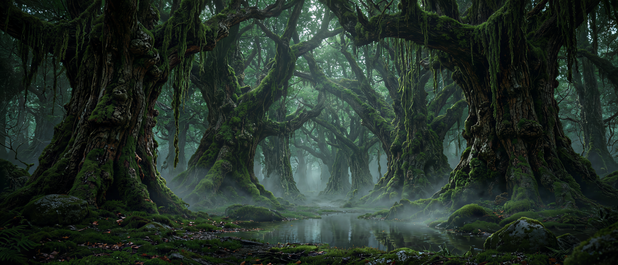
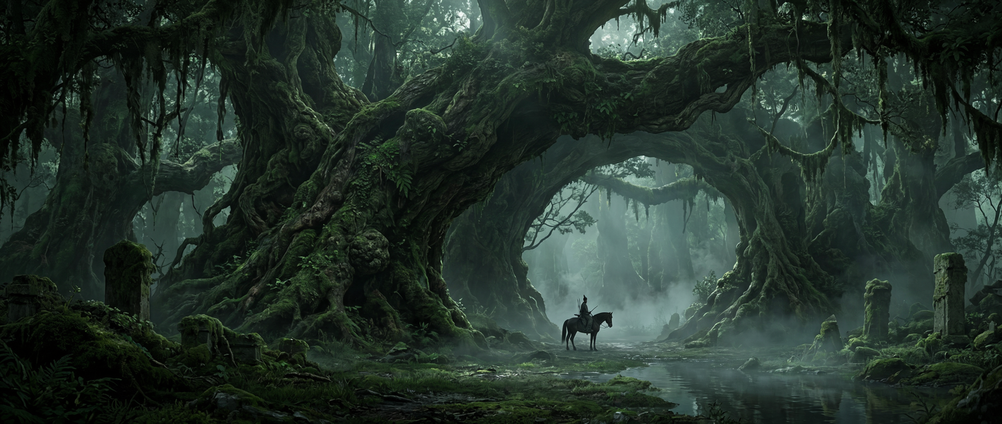
Using the visual art style of the reference image, generate a set of different scene images featuring mountains, oceans, plains, forests, deserts, and caves. |
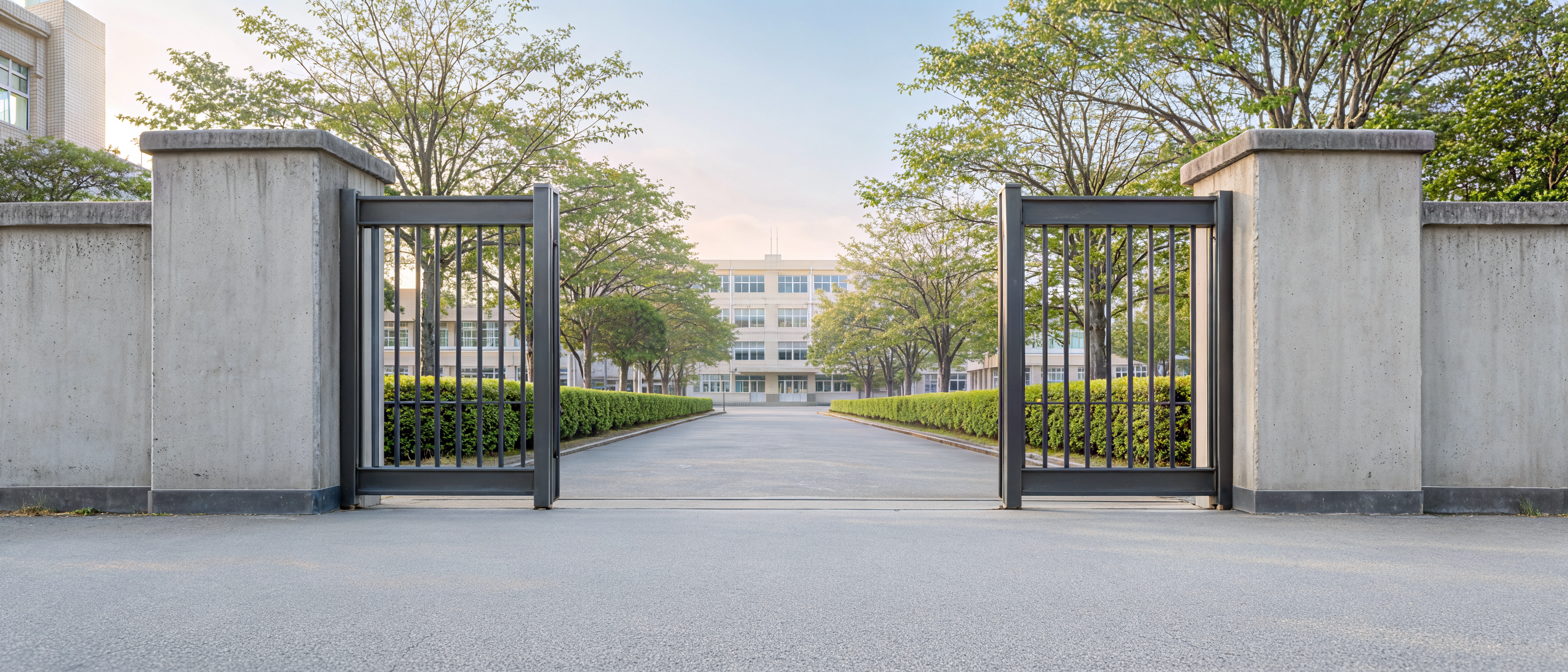
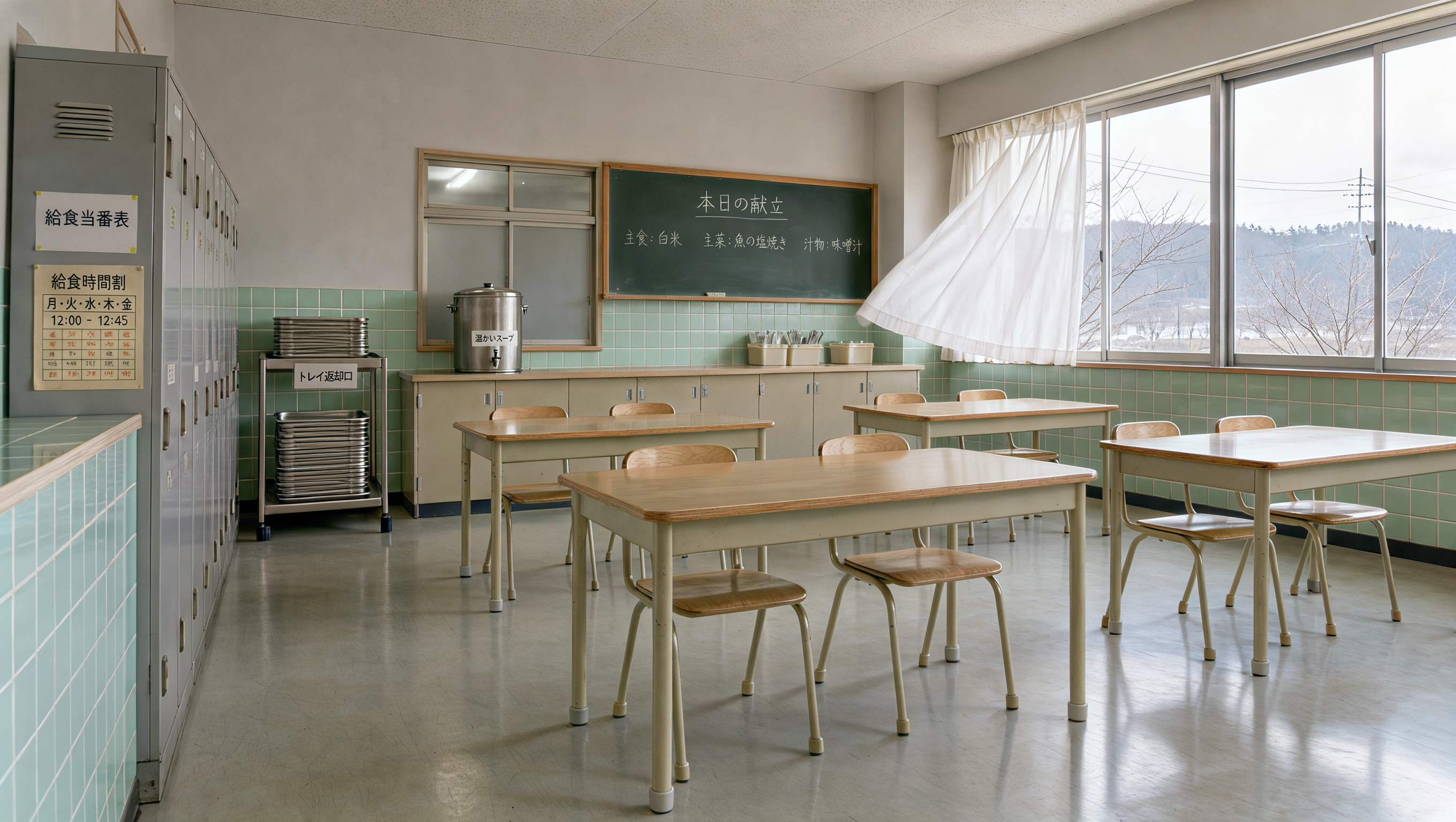
Using the visual art style of the reference image, generate a set of different school scene images featuring classrooms, hallways, school entrances, playgrounds, stairwells, and school rooftops. | ||
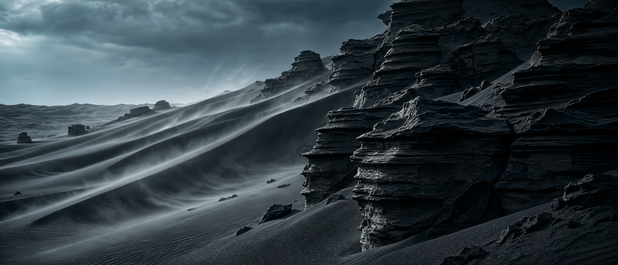
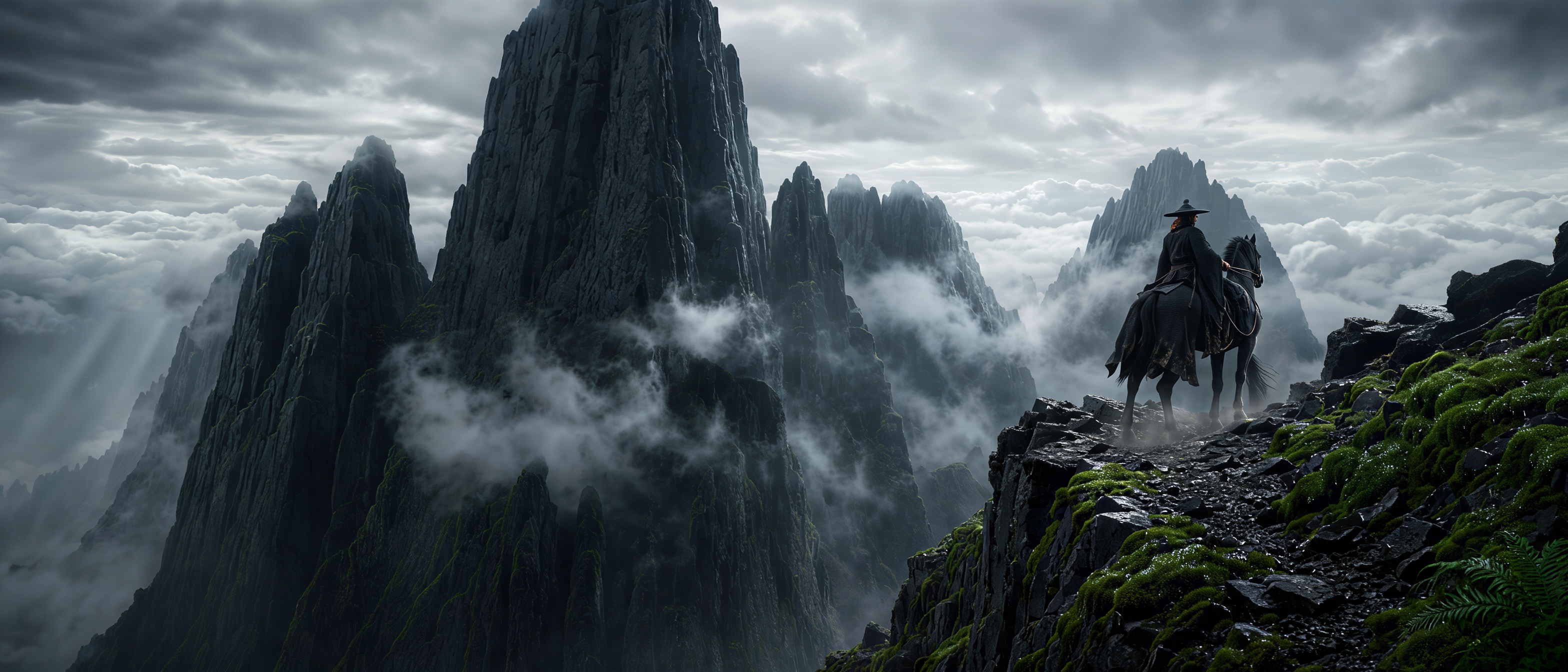
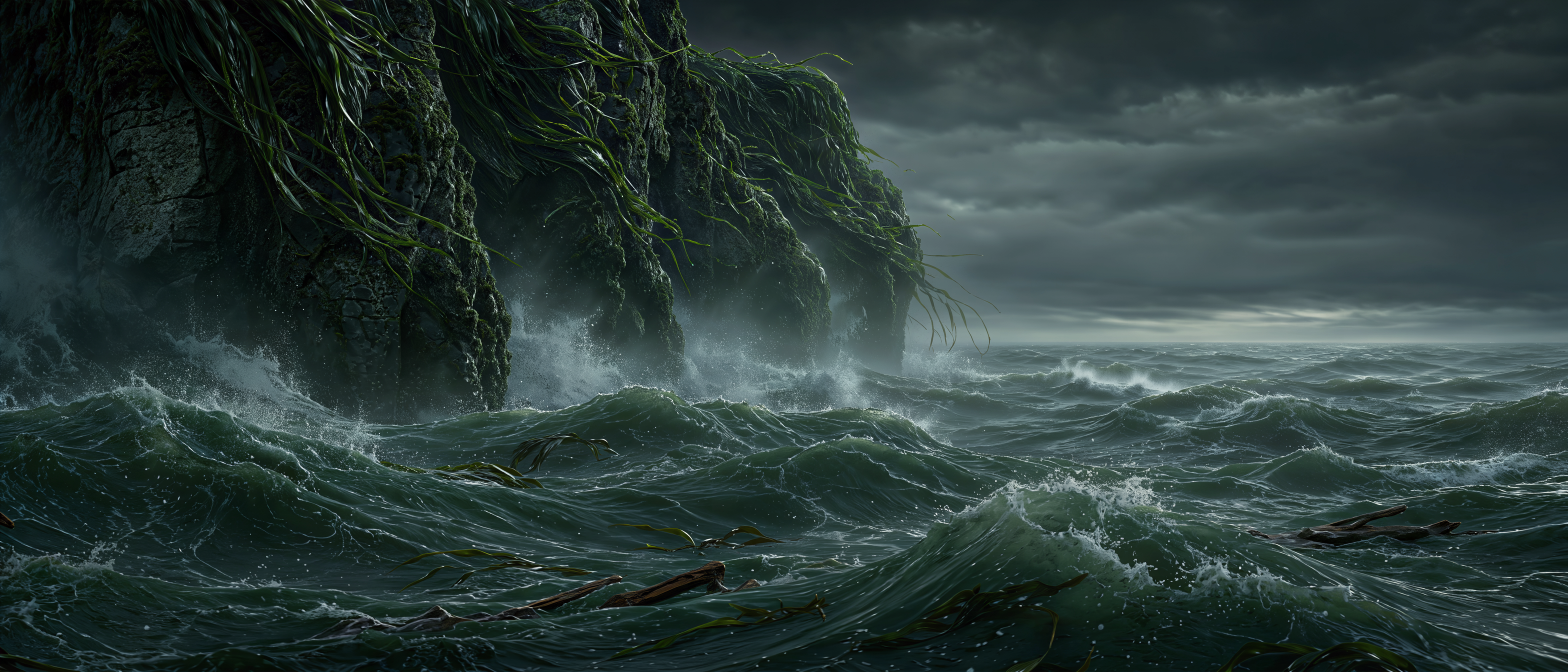
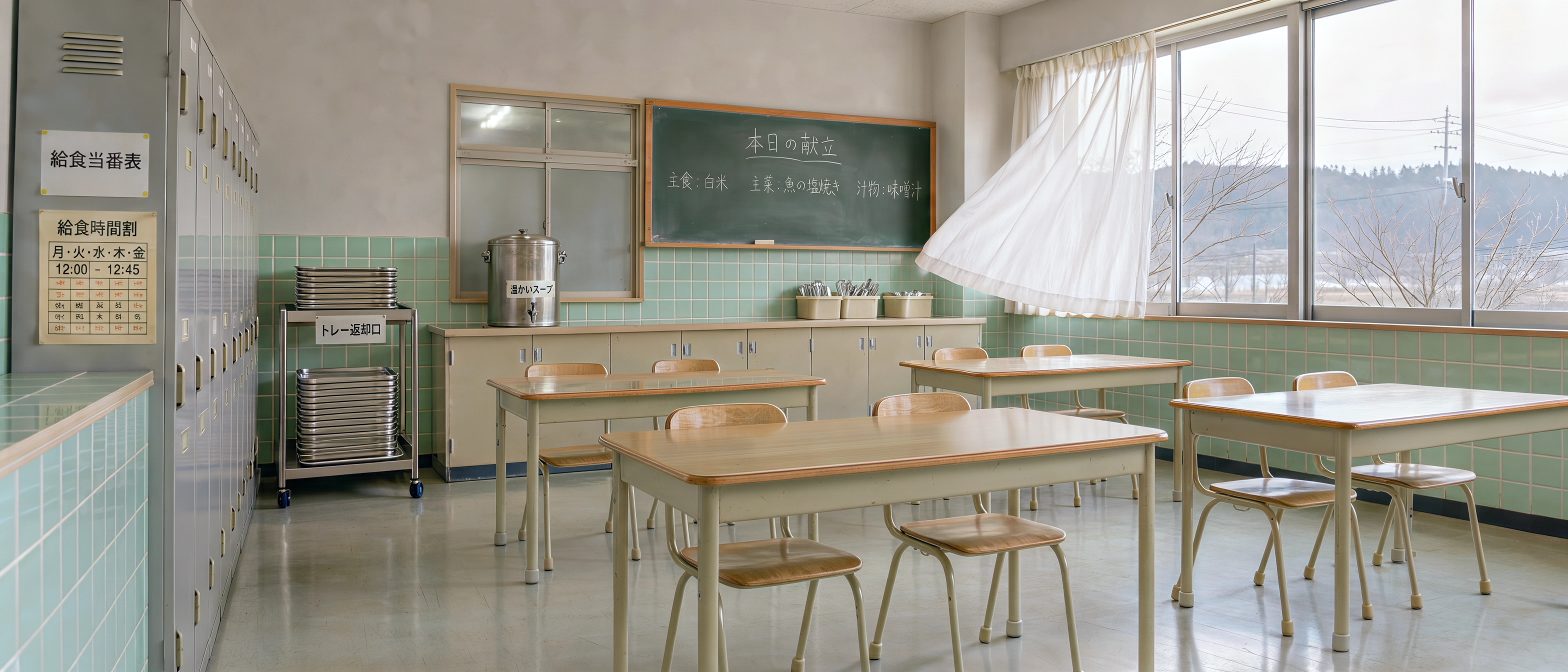
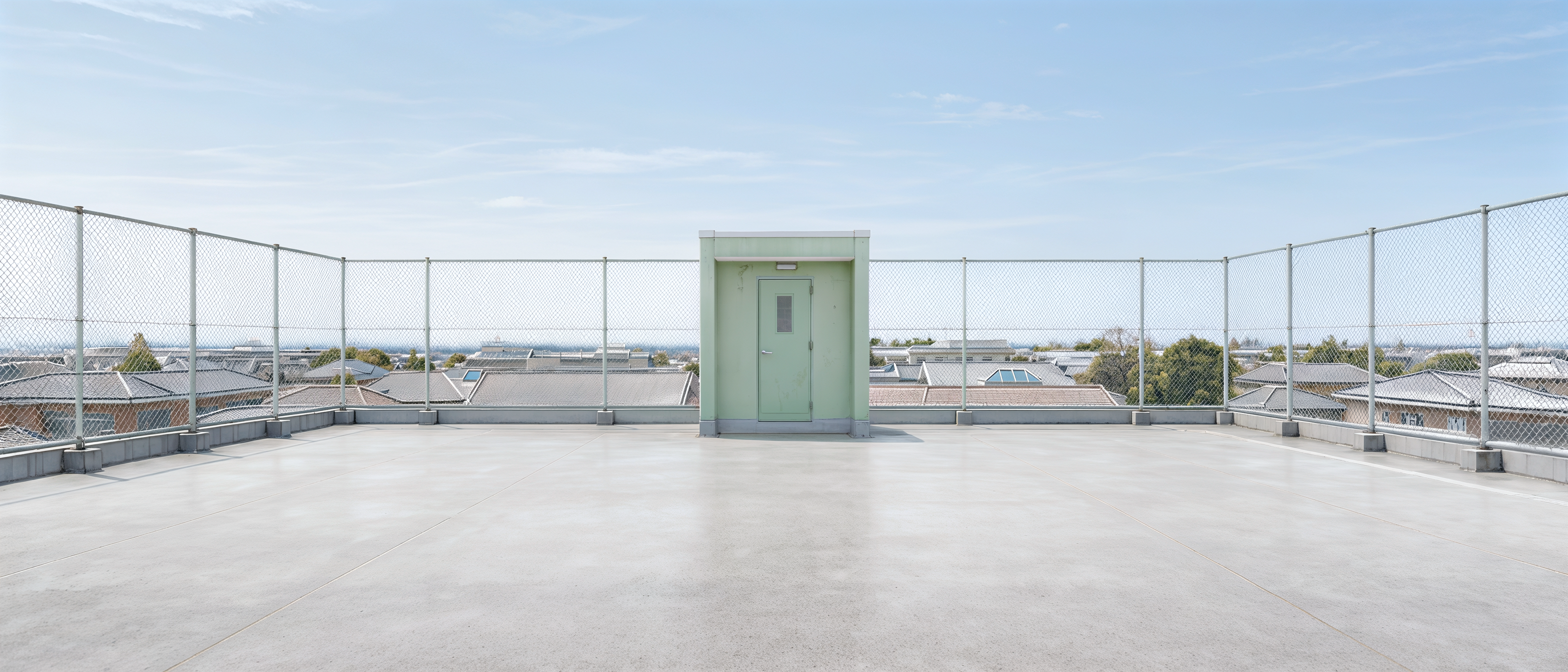
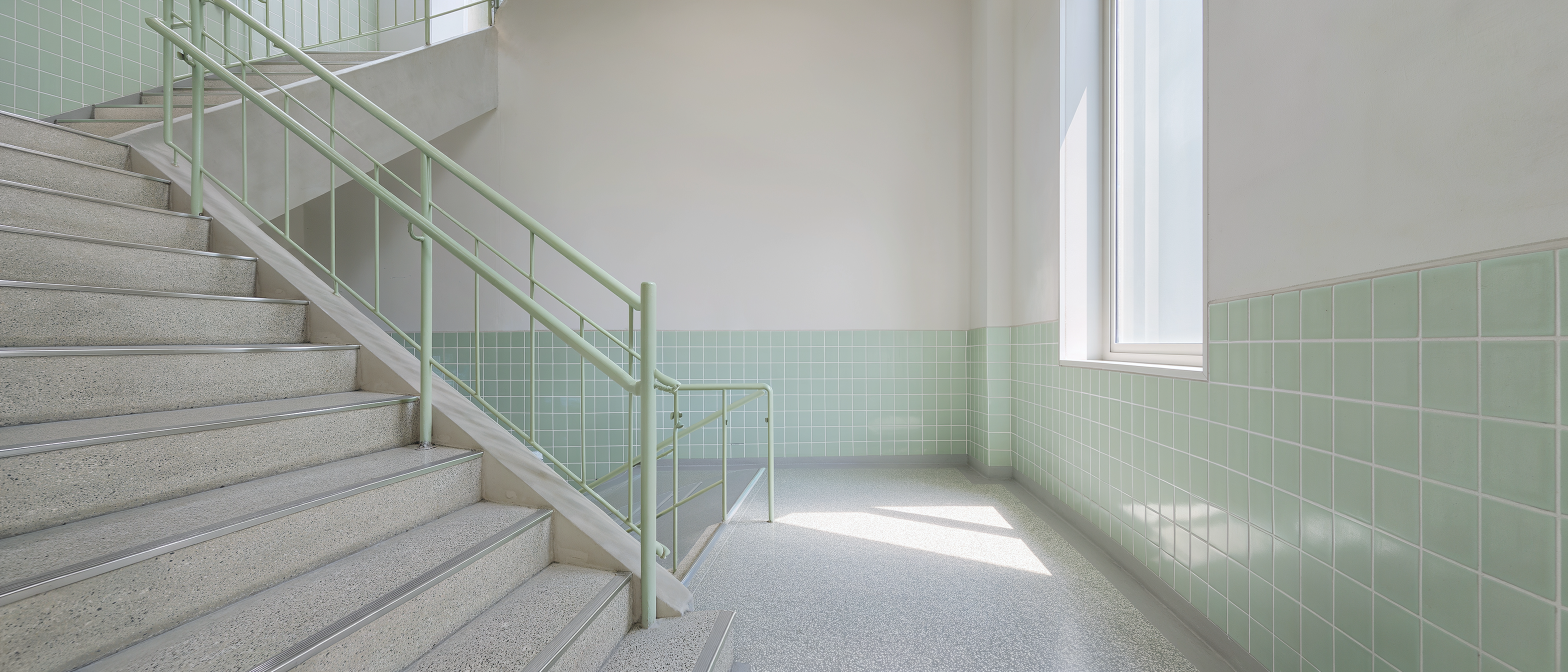
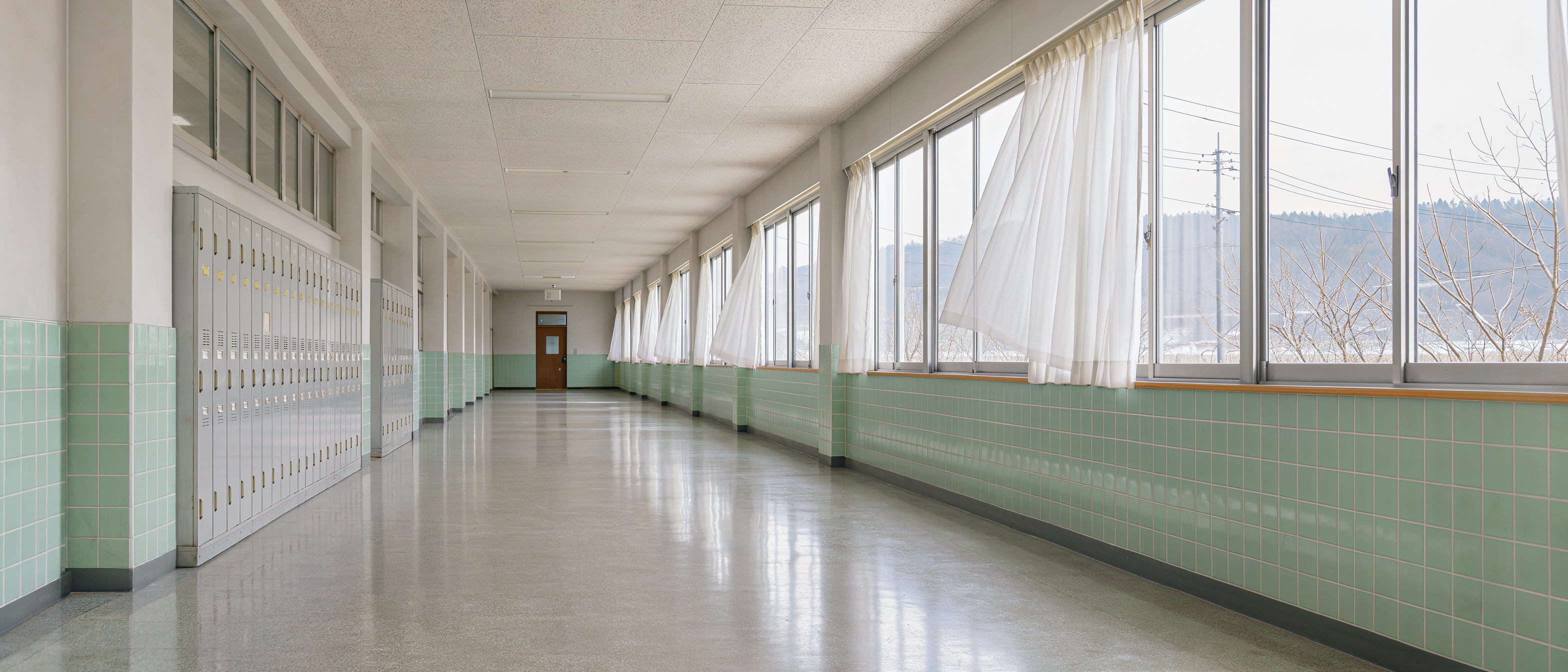
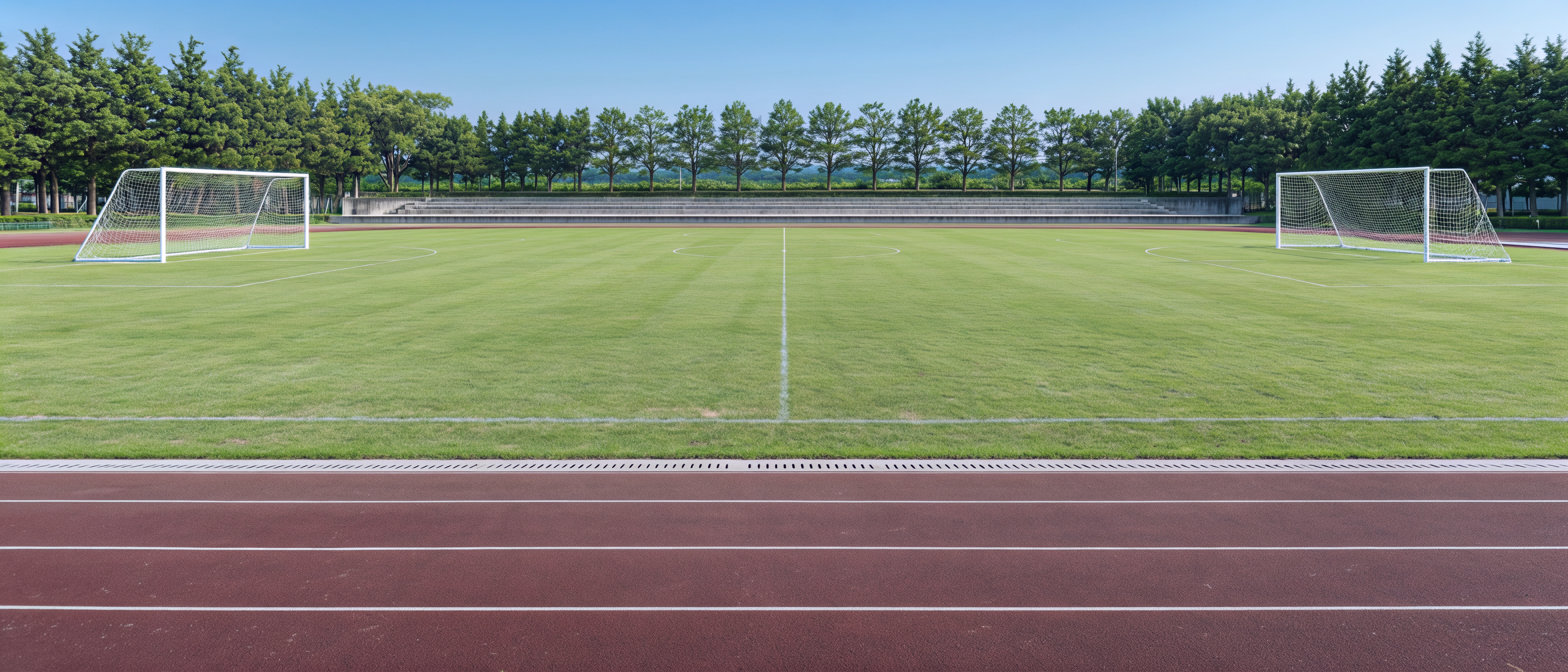
5️⃣ Documentary Photography
Template (Ready to Use):
Subject's identity + Physical appearance and clothing + Specific actions/interactions + Everyday setting.
Describe what the subject is doing to create a strong documentary feel: For example, “looking down while adjusting a weighing scale,” “chatting with a coworker during a break,” or “sleeping on a bus” is more effective at guiding the model than simply writing “realistic” or “storytelling atmosphere.”
Describe the image quality and texture: Tailor the visual texture to the subject. For example, use a crisp digital on-the-scene look for press conferences; natural colors or film texture for everyday life; and signs of age such as fading, scratches, and blurred edges for historical archival imagery.
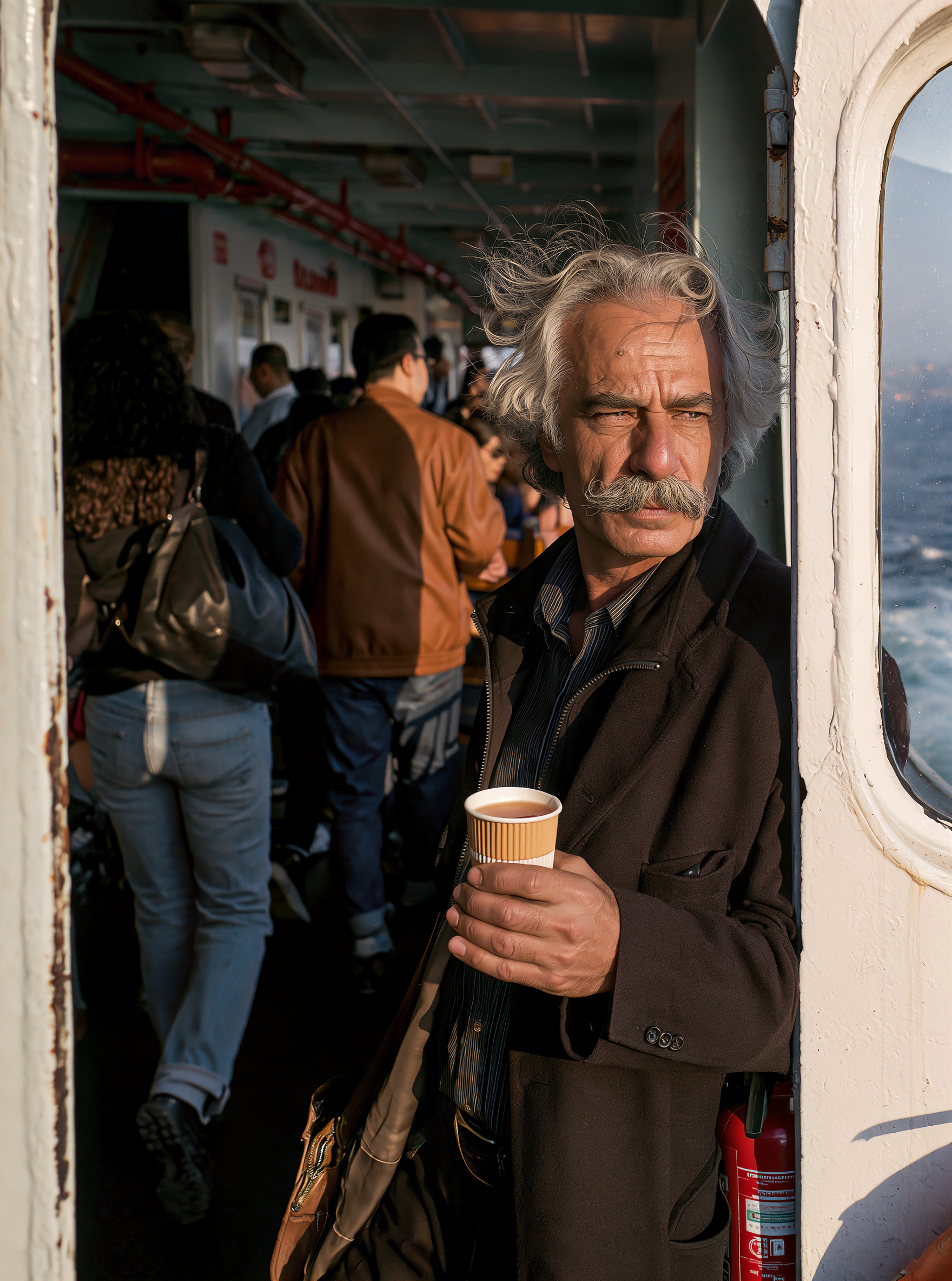 | 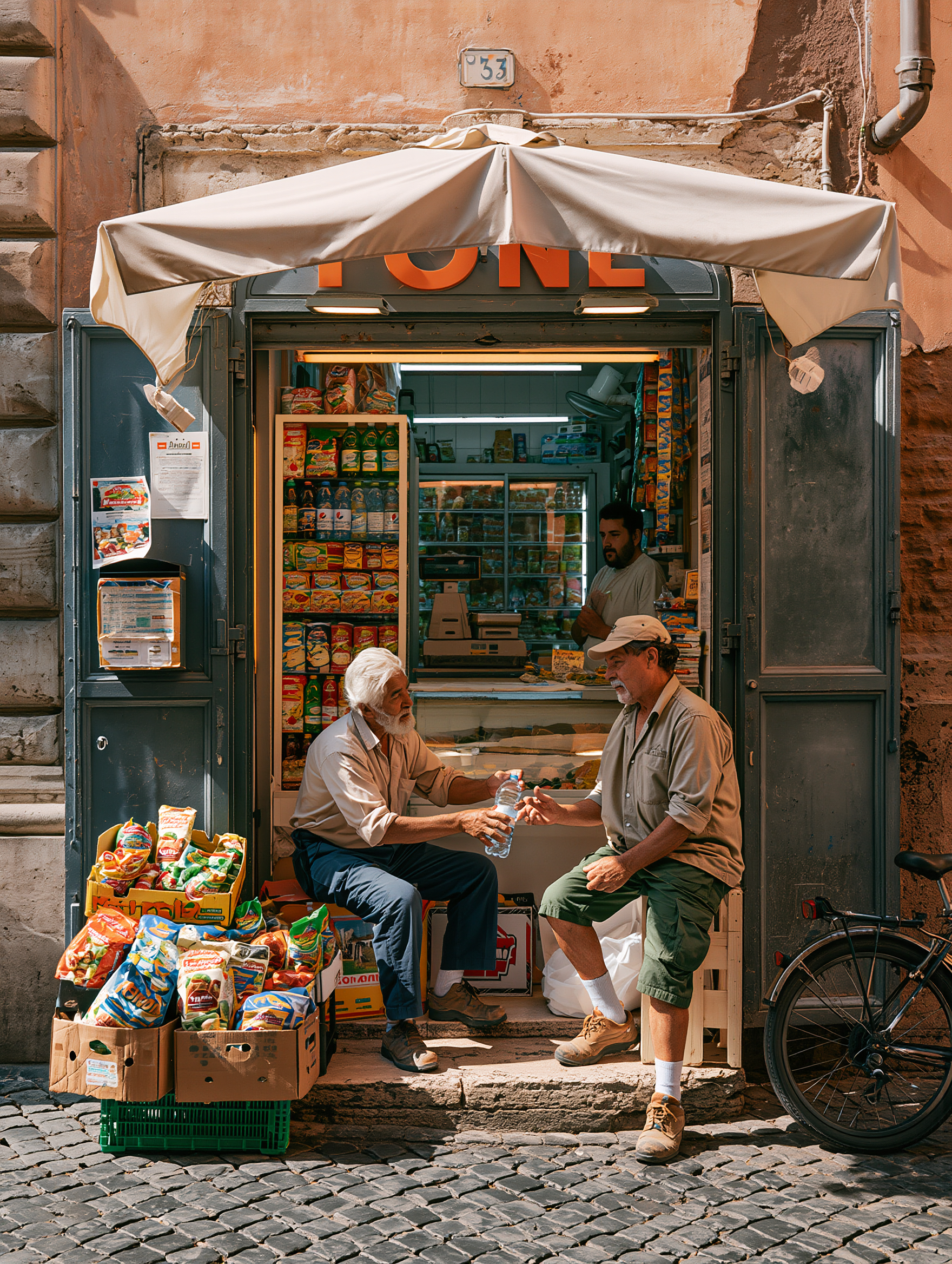 | 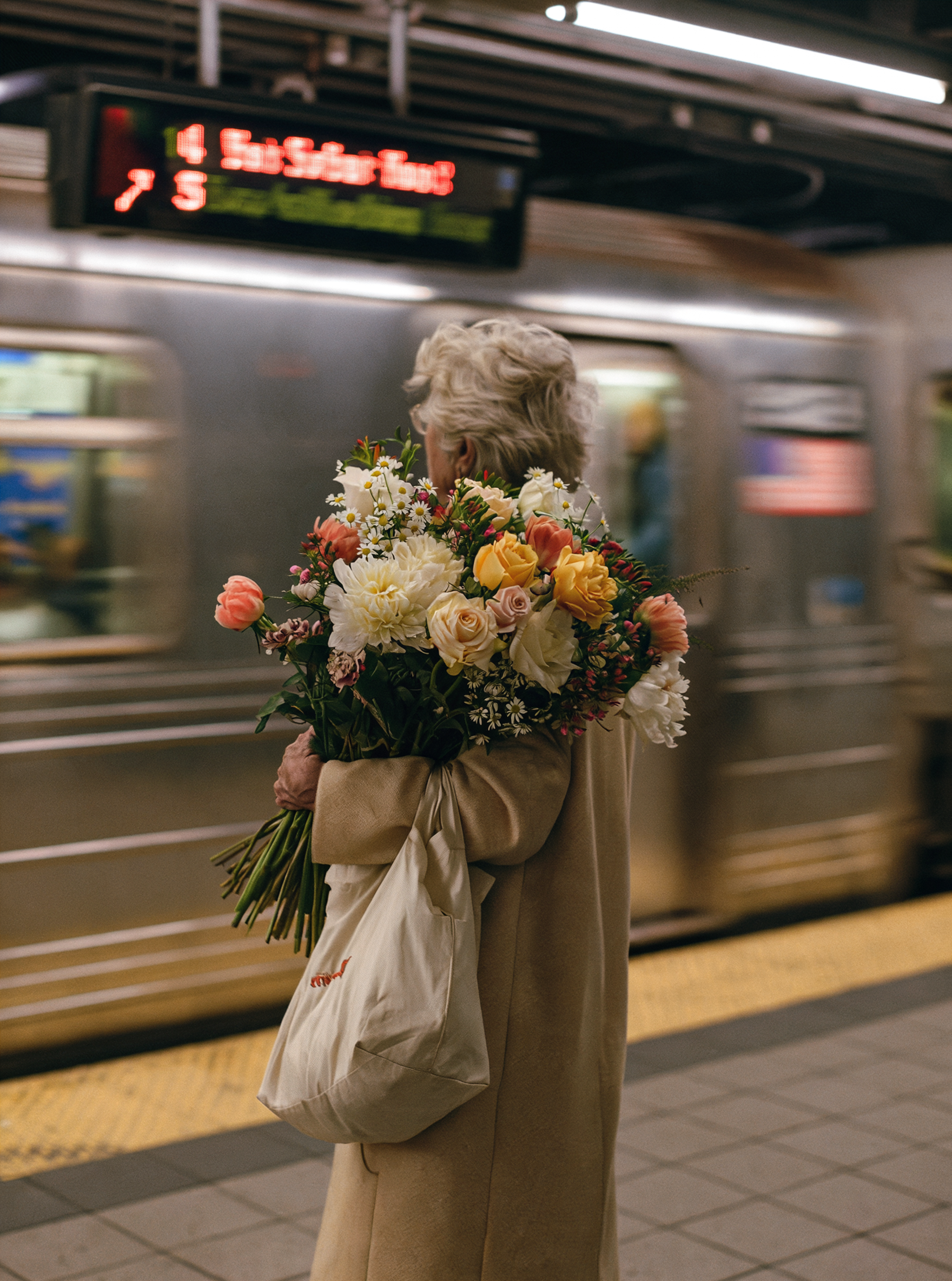 | 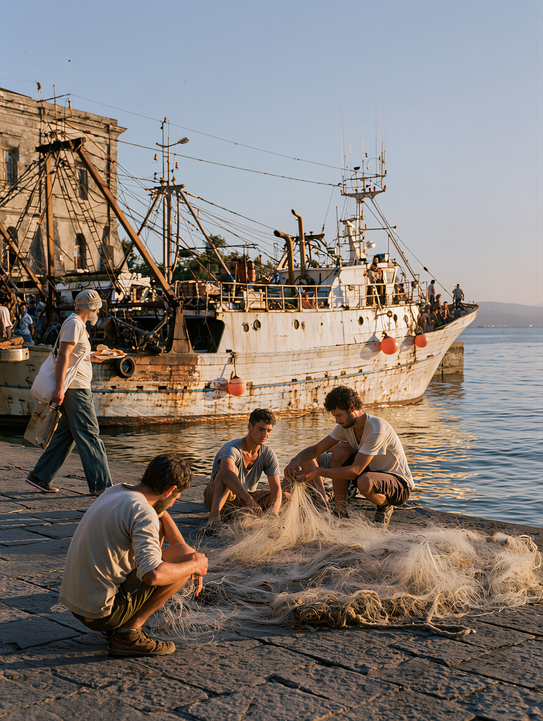 |
3:4 vertical composition, a close-up documentary street portrait at the entrance of a ferry cabin. The camera is positioned at a height roughly level with the elderly man's chest to eyes. An elderly man with tousled silver-white curly hair, a thick white beard curling outward on both sides, and clearly defined facial wrinkles stands slightly to the right of center. He leans against the white cabin doorframe on the right, wearing a dark brown, almost black coat over a dark pinstriped shirt. His right hand holds a light yellow corrugated paper cup containing a drink at chest level. His body is angled slightly toward the camera, while his face turns to the right. His expression is calm, and he does not look at the camera. Along the right edge is a thick white doorframe and part of a rounded porthole, through which the blue-gray sea is visible. A red fire extinguisher is partially visible beside the door in the lower-right corner. The left half of the frame shows the dimly lit interior of the ferry cabin, where several passengers are walking away from the camera. A man in a brown jacket is in the middle background, while a person wearing light blue jeans and carrying a black backpack is visible on the left. Warm, low-angle sunlight from the front right illuminates the elderly man's forehead, nose, beard, and the back of his hand. The cabin interior remains noticeably dark, while the sea outside has cooler tones. Preserve facial details without using uniform fill lighting. Keep the elderly man and the paper cup in sharp focus, with the passengers inside the cabin slightly blurred, retaining a natural sense of crowding. | 3:4 vertical composition, a straight-on documentary photograph of a narrow corner grocery store built into a weathered terracotta-pink wall. Eye-level camera, with the storefront centered and the architectural lines mostly vertical. Keep the entire upper wall and the stone-paved street below in the frame. The upper fifth of the image features a cream-colored fabric awning extending outward on both sides, with a pointed peak in the center. Beneath it are two open, dark forest-green shop doors. Only part of the large orange lettering on the sign above is visible. Inside, the shelves on the left are densely stocked with colorful packaged snacks and bottled drinks, with a glass-fronted refrigerator in the back and a young shop assistant standing behind the counter. Two elderly men sit facing each other at the entrance. On the left, an elderly man with white hair and a white beard wears a light beige shirt with rolled-up sleeves and dark blue trousers. He leans forward, extending his right hand to offer a clear plastic water bottle. On the right, another elderly man wears a light khaki baseball cap, a gray-brown shirt, olive-green knee-length shorts, white socks, and brown shoes. He reaches out to take the bottle. Their hands and the water bottle are positioned in the center of the lower half of the frame. In the lower-left foreground are stacked cardboard boxes and brightly colored snack bags. A black bicycle is partially visible in the lower-right corner. The bottom of the frame shows a road paved with irregular dark gray stones. Direct sunlight on a clear day enters from the upper right, illuminating the two men's faces, hands, and clothing while casting deep shadows inside the doorway and shop. The warm terracotta wall contrasts naturally with the cool green-gray shop doors. Do not turn the store into a modern convenience store or remove the awning, snack boxes, or bicycle. | 3:4 vertical composition, a realistic documentary photograph of an urban subway platform. The camera is positioned about two to three meters behind the subject, at approximately shoulder height. An elderly person with short, fluffy silver-white hair stands with their back to the camera, slightly below the center of the frame. They wear a loose, light camel-colored long coat and are turned slightly toward the left, holding a large bouquet of flowers in both arms. The bouquet spans the middle of the frame and almost completely obscures their upper body. It consists of large white flowers, cream and apricot-yellow roses, pink-orange blossoms, small white daisies, and dark green foliage. The flower stems hang down toward the lower left, and a soft off-white fabric tote bag hangs from their arm into the lower half of the frame. Behind the subject, a silver-gray subway train passes from left to right. The train windows and body show horizontal motion blur, while the person and bouquet remain sharp. In the upper left hangs an electronic station sign with red illuminated lettering on a black background. The text may be blurred and should not become the visual focus. The platform ceiling and a long white fluorescent light are visible above. Gray tiled flooring and a yellow safety line running along the platform edge appear at the bottom. The lighting is soft, slightly dim indoor overhead lighting. Colors are muted, with the flowers providing the most vivid colors in the image. No sunlight, romantic lens flare, empty platform, or frontal view of the subject. | 3:4 vertical composition, a realistic documentary photograph of an old Mediterranean harbor. The camera is positioned at approximately the eye level of the crouching subjects, using a wide-angle lens without noticeable distortion. The lower third of the frame is occupied by a rough gray stone dock, with a large, semi-transparent off-white fishing net spread from the center toward the lower right. Three young men are working around the net: one crouches with his back to the camera in the lower left; another crouches in the lower center, facing the camera with his head lowered as he sorts the netting; the third crouches slightly right of center, lifting the net with both hands. In the middle ground on the left, a passerby wearing a white short-sleeved shirt, blue-green trousers, and a light-colored hat walks toward the left. An old white wooden fishing boat stretches almost across the entire middle of the frame. Its hull shows rust and weathering, and its bow extends toward the sea on the right. Orange round buoys hang along the side of the boat. Its deck is crowded with masts, lifting frames, ropes, and a few distant figures. Part of an old light-colored building is visible in the upper left. Calm blue-gray water fills the right side, while a large area of clear pale blue sky remains at the top. Low-angle sunset light enters from the right, casting warm golden highlights on the people, the boat's side, and the right side of the fishing net, while creating long, clearly defined shadows on the ground. Maintain the contrast between the blue-gray sky and golden sunlight. Avoid overly saturated sunsets or an orange sky. |
6️⃣ Narrative Storytelling
Suitable for creating images with a clear story moment, distinct character states, spatial relationships, and cinematic visual language.
Template (Ready to Use):
[Visual Style] + [Environment] + [Subject] + [Action / Expression] + [Composition] + [Camera Position / Angle] + [Focus] + [Lighting] + [Texture / Details] + [Color Tone] + [Mood / Atmosphere]
Visual Style: Specify the intended use and overall direction of the image, such as realistic cinematic stills, narrative photography, suspense film scenes, road movie aesthetics, vintage film photography, or documentary-style realism.
Main Subject: Describe the subject in detail, including their identity, appearance, clothing, expression, emotional state, and posture, so they feel as though they are “experiencing a particular moment in a story.” For example: “The main subject is a weary young woman with long, disheveled curly hair and tear-filled eyes. She wears a white dress stained with dust. Her expression is pensive, her gaze unfocused, and her body leans slightly forward with both hands clenched, as if she has just endured a long and difficult journey.”
Actions and Expressions: Describe what the subject is doing, which direction their body is facing, where they are looking, and how their emotions are conveyed through their expressions and body language.
Environment and Setting: Describe the scene, time, spatial layout, and background details. For example:
- Location: Airport terminal, desert highway, abandoned cinema, late-night convenience store, or street corner in a rainstorm.
- Time and C onditions: Dusk, early morning, late at night, after rainfall, or under intense midday sunlight.
- Spatial Layout: Long, narrow corridor, vast open desert, crowded departure lounge, or underground parking garage with a low ceiling.
- Key Props: Old suitcase, flickering neon signs, police car in the distance, torn posters, or reflections in puddles. Composition: Describe the aspect ratio, subject placement, proportion of the frame occupied by the subject, foreground-middle ground-background relationships, negative space, and visual balance. For example: The subject is positioned along the right third of the frame. Centered composition emphasizes the subject's loneliness. The foreground subject is in sharp focus while the background crowd is blurred. The building on the left balances the subject on the right. The foreground subject, middle-ground vehicle, and distant mountains create depth across three spatial planes. Extensive negative space reinforces a sense of oppression and isolation.
Camera / Shooting Angle: Describe how the image appears to have been shot, including the shot size, perspective, and camera distance.
Focus / Depth of Field: Specify where the focus falls and how much the background is blurred.
Lighting and Shadows: Describe the light source, direction, color, contrast, and shadow patterns. For example: Strong direct sunlight falls from the upper left of the frame. Cool overhead lighting mixes with natural light from outside the window. Warm yellow neon light illuminates the subject's profile. Backlighting outlines the subject's hair and shoulders. High contrast leaves half of the subject's face in shadow.
Color: Specify the dominant and secondary colors, warm and cool tones, saturation, and contrast.
Image Texture and Atmosphere: Describe the final image treatment and emotional tone, such as fine cinematic grain, vintage film texture, realistic photographic texture, subtle noise, or soft highlights. You can also specify moods such as freedom, energy, suspense, tension, loneliness, restraint, nostalgia, oppression, romance, or everyday realism. Mood descriptors summarize the overall emotion of the image and are best placed in the latter half of the prompt.
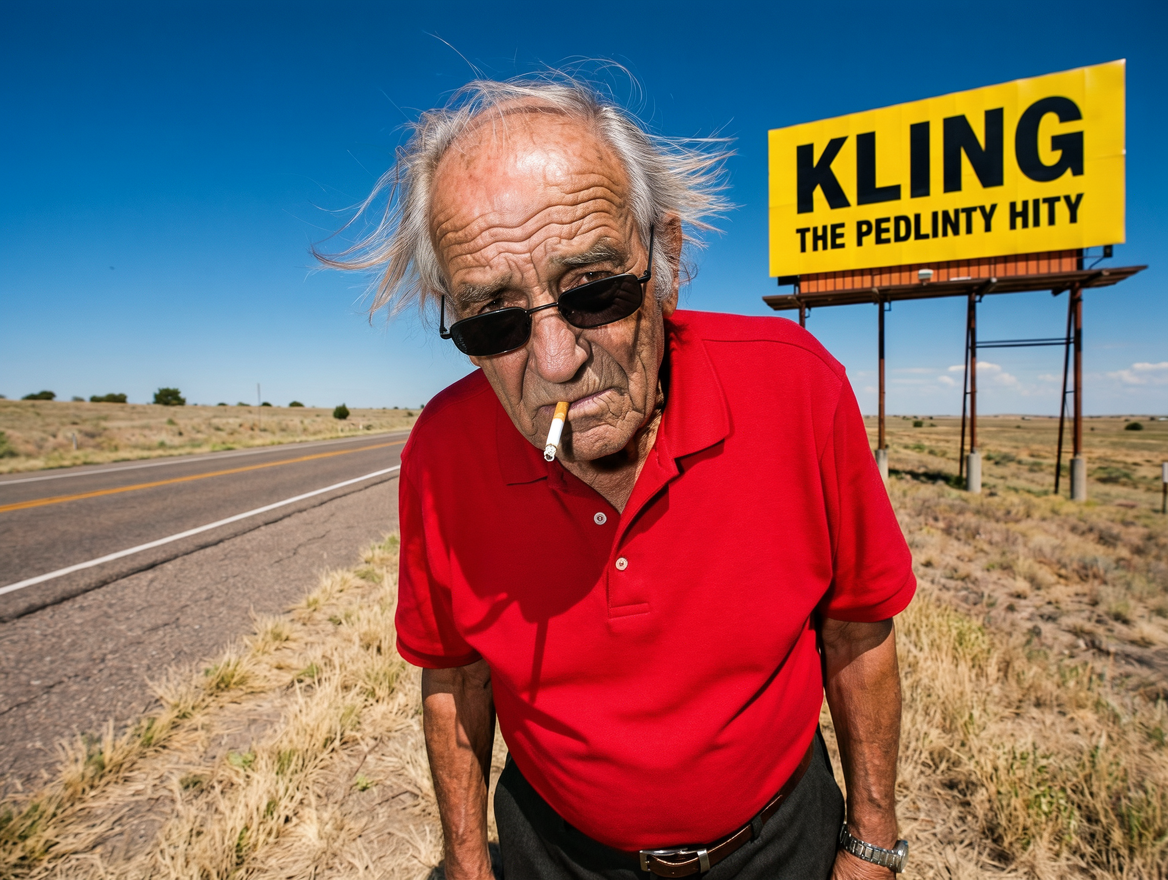 | A documentary portrait with a strong roadside aesthetic and a rugged, weathered character. The subject is a thin, elderly man standing beside a patch of wild grass along a highway, leaning slightly forward with his head lowered toward the camera. Behind him are a glaring blue sky, a straight road stretching into the distance, and a massive yellow billboard. The billboard displays the word “KLING.” Its vivid yellow background contrasts sharply with the bright red polo shirt the man is wearing, making the entire image feel exceptionally dry, scorching, and direct. The man wears narrow black sunglasses and has a cigarette hanging from his mouth. His sparse, disheveled hair is blown to one side by the wind. Deep wrinkles mark his face, and his expression blends disdain, exhaustion, and stubborn resilience, conveying the hardened vitality of someone who has spent years exposed to the wind and sun along the roadside. The camera is positioned very close to the subject, with a slight wide-angle perspective. The man occupies the center of the foreground, while the highway and billboard behind him provide a minimal, straightforward narrative setting. The lighting is harsh midday sunlight with no softening. Every detail is sharply defined, from the texture of his skin and the wrinkles in his clothing to the dry, yellowed grass. The overall aesthetic combines Latin American roadside documentary photography, working-class portraiture, and vintage advertising imagery. The result is rugged, humorous, and unapologetically direct. Harsh outdoor sunlight with direct-flash photography; highly saturated, vivid colors throughout. |
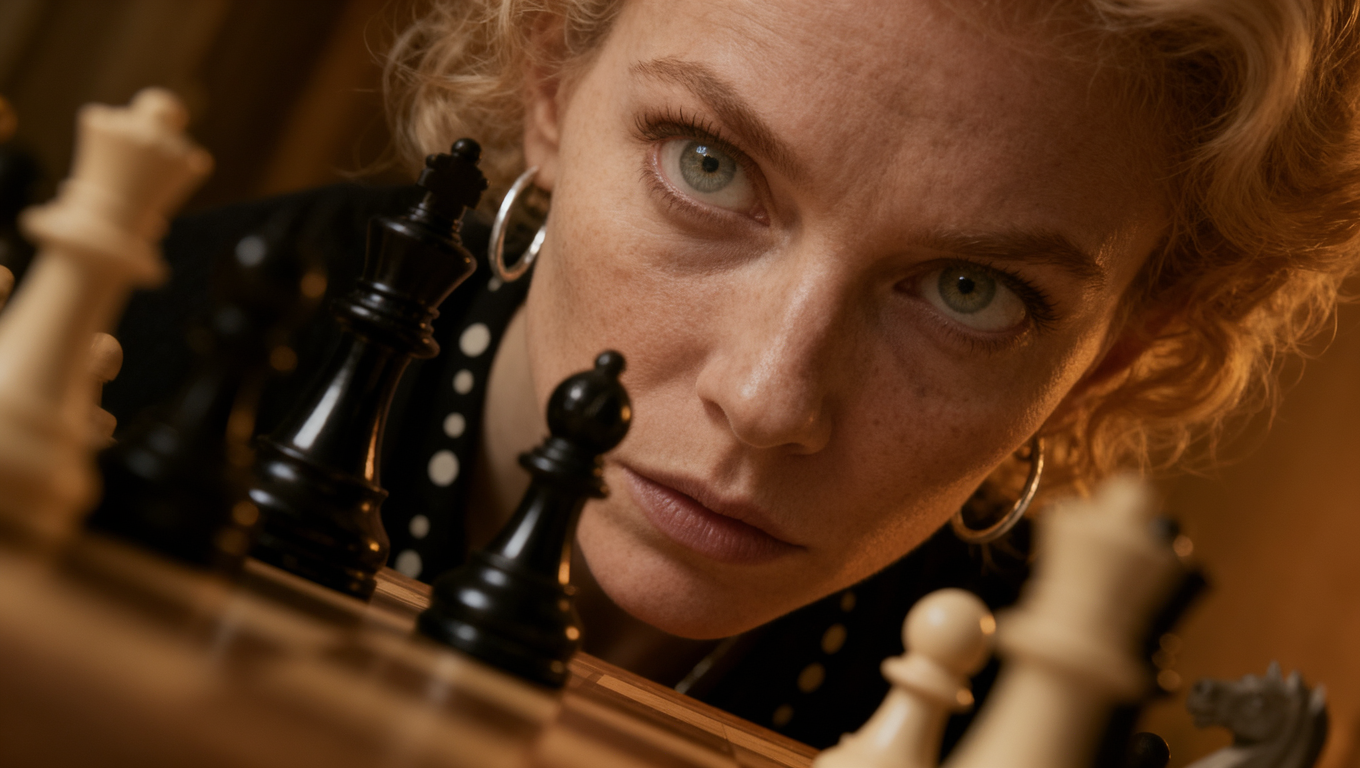 | A cinematic 35mm film photography aesthetic, featuring fine film grain and the classic look of a Hollywood suspense thriller. The image captures a tense moment during a chess match, as a woman leans over the chessboard, studying the pieces and engaging in a psychological battle with her opponent. The main subject is a young woman with pale blonde curly hair, fair skin, freckles, light-colored lips, and light blue-green eyes. She wears silver hoop earrings and a black outfit decorated with white polka dots. Leaning forward with her face extremely close to the camera, she adopts the posture of someone looking down at a chessboard during a match. Her expression is tense and alert, as though she is carefully examining a crucial move. The setting is a warm-toned indoor space. In the foreground, a chessboard and chess pieces are visible, with the checkered pattern of the board faintly discernible. Soft, warm bokeh lights appear in the background. The shot uses a Dutch angle, tilted 45 degrees to the left, creating a sense of instability and suspense. The camera looks upward at the woman's face from between the chess pieces, creating an extremely close, low-angle voyeuristic perspective. She appears to be leaning over and scrutinizing the chessboard. Her face occupies the upper-middle portion of the frame, taking up more than 50% of the image. The foreground chess pieces fill approximately 45% of the lower and side edges of the frame. They are extremely blurred and enlarged, forming a natural frame around the subject. The warm bokeh lights in the background are further softened and reduced in scale, enhancing the sense of perspective and spatial depth between the subject, props, and environment. The lighting consists of soft, warm side-top lighting entering diagonally from the upper right of the frame, creating natural transitions between light and shadow across the woman's face. Noticeable highlights appear on the tip of her nose and cheekbones, while the tops of the chess pieces catch faint reflections. The image emphasizes the freckles and skin texture on her face, her light blonde curls, the cool metallic sheen of her silver earrings, the texture of her black polka-dot outfit, and the realistic refraction and soft-focus effects produced by the foreground chess pieces. The depth of field is extremely shallow, with focus precisely locked on the woman's right eye and the bridge of her nose. Her left eye, lips, and the foreground chess pieces are softly blurred. The overall palette is dominated by rich amber, caramel brown, and warm orange tones. The chess pieces are black and white, her skin has a warm fair tone, and her black clothing contrasts with the cool highlights of her silver accessories. Highlights are slightly overexposed, while shadows are rich and transition naturally through warm tones. The overall atmosphere is tense and suspenseful, evoking a chess match, psychological warfare, vintage warmth, and a struggle for power. The image conveys an immersive sense of intellectual confrontation, as though the viewer is secretly observing the match. |
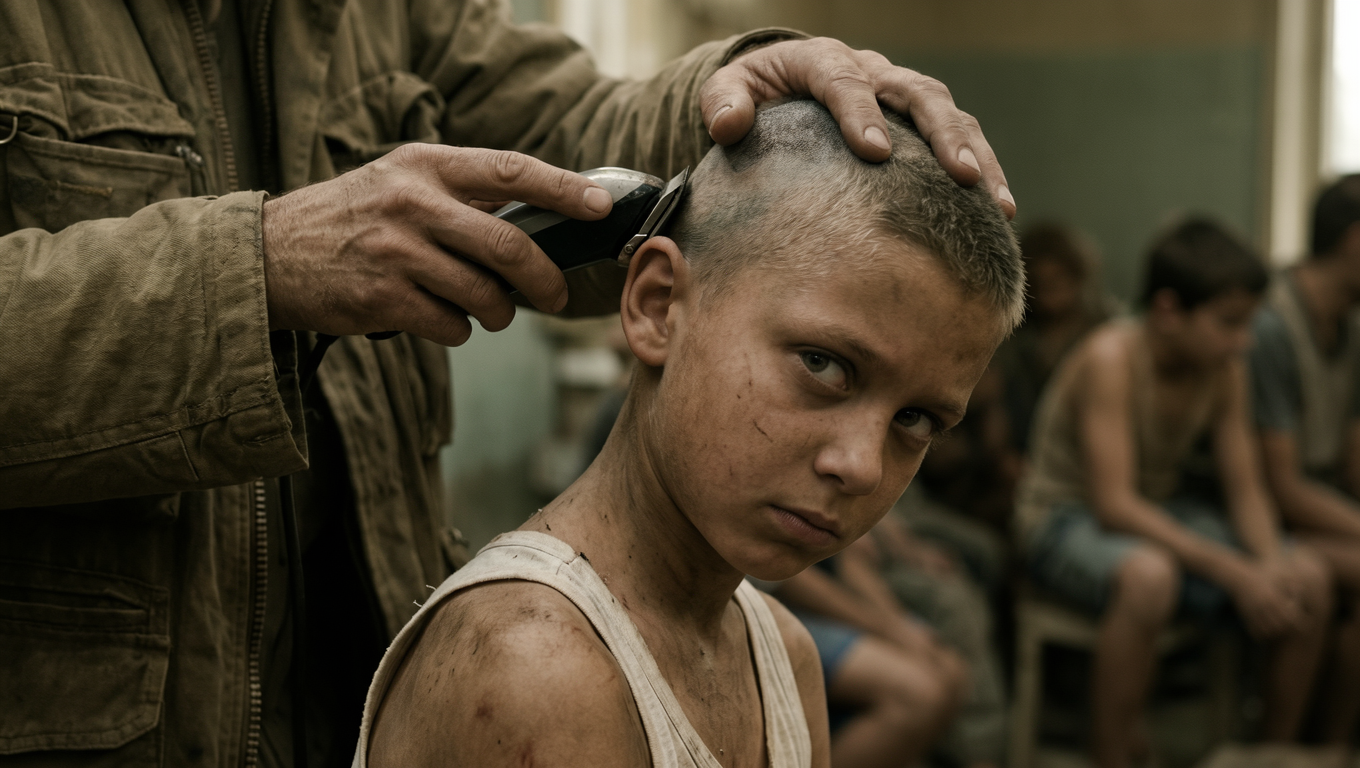 | A social realist cinematic still aesthetic, featuring a strong sense of realism, the visual language of socially conscious cinema, and an unposed, candid documentary feel. The image captures the moment a child is having their head shaved in a cramped, stuffy, and rundown indoor space. The close-up camera distance creates a palpable sense of oppression, humiliation, and harsh reality. The main subject is a child around eight to ten years old, with a thin, slender build, wearing a yellowed, worn, and stained white sleeveless undershirt. Their shoulders and collarbones are exposed. Their skin is marked by dust, abrasions, old bruises, and grime accumulated through daily hardship. Their overall appearance conveys exhaustion, tension, and vulnerability. The child is positioned slightly right of center, sitting with their body facing toward the front left. However, an adult's hand forcibly holds their head down and presses it sideways toward the lower right, creating an unnatural tilted angle. The neck is stretched, and the entire crown of the head is exposed to the camera. The ear is clearly visible. A black electric hair clipper is pressed against the back of the child's head, shaving the hair extremely short. The scalp appears bluish gray, with tiny stubble and uneven shaving marks visible on its surface, conveying a rough, makeshift process carried out without dignity. The child's expression is the most important psychological focal point of the image. They are not crying or throwing a tantrum. Instead, they look down while glancing sideways toward the camera, their eyes slightly rolled upward. Their gaze conveys a mixture of hostility, wariness, humiliation, suppressed anger, and a hardened maturity beyond their years. Their brows are slightly furrowed, lips tightly closed, and jaw clenched. Their restrained facial muscles create a complex expression of enduring the situation without surrendering. A thin, pale scratch runs along the right side of the face, extending from the cheek toward the area beneath the eye, reinforcing the character's lived experience and the harshness of their surroundings. In the left foreground are the upper body and hands of an adult wearing an old khaki, military green, or earth-toned jacket. The fabric is heavy, wrinkled, and worn, with loose cuffs. Details such as zippers, pockets, and metal rings give it the appearance of inexpensive utility clothing or workwear. The adult's left hand holds a black electric hair clipper pressed against the back of the child's head. The right hand forcefully holds down the crown of the child's head from above. The hand is broad, with thick fingers, and its posture conveys control and dominance. The adult's face does not need to be fully visible. The focus should remain on the oppressive relationship between the hands, the tool, and the child's restrained head. The setting is a cramped, stuffy, poorly lit indoor space, resembling a detention center, makeshift barbershop, prison facility, refugee camp dormitory, or temporary shelter in an impoverished area. Several people are seated and waiting in the middle and right portions of the background. One adult man is bent forward with his head lowered, while another child or teenager wearing gray-blue shorts sits on a stool. These figures are softened by the shallow depth of field and serve only as contextual details and narrative background. The walls are gray-green, beige, and aged white. The space conveys a sense of sweat, dust, damp air, and deterioration from prolonged use. The lighting uses realistic natural indoor light or diffused light entering through a window, with no visible studio lighting effects. The key light enters from the right or front right, soft but sufficient to illuminate the child's scalp, cheeks, eyes, and the edges of the undershirt. It creates a warm, humid sheen on the skin. The overall lighting ratio is low, with restrained contrast and lifted blacks, resembling footage shot on 16mm or Super 35mm film and subsequently scanned. The image emphasizes the dust, sweat, and subtle sheen of skin oils on the child's skin; facial scars; scalp stubble; stains and wear on the white undershirt; coarse fabric texture of the old jacket; and the inexpensive plastic and metallic surfaces of the electric clipper. The composition uses a close medium shot, with the camera positioned almost directly against the subjects. The child's face and shaved head form the primary visual focus, while the adult's hands and electric clipper create a secondary focal point. The waiting figures in the background add narrative depth. The child is positioned slightly right of center, while the adult's arm and tool enter from the left, creating a forceful diagonal line that reinforces the oppressive atmosphere. The camera is positioned at a close, eye-level to slightly low angle, creating a candid documentary feel and a strong sense of being present at the scene. Focus is sharply locked on the child's eyes, facial scars, and shaved scalp. The adult's hands and clipper remain clearly recognizable, while the background figures and walls are softly blurred by the shallow depth of field. The overall color palette is highly restrained, dominated by earth yellow, gray-green, dirty white, brown, and muted warm skin tones, with no vivid accents. The image is low in saturation and contrast, with a warm gray color cast, visible film grain, slight blur, softened edges, and film noise. Avoid the look of modern, high-definition digital fashion photography. The aesthetic should be closer to social realist cinema, postwar Eastern European or Middle Eastern films, documentary-style narrative cinema, and the realist visual language associated with the Dardenne brothers or films screened at Cannes. The overall atmosphere is oppressive, raw, stuffy, humiliating, hostile, and restrained. Emphasize the close, oppressive documentary-style framing; the child being held down while having their head shaved; the dirty, worn white undershirt; scars and dust; the hostile, humiliated sideways gaze; the adult's hands and electric clipper emerging from an old jacket; the cramped, rundown interior; and the low-saturation warm gray palette with film grain. |
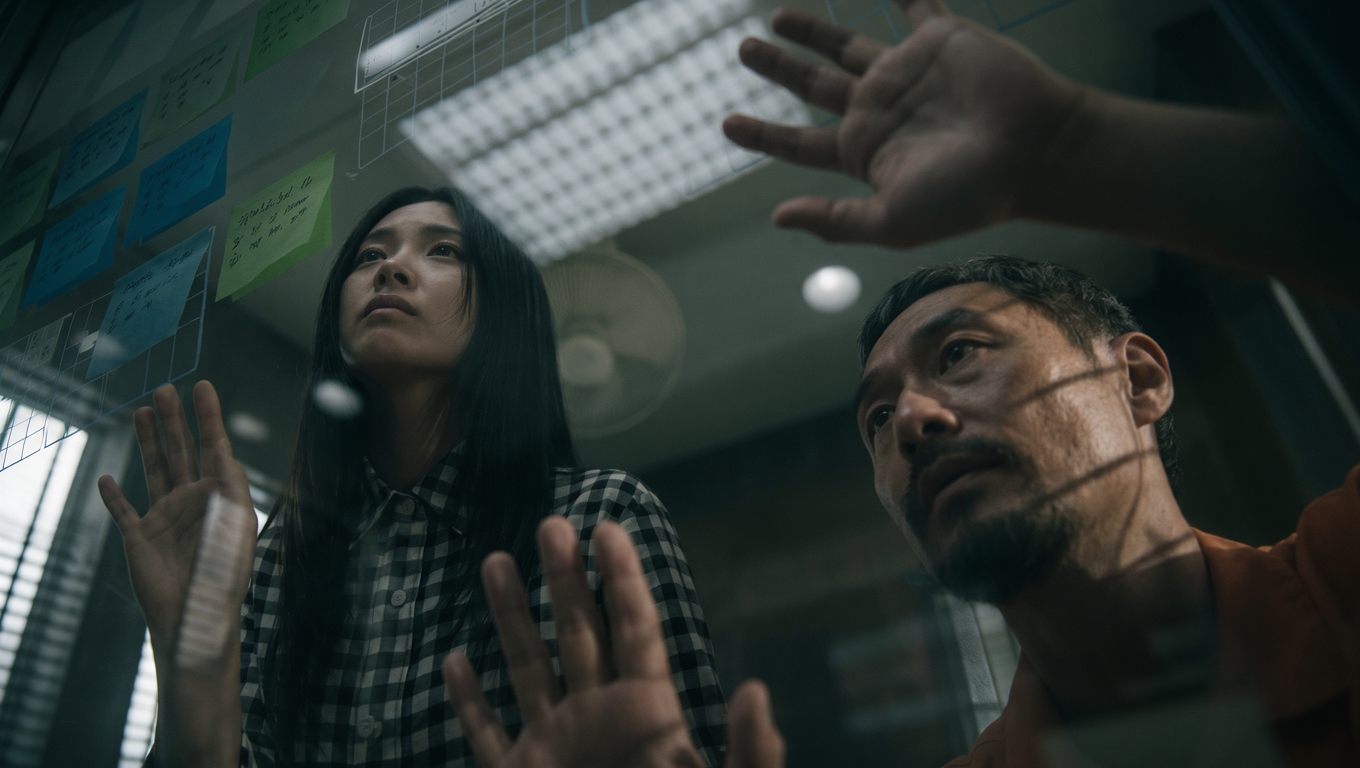 | A young East Asian woman and a middle-aged man stand in front of a transparent glass panel. The image features a realistic, cinematic aesthetic with film grain, live-action photography, commercial photography, and film-still styling. A wide-angle lens captures the scene from an extremely low angle, looking upward, while a large aperture creates a shallow depth of field and frames both subjects in a close shot. On the left, the young East Asian woman has a natural skin tone and long, straight black hair. She wears a black-and-white checkerboard-patterned long-sleeved shirt with the collar buttoned up. Her face and gaze are directed toward the upper left of the frame, and her expression is calm. Both hands are raised as if she is interacting with the transparent glass panel in front of her. On the right, the middle-aged man has a natural skin tone, short hair, and a black beard connecting to his sideburns. His right ear is visible, and he wears light-colored clothing. His face and gaze are also directed toward the upper left, with a focused expression. The scene takes place indoors during the daytime. The transparent glass panel occupies the lower and left portions of the foreground, with blue and green sticky notes attached to it, bearing handwritten black markings. In the middle ground, the woman's hand is positioned in the lower left, while the man's hand is in the upper right; both are pressed against the glass panel. A white, grid-like object resembling a calendar or planner floats above the glass panel in the upper-left area of the frame. In the blurred background, a round white ceiling light is centered on the indoor ceiling, emitting a soft glow, with the faint outline of a fan also visible. The overall image uses dark, low-key lighting with low contrast. Cool-toned artificial overhead lighting falls softly across the scene. The figures and keyboard are arranged diagonally, creating a balanced composition that enhances spatial depth and visual tension. |
7️⃣ Stylization
Template (Ready to Use):
[Target Style] + [Features to Preserve] + [Shape and Material] + [Color and Lighting] + [Environment and Composition]
Target Style: Specify the desired style, such as watercolor, oil painting, clay, felt, paper cutting, pixel art, or retro comics.
Features to Preserve: Specify which features must remain unchanged after the transformation, such as character identity, product structure, subject proportions, actions, composition, and brand logos.
Shape and Material: Describe the contours, forms, lines, and surface treatment, such as rounded, exaggerated shapes, handmade sculpting marks, fiber textures, or cut-paper edges.
Color and Lighting: Describe the dominant colors, saturation, warm and cool tones, light and shadow relationships, and desired effects, such as flat colors, gradients, natural lighting, or dramatic illumination.
Environment and Composition: Specify whether to retain the original background or transform the subject and setting into a unified style. Describe the subject's placement, viewing angle, shot size, and negative space.
Degree of Stylization: Specify whether you want subtle adjustments to the image texture or a complete transformation of the materials, shapes, and entire visual world.
 | 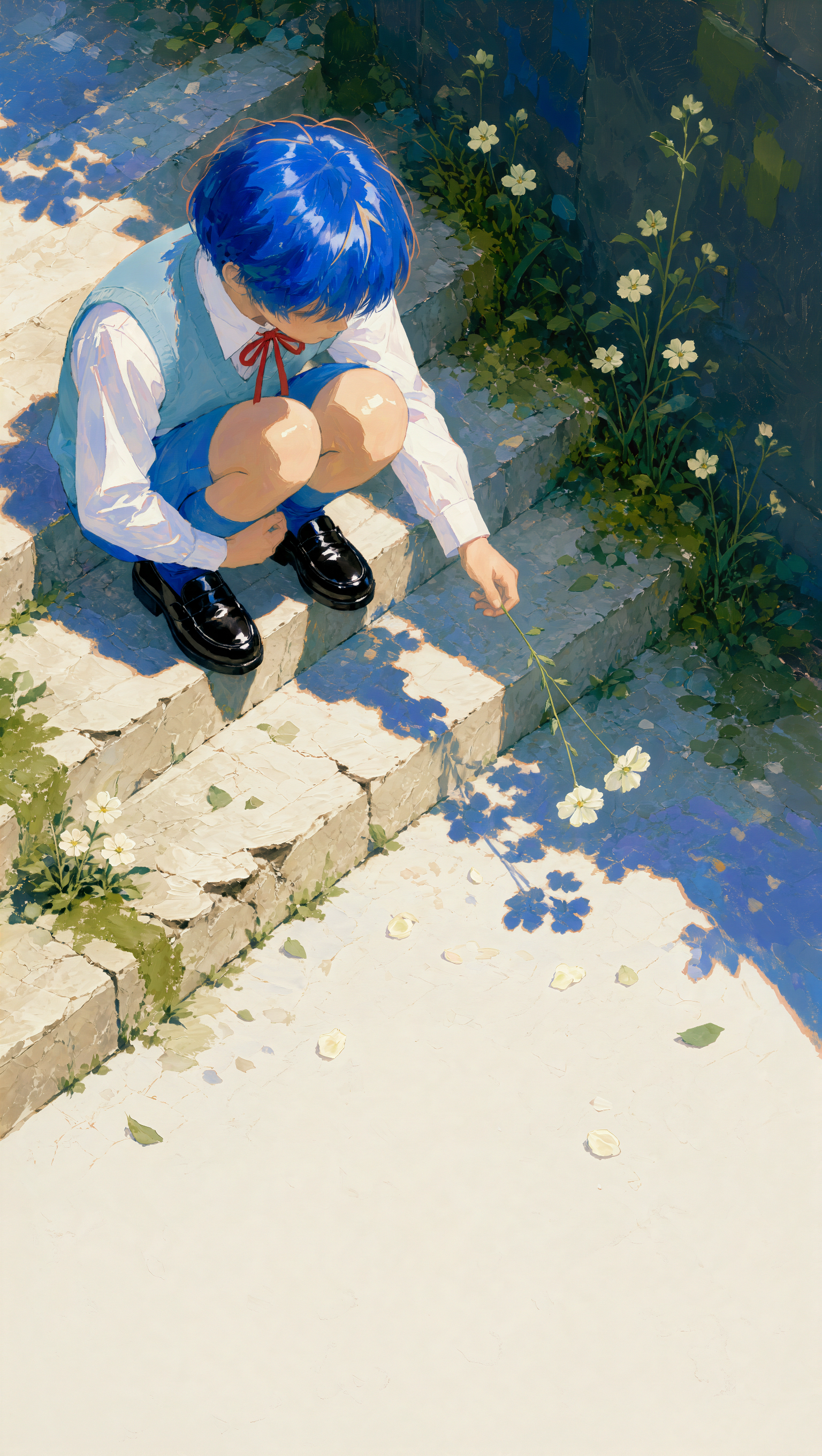 |  | 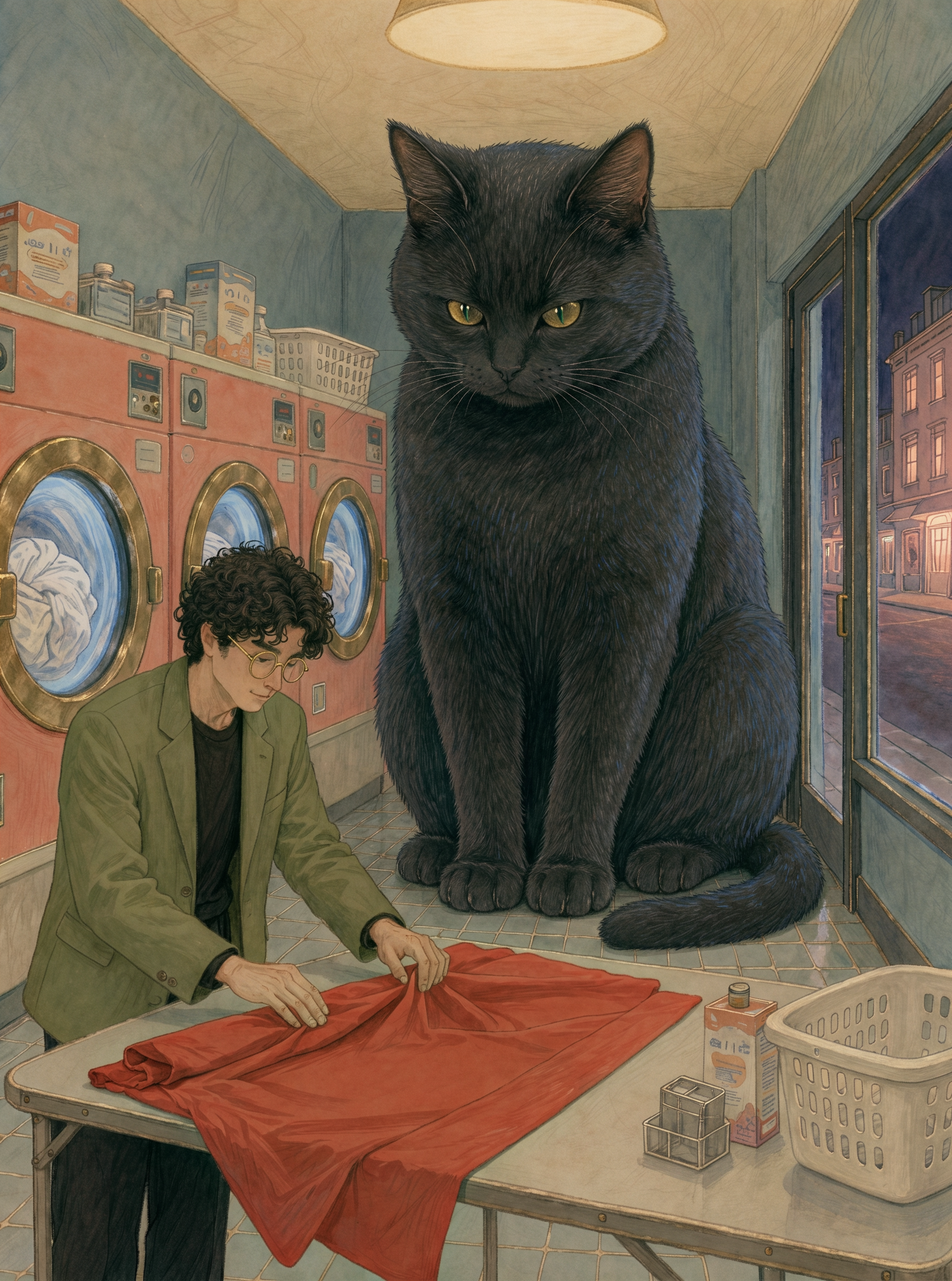 |
【Target Style】 【Features】 【Shape and Material】 【Color and Lighting】 【Environment and Composition】 | 【Target Style】 【Features】 【Shape and Material】 【Color and Lighting】 【Environment and Composition】 | 【Target Style】 【Features to Preserve】 【Shape and Material】 【Color and Lighting】 【Environment and Composition】 | ### The image contains only one adult man and one enormous black domestic shorthair cat. The man has fluffy black curly hair and wears thin metal round-frame glasses, a loose moss-green suit, a black crew-neck top, and black trousers. The black cat retains the complete body structure and natural proportions of an ordinary domestic cat, but is so large that it nearly reaches the ceiling. It has golden-green eyes and dense, short black fur. ### Action ### Setting ### Camera and Composition ### Lighting The overall image uses a retro fantasy storybook illustration style, with a muted palette of misty blue, cream white, coral red, moss green, and touches of antique gold. Transparent watercolor washes, soft layers of gouache, and fine colored-pencil linework work together to create delicate, clearly defined hand-drawn outlines around the man, giant cat, and washing machines. The space feels like an intricately constructed miniature stage. The paper retains evenly distributed, fine vintage print grain and subtle fading. The enormous black cat is calmly incorporated into an ordinary everyday setting, making the image feel like a page from an old children's storybook: gentle, quiet, and slightly humorous, while retaining an unmistakable sense of surreal, oversized absurdity. |
3.2 Social Media
1️⃣ Cover / Poster
Template (Ready to Use):
Generate a [aspect ratio] [image purpose] using [primary color palette]. The main subject is [person / product / scenery], positioned [location]. The background features [background description], with space reserved for text at [location]. The main headline reads “[headline]” in [color, font, or lettering style], positioned [location] and arranged with [line breaks, orientation, and alignment]. The subtitle reads “[subtitle]” in [font and color], noticeably smaller than the main headline, and placed at [location]. Additional information reads “[information]” and is placed at [location].
Font Styling
When specifying a font, place the font name immediately after the corresponding text and indicate which font to use.
For example: Write “Springtime Escape” in (Font: selected Chinese font name), then specify the color, size, and position. If different text elements require different fonts, specify each font separately rather than placing a single font name at the end of the entire prompt.
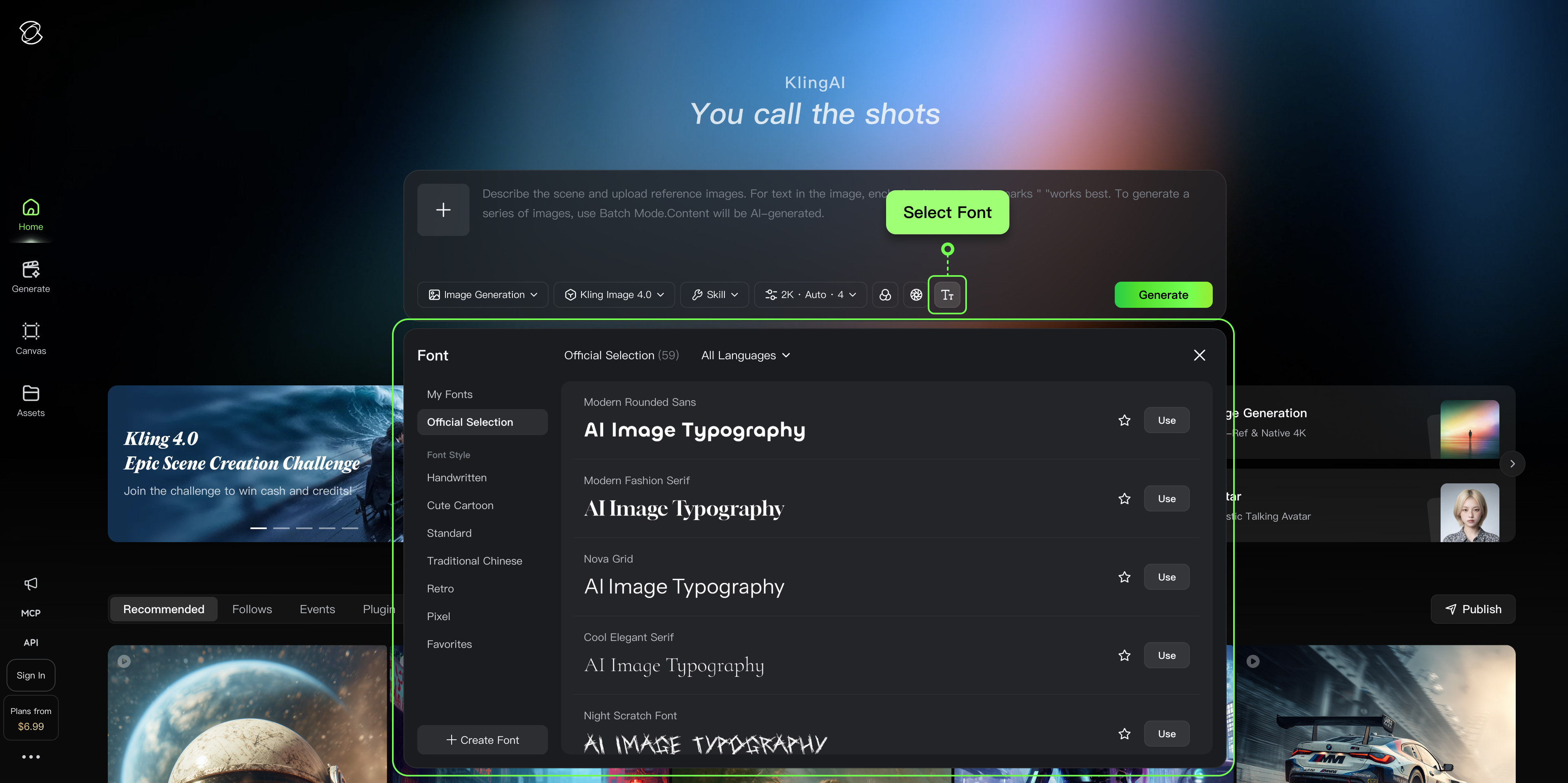
Describing Lettering and Typography in Prompts
Describing Lettering
| Describing Typography Layout
Relationship Between Text and Image
|
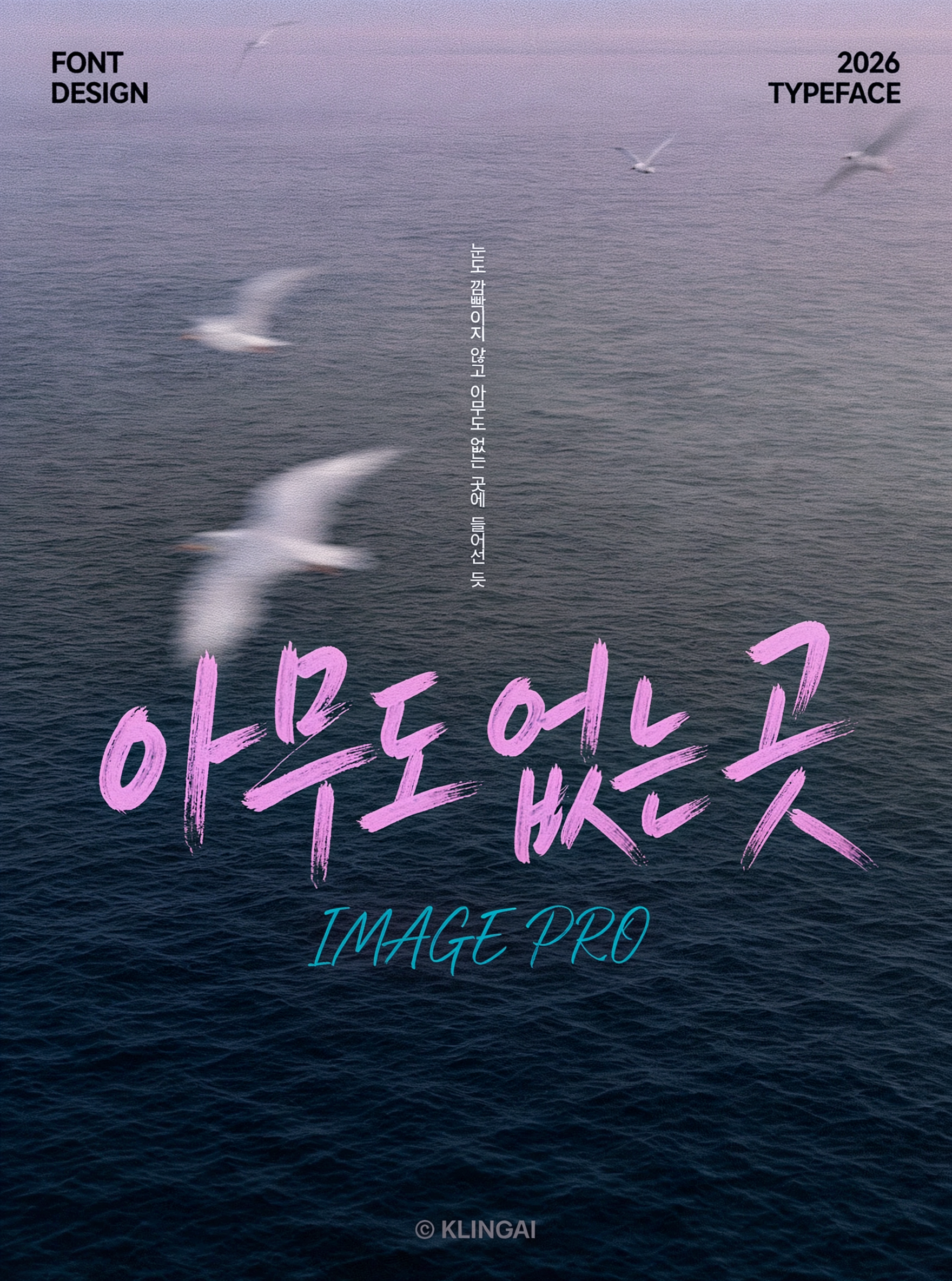 | 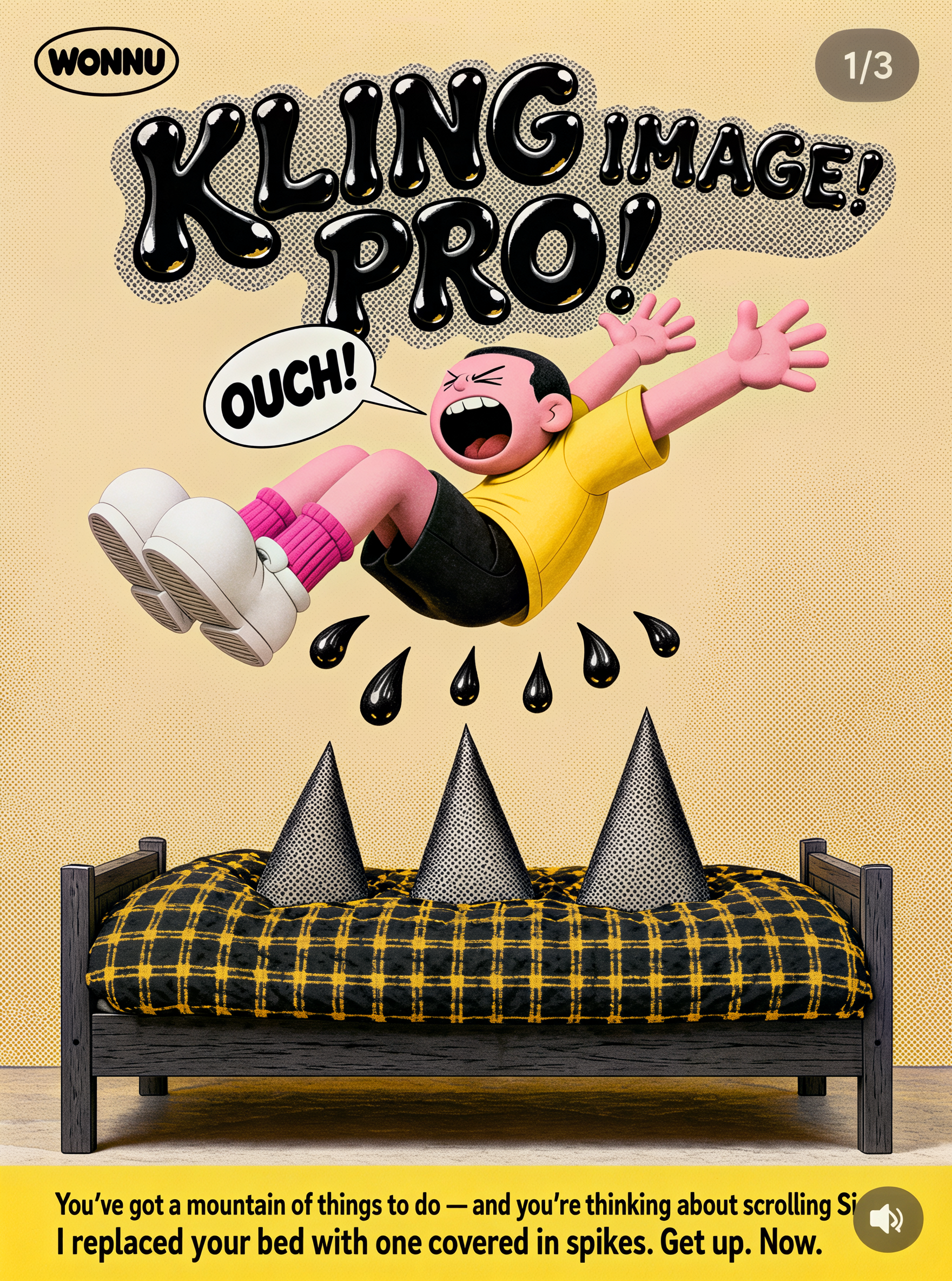 | 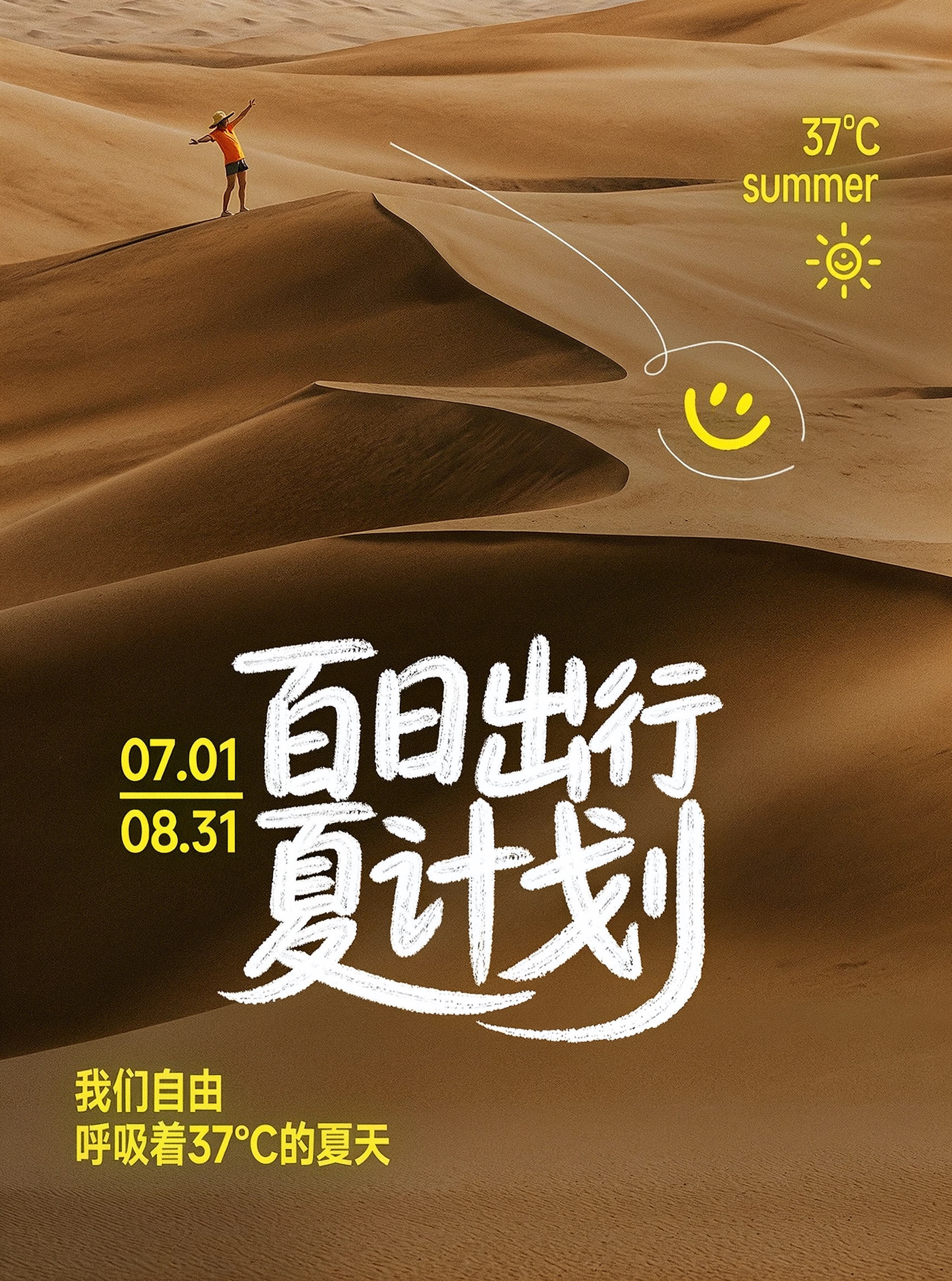 | 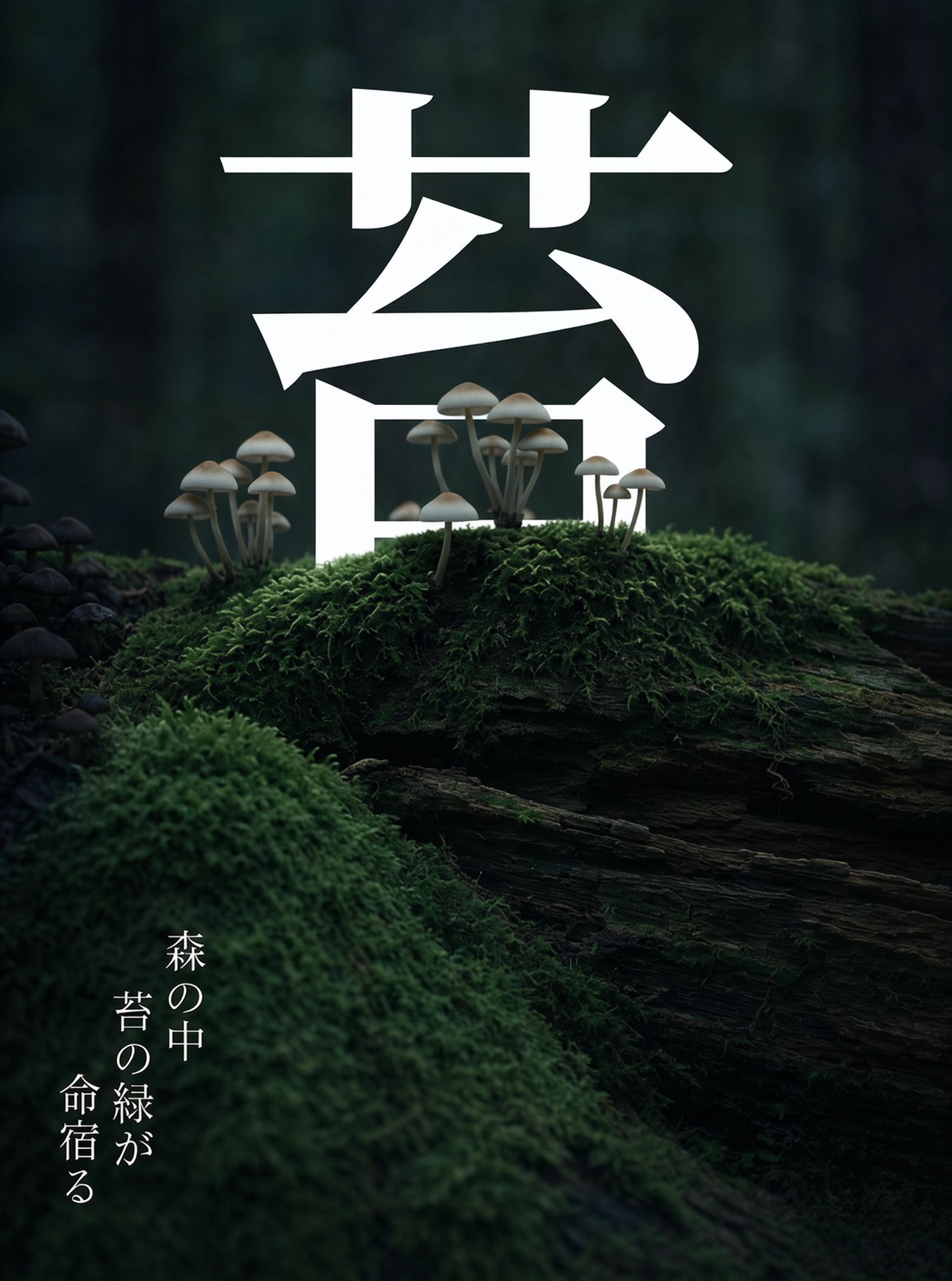 |
An outdoor body of water unfolds in the evening, viewed from a distance. The overall image has a distinct film-grain texture and visible brushstrokes. Fine ripples form across the deep blue water in the foreground. Overlaid on it is an oversized pink-purple Korean calligraphic headline, “아무도 없는 곳,” occupying the visual center. The lettering features a free-flowing, expressive handwritten style resembling a fine-pen handwritten script, with bold, rugged strokes and pronounced dry-brush textures, while keeping the Korean characters clear and legible. Directly beneath the headline, the cyan-blue cursive English text “IMAGE PRO” is overprinted. | A slender cartoon male character is suspended in midair, dramatically bending his body backward. He has pink skin, a round face, short black hair, closed eyes drawn as thin lines, and a wide-open mouth expressing pain. He wears a bright yellow short-sleeved T-shirt, black shorts, pink socks, and oversized white round-toe shoes. Both arms are stretched toward the upper right of the frame, while his legs are held together and kicked up toward the upper left. A white oval speech bubble is connected to the upper-left side of his mouth, containing the black artistic lettering “OUCH!” tilted toward the upper right. Six black, droplet-shaped objects float beneath his body. The upper half of the image is dominated by a centrally aligned, oversized two-line English headline, “KLING IMAGE PRO!”, in bold black display lettering with a 3D liquid distortion effect and white highlights. A large shadow block with a gray halftone-dot texture sits behind the text. In the upper-left corner is an oval frame with a black border containing the black, rounded display-style logo “WONNU”. In the upper-right corner, a white “1/3” is centered inside a translucent gray circular background. The wide-angle composition places the character's exaggerated pose at the center, visually echoing the oversized display typography in the background. The overall layout is balanced and impactful, with a polished composition. At the bottom of the image is a single bed with a dark gray wooden frame, covered with black-and-yellow plaid bedding. Two enormous triangular spikes with gray halftone-dot textures protrude upward from the center of the bedding. Warm yellow lighting creates a bright, high-key image viewed at eye level. Soft lighting produces strong contrast. Along the yellow strip at the bottom edge are two lines of bold black explanatory text: “You've got a mountain of things to do — and you're thinking about scrolling Si” and “I replaced your bed with one covered in spikes. Get up. Now.” A white mute icon appears in the lower-right corner. This artwork combines trendy illustration, American retro illustration, and Pop Art styles, incorporating vector graphics, halftone patterns, and collage elements. | A minimalist digital collage brand poster dominated by oversized typography, set against an outdoor desert landscape in a warm ochre and golden-brown palette. The composition is centered, with the main visual weight slightly below the middle. An enormous white Chinese headline reads “百日出行” on the first line and “夏计划” on the second, both centered with tight letter spacing and line spacing. The bold, hand-drawn lettering has rough crayon or chalk edges, with occasional connected strokes and irregular, distorted letterforms. To the left of the headline, the dates “07.01” and “08.31” appear in small, bold yellow sans-serif type, stacked with a yellow horizontal line between them. In the upper-right corner, “37°C” and “summer” are set on two right-aligned lines in small yellow sans-serif type, with a yellow sun icon underneath. At the bottom left, the slogan “我们自由” and “呼吸着37°C的夏天” appears on two left-aligned lines in small, bold yellow sans-serif type. The desert background features rolling dunes with wind-sculpted ripple patterns. Hard daylight strikes from the side at approximately 45 degrees, creating strong contrast between bright golden-yellow sunlit slopes and deep brown shadows. In the upper-left area, a small figure wearing an orange top, dark shorts, and a hat stands with both arms extended sideways and their body leaning backward. A yellow smiley-face doodle appears in the upper-right area, connected to the left side of the composition by a thin white line. The overall treatment is stylized and non-photorealistic, combining desert imagery, expressive hand-drawn typography, and sparse graphic accents into a cohesive editorial-style brand poster. | A minimalist Japanese-inspired graphic composition centers on a fallen log covered in lush green moss, stretching horizontally across the middle of the frame. Its uneven, weathered surface has a coarse texture beneath dense layers of deep green moss. Several clusters of pale brown and white mushrooms grow from the top of the log, with smooth, rounded caps and slender upright stems. An oversized white Chinese character, “苔,” rendered in bold Songti type, dominates the upper half of the composition. Some mushrooms overlap the character, obscuring portions of its strokes and creating a layered interplay between typography and the forest elements. A few dark mushrooms are scattered along the left edge. At the lower left of the moss-covered slope, three columns of small white Japanese text in a Mincho serif typeface are arranged vertically in a staggered, step-like formation. From right to left, they read “森の中,” “苔の緑が,” and “命宿る.” The dark forest background dissolves into soft, blurred patches of color through macro photography and a wide aperture with shallow depth of field. Diffused natural light filters down from above, creating a subdued, cool-toned, low-key atmosphere that draws attention to the foreground. The overall design combines tactile woodland imagery with bold typography in a stylized, non-photorealistic Japanese minimalist layout. |
3.3 E-commerce Marketing
1️⃣ Product Showcase
Template (Ready to Use):
[Image Type / Visual Style] + [Product] + [Placement and Interaction] + [Scene and Props] + [Composition] + [Material Details] + [Lighting and Shadows] + [Color] + [Image Texture and Atmosphere]
Image Type / Visual Style: Specify the image's purpose and overall direction, such as a luxury fragrance advertisement, retro sports still-life photography, or vintage furniture photography.
Product: Describe the product category, quantity, shape, color, size, structure, and brand details. For example, a transparent square perfume bottle filled with pale amber liquid, featuring a warm gold metal cap and specific text, typography, and layout on the label.
Placement and Interaction: Describe where the product is positioned, which direction it faces, and how it relates to other elements. This may include angles, overlapping arrangements, occlusion, wrapping, leaning, scattered placement, being held, or being taken out of something.
Scene and Props: Describe the space, background, supporting surface, and complementary elements surrounding the product. For example, a travertine countertop, vintage running track, or outdoor lawn, accompanied by props such as limes, ice cubes, fabric, plants, or furniture.
Composition: Specify the aspect ratio, subject placement, proportion of the frame occupied by the subject, foreground, middle ground, background, negative space, and whether the image uses a high or low shooting angle.
Material Details: Describe the textures and reflective properties of different surfaces, such as the transparency and thickness of glass, fine suede fibers, metallic reflections, embossed leather, and realistic details like water droplets, wear, and wrinkles.
Lighting and Shadows: Describe the light source, direction, softness or hardness, contrast, and shadow patterns. For example, hard natural light from the upper right, warm golden side lighting, crisp elongated shadows, highlights along glass edges, or volumetric light illuminating airborne dust.
Color: Specify the dominant, secondary, and accent colors, as well as their warm-cool relationships and saturation levels.
Image Texture and Atmosphere: Describe the final image treatment and mood, such as subtle film grain, soft highlight bloom, vignetting, or a vintage printed texture, along with the desired atmosphere—fresh, relaxed, energetic, tranquil, or luxurious.
| Product Showcase | 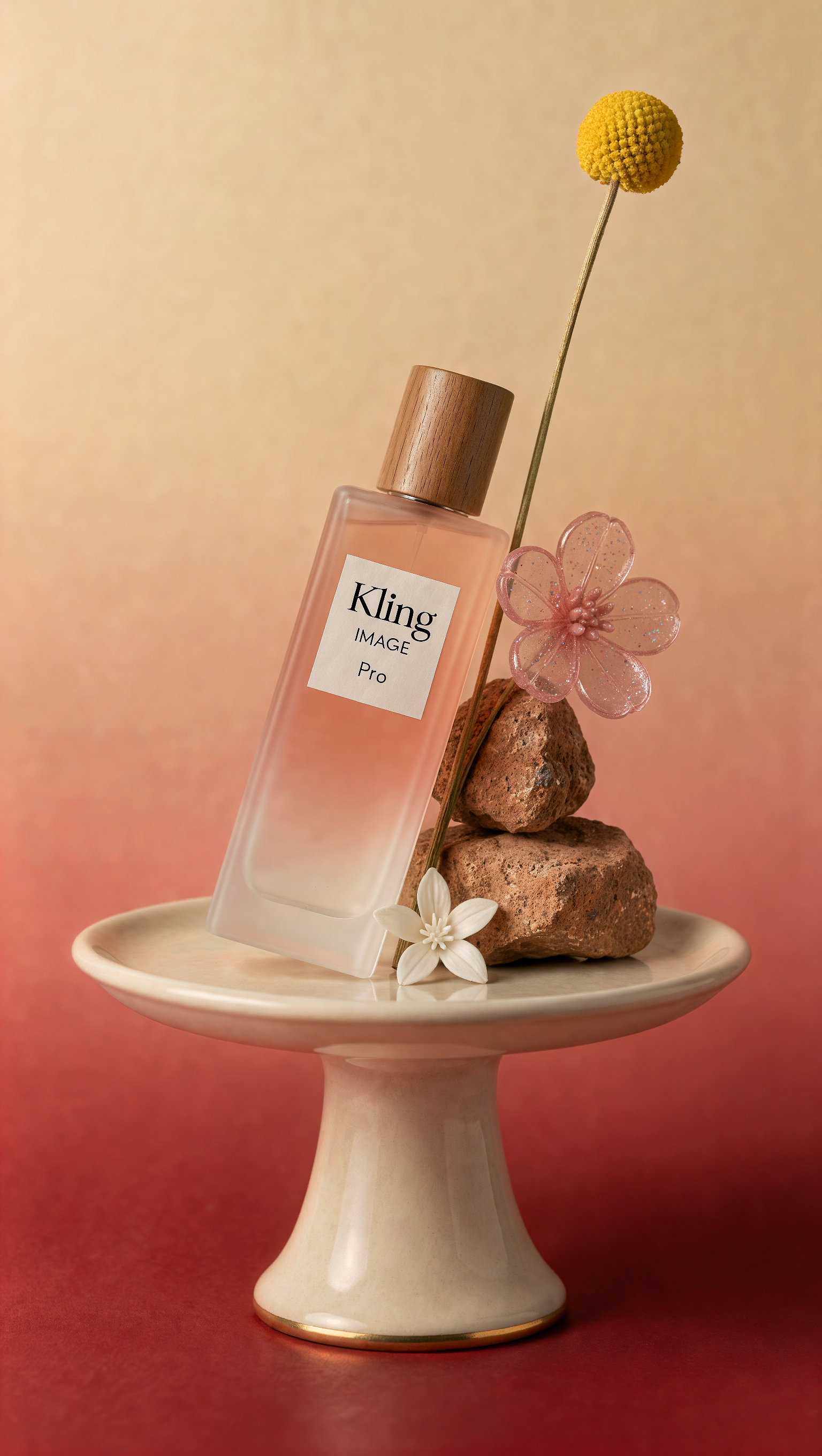 | 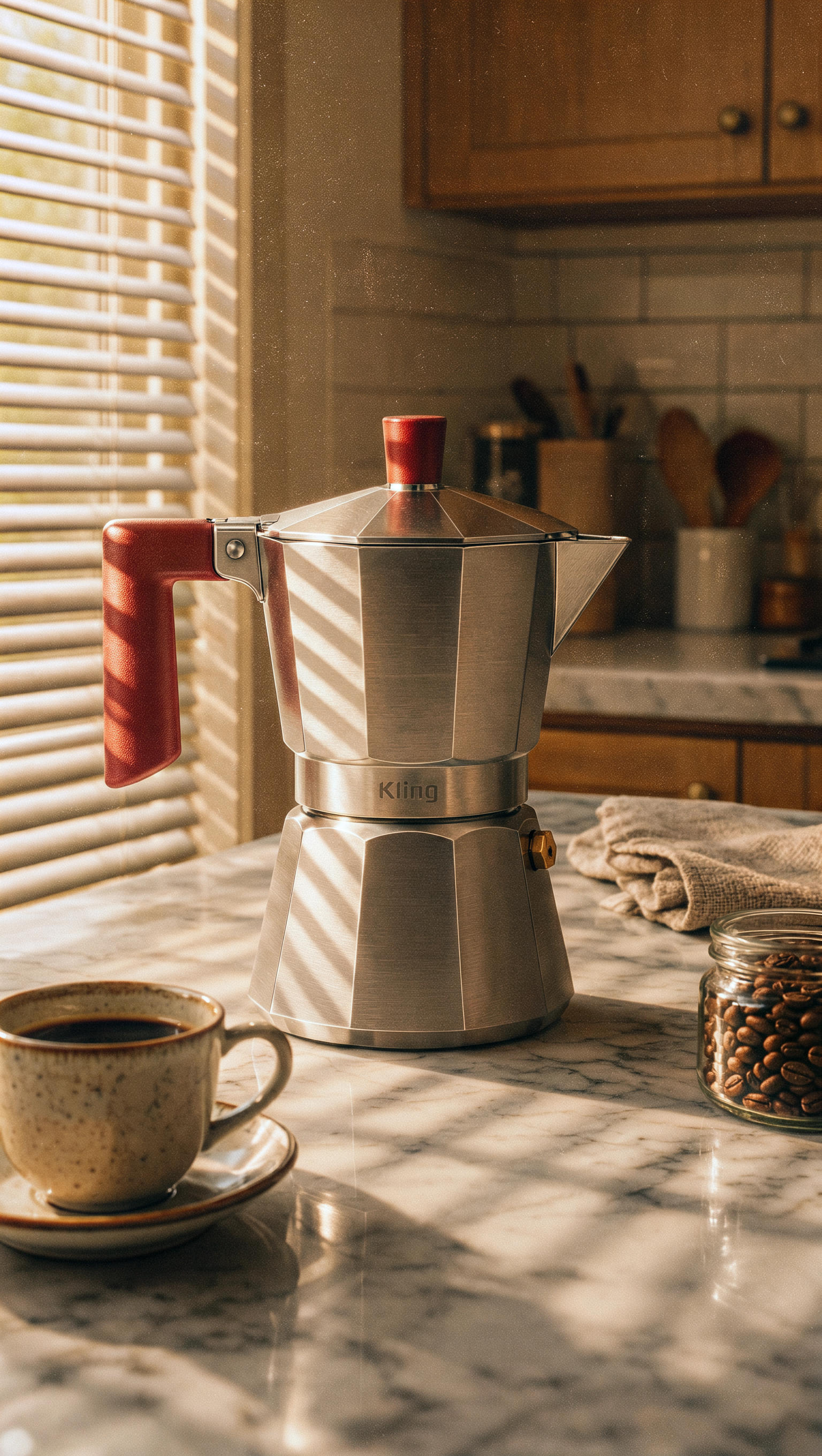 | 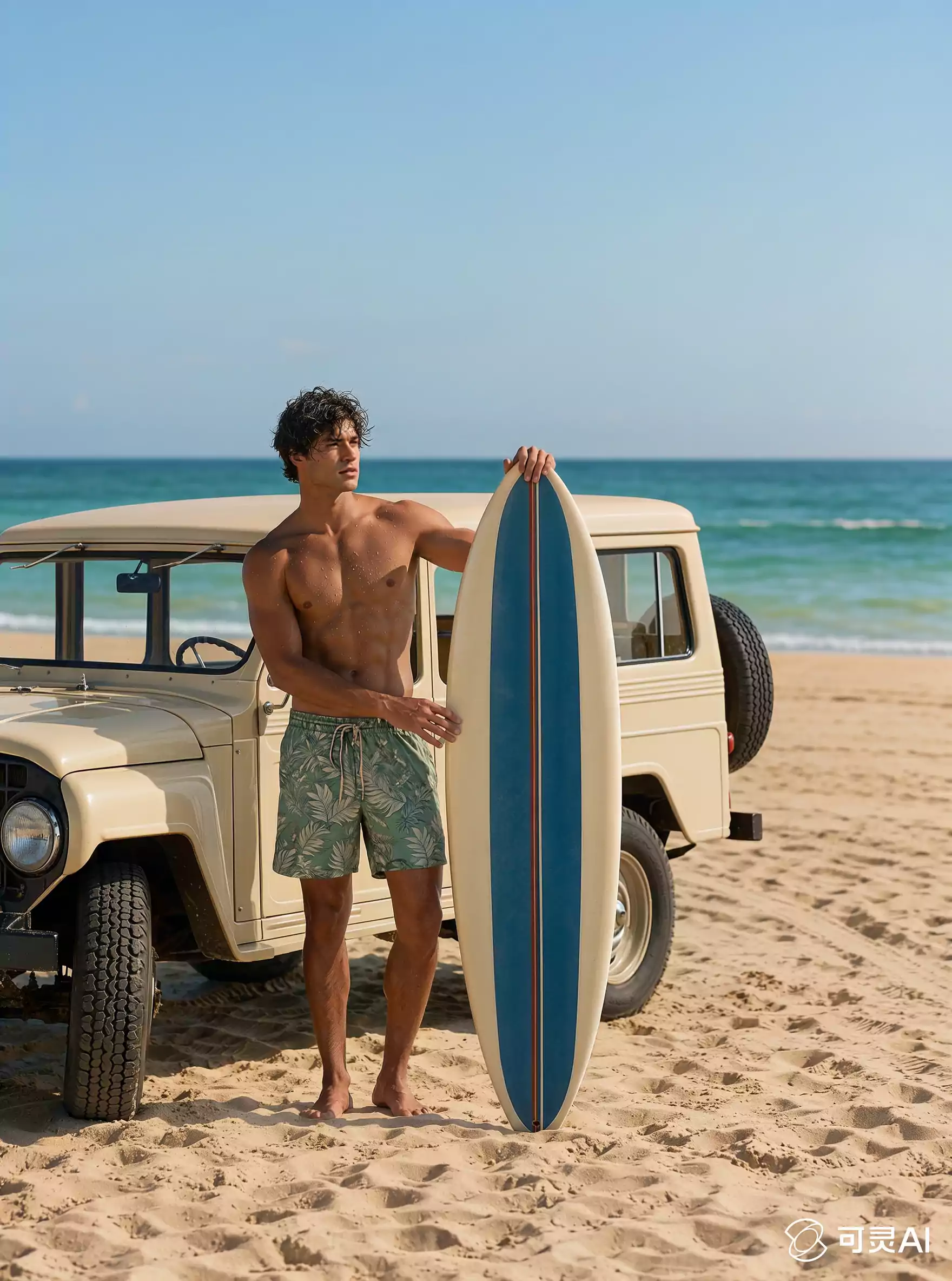 | 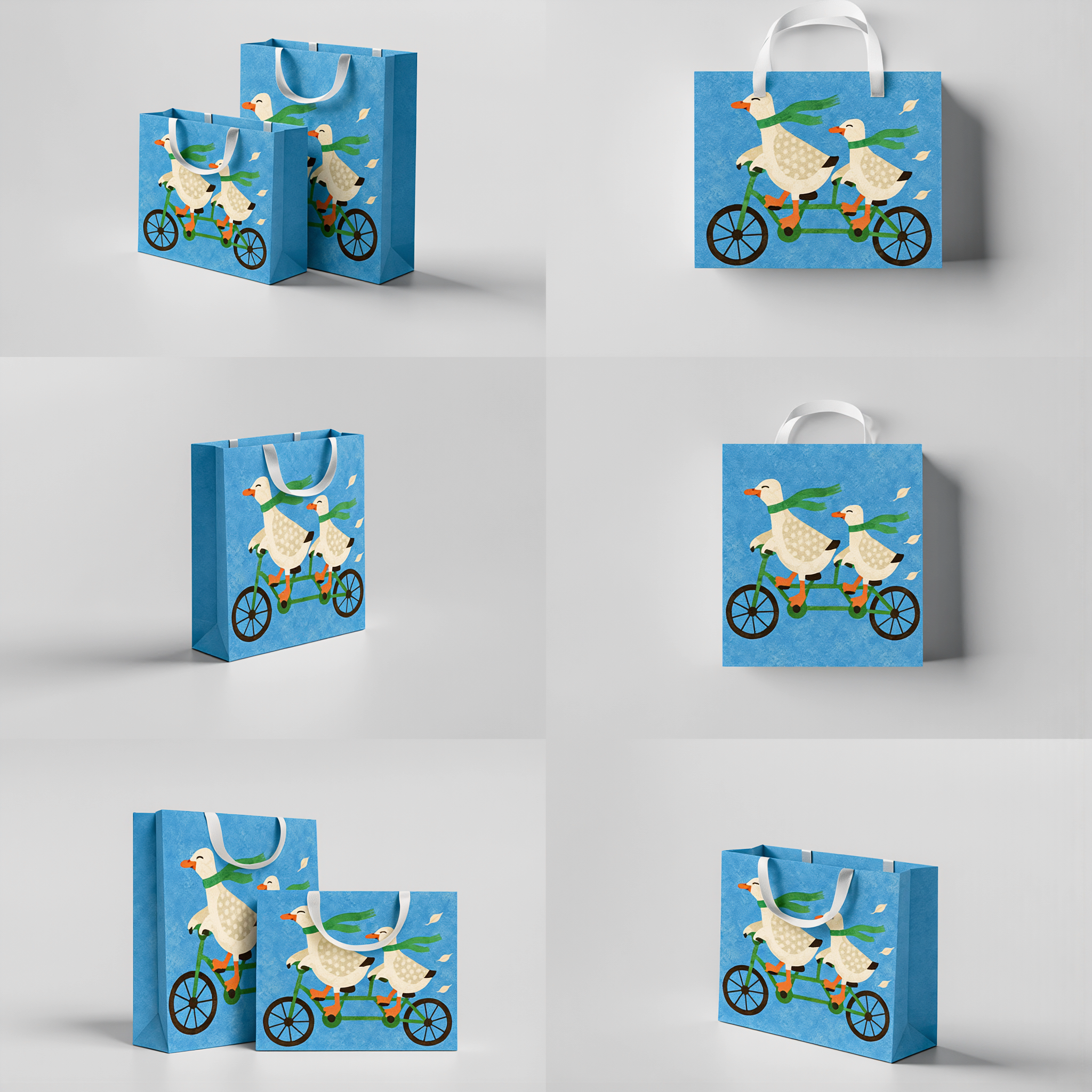 |
| Prompt / Input Image |  A still-life arrangement sits on a cream-white ceramic pedestal tray. The tray has a smooth surface, a rolled downward-curving rim, and a delicate gold accent along the base. |
Generate a photorealistic lifestyle product photo of this coffee pot in a kitchen setting. Place the product on a marble-textured countertop, with a window featuring blinds nearby. Sunlight streams through the blinds, casting distinct light and shadow patterns across the product. Use a warm color palette with pronounced film grain. Create clear foreground, middle ground, and background layers, with a rich, thoughtfully arranged still-life composition. |
Using the retro blue, white, and red striped surfboard in Image 2 as the featured product and the man in Image 1 as the model, plan a complete set of e-commerce product images. Include: 1. A front-facing hero shot against a solid-color background. Use a fresh coastal palette of ocean blue and warm sand tones throughout. Highlight the retro design, lightweight durability, stable handling, and professional sporting appeal. Do not create a collage. Each image must be a separate, standalone image. |
Render the illustration from Image 2 onto the outer packaging in Image 1. Place the illustration on the front face of the box, and use the blue background color from the illustration for all the other faces of the packaging. |
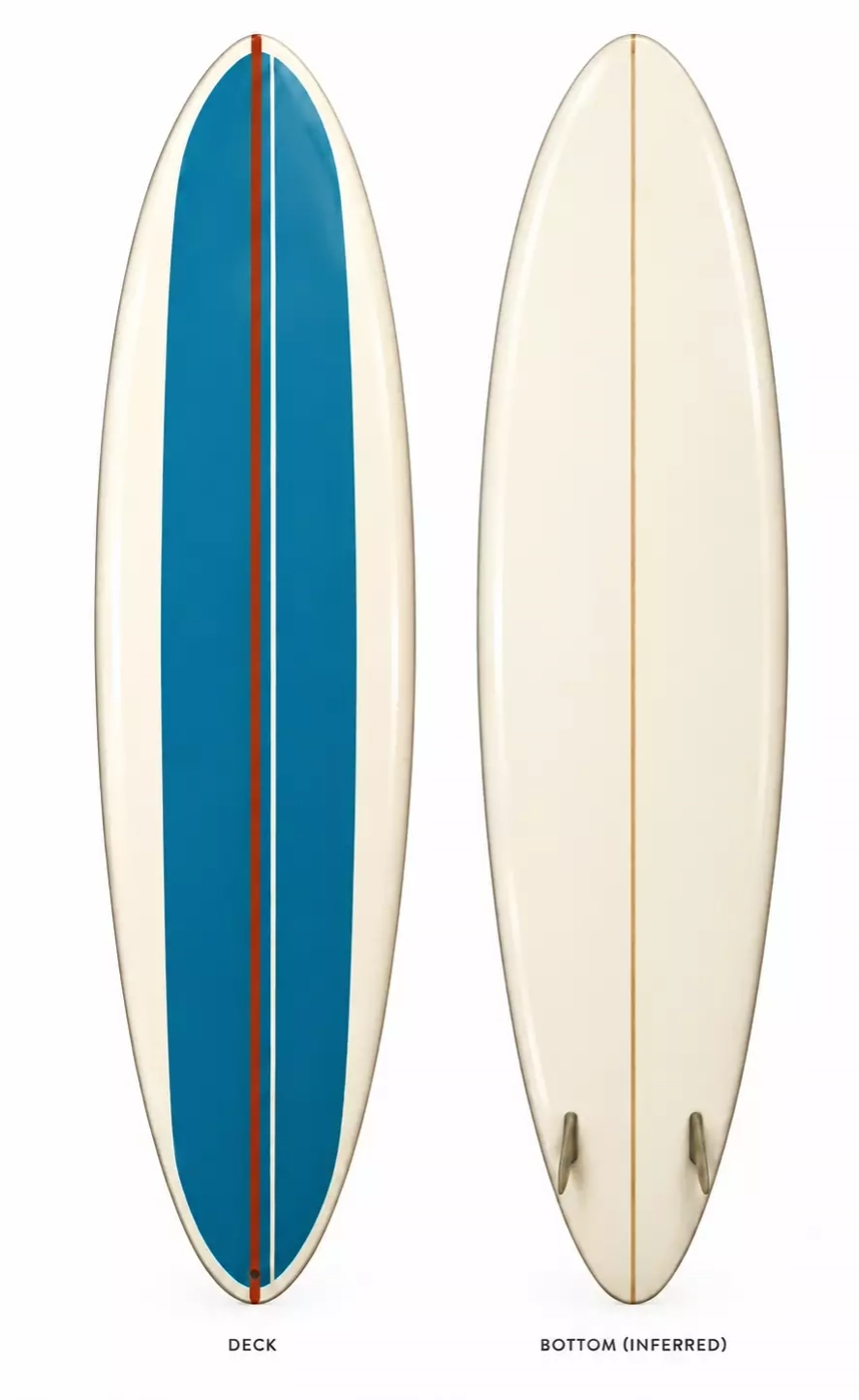
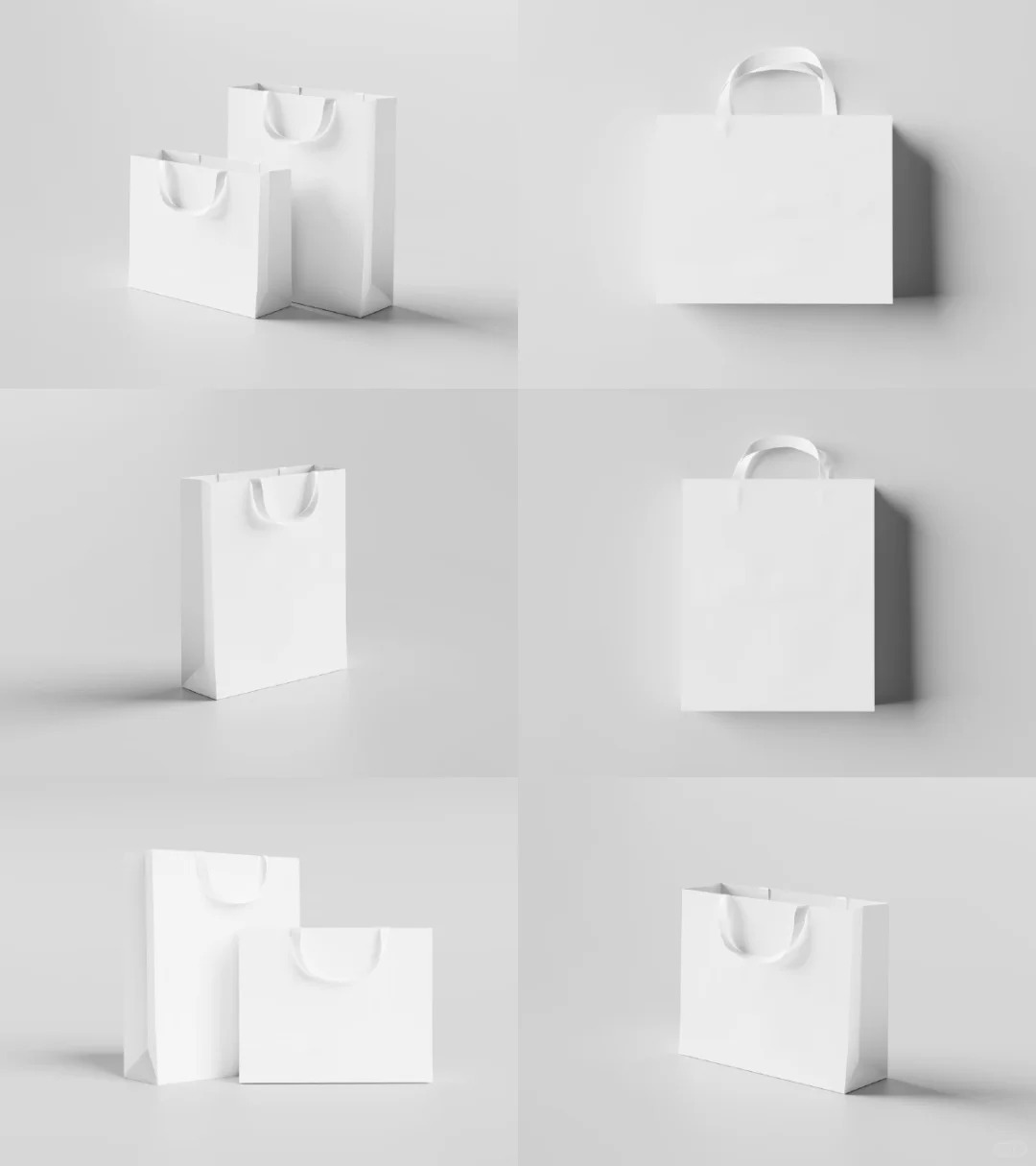

2️⃣ Clothing Try-On
Template (Ready to Use):
[Reference Images and Preservation Requirements] + [Model Appearance] + [Clothing and Accessories] + [Styling and Layering] + [Pose / Expression] + [Scene] + [Composition]
Reference Images and Preservation Requirements: Specify which images provide references for the model, clothing, or pose, and which features must be preserved. For example, use the person in Image 7 as the model, wearing the clothing and accessories from Images 1–6, while preserving the original colors, cuts, materials, patterns, and key design details. If a complete outfit reference is provided, clarify whether it is intended as a reference for styling, pose, or overall atmosphere.
Model Appearance: Describe the model's perceived age, gender, body type, hairstyle, makeup, and overall look. When using a model reference image, specify whether to preserve the person's original facial features, hairstyle, and body proportions.
Clothing and Accessories: Describe each item in order: outerwear, inner layers, bottoms, footwear, bags, and accessories. Include colors, styles, lengths, materials, and design details.
Styling and Layering: Specify how the clothing items are combined and worn. For example, an open jacket, a top tucked into a skirt, a slit skirt layered over jeans, a leather jacket draped over the shoulders, or a bag carried over one shoulder or by hand.
Pose / Expression: Describe the model's stance, body orientation, hand movements, gaze, and facial expression. For example, one hand resting behind the head and the other lightly holding a bag strap, looking directly at the camera with a cool, laid-back expression; or walking naturally toward the camera on a runway.
Scene: Describe the shooting location, background, and environmental props. For example, a wall covered with music posters, a vintage bicycle, a blue metal door in an industrial space, or an off-white runway against a light coffee-colored background.
Composition and Camera: Specify the aspect ratio, full-body or half-body framing, model placement, shooting angle, and depth of field. For example, a full-body vertical shot with the model centered and the shoes fully visible to clearly showcase the complete outfit.
Style and Image Treatment: Describe the fashion direction, photography style, and final image treatment. Examples include 1970s vintage magazine photography, Y2K street style, runway photography, and independent fashion magazine aesthetics.
| Virtual Try-On | 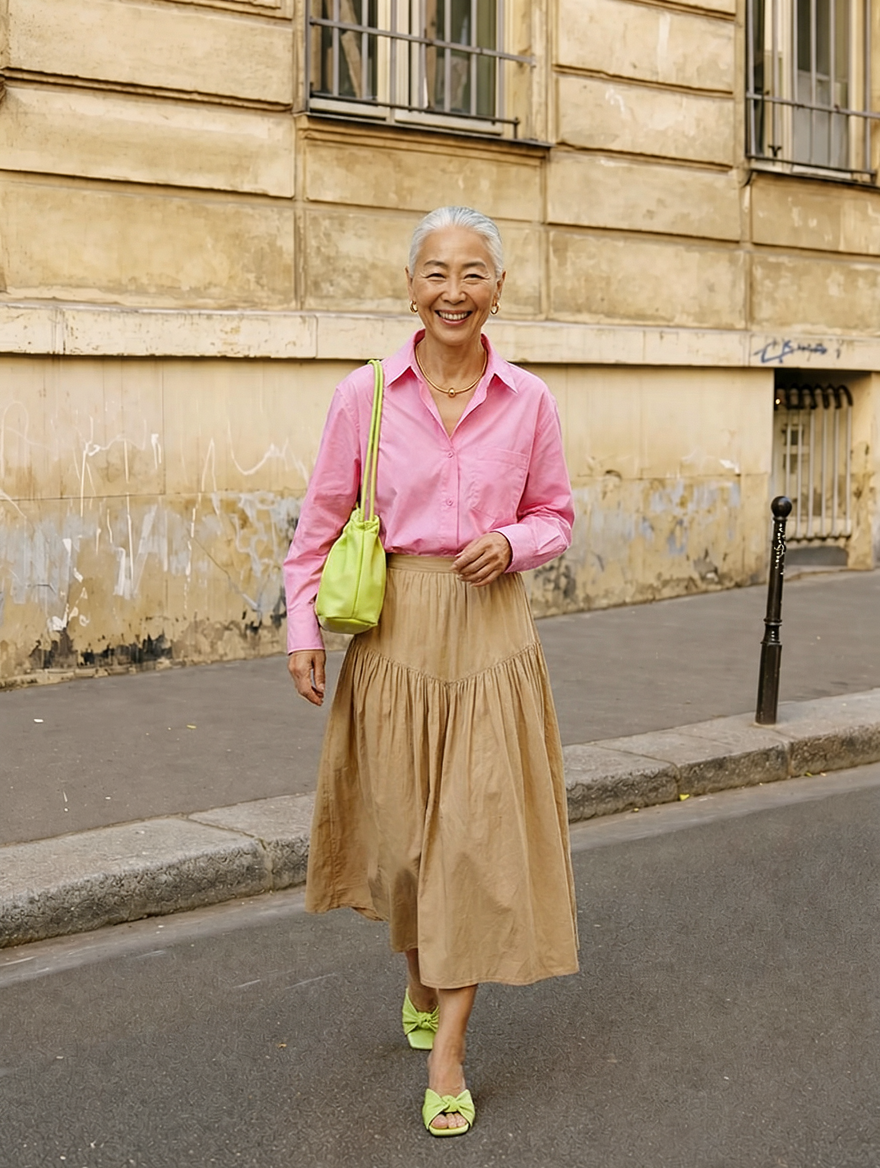 |  | 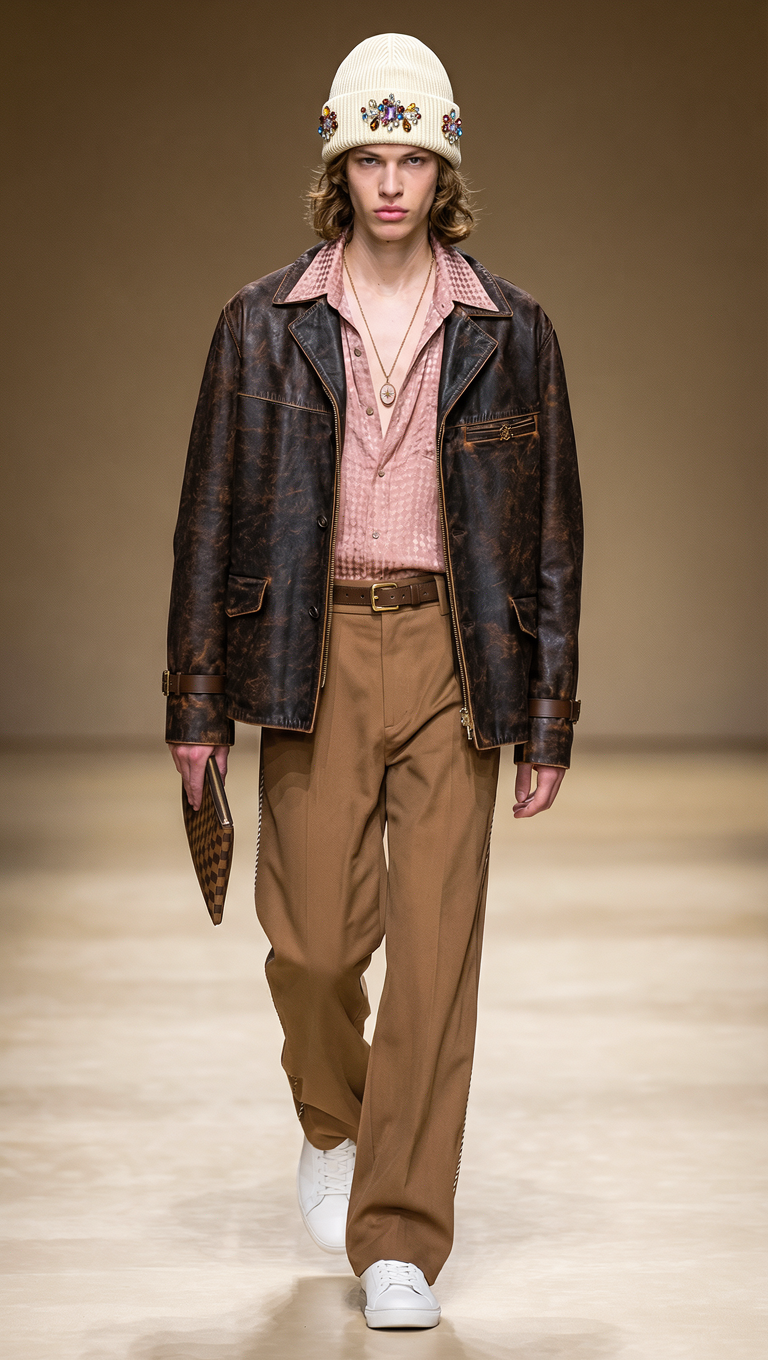 |
|
|
|
|
| |
| Prompt / Input Images | The model is wearing all the clothing items shown in the reference images and walking down the street. | Retro street-style fashion editorial. A young white woman stands in front of a street wall covered with oversized music posters, with a vintage bicycle parked beside her. She has short, voluminous, tousled brown curls. One hand is placed behind her head, while the other lightly holds her bag strap. She looks directly at the camera with a cool, laid-back expression. She wears a cropped caramel-brown suede jacket over a red silk top and a red floral slit maxi skirt, layered over loose blue jeans. She wears brown pointed-toe shoes and carries a brown embroidered shoulder bag. Full-body shot, model centered in the frame, warm sunset side lighting, rich warm browns with contrasting red and blue accents, 1970s vintage magazine aesthetic, film grain, and a blend of street photography and high-fashion styling. | A male model walks down an off-white runway against a light coffee-colored background. He wears a complete outfit in Maillard tones, accessorized with a hat, necklace, and belt, and carries a plaid clutch bag. | Y2K fashion street photography. A young white woman stands in front of a blue metal door and gray metal wall outside an industrial building. She has voluminous brown curls and wears narrow black cat-eye sunglasses, with a cool, aloof expression. She wears a fitted white tank top with silver studs and lace-up details across the chest, with a black leather jacket casually draped over her shoulders. She pairs it with an ice-blue satin midi skirt, a slim black studded belt, sheer black knee-high socks, and black pointed-toe slingback heels. She carries a small black handbag. Full-body vertical composition, direct frontal flash photography, slightly overexposed, authentic street-style aesthetic, Y2K and Miu Miu-inspired styling, independent fashion magazine aesthetic, with large white English typography and a date incorporated into the image. |
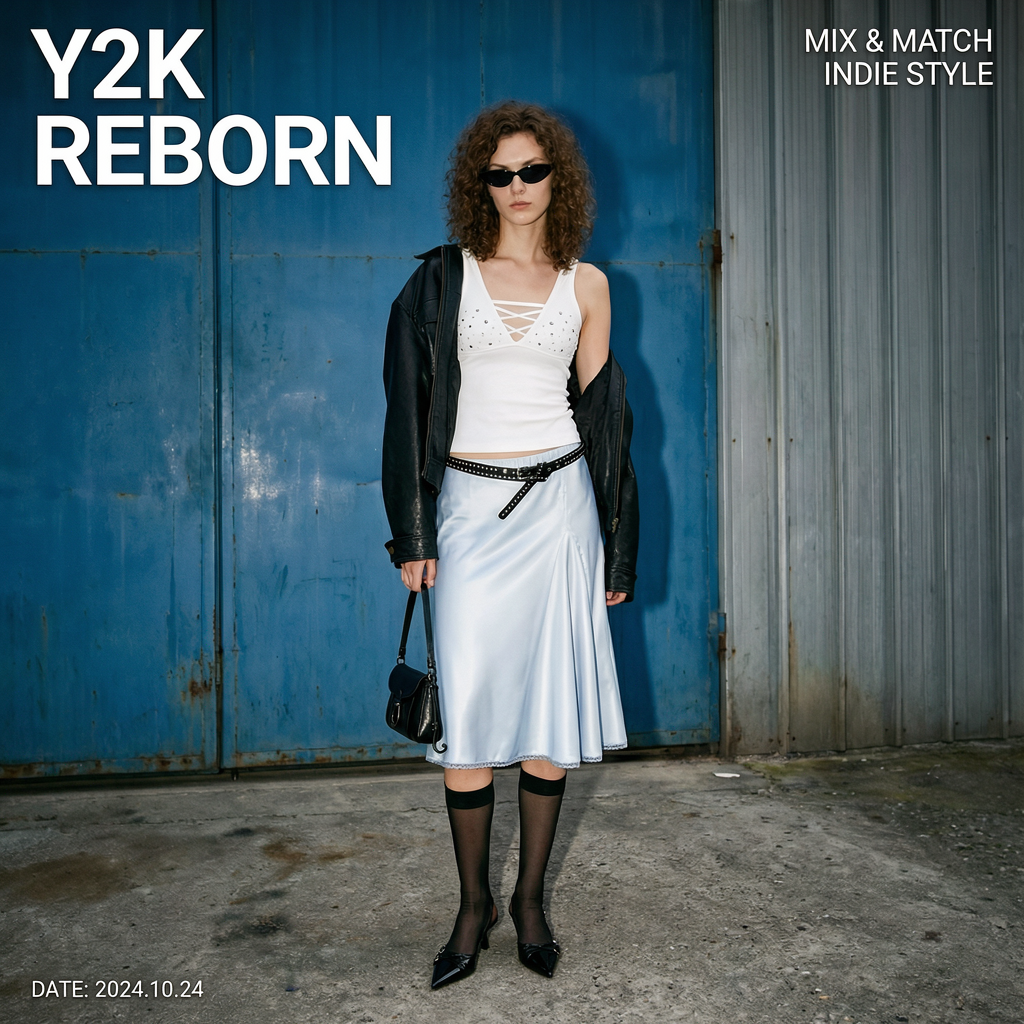
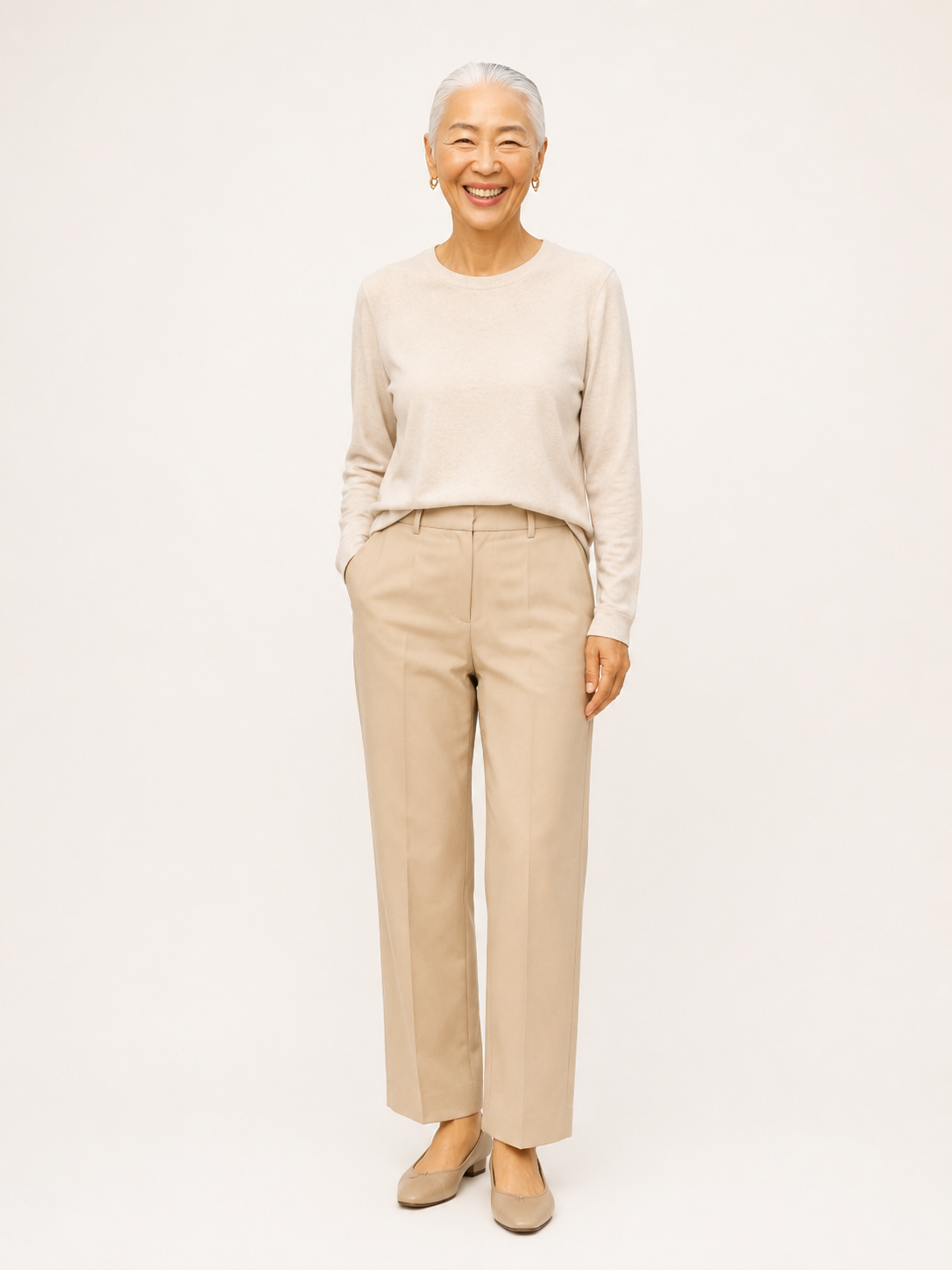
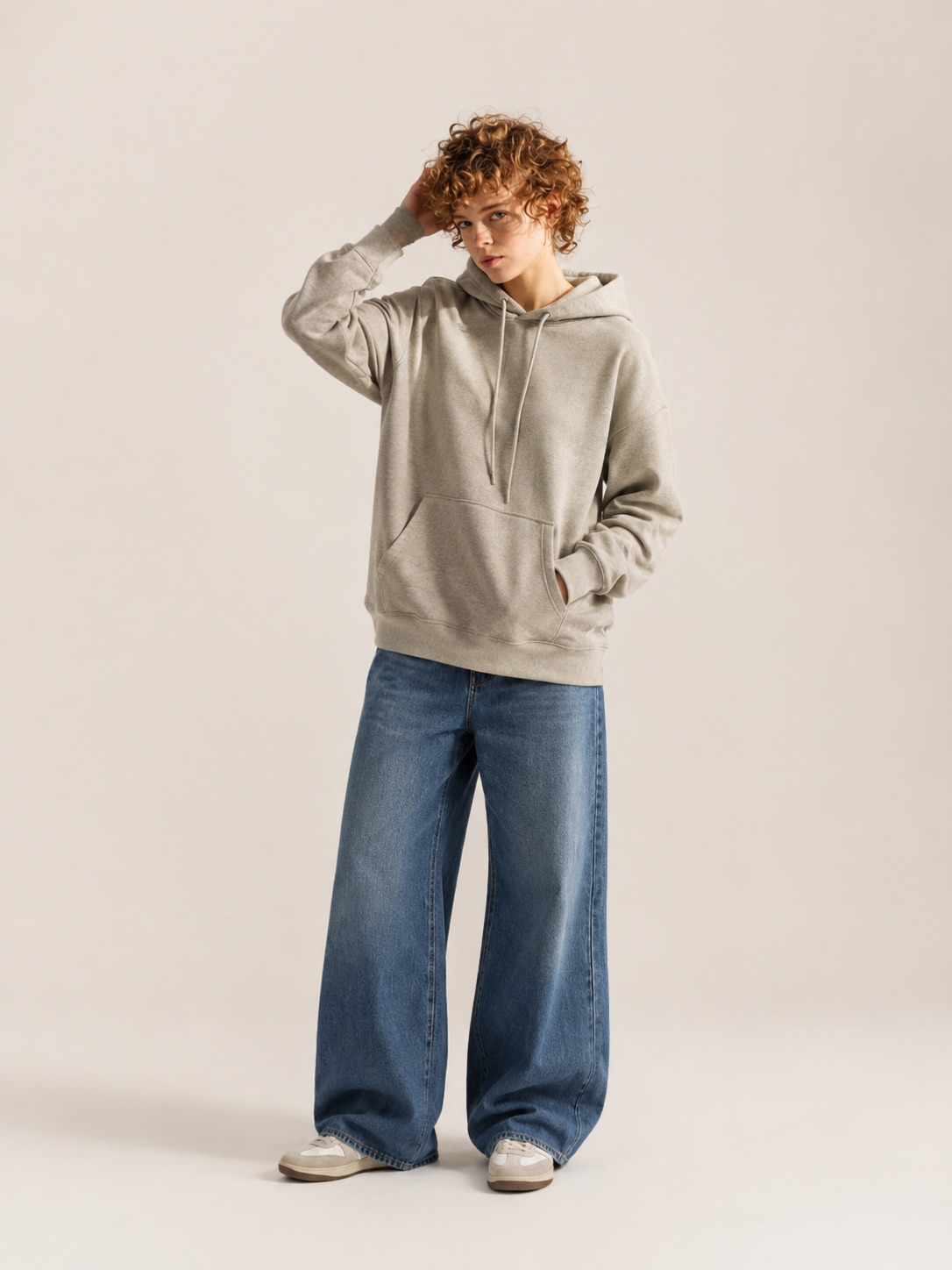
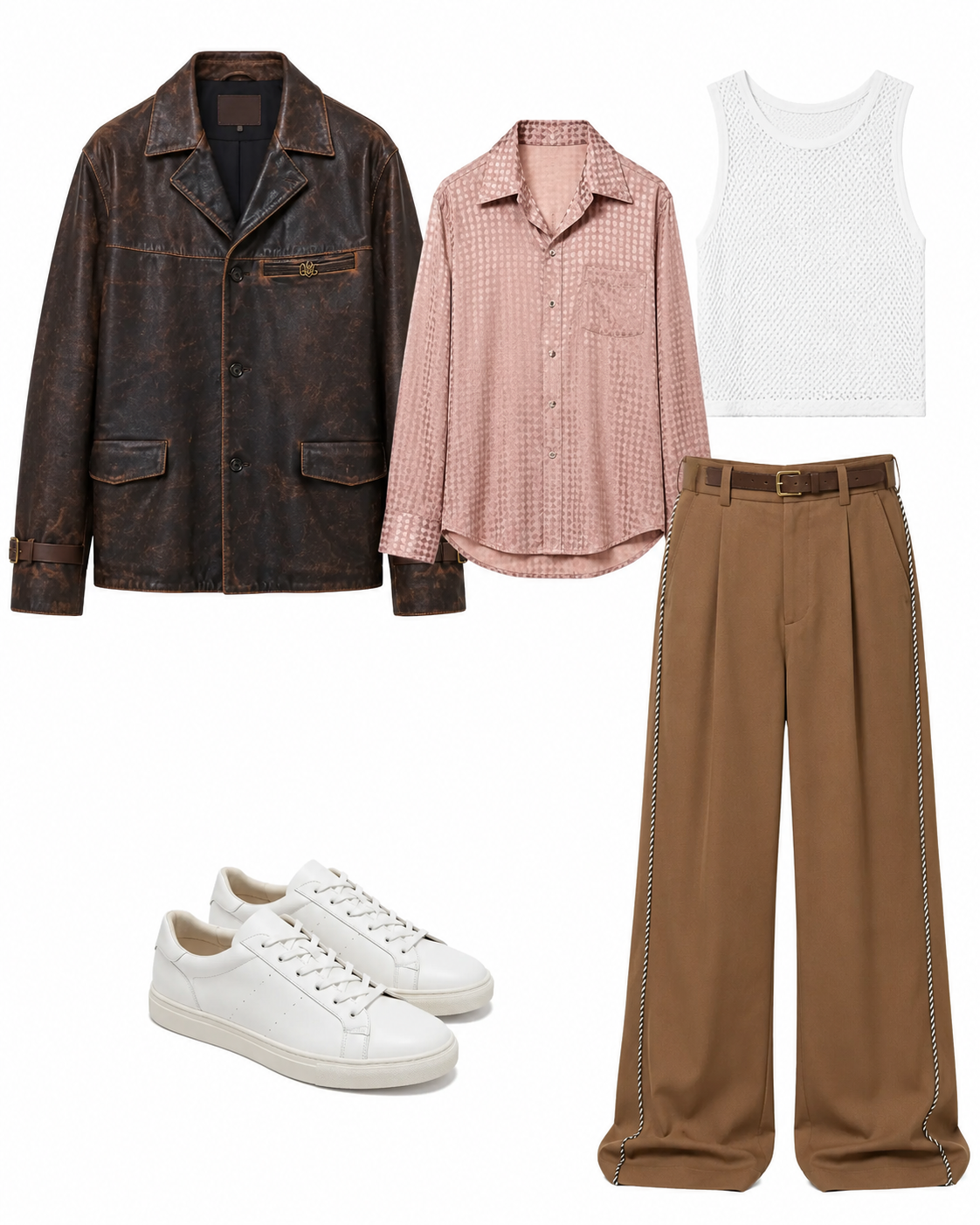
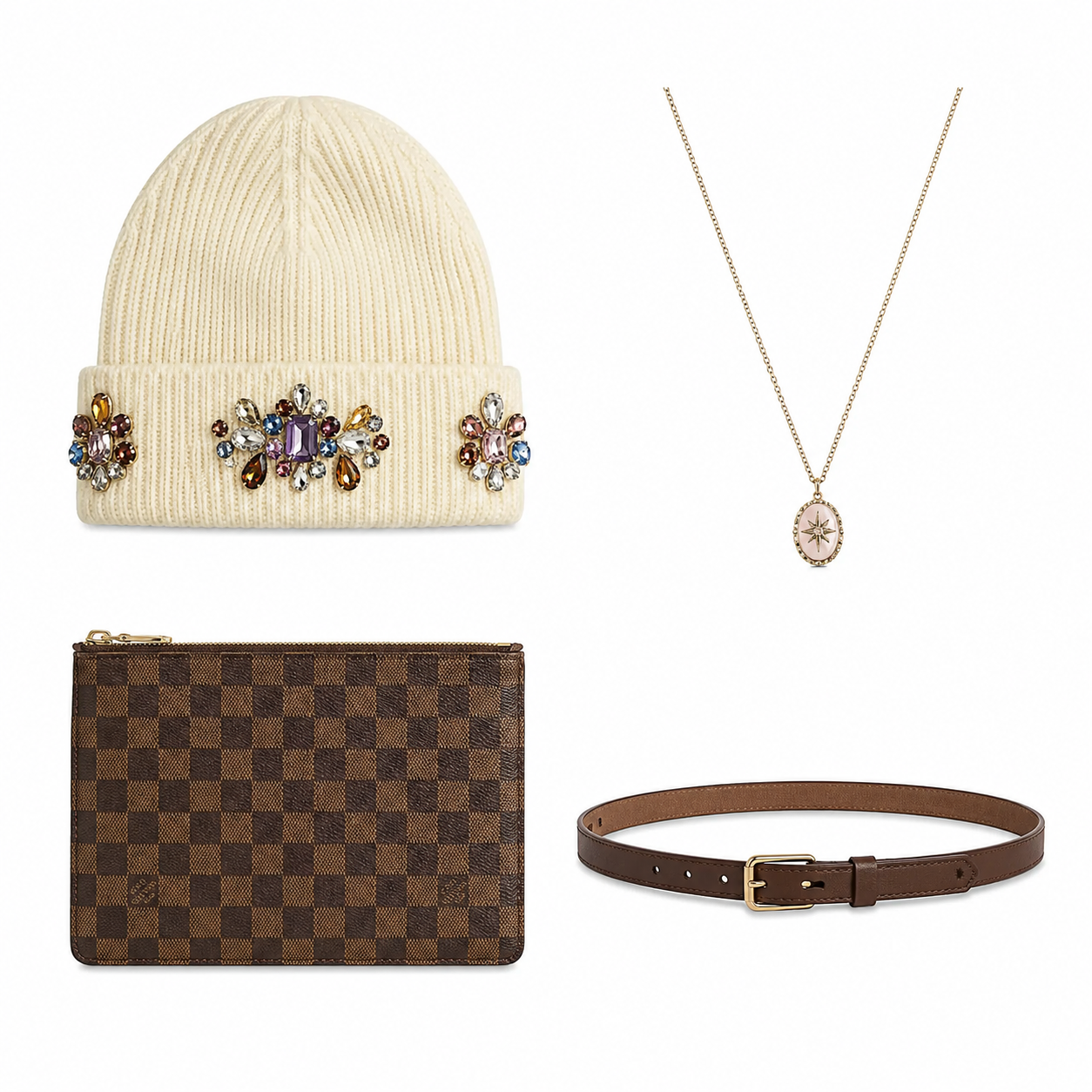
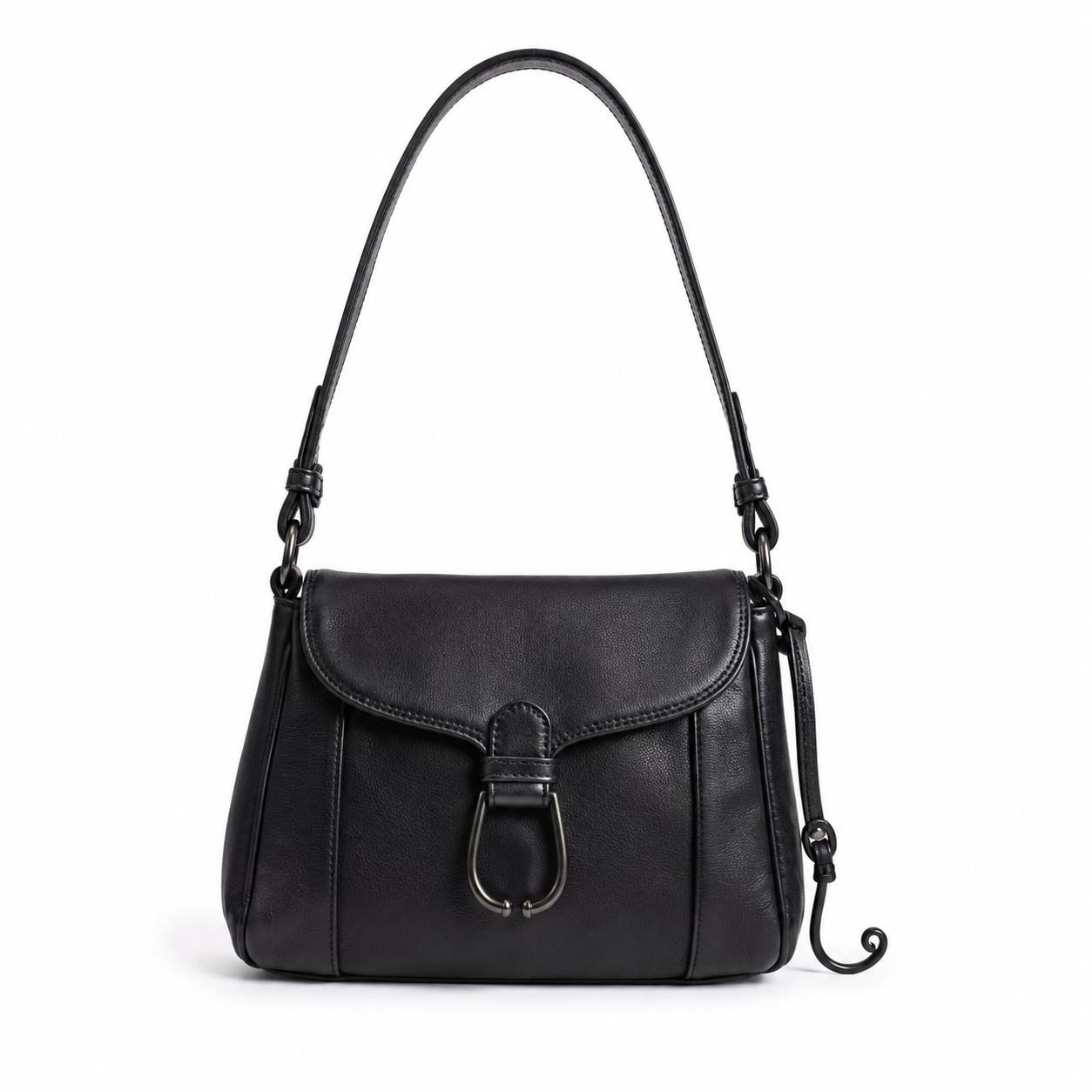
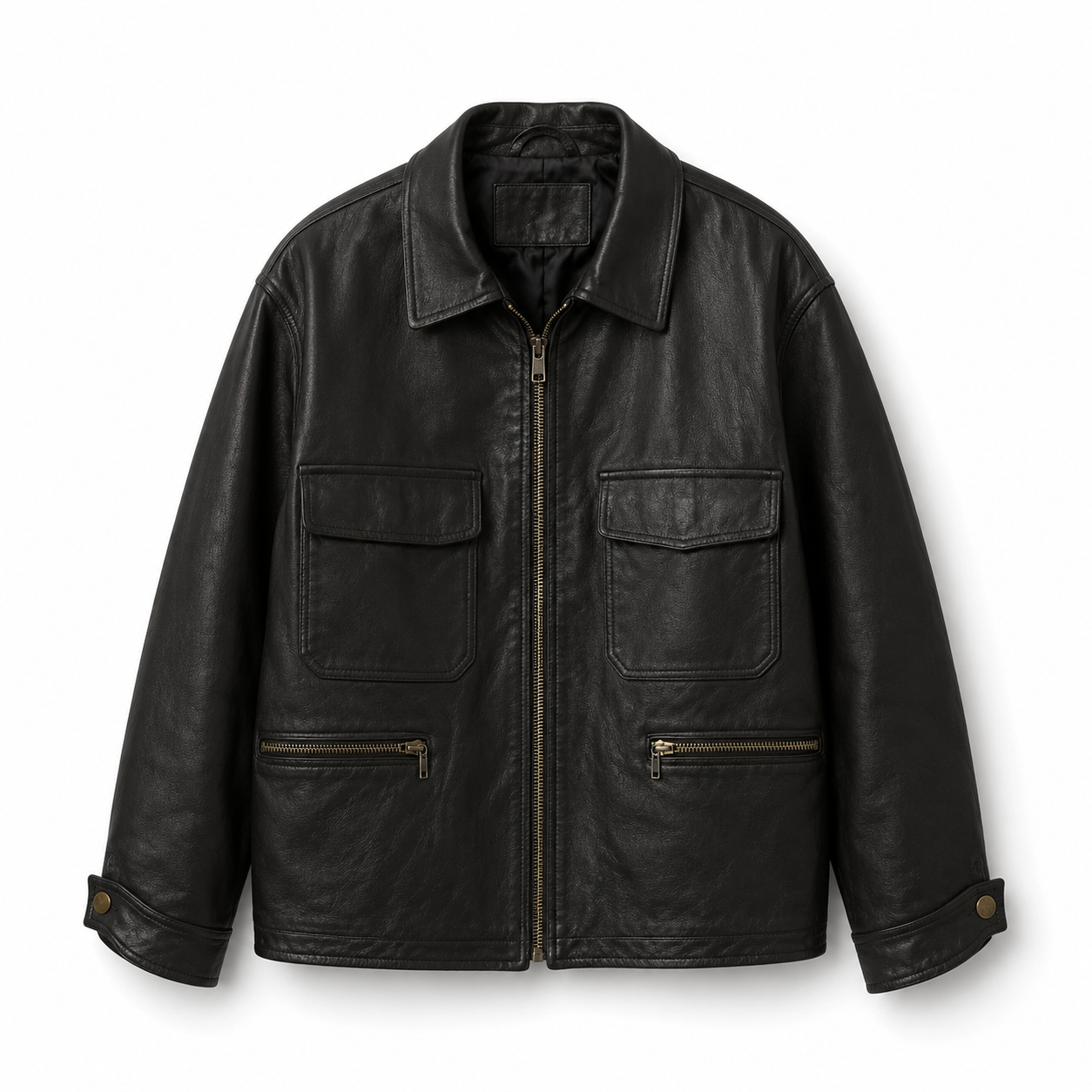
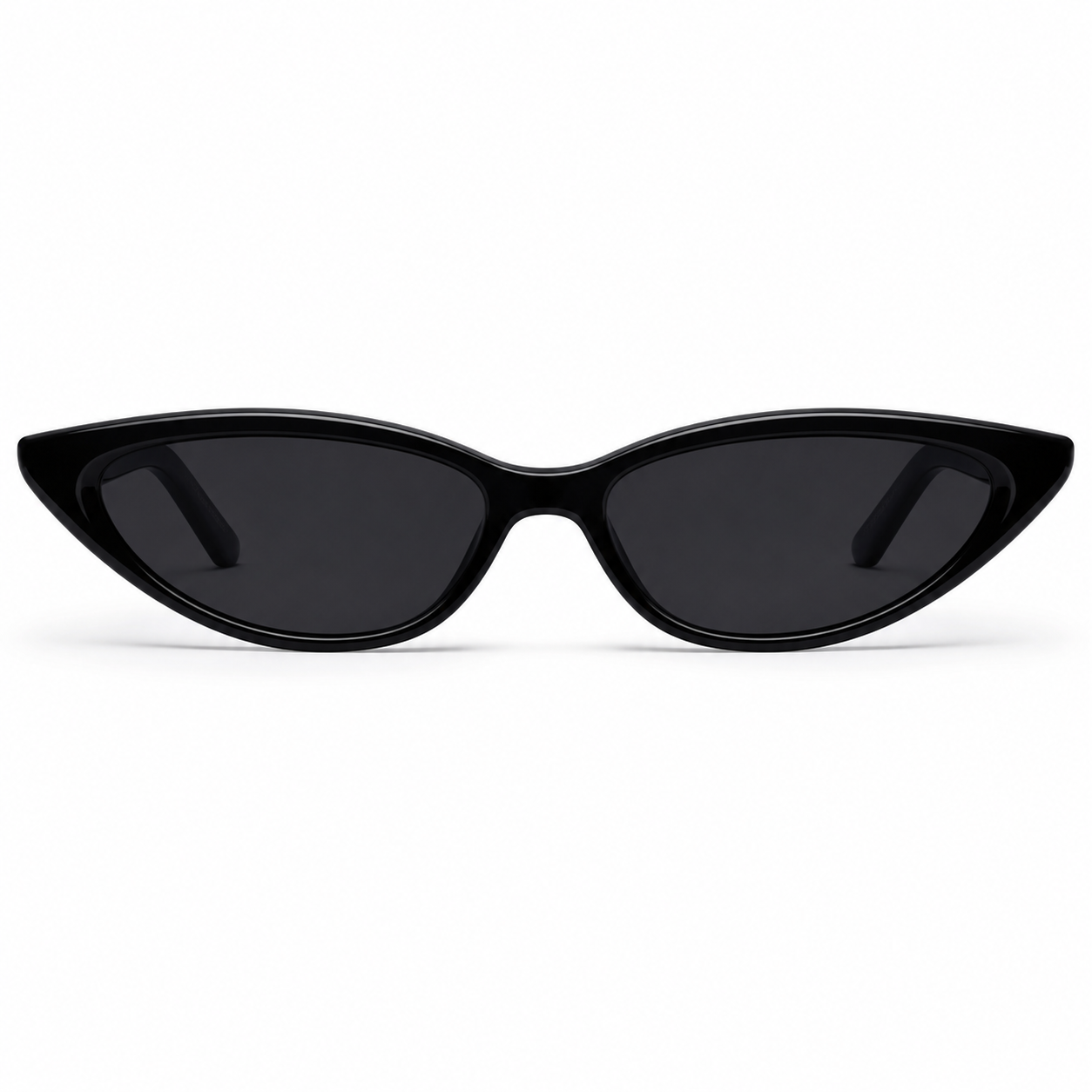
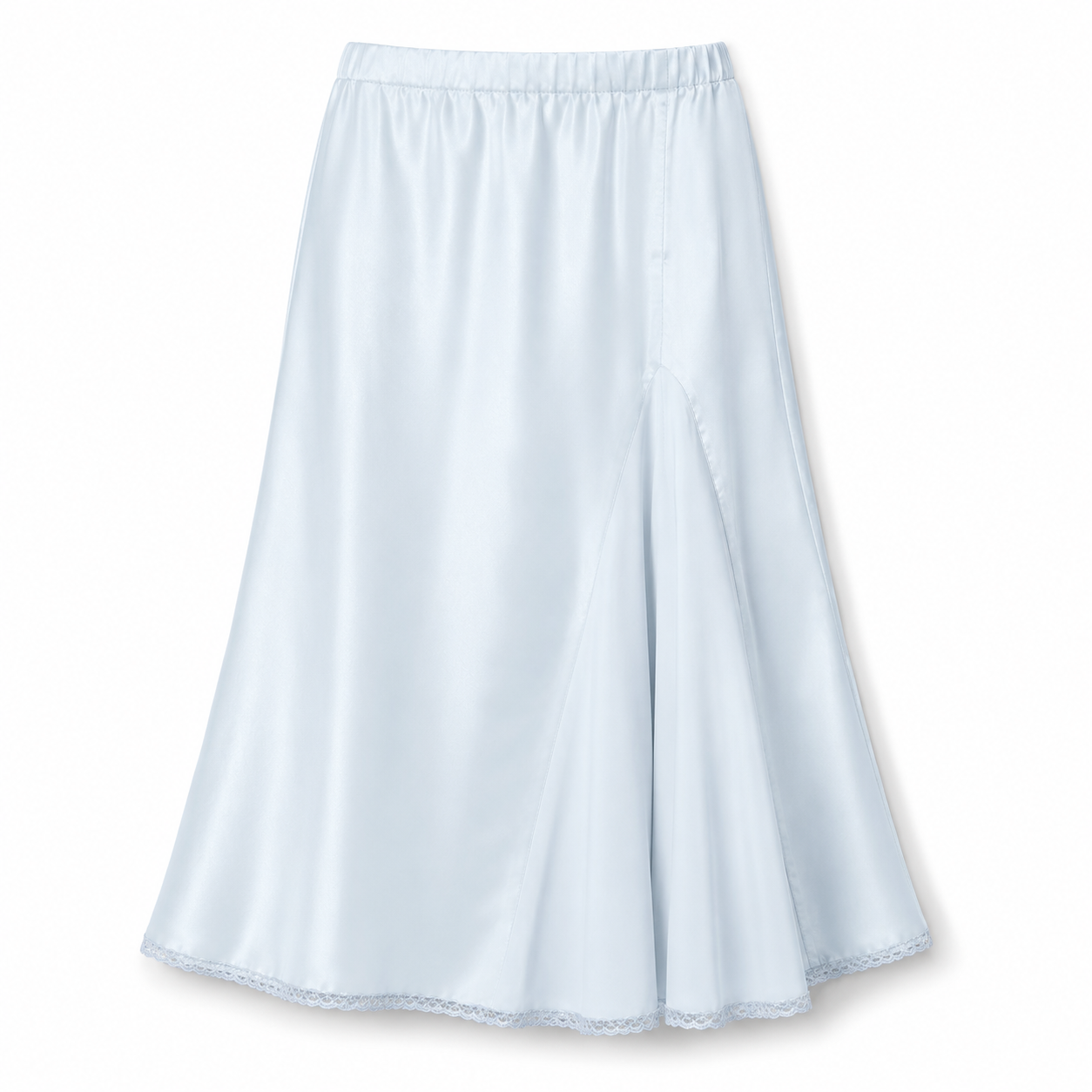
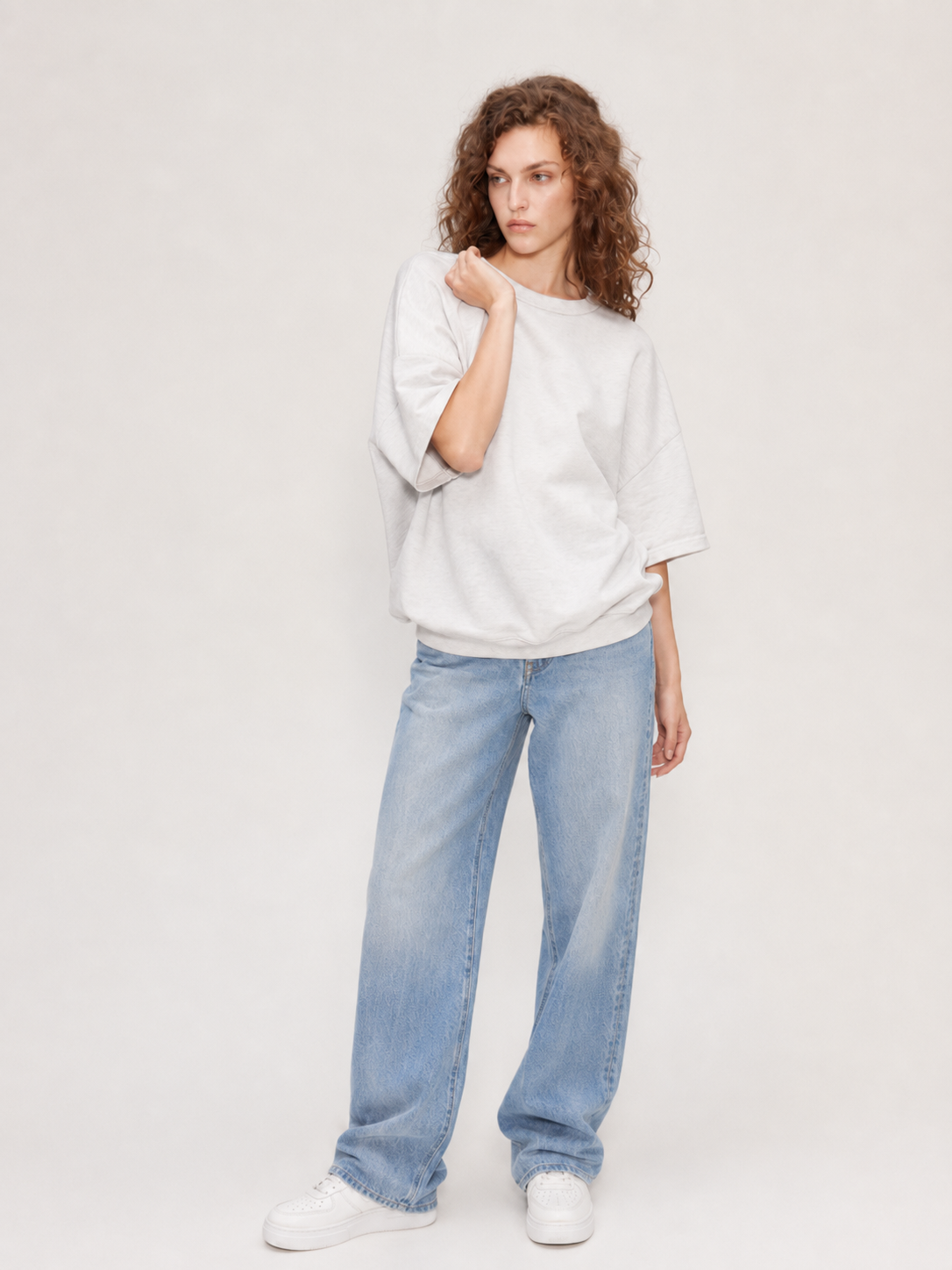
3️⃣ Marketing and Promotion
Key Visual
Template (Ready to Use):
[Campaign Theme / Visual Style] + [Key Visual Concept] + [Subject Description] + [Scene and Composition] + [Material Details] + [Lighting / Color] + [Promotional Copy] + [Typography and Layout] + [Image Texture]
Campaign Theme / Visual Style: Specify the subject of the campaign, its communication theme, and overall aesthetic. Examples include brand image campaigns, new product launches, product collection promotions, and visual styles such as surreal fashion, futuristic technology, New Chinese aesthetics, or minimalist commercial advertising.
Key Visual Concept: Describe the most distinctive visual element in the image, such as a keyhole-shaped area of light, a perfume bottle on a base surrounded by a landscape, or oversized background lettering. Make clear how it relates to the brand or product.
Subject Description: Describe the number, appearance, color, shape, actions, and key details of the products or people. For example, a tablet with a metallic frame and fluid textures on its screen, the color scheme and sole structure of a pair of running shoes, or the model's dynamic pose and outfit.
Scene and Composition: Describe the aspect ratio, background, subject placement and scale, spatial depth, visual flow, and areas reserved for text. For example, a vertical layout with the subject positioned slightly left of center, a diagonal floating arrangement, and space reserved at the top for the headline.
Material Details: Describe the surface characteristics of the subject and environment, such as transparent glass, metallic reflections, sequin fabric, rough stone, mirrored floors, water ripples, and smoke effects.
Lighting / Color: Describe the light source, direction, softness or hardness, contrast, dominant colors, and accent colors. For example, warm white backlighting with deep black shadows, blue neon with cool metallic reflections, or a soft high-key image in pale blue and gray-white.
Promotional Copy: Specify the brand name, main headline, subtitle, slogan, product highlights, and any other information that must appear. Enclose text that must be reproduced accurately in quotation marks and specify how it should be arranged across lines.
Typography and Layout: Specify the position, size hierarchy, font style, weight, color, letter spacing, line spacing, and alignment for each level of copy. Describe how the text interacts with the subject, such as oversized background lettering partially obscured by the product or body copy aligned in two columns on either side.
Image Texture: Describe the final visual treatment, such as commercial photography, cinematic 3D rendering, retro film, low-resolution scans, subtle grain, or soft light bloom. Also specify the desired atmosphere, such as mysterious, fresh, artistic, or futuristic.
| Output |  |  |  |  |
| Prompt / Input Images | Create a surreal fashion campaign poster for KLING AI. Closely follow the original image's composition, model placement, keyhole-shaped visual structure, typography hierarchy, negative-space proportions, and retro film texture. Use a vertical layout with a nearly pure black and deep brown-black background. A huge keyhole-shaped area of light forms the main visual frame in the center. The upper part of the keyhole is a large circular warm-white light source, while the lower part narrows downward and extends to the bottom of the frame. Its edges are noticeably out of focus, softened, and surrounded by a subtle glow, as if looking into another space through a real keyhole. Inside the keyhole is a light gray-beige photography studio floor. Slightly right of center stands a new female model with short silver-white hair. Do not use the original model's specific facial features as a reference. She is captured in a dynamic side-facing walking pose, moving toward the right side of the frame with her head turned slightly to the left. One hand is raised near her forehead as if looking into the distance, while the other extends naturally behind her, capturing a dramatic fashion photography moment. The model wears a loose, long dark brown-black gown or trench coat made from a combination of dark brown-black sequin fabric, translucent mesh, metallic threads, and lightweight organza. The surface is covered with fine sequins and irregular sparkling details. Backlighting creates alternating highlights in warm gold, copper brown, and deep black. As the model moves, the hem of the garment flows backward, with lightweight movement, translucent layers, and natural folds. She wears minimalist black flat shoes. The enormous circular light source behind the keyhole is warm cream-white, creating strong backlighting that outlines the model with a bright golden rim light. Keep the front of the model in deep shadow, with only subtle highlights on her face, arms, sequins, and garment folds. Create a dramatic cinematic contrast between warm white backlighting, deep black shadows, and copper-gold reflections from the sequins. The area outside the keyhole should be almost completely dark, retaining only subtle brown-black gradients and film grain. Apply slight defocusing, lens vignetting, retro film grain, low-resolution scan textures, and soft highlight bloom. The overall aesthetic should combine luxury fashion magazine photography, surreal photography, retro cinematic advertising, and artistic editorial design. At the upper left, place the small, horizontally arranged, bright blue, bold sans-serif text "KLING AI", using a medium font weight and left alignment. At the upper right, place the small, horizontally arranged, bright blue, bold sans-serif text "CREATIVE EXPLORATION", right-aligned to balance the left-side text. At the middle left, within the black area along the edge of the keyhole, place the large white, high-contrast serif brand name "KLING" in uppercase, with generous letter spacing, maintaining the minimalist luxury-brand typography of the original image. At the middle right, arrange a group of very small white bold sans-serif text. The first line is the quoted heading "AI PLAYGROUND". Beneath it, left-align two lines of very small white body text: "IMAGINARY VISUAL CAMPAIGN CREATED WITH KLING AI" and "IMAGE · VIDEO · MOTION · CREATIVE". Keep the text block narrow with tight line spacing. Maintain consistent brand language around KLING / KLING AI / AI PLAYGROUND / CREATIVE EXPLORATION / IMAGE / VIDEO / MOTION. Use a palette of pure black, deep brown, warm cream-white, copper gold, and a small amount of highly saturated bright blue for the typography. Emphasize the enormous keyhole-shaped area of light, the model's dynamic silhouette, the reflective sequin fabric, strong backlighting, and generous dark negative space. The final poster should convey mystery, artistry, fashion, and surrealism, with the look of a premium KLING AI creative brand campaign. | Create a dynamic brand poster for KLING AI. Follow the original image's composition, arrangement of people, typography hierarchy, and motion blur effects. Use a vertical layout with a solid, highly saturated blue running track as the background. Give it a pronounced coarse-grain texture, film noise, slight defocusing, and a retro printed finish. Show several athletes running at high speed, with only parts of their bodies and legs visible rather than their full faces. At the upper left, a person wearing black sportswear rushes past the edge of the frame. Slightly left of center, show a forward-striding leg and a white running shoe. On the right and lower right, show the legs and arms of two other runners. All figures should have strong directional motion blur, trailing silhouettes, and a pronounced sense of speed. The overall image should evoke street running culture, youth sports brand advertising, independent magazine editorial design, and retro film photography. Slightly above the center of the image, arrange the tiny white serif text "KLING AI PRESENTS" horizontally and center-aligned. Directly beneath it, place the oversized white bold italic headline "BREAK THE FRAME", using a wide, heavy italic sans-serif font. Extend the text horizontally with a slight rightward tilt. Add subtle blur and ink-spread effects along the edges, making it the visual focal point. Below the headline, arrange the tiny white bold sans-serif subtitle "IMAGE / VIDEO / CREATIVE AI" horizontally, with generous letter spacing, all uppercase and center-aligned. Beneath it, add two more lines of tiny white bold sans-serif text: Keep the typography compact and centered. | Two modern running shoes float at an angle, arranged diagonally in a polished composition. The running shoe in the lower part of the image has its toe pointing toward the lower right. Its upper combines off-white suede and textile materials, with matching off-white laces. The midsole is mint green, and the side is printed with the white text "KLING AI" and "MOTION". The heel is accented with orange. A soft, dark gray oval shadow falls onto the ground directly beneath the shoe. The second running shoe floats above it, slightly toward the upper center, tilted with its sole facing the viewer and its toe pointing toward the upper left, showcasing the outsole structure. The forefoot outsole is orange rubber, while the remaining sections are light beige. The midsole is also mint green, and the side is printed with the white text "MOTION AI". The two shoes are arranged at different heights, creating a sense of movement and visual balance with the background typography. Behind the shoes is a gray-green gradient wall and floor with a subtle grainy texture. The overall image combines minimalist design and futuristic technology aesthetics, with fine film grain. Soft artificial top-side lighting and diffused illumination create a bright, high-key image with low contrast, featuring white light and subtle warm-cool color contrasts. The image contains numerous white and light gray text elements. At the upper left, place the tiny bold white sans-serif heading "KLING AI". Directly beneath it, arrange two lines of left-aligned English promotional copy: At the middle left, arrange two lines of medium-sized bold white sans-serif text: Across the central background, place the oversized bold white sans-serif headline "KLING" horizontally. Give the lettering a semi-transparent appearance, with parts of it obscured by the two floating shoes in the foreground. Below the floating shoe on the right, slightly right of center, arrange two lines of small bold white sans-serif text: At the lower left, arrange several lines of left-aligned English body text in the following order: Use white for the headings and light gray for the descriptions, with a very small monospaced font. Mirror this layout at the lower right with several lines of left-aligned English body text in the following order: Use the same tiny monospaced font, with white headings and light gray descriptions. Align the two columns of body text at the bottom. Arrange the groups of headings and subtitles in the upper and middle sections in an alternating left-right layout, creating a strong size contrast with the oversized background headline at the center. | A dark gray electronic tablet with a metallic frame stands at an angle, positioned slightly left of center. Its screen features flowing abstract textures in silver-gray and pale blue, with silk-like folds and a metallic sheen. At the center is a crystal-clear oval water droplet with a prominent reflective highlight. Under combined side backlighting and artificial neon lighting, the tablet's left edge emits a strong blue glow. Together with the vertical blue beams rising in the deep black background, this creates a high-contrast futuristic visual aesthetic. Behind the tablet is oversized, semi-transparent gray lettering reading "Ultra". Faint watermarks consisting of tiny gray code text arranged in a matrix pattern are scattered throughout the background. The smooth, deep blue mirrored floor has a refined reflective surface, clearly mirroring the bottom edge of the tablet and the surrounding blue glow. Use a combination of centered and diagonal compositions. Keep the overall image dark, with soft lighting and volumetric illumination enhancing the visual focus. At the top center, arrange the bold white headline "KLING AI Ultra" horizontally. Make "KLING AI" slightly bolder than "Ultra". Directly beneath it, place the light gold subtitle "Powered by the Next-Generation Kling Visual Generation Engine". In the upper-right corner, place a blue rounded-square container with a white letter "K" at its center. At the bottom center, arrange two lines of tiny white bold sans-serif text: Align all text blocks vertically along the central axis to create a minimalist commercial advertising aesthetic. |
Long-Form E-commerce Product Detail Page

Template (Ready to Use):
[Product Description] + [Required Content Sections]
Product Description: Describe the product, such as what it is. If a model image is uploaded, you can specify that Image X shows a model using the product.
Content Sections: Choose from product hero image, key feature highlights, materials / craftsmanship / structure, specifications / performance, usage scenarios, multi-angle product views, technical diagrams, and comparison images.
Generate an English e-commerce product page for a pot |  |
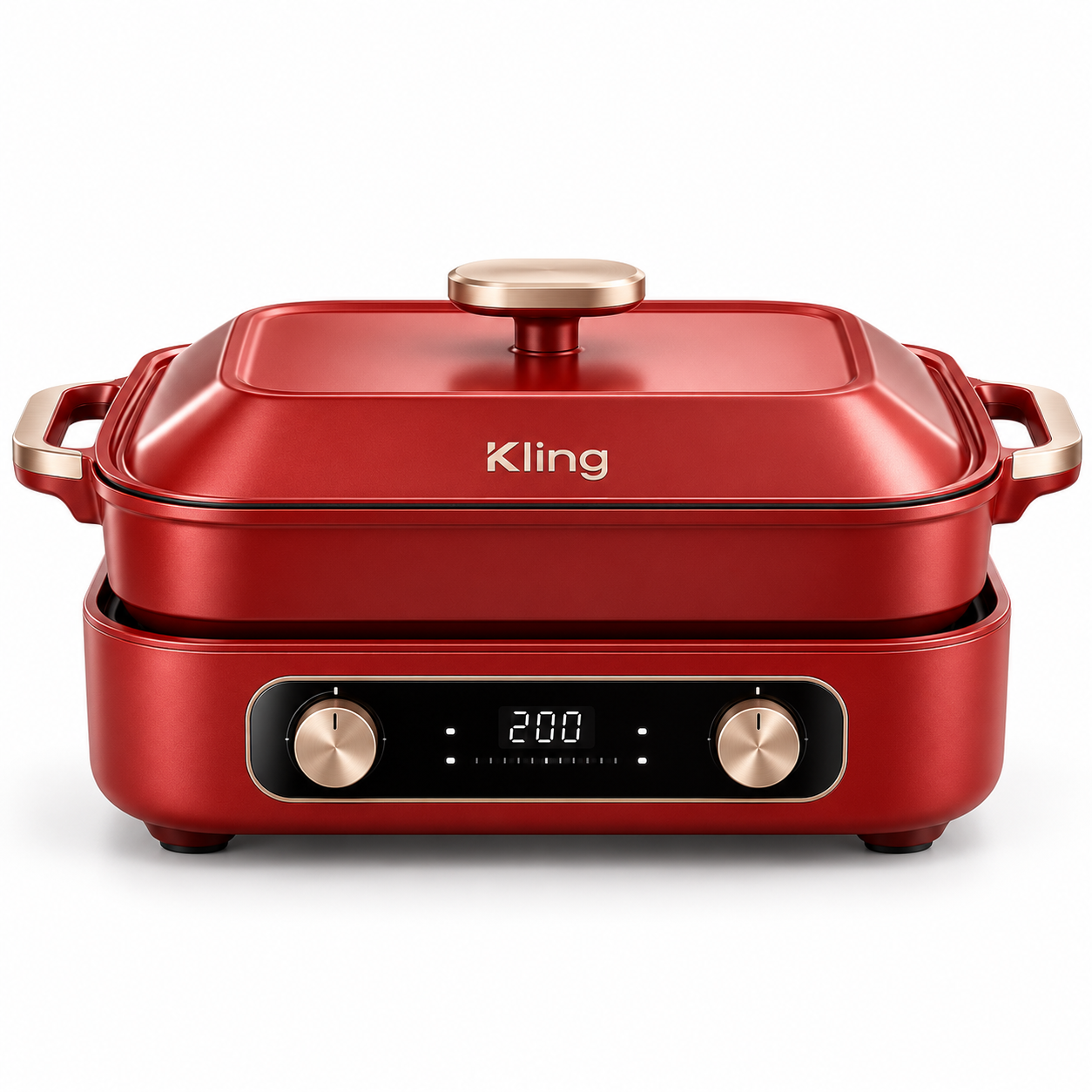
Product Website Design
Template (Ready to Use):
[Subject] + [Website Type] + [Visual Style]
Subject Description: Describe the subject.
Website Type: This can be a brand website, game website, personal profile page, or e-commerce website.
Visual Style: Describe the desired visual style.
Create an English-language e-commerce website for a ceramic manufacturer’s brand.
|  |
Layer Editor
You can use layer editing on images generated with Kling Image 4.0. Separate text, backgrounds, elements, and shapes into individual layers for precise editing, then select, modify, replace, delete, move, download, or regenerate each layer.
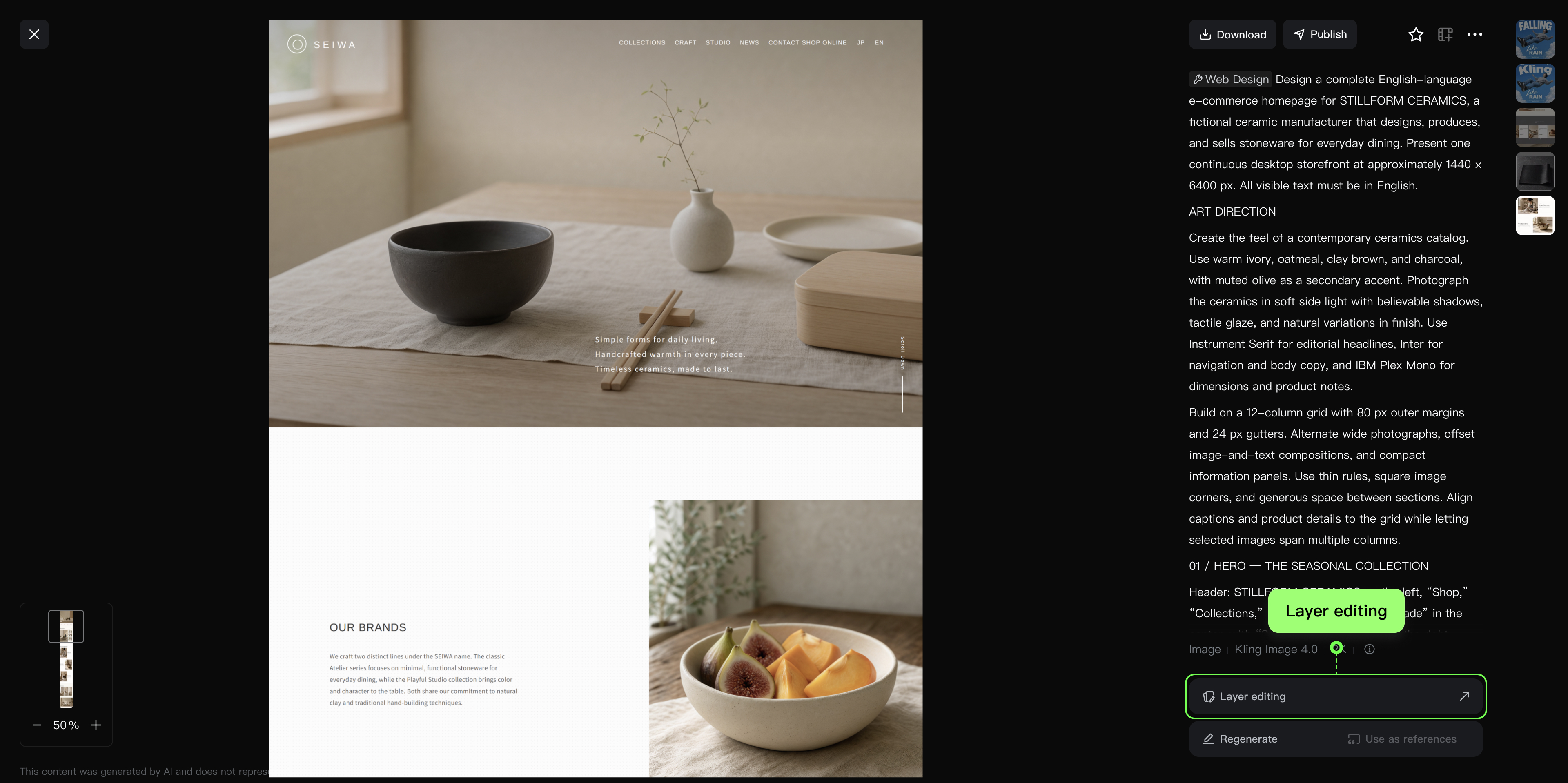
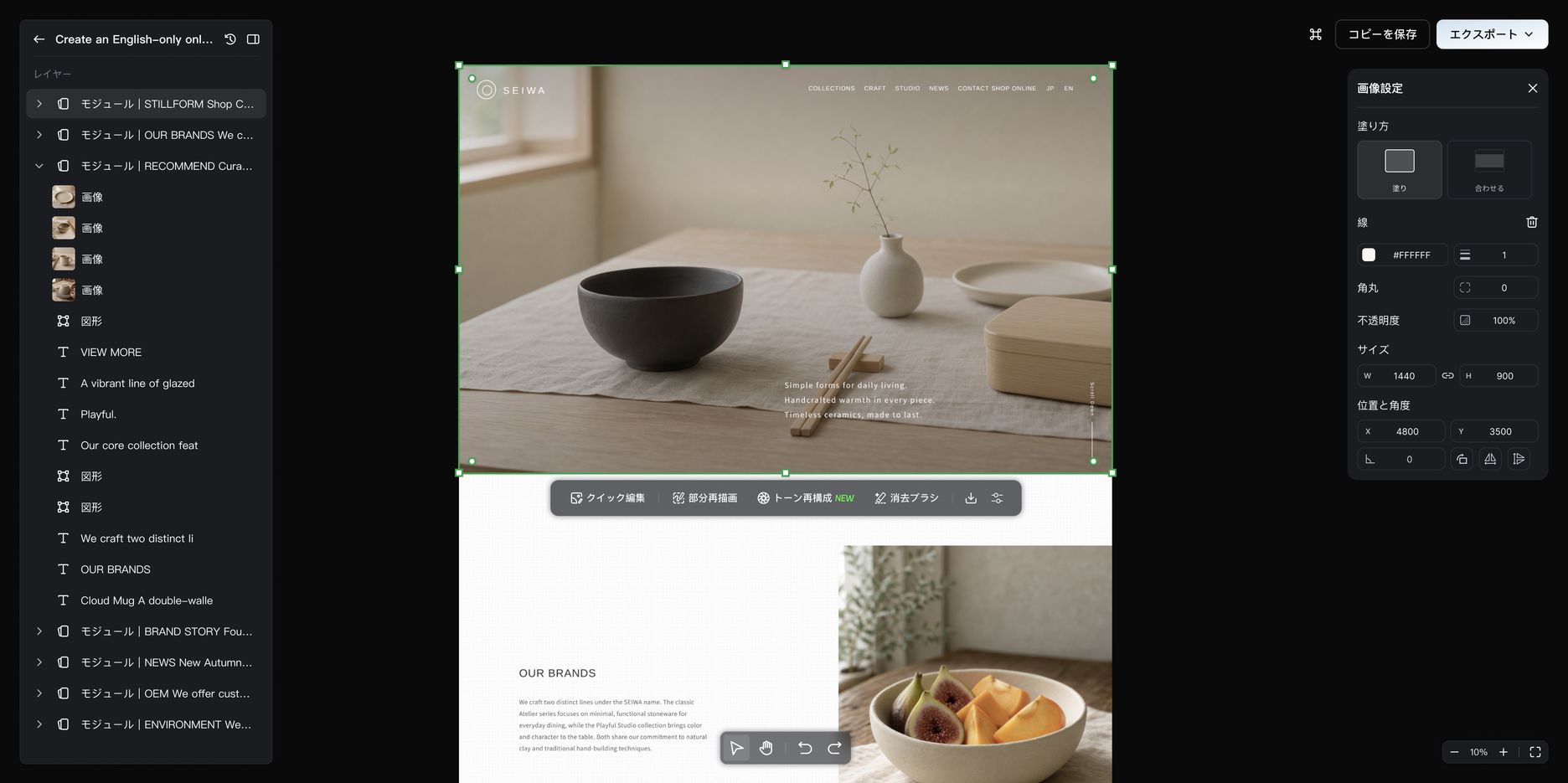
4️⃣ E-commerce·Series Mode
The prompt-writing methods for storyboard series mode also apply to product showcases and fashion photography for commercial use. We recommend uploading clear reference images, describing the scene or angle for each image, and specifying the appearance details that must be preserved.
Template (Ready to Use):
[Reference Images and Overall Requirements] + [Scene or Angle Description for Each Image] + [Consistency Requirements]
Reference Images and Overall Requirements: Specify which images provide references for the product, model, or clothing, and which features must be preserved. For example, “Use the model and outfit in Reference Image 1” or “Use the product in Reference Image 1, keeping its shape, color, and logo consistent.”
Scene or Angle Description for Each Image: Describe one shooting scene or viewing angle for each image, including the environment, lighting, and composition. For example, “Show the full outfit while walking along a cobblestone street,” “Display the entire product against a clean, light-colored background,” or “Place the product on a wooden tabletop with natural light coming through a nearby window.”
Consistency Requirements: Specify the elements that must remain consistent, such as “Keep the model's appearance, clothing color, design, and accessories consistent” or “Preserve the product's shape, color, structure, and packaging labels. Do not add any extra text.”
| Product Showcases |
|
|
Input Image/ Prompt |
|
|




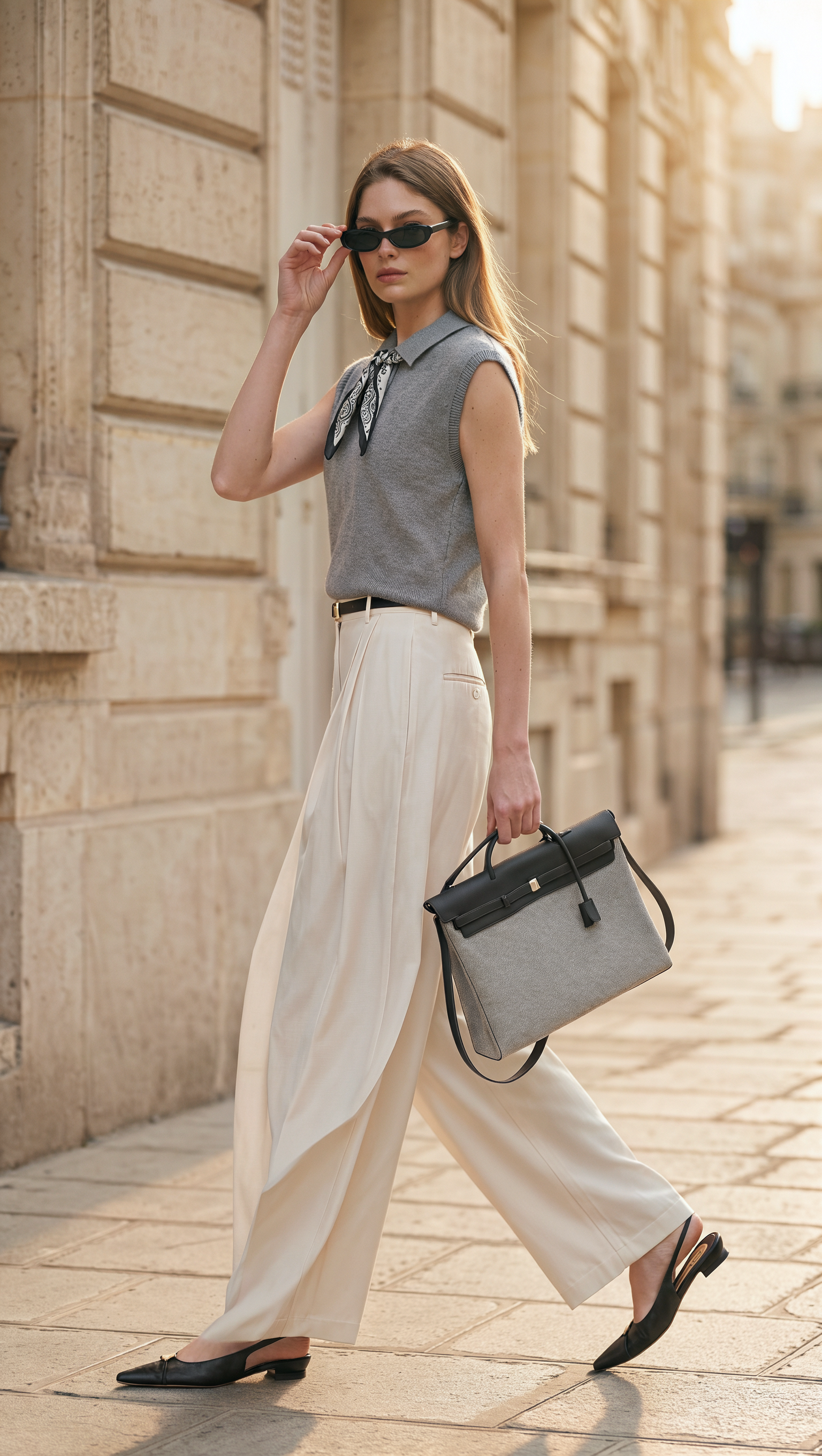
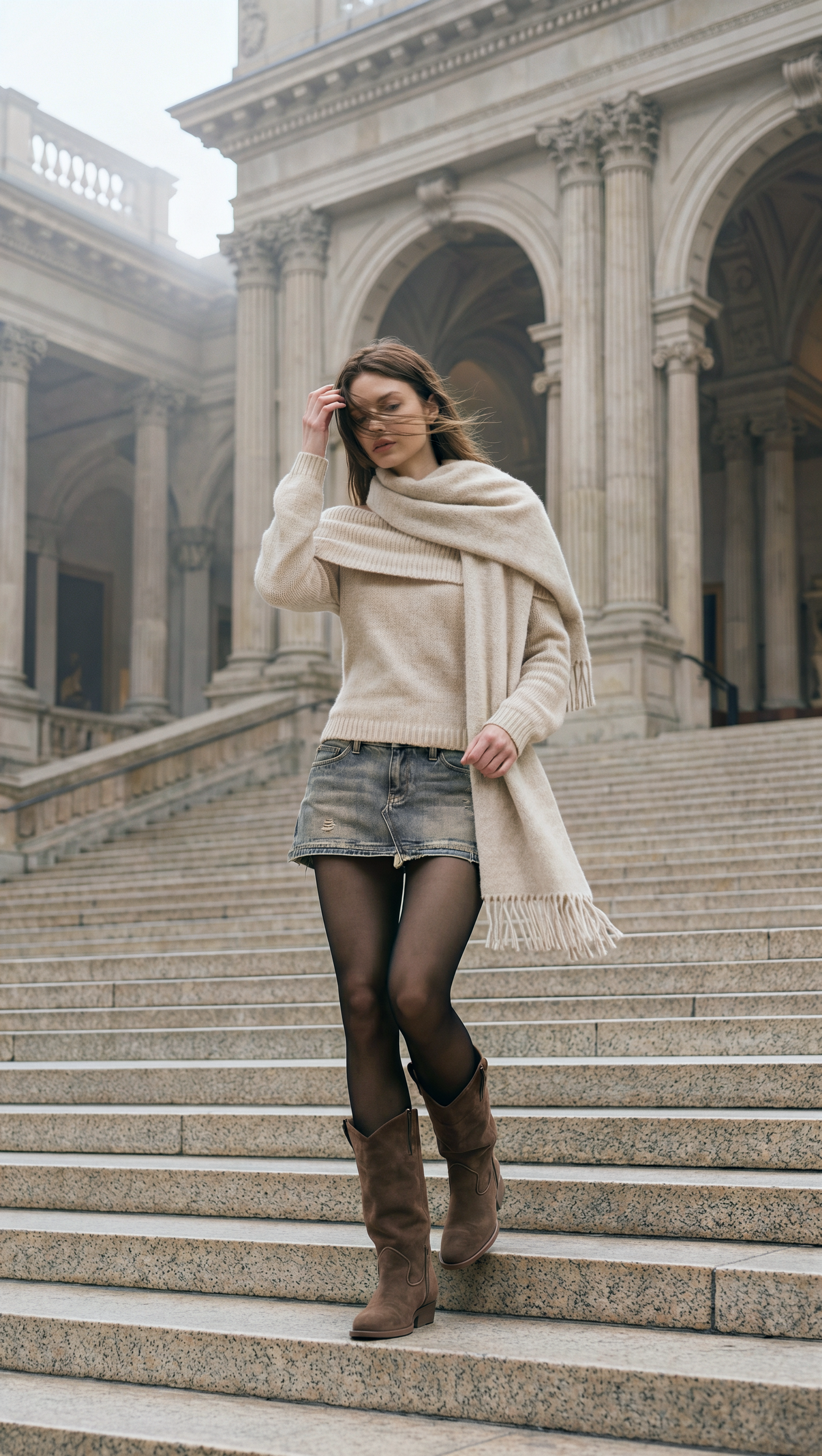
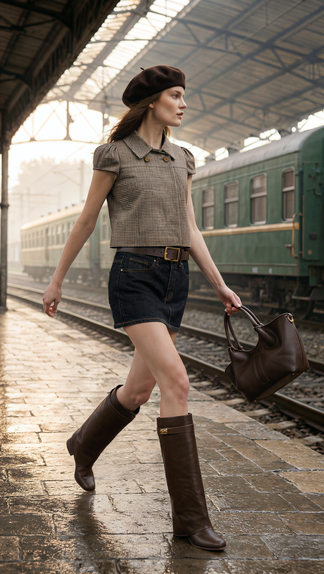
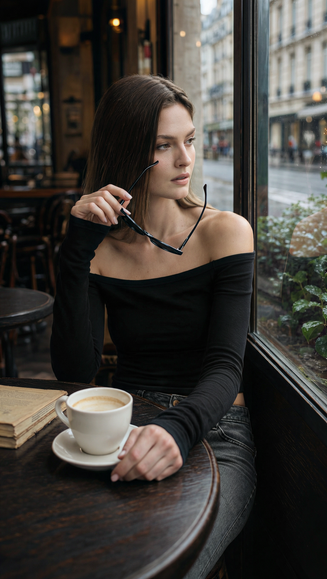


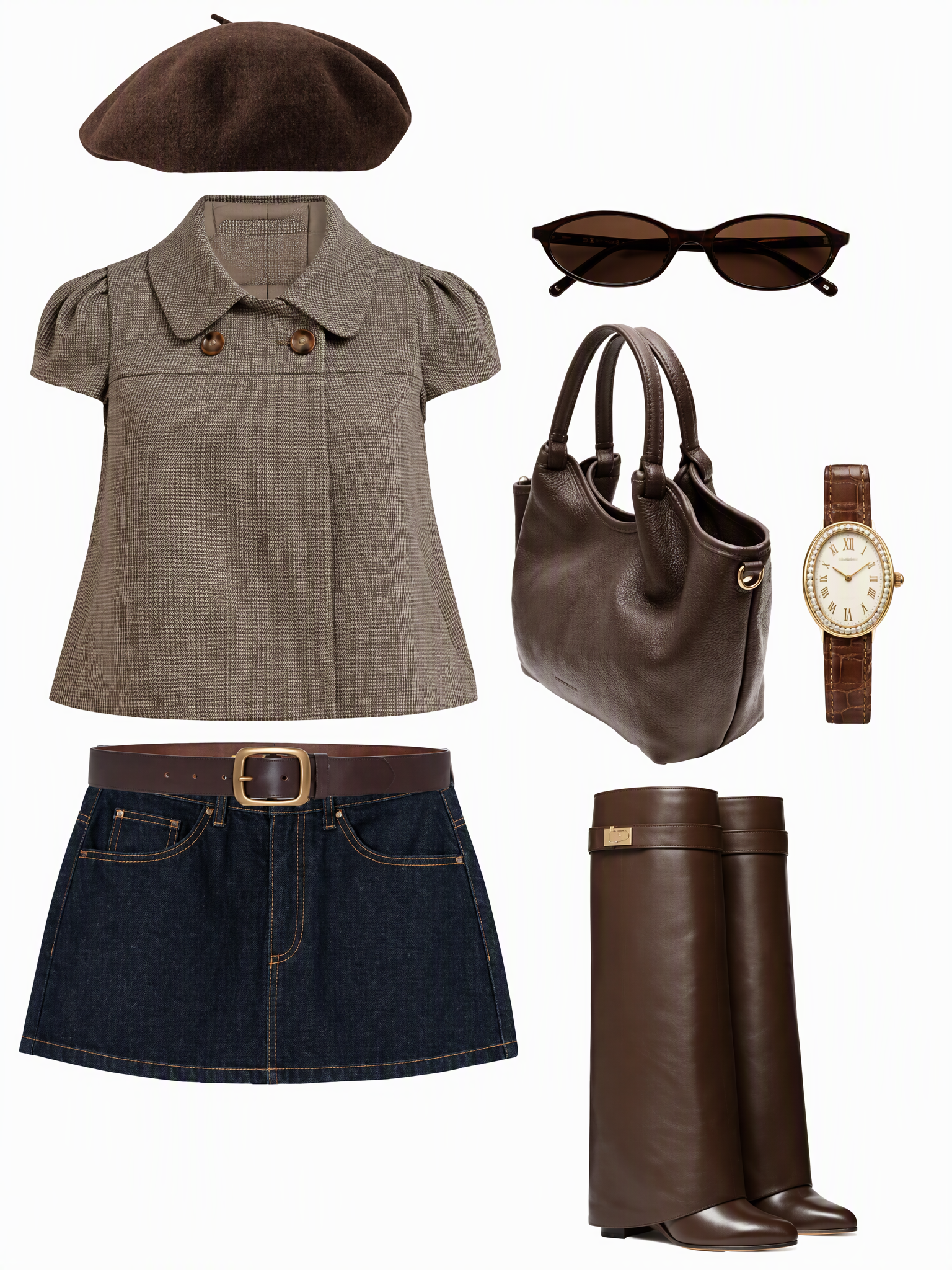
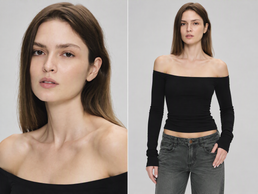
3.4 Popular Style
1️⃣ Portrait Photography
Template (Ready to Use):
Person + Clothing and Accessories + Expressive Facial Expressions and Actions + Scene.
Describe facial expressions and subtle movements: For example, “standing sideways, looking away from the camera, lips slightly parted” can convey a sense of detachment; “eyes closed, head tilted back, standing in the wind” can express a sense of release; “laughing, tossing fallen leaves, playing around with friends” can convey happiness and joy.
Describe lighting and image texture: Sunset backlighting, preserved shadow details, and warm-cool contrast work well for portraits that convey restraint and loneliness. Bright, soft lighting and gentle highlights are ideal for warm, comforting scenes. Direct flash, hard shadows, and digital noise can create a retro, playful, or rebellious look.
For portraits of two people, also describe their relationship: Specify their relative positions, physical distance, how they interact physically, and where they are looking. This helps the image convey a stronger sense of narrative.
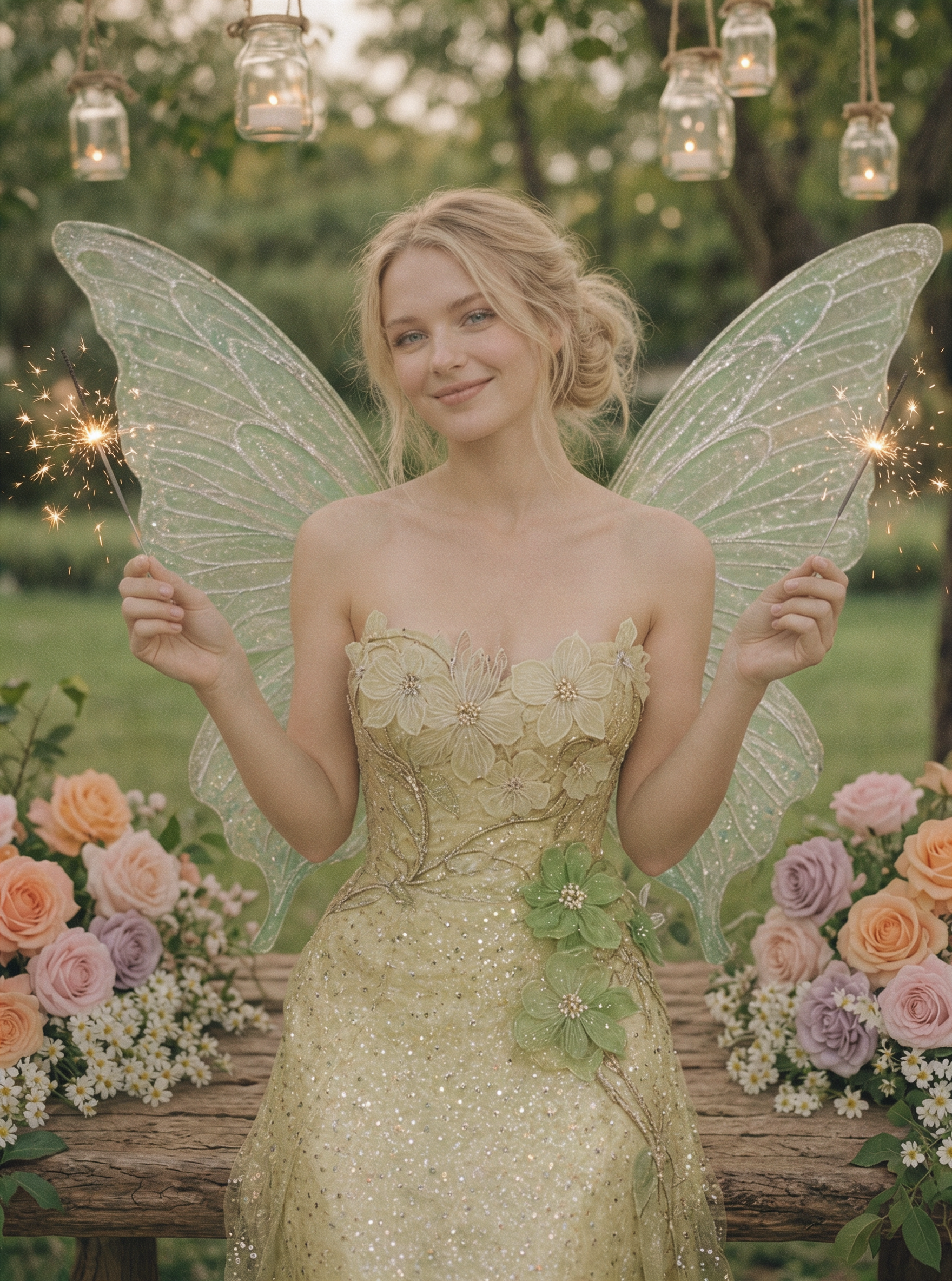 | 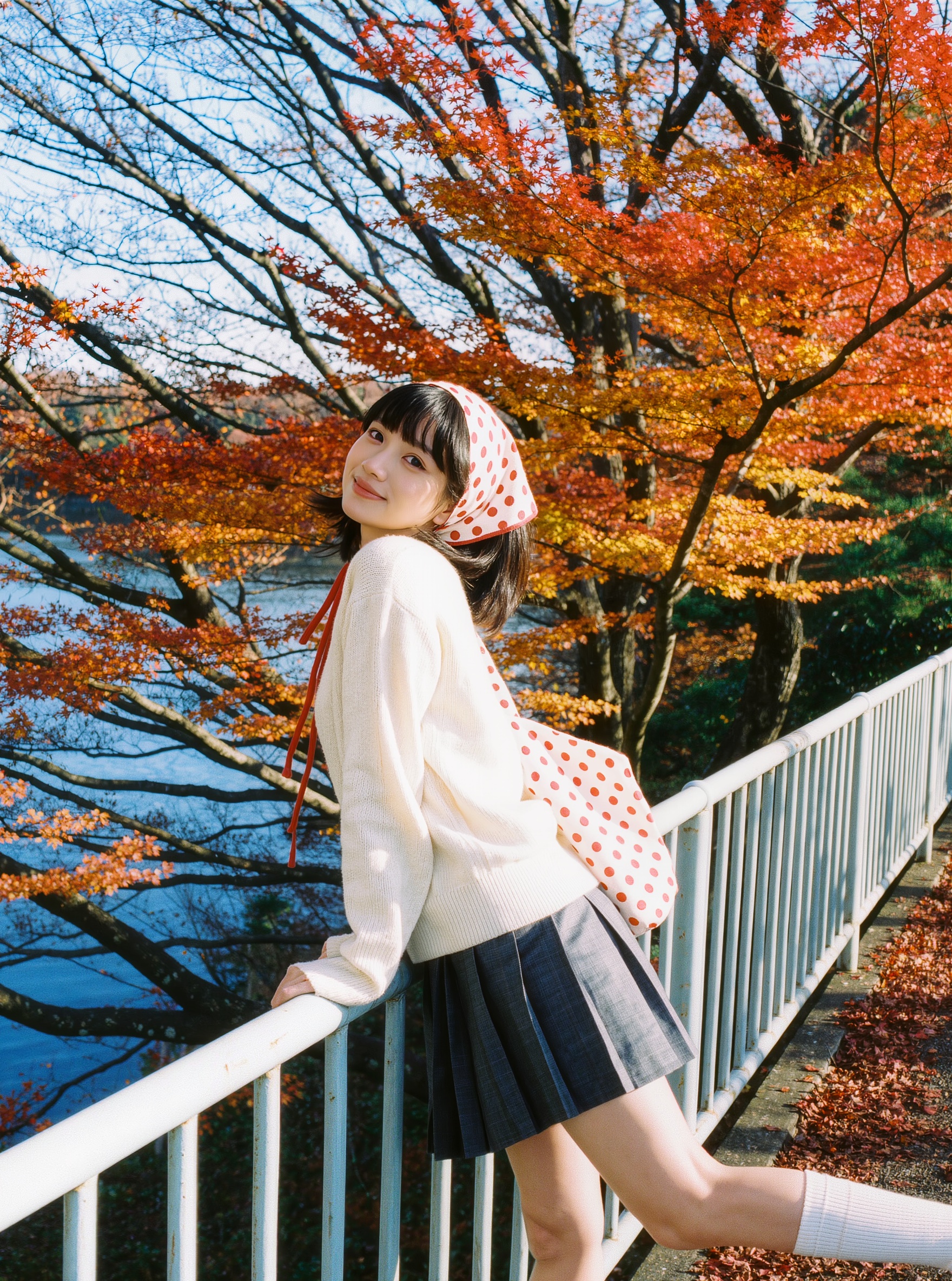 | 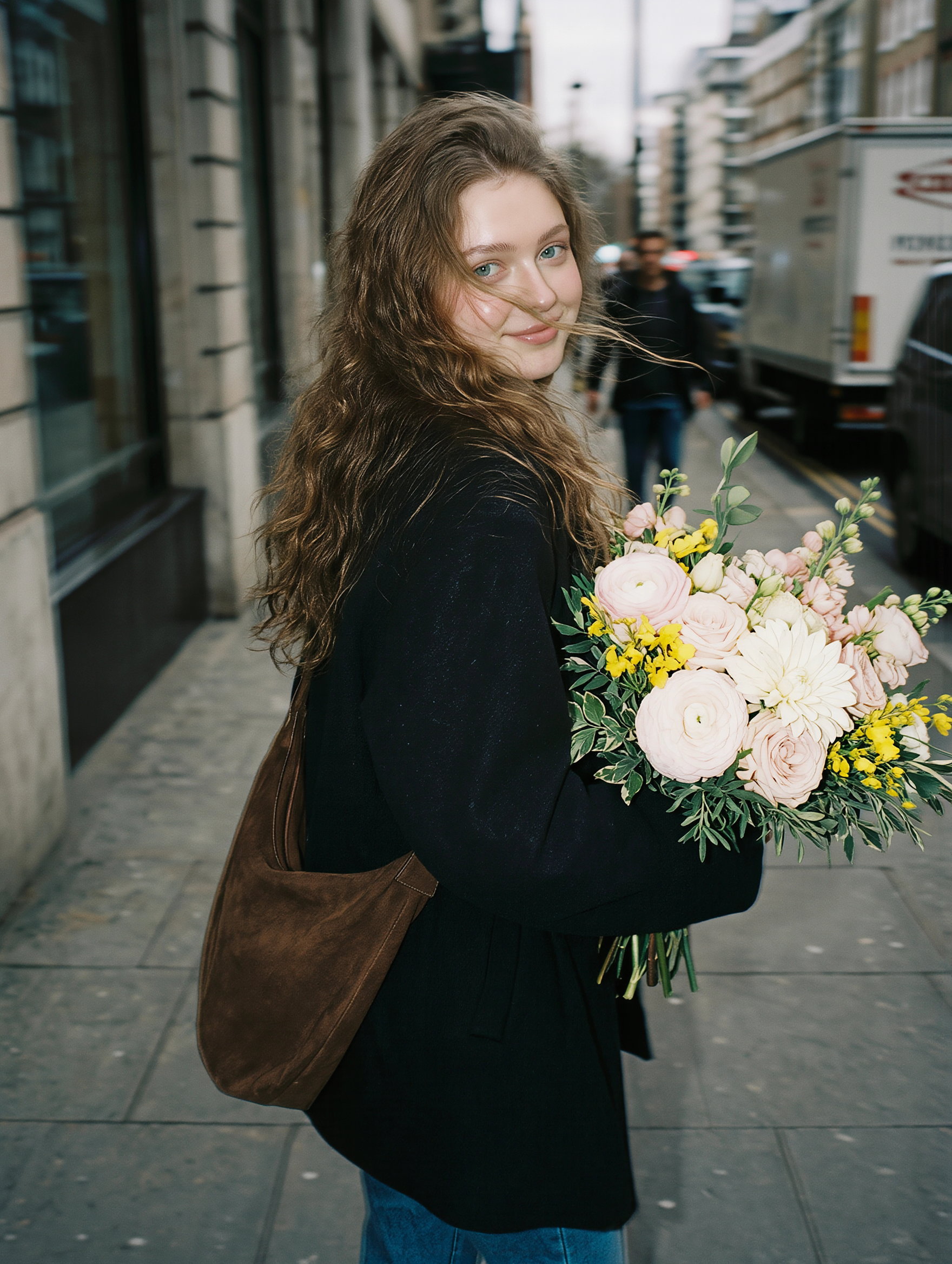 | 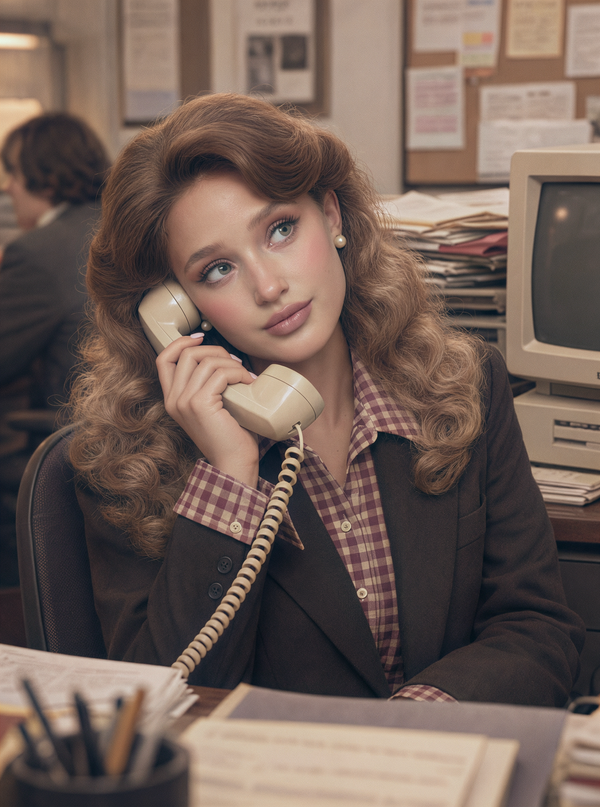 |
An outdoor portrait with a dreamy woodland fairy theme. A beautiful young white woman transforms into a garden fairy. She has luminous, fair skin and delicate, soft features. Her long, light-blonde hair is casually gathered into a voluminous low bun, with a few loose strands falling naturally around her cheeks. She tilts her head slightly toward the camera and smiles sweetly and playfully. She wears a fitted, strapless, pale yellow-green gown covered in tiny, shimmering silver-gold sequins. Three-dimensional petals and delicate stamen embroidery decorate the bodice, while translucent green flowers accent the waist. A pair of large, translucent butterfly fairy wings extends from her back. The wings are pale green, with silvery-white veins and delicate glitter, giving them a crystalline appearance. She raises both arms naturally, holding a lit sparkler in each hand, with golden sparks flickering around her. She stands in a lush outdoor garden. A rustic wooden table with a rough-hewn surface fills the foreground, while clusters of pink, orange, and pale purple roses, along with tiny white flowers, frame both sides. Several transparent glass jar lanterns hang overhead. In the background, layers of green lawn lead into softly blurred trees. Front-facing, eye-level shot, medium half-body composition, subject centered, shallow depth of field, softly blurred background. Natural evening light and soft diffused illumination brighten her face. The overall palette features fresh, delicate yellow-green tones, with a low-saturation, warm cinematic look. Fine, realistic skin texture, subtle film grain, and a dreamy fairytale atmosphere. Ethereal, elegant, and refined woodland fairy portrait photography. | A young East Asian woman stands beside a pale blue-gray metal railing in a park in late autumn. Her short black hair with straight bangs falls naturally around her face. She wears a white knitted headscarf with red polka dots, with red ties hanging down over her chest. Her outfit consists of an oversized creamy-white knitted sweater, a dark gray pleated miniskirt, and white over-the-knee socks. A white fabric bag with red polka dots hangs from her shoulder. Both hands rest on the metal railing as she leans her upper body over it, lifting her right lower leg playfully. Her body faces the right side of the frame, while her head turns toward the upper left as she looks up at the treetops with a bright, natural smile. Her short black hair lifts slightly with the movement, giving her a relaxed, playful expression. Vertical, medium-long environmental portrait. The camera is positioned slightly in front of and to the side of the subject, shooting from a slightly elevated angle. The subject is placed in the lower-left area of the frame, with her body in a natural leaning pose. The metal railing extends from the lower-left corner toward the distant right side, creating a sense of depth and perspective. Ample space in the upper part of the frame is filled with interlacing dark branches and vivid maple leaves. Behind her is a dense forest of orange-red and golden-yellow maple trees, with a glimpse of blue lake water on the left. The ground is covered with deep reddish-brown fallen leaves, and the background remains clearly recognizable. Bright autumn sunlight falls from the front left, directly illuminating her face and giving her skin a bright, luminous appearance. A subtle warm golden rim light outlines her hair. The sweater appears in a soft creamy white, while the leaves glow with translucent orange-red tones in the sunlight. Retro Japanese film snapshot aesthetic, wide-angle lens, relatively deep depth of field, noticeable film grain and subtle digital noise. Warm color palette, with red-orange maple leaves contrasting against blue-green shadows. Relatively high contrast, slightly soft focus around the edges, film-scan texture, and natural exposure imperfections. The image feels like a candid photo taken by a friend during an autumn trip: bright, carefree, lighthearted, and full of youthful cinematic charm. | A grainy, slightly motion-softened 35mm snapshot catches the person from the uploaded identity photograph halfway through turning back while walking along a busy city sidewalk with a bouquet. Preserve their recognizable facial features, age, skin tone, and individual character. The photograph feels taken quickly by a friend walking a step behind, before the person has settled into a pose.Their hips and shoulders continue moving forward as their head turns toward the camera. Their expression is a small, fleeting smile, with relaxed eyes and softly closed lips. A few loose strands sweep across the cheek and mouth. The bouquet shifts slightly in their bent arms, its outer leaves and fine stems trailing with the movement. A soft brown shoulder bag swings gently against the hip, pulling the coat into uneven folds. Keep these movements subtle and consistent with an ordinary walking pace.They wear a roomy black wool coat and blue jeans, carrying an abundant, loosely gathered bouquet of pale pink and ivory flowers, small yellow blossoms, and irregular green foliage. The bouquet fills part of the lower-right frame and is cropped slightly at the edge. Render clothing, hair, and flowers with broad natural detail rather than individually sharpened fibers, strands, and petal veins.The street behind contains stone facades, a dark vehicle, part of a white delivery truck, and a passing pedestrian. Their shapes remain recognizable, but edges show a short, uneven directional smear from handheld movement. Use moderate depth of field with imperfect focus rather than creamy portrait-lens bokeh.Cool daylight mixes with a modest direct on-camera flash. The brief flash gives the eyes, nose, and central face a comparatively stable impression, while ambient exposure leaves faint movement around loose hair, the shoulder outline, bouquet tips, and background traffic. Suggest a handheld exposure around 1/30 second: a small amount of directional softness, with no long light trails or obvious duplicate face.Flash creates simple, slightly uneven highlights across the forehead, cheeks, and nearby flowers. The black coat falls into broad dark areas with limited fine detail. Keep the skin gently warm and the street muted gray-green, avoiding a strong blue or teal grade. The lighting feels immediate and imperfect.Give the entire photograph the texture of a modest-resolution scan from a high-speed consumer color-negative film. Clearly visible, irregular grain breaks up skin, sky, clothing, and shadow areas; grain becomes coarser and more chromatic in the darker regions. Fine detail is partially lost through the combination of grain, slight focus error, and handheld movement. Keep facial identity readable without crisp eyelashes, sharply separated hair strands, or detailed leather pores. Edges are soft before grain is applied, so the result feels genuinely photographic rather than a sharp digital portrait covered in noise.Photograph at close conversational distance with a slightly tilted handheld camera, framing vertically from above the head to the hips. Preserve the spontaneous crop and mild imbalance of a passing moment. Output a single photograph with no added typography or interface graphics. | Use the uploaded portrait as the identity reference to create a lifelike photographic portrait of the same person in a retro office with Barbie-inspired styling. Preserve their recognizable facial features, face shape, and individual characteristics. Use the attached style image as the reference for hair, makeup, and clothing, and use the uploaded portrait as the reference for facial structure. Retain the original shapes of the brows and eyes, the contours of the nose and lips, the proportions of the facial features, and the subtle, natural asymmetry between the two sides of the face. Give the person a polished, sweet retro look. Their hair is thick and full, with lifted roots and natural height at the crown. Side-parted bangs sweep in a soft arc across the forehead and past one brow, while long hair falls in large, loose curls over the shoulders and chest. The hair fills a substantial part of the frame, with a warm brown sheen and airy layers. Preserve the person’s natural skin tone beneath a sheer, luminous base, with a pale rose flush on the cheeks. Fine pores vary in density across the sides of the nose, cheeks, and forehead. Faint peach fuzz is visible along the sides of the face, and subtle skin texture shows beneath the eyes. The visibility of these details changes naturally with the direction of the light and the contours of the face. Blend soft pink-brown eyeshadow along the eye sockets and follow the natural shape of the eyes with fine, upward-flicked eyeliner. Curled, individually defined lashes frame bright eyes, with a small, soft catchlight in each iris. Groom the brows carefully while keeping the natural direction of the hairs visible. Apply a muted rose lip color with a hint of brown, preserving natural lip lines and soft edges, with a restrained, dewy highlight at the center of the lower lip. The overall look has Barbie-like polish while retaining the person’s own eye size and facial proportions, realistic facial volume, natural variations in skin texture, and distinctive features. Dress the person in a deep chocolate-brown or charcoal-black blazer over a fine-checked burgundy and cream-white shirt. Leave the shirt open naturally at the neck, with the collar and cuffs showing, and add small pearl earrings. Keep the fabric texture and folds realistic. Frame the portrait as a vertical 3:4, eye-level medium close-up from the chest up. The person sits in a dark office chair, leaning slightly forward with their head gently tilted to one side. At frame right, one hand holds an off-white vintage corded telephone handset close to their ear. The fingers are relaxed and naturally extended, and the coiled cord hangs below. They look toward the upper right of the frame with their lips gently closed and a composed, slightly distracted expression, as if their mind has wandered for a moment while taking the call. Set the scene in a slightly cramped retro office. At the back right, a bulky gray-beige CRT monitor sits near stacks of files, loose papers, and a bulletin board. At the back left, an office worker faces away from the camera and is visibly out of focus. Blurred papers, folders, and a pen holder partially obscure the bottom of the frame, creating the feeling of a photograph taken from across the desk. Soft, warm indoor light comes from high on the camera’s front-left side. The face is broadly illuminated, with subtle transitions between light and shadow across the forehead, cheekbones, and bridge of the nose. Keep faint shadows beside the nose, around the eye sockets, and under the chin. Reflected light from the room gently fills the right cheek while keeping the facial contours visible. Small, soft highlights appear on the tip of the nose and the lips, with warm reflections on the crown and strands of hair. Use a palette of creamy beige, soft peach pink, warm brown, and deep burgundy, with muted saturation and low contrast. Black clothing reads as a soft, dark brown-black, with fabric texture still discernible in the shadows. Emulate a soft-focus lens and the look of a still from a vintage fashion TV drama. A thin, warm haze veils the image, highlights bloom slightly, and the edges of the hair and background remain soft. Focus on the face so the eyes, natural lip lines, and fine skin texture in lit areas remain visible and blend into the soft rendering. Add fine grain and a subtle aged-image texture. Keep the overall look warm, hazy, and refined, with the spatial depth and material texture of real photography. Output only the complete portrait photograph. Avoid physical dolls, plastic-looking skin, doll joints, exaggeratedly large eyes, an overly pointed chin, 3D cartoon rendering, excessive skin smoothing, modern ultra-thin monitors, a sharply digital look, and any screenshot text, comment sections, carousel dots, or watermarks. |
The toolkit also supports AI portraits. Choose from a variety of portrait presets, upload your photo, and generate your new look in one click.
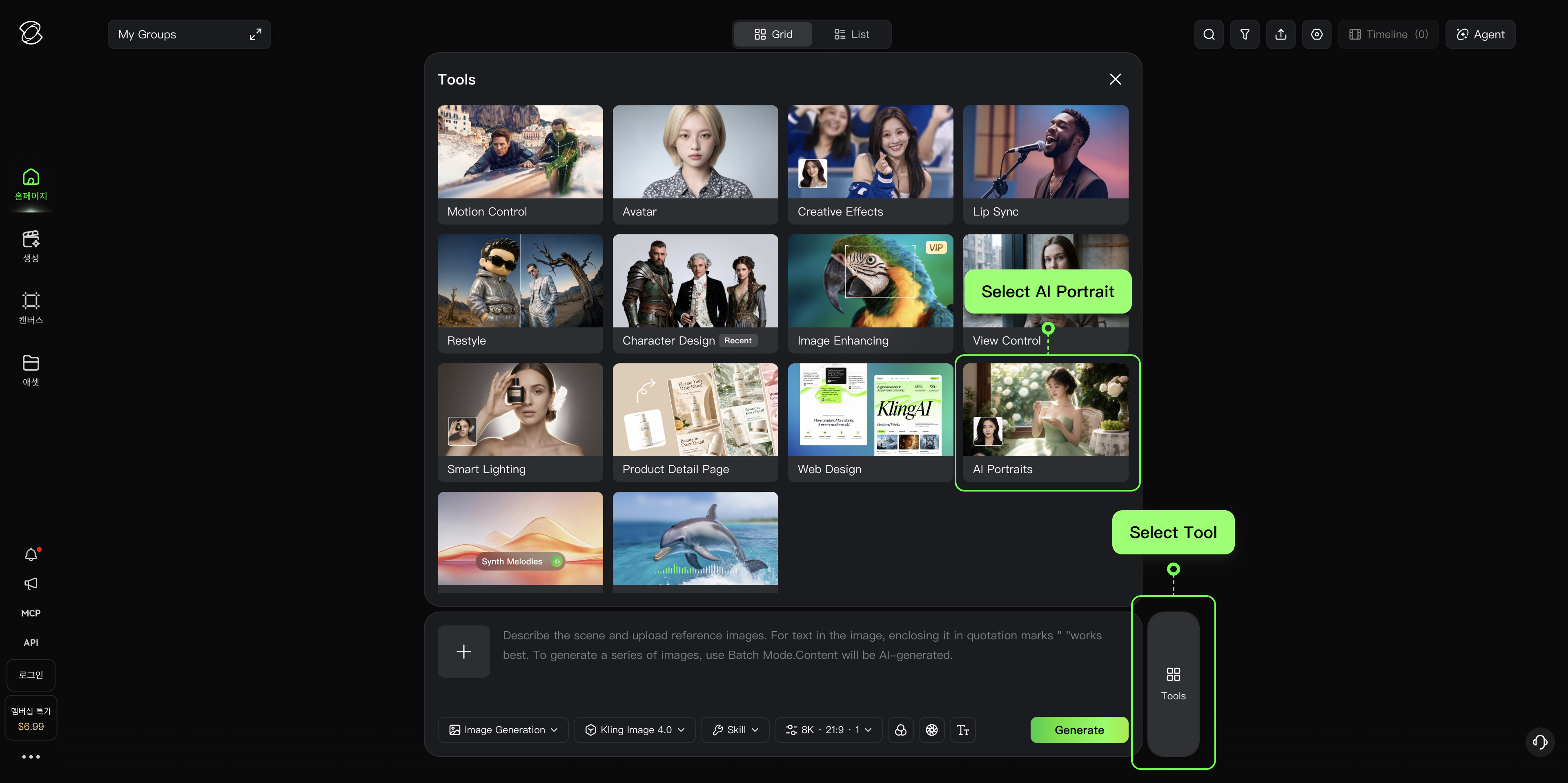
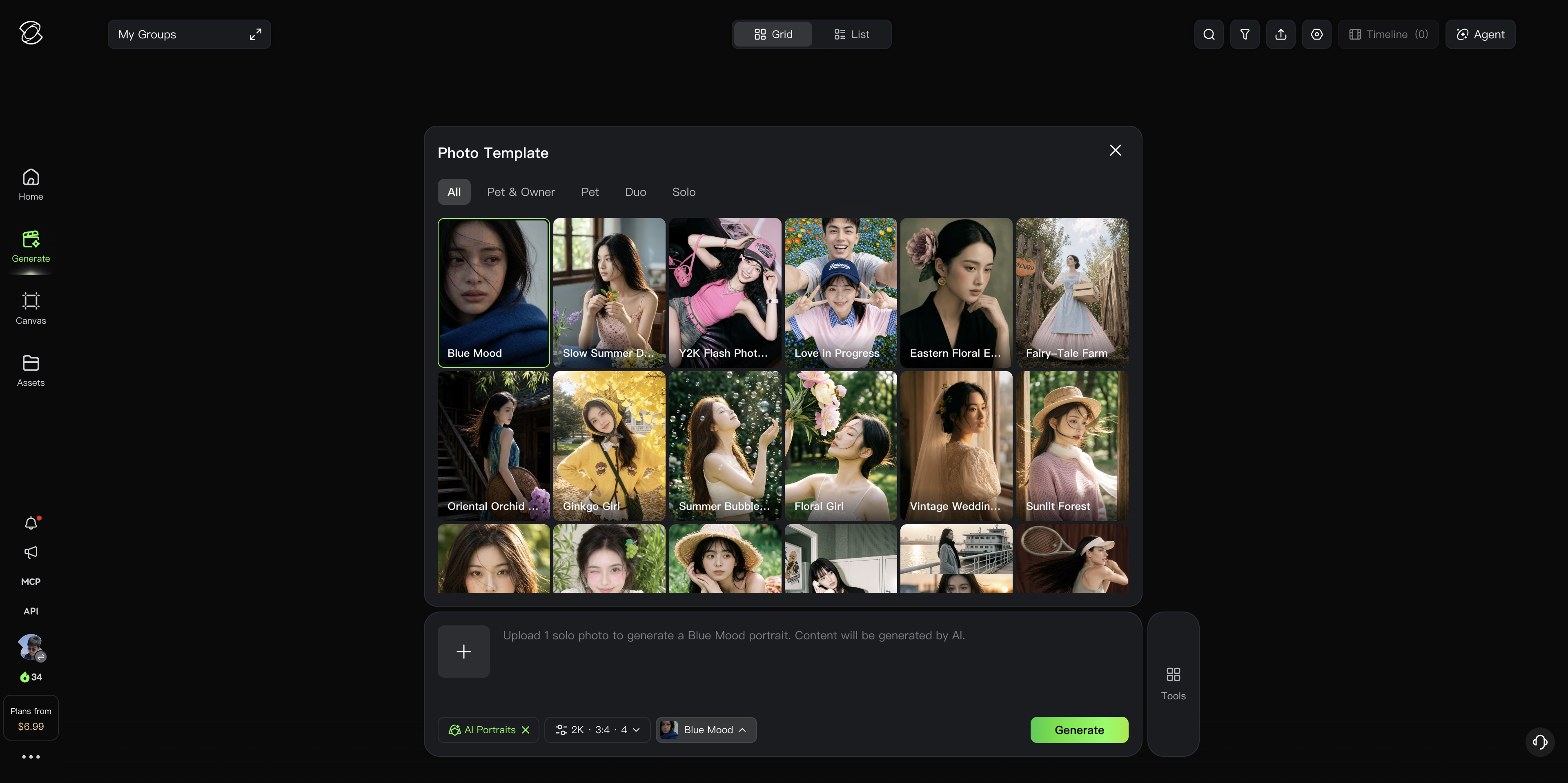
2️⃣ Style Transformation
Template (Ready to Use):
Transform [Input Image] to match the style of [Reference Image]. [Specify the part you want to match, such as color, light, style...etc].
| Reference Image | 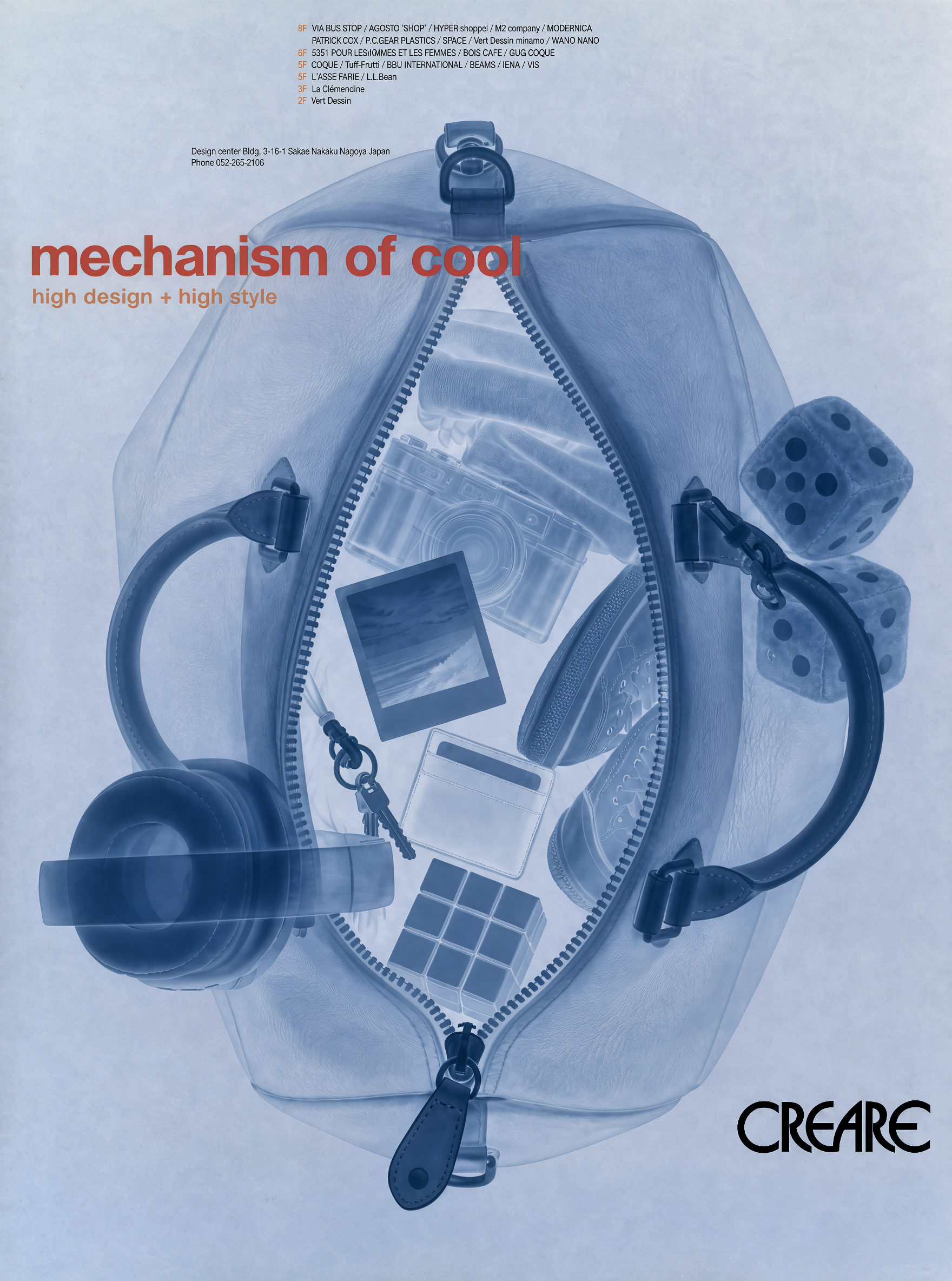 | 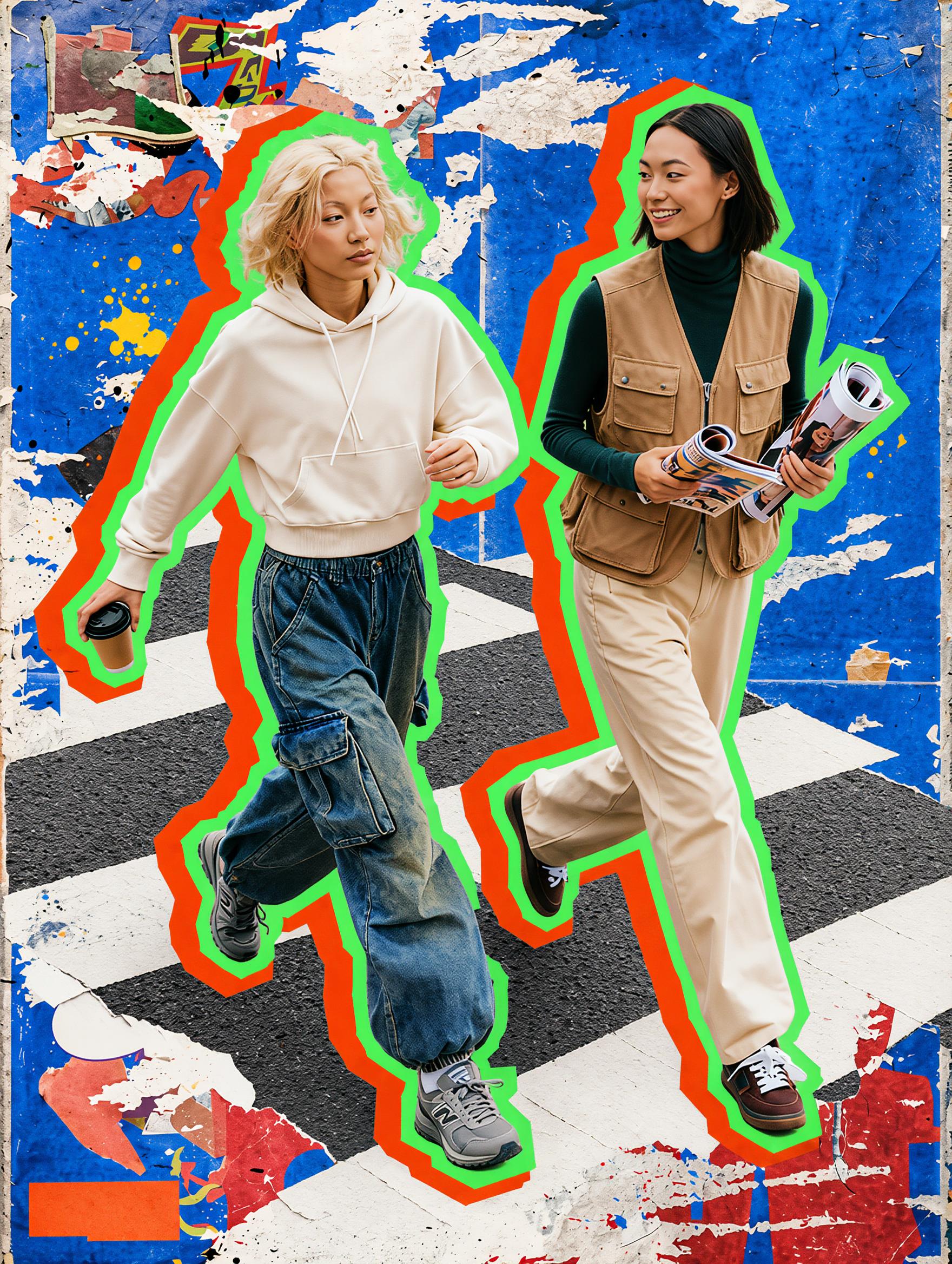 | 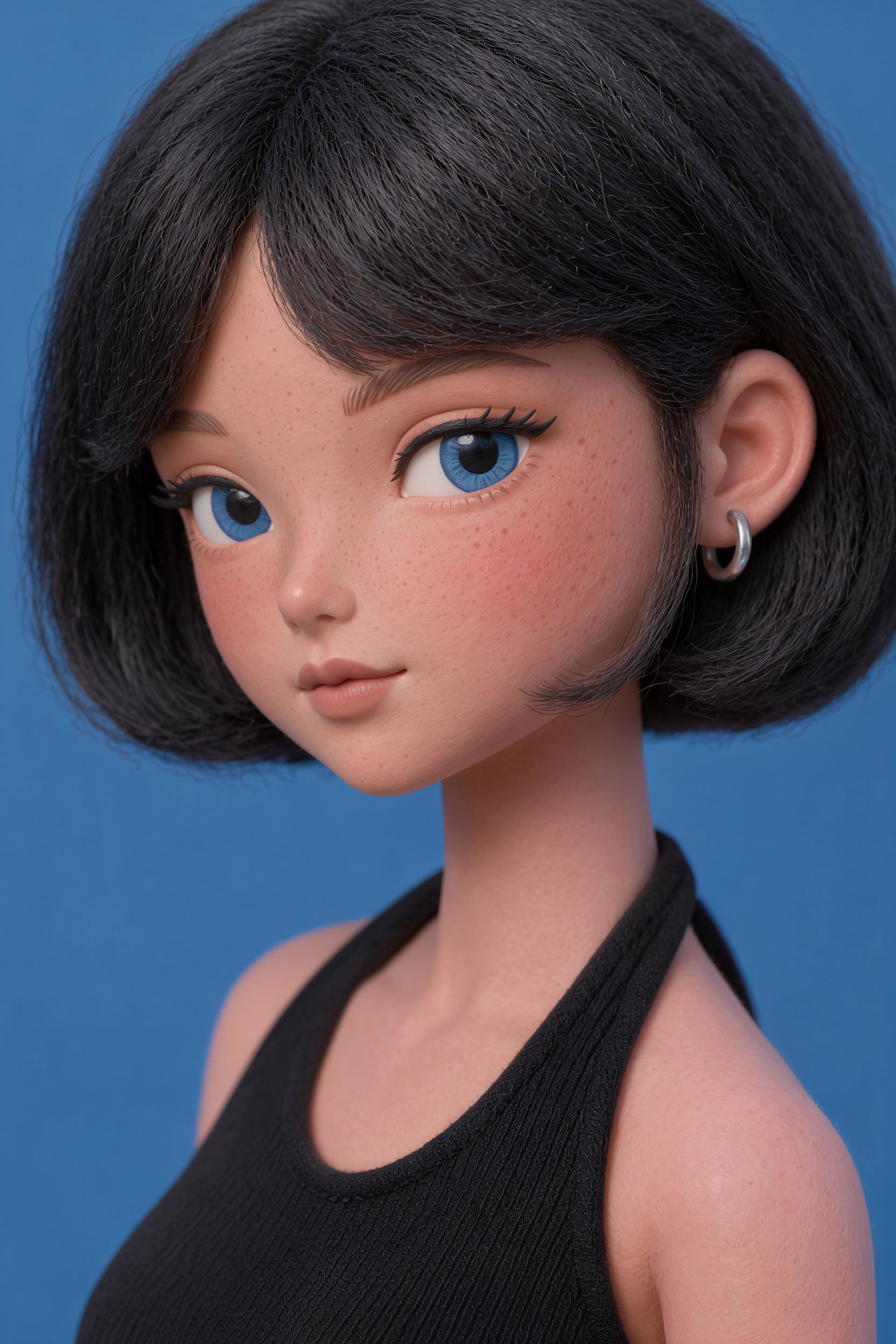 | 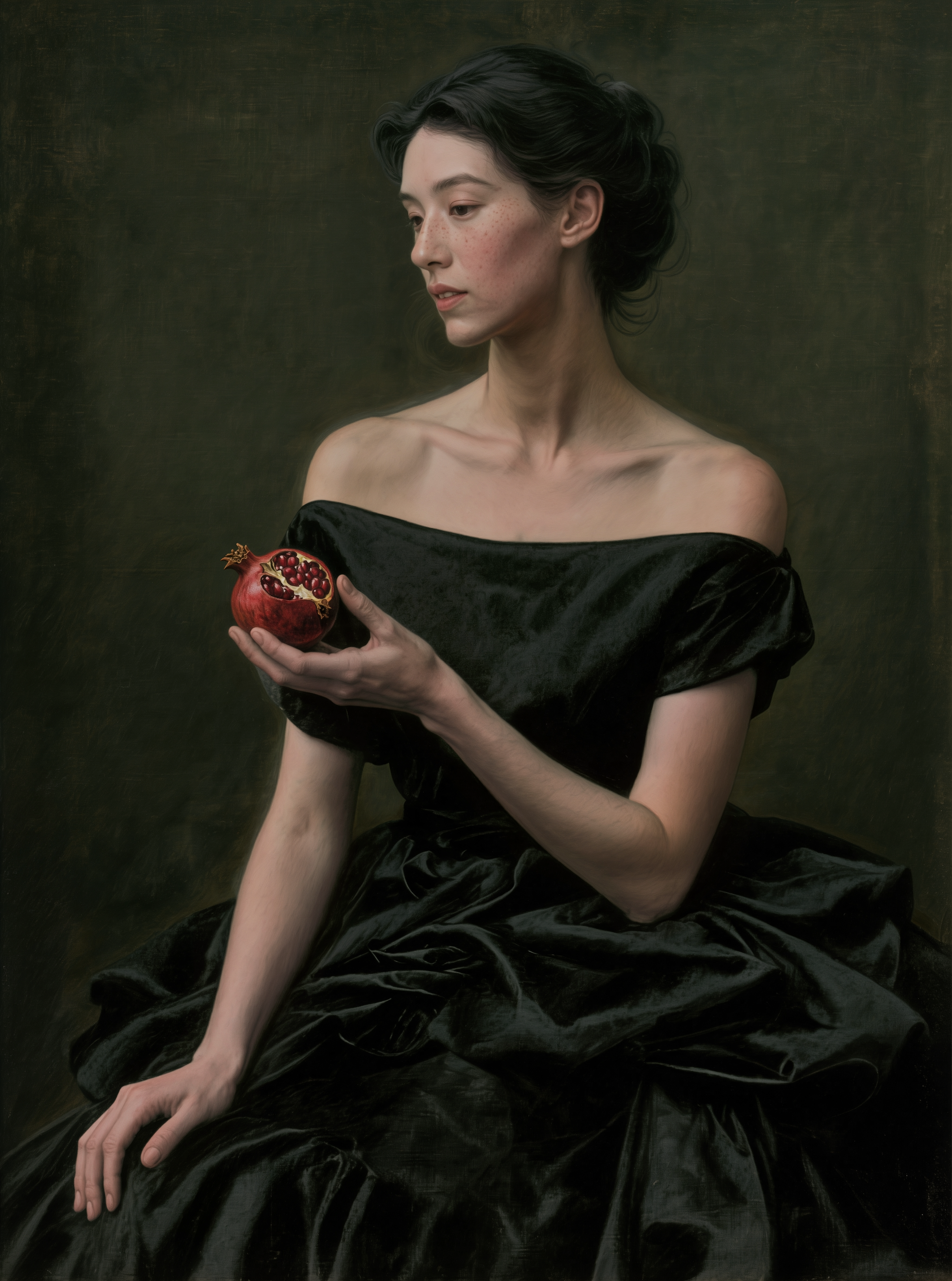 |
Input Image/ Prompt |
Transform Image 2 using the X-ray visual style and color palette of Image 1. Match the text and typography layout in Image 1. |
Transform Image 2 to match the visual style, color palette, and distinctive characteristics of Image 1, while preserving the subject and composition of Image 2. |
Recreate Image 2 in the style of Image 1, with rich visual detail and a faithful match to the reference style. Use a 3:4 aspect ratio. |
Use the person in Image 2 to recreate the look of Image 1, matching its pose, filter effects, and texture as closely as possible while preserving the person’s identity from Image 2.
|
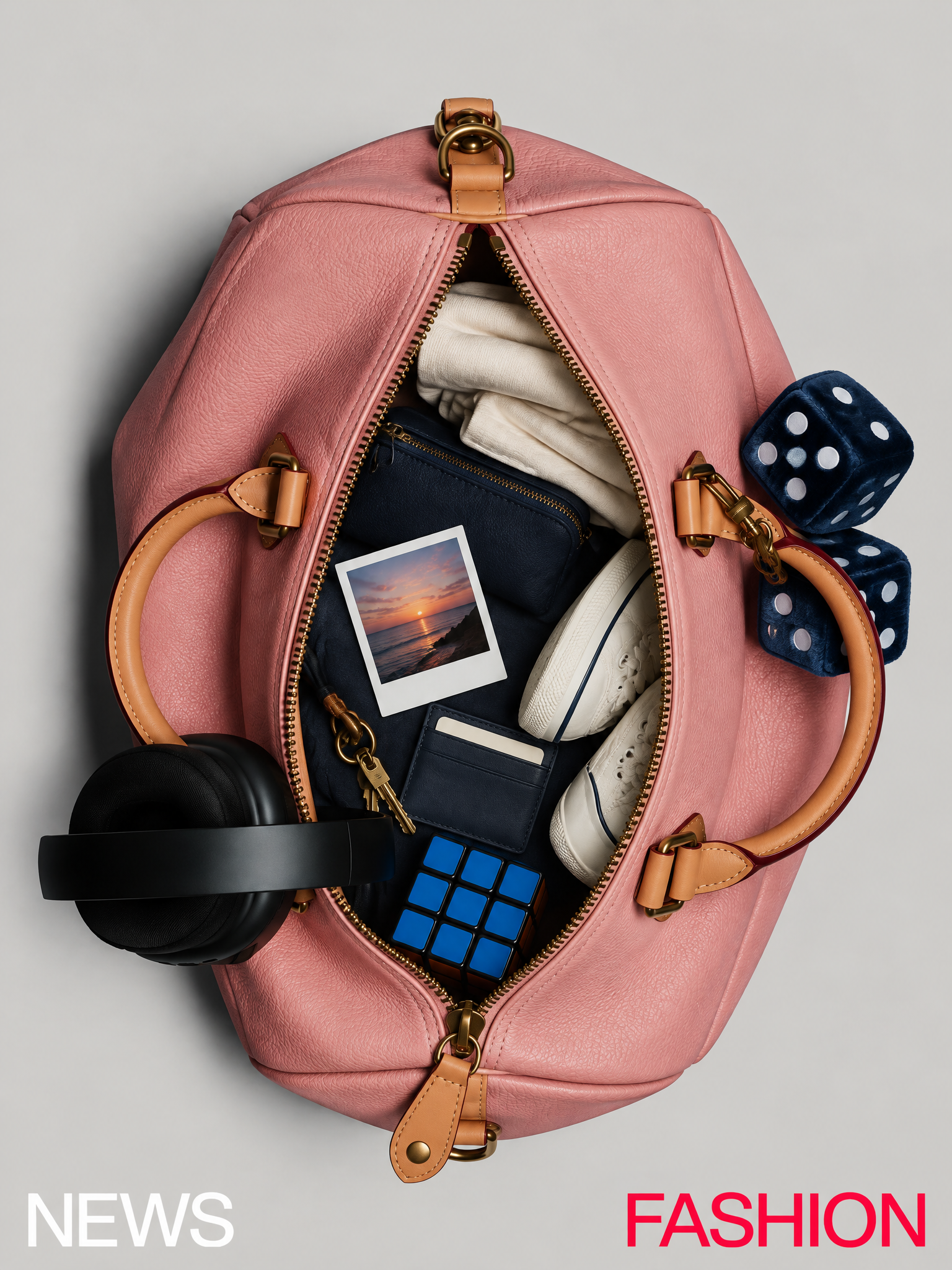
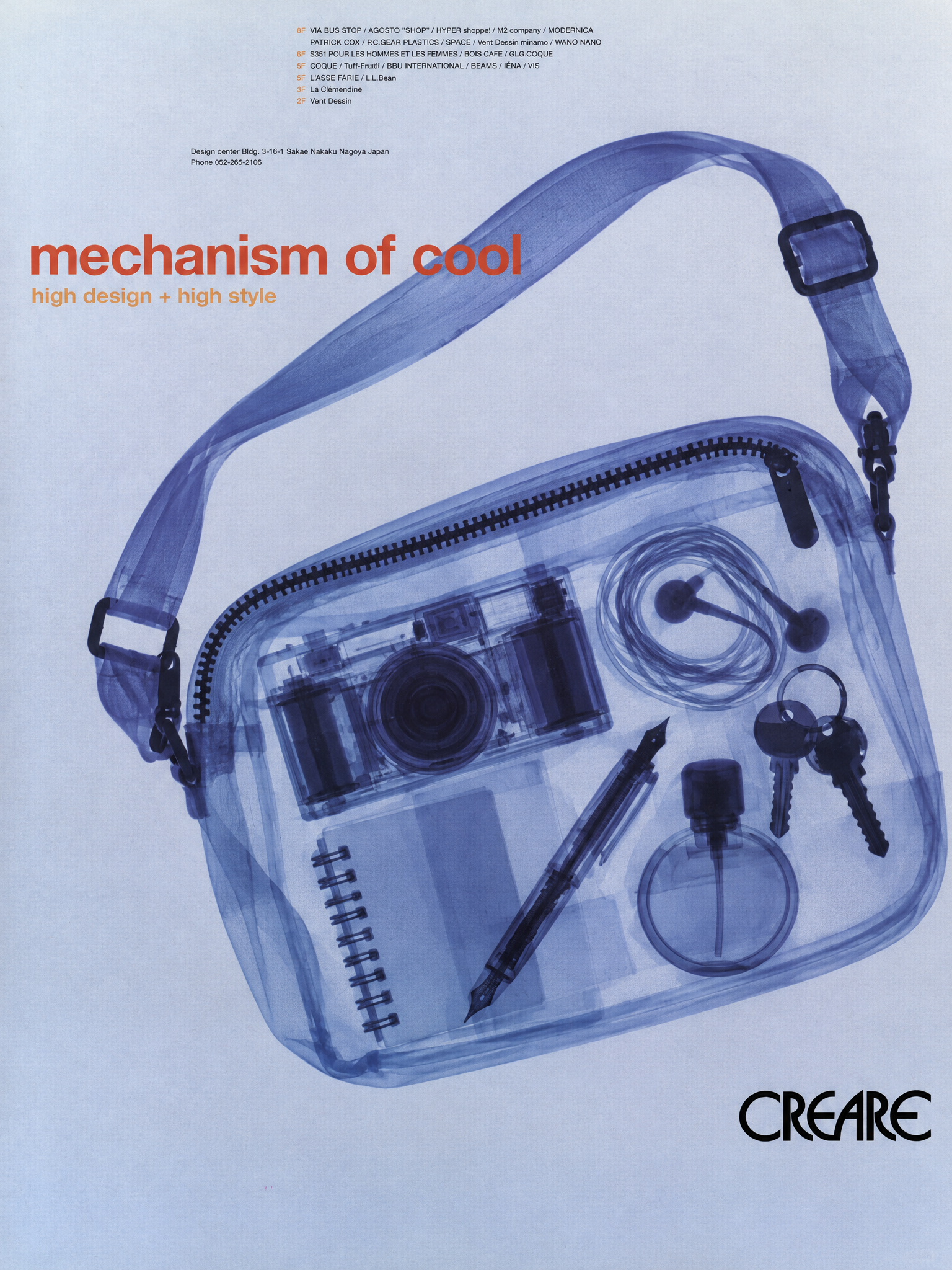
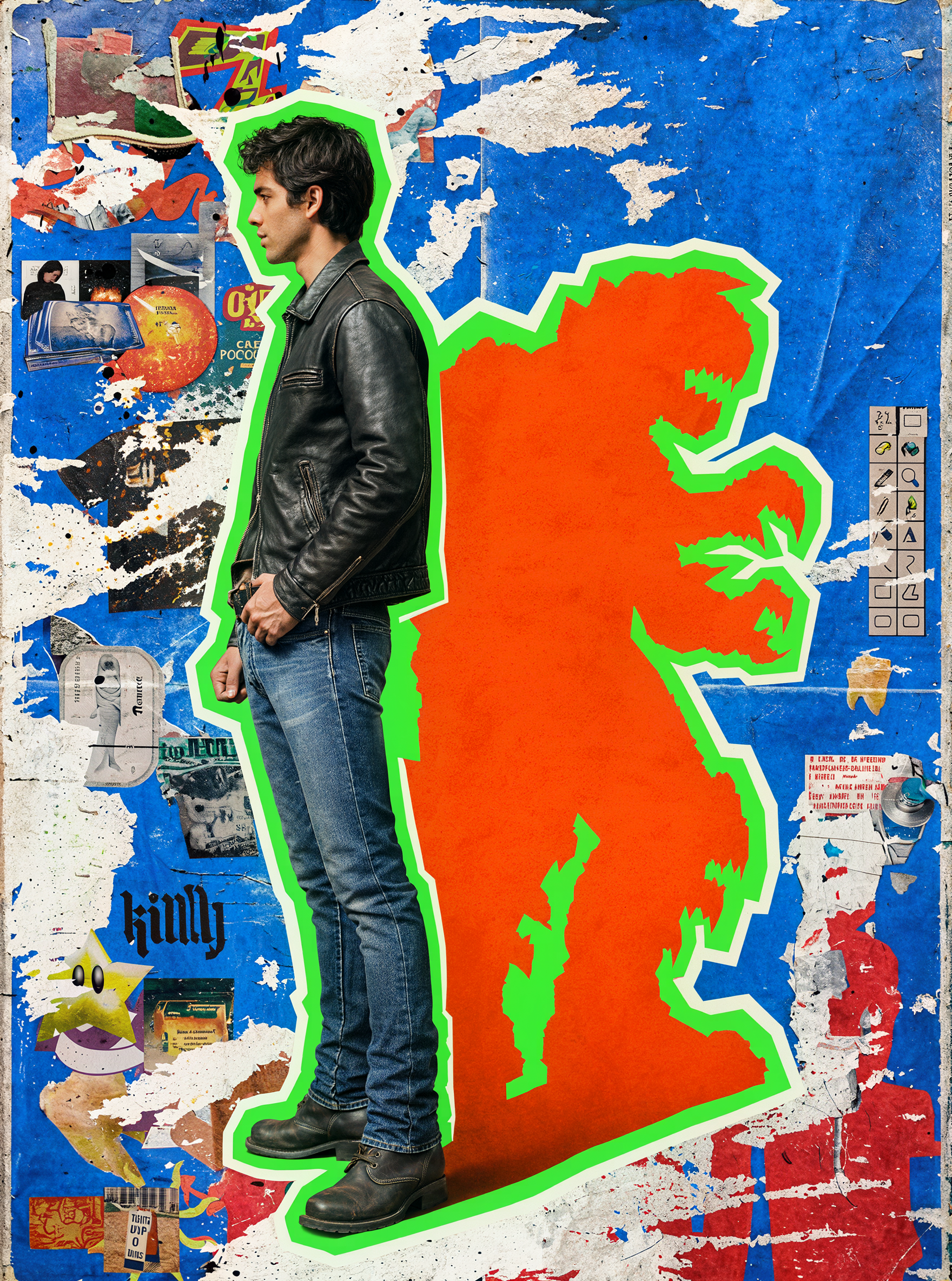
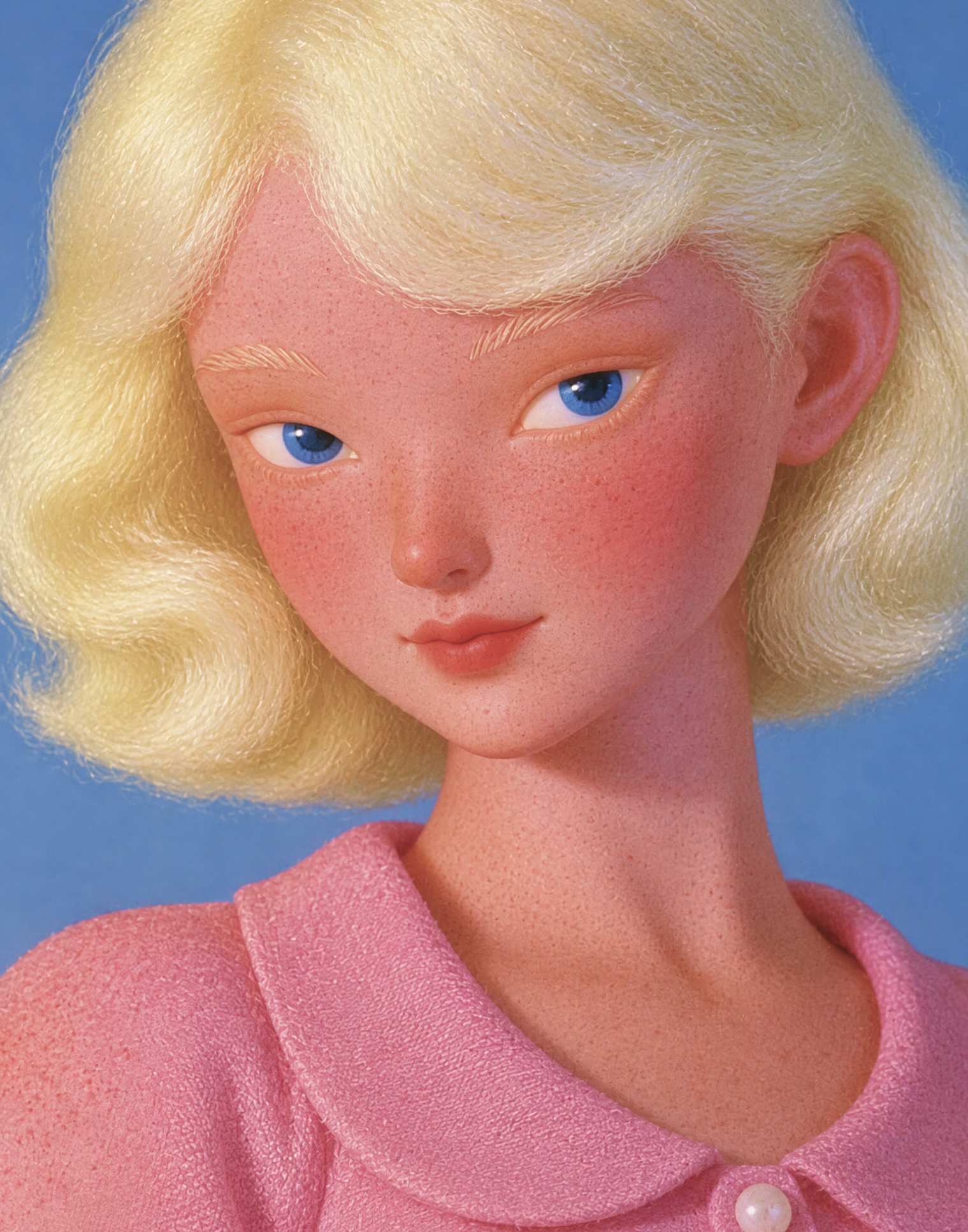
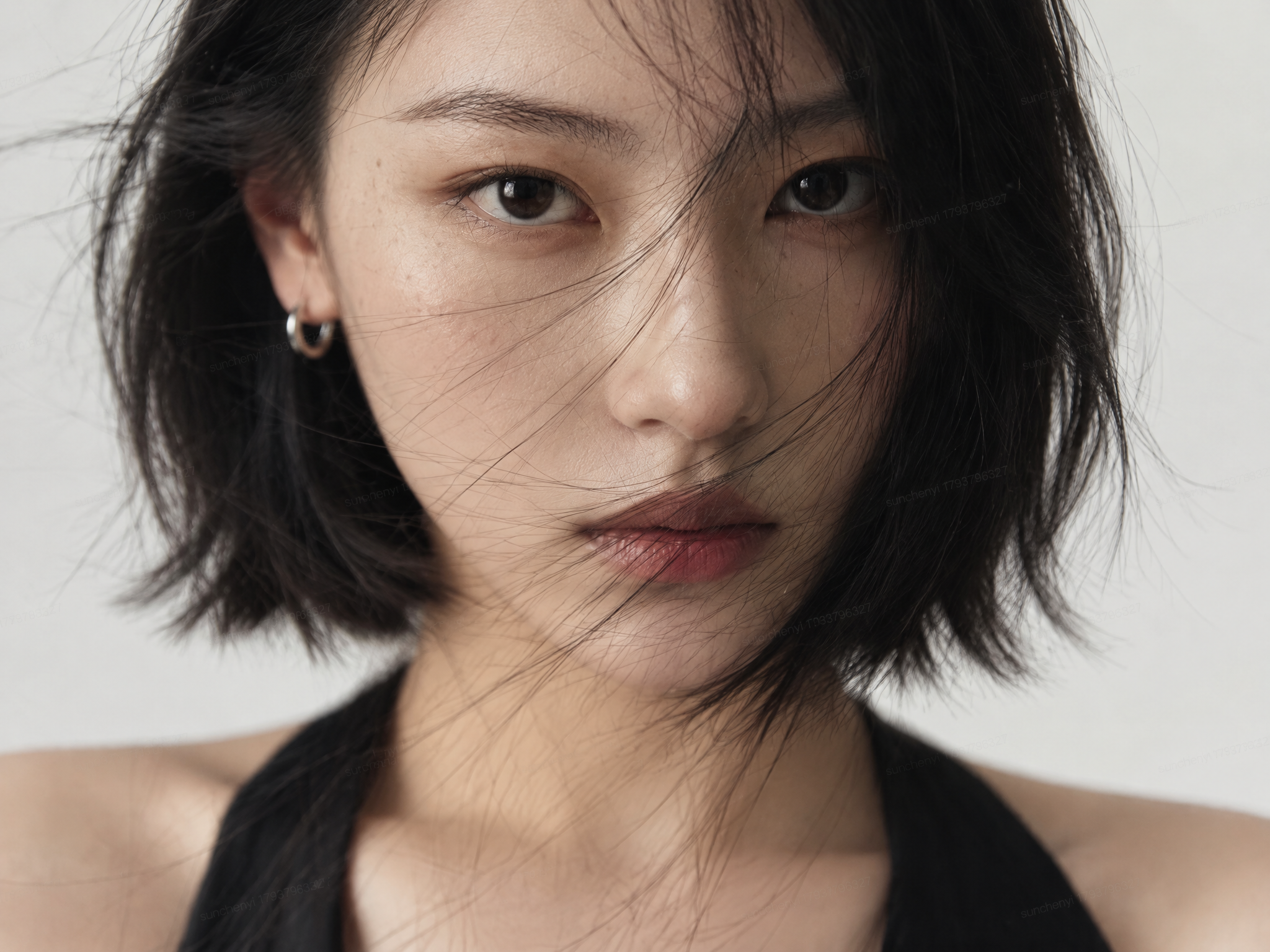
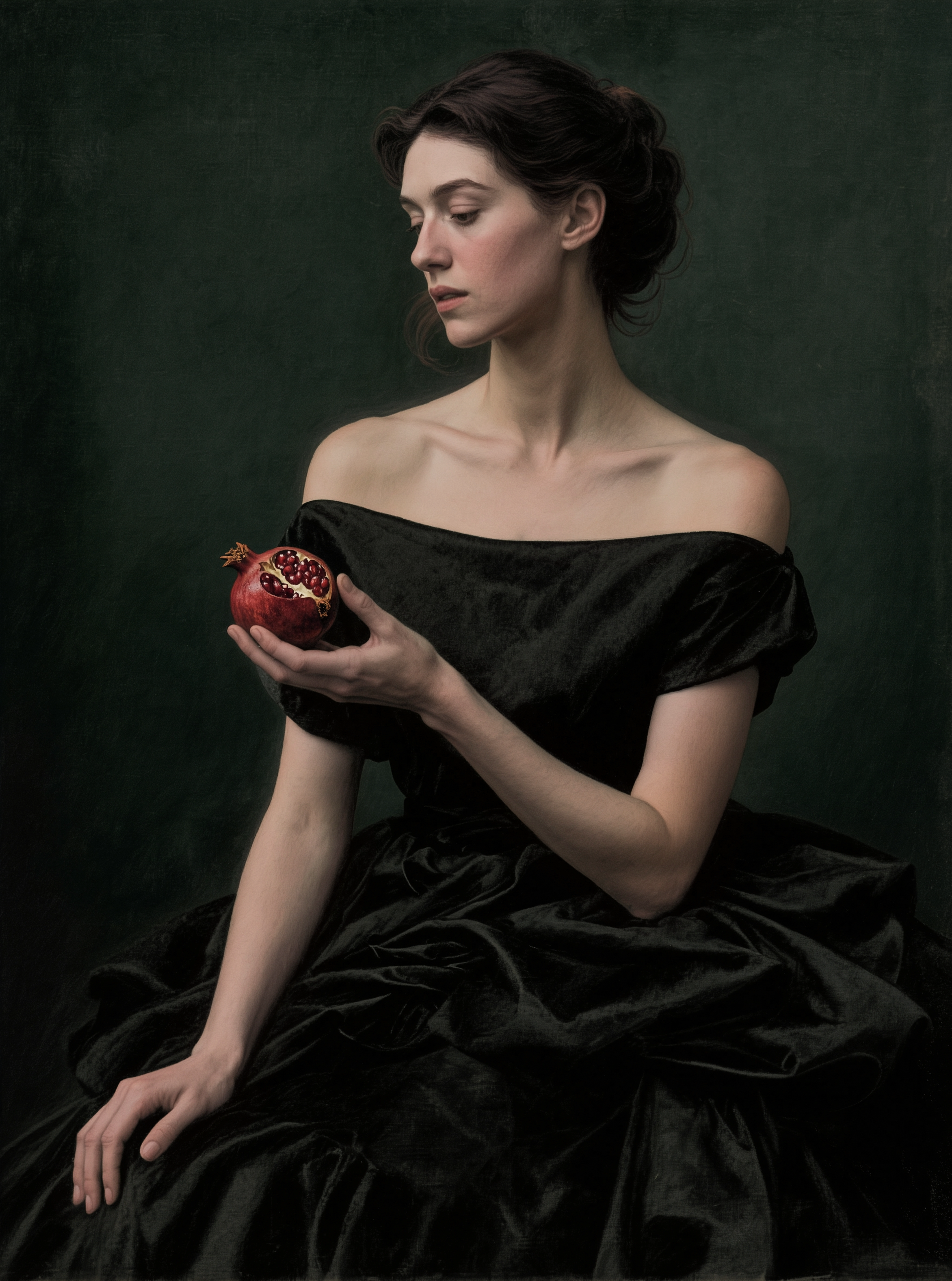
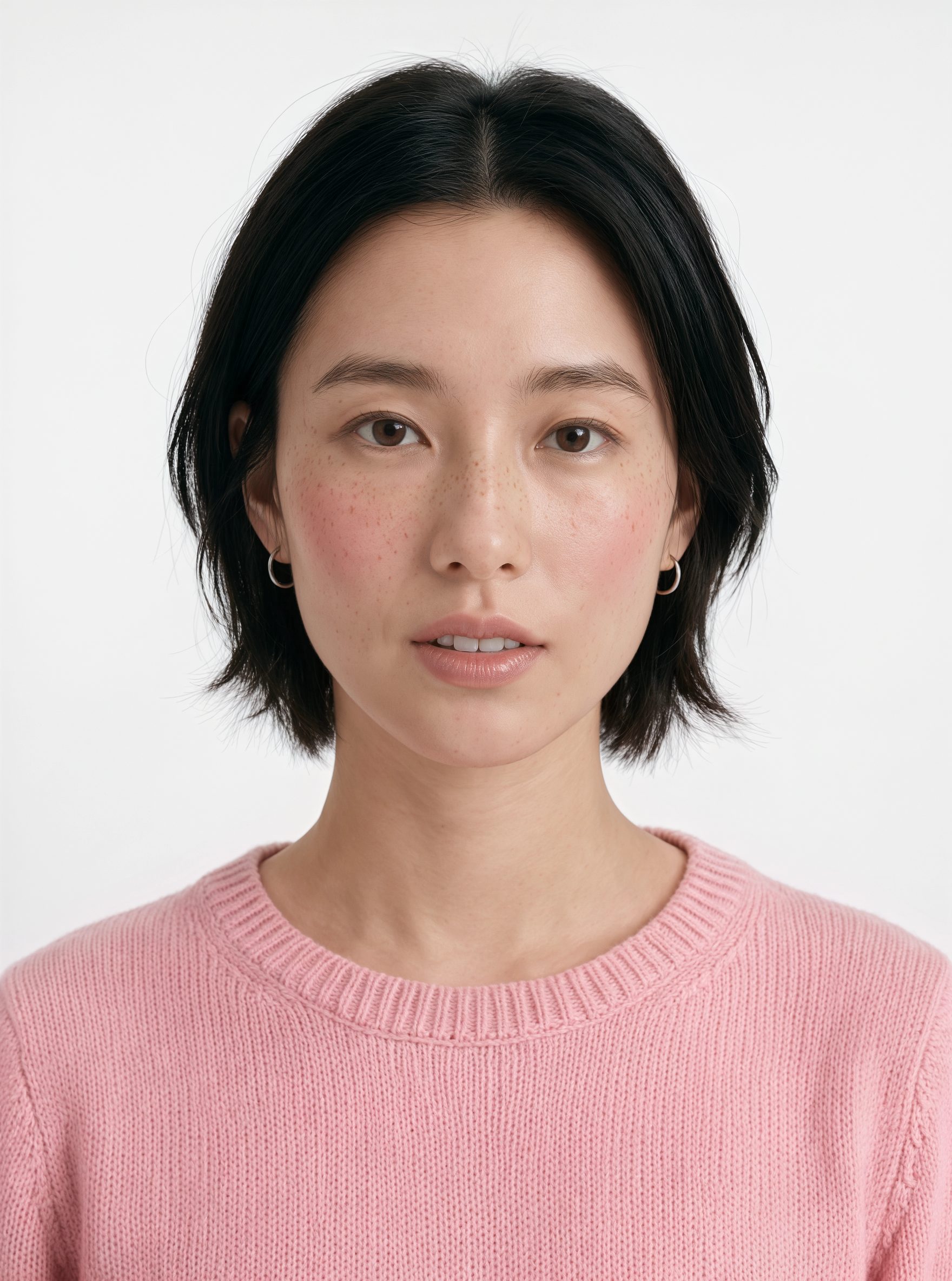
3️⃣ Holiday Greeting Cards
Template (Ready to Use):
Create a [description of the desired design] inspired by the [style] of [Input Image].
| Greeting Cards and Invitations |  |  |
Input Image/ Prompt |
Create a warm, elegant British Christmas greeting card inspired by the vintage handmade printmaking style of the uploaded reference image. Use an ivory paper background and a retro red-and-green color palette, with rough printed textures. Include hand-drawn Christmas trees, holly leaves, red bows, golden stars, and snowflakes. Evoke the atmosphere of a winter day in the English countryside, with a snow-covered cottage, fireplace, and soft glowing lights in the distance. Add an irregular red striped border around the edges. In the center of the card, write the following message in a clear, elegant vintage handwritten font: “Dear Oliver, Wishing you a very Merry Christmas and a happy, healthy New Year. With warmest wishes, The text must be complete, spelled correctly, and clearly legible, with natural typography and wording appropriate for a British Christmas greeting. The overall design should feel warm, nostalgic, and sincere, retaining the texture of the paper and the imperfect details of handmade printing. No watermarks, logos, or additional text.
|
Use reference image 1 as the visual style reference and reference image 2 as the only family identity reference. Create a warm handmade Christmas greeting card in a vintage cut-paper collage and scrapbook style. Preserve the exact identity of the family from reference image : the mother, father, and child, including their facial features, hairstyles, skin tones, expressions, family relationship, clothing, and recognizable appearance. Do not add or remove any family members. Carefully cut the family out from the original background and place the family photograph in the center of the card as a colorful printed family photo. Keep the original natural colors of the family photo, including realistic skin tones, hair colors, clothing colors, and facial details. Do not convert the family photo to black and white, grayscale, monochrome, or faded sepia. The family photo must remain clear, warm, vivid, and recognizable. Place the colorful family photo inside a large red or burgundy Christmas heart, Christmas wreath, or handmade irregular paper frame. Give the photo irregular torn-paper edges, a soft cream border, subtle paper shadows, visible glue or tape marks, and a slightly tilted scrapbook placement. The photo should look like a real colorful family photograph pasted onto a handmade Christmas card, while preserving the original family atmosphere and natural smiles. Use an off-white aged paper background with visible paper fibers, light creases, imperfect edges, handmade cutting marks, vintage printing grain, distressed ink, slight color misregistration, and tactile paper texture. Surround the family photo with festive handmade collage elements: red and dark green stars, gold stars, pine branches, holly leaves, red berries, snowflakes, candy canes, Christmas lights, bells, ribbons, gift boxes, stockings, gingerbread cookies, Santa hats, snowmen, and a small Christmas tree. Every decorative element should look like a paper cutout, fabric patch, vintage magazine illustration, or hand-painted scrapbook piece, not glossy 3D icons. At the top or upper area of the card, create handmade collage lettering that reads: Use mismatched cut-paper letters with different paper textures, colors, sizes, and typefaces. The phrase must remain clearly readable. Place the following Christmas message in a clean, elegant handwritten or vintage printed text block, preferably on a cream paper note or parchment-like collage panel so that all words remain legible: “Dear Oliver, Wishing you a very Merry Christmas and a happy, healthy New Year. With warmest wishes, Keep the wording exactly as provided. Do not rewrite, omit, paraphrase, duplicate, or replace the text. Use tasteful dark green, burgundy, or charcoal lettering with good spacing and strong contrast against the light paper panel. The message should feel personal, warm, sincere, and suitable for a family Christmas greeting card. Follow the composition of reference image 1: a central colorful family photograph, surrounded by handmade Christmas decorations, cutout shapes, stars, leaves, ornaments, and scrapbook lettering. Keep the composition charming, slightly asymmetrical, tactile, playful, nostalgic, and carefully balanced. The colorful family photo must remain the main emotional focus, while the Christmas decorations and message support the composition without covering the faces. Color palette: warm cream, muted red, burgundy, forest green, dark green, mustard gold, pale blue, bright natural photo colors, and charcoal black. Vintage 1970s–1990s handmade Christmas card aesthetic, retro scrapbook poster, screen-print texture, faded surrounding ink, colorful family photo collage, cut-paper collage, warm family holiday greeting card, nostalgic handmade design, collectible Christmas card, vertical format, highly detailed.
|

3.5 Working Professionals
1️⃣ PPT· Series Mode
Suitable for presentations, sharing, and proposal showcases. Series Mode allows each slide presented as an individual image. You can provide just the topic, audience, and visual style, or include an outline to further define the focus of each slide.
Template (Ready to Use):
[Topic and Audience] + [Number of Slides and Aspect Ratio] + [Visual Style] + [Optional: Slide-by-Slide Outline] + [Consistency Requirements]
Topic and Audience: Specify the presentation topic and target audience. For example, “2025 Fashion Industry Trends Report for Brand Partners” or “Tech Product Introduction for Investors.”
Number of Slides and Aspect Ratio: Specify the number of slides and aspect ratio. The standard format is usually 16:9 landscape.
Visual Style: Describe the overall visual style, such as “clean corporate,” “minimalist business,” or “futuristic tech.” You can also specify the color palette and layout preferences, such as “ivory background, dark gray text, and a clean layout.”
Slide-by-Slide Outline (Optional): Describe the key content for each slide. You can specify a cover slide, table of contents, content slides, and a conclusion. If no outline is provided, the model will automatically plan the presentation based on the topic.
Consistency Requirements: Specify requirements such as “Keep the color palette and title style consistent across all slides.”
Prompt Example 1 (Without Slide-by-Slide Requirements) | Prompt Example 2 (With Slide-by-Slide Requirements) | |
Generate [5] PPT presentation slide images on the topic of [Your Topic], for [Your Target Audience], in [Your Visual Style]. Organize the content around the topic. Use an overall design style that follows [Your Visual Style Requirements, e.g. an ivory background, dark gray text, and a clean layout]. Keep the color palette and title style consistent across all slides, with one key takeaway highlighted on each slide.
| Generate [5] PPT presentation slide images on the topic of [Your Topic], for [Your Target Audience], in [Your Visual Style]. Slide 1, Cover: [Your Title]. Slide 2: [Your Content Requirement 1]. Slide 3: [Your Content Requirement 2]. Slide 4: [Your Content Requirement 3]. Slide 5, Conclusion: [Your Summary]. Use an overall design style that follows [Your Visual Style Requirements, e.g. an ivory background, dark gray text, and a clean layout]. Keep the color palette and title style consistent across all slides, with one key takeaway highlighted on each slide. | |
Fashion Industry
|
|
| Prompt / Input Image | Create a 6-slide 16:9 luxury fashion brand presentation for the fictional Parisian fashion house “Kling Collection.” All visible slide text must be in English.
|
| Technology Industry |
|
| Prompt / Input Image | === SLIDE 1 · COVER === premium tech keynote style, deep space black studio background, cinematic rim lighting, minimal sans-serif typography in pearl white with generous negative space, professional presentation slide, 16:9 widescreen, flagship smartphone floating at a dramatic three-quarter angle, grade-five titanium frame with brushed metal texture, polished ceramic back panel, circular halo camera module ringed with fine metallic ridges, soft warm amber and violet aurora gradient glow blooming behind the device, subtle floor reflection beneath, Slide title: AETHER ONE, Subtitle: Light, made personal. Introducing the most luminous device we have ever built, sophisticated monochrome palette of deep black pearl white and silver titanium with warm amber and violet aurora accents, avoid generic tech blue colors, high-end industrial design visual, ultra high resolution, cinematic color grading, sharp typography === SLIDE 2 · DESIGN PHILOSOPHY === premium tech keynote style, deep space black studio background, cinematic rim lighting, minimal sans-serif typography in pearl white with generous negative space, professional presentation slide, 16:9 widescreen, a single beam of white light passing through darkness and spreading into a full spectrum across the stage, giant statement typography floating over a soft amber-and-violet gradient, one thin golden hairline crossing the frame, Slide title: Everything begins with light., Subtitle: Design philosophy, sophisticated monochrome palette of deep black pearl white and silver titanium with warm amber and violet aurora accents, avoid generic tech blue colors, high-end industrial design visual, ultra high resolution, cinematic color grading, sharp typography === SLIDE 3 · AETHER A2 CHIP === premium tech keynote style, deep space black studio background, cinematic rim lighting, minimal sans-serif typography in pearl white with generous negative space, professional presentation slide, 16:9 widescreen, the Aether A2 chip die floating above the stage like a tiny city of light, golden circuit veins glowing across the silicon, exploded layers suspended beneath, thin light beams connecting each layer, Slide title: Aether A2. The engine of light., Subtitle: Built on a second-generation 3-nanometer process, sophisticated monochrome palette of deep black pearl white and silver titanium with warm amber and violet aurora accents, avoid generic tech blue colors, high-end industrial design visual, ultra high resolution, cinematic color grading, sharp typography === SLIDE 4 · LUMINOUS DISPLAY === premium tech keynote style, deep space black studio background, cinematic rim lighting, minimal sans-serif typography in pearl white with generous negative space, professional presentation slide, 16:9 widescreen, the display panel floating upright in the dark, the screen glowing with a live color spectrum, light washing across the studio floor, a thin beam tracing the panel edges, Slide title: Luminous. By name. By nature., Subtitle: A 6.9-inch LTPO OLED that reaches 3,000 nits, sophisticated monochrome palette of deep black pearl white and silver titanium with warm amber and violet aurora accents, avoid generic tech blue colors, high-end industrial design visual, ultra high resolution, cinematic color grading, sharp typography === SLIDE 5 · HALO CAMERA === premium tech keynote style, deep space black studio background, cinematic rim lighting, minimal sans-serif typography in pearl white with generous negative space, professional presentation slide, 16:9 widescreen, exploded view of the Halo camera module suspended in darkness, lens stack separated into floating elements, beams of light entering the main lens, soft night-city bokeh glowing behind, Slide title: Halo. Light, composed., Subtitle: A professional imaging system, sophisticated monochrome palette of deep black pearl white and silver titanium with warm amber and violet aurora accents, avoid generic tech blue colors, high-end industrial design visual, ultra high resolution, cinematic color grading, sharp typography === SLIDE 6 · BATTERY & CHARGING === premium tech keynote style, deep space black studio background, cinematic rim lighting, minimal sans-serif typography in pearl white with generous negative space, professional presentation slide, 16:9 widescreen, a glowing ring of amber light encircling the device, charging pulses rippling outward like a slow heartbeat, a soft energy wave spreading across the dark floor, Slide title: All day. Then some., Subtitle: A 5,300-milliampere-hour silicon-carbon battery with 85-watt HyperCharge — endurance that keeps up with your light, sophisticated monochrome palette of deep black pearl white and silver titanium with warm amber and violet aurora accents, avoid generic tech blue colors, high-end industrial design visual, ultra high resolution, cinematic color grading, sharp typography === SLIDE 7 · AETHEROS & AI === premium tech keynote style, deep space black studio background, cinematic rim lighting, minimal sans-serif typography in pearl white with generous negative space, professional presentation slide, 16:9 widescreen, translucent interface panels floating in layered dark space, small glowing nodes connected by fine threads of light, a soft aurora haze behind the panels, Slide title: AetherOS 12. Intelligence, at home., Subtitle: Rebuilt around the Aether A2 neural engine, sophisticated monochrome palette of deep black pearl white and silver titanium with warm amber and violet aurora accents, avoid generic tech blue colors, high-end industrial design visual, ultra high resolution, cinematic color grading, sharp typography === SLIDE 8 · PRICING & CLOSING === premium tech keynote style, deep space black studio background, cinematic rim lighting, minimal sans-serif typography in pearl white with generous negative space, professional presentation slide, 16:9 widescreen, the full device lineup floating in a row at three-quarter angles, soft golden horizon light rising behind the row, faint pricing lines glowing beneath each device, Slide title: AETHER ONE., Subtitle: Light, made personal. From 999 dollars — pre-orders open this Friday, in stores October the twenty-eighth, sophisticated monochrome palette of deep black pearl white and silver titanium with warm amber and violet aurora accents, avoid generic tech blue colors, high-end industrial design visual, ultra high resolution, cinematic color grading, sharp typography |