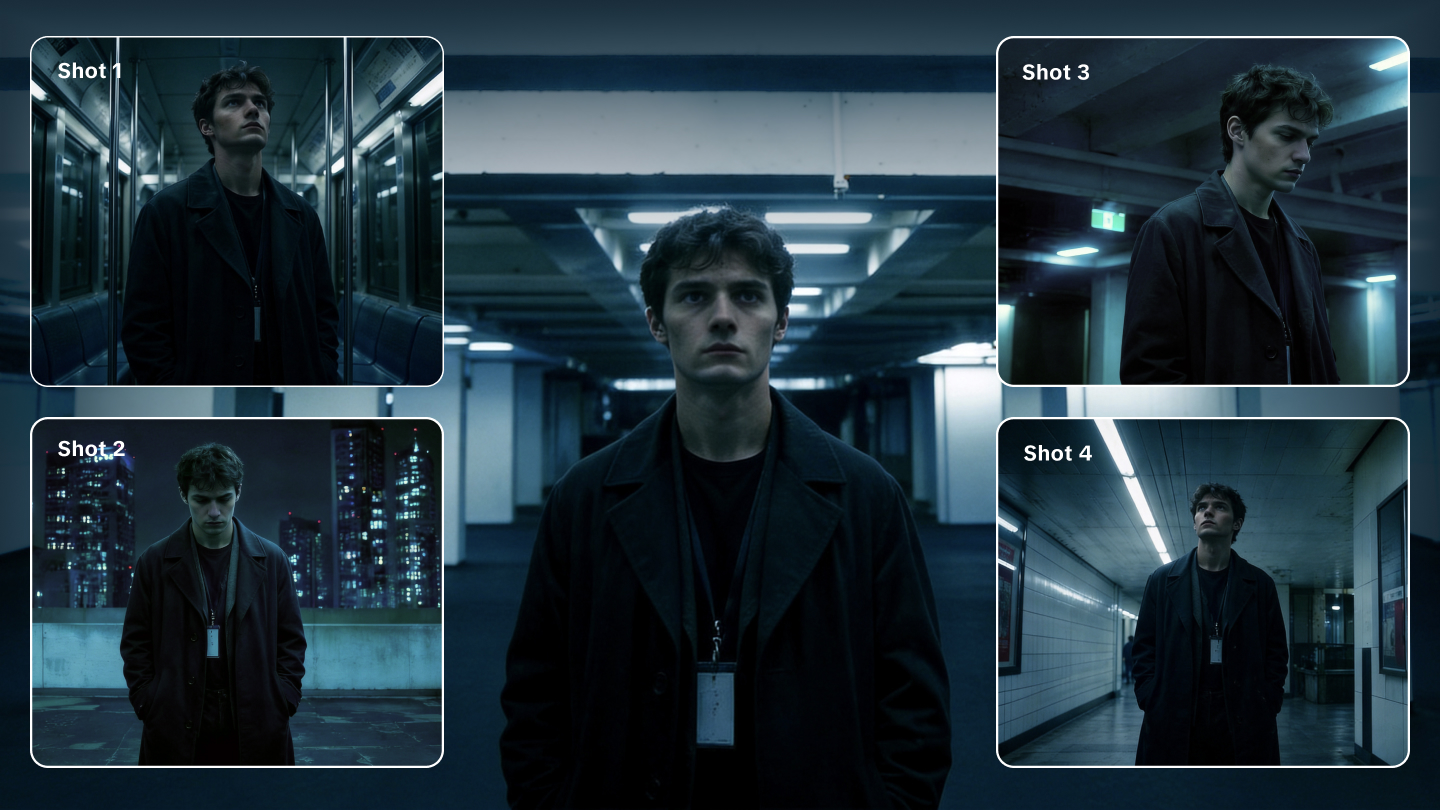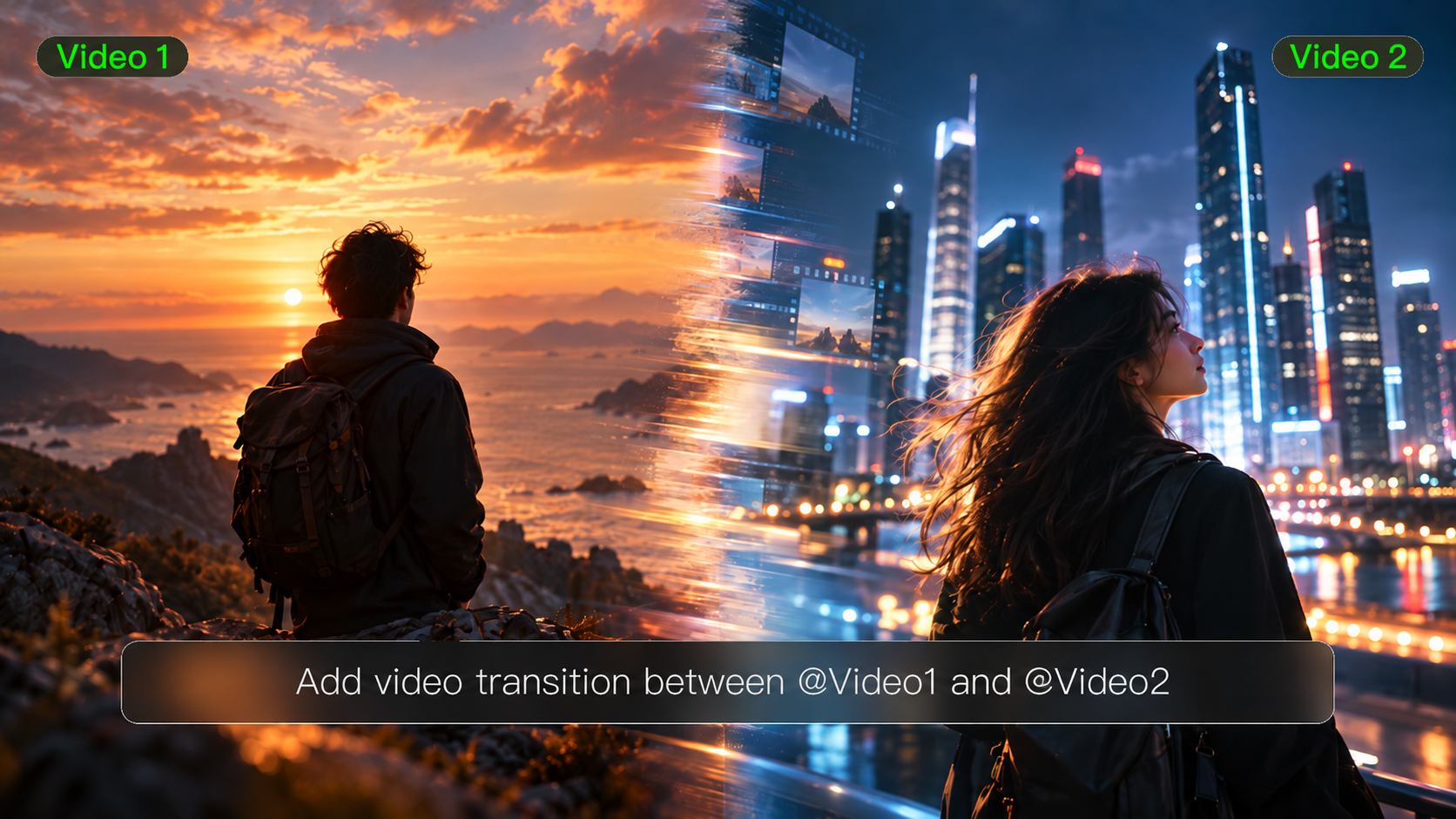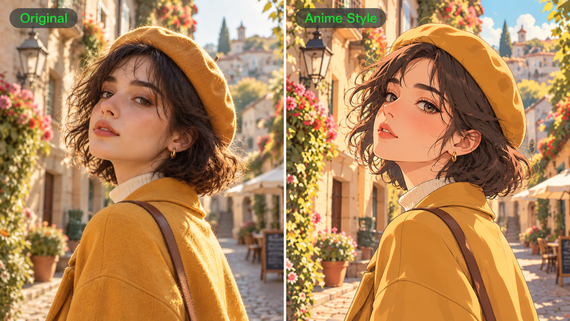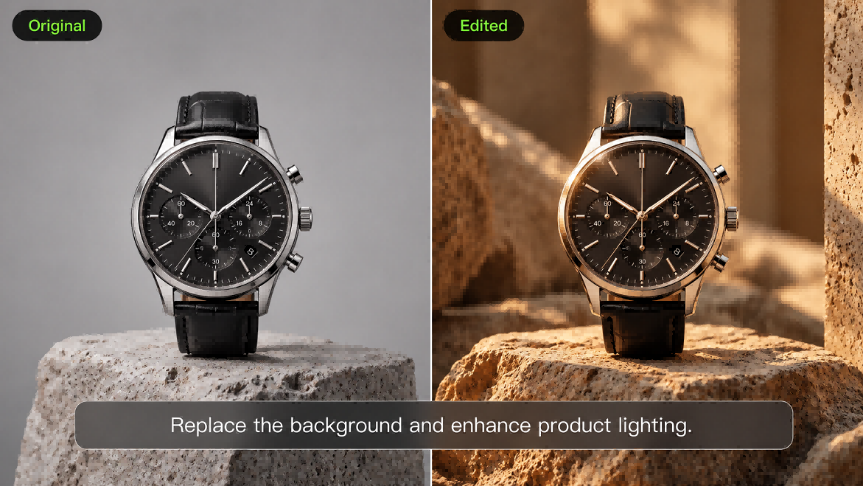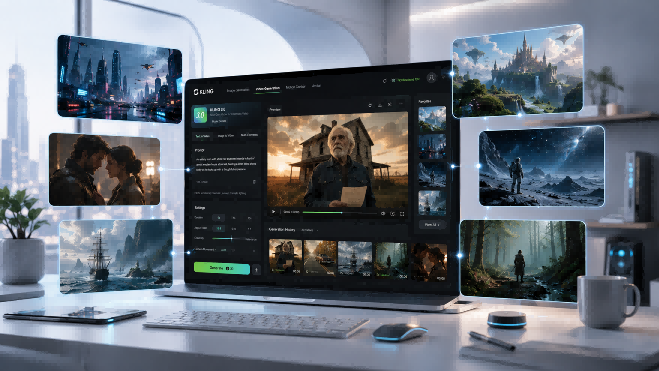
Generative AI now has an established role in video production, with AI video generation models used across social content, advertising, product launches, and short-form storytelling. As generative AI video models become part of professional production, creators are comparing how different AI models for video generation respond to prompts, reference assets, sound, and shot direction. This guide compares 10 AI video models across these production dimensions, then takes a closer look at how the Kling VIDEO 3.0 series works with prompts, reference assets, multi-shot direction, and audio within the same workflow.
.png?x-oss-process=image/resize,w_1872)
What Are AI Video Generation Models?
AI video generation models are systems that create, edit, or animate video from text, images, reference material, or existing footage. They work across time rather than treating each frame in isolation, accounting for changes in subject movement, lighting, camera position, and scene structure.
The starting input matters because different models are built around different ways of working.
Type | Starting Point | What It Does | Best Suited For |
Written prompt | Builds a scene from a description of the subject, setting, action, framing, or camera movement | Starting from an idea without an existing visual | |
Still image | Adds movement to the subject, environment, or camera while keeping the image as the visual base | Animating a person, product, artwork, or scene with an established look | |
Multimodal and Reference-Based Video | Text, images, video, or multiple references | Uses several inputs to guide appearance, motion, characters, products, or shot structure | Projects that need more continuity or tighter direction across a shot or sequence |
What Makes AI Video Generation Models Different?
At first glance, many AI video models can handle similar basic tasks. The differences become much easier to spot once you look at how they follow directions, keep a scene stable, manage shots, and handle sound.
Prompt Adherence: How accurately the model follows instructions for subject placement, action, composition, pacing, and camera movement.
Motion and Consistency: Whether movement looks natural and whether people, products, clothing, or environments remain recognizable throughout the video.
Native Audio: Some models can generate dialogue, ambient sound, and effects with the video, while others require a separate audio step.
Multi-Shot and Camera Control: Some models focus on a single short shot, while others can handle shot changes, camera angles, camera moves, and multi-shot sequences.
Resolution and Duration: Models vary in how long they can generate and what output resolution they support, which can shape the kinds of projects they are best suited for.
What Are the Best AI Video Generation Models in 2026?
There is no single model that works best for every video project. Below, we compare 10 current AI video generation models across motion, references, sound, shot direction, duration, and output quality.
Model | Useful For | Inputs | Reference Consistency | Native Audio | Multi-Shot / Camera Control | Duration / Output | Considerations |
| Multi-shot scenes, recurring characters, multilingual dialogue in five languages, reference-led workflows | Text, images, start/end frames and Elements; Omni accepts broader combinations of reference material | Elements can carry characters, products and other recurring subjects across shots | Yes | Multi-shot generation, custom shot timing, framing, angles and camera movement | Up to 15s; 4K output is available in supported workflows | Projects built around several references, reusable characters or voice-linked Elements are better matched to VIDEO 3.0 Omni. | |
Google Veo 3.1 | Short scenes where picture and sound are generated together | Text, image, video extension, first/last frames and up to three reference images | Reference images and frame inputs can anchor subjects and composition | Yes | First/last-frame input, prompt-led camera direction and video extension | 4, 6 or 8s; 720p, 1080p or 4K depending on the setting | Reference-image, 1080p and 4K generations use an 8-second duration. |
Runway Gen-4.5 | Detailed prompts, timed action and camera-led shots | Text or text plus image | An input image establishes the visual starting point | Audio is handled outside Gen-4.5 generation | Detailed prompt-based camera and action direction | 2–10s; 720p | Gen-4.5 currently outputs at 720p, while other parts of the Runway platform handle additional production tasks. |
Seedance 2.5 | Longer sequences and projects built from several references | Text plus image, video and audio references | Supports large reference sets across subjects, scenes and sound | Yes | Multi-shot structure, shot transitions, camera work and timestamp-level editing | Up to 30s per generation, with extension | Its broader reference set gives teams more material to organize before generation. |
Wan 3.0 | Longer projects drawing on several types of source material | Text, images, video, audio, documents and web pages | Multimodal references can be carried into the same generation | Yes | Long-form sequences, continuous camera movement and multimodal direction | Up to 30s; 1080p | Availability and supported resources can vary by market and access route. |
Luma Ray3.2 | Reworking, restyling or redirecting footage that already exists | Source video, prompt and keyframes | Preserves structure from the source while allowing visual changes | Not a central part of the Ray3.2 workflow | Up to 64 keyframes can anchor specific moments in the source-video timeline | Designed around source-video workflows | Ray3.2 is currently focused primarily on source-video workflows, especially video-to-video generation. |
MiniMax Hailuo 2.3 | Human motion, action and expressive performance | Text and image | Image input can establish the subject before motion is added | Not listed as part of the Hailuo 2.3 model itself | Responds to motion and camera instructions | 6 or 10s; 768p or 1080p depending on mode | Current 1080p options are tied to shorter generations. |
PixVerse V6 | Short narrative pieces, social video and effects-led scenes | Text, image, references, first/last frames and extension workflows | Reference-to-video tools support recurring visual material | Yes | Native multi-shot and camera direction | 1–15s; up to 1080p | The 15-second window suits short formats; longer pieces need more than one generation. |
Vidu Q3 Series | Character-led scenes, dialogue in three languages and short narratives | Text, image, start/end frames and references depending on the Q3 variant | Reference-to-video is available across the Q3 family | Yes | Frame-level camera and pacing controls | Up to 16s; up to 1080p depending on variant | Current native audio-video output lists English, Japanese and Chinese. |
Adobe Firefly Video Model | Brand work and projects that continue through Adobe tools | Text, image and composition-reference workflows | Images or composition references can guide the generated shot | Sound is handled through other parts of the Firefly workflow | Camera, framing and composition settings | 5s; up to 1080p | Adobe’s own video model currently works in five-second generations, with longer projects assembled through a wider workflow. |
*Specifications reflect publicly documented capabilities available at the time of writing. Features, access, and output settings may change as models are updated.
The comparison also shows why these models are difficult to place in a single ranking. They tend to fit different types of work:
- Multi-shot and reference-led projects: Kling VIDEO 3.0 / 3.0 Omni, Seedance 2.5, and Wan 3.0
- Short, closely directed scenes: Veo 3.1 and Runway Gen-4.5
- Motion or existing-footage work: Hailuo 2.3 for physical performance, and Ray3.2 for working from footage already shot
- Short narrative and creator projects: PixVerse and Vidu
- Adobe-based production: Firefly
The better fit depends on the material you start with and what the finished video needs to do.
How to Choose a Professional AI Video Generation Model?
Start with the job in front of you. What you are making, what material is already available, and which details must remain unchanged will usually tell you more than a long list of model specs.
Consider | Ask | Check For |
Video Type | Is it a product clip, dialogue scene, short narrative, or a revision of existing footage? | A model that matches the length, pacing, and structure of the piece |
Source Material | Are you working from text, an image, several references, or an existing video? | Support for the material you already plan to use |
Continuity | Which details need to stay recognizable from one shot to the next? | Tools for keeping characters, products, locations, clothing, or voices consistent |
Shot Planning | Do you need fixed framing, camera moves, exact timing, or several shots in sequence? | Start and end frames, camera settings, shot timing, or multi-shot options |
Finishing | What still needs to happen after the first clip is generated? | Enough length and resolution, plus the audio and editing options the final piece requires |
The first result matters, but it is only one part of the job. A model that works well through revisions, extra shots, sound, editing, and delivery may be a better choice than one that only produces the most eye-catching first clip.
How to Create AI Video With Kling VIDEO 3.0?
Once you know what matters most for your project, you can turn those choices into a working setup. With Kling VIDEO 3.0 Series, you can begin with text or an existing image, set the opening and ending frames, keep important subjects recognizable with Elements, and add dialogue, sound, or several shots before rendering the clip.
Step 1: Choose How You Want to Start
Begin with the material already in hand.
- Text-to-Video: Describe the subject, action, setting, and camera when the idea starts in words.
| Prompt: Aerial shot of blue waves pounding against the rocks, creating a vast and magnificent scene. |
- Image-to-Video: Start from an existing character, or location, then describe the movement and camera behavior you want to introduce. Kling VIDEO 3.0 uses image references to help preserve the subject’s appearance as the scene develops. VIDEO 3.0 Omni adds Element binding, making it easier to reuse the same character or subject across different scenes and videos. Even as the camera zooms, pans, or tilts, these reference based workflows help maintain a more consistent visual identity.
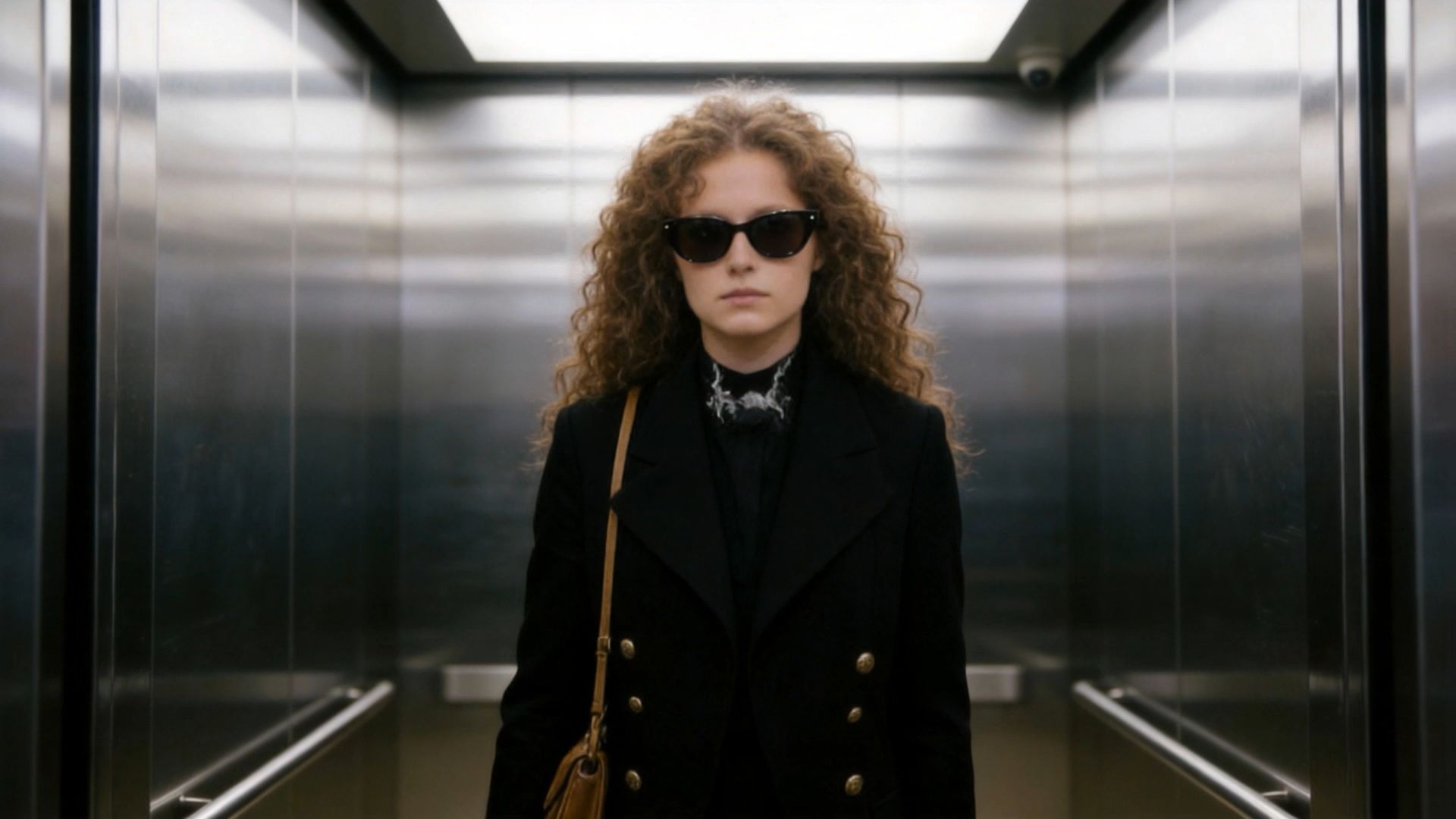
Prompt: Authentic workplace texture, one continuous long take without any cuts. The camera follows the professional woman steadily in a medium shot throughout, moving in sync with her: the camera tracks her as she walks and freezes instantly when she pauses, with natural and smooth movements and fluid camera work. The woman walks forward out of the elevator, and the elevator doors close slowly and naturally behind her; she steps into the office area, takes off her sunglasses by hand, tucks them into her commuter bag casually, and nods politely to colleagues passing by; she pauses briefly, the camera freezes in sync, she hangs her commuter bag on the coat rack in the office area, then takes off her outer coat and hangs it on the same rack; after hanging up her clothes, she walks forward again, the camera tracks her in sync; a young man in a formal shirt walks towards her, hands her a document and a signature pen, she pauses, the camera freezes in sync, takes them and signs the document; after signing, she walks forward again, the camera tracks her in sync; finally, she walks to her desk, sits down by the chair, reaches out to pick up a cup of tea on the desk, and sips it with her head down, her movements relaxed and natural. | ||
Start Frame | ||
.png?x-oss-process=image/resize,w_1872)
| ||
Character Reference | ||
.png?x-oss-process=image/resize,w_1872)
| .png?x-oss-process=image/resize,w_1872) | .png?x-oss-process=image/resize,w_1872) |
Video | ||
| ||
Step 2: Describe the Scene, Dialogue, and Sound
Once your starting material is set, describe what happens in the scene and what the audience should hear.
Write the prompt around the subject, action, setting, and camera. If the scene includes dialogue, pair each line with the character who should speak it. Kling VIDEO 3.0 can match each line to the right speaker when several characters share the scene.
Image |
.png?x-oss-process=image/resize,w_1872)
|
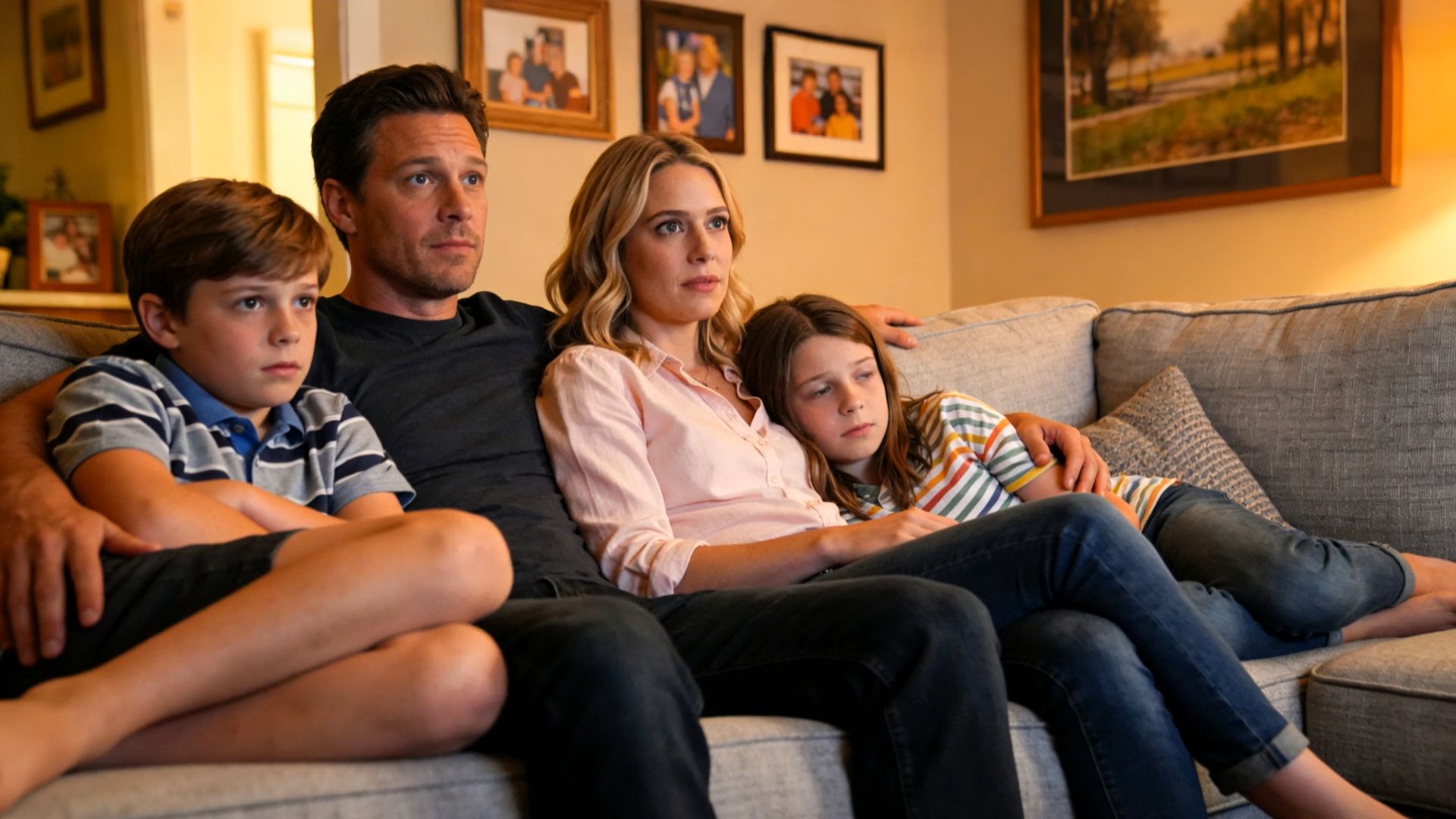
Prompt: Home setting with a faint hum of the living room air conditioner in the background for a realistic daily vibe. Mom (softly, in a surprised tone): Wow, I didn’t expect this plot at all. Dad (in a low voice, agreeing, in a calm tone): Yeah, it’s totally unexpected. Never thought that would happen. Boy (in an excited tone): It’s the best twist ever! Girl (nodding along, in an enthusiastic tone): I can’t believe they did that! |
Video |
|
You can also include ambient sound and other audio in the same prompt. Native Audio lets dialogue, background sound, and visuals be generated together. Dialogue currently supports Chinese, English, Japanese, Korean, and Spanish, including mixed-language scenes and supported accents or dialects.
Image |
.png?x-oss-process=image/resize,w_1872)
|
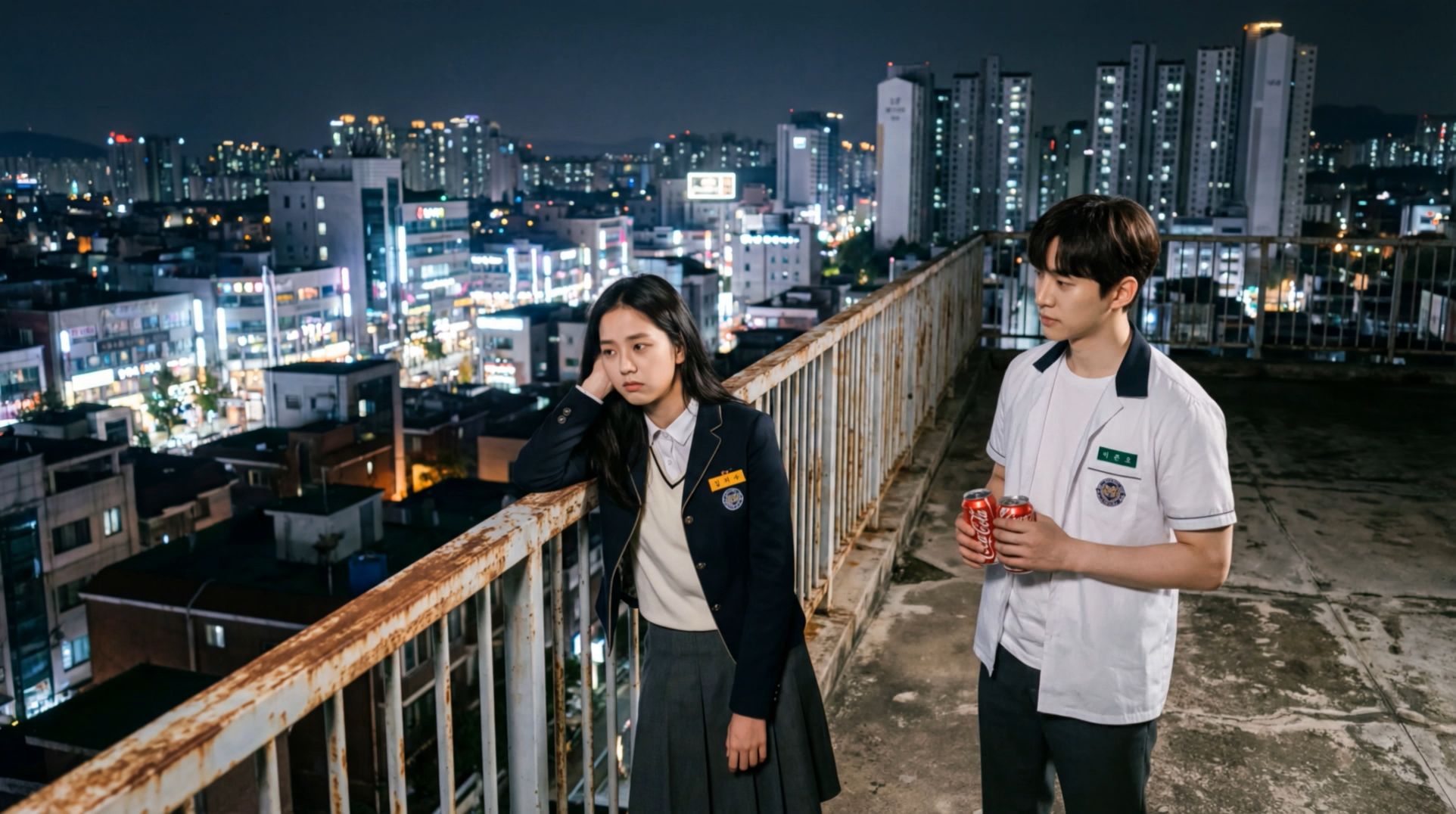
Prompt: On the rooftop of a Korean high school, distant city lights glimmer in the background with a soft wind rustling, and stars twinkle in the night sky. The girl leans against the railing, lost in thought. The boy walks over with two cans of cola, hands one to her, and she takes it and pops the tab open. Boy (casual tone, Korean): "숙제 다 했어? 왜 여기 있어?" Girl (sighing, Korean): "시험이 너무 무서워". Boy (gentle tone, Korean): “걱정 마, 넌 잘할 거야.” |
|
If a character element already has a saved voice attached with Kling VIDEO 3.0 Omni, you do not need to describe the same voice again in the prompt.
Step 3: Choose Single-Shot or Multi-Shot
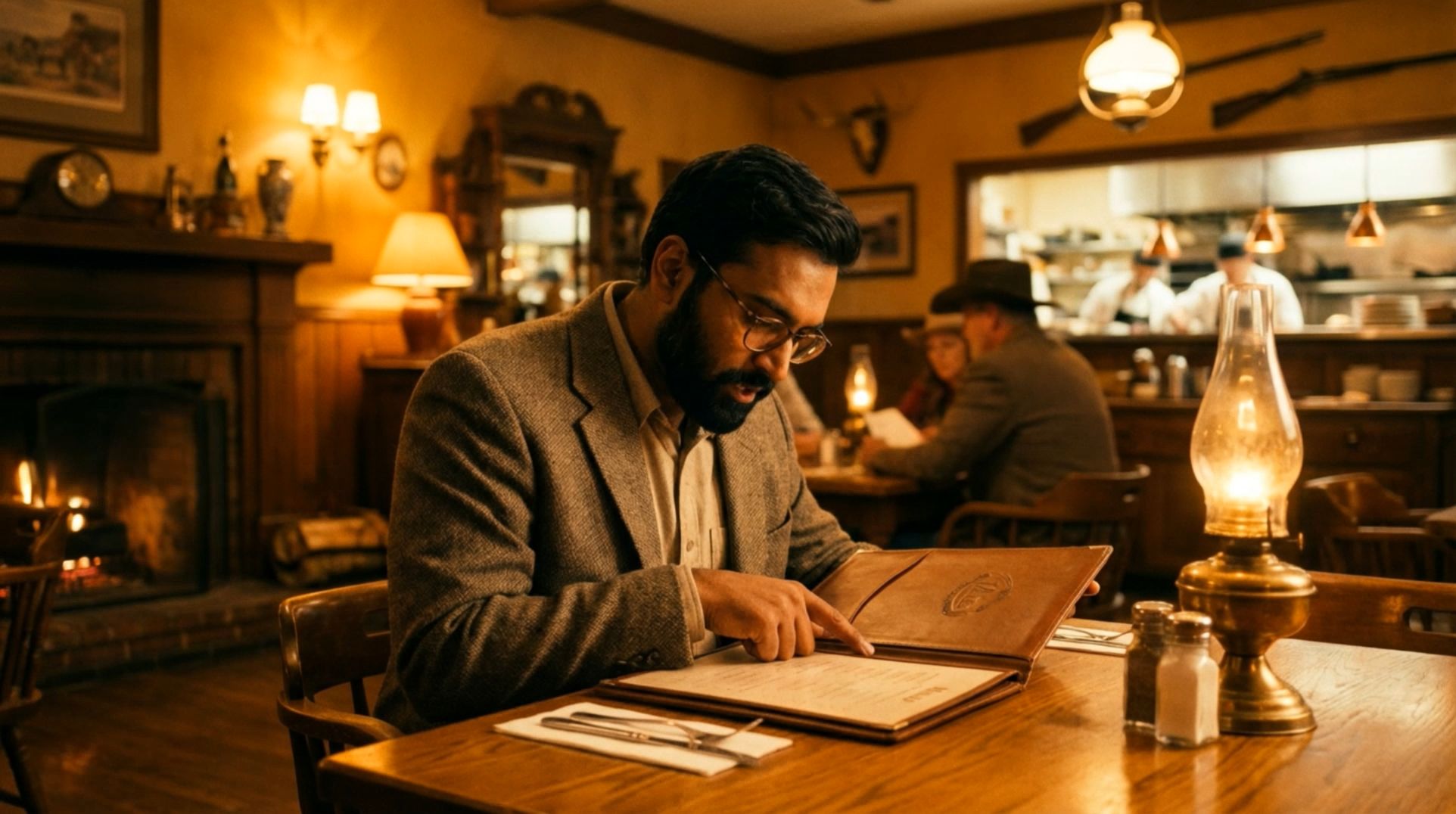
Keep Multi-Shot off when the action works best as one continuous take. If the sequence calls for several views, turn it on.
Kling VIDEO 3.0 can use the prompt to organize those changes into a connected sequence, including shifts in framing, viewpoint, and camera angle.
Image |
.png?x-oss-process=image/resize,w_1872)
|
| Prompt: A middle-aged man is ordering food in a Western restaurant. He speaks in English with an Indian accent and says: "excuse me, I would like to order a seafood pasta, and a filet mignon. medium-rare", then he looks up and continues: “And, do you have any drink recommendations?” |
Video |
|
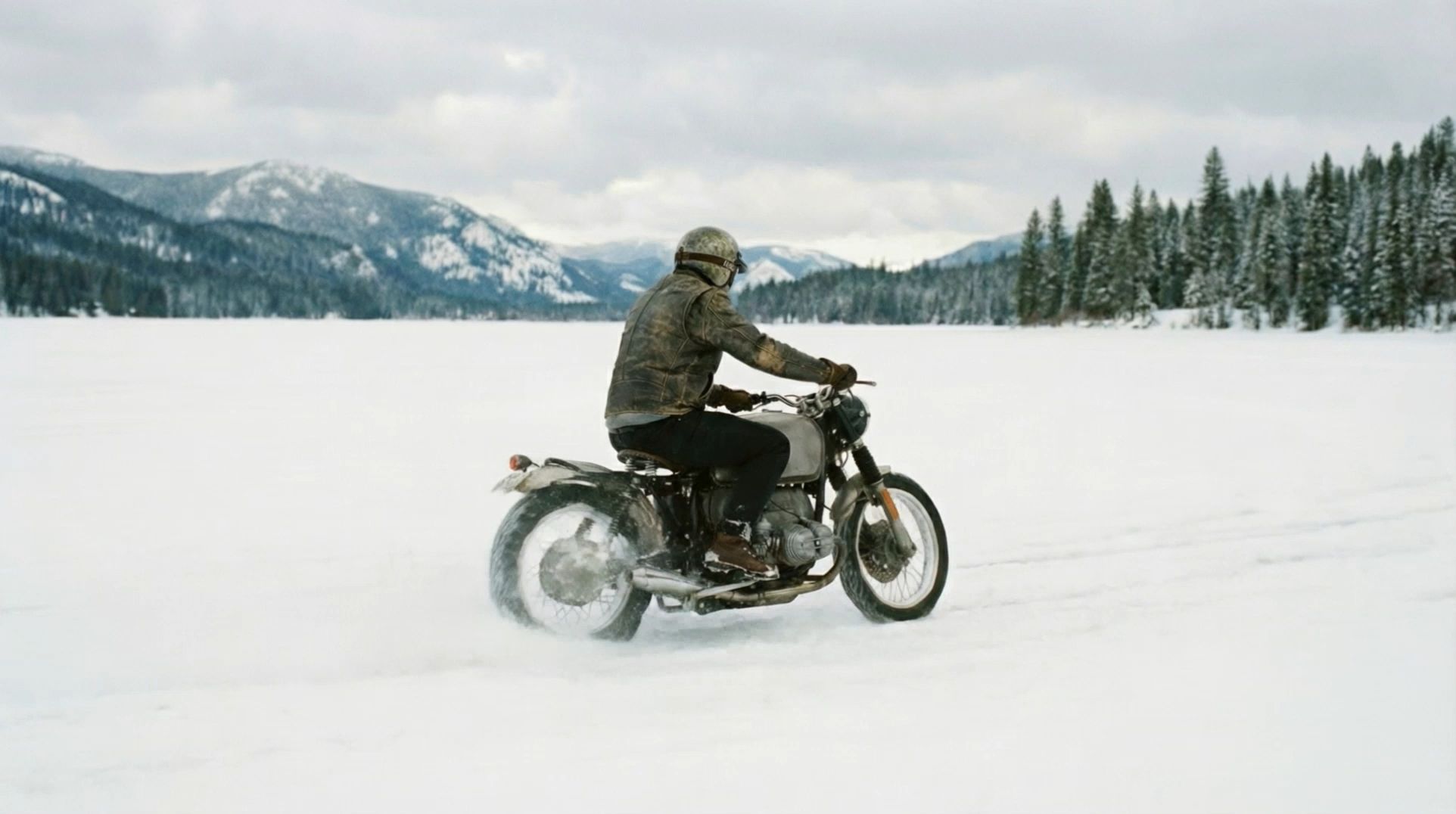
For more specific direction, use Custom Multi-Shot. You can describe each shot separately and set its duration, making it easier to move from a wide shot to a close-up, switch viewpoints during dialogue, or show the same action from several angles.
Image | |||||
.png?x-oss-process=image/resize,w_1872)
| |||||
| Shot 1, Low-angle rear wide shot, tracking behind the rider as they move forward. | Shot 2, Low-angle side close-up, a detailed shot of the motorcycle wheel. | Shot 3, First-person POV from the rider, with the handlebars and instrument panel visible ahead. | Shot 4, Frontal medium shot, tracking backward in front of the motorcycle, the rider’s helmet facing the camera. | Shot 5, Side-on eye-level tracking shot with slight lateral movement. | Shot 6, High-angle wide shot with a gentle downward tilt. The camera rises as the snowmobile rides deeper into the snowfield, leaving winding tracks carved into the pristine white snow, with snow-covered forests scattered on both sides. |
Video | |||||
| |||||
Step 4: Set the Length and Generate
Match the length to what happens on screen. Kling VIDEO 3.0 works from 3 to 15 seconds, leaving enough room for quick reactions, longer takes, or a sequence built from several shots.
Set the final format before rendering. Pick 720p, 1080p, or 4K, with 16:9, 1:1, or 9:16 framing. 16:9 suits YouTube, websites, presentations, and widescreen campaigns; 1:1 works well for feed posts and product-focused visuals; 9:16 fits TikTok, Reels, Shorts, and other mobile-first placements.
Kling VIDEO 3.0 vs VIDEO 3.0 Omni: Which Should You Use?
Kling VIDEO 3.0 and Kling VIDEO 3.0 Omni both support Native Audio, Multi-Shot, and generation up to 15 seconds, although feature availability may vary by input mode. Where they begin to differ is how you build the scene. VIDEO 3.0 leans more on prompts, while VIDEO 3.0 Omni gives reference material a bigger role in the process.
1. Choose Kling VIDEO 3.0 for
- Text-to-video and image-to-video
- Start and end frame generation
- Multi-Shot sequences
- Multilingual dialogue and scenes with several characters
- Videos shaped mainly through written prompts
2. Choose Kling VIDEO 3.0 Omni for
- Several image references and Elements in one setup
- Elements created from video
- Returning characters or branded subjects
- Character voices you want to use again
- Scenes that depend heavily on visual references and keeping subjects recognizable
VIDEO 3.0 is a natural choice when most of the scene is described in the prompt. VIDEO 3.0 Omni makes more sense when images, Elements, video references, or saved voices need to carry across the video. For a closer look at the two models, read our Kling VIDEO 3.0 vs Kling VIDEO 3.0 Omni guide.
How to Get Better Results From AI Video Generation Models
A weak clip is not always a sign that the model is wrong for the job. Often, a small adjustment to the brief, source material, or shot direction is enough to move the next version closer to what you want.
Write Prompts Like Shot Directions
Say what happens in the frame instead of loading the prompt with mood words.
Instead of: A beautiful cinematic luxury perfume commercial.
Try: Close-up of a glass perfume bottle on a dark stone surface. The camera slowly pushes in as a narrow beam of light passes across the bottle.
Use References for Appearance and Motion
Text can describe what should happen, while images and Elements help keep faces, products, outfits, or locations recognizable across shots.
When a specific performance matters, Motion Control can apply movement and facial expressions from an uploaded video or the Motion Library to a single character image. The image defines the character’s appearance, while the motion reference guides how that character moves.
Change One Thing at a Time
When a clip is close, adjust only what needs work. Slow the camera if it moves too fast, change the timing if a cut comes too early, or strengthen the visual source if appearance begins to drift. This makes it easier to see which edit improved the next version.
The End
AI video generation models now differ less in whether they can produce a clip and more in how they handle motion, references, sound, shot structure, and visual continuity. Kling VIDEO 3.0 brings these areas together with image references, Native Audio, and Multi Shot tools. VIDEO 3.0 Omni extends these capabilities with Element binding, giving recurring characters and subjects a more consistent presence across projects built from multiple images, video references, and reusable voices.
FAQs
What Is the Best AI Video Generation Model in 2026?
There is no single AI video generation model that fits every type of video. The right choice depends on your source material and how much control you need over motion, sound, camera work, and recurring subjects. Kling VIDEO 3.0 is a professional AI video generation model built for both individual creators and professional production teams, combining cinema grade Native 4K with Native Audio, Multi Shot storytelling, and advanced creative control. VIDEO 3.0 Omni extends this workflow for more complex projects involving multiple visual references, reusable characters, and Elements linked to voice, while also allowing creators to edit videos up to 10 seconds long.
What Should You Look for When Comparing AI Video Generation Models?
Look at how each option performs with motion, references, sound, shot direction, length, and final image quality. What matters most will vary by project. Dialogue-heavy scenes call for clear speech and recurring characters that stay recognizable, while product work often puts more weight on accurate visuals, deliberate camera work, and details that hold from shot to shot.
Can AI Video Generation Models Generate Sound?
Some do. Native Audio creates speech, ambience, and other sound with the visuals instead of leaving them for a separate dubbing or scoring step. Kling VIDEO 3.0 can also handle multilingual dialogue and lip-synced speech. When a character speaks, assigning the line directly to that person helps keep the voice tied to the right moment on screen.
How Long Can AI-Generated Videos Be?
Length varies by model. Some tools are built for very short clips, while others allow longer sequences. Kling VIDEO 3.0 supports up to 15 seconds in one generation, including Multi-Shot scenes. That is enough for a brief story beat, a product moment, or a short social piece without splitting the idea into several separate clips.