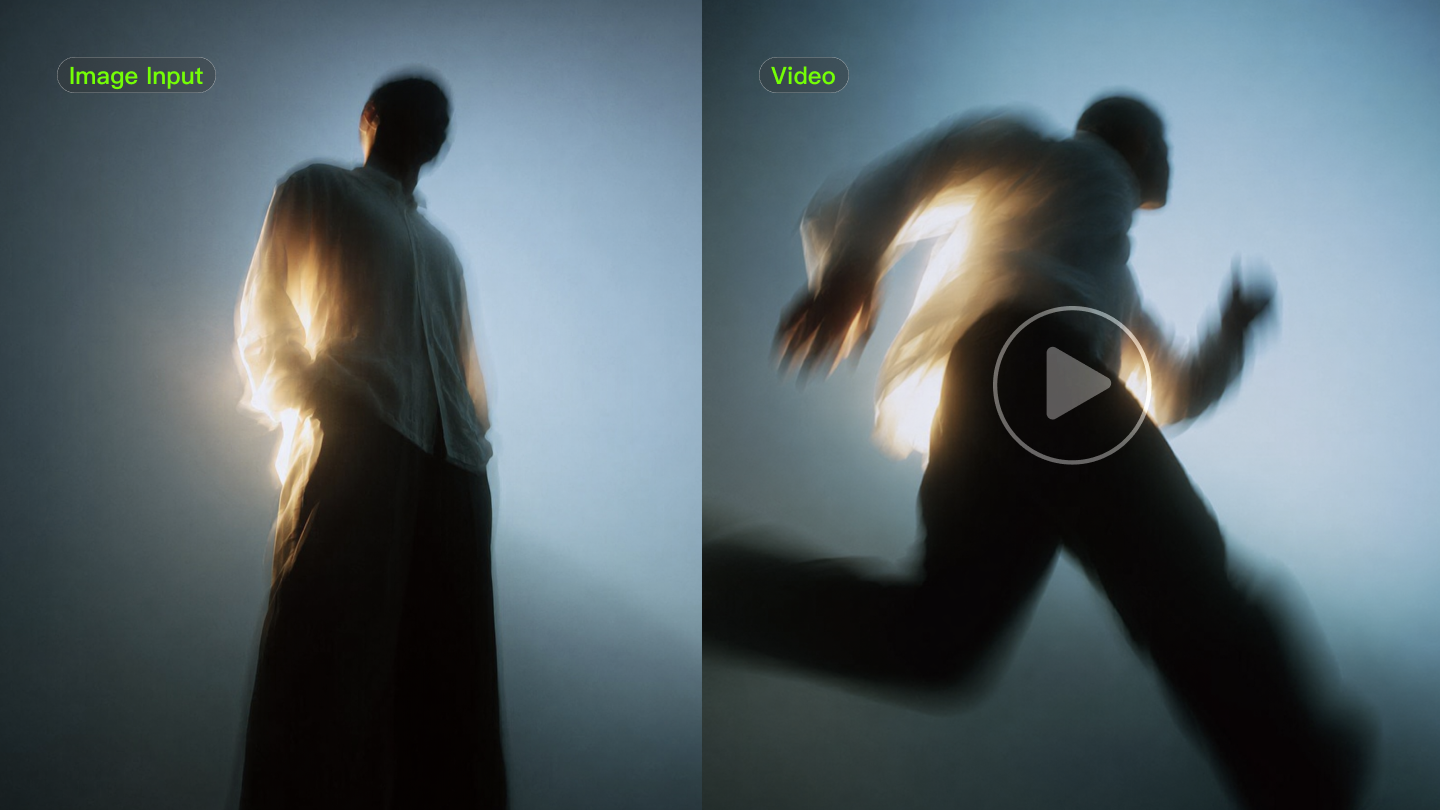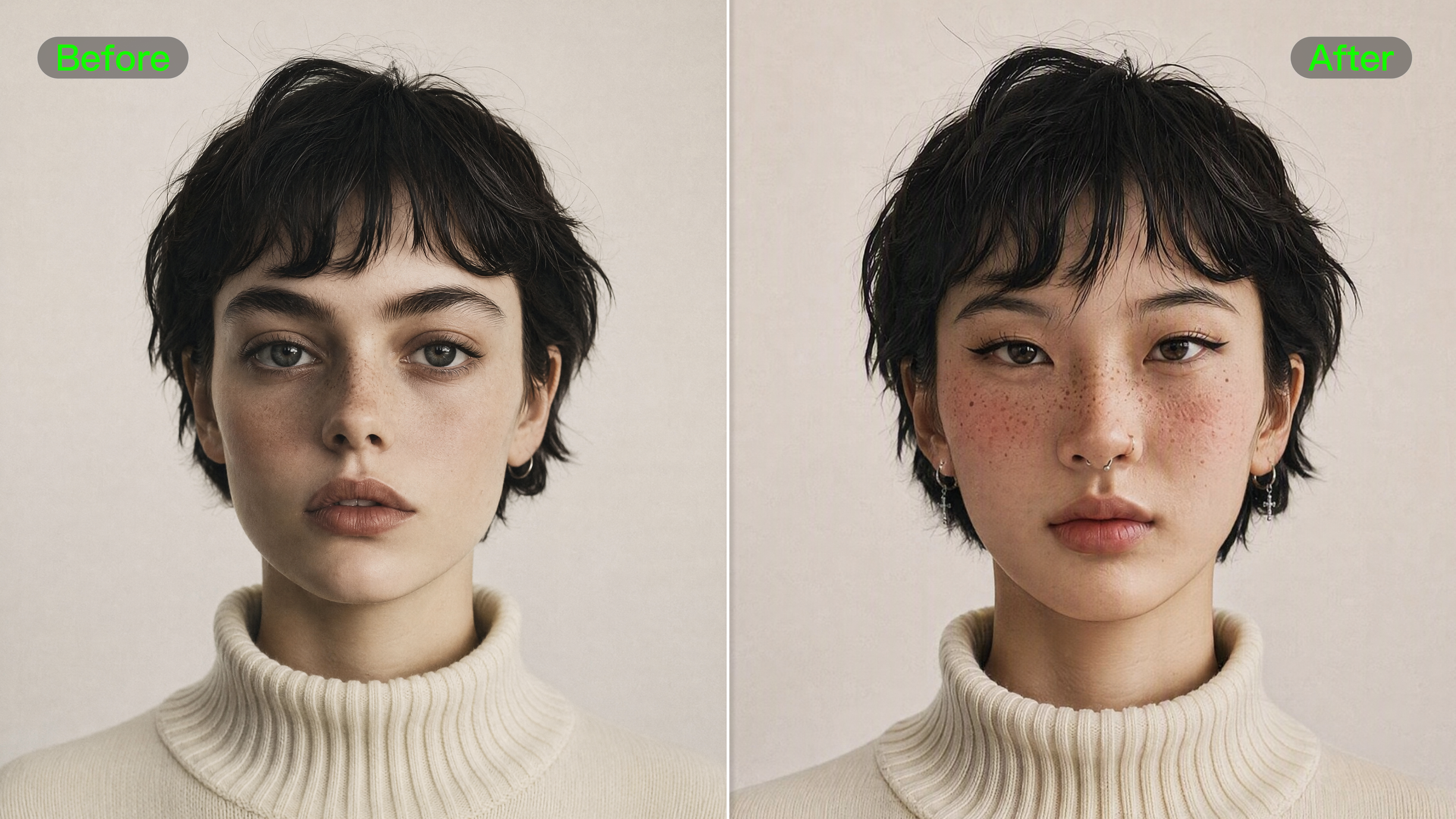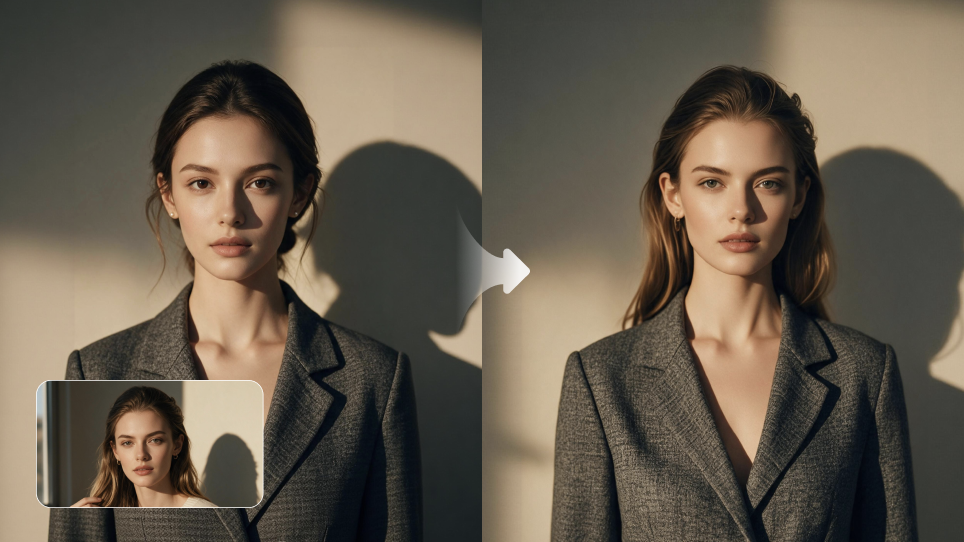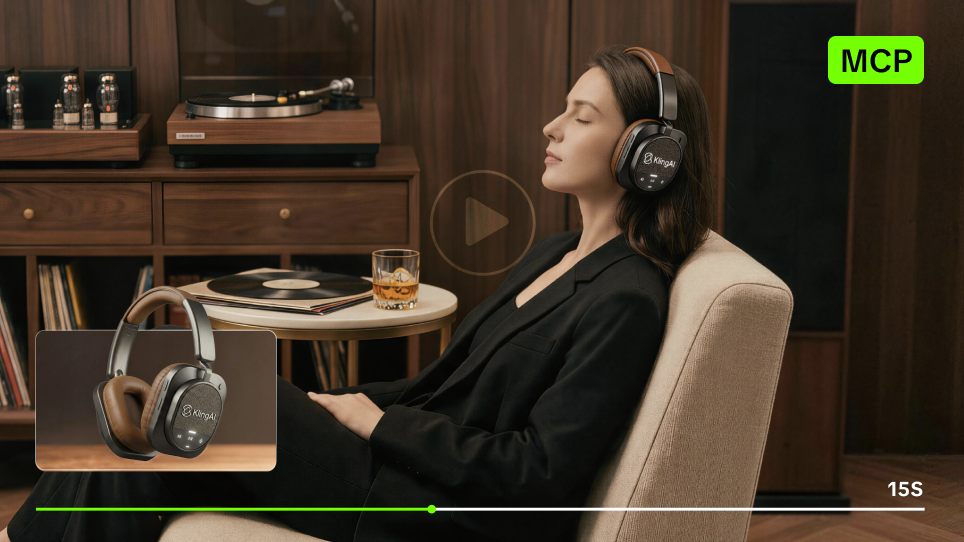
A picture may begin with a few words, a reference photo, or something you have already made. If you are looking for a ChatGPT alternative for images, it helps to compare how different tools handle those starting points. This guide looks at five options, then explores where Kling AI fits into your creative work.
What to Look for in a ChatGPT Alternative for Images
Choose a small task you know well before comparing alternatives to ChatGPT for image generation. A familiar product photo or a clear illustration brief gives you something concrete to assess.
Look at four things:
- Direction. Does the result reflect the subject, composition, and style you described?
- References. Are the details you wanted to preserve still recognizable?
- Editing. Does a requested change fit naturally into the picture? Check the surrounding details, too.
- Output. Do the available aspect ratios, resolutions, and credit costs suit the task?
The best alternative to ChatGPT for image generation depends on what you need to make. An early concept leaves room for interpretation. A product image calls for closer attention to shape, color, and detail.
ChatGPT and Alternatives for Image Creation: A Comparison
Several tools let you create a picture from words or revise an existing image. The differences become clearer when you look at how you bring in references, describe an edit, and continue working on the result.
The comparison below focuses on image workflows. It is not a ranking of image quality.
Tool | Starting an Image | Making Changes | Workflow at a Glance |
ChatGPT | Describe an image in a conversation or upload an existing picture. | Request changes in words, with an optional selection tool to indicate an area. | Image creation and editing within a conversation. |
Kling | Start with a prompt or use up to 10 reference images. | Describe changes to the subject, background, color, or visual style. | Text-based creation and reference-guided editing in the Kling image workspace. |
Leonardo | Generate images from prompts and work with image inputs through its creation tools. | Use its image editor to revise existing or generated pictures. | Image generation, editing, and upscaling within a creative platform. |
Adobe Firefly | Generate an image from text or bring an existing image into its editing tools. | Use tools such as Generative Fill to add or replace content. | Image creation and editing with connections to Adobe design applications. |
Dreamina | Begin with a written prompt or an uploaded image. | Use AI editing tools to change backgrounds, adjust details, or explore a different style. | Image generation and photo editing within a visual creation platform. |
ChatGPT: Create and Edit Through Conversation
ChatGPT keeps image creation inside a conversation, which suits ideas that develop through dialogue. Start with a prompt or an uploaded image, then refine the result through follow-up requests or use the selection tool for a more focused edit.
Kling AI Image Generator: Build With Prompts and References
Kling IMAGE 3.0 brings prompts and references into a dedicated image workspace. Draw details from up to 10 reference images, then use natural-language instructions to reshape the setting, adjust a color, or explore a new visual style while keeping the original idea close at hand.
Reference Image | ||
.png?x-oss-process=image/resize,w_1872) | .png?x-oss-process=image/resize,w_1872) | .png?x-oss-process=image/resize,w_1872) |
Output Image | ||
.png?x-oss-process=image/resize,w_1872) | ||
| Prompt: The boy from Image 1 imitates the fox pose from Image 3, and the girl from Image 2 imitates the rabbit pose from Image 3. | ||
Leonardo: Move From an Idea to a Finished Asset
Leonardo brings generation, editing, and upscaling into one creative platform. It suits projects in which the first result is only a starting point and still needs further refinement before use.
Adobe Firefly: Shape Images Within an Adobe Workflow
Adobe Firefly fits naturally into an Adobe workflow. Generative Fill lets you mark and change a specific area, then continue in Photoshop when the image needs typography, layout, or finishing touches.
Dreamina: Explore and Refine Visual Directions
Dreamina suits quick visual exploration across social graphics, illustrations, posters, and early campaign ideas. Its workspace makes it easy to move between generation and edits such as background changes, frame extension, and style exploration.
Where Kling IMAGE 3.0 Fits Your Creative Work
Kling IMAGE 3.0 gives creators precise control over both original generation and image editing. Whether starting from a text prompt, guiding your vision with up to 10 reference images, or modifying an existing photo, you can easily alter colors, swap backgrounds, or adapt styles—all while keeping your main subject, fine details, and core composition completely consistent.
Give an Early Idea a Visible Form
A pale blue mug. Warm oak. Morning light across the table. A few details suggest a scene before you have a photograph.
With text-to-image, Kling IMAGE 3.0 turns a written description into a visual starting point. An article illustration, a campaign concept, or a composition for discussion might begin this way.
Start with the subject and atmosphere. Once you see the first version, decide what belongs in the frame. Perhaps the background needs less detail, or the subject needs more room.
The useful question is simple: Does the picture take the idea in the direction you intended?
Build Around Something You Already Have
A reference photo gives you a different starting point. You might have a product you want to place in a new setting, or a portrait you would like to reinterpret.
The image-to-image workflow combines that reference with written instructions. Kling IMAGE 3.0 supports up to 10 reference images, though one clear picture is often enough to begin.
When adding more, explain their roles. Use the first image for the product itself and another for the setting or style.
Keep the original nearby when reviewing the result. Check the details that make the subject recognizable.
Refine a Picture That Is Almost There
Sometimes the composition works, but the background feels busy. Or a jacket color draws attention away from a face.
As an AI image editor, Kling IMAGE 3.0 supports changes described in natural language. Ask for a quieter background, a different color, or the removal of an unwanted object.
Name what should stay, then describe the change. A focused request makes the result easier to assess.
An artificial intelligence image editor gives you another way to explore a revision. Look closely at the finished image, especially when a face, product detail, or lettering needs to remain accurate.
Original Photo |
.png?x-oss-process=image/resize,w_1872) |
AI Restyled Photo |
.png?x-oss-process=image/resize,w_1872) |
| Prompt: Restyle this exact Canal Street scene as a soft impressionist oil painting, with visible textured brushstrokes, warm painterly light, gentle color blending, a fine-art canvas look, and the same composition and buildings. |
Two Ways to Start With Kling IMAGE 3.0
For a new picture, use Kling IMAGE 3.0. Describe the subject first, then add the setting and style. Details such as “soft window light” or “rough pencil texture” give the model a clearer direction than “beautiful” or “professional.”
For a reference-based image, upload your photo and describe what you want to keep or change. Add another reference if it helps show a particular look. The Kling IMAGE 3.0 user guide walks through reference-based creation, style changes, and detailed edits with practical examples.
Conclusion
The ideal ChatGPT alternative for images should align with your preferred work style. Conversation-led tools suit ideas that grow through back-and-forth prompts; Kling AI offers a focused image workspace when references and direct visual changes matter most.
With Kling AI, that idea can begin in words or take shape around a reference photo. Ready to create AI image content of your own? Start with something you want to see, give the result a close look, and make the next adjustment yours.
FAQs
What Is a Good ChatGPT Alternative for Images?
A good alternative should suit the pictures you make and give you useful ways to refine them. Kling IMAGE 3.0 supports text prompts, reference images, and text-based edits. Try a familiar task, then compare the result with your brief. Pay attention to the details you need to preserve.
Can I Edit Images With AI, Not Just Generate Them?
Yes. An artificial intelligence picture editor such as Kling IMAGE 3.0 lets you upload an image and describe a change. You can request a different background, color, or expression. Review the result against your original, since an edit may also affect details you intended to keep.
Is Kling IMAGE 3.0 Free to Try?
New users receive free trial credits upon registration, which can be used to explore Kling AI’s image generation and editing features. Check the generation panel before you start; it shows the options available to you and the credit cost for each task. Paid plans include more credits and features, depending on the plan.
Can I Use My Own Photos as References?
Yes. Kling IMAGE 3.0 accepts reference images to guide the subject, appearance, or style of a result. It supports up to 10 references, though a single clear photo is often a useful starting point. When you upload several images, describe what each should contribute so their roles are clear.
Does Kling IMAGE 3.0 Support High-Resolution Output?
Yes. Kling IMAGE 3.0 supports high-resolution image generation, including up to 2K output. For direct 2K/4K Ultra HD output, use Kling IMAGE 3.0 Omni. As with any AI picture editor, inspect the downloaded image for detail, unwanted changes, and cropping.