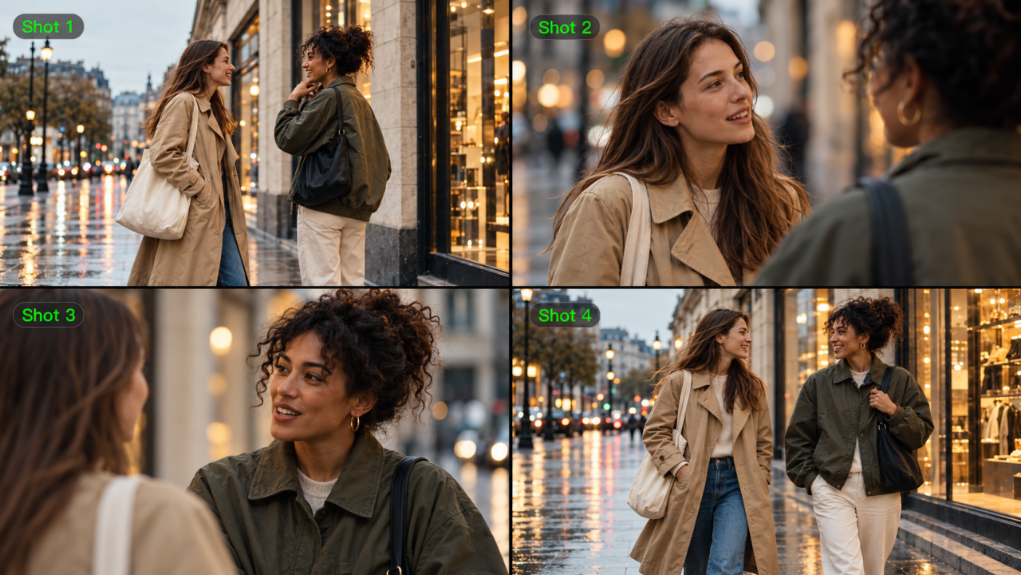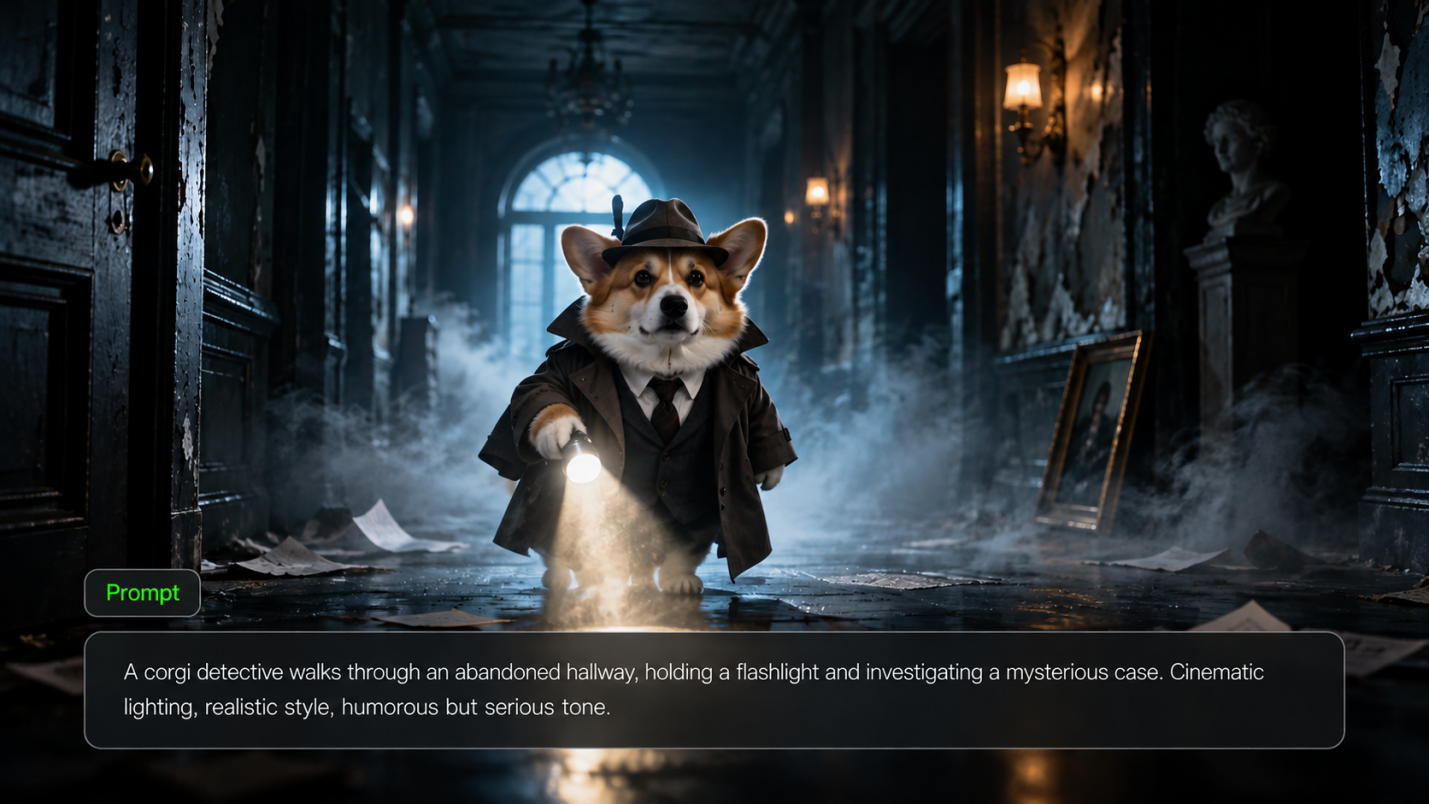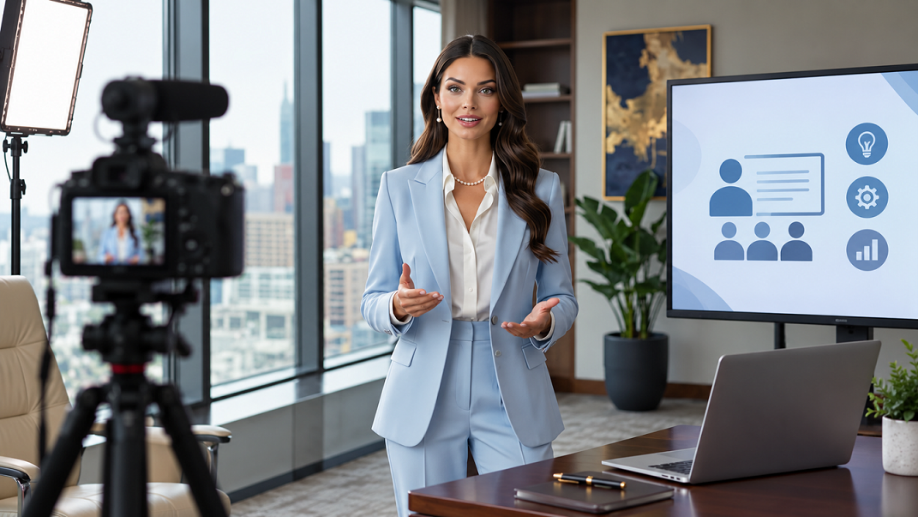
Training videos help people learn new skills, understand processes, and see how products or tools work. From workplace onboarding and product demonstrations to software tutorials, safety instructions, and educational lessons, effective training videos turn complex information into clear, practical visual guidance. AI video tools such as Kling AI can help creators develop training videos for different audiences and learning needs.
Common Types of Training Videos and When to Use Them
Different training videos serve different learning goals. Some explain a process step by step, while others demonstrate a product or help viewers practice real-world situations. Choosing the right format depends on what your audience needs to learn.
Training Video Type | When to Use It |
Onboarding and Orientation | Introduce new employees to workplace procedures, or help new customers and users understand a service or platform. |
Software Tutorials | Show viewers how to navigate an interface, use a feature, or complete a task step by step. |
Process Demonstrations | Explain how to perform a physical task, follow a workflow, or use equipment correctly. |
Safety and Compliance Training | Communicate safety requirements, explain responsibilities, and demonstrate approved procedures. |
Product Training | Help customers, sales teams, or support staff understand product features, usage, and common questions. |
Scenario-Based Practice | Use realistic conversations and simulated situations to teach customer service, communication, and decision-making skills. |
The most effective format is the one that helps viewers understand the task and apply what they learn. A software tutorial may need clear screen recordings, while a product demonstration or scenario-based lesson may benefit from showing people, actions, and different camera angles.
How AI Video Generation Supports Different Training Scenarios
Training videos often need to do more than explain a concept. A product demonstration may require close views of important details, a process tutorial needs clear actions in the right order, and customer or learner scenarios may involve several speakers or languages. Recording every variation can take time, especially when equipment, locations, or participants are not always available. AI video generation can help creators visualize these lessons and develop different versions more efficiently.
At Kling AI, we bring AI video generation and video editing together in one creative platform. Our newly launched Kling 4.0 combines visual references, detailed prompts, multilingual dialogue, and continued creation on Timeline to help creators develop a range of training scenarios around different learning objectives.
Demonstrate Products and Processes with Visual References
Explaining a procedure through text alone can leave important details unclear. Learners may need to see how a product is handled, how equipment operates, or how individual steps connect. Filming every angle and scenario can also be time-consuming, particularly when a demonstration requires specific locations or setups.
Kling 4.0's Omni Reference helps creators guide generated scenes with a combination of reference images, videos, subject references, and voice references. Each generation supports up to 15 reference assets in total, subject to individual input limits. Images can guide product appearance, character details, and composition, while reference videos can help guide actions, camera movements, and pacing. This gives creators more control over how a demonstration is presented and helps maintain recognizable visual details.
For example, a product tutorial could show how to open a travel bag, demonstrate its compartments, and highlight important features from different angles. A process explanation could visualize a sequence of actions without requiring every shot to be filmed separately.
Create Realistic Role-Plays for Practical Learning
Some lessons are easier to understand through realistic situations than through instructions alone. Customer service training, for example, may involve responding to a complaint, explaining a return policy, or helping someone resolve a problem. Product onboarding and communication training can benefit from similar scenarios that let viewers observe how a conversation develops.
With Kling 4.0, creators can describe each participant's role, dialogue, actions, and camera direction to shape a scene around a specific learning objective. Its single-generation duration of 3–30 seconds allows a short interaction to develop across multiple shots, while Omni Reference helps guide character appearance and visual continuity. Generated scenes can serve as discussion examples, role-play demonstrations, or introductions to a more detailed lesson.
Adapt Training Content for Different Languages
When a course serves international audiences, translating a script is only part of the work. Dialogue needs to sound natural, speakers must be easy to follow, and the visual sequence should remain understandable across language versions. Recreating every scene for each audience can add substantial production work.
Kling 4.0 supports dialogue in nine languages: Chinese, English, Japanese, Korean, Spanish, Portuguese, German, French, and Hindi. Its improved lip-sync accuracy helps keep spoken dialogue and character performances more naturally synchronized. Creators can describe who speaks, what each person says, and how the conversation progresses, then review the generated result for pronunciation, translation accuracy, and terminology.
This approach can be useful for multilingual customer onboarding, service demonstrations, educational scenarios, and other training content intended for different regions. Before publishing, have a fluent speaker or subject expert check the dialogue, especially when it includes safety instructions, technical terms, or official policies.
Build Longer Lessons from Focused Video Clips
A complete training module may include an introduction, a demonstration, a practice scenario, and a recap. Trying to fit every learning objective into one generation can make the prompt unnecessarily complicated and leave individual steps without enough visual attention.
Kling 4.0 supports single generations of up to 30 seconds, giving each clip room to communicate a focused idea or sequence of actions. For longer lessons, creators can generate separate scenes and continue working with them on Timeline. Add generated clips to the Timeline, then arrange shots, trim footage, insert or replace scenes, and preview the sequence as the lesson develops. This makes it easier to organize related demonstrations into a more complete learning experience.
Training materials also change as products, processes, and interfaces evolve. Kling 4.0 also supports targeted video editing, allowing creators to make changes to subjects, backgrounds, actions, camera angles, or visual styles in existing footage. AI-generated visuals should still be reviewed before publication. For software tutorials that require exact menus and click sequences, use screen recordings to show the actual interface. Verify product details, operational steps, and safety information against approved sources so that the finished training video remains useful and accurate.
Reference Image | Generated Result |
| 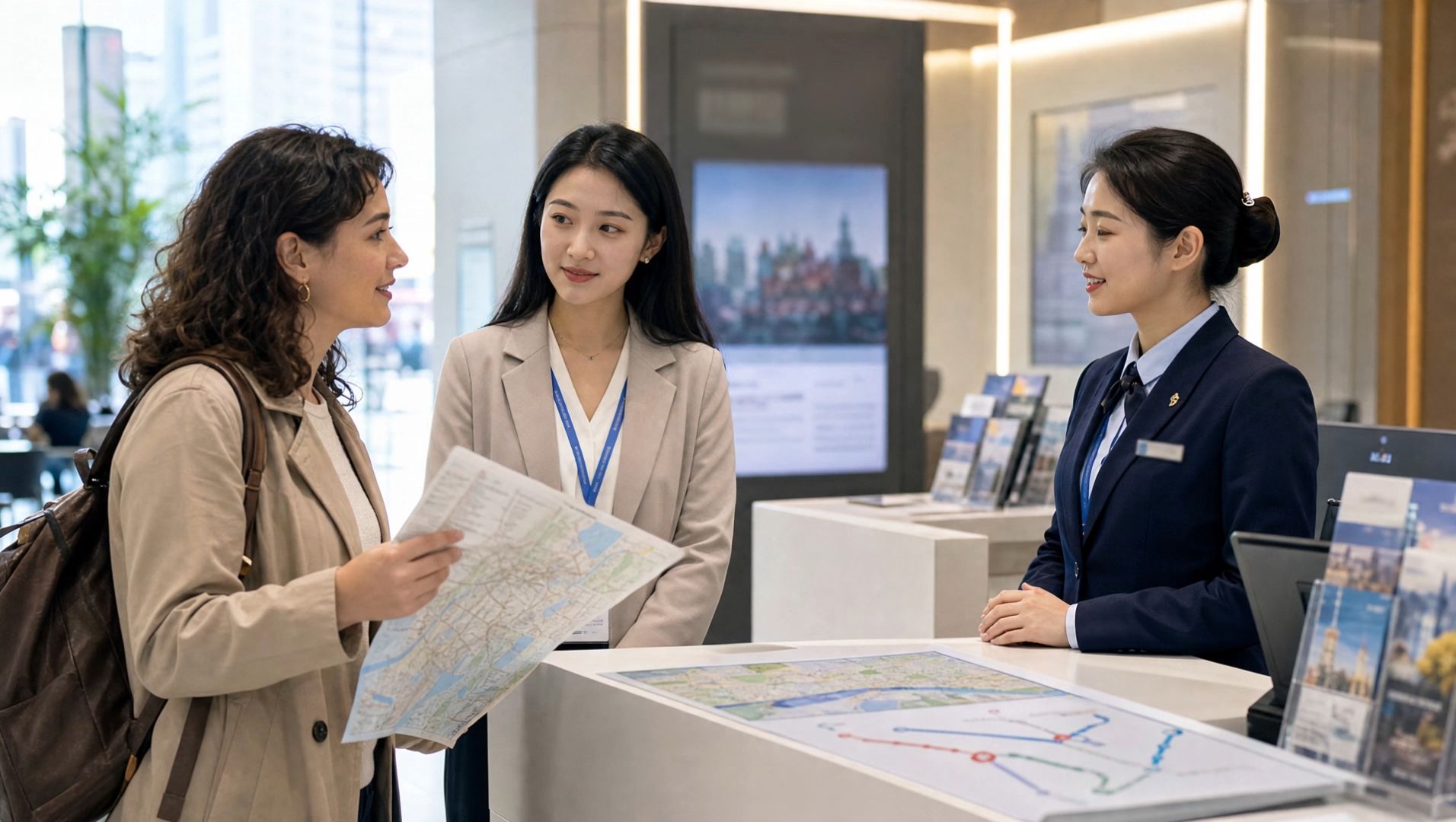  |
Prompt: SCENE CONTEXT EXACT 3 UNIQUE HUMAN CHARACTERS ACROSS THE VIDEO: Three people are in a bright, clean, fictional city tourist information center. Maintain consistent color tones throughout. The tourist stands on the left, the interpreter stands in the middle, and the tourism staff member stands on the right. A city map and route diagram are placed on the information desk. Background text and map labels must be blurred and unreadable. No real brands, organization names, logos, or watermarks may appear. ACTION TIMING: 0–3 seconds: Medium shot of all three people. The Spanish female tourist looks at the interpreter in the middle, raises the map in her hand, and speaks in natural, clear, slightly slow Spanish: “¿Dónde está la estación de metro más cercana?” After she finishes speaking, pause for approximately 0.5 seconds. The interpreter turns to the tourism staff member and translates into Chinese: “她想知道最近的地铁站在哪里。” 3–7 seconds: Cut to the interpreter and the tourism staff member. The tourism staff member looks at the map (do not use a close-up of the map) and answers in natural, clear Chinese: “沿这条路直走,步行大约五分钟就能到。” After the staff member finishes speaking, pause for approximately 0.5 seconds. The interpreter confirms understanding and turns toward the tourist. 7–11 seconds: The interpreter translates the staff member's answer into natural, clear, slightly slow Spanish: “La estación de metro está a unos cinco minutos a pie. Siga recto por esta calle.” While speaking, the interpreter points to the route on the map, and the tourist studies it attentively. 11–15 seconds: Return to a medium shot of all three people. After understanding the directions, the Spanish tourist smiles, nods, and says in Spanish: “Muchas gracias.” All three maintain a natural service interaction as the scene ends. AUDIO: - The Spanish tourist speaks only Spanish. - The Chinese tourism staff member speaks only Chinese. - The Chinese interpreter speaks Chinese first, then Spanish. - Each person has a distinct voice. - When one person is speaking, the others remain silent. No interruptions or overlapping dialogue. - All dialogue must have clear vocals, with lip movements synchronized to the corresponding language. - Spanish pronunciation must be natural and standard, without English-accented pronunciation. - Speech should be slightly slow, with natural pauses between sentences. - Retain subtle ambient sounds from a tourist information center. Do not add background music. Ambient sounds must not overpower the dialogue. CAMERA: Begin with a medium shot of all three people to establish their relationships. When the tourist speaks, cut to a two-shot of the tourist and interpreter. When the interpreter relays the question, cut to the interpreter and staff member. During the staff member's response, include a close-up of the map route. When the interpreter translates into Spanish, return to a two-shot of the interpreter and tourist. End with a medium shot of all three people. Maintain consistent character positions, eyelines, and clothing throughout. Do not abruptly replace characters or change their spatial relationships. STYLE: Realistic, natural, professional travel-service documentary style. Bright, clean lighting, natural facial expressions, and restrained movements. The scene should resemble an authentic interaction at an airport or city tourist information center. | |
What Makes a Good Training Video?
A convincing role-play still needs a clear learning goal. Decide what learners should be able to do after watching it. In a service lesson, that might mean explaining the return policy or responding to a damaged-order complaint. Use that goal to decide which actions and dialogue deserve screen time:
- Show the critical action. Keep the relevant hand movement, screen control, or product detail visible long enough for someone to follow it.
- Use natural spoken language. Read the script aloud and replace wording that sounds stiff or unclear.
- Give each point room. Split unrelated procedures into focused sections so employees can find a step again later.
- Ask someone who performs the task. A colleague can spot an unclear action or missing explanation before you produce the final lesson.
When Should You Use an AI Avatar or Voiceover?
An on-screen presenter helps with some topics. For others, employees need to concentrate on the screen, diagram, or physical task. Choose the form of narration that suits the material.
Use an Avatar for Recurring Introductions
For a series of onboarding lessons or policy updates, a familiar digital host can introduce the topic before you show the main task. An AI avatar can deliver a prepared script through a consistent on-screen character. Keep introductions short, and update the wording whenever the underlying guidance changes.
Add Voiceover to Existing Instructional Visuals
When you already have a screen recording or diagram, narration can point out a detail employees might miss. Choose a voice that suits your audience and listen for the correct pronunciation of names, numbers, and technical terms.
How to Create Training Videos With AI
Once you've planned your lesson, Kling AI can help turn prompts and visual references into focused training clips. With Kling 4.0, you can generate individual scenes, refine specific details, and bring selected clips together on Timeline to build a more complete training video.
Step 1: Add Your Reference Materials
Open Video Generation and select Kling 4.0. In Omni Reference, upload approved presenter photos, product images, reference videos, subject references, or voice references. You can use up to 15 combined reference assets, subject to the limits for each input type. If you don't have reference materials, you can start with a text prompt.
Step 2: Describe Your Training Scene
Describe the learning objective, setting, character actions, dialogue, and camera movements in the order viewers should see them. For example, a product demonstration could move from an overall view to a closer look at an important feature, while a customer-service role-play could show a question, a response, and the next step. If you've uploaded references, explain what each asset should guide.
Step 3: Generate and Refine Your Clips
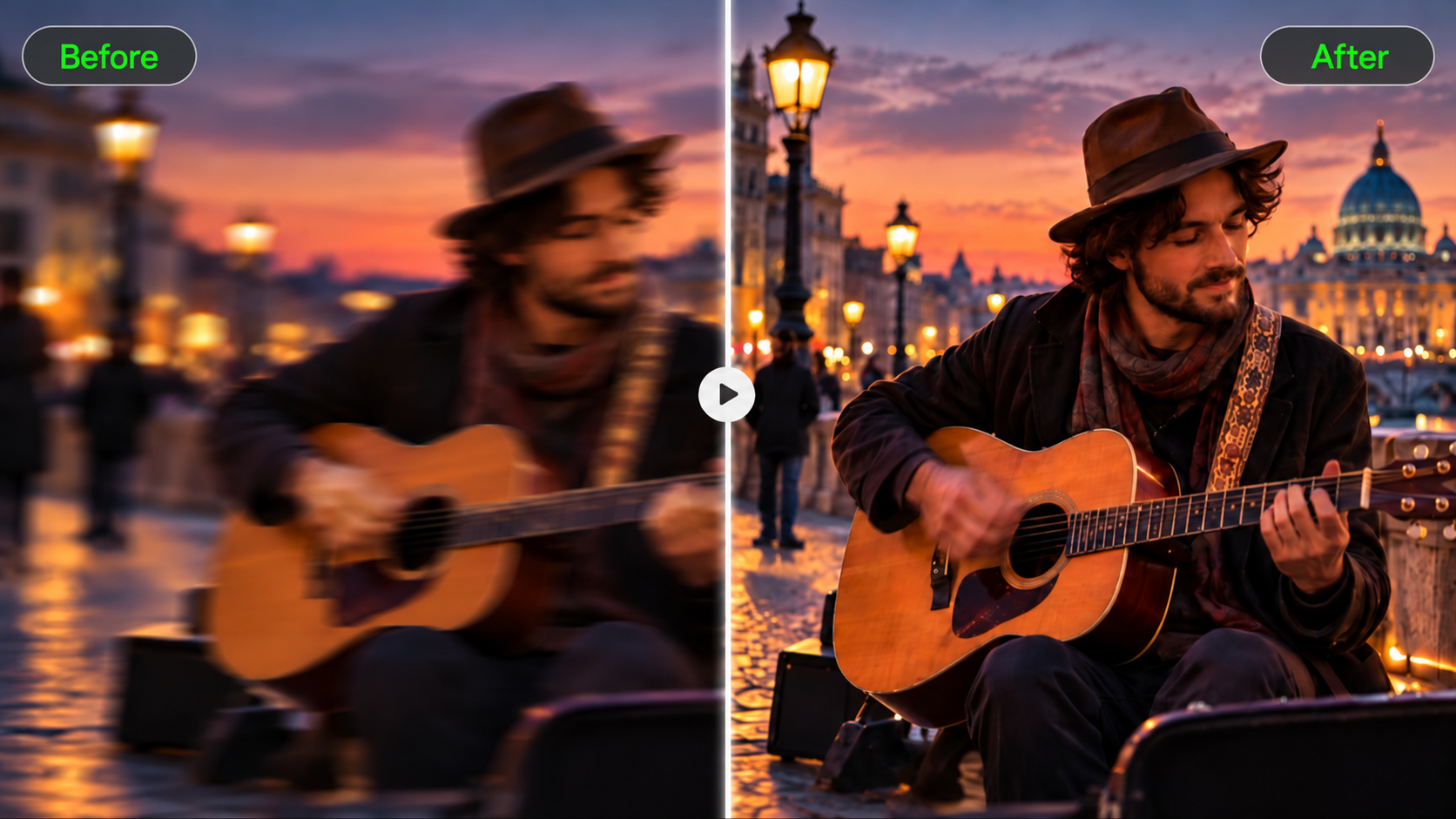
Generate scene clips between 3 and 30 seconds long, then check whether the action sequence, character consistency, dialogue, and camera movements match your expectations. Kling 4.0 also supports video editing, allowing you to make targeted changes to existing footage, such as adjusting the background, replacing a subject, or changing the camera angle.
Step 4: Assemble Your Training Video on Timeline
Once your clips are ready, right-click a generated clip and select Add to Timeline, then open Timeline at the top right. Arrange the clips in lesson order, trim unnecessary sections, and insert or replace shots where the lesson needs additional detail. Preview the complete sequence to check pacing, scene continuity, and the flow of instructions, then download the assembled video.
How to Finish a Training Module Learners Can Use
A complete video training module should give employees clear instructions and a chance to practice what they watched. Before publishing, check how each clip supports the actual job:
- Arrange the material. Open with enough context to explain the task, then show the important action. A brief explainer video can introduce a policy change before a practical demonstration.
- Make the lesson accessible. Add accurate captions or a transcript, and check that text is legible on viewers' usual devices.
- Give employees a chance to apply it. A question, simulated decision, or short assignment helps confirm that they understood the instruction.
- Check the final lesson with a subject expert. Have someone verify procedures, safety information, and product claims before distribution.
On-screen labels can help employees follow a checklist or remember a short sequence. Kling 4.0 supports clear multilingual text through movement and scene changes, and prompts can specify subtitle placement and timing. Numbered steps, labels, and quick reminders are more useful when they appear beside the relevant action. Check every generated word before publishing.

The End
Useful training videos help employees recognize a situation and know what to do next. Choose a format that shows the task clearly, keep each scene focused, and build in a chance to practice. When the finished lesson reflects the way your team actually works, learners can return to it whenever they need a refresher.
FAQs
How Long Should a Training Video Be?
There’s no fixed ideal length. A quick reminder may take less than a minute, but a detailed demonstration or customer-service scenario could need several minutes. Give employees enough time to follow each action, and divide longer lessons into chapters they can easily revisit. The goal is to help viewers understand and apply what they've learned.
Do You Need to Film People to Create Training Videos?
No. You can use screen recordings for software tutorials, animation to explain a process, or AI-generated scenes for workplace role-plays. Say you're making a customer-service video but don't have anyone available to act out the conversation. Kling 4.0's Omni Reference lets you use approved character images and reference footage to guide who appears, how they move, and the camera angles. You can then build a practice scenario around your team's actual procedures. Check the dialogue and actions before sharing the finished video.
Do You Need Permission to Use Employee Faces or Voices?
Get appropriate permission before uploading an identifiable person’s photo or voice to a video tool. Follow your organization’s privacy rules and leave confidential customer or employee details out of prompts and reference files.
How Can You Tell Whether Video Training Works?
Look at whether employees can perform the task afterward. Use a short knowledge check, track recurring errors, and ask supervisors where people still need help. Completion counts tell you who watched, but task performance shows what they learned.
What Makes Effective Training Videos for Employees?
Effective training videos for employees should have a clear learning objective, demonstrate important tasks step by step, and use realistic examples that viewers can apply at work. Adding captions, short practice scenarios, and clear visual instructions can make lessons easier to follow. Before publishing, review the content to ensure all procedures and information are accurate.
What Video File Format Works Best for Corporate Training?
MP4 is a common choice for corporate training videos, though each learning platform may have its own upload rules. Some limit file size or resolution, and others have specific requirements for captions. Before sharing the finished lesson, watch it on a phone as well as a computer. Small instructions that look perfectly clear on a laptop can be hard to read on a smaller screen.