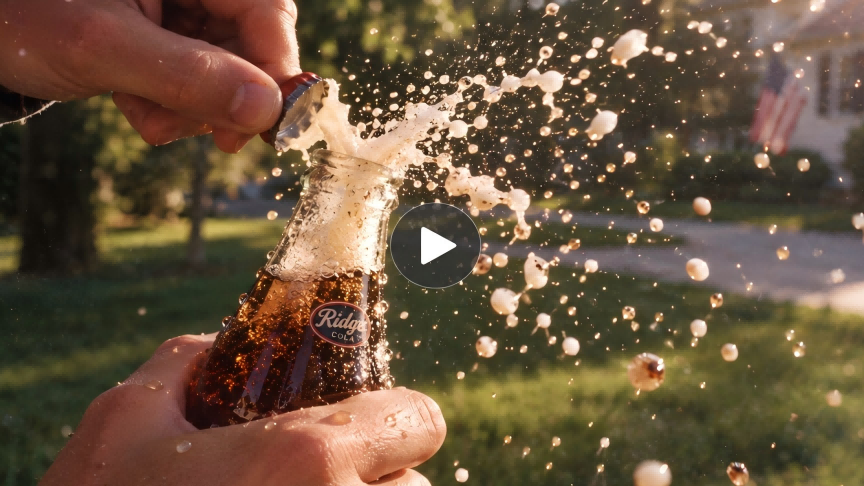
Slow motion gives a fleeting moment room to unfold: the turn of a body, fabric following a gesture, or ripples spreading after contact. If you're wondering how to make a video slow motion, traditional playback-speed editing is only one option. Kling AI offers a generative approach, letting you create slow-motion scenes from text or an image and describe how you want the action to unfold.
How to Put a Video in Slow Motion: Retiming vs. AI Generation
There are two common ways to create a slow motion video. If you already have a normal video and want to keep the original footage while simply slowing down its playback, you need a video editor with speed or retiming controls.
Kling AI takes a different approach. Instead of simply slowing down an existing recording, you can generate a new scene and describe how the action should unfold in slow motion. Start from text or an image, define the movement, pacing, camera behavior, and visual details, then let Kling AI create the shot around those instructions.
How Does Kling AI Generate Slow Motion?
With Kling AI, you can describe an action unfolding in slow motion and let the model generate the scene from your words. Your prompt sets out what happens, how the subject moves, and the details you want viewers to notice. You can start with a description alone, without an image reference.
Action scenes give you plenty to explore. Slow motion draws attention to the way a body turns, how clothing follows movement, or how the surroundings respond to contact. Describe these connected details in your prompt to give the scene a clear sense of movement.
As you review the result, look beyond the pace. Watch how the action flows and whether each movement produces a convincing response. These details help you decide what to keep and what to refine in your next prompt.
Video |
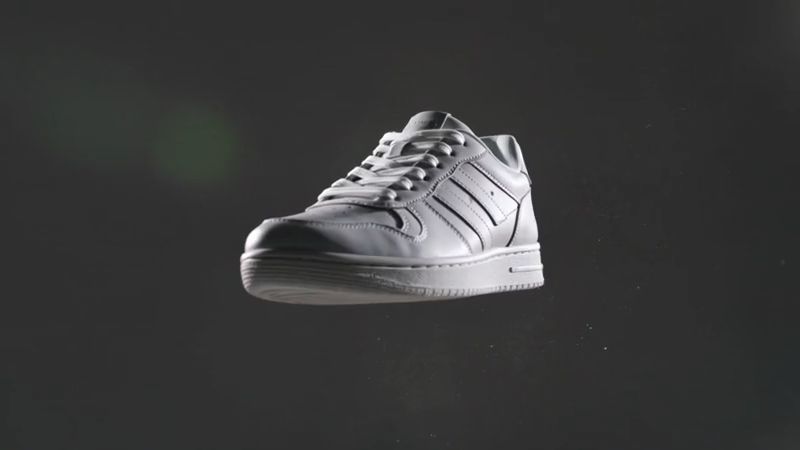  |
| Prompt: Cinematic close-up of a sneaker suspended in mid-air with a dynamic burst of colorful powder exploding around it, dramatic studio light, energetic and bold, slow motion, photorealistic, a generic unbranded sneaker with no logos. |
How to Make a Slow Motion Video with Kling VIDEO 3.0
Whether you begin with text or a still image, follow the same three steps. Prepare the input, describe the action and its pace, then generate and review the result.
Step 1: Choose Your Input in Kling VIDEO 3.0
Open the workspace to create AI video and select VIDEO 3.0.
Choose text to video when you want to create the scene from a written description. You do not need an image reference for this route. Decide what the main subject is doing and which moment deserves the viewer's attention.
If you already have a composition or subject you want to start from, choose image-to-video and upload the image here. Complete any supported reference setup before moving on to the prompt.
Step 2: Describe the Action and Slow-Motion Effect
Write your prompt in the description field, explaining what the subject does and how the action should unfold in slow motion. If you already have a prompt, update the relevant movement description to include the slow-motion effect.
For example, change “a dancer turns” to “a dancer turns in slow motion, her dress flowing around her.” This connects the effect to a specific action rather than leaving “slow motion” as a separate phrase.
You can request slow motion throughout the shot or focus on one moment within a sequence. State which you want in the same prompt, alongside the scene and camera description. Read it through once to make sure the action and pacing match the shot you have in mind.
Step 3: Generate, Review, and Download
With your prompt ready, choose the available output settings that suit your project, including duration and aspect ratio. Select a duration that gives your planned action room to unfold, then start generating.
Once the video is ready, play it through to see how Kling AI has interpreted your description. You can return to the prompt and generate another version if you would like to explore a different result.
When you have a version you like, download it for your project.
Reference Image |
.png?x-oss-process=image/resize,w_1872) |
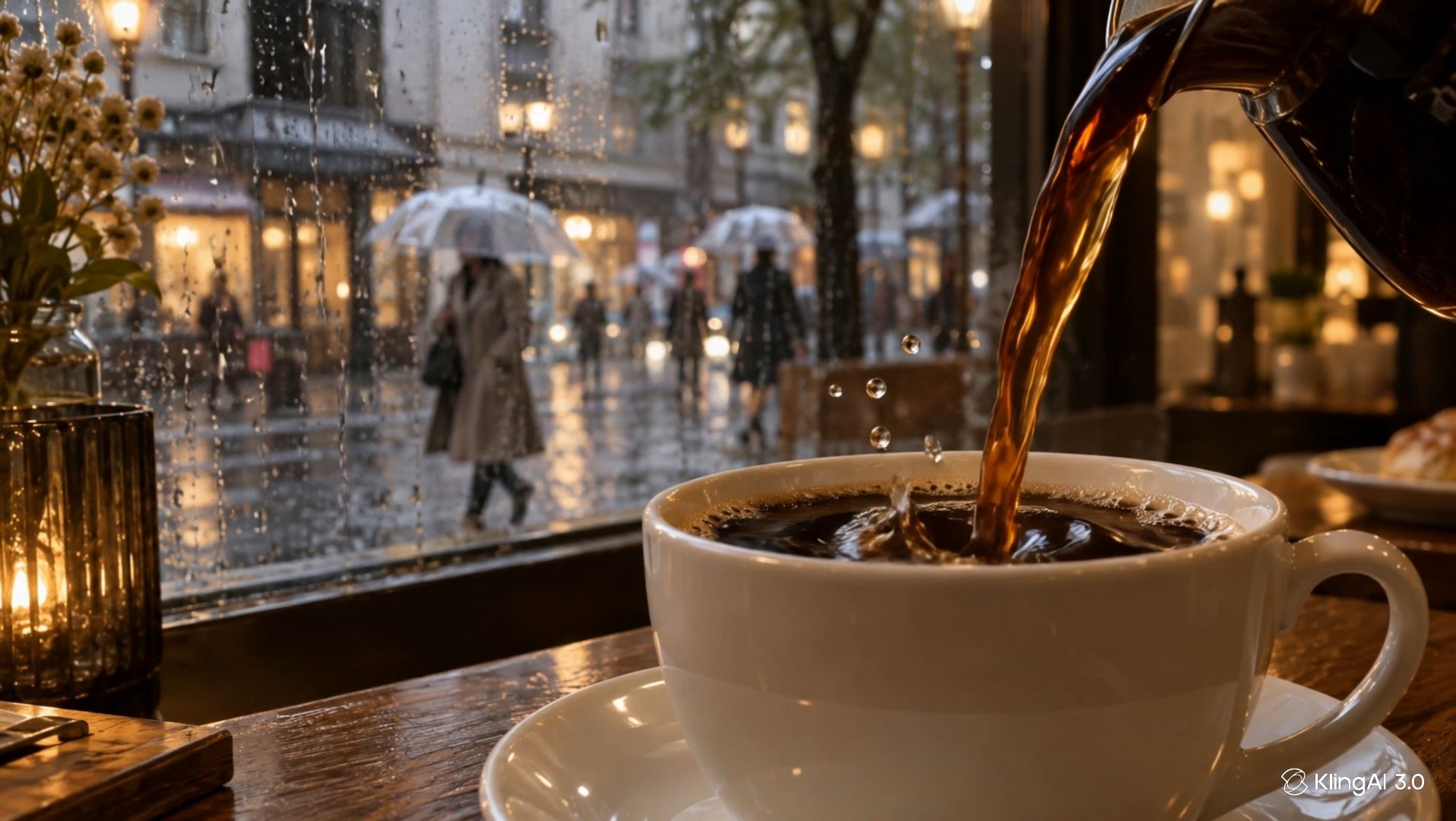
| Prompt: Create a slow motion video. Close-up shot of dark coffee being poured into a white ceramic cup, with tiny droplets suspended briefly in the air and ripples expanding across the surface. The main focus is the coffee pour and the delicate splash details. Behind the cup is a softly blurred rainy café window, with raindrops sliding down the glass and pedestrians carrying transparent umbrellas moving subtly outside. Warm yellow lighting, cozy café mood, shallow depth of field, static camera, no dramatic movement, realistic and cinematic. |
Video |
 |
How to Write Clear Slow-Motion Prompts
A clear prompt gives your slow-motion scene a sense of direction. These tips will help you describe the movement, highlight the details worth lingering on, and bring your creative idea into focus.
Give the Action a Beginning and an Ending
Describe how the movement starts, what happens, and where it finishes. A dancer might prepare for a turn, spin, and settle into a final pose. A simple progression helps you express the moment you want to create without crowding the shot with extra actions.
Make the Intended Pace Clear
Think about whether you want a subject moving deliberately slowly or an action presented in slow motion. Use wording that reflects your goal, and connect it to the relevant movement. If the pace changes during the scene, explain when the slow-motion moment begins.
Connect the Movement to Its Surroundings
Details such as fabric following a turn or ripples spreading after contact can give the action a stronger sense of place. Choose a few reactions that support the main movement and describe how they relate to it.
Give the Camera a Clear Role
Decide how the viewer should experience the action. A fixed camera lets the movement take center stage, while a tracking shot follows it through the scene. Describe the camera's movement in step with the subject's pace so both work toward the same effect.
Bring Your Slow-Motion Shot into the Final Edit
Slow motion gives viewers time to notice small details, feel an emotion, or appreciate a moment of action. It can also create a welcome change of pace in your video. Once you have created a slow-motion shot you like with Kling AI, a few thoughtful editing choices can help it become a natural part of your story.
Find the right place for your shot. Add the clip to your preferred video editor and choose where it will contribute most. It might highlight a product detail, draw attention to a gesture, or give viewers a pause after a busy sequence. Let that purpose guide its placement.
Trim around the moment that matters. Keep enough of the opening for viewers to understand the action, then give the highlight time to unfold. Trim any extra footage after the movement resolves so the shot stays focused and the story keeps moving.
Build the mood with sound. Try the clip with your video's music or ambient audio. A softer passage can make a small gesture feel intimate, while a well-timed sound effect can emphasize contact. Listen across the cut so the audio carries smoothly into and out of the shot.
Watch the sequence. Play the preceding clip, your slow-motion shot, and the following clip together. Notice whether the change of pace feels right for the scene. Adjust the cut points until the slower moment has room to shine and the next shot arrives naturally.
Conclusion
Learning how to make a video in slow motion opens a new way to tell your story. A fleeting glance, a sweeping turn, a splash catching the light: you get to choose which moment deserves a little more time.
Let your imagination wander and your eye for detail lead the way. With Kling VIDEO 3.0, put your vision into words, explore how it unfolds, and shape it into a slow-motion video that feels unmistakably yours. Be bold with your ideas. Give viewers something worth lingering over.
FAQs
How Can I Make a Video Slow Motion with Kling AI?
Choose VIDEO 3.0, start with text or upload an optional image, and describe the action unfolding in slow motion. Select the available output settings and generate the video. Review the movement and its effects on the surroundings, then refine the prompt if the pace or action needs adjustment.
Do I Need an Image to Generate a Slow Motion Video?
No. You can use text-to-video and describe the subject, setting, action, and slow-motion effect in your prompt. An image is an optional starting point when you want to establish a particular composition or appearance. Both input routes use the same basic process of describing, generating, and reviewing the movement.
What Should I Write in a Slow-Motion Prompt?
Identify the subject, describe a specific action, and state which movement should unfold in slow motion. Add relevant reactions in the surroundings and explain the camera behavior separately. Keep the setting and style consistent with the action. Clear relationships between these details are more useful than a long list of disconnected instructions.
Does Increasing Video Duration Make the Action Slower?
No. A longer duration gives the generated scene more time, but it does not automatically reduce the action's speed. The scene may continue or include additional movement instead. Describe the intended slow-motion treatment in your prompt, choose a suitable duration, and review the generated result before deciding what to change.
Can I Make a Normal Video Slow Motion with Kling AI?
If you want to create a new slow-motion shot, use Kling VIDEO 3.0 and describe how the action should unfold from text or a starting image. If you already have a short video, you can upload it to Kling VIDEO 3.0 Omni and use a prompt to guide how the motion or scene is transformed. This is a generative workflow rather than conventional playback-speed retiming, so it is better suited to creatively reworking motion than simply changing a clip from 1× to 0.5× speed. For broader prompt-based changes to existing footage, you can also explore Kling AI Video Editor, whether you want to refine the scene, adjust visual details, or remove the video background as part of your editing workflow.