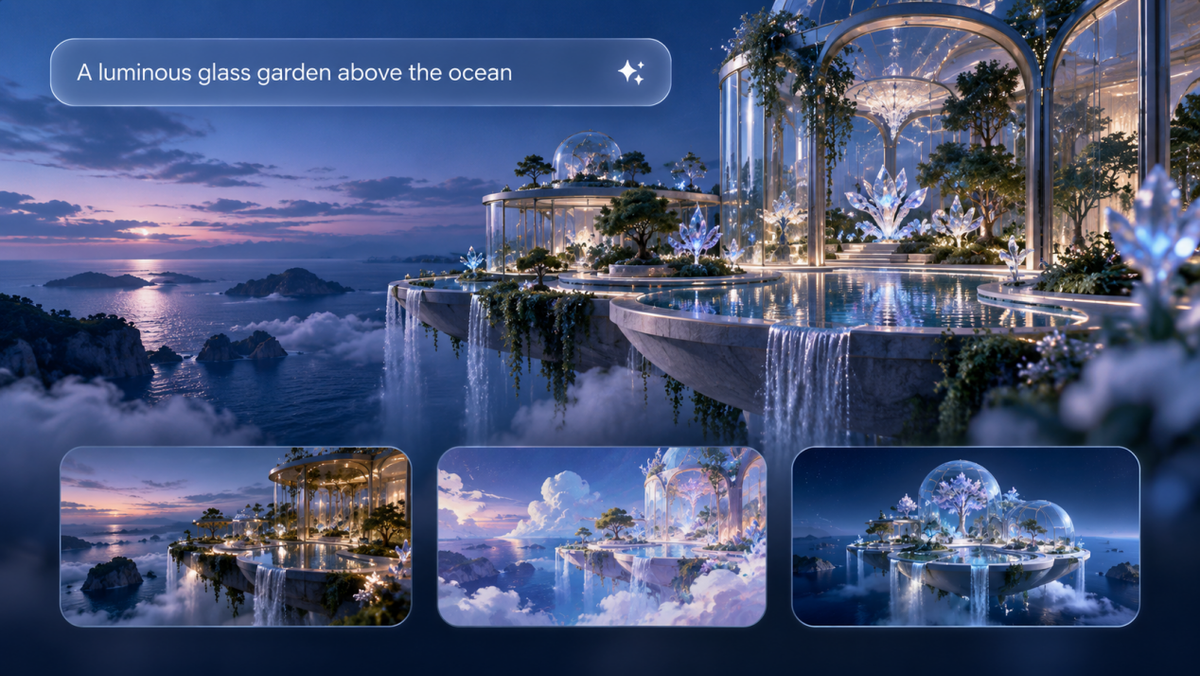
With just an idea or a simple description, text-to-image models can turn natural language into visual concepts. For creators, the best text-to-image models go beyond image generation. They need to understand complex prompts, preserve visual consistency, and support creative refinement over time. This guide explains how text to image models work, compares the capabilities that matter most, and explores how Kling IMAGE 3.0 combines reference-based creation, precise editing, and flexible workflows to help creators bring their visual ideas to life.
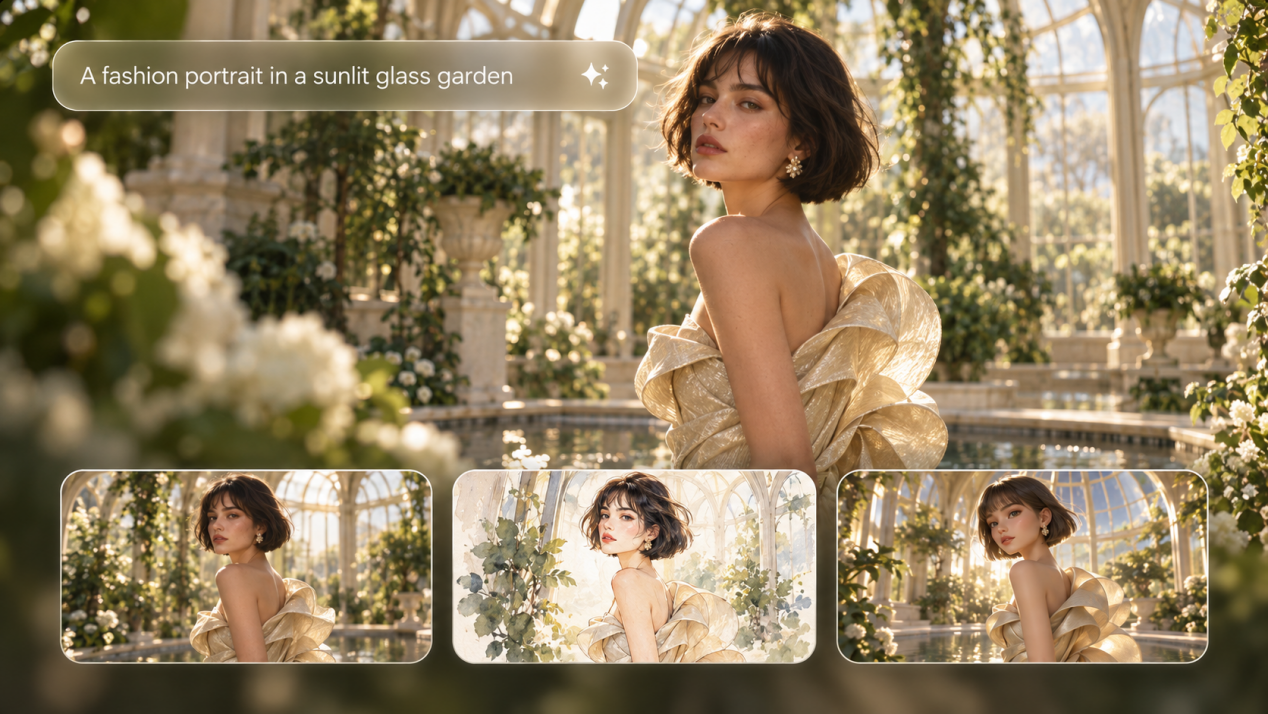
What Are Text-to-Image Models?
A text-to-image model is a type of artificial intelligence system that converts natural language prompts into digital images based on the details described in the prompt.
Modern text-to-image systems typically combine a component that understands or encodes the prompt with an image-generation component that turns those instructions into visual content. Some models can also work with images and other visual references, helping them follow complex prompts, preserve important details, and support more precise editing.
For example, consider a prompt:
| Prompt: A vintage camera placed on a wooden desk with soft morning light falling across the scene. |
The model needs to understand the object, material, spatial arrangement, lighting, and overall visual style before producing the corresponding image.
Today, evaluating text-to-image models involves more than image quality. The focus has shifted toward accurate prompt understanding, handling complex scenes, maintaining visual consistency, and supporting flexible editing.
How Do Text-to-Image Models Work?
Text-to-image models translate written descriptions into visual content by learning how language relates to objects, styles, compositions, and other details. Many modern systems use diffusion-based methods, with the prompt guiding a step-by-step process that gradually transforms visual noise into a finished image.
The process can be understood in three stages:
1.Learning How Text Connects With Images
Before generating images, a text-to-image model learns from large datasets containing images paired with descriptions. During training, it identifies patterns between words and visual details, including objects, colors, shapes, styles, and spatial relationships. For example, the model learns how concepts such as “vintage camera,” “wooden desk,” and “soft morning light” are associated with specific visual characteristics.
2.Understanding the Prompt
When you enter a prompt, the system translates your text into a format it can understand, capturing the core meaning and context. While the exact technology varies by model—and commercial systems often keep their full architecture under wraps—these text and vision components work together to bridge your words with the final visual output.
3.Generating the Image
Many modern text-to-image models use diffusion methods, although other models may use autoregressive or different generation approaches. In diffusion-based systems, the process starts with visual noise and gradually removes that noise based on the information provided by the prompt. Through repeated denoising steps, the image develops clearer shapes, details, and styles that match the description. Some systems perform this process in a compressed latent space before converting the result into the final image. After the image is formed, further adjustments can be made to refine details or prepare it for editing.
What Makes Text-to-Image Models Different?
Text-to-image models can respond very differently to the same prompt. Some of that comes from the way images are generated, while some comes from the kinds of input the model can read and use.
Generation Architecture
At the generation level, two common approaches are diffusion and autoregressive generation.
Approach | How It Works | Common Uses |
Diffusion Models | Start with visual noise and gradually refine it into an image guided by the prompt. | Detailed image generation, realistic scenes, illustration, and style-driven work. |
Autoregressive Models | Build an image by predicting visual tokens or elements in sequence. | Image generation that builds visual content in sequence rather than refining noise. |
Diffusion models remain an active area of text-to-image research. The 2023 survey Text-to-image Diffusion Models in Generative AI: A Survey provides a useful overview of diffusion-based text-to-image methods, datasets, evaluation approaches, and related applications.
Multimodal Inputs
Multimodal describes the types of input a model can use rather than how it generates an image. A multimodal image model may take text, images, and visual references for reference-based creation, editing, or keeping characters and products consistent across a series. Underneath, it may still use diffusion, autoregressive generation, or another method, so a model can fall into more than one category.
What Are the Best Text-to-Image Models in 2026?
For this guide, we selected seven current models that represent different approaches to image generation, editing, reference-based creation, and visual production. The order is not a ranking.
Model | Model Type | Best For | Key Features |
Image generation and editing model with multimodal inputs | Reference-based creation, product visuals, characters, and detailed edits | Generates from text or images, combines features from up to 10 references, and supports subject retention, precise edits, and style control. IMAGE 3.0 supports up to 2K generation, while IMAGE 3.0 Omni offers up to 4K. | |
Leonardo Lucid Origin | Image generation model | Illustration, concept art, product mockups, and general image creation | Covers a wide range of styles, follows detailed prompts, produces Full HD images, and supports legible text rendering. |
Seedream 5.0 Pro | Image generation and editing model | Product imagery, infographics, design assets, and local edits | Works from text or images, accepts references, supports regional editing, and handles multilingual input and generation. |
Adobe Firefly Image 5 | Image generation and editing model | Design production, marketing assets, and Adobe-based projects | Generates from text, works with reference images, and allows targeted edits in Photoshop while leaving surrounding image content intact. |
Krea 2 Large | Image generation model | Photorealism, style-led work, and visual direction | Optimized for expressive photorealism, with prompt-based creation and reference-guided control over composition, subject, and style. |
Luma UNI-1.1 | Unified multimodal image model | Reference-led generation and image revision | Combines image generation with natural-language editing and accepts up to nine reference inputs in a request. |
Runway Gen-4 Image | Image generation model within an image and video platform | Character development, scene design, and projects that later move into video | Generates from text and reference images, uses up to three references per generation, and can carry characters, objects, or visual traits into new scenes. |
The next section compares these models on prompt following, reference handling, editing, visual consistency, and style control.
How Do Text-to-Image Models Compare in 2026?
Text-to-image models differ most in prompt accuracy, reference use, editing, consistency, and style control. These differences are easier to notice in projects that involve repeated images, revisions, products, or recurring characters.
Comparison Area | What to Compare | Why It Matters |
Prompt Following | Subjects, attributes, object relationships, composition, and required details. | A polished image still falls short if it misses the brief. |
Reference Handling | Number of references, subject retention, style transfer, and composition guidance. | References help keep a character, product, or visual direction recognizable across images. |
Image Editing | Local changes, natural-language edits, and how well untouched areas remain intact. | Precise edits save time and avoid rebuilding the image from scratch. |
Visual Consistency | Characters, products, clothing, style, and recurring details across images or revisions. | Stable details are important for image series, campaigns, storyboards, and product sets. |
Style Control | Lighting, palette, texture, photographic look, illustration style, and visual direction. | Clear style control helps keep related images visually connected. |
Workflow Fit | Revisions, export options, image-to-video use, and compatibility with other creative tools. | What happens after generation can be just as important as the first image. |
A model that works well for quick concept images may not suit a product series or character project. Prompt accuracy and style may be enough for a single image, while repeated work often calls for stronger references, editing, and consistency.
How to Choose the Best Text-to-Image Model?
When choosing an AI image generator, start with what you want to make and which details need to stay unchanged as you revise the image. The table below shows what to look for in several common scenarios.
If You Need | Look For | Why It Matters |
Quick concept images | Prompt accuracy, image quality, and style range | You can get closer to the intended result with fewer revisions. |
Consistent characters or products | Reference handling and detail retention | Faces, clothing, products, and other defining features need to stay recognizable across images. |
Frequent image revisions | Local editing and natural-language changes | You can adjust one part of the image without rebuilding the whole scene. |
Campaign assets or image series | Stable subjects, style, and composition | Related images need to share the same visual direction. |
Images that later move into video | Reference images and image-to-video options | Stable subjects and visual details are easier to carry into motion. |
Why Is Kling IMAGE 3.0 Worth Considering?
Kling IMAGE 3.0 lets you kick off creations with a text prompt or reference images, then fine-tune every detail using natural language. Beyond standard generation, it gives you deep control over character consistency, precise edits, and style tuning, opening up endless creative possibilities.
Turn Complex Ideas Into Fresh Visuals
IMAGE 3.0 lets you blend visual cues from multiple references and use everyday language to push past standard edits. Combine subjects across images, flip the perspective of a scene, or shift a concept into a whole new style—all while keeping the final result seamless and cohesive.
Reference Image 1 | Reference Image 2 | Output Image |
.png?x-oss-process=image/resize,w_1872) | .png?x-oss-process=image/resize,w_1872) | .png?x-oss-process=image/resize,w_1872) |
Prompt: Merge the animals from image 1 and image 2. | ||
Keep Characters, Products, and Key Details Recognizable
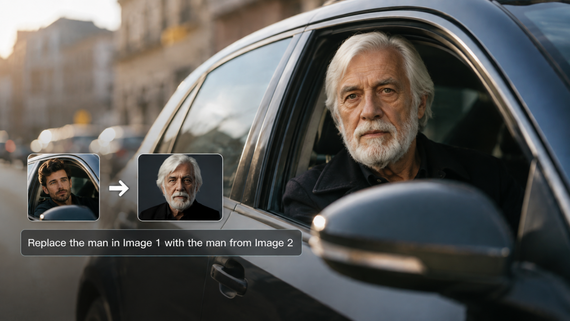
You can use up to 10 reference images in one generation. Different references can define a character, clothing, product, setting, or style while your prompt explains how those elements should come together. For portrait touch-ups, face references can help preserve recognizable facial features while you change the hairstyle, outfit, pose, or setting. If you just want to swap a face into an existing shot, you can also jump straight into Kling's face swap workflows.
.png?x-oss-process=image/resize,w_1872)
Change Only What Needs to Change
If most of an image already looks right, you can use Kling IMAGE 3.0 as an AI photo editor to adjust specific details without rebuilding the whole scene. Natural-language instructions can change an object’s size, color, material, expression, or background while aiming to preserve the surrounding parts of the image. You can also use Kling AI as a watermark remover for images you own or have permission to edit. Other edits include photo colorization, vintage effects, doodle edits, lighting and tone changes, and image restoration.
Keep Style and Tone Consistent Across Images If you already have a clear visual direction, you can use an existing image as the style reference. Kling IMAGE 3.0 can carry over elements such as brushwork, color, composition, and tone into new images. This works well for illustration sets, product visuals, or branded content where the same look needs to appear across more than one image.
Reference Image 1 | Reference Image 2 | Output Image |
.png?x-oss-process=image/resize,w_1872) | .png?x-oss-process=image/resize,w_1872) | .png?x-oss-process=image/resize,w_1872) |
Prompt: Change the style of Image 1 to that of Image 2 | ||
The End
Text to image models differ in what they do best, so the right choice depends on what you need after the first image is generated. If you only need a quick concept, prompt accuracy and image quality may be enough. For product visuals, recurring characters, or image series, references, editing, and consistency matter more. If you want to start from text or existing visuals, Kling IMAGE 3.0 lets you combine references, change specific details, and carry the same look into new images. Whether you are building a product campaign, developing a recurring character, or turning an early concept into a finished visual set, the right model should make it easier to keep the details you care about as the project grows.
FAQs
Which AI Language Model Is Used for Text-to-Image Creation?
No single language model is used by every text-to-image system. If you are asking which AI language model is used for text-to-image creation capabilities, the answer varies by model. Some systems use text encoders such as CLIP or T5, while others use language or vision-language components to read the prompt before the image is generated.
Which AI Can Turn Text to Image?
Many AI image models can turn a written prompt into a finished image, including Kling IMAGE 3.0, Leonardo Lucid Origin, Seedream 5.0 Pro, Adobe Firefly Image 5, Krea 2 Large, Luma UNI-1.1, and Runway Gen-4 Image. Each handles prompts, references, edits, and visual consistency differently, so the right model depends on the kind of image you need to make.
Can Text-to-Image Models Use Reference Images?
Yes. Many text-to-image models can use reference images alongside written prompts, which makes image-to-image AI useful when you want to work from an existing visual instead of starting from scratch. The reference can establish details such as the character, product, pose, composition, colors, or style, while the prompt tells the model what to change. Kling IMAGE 3.0 can use up to 10 reference images in one generation, which is helpful when the same character, product, or visual style needs to remain recognizable.
How Do I Remove the Background From an Image?
If you need a cleaner product shot, profile image, or design asset, you can remove the background from an image and keep the main subject isolated. A transparent background works well for product listings, presentations, social posts, or layouts where the subject needs to sit on a different backdrop. After removal, check fine edges around hair, clothing, fur, or small objects, then keep the background transparent, switch to a solid color, or place the subject in a new scene.