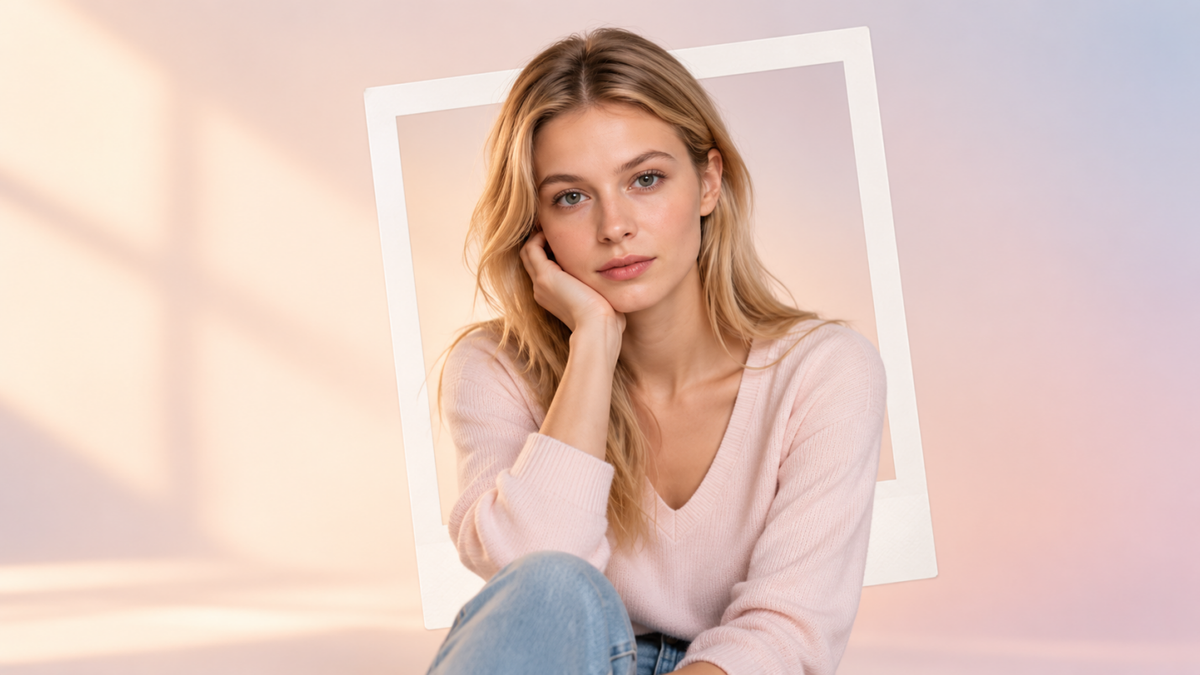
Learning how to create a Polaroid AI photo starts with more than adding a white border. Grain, color, lighting, and framing help shape a convincing instant-film look. With Kling AI image generator, you can restyle an existing photo or generate a new scene from text. This guide covers the key visual traits, a three-step workflow, and practical prompts to try.
What Is the AI Polaroid Trend?
The AI Polaroid trend gives digital images the nostalgic feel of instant-camera photos. Think of friends squeezed into a frame, a quiet afternoon at home, or a flash-lit portrait against a plain wall. You can start with a photo you already love or imagine a scene from scratch.
The appeal is in the small imperfections: soft color, a little grain, and framing that feels caught in the moment.
What Makes an AI Polaroid Photo Look Realistic?
A realistic AI Polaroid depends on several details working well together throughout. Here are a few details to explore in your prompt:
Element | What to Describe |
Frame | White border with a wider area along the bottom |
Lighting | Direct on-camera flash, or soft window light |
Color | Slightly faded, warm, or shifted away from accurate |
Texture | Film grain and small surface imperfections |
Focus | Mild softness rather than clinical sharpness |
Composition | Casual, candid, imperfectly framed |
Not every image needs all 6 effects to create a convincing Polaroid look. Choose details that suit the scene, lighting, print condition, and intended mood best. Too many vintage effects can make the result resemble a basic filter instead.
How to Create a Polaroid AI Photo with Kling IMAGE 3.0
Have a favorite picture in mind? Start there. Or let a few words become a new scene. Kling AI image generator supports both text and reference-image generation. When you start from a photo, its reference-image workflow can help preserve the main subject while changing the visual treatment, making it easier to add faded colors, film grain, softness, and other instant-film details without rebuilding the scene from scratch.
Step 1. Upload a Photo or Start From Text
Select Kling IMAGE 3.0 To turn your pictures into Polaroids, upload a clear picture and use image to image AI to guide the transformation.
Starting with an idea? Choose text to image and describe who is in the scene, where they are, and what the moment feels like.
Step 2. Describe the Polaroid Look
Start with your subject and setting, then describe the instant-film details you want: a white border with a wider bottom strip, warm faded colors, fine grain, or soft window light. Choose a few details that fit the mood. For example, try “a candid portrait with direct flash, subtle grain, and warm tones.” If you’re using a reference image, also say what should stay consistent, such as the person’s features, pose, and background.
Step 3. Generate and Refine
Before generating, choose your preferred aspect ratio and available output settings. Review the result for lighting, color, grain, border, and finer details. Want softer grain or a warmer tone? Use the AI photo editor to make a few adjustments, or change the color of the image when you want to fine-tune the warmth, saturation, or overall color direction. Once you’re happy with the result, choose your preferred ratio and export options, then save your final image.
Best AI Polaroid Prompts to Try
Every scene has its own mood. These prompts give you a starting point, from a classic flash portrait to a quiet moment by the window. Swap in your own subject or setting and see where it takes you.
Text to Image: Imagine a Summer Snapshot
No photo needed. With text-to-image, a small scene can become the beginning of a story. A simple backdrop lets the flash, warm color, and film texture do the work. This version combines core instant-film traits without making any single effect feel excessive.
Image |
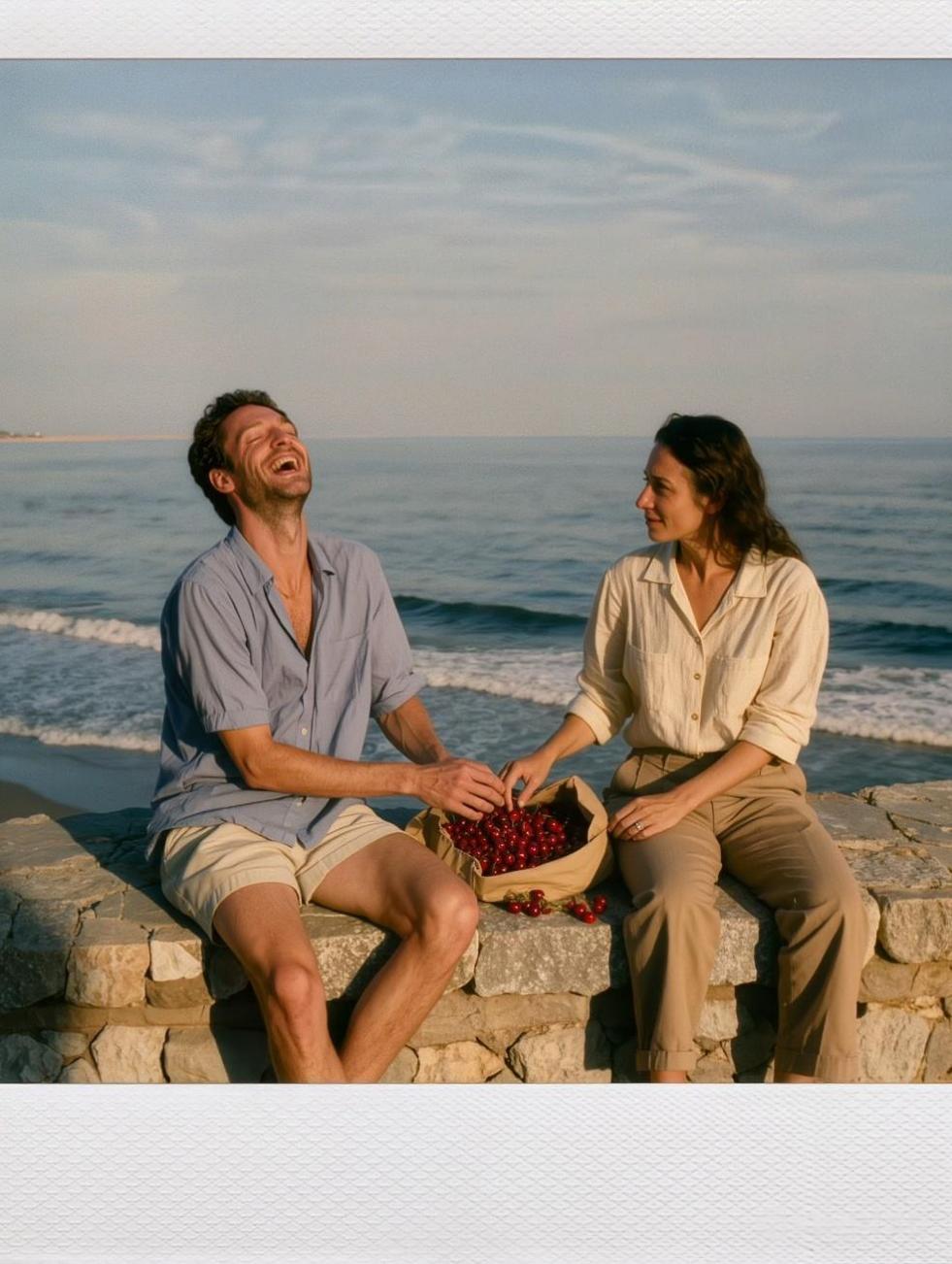 |
| Prompt: Create a realistic instant-film photograph of two adult friends sitting on a low wall beside the sea, sharing a bag of cherries on a summer afternoon. One friend is laughing while the other looks toward the water. Gentle sunlight, slightly faded warm colors, fine film grain, subtle softness, and relaxed snapshot framing. Show the complete print straight on, with a clean white border and a wider bottom strip. No text. |
Image to Image: Turn a Favorite Moment Into a Polaroid
Some of the best Polaroid-style images begin with everyday moments. Upload a photo of friends, a couple, or a favorite trip, then describe the instant-film treatment while keeping the people and composition recognizable.
Original Image | Output |
.png?x-oss-process=image/resize,w_1872) | .png?x-oss-process=image/resize,w_1872) |
| Prompt: Turn the uploaded photo into a realistic Polaroid-style instant photograph. Preserve the people’s facial features, poses, clothing, and relative positions, along with the main background details. Add subtle direct flash, softly faded colors, fine film grain, slight photographic softness, and natural instant-film texture. Keep the scene casual and candid. Present the final image as a complete instant print with a clean white border and a wider bottom strip. Do not add new people, objects, or text. | |
Image to Image: Give a Pet Photo an Instant-Film Look
Pet photos already have plenty of personality. Use Kling AI to give an existing photo a nostalgic instant-film look while asking the model to preserve the animal’s recognizable features and the original composition.
Original Image | Output |
.png?x-oss-process=image/resize,w_1872) | .png?x-oss-process=image/resize,w_1872) |
| Prompt: Transform the uploaded photo into a Polaroid-style instant photograph. Preserve the orange cat’s markings, pose, and position, along with the tiled counter, bowl, stove, and main kitchen background. Apply softly faded warm tones, natural instant-film color response, fine film grain, and gentle photographic softness while keeping the cat’s features recognizable. Add a clean white instant-film border with a wider bottom strip. Keep the main composition consistent and add no new objects. | |
How to Get Better AI Polaroid Results
Once you have the instant-film look, think about the moment inside the frame. A familiar setting, an unplanned gesture, or a few well-chosen objects can give your AI Polaroid a more personal feel.
Give the Scene Something to Remember
Choose a few details that suggest a life beyond the photo: a handwritten postcard on the fridge, a half-finished birthday cake, or jackets piled beside a diner booth. Two or three details are usually enough to give the scene character without crowding it.
For a particular decade, describe objects, clothing, or surroundings that belong to it. Cassette tapes and a patterned sofa give the model more to work with than “1990s nostalgia” alone.
Give People Something to Do
Try describing a small action instead of simply asking everyone to pose. Friends could be passing around a takeaway bag. A couple might be sharing headphones, while someone at a family gathering reaches for another slice of cake.
These everyday interactions give your AI image generator a clearer scene to build and can help the result feel like a moment caught between poses.
Match the Wear to the Story
Decide whether your image should resemble a fresh instant print or a keepsake found years later. A fresh print can have clean edges. An older one might show a slightly yellowed border or a lightly worn corner. Keep those signs of age intentional; every photo does not need scratches and stains.
The End
Now that you know how to create a Polaroid AI photo, choose a moment you’d love to see in a new light. With Kling IMAGE 3.0, a favorite photo, an illustration, or a few words can become your next instant-film creation. Play with the possibilities, follow your curiosity, and make a little piece of art that feels like you.
FAQs
How Do I Turn a Normal Photo Into a Polaroid?
Upload your photo to Kling IMAGE 3.0 as a reference image. Describe the white border, wider bottom strip, flash style, film grain, faded colors, and instant-film texture you want. Ask the model to keep the subject, pose, composition, and setting consistent while changing only the visual treatment.
What Is the Best AI Polaroid Prompt?
An effective AI Polaroid prompt should match the subject, setting, and intended mood. Include the frame style, flash type, grain level, color treatment, softness, and composition. Keep the instructions specific and compatible so the model can create a convincing instant-film look without introducing conflicting visual effects.
Can AI Create Polaroid Pictures From Existing Photos?
Yes, Kling IMAGE 3.0 can create an AI Polaroid from a reference photo. The model can retain the main subject and composition while changing the lighting, grain, color treatment, framing, and texture. Review faces, text, and small details afterward because generative edits can still alter parts of the original image.
What Makes a Picture Look Like a Polaroid?
A convincing Polaroid look combines direct flash or soft natural light, visible grain, faded colors, mild softness, and casual framing. The white border and wider bottom strip support the instant-film appearance, but the inner photo matters more. Slight imperfections and natural composition help the final image feel less digitally polished.
Is an AI Polaroid Different From a Polaroid Filter?
Yes, a typical Polaroid filter mainly changes the surface appearance of an existing photo through color, grain, contrast, and frame effects. Generative AI can reinterpret lighting, framing, texture, and some scene details instead. Choose a filter for predictable styling, while AI generation works better when you want broader creative changes.