Creating one AI video is simple. Producing dozens of variations usually means repeating the same prompts, references, and settings again and again.
With Kling MCP, you can connect Kling AI to a compatible AI assistant, reuse an approved creative setup, and generate multiple variations without rebuilding the workflow each time.
Below, we use a cinematic performance project to show Model Context Protocol MCP: hands-on with agentic AI videos in practice.
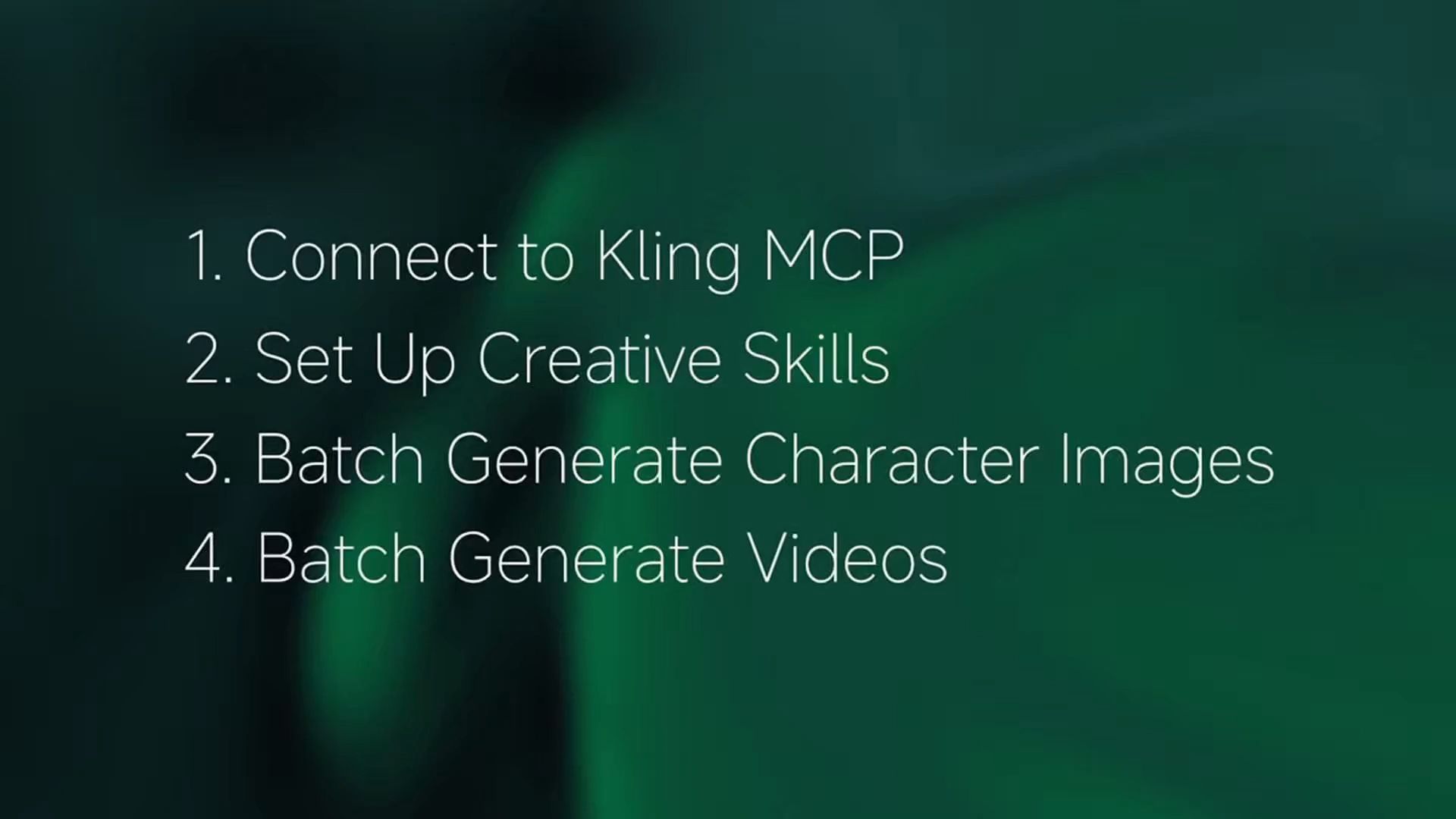
Build an Agentic AI Video Workflow in 4 Steps
The workflow follows four stages: set the creative direction, turn it into reusable instructions, test the concept, and scale the approved variations.
- Set the direction. Establish the reference, visual style, framing, and performance you want.
- Build reusable instructions. Separate what should stay consistent from what can change across the batch.
- Test before scaling. Approve the character concepts, prompts, and a small number of video generations first.
- Generate the batch. Apply the approved setup across the remaining variations with Kling MCP.
The AI agent organizes and repeats the workflow. MCP connects the agent to Kling AI tools. Kling AI handles the media generation, while you decide which concepts and results move forward.
Learn how to use Kling MCP to build a complete creative workflow in your preferred AI agent |
|---|
  |
Start With One Clear Creative Reference
A repeatable workflow starts with a clear creative reference.
If your AI agent supports video input, use a short performance clip. Otherwise, provide a few representative frames with notes on movement, pacing, camera direction, and emotion.
The goal is to define what stays consistent across the batch and what can vary. For example:
Create a series of restrained cinematic performances in which different characters express quiet grief through subtle facial movement. Keep the framing, lighting, pacing, and acting style consistent while varying the character and emotional context.
Keep consistent:
- Close or medium framing
- Soft natural light
- Shallow depth of field
- Restrained acting
- Slow camera movement
Vary across the batch:
- Character appearance
- Wardrobe
- Emotional context
- Performance intensity
Once these rules are clear, the agent can reuse them across multiple variations instead of rebuilding the creative direction for every video.
Connect Kling MCP to Your AI Agent
Set up the connection from the AI agent or MCP client you plan to work in.
In a client that supports remote MCP connections, open its MCP or connector settings and add the official Kling MCP endpoint for your Kling account. For international accounts on kling.ai, the endpoint is: https://kling.ai/mcp.
Then sign in to Kling when prompted and authorize the connection. The exact menu names and setup flow depend on the AI agent you use, so follow the Kling MCP & CLI Guide together with your client’s MCP instructions.
For example, Claude users can add a remote MCP server through its custom connector settings and then authenticate the connection.
Once connected, enable Kling MCP in the conversation or workspace where you want to create. The agent can then access the Kling tools exposed through that connection instead of requiring you to move every generation request manually into the Kling web workspace.
Before starting a large batch, check the available Kling tools and generation settings in your current connection. Available models and parameters can change, so confirm the setup you intend to use before submitting credit-consuming tasks.
Turn the Reference Into Reusable Instructions
Do not start by generating a large set of finished videos. First, ask the agent to turn the creative reference into instructions you can reuse across the project. If the agent can interpret the source video directly, it can work from the clip; if it cannot, use selected frames together with written notes describing the performance and camera movement.
Try:
Analyze the provided cinematic performance reference. Use the video where supported, or the supplied frames and performance notes. Turn the direction into reusable instructions for character generation, acting, video prompts, and batch production. Separate what should stay consistent from what can vary. Show me the plan before generating any media.
For this example, the shared direction might include:
- Soft natural lighting
- Shallow depth of field
- Close framing
- Minimal body movement
- Slow camera push
- Subtle facial performance
The variables might include:
- Character appearance
- Wardrobe
- Emotional cause
- Performance intensity
- Small changes in gaze or posture
Keep the performance direction visible and specific. Instead of sad person or cinematic look, describe what should actually happen on screen:
- Damp eyes without heavy crying
- A held breath
- A slight jaw movement
- A delayed glance away
- A slow camera push
Once the direction is approved, the agent can reuse the same structure instead of treating every variation as a new prompt-writing task.
Generate the Character Set Before Adding Motion
Next, ask the agent to use Kling image generation to create the character concepts that will become visual references for the videos. Rather than making one character, animating it, and then starting again, prepare several concepts under the same approved direction. The characters can differ while sharing the framing, lighting, mood, and overall visual language of the project.
Review the set with the same questions:
- Is the face clear enough for subtle acting?
- Does the wardrobe fit the concept?
- Does the lighting match the approved direction?
- Is the framing suitable for the planned movement?
- Does each character feel distinct while still belonging to the same visual world?
This is where a batch workflow starts to save time.
If several images share the same problem, update the shared instruction before moving into video generation. If every portrait is framed too wide, for example, change the framing rule once instead of fixing the same issue after several videos have already been generated.
Approve the character images that are ready for motion and revise the others first.
Build One Performance Prompt Pattern
Once the character images are approved, build one prompt structure that can be reused across the video set.
A useful pattern is:
Starting state + visible change + small action + camera movement + ending
For example:
Use the approved character image as the visual reference. Begin with a steady close-up and restrained breathing. Let the eyes gradually gather tears while the character tries to stay composed. Add one small glance away and a subtle camera push. Keep the character recognizable and preserve the approved lighting direction. End before the expression becomes exaggerated.
The prompt describes what should be visible rather than relying only on an emotion label.
You can then keep the same structure while changing the performance for each variation:
- Grief
- Relief
- Pride
- Fear
- Reunion
The agent can reuse the approved visual and prompt rules while changing only the details required for each character.
For this image-led workflow, ask the agent to use a supported Kling image-to-video action with each approved character image and its paired performance prompt.
Before submitting the generation tasks, have the agent list the planned character-to-prompt pairs so you can check the set.
Test a Small Set Before Scaling
Start with a few videos before generating the full set. Check whether:
- Facial movement is too strong
- Camera movement is too active
- The character drifts from the reference
- The pacing feels wrong
- Lighting moves away from the intended look
- The expression becomes exaggerated
If the same problem appears in several results, update the shared instruction rather than rewriting every prompt separately.
For example:
Reduce facial movement across all performance prompts.
Or:
Keep the camera push slower and shorter in every variation.
Then reuse the corrected direction for the next set of generation tasks.
This is one of the main efficiency gains of the workflow: a single correction can improve multiple later outputs.
Scale the Approved Videos With Kling MCP
Once the test results are working, prepare the rest of the generation set.
For each video, define the relevant inputs and settings, such as:
- Approved character image
- Performance variation
- Duration
- Aspect ratio
- Camera direction
- Any variation-specific instruction
Only include settings that are available for the Kling model and generation action exposed through your current MCP connection.
Then ask the agent to submit the approved set:
Use Kling MCP to generate a video for each approved character and performance prompt. Keep every character-to-prompt pair separate and apply the shared creative direction across the set. Use the approved reference image for each character and keep the agreed performance direction. Track the submitted tasks and retrieve the results as they complete.
This wording matters. Kling generation is task-based, so a larger creative “batch” does not need to mean that every video is produced by one single generation request or finishes at the same time. The agent can coordinate multiple approved tasks, track their progress, and bring the results back into the workflow for review. Save the outputs you want to keep and use clear version names for the character image, prompt, and corresponding video. That makes larger production sets easier to compare and revise.
Review the Results as a Set
When several videos come from the same creative direction, review them together rather than judging only the strongest result.
First check whether the shared direction carries across the set. Then look at:
- Character consistency
- Acting strength
- Eye and mouth movement
- Hand behavior
- Camera motion
- Lighting
- Framing
- Final expression
- End frame
If the same issue appears repeatedly, change the shared rule before the next round. If only one video has a problem, revise that character or prompt individually.
That distinction keeps revisions efficient: A shared problem needs a shared correction. A single-result problem does not.
Why Model Context Protocol MCP Matters for Agentic AI Videos
The value of agentic AI video becomes clearer as the number of assets grows. Creating each video separately can mean repeating the same work: moving references, rewriting prompts, checking settings, submitting generations, and keeping track of the results.
With Kling MCP connected to a compatible AI agent, more of that process can stay inside one reusable workflow. Define the direction once. Build the character set. Create a reusable prompt structure. Test a few videos. Correct common problems. Then apply the approved setup across more generation tasks.
Kling MCP is not making the creative decisions for you. It gives the agent a way to use Kling AI tools as part of a broader production workflow, so less time goes into repeating setup and more time can go into deciding which ideas are worth producing.
Frequently Asked Questions
What Is Model Context Protocol (MCP)?
Model Context Protocol, or MCP, is an open standard that allows compatible AI applications to connect to external tools and services. Kling MCP makes supported Kling AI creation tools available to MCP-compatible agents, so generation can become part of a broader AI-assisted workflow.
What Is Kling MCP Used For?
Kling MCP lets compatible AI agents access supported Kling AI image and video generation tools.
It is particularly useful for repeated creative work. You can organize references and instructions in the agent, reuse an approved production setup, submit multiple generation tasks, track progress, and work with the returned results without rebuilding the process for every asset.
How Does Kling MCP Help With Batch Content Creation?
It reduces repeated setup. You can define shared creative instructions once, use them across multiple approved generation tasks, and change a common rule before generating the next set rather than manually rewriting every prompt. Kling AI positions MCP and CLI for batch generation and multi-task creative workflows.
Should I Generate All the Videos at Once?
For a new creative direction, it is usually better to test a small set first. Check the characters, motion, camera behavior, and overall visual direction. If a problem appears repeatedly, update the shared instruction before scaling to more generations.
Can I Reuse the Same Workflow for Different Characters?
Yes. You can keep shared rules such as lighting, framing, camera direction, and performance style while changing the character reference or individual performance details.
That is what allows one approved creative direction to become a larger set of related assets without rebuilding every request from scratch.
Does Kling MCP Require Coding Knowledge?
Not necessarily. Some MCP-compatible AI agents provide a graphical connector setup, while others use configuration files or command-line setup. Once Kling MCP is connected and authorized, supported Kling AI creation tasks can be requested in natural language.