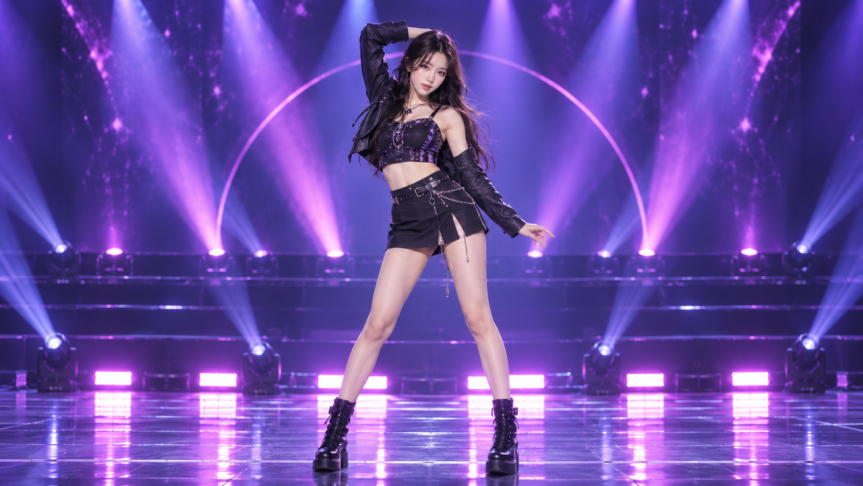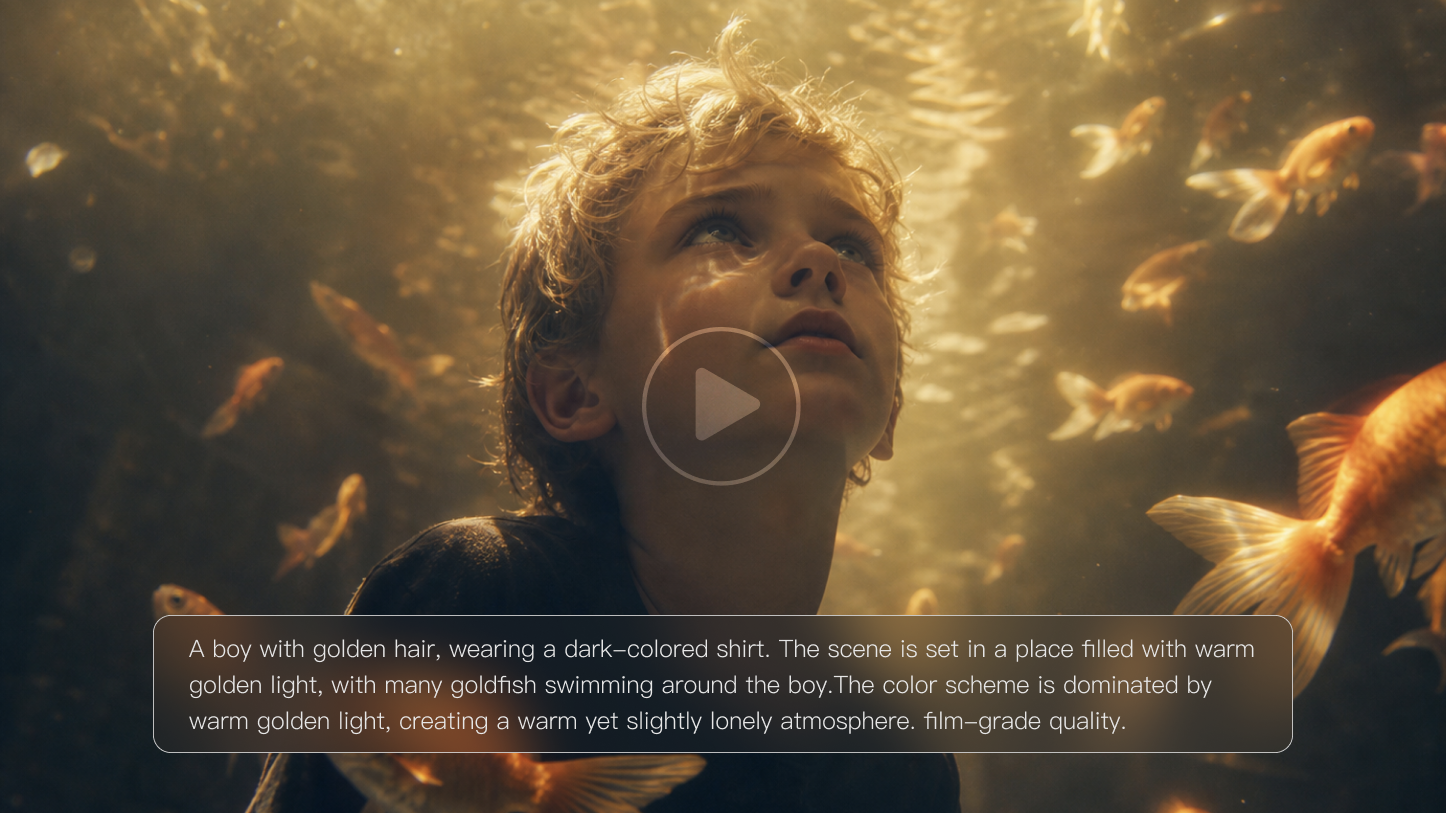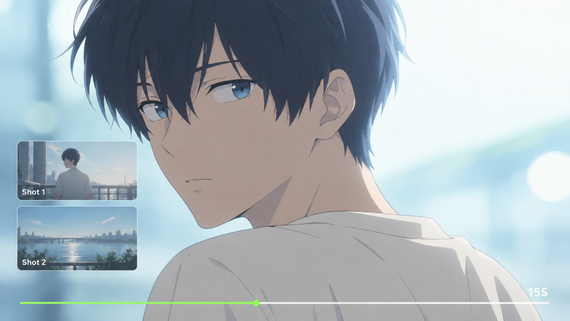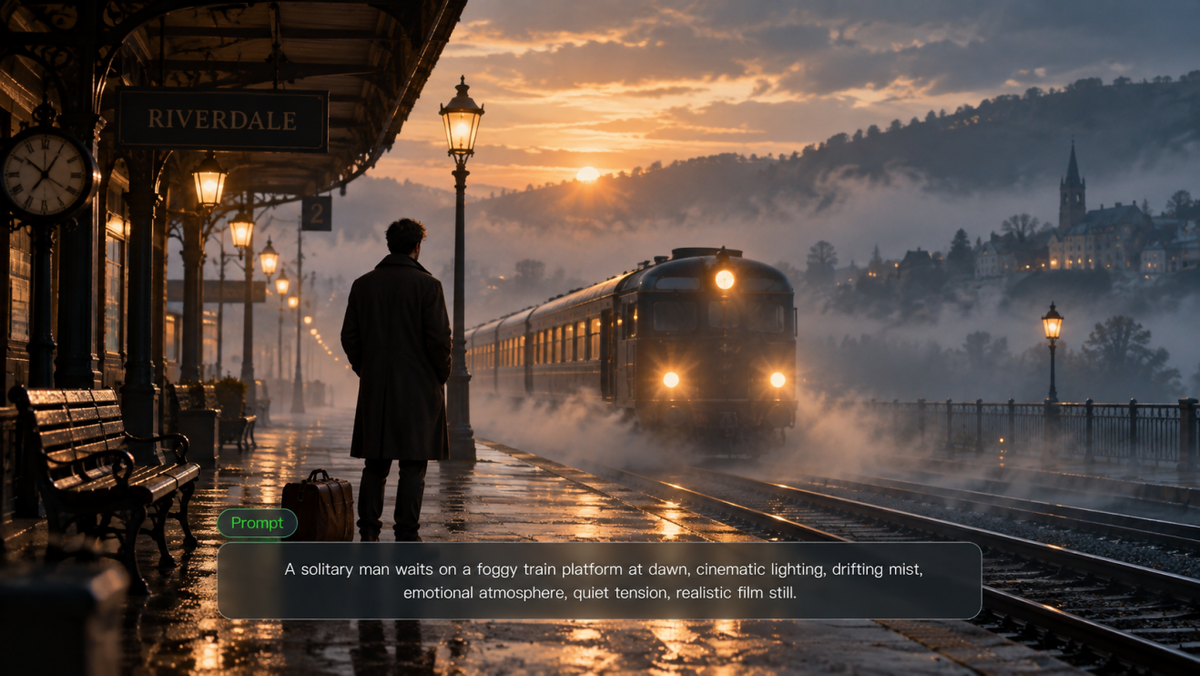
Text-to-video models can turn a written scene into video with camera movement, sound, and multiple shots. The catch is that a finished clip can still miss the prompt, move awkwardly, or let a character or product change from one shot to the next. This article looks at why those differences matter, what to check before choosing a model, and how Kling VIDEO 3.0 handles shot control, motion, audio, and visual continuity.
.png?x-oss-process=image/resize,w_1872)
What Are Text-to-Video Models?
Text-to-video models use generative AI to turn natural-language descriptions into video. A prompt can specify the subject, setting, action, camera movement, and visual style. If the model supports audio, it can also include dialogue, ambient sound, and other audio cues.
Text-to-video models and text-to-video AI generators are often treated as the same thing, but they play different roles:
Text-to-Video Model | Text-to-Video AI Generator | |
What it is | The AI system that interprets the prompt and generates the video | The product or interface people use to access text-to-video generation |
What it handles | Prompt interpretation, scene generation, motion, and continuity over time | Features built around the model, such as shot controls, reference inputs, audio, duration, aspect ratio, editing, and export |
Why it matters | The model directly affects video quality, motion, and visual consistency | The generator affects how much creative control you have and what you can do with the video afterward |
The model determines what gets generated, while an AI video generator determines how you access those capabilities, control the process, and work with the finished video.
How Do Text-to-Video Models Work?
Text-to-video models turn a written prompt into a sequence of moving images. The exact process varies by model, but it generally involves understanding the prompt, building a compressed representation of the scene, working out how things change over time, and keeping the result consistent from one moment to the next.
1. Interpret the Prompt
A text-to-video AI model starts by identifying the main instructions in the prompt, including:
- the subject
- the action
- the setting
- the visual style
- the camera direction
- dialogue or other audio cues, when supported
| prompt: “A cyclist rides through a rainy downtown street as the camera follows from behind.” |
That short description contains several instructions that need to work together. The cyclist moves forward, the camera follows from the rear, and the rain, street, lighting, and surroundings need to make sense within the same shot.
In other words, the prompt describes more than what should appear on screen. It also sets relationships between the subject, movement, camera, and environment.
2. Build a Compressed Video Representation
After reading the prompt, the system needs a workable representation of the scene before it becomes finished footage. The exact method depends on the model’s architecture.
Many diffusion-based text-to-video models work in a compressed representation space rather than processing full-resolution frames from the start. They begin with noise and gradually shape it according to the prompt, bringing the subject, setting, lighting, composition, and other visual details into view. Working in this compressed space reduces the amount of data handled during generation, and once the scene has taken shape, the result is decoded into visible video frames.
3. Generate Motion and Interactions
Video has to show what happens from one moment to the next. The model needs to handle movement, object interaction, and changes in viewpoint without breaking the scene.
- Movement: A character turning, walking, or reaching should change pose and position step by step, rather than snapping from one state to another.
- Object interaction: Actions need a clear order. If someone picks up a cup, the hand has to reach it and make contact before the cup moves.
- Camera and space: Pans, tilts, push-ins, and tracking shots change the viewpoint, but the subject and surroundings still have to remain anchored in the same space.
A still image only has to describe one moment. Video has to account for what happens between moments.
4. Maintain Temporal and Audio-Visual Consistency
As the video unfolds, people, objects, and sound need to stay coherent over time. This mainly comes down to two types of consistency:
- Temporal consistency: Characters, products, clothing, props, lighting, and backgrounds should not change for no clear reason from one moment to the next. Even after a cut from a close-up to a wide shot or a change in camera angle, the same person or product should still be easy to recognize.
- Audio-visual consistency: Dialogue, lip movement, facial expressions, ambient sound, and on-screen actions need to happen at the right time. When a character speaks, the mouth movement should match the dialogue, while footsteps or impact sounds should land with the action they belong to.
What Can You Use Text-to-Video AI For?
Text-to-video AI works well in situations where an idea needs to be seen before it is worth producing at full scale. It can help with early creative testing, scenes that are hard to shoot, and projects that need several visual directions before production starts.
Create Social Media Videos
Social content has a short shelf life, so arranging a new shoot for every post or campaign concept rarely makes sense. A prompt can produce clips for teasers, announcements, campaign posts, or short story-led videos without rebuilding the production setup each time. Creators can also try different settings, camera moves, and visual directions before settling on a version.
Turn Product Ideas Into Marketing Videos
Copy and static mockups do not always show how a product will look once it is moving through a scene. Text-to-video AI lets marketers place the same product in different environments, explore ad concepts, and test visual treatments earlier in the process. If the product appears across several shots, the results also reveal how well its shape, color, and defining details hold up from one shot to the next.
Build Short Narrative Scenes
A short story becomes harder to plan once it includes several shots, character actions, camera changes, and dialogue. Text-to-video AI can map those elements into a sequence, making it easier to test shot order, pacing, and dialogue timing before each scene is built separately. This is especially helpful for short cinematic pieces where the story depends on more than a single continuous shot.
Visualize Concepts and Storyboards
A treatment or storyboard can explain what should happen, but timing and camera movement are harder to judge on a static page. Turning the idea into motion gives directors, designers, and creative teams something closer to the final viewing experience. They can compare framing, test transitions, and catch weak moments while changes are still easy to make.
Create Educational and Explainer Videos
Some subjects are difficult to capture on camera because they are expensive, abstract, inaccessible, or impossible to stage. Text-to-video AI can illustrate a process, reconstruct a setting, or show an event that cannot be filmed directly. For explainers, training material, and classroom content, motion can make a concept easier to understand when a still image does not show enough.
How to Choose the Best Text-to-Video AI Model for Your Project?
No single text-to-video AI model is right for every project. Start with what you want to make, then decide which capabilities matter most for that job. The main things to compare are prompt adherence, motion and physical plausibility, consistency, creative control, audio, and the limits of the output and workflow.
Prompt Adherence
First, check whether the model actually follows the prompt. The subject, action, setting, visual style, and camera direction should all show up together rather than only the most obvious details. If you ask for a cyclist riding through the rain while the camera follows from behind, the rider, weather, motion, and viewpoint should all be there. What the model leaves out can tell you as much as how polished the footage looks.
Motion and Physical Plausibility
Actions should unfold in a clear order. Walking, turning, reaching, collisions, and camera movement should move from one state to the next without sudden jumps. Physical interaction matters too: a hand should make contact before an object moves, a landing should affect the body, and hair, fabric, water, or loose objects should respond to nearby motion instead of behaving on their own.
Character and Product Consistency
The same subject should remain recognizable when the framing, angle, or distance changes. Faces, clothing, product shape, color, props, lighting, and other defining details should not drift for no reason. Multi-shot scenes make this harder, so projects built around recurring characters or products should also be checked for reference images, subject references, or another way to carry visual identity from shot to shot.
Creative and Camera Control
When a scene already has a clear visual direction, control matters. Framing, camera movement, shot order, reference inputs, aspect ratio, and multi-shot structure all affect how closely the result matches the original idea. Finer control also means you are less likely to rerun an entire sequence just to change an angle, reorder a shot, or fix the composition.
Audio Support
Audio capabilities differ a lot between models. Some generate visuals only, while others can create dialogue, ambient sound, and effects with the footage. For dialogue-heavy scenes, check whether the voice, mouth movement, facial expression, and timing stay aligned. Footsteps, impacts, and environmental sounds should also land with the action they belong to.
Duration, Resolution, and Workflow
Look at the limits that affect the final video, including generation length, supported aspect ratios, available resolutions, and export options. A short social clip and a multi-shot product scene can have very different output requirements.
What happens after generation matters just as much. Can you extend the clip, reuse the same subject, revise one shot, regenerate audio, or continue editing without starting over? Small changes should not force you to rebuild the entire sequence.
Different projects call for different priorities. Start with the type of video you are making, then focus on the capabilities that matter most:
If You Want to Create | Prioritize | Why It Matters |
Short social videos | Prompt adherence, aspect ratios, workflow | Social content moves quickly, so the output needs to stay close to the idea, fit common platform formats, and be easy to revise. |
Product and marketing videos | Product consistency, prompt adherence, resolution | Product shape, color, branding, and key details need to remain stable across shots while the final footage still meets campaign or presentation needs. |
Short narrative or cinematic scenes | Motion and physical plausibility, camera control, multi-shot consistency | Character actions, camera changes, and scene transitions need to connect across the sequence without obvious visual drift. |
Dialogue-driven videos | Audio support, lip sync, character consistency | Dialogue, mouth movement, facial performance, and character identity need to stay aligned, while sound should arrive at the right moment. |
Concept previews and storyboards | Creative and camera control, reference inputs, revision flexibility | The goal is to test framing, camera direction, pacing, and alternate ideas early, while changes are still easy to make. |
Educational and explainer videos | Prompt adherence, motion and physical plausibility, workflow | The visuals need to explain a process or idea accurately, keep movement easy to follow, and allow revisions when the content changes. |
What Can You Do with Kling VIDEO 3.0?
The hard part of text-to-video is not getting one good-looking shot. It is getting the subject, action, camera direction, sound, and small visual details from the prompt to show up the way you intended. As prompts become more detailed and scenes add more shots, the model has more to keep track of from one moment to the next.
Kling VIDEO 3.0 is built around those demands, with stronger prompt interpretation, multi-shot storytelling, subject consistency, native audio, flexible duration, and text rendering. Instead of writing a description and simply waiting to see what comes back, you can shape how the story unfolds, when the camera changes, how subjects carry across shots, and where sound enters the scene.
Understand and Follow Prompts More Accurately
Kling VIDEO 3.0 can interpret layered prompts that combine subjects, actions, settings, camera direction, and narrative structure. This helps complex text-to-video prompts stay closer to the intended scene, especially when they involve multiple actions, planned camera moves, or a specific sequence of events.
Keep Characters and Products Consistent Across Shots
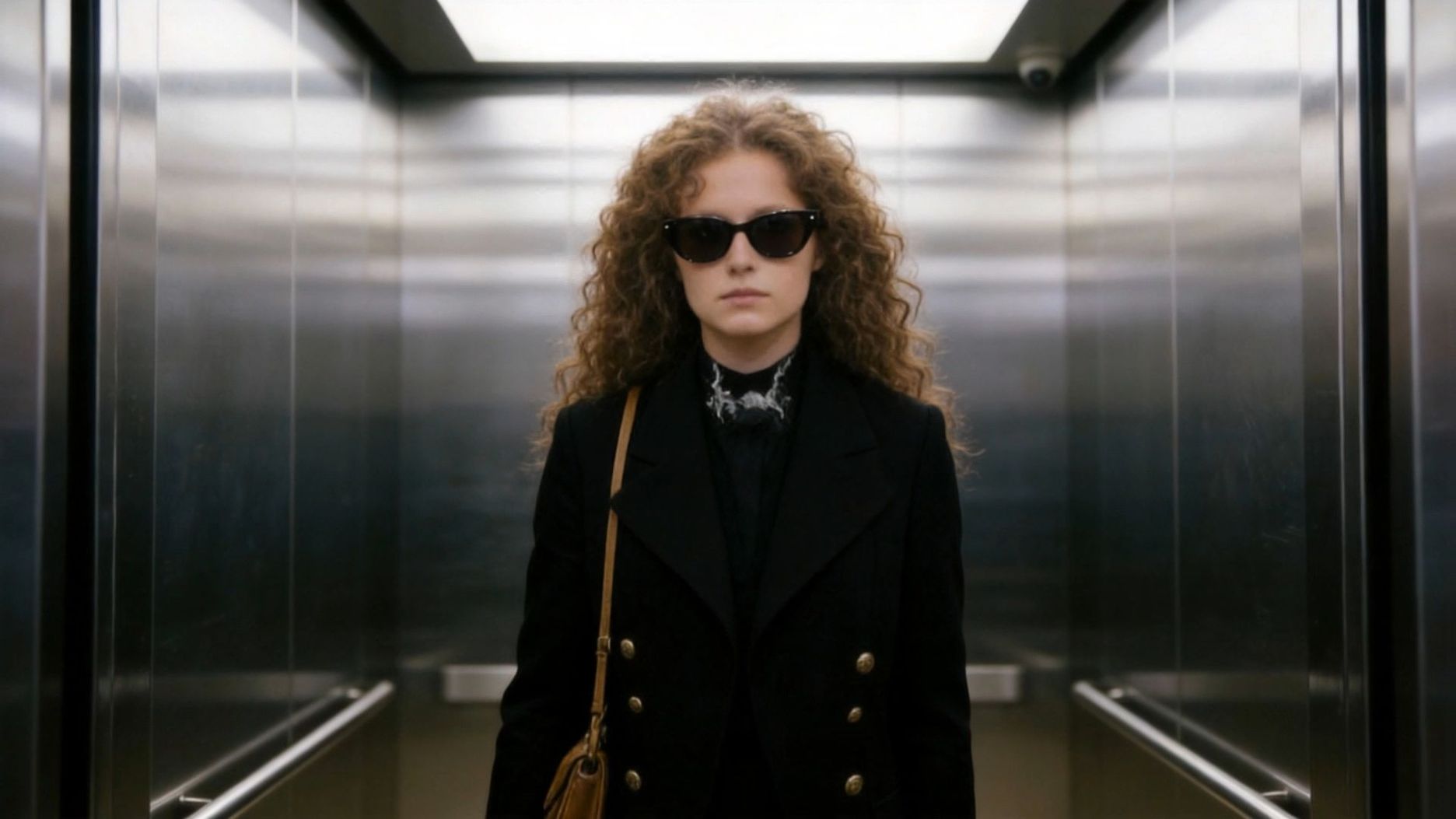
A character can look right in one shot and still change noticeably from another angle. In multi-shot video, faces may shift, clothing details can drift, and a product’s color, shape, or defining features may change from one shot to the next.
In supported reference-assisted VIDEO 3.0 workflows, you can use multiple reference images to provide additional visual guidance and help anchor a recurring character, product, or other key subject across changes in framing, angle, and setting. These references give the model more information about the subject’s appearance and key visual details, helping reduce obvious visual drift in recurring-character scenes, product shots, and branded content.

Build Multi-Shot Stories with More Control Over Pacing
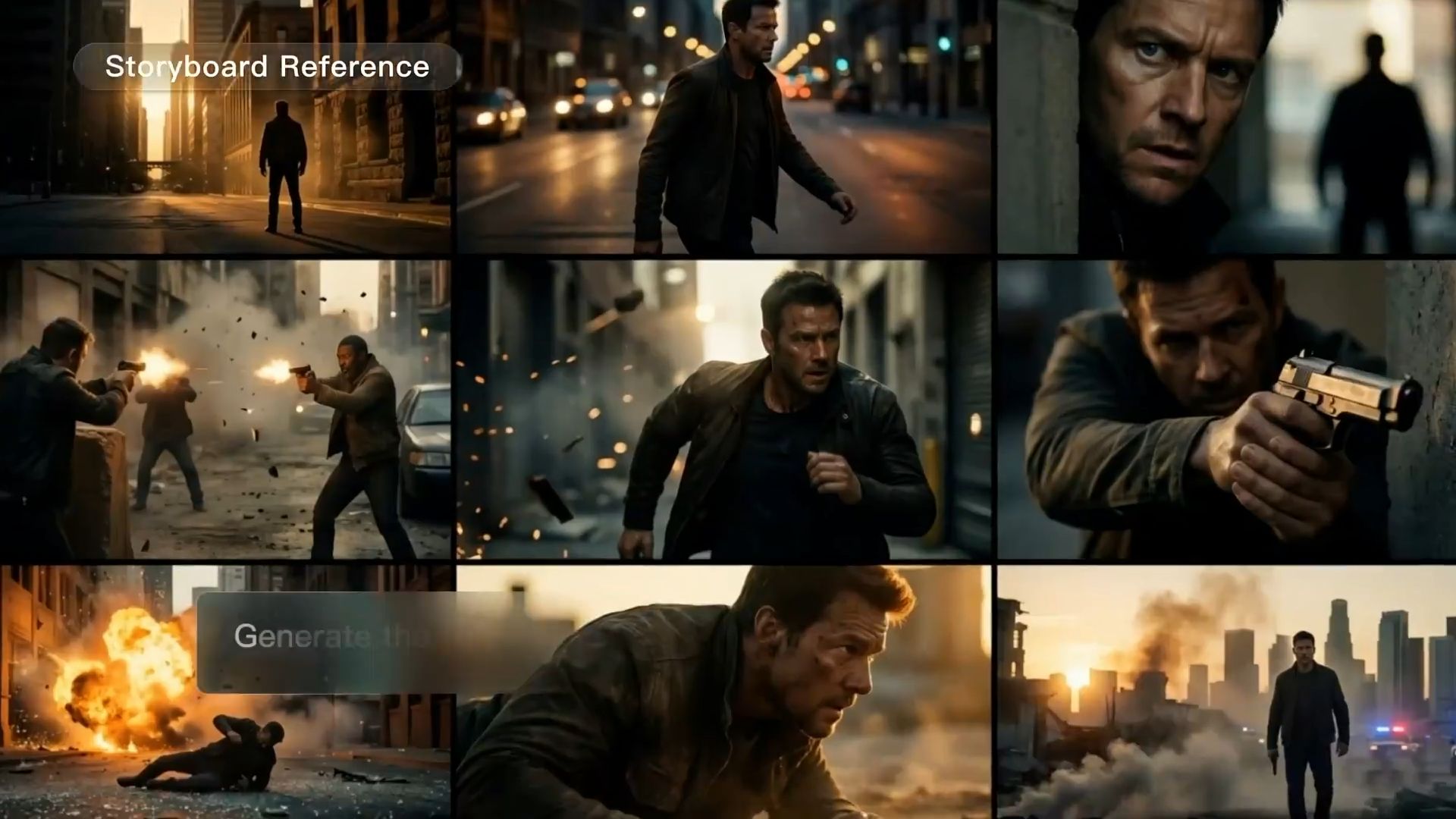
A single shot is usually manageable. The challenge starts when a story needs close-ups, wide shots, different camera positions, and scene changes. Generating each shot separately means more assembly later, and it becomes harder to keep the pacing and continuity intact across the sequence.
Kling VIDEO 3.0’s Multi-Shot can handle several shots in one generation, turning a single prompt into a connected sequence instead of a set of isolated clips. For a planned sequence, Custom Multi-Shot lets you define the content, order, and duration of individual shots, so the cuts and pacing are set before generation begins.
Generate Dialogue and Scene Sound Together
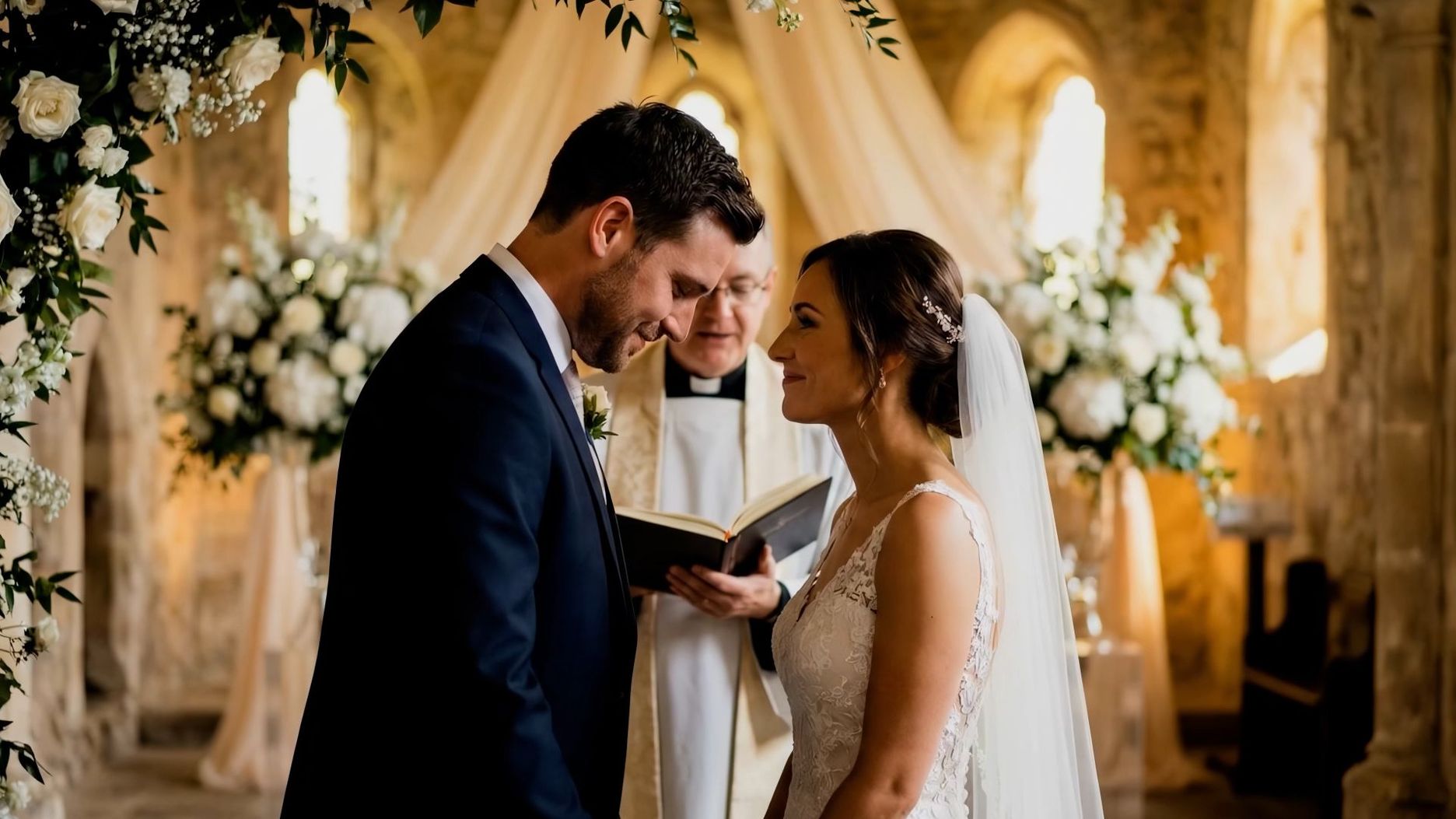
When a video model produces visuals only, dialogue scenes come with extra work. Voices, ambient sound, effects, and timing all have to be handled afterward. Add several characters, and you also need to keep track of who says each line and whether the sound lands with the right action on screen.
Kling VIDEO 3.0’s Native Audio generates dialogue, ambient sound, and other audio with the video. In multi-character scenes, you can assign lines to different speakers, with support for Chinese, English, Japanese, Korean, and Spanish, along with supported dialects and accents. Speech, character performance, and scene sound are built into the same generation instead of being layered onto a silent clip later.
Create Longer Stories with Up to 15 Seconds and 4K Output
Kling VIDEO 3.0 gives creators more room to develop each scene, with flexible 3–15 second generation for character interactions, multi-shot storytelling, dialogue, and transitions. In supported workflows, up to 4K output preserves finer details, textures, and overall visual clarity, helping creators move from early concepts to polished content for advertising, product showcases, cinematic storytelling, and more.
The End
The text to video models worth your time do more than animate a prompt: they follow your intent, move naturally, arrive with sound, and hold a subject steady across shots. Measured against those criteria, Kling VIDEO 3.0 brings prompt-driven generation, Multi-Shot control, Subject Consistency, and native audio together in one place. Open Kling, write your scene, and watch it come to life in a single generation.
FAQs
How Do I Choose Among the Best Text-to-Video AI Models in 2026?
Start with the kind of video you want to make, then compare models around that job. Multi-shot storytelling puts more weight on camera control and character consistency. Dialogue-heavy scenes call for strong audio, lip sync, and character performance, while product and ad work depends more on prompt adherence, subject stability, and output quality. Length and resolution matter too, since a quick test and a finished piece rarely have the same requirements. Kling VIDEO 3.0 combines Multi-Shot, Native Audio, prompt adherence, and generation up to 15 seconds for multi-shot stories, dialogue-driven scenes, and projects where the same character or product needs to stay recognizable across shots.
Can AI Text to Video Include Sound?
Yes. Kling VIDEO 3.0 can generate dialogue, ambient sound, and effects along with the video, so you do not have to add the audio afterward. You can write the lines directly into the prompt, assign them to specific characters, and choose the language, dialect, or accent. Its text-to-speech capability can turn those lines into character voices in Chinese, English, Japanese, Korean, and Spanish. That means less separate voiceover work and less audio assembly after the video is generated.
How Long Can a Generated Video Be?
Video length varies by model. Kling VIDEO 3.0 supports flexible generation from 3 to 15 seconds. Shorter clips work well for quick actions and social content, while longer clips leave more time for buildup, dialogue, and multi-shot storytelling. For finished videos that need finer visual detail, supported modes also offer output up to 4K, giving product textures, character details, and scene depth more clarity.
Do I Need Video Editing Skills?
If you want to make changes after generation, Kling’s VIDEO 3.0 Omni editing workflow lets you modify existing footage with natural-language instructions, including changing backgrounds, subjects, style, or framing.