With OpenAI discontinuing the Sora web and app experiences in 2026, and the Sora API also scheduled to shut down, creators may be looking for new ways to continue their AI video workflows. This guide compares 10 Sora alternatives across motion, audio, visual consistency, creative control, and production workflows. It also takes a closer look at Kling AI video generater, which brings multi-shot storytelling, Native Audio, subject consistency, and cinematic video creation into one workflow.
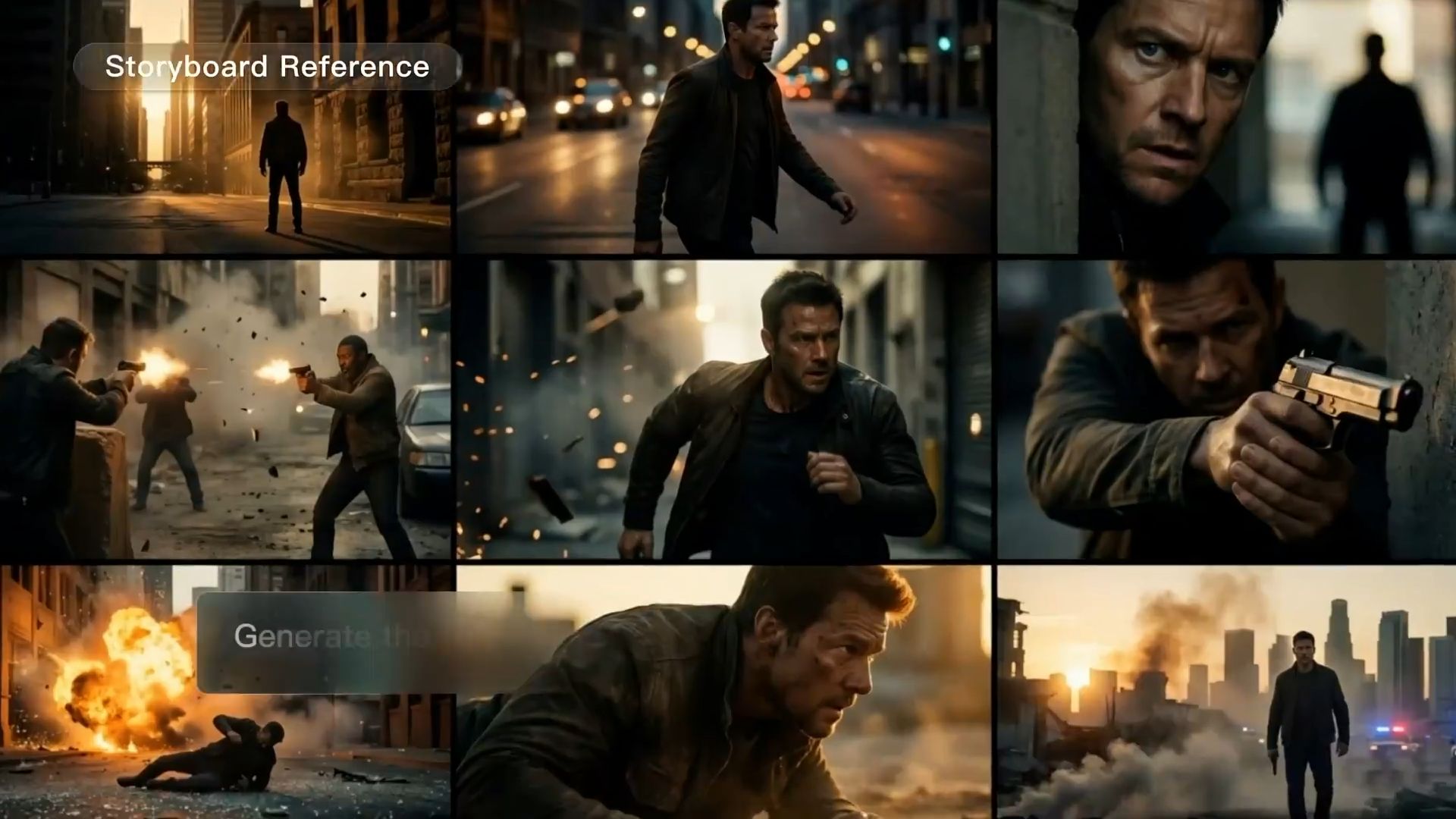

What Sora Alternatives Should You Consider in 2026?
Sora drew a lot of attention for more than its ability to turn a written prompt into video. The original model showed early signs of keeping space, subjects, and scenes more stable as the camera moved. Sora 2 pushed that further with better physical behavior, closer instruction following, synchronized dialogue, and sound. That made Sora a useful reference point for comparing other AI video tools.
When comparing alternatives to Sora, a few areas matter most:
- Continuity across camera changes: When the camera pans, turns, or shifts perspective, people and surroundings should stay visually coherent instead of changing noticeably from one angle to the next.
- Subject persistence: A person, product, or object that is briefly blocked or moves out of frame should still look like the same subject when it appears again.
- Prompt understanding: The model needs to understand more than who or what is in the scene. It also has to follow relationships between actions, camera direction, setting, and events.
- Sound that belongs with the scene: Dialogue, ambience, music, and sound effects increasingly matter alongside the visuals, so video quality can no longer be judged by the picture alone.
Those points gave us a starting place, but by 2026, the differences between Sora AI alternatives go well beyond visual quality. The material you can feed into a model, the references it can follow, the way it handles multiple shots, whether it creates sound with the video, and how much of an existing clip you can change all affect which tool makes sense for a given project.
For the 10 tools below, we looked at several practical areas:
- Generation Modes: Whether the tool supports Text-to-Video, Image-to-Video, or combinations of text, images, video, and audio.
- Motion and Consistency: How well people, products, and scenes hold together through movement, occlusion, and camera changes.
- Audio: Whether dialogue, ambience, music, or sound effects can be generated with the video.
- Reference Control: Whether images, video, characters, or other source material can guide the subject and visual direction.
- Multi-Shot and Camera Control: How the tool handles multiple shots, camera movement, and connected scenes.
- Editing and Reuse: Whether you can keep working from existing footage or assets instead of starting over every time.
The table below is meant as a quick first pass. It shows what each tool is better suited for, what you can start with, how audio is handled, and the main controls available for shaping or revising a video.
Sora Alternative | Best For | Generation Modes | Audio | Control & Editing |
Kling VIDEO 3.0 series | Multi-shot storytelling, multi-character and multi-scene multilingual videos, cinematic-quality commercial production, and cross-shot subject consistency | Text-to-Video, Image-to-Video, start/end frames | Native Audio | Multi-Shot, Custom Multi-Shot, multi-image references, Element Reference with VIDEO 3.0 Omni, and native 4K output in supported workflows |
Google Veo 3.1 | Cinematic scenes, dialogue, reference-led shots | Text-to-Video, Image-to-Video, reference images | Native Audio | Character and scene references, camera controls, and scene extension |
Runway Gen-4.5 | Complex action, camera movement, prompt-led shots | Text-to-Video, Image-to-Video | Separate audio tools | Sequenced actions, camera choreography, composition, and timing control |
Seedance 2.5 | Longer narratives, mixed references, existing-content edits | Text, image, video, audio | Native Audio | Multimodal references, longer generations, shot continuity, and detailed editing |
Luma Ray3.2 | Existing footage, VFX, shot redesign | Text-to-Video, Image-to-Video, Video-to-Video | No native audio in Ray3.2 generation; audio is handled separately | Multi-Keyframe, Modify Video, Motion Transfer, and Reframe |
Pika 2.5 | Short clips, social content, visual experiments | Text-to-Video, Image-to-Video | Separate audio tools | Short-form generation, visual effects, and fast transformations |
Adobe Firefly Video | Video generation and post-production in Adobe | Text-to-Video, Image-to-Video, Video-to-Video | Separate audio tools | Video edits, clip extension, framing changes, and Adobe editing tools |
PixVerse V6 | Short stories, ads, character-led clips | Text, image, references | Native Audio | Multi-shot generation, reference controls, and camera direction |
Vidu Q3 | Multi-character dialogue, short narratives, story-driven ads | Text, image | Native Audio | Multi-speaker dialogue, shot pacing, and camera control |
MiniMax H3 | Projects built from mixed media | Text, image, video, audio | Native Stereo Audio | Multimodal context, Motion Transfer, and longer high-resolution output |
The table gives you a quick way to narrow the options, but the better choice depends on the kind of video you make most often.
Which Sora Alternative Fits Different Video Tasks?
Sora alternatives do not all suit the same kind of work. A simple way to narrow the list is to start with the type of video you plan to make.
1.Cinematic video and multi-shot storytelling
Tools to consider: Kling VIDEO 3.0, Google Veo 3.1, Runway Gen-4.5
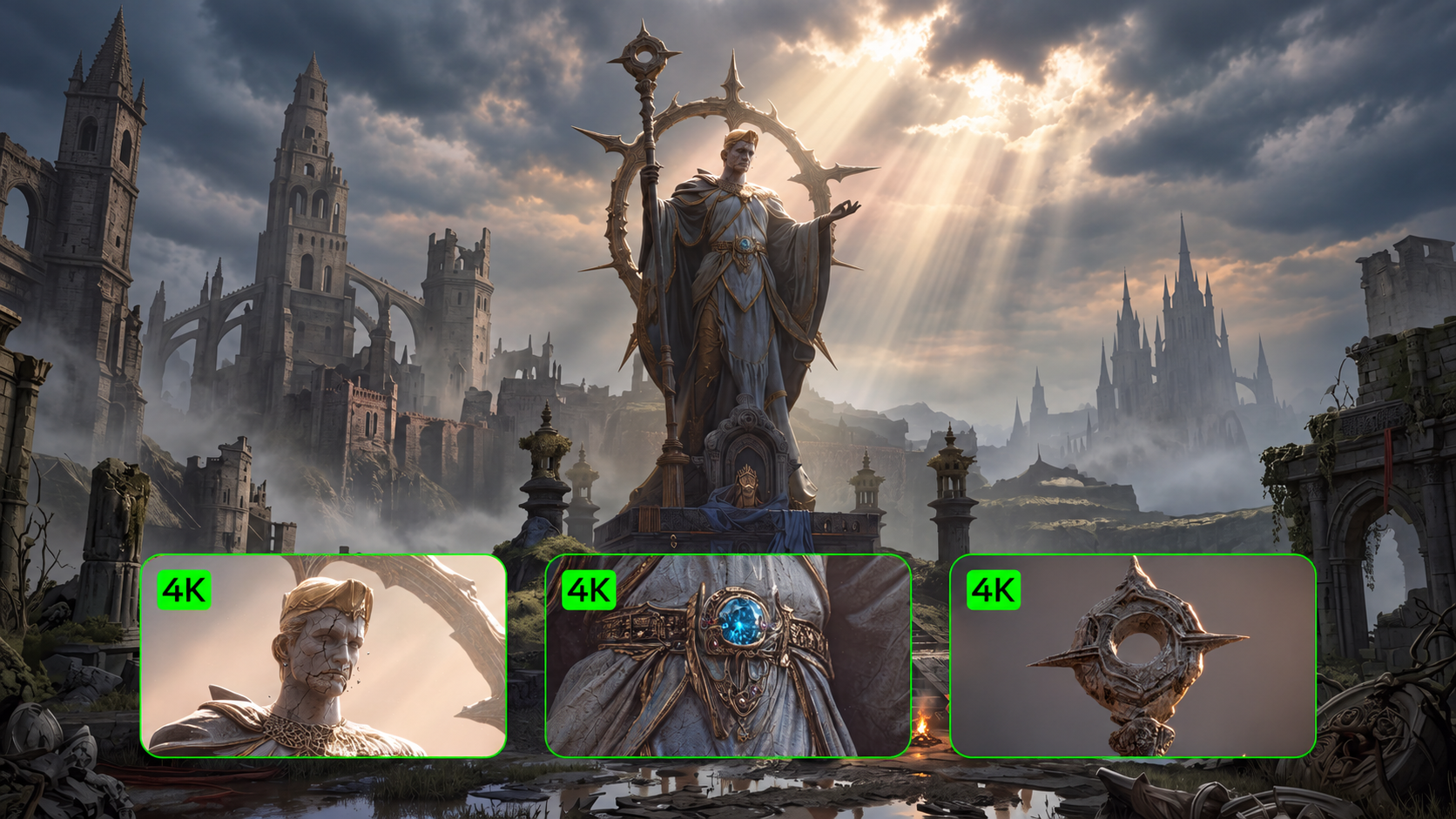
Why: Kling VIDEO 3.0 combines Multi-Shot, Custom Multi-Shot, Native Audio, and subject consistency for connected cinematic scenes. It supports up to 15-second generation and native 4K output in supported workflows. Veo 3.1 can use reference material to guide characters, scenes, and individual shots, while Runway Gen-4.5 gives you detailed control over action, camera movement, composition, and timing.
2.Multimodal reference material
Tools to consider: Kling VIDEO 3.0 Omni, Seedance 2.5, MiniMax H3
Why: Kling VIDEO 3.0 Omni can work with images, video Elements, and character references to carry a person or subject into new scenes. Seedance 2.5 and MiniMax H3 can also draw from text, images, video, and audio, which is useful when much of the direction already exists in the source material.
3.Dialogue and native audio
Tools to consider: Kling VIDEO 3.0, Veo 3.1, Seedance 2.5, PixVerse V6, Vidu Q3, MiniMax H3
Why: Kling VIDEO 3.0 can generate dialogue, ambience, and sound effects with the video, including multi-character and multilingual scenes. The other models also generate audio with video, but they differ in how they handle multiple speakers, language support, ambience, and sound across shot changes. If you are mainly looking for a Sora 2 alternative, testing a real conversation will tell you more than simply checking whether Native Audio is available.
4.Subject consistency across shots
Tools to consider: Kling VIDEO 3.0, Veo 3.1, Seedance 2.5, PixVerse V6
Why: Kling VIDEO 3.0 supports multiple image references to help maintain subject consistency across shots. VIDEO 3.0 Omni goes further with Element binding, helping preserve key traits of characters, products, and other subjects as camera angles, actions, and settings change. Veo 3.1, Seedance 2.5, and PixVerse V6 also offer different forms of reference control. What matters most is whether the subject still looks recognizable after turning away, being briefly obscured, or appearing again in a new shot, not just how closely the first frame matches the reference.
5.Editing existing video
Tools to consider: Kling VIDEO 3.0 Omni, Luma Ray3.2, Adobe Firefly Video, Seedance 2.5
Why: Kling VIDEO 3.0 Omni supports editing existing 3–10 second video clips, allowing you to use short footage as input and guide how the scene, motion, or visual content changes with a prompt. Luma Ray3.2 goes further into video modification, Motion Transfer, and Reframe. Adobe Firefly Video fits naturally into Adobe post-production, while Seedance 2.5 can combine existing video with other reference material for further changes.
6.Short-form and social video
Tools to consider: Kling VIDEO 3.0, Pika 2.5, PixVerse V6, Vidu Q3
Why: Kling VIDEO 3.0 generates 3–15 second videos and can combine multiple shots, dialogue, Native Audio, and camera changes in a single sequence. Pika 2.5 is useful for short clips, visual effects, and quick transformations, while PixVerse V6 and Vidu Q3 can handle short stories, ads, character-led scenes, and dialogue-driven videos.
Why Kling VIDEO 3.0 Series Works as a Sora Alternative?
Kling VIDEO 3.0 Series works as a Sora alternative not because it tries to copy Sora feature by feature, but because it handles more of the creative process within a single AI video generator.
Kling VIDEO 3.0 Series is built for professional cinematic AI video production, combining Native Audio, multi-shot storytelling, subject consistency, up to 15-second generation, and native 4K output in supported workflows. Together, these capabilities support cinematic shorts, advertising, branded content, and other production-focused video projects.
Kling VIDEO 3.0 for Professional Cinematic AI Video Production
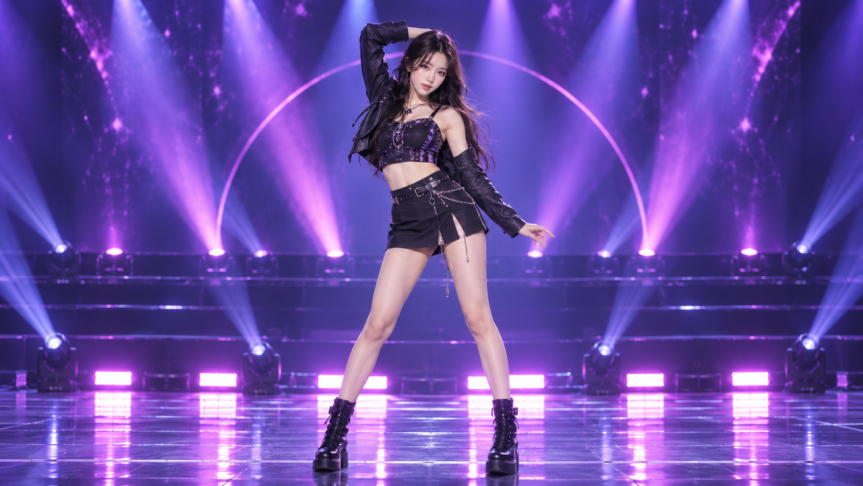
Kling VIDEO 3.0 supports Text-to-Video, Image-to-Video, and Start & End Frames-to-Video. With Multi-Shot, the model can plan cuts, framing, and camera changes from your prompt. Custom Multi-Shot gives you more say over what happens in each shot and how long it lasts.
For characters, products, and environments, VIDEO 3.0 supports multiple reference images to help guide subject and scene consistency. Different images can be used for different parts of the video—for example, one image can define a character while another guides the setting—while the prompt specifies how those references should appear as the action, camera angle, or scene develops.
In scenes with several characters, dialogue can be assigned to specific speakers so it stays tied to the right person. Supported languages include Chinese, English, Japanese, Korean, and Spanish, along with mixed-language dialogue, dialects, and accents. With Native Audio, dialogue, ambience, and sound effects can be generated with the visuals, so sound is part of the scene from the start.
VIDEO 3.0 is a good fit when you want to start with a prompt, image, or start and end frames and turn that material directly into a cinematic scene with camera changes, character interaction, and sound. Typical uses include short films, ads, dialogue scenes, and multi-shot stories.
Image |
.png?x-oss-process=image/resize,w_1872) |
| Prompt: Opening with an ultra-wide-angle medium-long shot tracking horizontally, the stabilizer moves low to the ground, with a highly contrasting romantic cinematic tone of cold blue night and silvery white starry sky, exuding a strong poetic realism and classical epic temperament. The protagonist is a young woman in a dark green long dress, running with all her might on the garden lawn illuminated by moonlight; her skirt billows in the wind forming surging dynamic curves, she clutches a small white flower in her right hand and lifts the hem of her dress with her left, breathing rapidly yet with a firm gaze. At the 4th second, the camera accelerates forward with her, and multiple men and women in old-era ball gowns break into the frame one after another from the left and right sides in the background, running alongside her—some try to approach, some turn back to shout, yet none truly touch her, implying pursuit and escape. At the 8th second, the camera gradually zooms in to a medium shot, pans to track forward in front of the protagonist and lifts slightly; she glances back briefly at a young male character behind her, their gazes meet for a split second, emotions erupt mid-run, and the woman and man join hands to run together. At the 12th second, the music and movement reach a climax; the camera moves forward close to her side face and fluttering hair, she releases the white flower and tosses it into the air, the flower drifting down in slow motion as the crowd behind brushes past it. In the final 3 seconds, the camera keeps moving forward, the woman and man break through the crowd and dash toward the starry sky at the end of the garden, their figures gradually taking over the center of the frame. The overall atmosphere is fiery, romantic and resolute, a burst of narrative about fate, choice and freedom. |
Video |
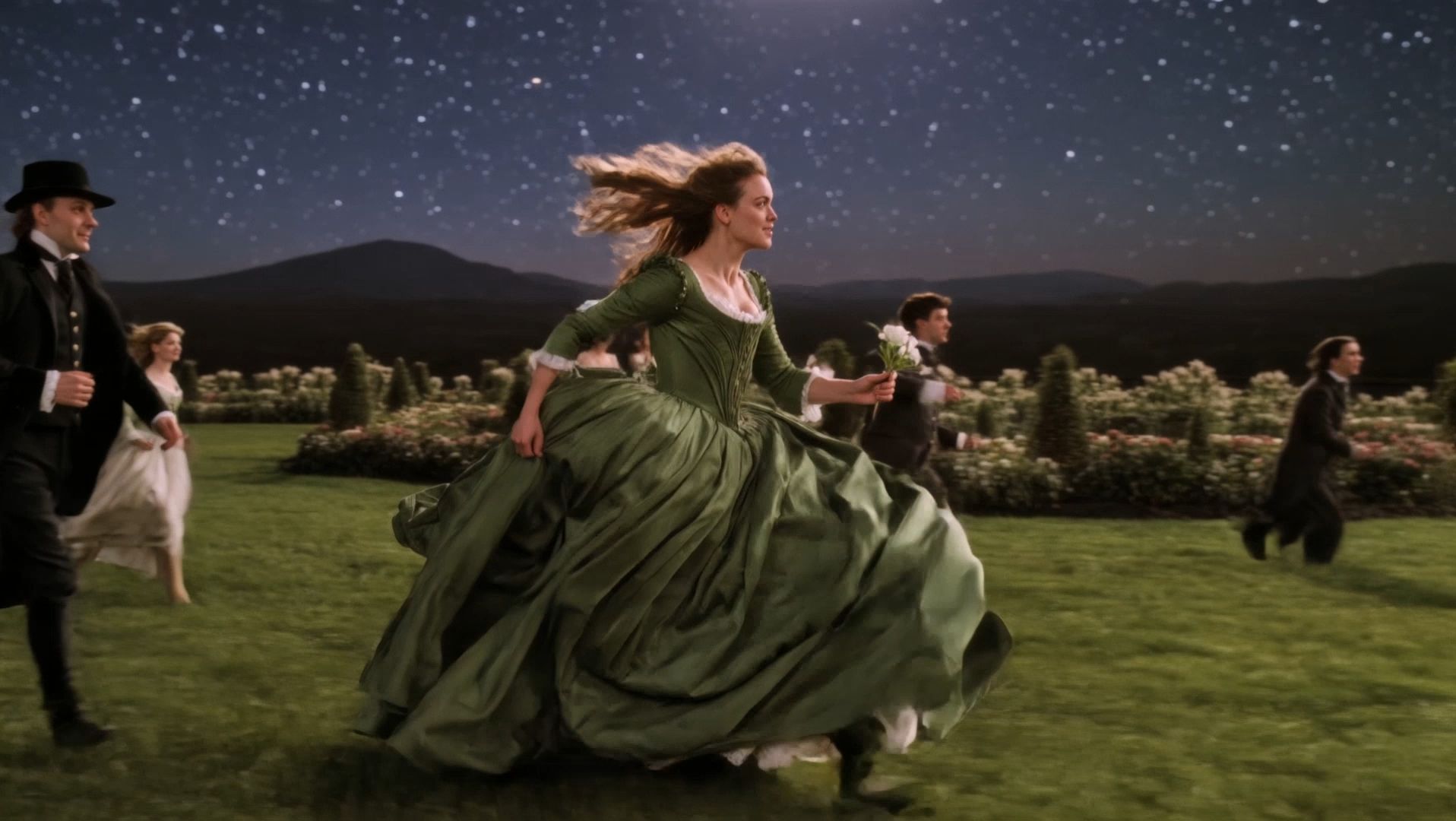 |
Kling VIDEO 3.0 Omni for Reference-Driven Multimodal Creation
VIDEO 3.0 Omni takes a different approach. Its main advantage is the range of reference material you can bring into the generation.
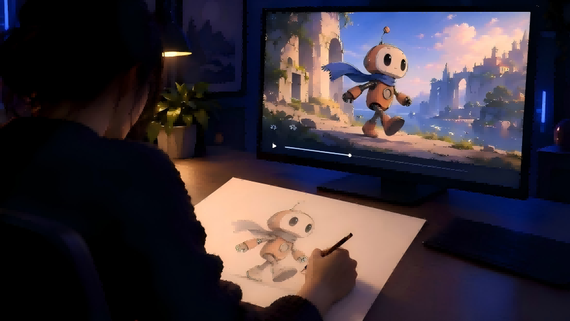
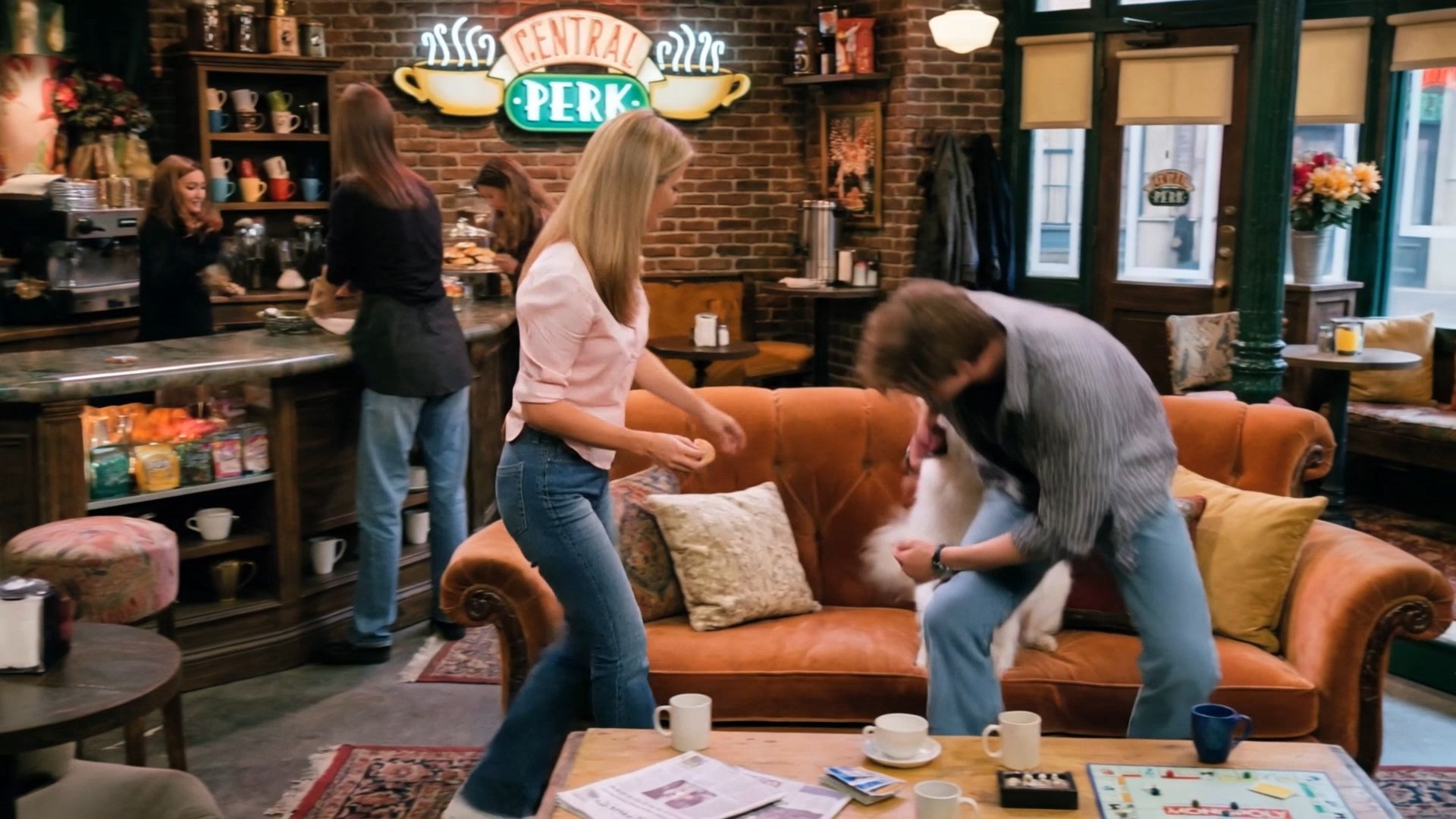
Text, images, video, and multiple Elements can all contribute to the same scene. With Element Reference, you can carry character traits from existing footage into new shots, actions, and settings while continuing to reuse the character’s appearance and voice tone.
That makes Omni more useful when you already have established characters, product assets, reference footage, or voice material. Instead of describing the same person or product again in every shot, you can bring those references into new scenes and multi-shot sequences.
VIDEO 3.0 Omni can also work with existing video, making it useful for continuing or transforming footage you already have. When a video is provided as an input, Native Audio is currently not supported, so audio availability depends on the input workflow you choose.
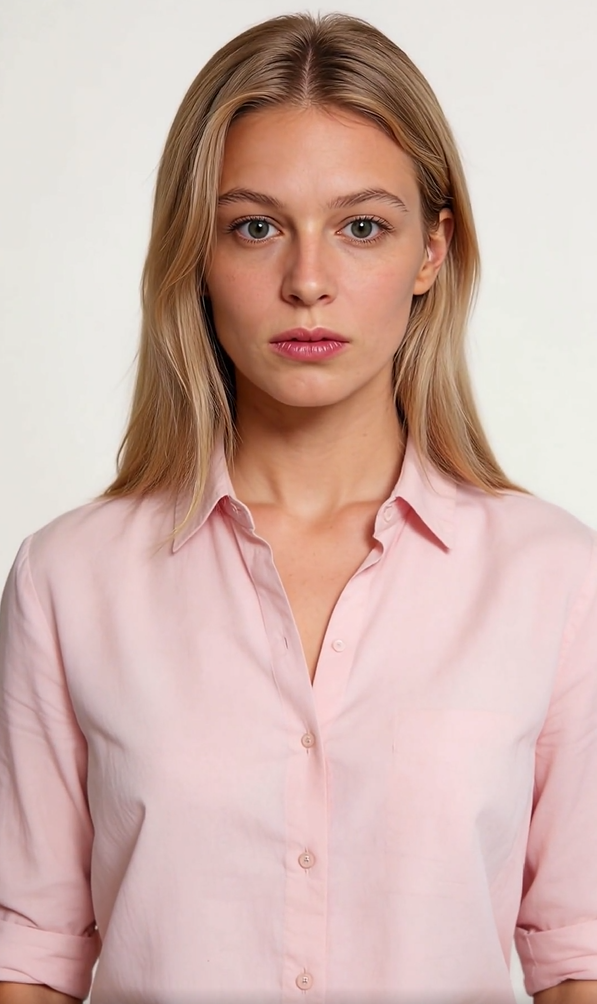
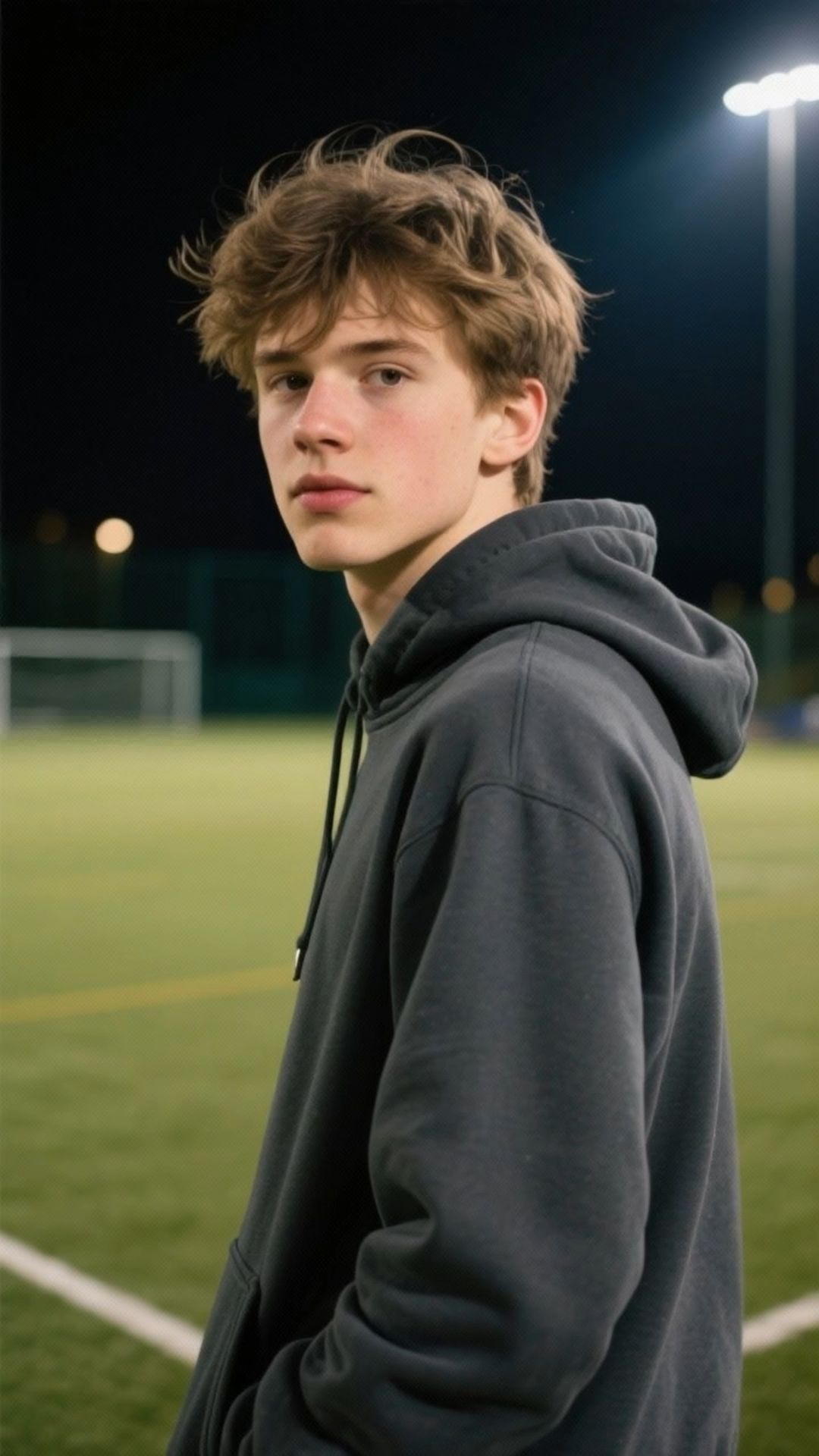
Element/Reference Image | |||
@Grace | @Alan | @Samoyed | @Image |
 |
 | .png?x-oss-process=image/resize,w_1872)
|
.png?x-oss-process=image/resize,w_1872) |
 |||
.png?x-oss-process=image/resize,w_1872) | |||
| Prompt: Shot 1 (3s): Mid-shot, background @Image. @Grace sits on the sofa eating cookies as @Alan walks in holding @Samoyed. @Samoyed lunges for the cookie in @Grace's hand. @Grace says, “Hey! Watch your dog!” Shot 2 (2s): @Alan sits beside her, pulling the leash and lifting @Samoyed. Close-up, @Alan says, “He just likes cookies more than me.” Shot 3 (3s): Close-up, @Grace smiles and says, “Well, he has good taste at least.” | |||
Video | |||
 | |||
How to Test a Sora Alternative Before Switching?
A good demo does not always translate to a real project. Before switching, run the same material through each Sora alternative and keep the test conditions as consistent as possible.
Step 1: Use the Same Real Prompts
Pick three prompts from work you have already used or approved: one simple scene, one subject-consistency test, and one harder scene with complex motion, dialogue, or several characters.
| Prompt: A woman in a red jacket walks through a busy outdoor market at golden hour, holding a small black camera. Start with a medium tracking shot from the front. She turns to look at a fruit stand, briefly passes behind another shopper, then reappears in a side-angle shot with the same face, clothing, and camera. She picks up an orange, smiles, and says, “This place is even better than I expected.” Cut to a close-up as she puts the orange back and continues walking. Keep her appearance consistent across shots. Natural walking motion, realistic hand interaction, warm evening light, soft crowd chatter, footsteps, and market ambience. Cinematic camera movement, natural dialogue timing, realistic lip movement. |
Keep the subject, setting, and camera direction the same across models. That makes it easier to tell whether a difference comes from the model or from the input.
Step 2: Test Text-to-Video and Image-to-Video Separately
Test Text-to-Video AI and Image-to-Video AI separately, since a model may handle one input type better than the other. For image-based tests, watch whether faces, product shapes, clothing, logos, colors, and other important details stay recognizable once the scene starts moving.
Step 3: Test Motion and Subject Consistency
Push the model beyond a simple front-facing shot by having the subject turn, move behind something, change camera angles, or reappear after a cut. Look for changes in identity, body movement, object contact, and camera motion. If a shot needs to follow a specific performance, test each model's motion-reference or motion-transfer workflow where available. In Kling, you can test this with VIDEO 3.0 Motion Control using a reference performance.
Step 4: Use a Real Dialogue Scene
Choose a short scene with clear speakers, a few lines of dialogue, and some background sound. Check whether the right person says each line, whether lip movement and timing match, and whether dialogue, action, and ambience stay in sync. If you are comparing tools as a Sora 2 alternative, this tells you more than seeing Native Audio listed on a feature page.
Step 5: Count Retries and Check the Editing Handoff
Track how many generations and revisions it takes to get a usable clip. A great result after ten tries is not the same as a usable result after two. Then bring the clip into your video editor and check resolution, aspect ratio, duration, audio, file format, and shot continuity; any repair or conversion needed before editing should count as part of the test.
Before Moving an Existing Sora Project
Before moving the full project, keep the key materials from your existing Sora setup together:
- Original prompts
- Reference images and approved frames
- Dialogue and camera notes
- Aspect ratio, resolution, and other output settings
- A few representative shots for testing
Run those shots through the new model first. This gives you a cleaner comparison and helps show whether the difference comes from the model itself or from changes to the brief.
The End
A Sora alternative only works if it fits the way you actually make video. Compare tools with the same prompts, references, dialogue, and motion, then look at what holds up from generation through editing. For projects that involve several shots, recurring subjects, dialogue, or reference material, Kling VIDEO 3.0 Series brings those pieces into the same place and gives you another route for building video after Sora.
FAQs
Why Is Sora Shutting Down?
OpenAI discontinued the Sora web and app experiences on April 26, 2026, and the Sora API is scheduled to shut down on September 24, 2026. OpenAI has confirmed the discontinuation, but its current help documentation does not give a detailed public reason for ending the product. Users can still export their Sora content through the sunset page while that option remains available.
Is There Any AI Better Than Sora?
There is no single AI video model that is better than Sora at everything. The better choice depends on what you need to make. Kling AI, Google Veo 3.1, Runway Gen-4.5, and other current models differ in areas such as motion, subject consistency, native audio, multi-shot control, reference input, and video editing. Compare them with the same prompts and source material to see which one fits your projects best.
Is There a Sora 2 Alternative?
Yes. Current options include Kling VIDEO 3.0, Google Veo 3.1, Runway Gen-4.5, Seedance 2.5, Luma Ray3.2, and Pika 2.5. Compare them based on the features you actually use, such as native audio, subject consistency, multi-shot generation, reference control, or video editing. Before choosing one, run the same scene through a few models and see which one works best for your project.
Which AI Video Replacements Support Native Audio?
Many AI video models now support Native Audio, but the amount of control varies. Kling VIDEO 3.0 Series supports native audio, multilingual dialogue, dialects and accents, and speaker control in scenes with several characters. A short dialogue clip with background sound is a good way to compare models: listen for pronunciation and timing, check speaker assignment and Lip Sync, and see whether the sound still lines up after a cut.
Can an AI Video Replacement Animate an Existing Image?
Yes. Many AI video tools can turn a still image into video. The real test is whether a person or product still looks like the same subject once the scene starts moving. Kling VIDEO 3.0 supports multiple reference images, allowing different images to guide characters, products, settings, and other important visual details. This can help keep the subject recognizable as the action, camera angle, or scene changes. Kling VIDEO 3.0 Omni also supports Element Reference, helping recurring characters remain recognizable as they appear in new actions, shots, and settings. If you need to place that subject in a different environment afterward, you can use remove background from video to cut out the original background before compositing or replacing the scene.