How to add sound to your AI video
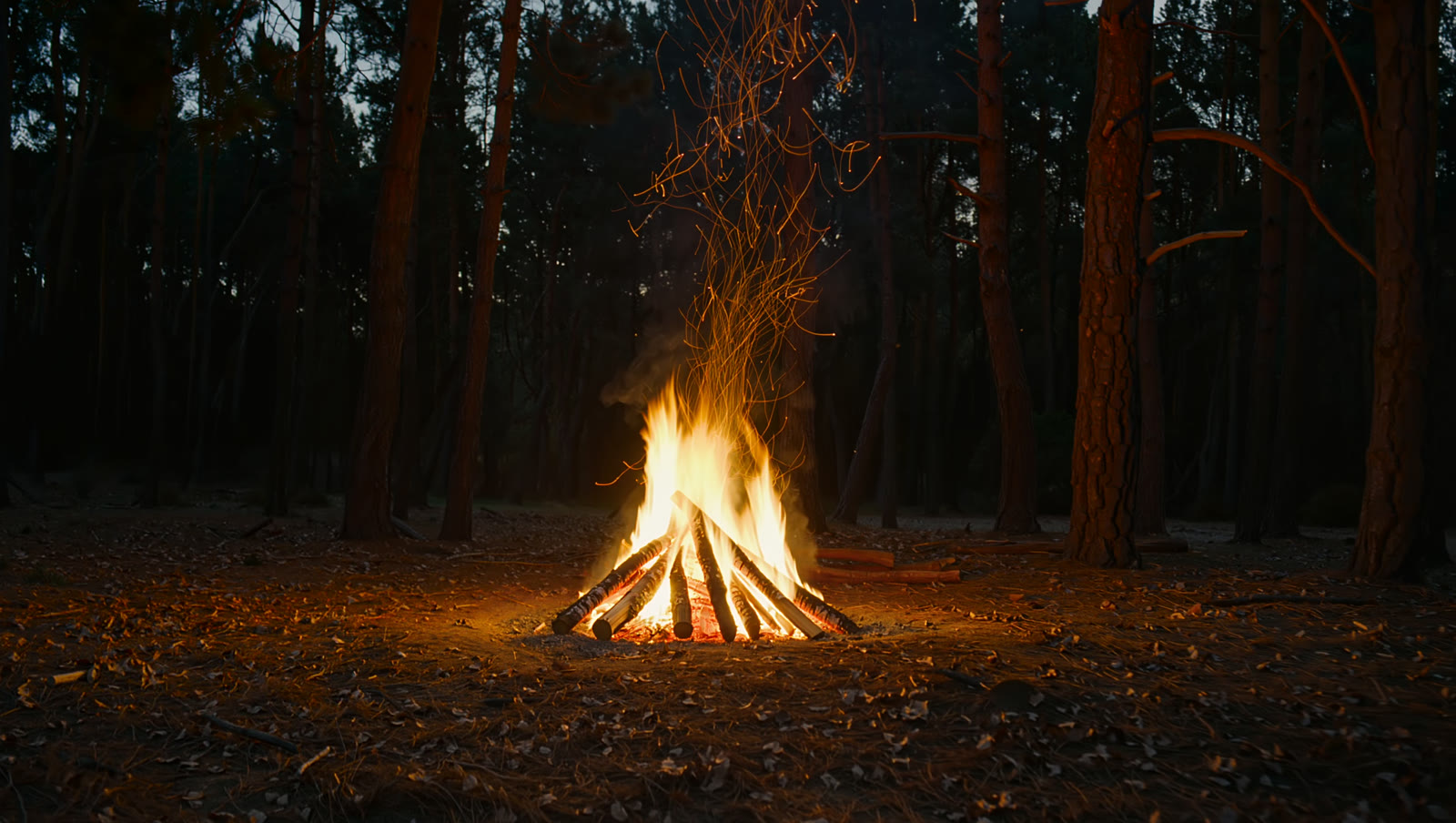
Silent clips fall flat. Kling can compose a soundtrack that matches the scene — here’s a real campfire clip with AI-generated crackle baked in. Press play with sound on.
On this page
Turn on Native Audio before you generate and Kling renders the clip with a matching soundtrack built in — a campfire arrives with crackle and night ambience, no sound library needed. Already have a silent clip? Upload it to Video to Audio and Kling generates matching sound for the footage. Just play it back and check the mood before publishing.
A clip that arrives with sound
This campfire clip was generated with Native Audio on, so it came out of Kling already carrying a soundtrack. Press play with your sound on — the crackle and night ambience were AI-composed to match the scene:
Image-to-video from a campfire photo · Native Audio: on · soundtrack generated to match the scene, kept in the file
One image in, a clip with sound out. Nobody added a fire recording — the crackle was composed by AI to fit what’s on screen.
How to add sound
Turn on Native Audio before you generate
In video generation, switch Native Audio on and Kling composes a soundtrack that matches the scene as it renders the clip — the fastest way to get a video that already has sound.
Let the visuals suggest the sound
A campfire gets crackle and night ambience; rain gets patter; a market gets chatter. The clearer the scene reads, the better the generated audio fits — you rarely need to describe the sound in words at all.
Add sound to a clip you already have
Have a silent video? Upload it to Kling’s Video to Audio and it generates sound effects matched to the footage. Any further mixing or trimming happens in a third-party video editor. For future clips, the cleaner path is turning Native Audio on at generation time.
Play it back with sound and judge the mood
Always listen before you publish. Ambience sets emotional tone fast, so check it suits the scene — and swap to a quieter track, or mute, if the generated sound fights the mood.
AI-generated sound is atmosphere composed to match your visuals — not a real recording of that place, and not speech. It’s perfect for crackle, rain, wind and room tone that make a clip feel alive; it’s the wrong tool for dialogue (use a voice / lip-sync tool for that) or for anything that must be authentic documentary audio. Ambience sets mood fast, so always play it back and make sure the sound serves the scene rather than fighting it.