AI beauty video: beautify real footage
Upload the clip, describe the retouch. Kling’s Omni takes a video you already have and re-renders it with the beauty treatment written as an instruction — here’s a real before/after pair, and the exact wording.
On this page
Upload your video into Kling's Omni, type the beauty instruction — smooth and even out the skin, brighten the complexion, reduce blemishes — and end with what must stay the same: identity, expression, motion, lighting, background. Omni re-renders the clip with the retouch applied; the before/after pair on this page is a real, unedited example of exactly that.
A real video, beautified
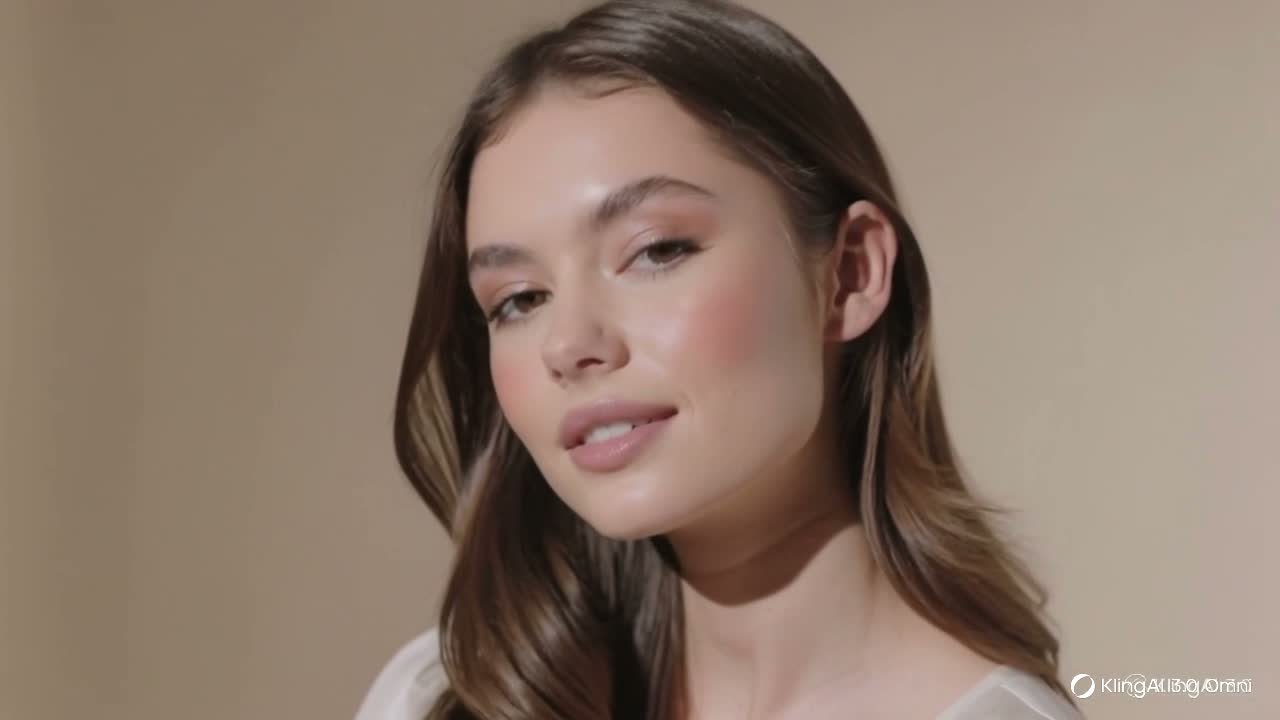
The first clip is the original footage. The second is the same clip after one pass through Kling’s Omni with the beautify instruction below — same person, same motion, same background, retouched skin. Both are real and unedited:
Before — the source video, as uploaded into Omni.
After — the literal Omni output for the instruction below, unedited.
Beautify the woman's face in this video: smooth and even out her skin, brighten the complexion, reduce blemishes and under-eye shadows, subtly refine her features, while keeping her identity, expression, head motion, lighting and background exactly the same.
The instruction is the treatment. The first half describes the retouch; the second half pins down everything that must not change. Both halves matter.
How to beautify a video
Upload your video in Omni
Omni is Kling’s multimodal workspace — the upload slot takes .mp4 and .mov directly. Drop in the clip whose faces you want retouched; the model reads the footage itself, so there’s no masking or tracking to set up.
Describe the beauty treatment as an instruction
Write what a retoucher would do: smooth and even out the skin, brighten the complexion, reduce blemishes and under-eye shadows. The wording is the strength slider — ‘subtly’ keeps it natural, stronger adjectives push the polish further.
Pin down everything that must not change
End the instruction with the keep-clause: same identity, same expression, same motion, same lighting, same background. Omni re-renders the whole clip, so naming what stays fixed is what keeps the result recognisably the same shot.
Generate and compare against the original
Play the two clips side by side and check the face still reads as the same person before publishing. If the retouch went too far or drifted, adjust the wording — softer verbs, more explicit keep-clause — and run it again.
Omni doesn’t paint over your pixels — it re-renders the clip with the instruction applied, which is why the keep-clause naming identity, motion, lighting and background belongs in every beautify prompt. Results are strongest on short, front-facing clips like the demo here; always play the output against the original and confirm the person still reads as themselves before publishing. Longer edits and frame-exact grading still belong to a conventional video editor.