AI inpainting: replace anything in a photo
Add it, swap it, change it — inside the frame. AI inpainting regenerates just the area you mask, so you can drop a new element into a photo. Here's a real before/after.
On this page
Open the photo in Kling's Inpaint tool, brush the region you want to change, and prompt what should appear there. Inpaint regenerates only the masked area — adding an element, swapping one, or changing part of a scene — while the rest stays put. Match the scale and lighting in your prompt so the new element blends in naturally.
An empty sky, filled
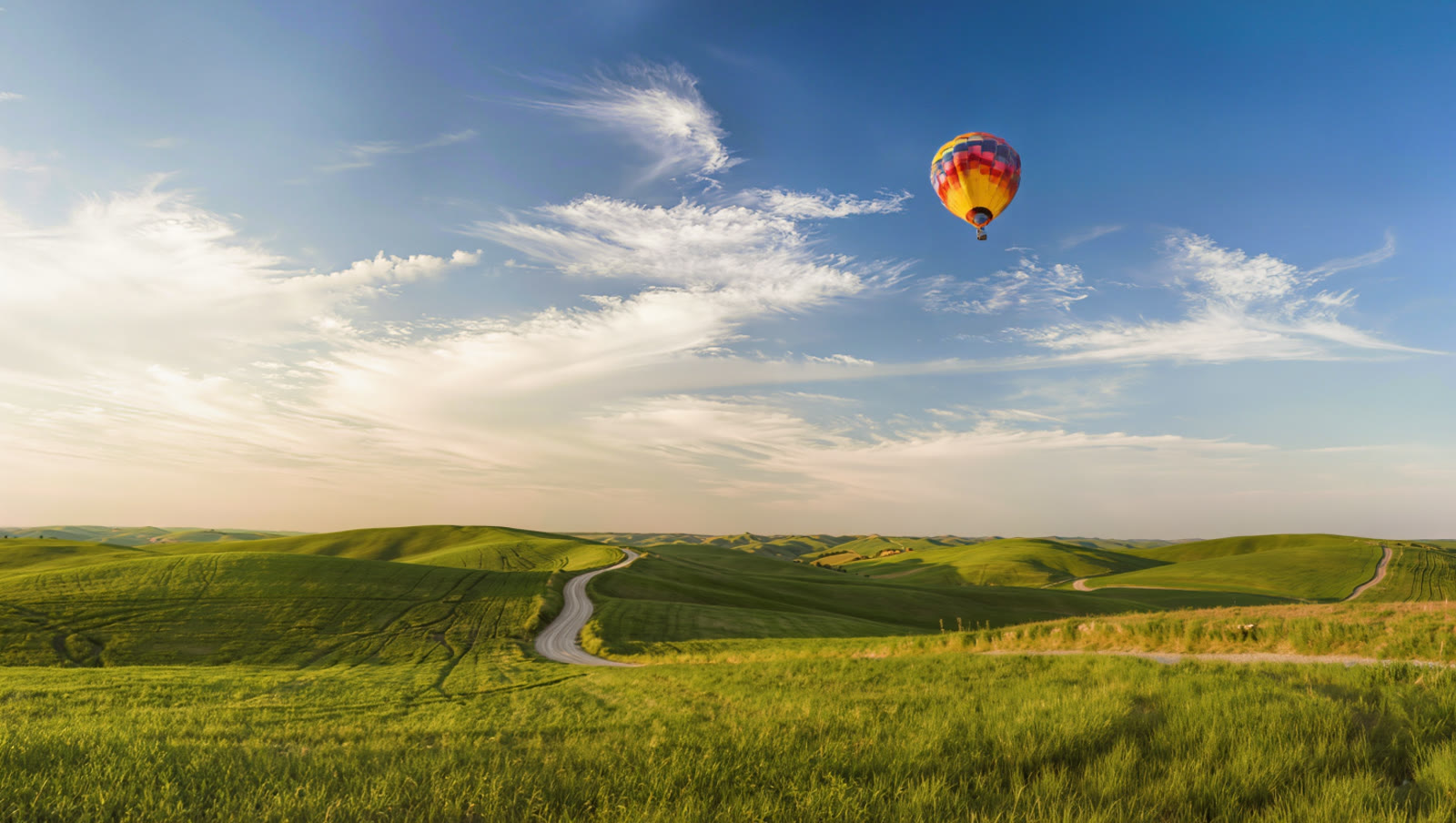
The first image is the original countryside photo with a wide empty sky. Below it, the same photo with a hot-air balloon inpainted into the sky — masked, prompted, and blended to match the light. Both are real, unedited generations:
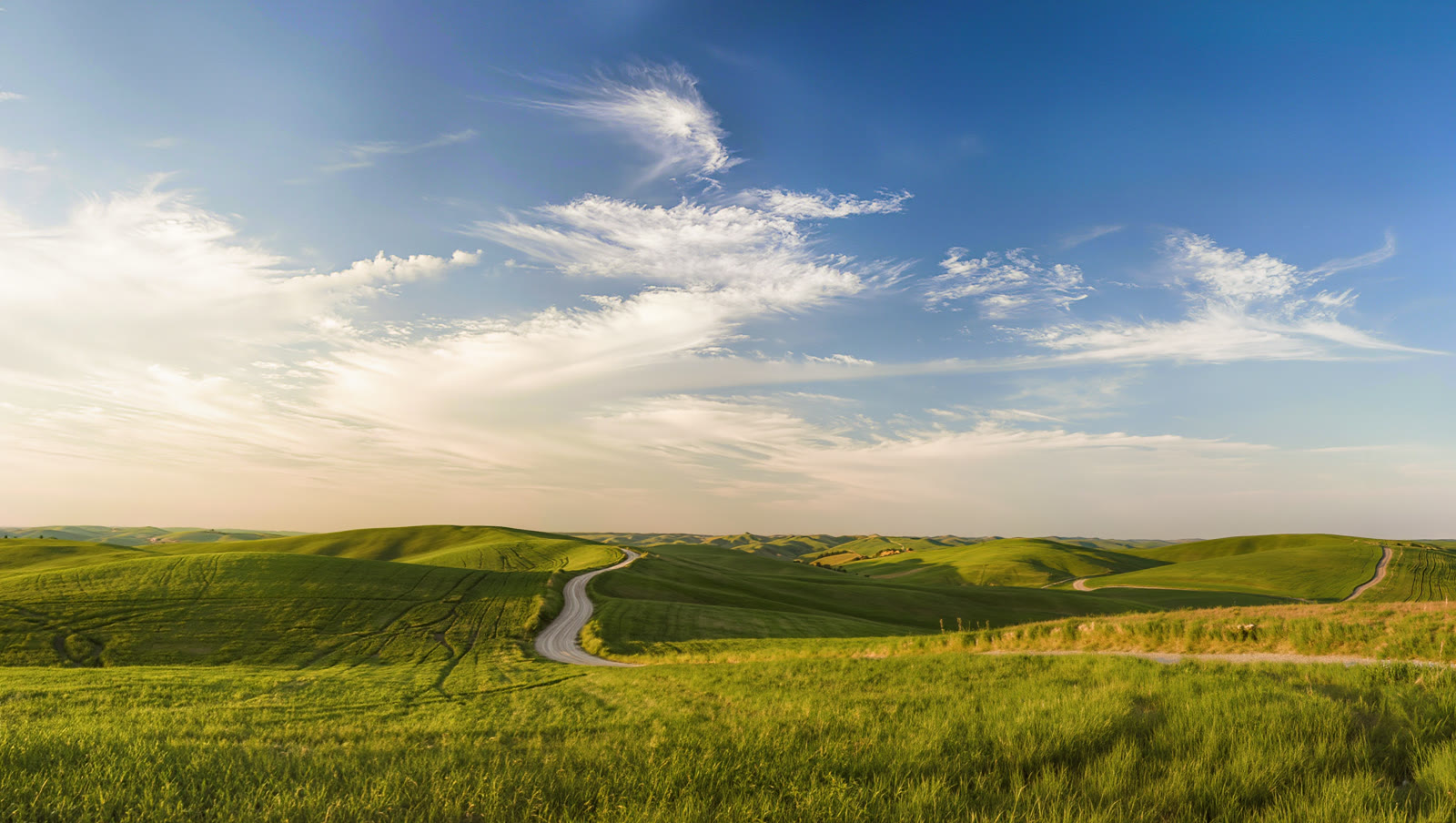
New element, same photo. Only the masked sky region was regenerated — the hills, path and light stay exactly as they were, so the balloon reads as if it was always there.
How to inpaint a photo
Open the photo in Inpaint
Load your image into Kling's Inpaint tool. Inpaint is for replacing or adding content inside a region you choose — the counterpart to Remove, which only erases.
Brush the area you want to change
Mask the region cleanly — the empty sky, a blank wall, an object to swap. Keep the mask to just the area you want regenerated; a tidy mask keeps the rest of the photo untouched.
Prompt what should appear there
Describe the new content for the masked area — “a colourful hot-air balloon drifting in the sky.” Name the lighting and angle so it matches the photo (“soft afternoon light, small in the distance”).
Generate options and blend-check
Inpaint returns a few fills. Pick the one where the new element sits naturally — right scale, right light, clean edges — and looks like it belongs, not pasted on. If the seam shows, remask a touch wider and try again.
Inpaint fills the masked area with newly-generated content that blends with the surroundings — it doesn't uncover anything that was truly there. That's ideal for creative edits: add a balloon, swap an object, change a backdrop. The usual tell is mismatched lighting, so describe the scene's light and scale, and pick the most natural blend. And keep it honest — don't inpaint elements into a photo that others trust to be a true record.