The AI video prompt generator built into Kling
You don’t need a third-party prompt tool — Kling ships one. It’s DeepSeek-R1, and it lives inside the video generator itself. Below: exactly where to find it, what it hands back, the one thing it consistently leaves out, and a measured before/after showing why that matters.
On this page
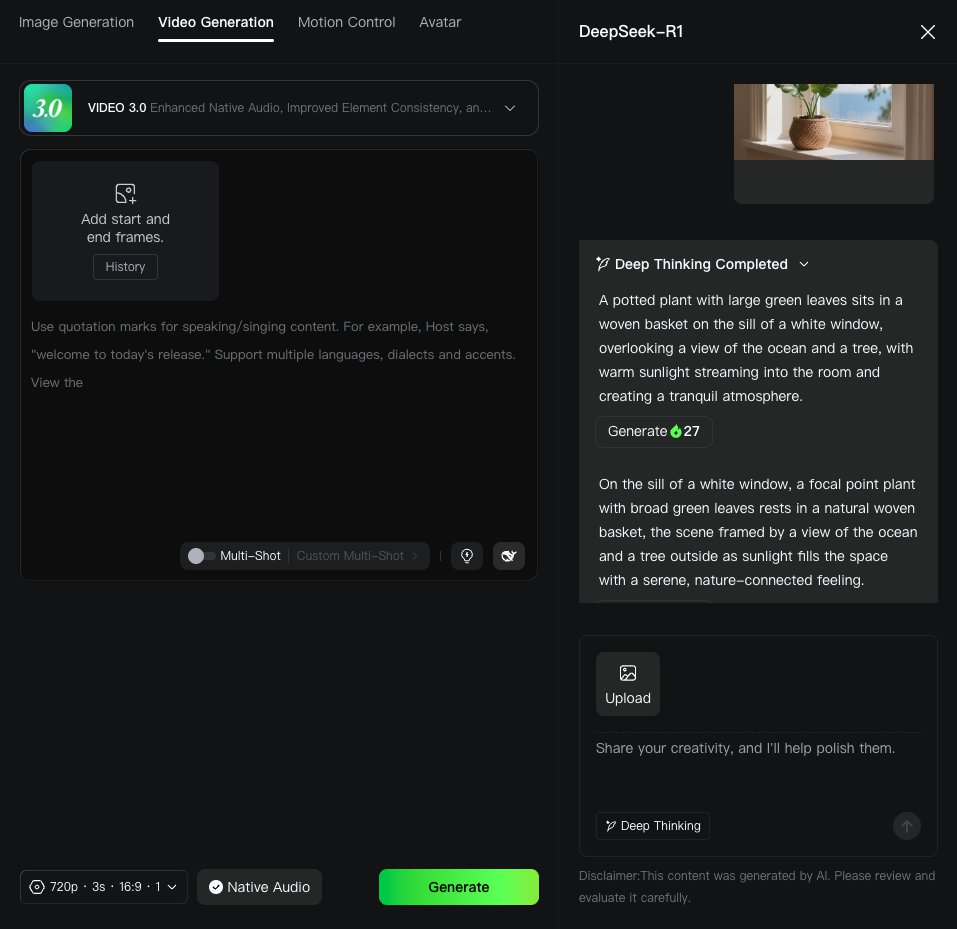
Open Kling’s video generator, click the DeepSeek whale icon at the bottom-right of the prompt box, and a panel headed DeepSeek-R1 opens. Type a rough idea in plain language and it hands back three finished prompts, each with its own Generate button. It writes the scene for you. It does not write the motion or the camera — that part is still yours, and it is the part that decides whether the clip works.
Where the generator is
Open the video generator
Any Kling account can reach it. The prompt box sits in the left-hand panel, under the model selector.
Click the DeepSeek whale icon at the bottom-right of the prompt box
It sits in the small row of icons just under the box, to the right of the Multi-Shot toggle. There is no text label — the panel that opens is headed DeepSeek-R1.
Type a rough idea, in plain language
Full sentences are not required. Six words was enough for the run below. An image can be attached instead, using the Upload button in the same panel.
Press the send arrow, and read all three
You get three separate suggestions rather than one answer. They differ in framing and emphasis, so it is worth reading past the first.
What it returns
A real run. The whole input was six words — a cat on a windowsill at sunset — and these are the three suggestions that came back, quoted exactly:
“A cat sits on a windowsill at sunset, silhouetted against the warm orange and pink sky, gazing outward.”
“A fluffy cat lounges on a wooden windowsill during sunset, the golden light casting long shadows across its fur.”
“A cat perched on a narrow windowsill watches the sunset, the deep hues of dusk painting the sky behind it.”
Each one arrives with its own Generate button, so a suggestion can go straight to render without ever touching the prompt box. Underneath the set there’s Edit and Regenerate, plus a thumbs up/down.
Two variations are worth knowing about:
- Deep Thinking — a toggle beside the input. Switched on, the panel reports “Deep Thinking Completed” and returns three prompts that carry more framing and lighting detail (one of ours opened “From inside a room, a cat is seen on a windowsill…”).
- Upload — attach a reference image instead of typing. Fed a photo of a potted plant on a windowsill, it returned three prompts describing that photo, down to the woven basket and the ocean beyond the glass.
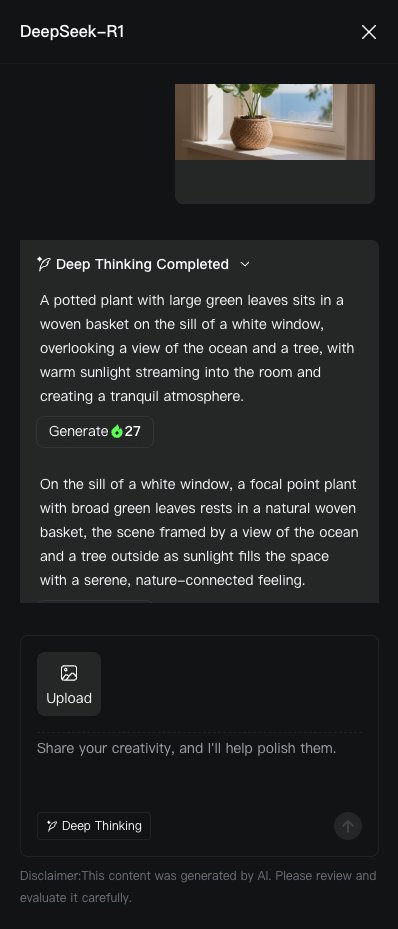
The panel carries its own disclaimer: “This content was generated by AI. Please review and evaluate it carefully.” Treat every suggestion as a first draft, not a verified answer.
The one thing it leaves out
Across three runs — plain text, Deep Thinking, and image upload — all nine suggestions described a scene. Not one of them named a movement, and not one of them said anything about the camera. For a still image that is fine. For video it is the whole game, because whatever you leave unspecified, the model decides for you.
Here is that gap, measured. Same six-word idea, same settings — VIDEO 3.0, 720p, 3s, single shot, no audio, text-to-video — and the only difference is the prompt.
The generator writes the noun. You still have to write the verb.
Turning a suggestion into a prompt
Pick the suggestion closest to your shot, then press Edit
Edit drops the text into an editable field. Going straight to that suggestion's own Generate button skips this step — convenient, but it also skips the two additions below.
Add one movement, named specifically
Not “the cat moves” but “the cat's tail flicks once and its ears turn toward the window.” One clear physical action beats three vague ones, and it is the single biggest factor in whether a first attempt looks right.
Say what the camera does — even if the answer is nothing
“Camera locked off” is prompt wording, not an interface switch. Leave it out and the model picks its own move, which is exactly what happened in the first clip above.
Swap in details only you know
The suggestion is generic by design. Your actual colours, setting and pose will always outperform the stock version — and if you are starting from a photo, see the prompt pack for motion wording that transfers well.