Amazon product videos from a photo
One photo, a showcase clip. Turn a plain product shot into the slow rotating video marketplaces accept alongside listing photos — here's a real one, start to finish.

On this page
Start from a clean product photo — plain background, even light, the whole item in frame — and load it into image-to-video. Prompt a slow rotation or gentle zoom, and mention that the background should stay still. Kling exports a standard video file; check it against your marketplace's own video specs (length, resolution, no outside branding) before uploading it to a listing.
A still photo, turning
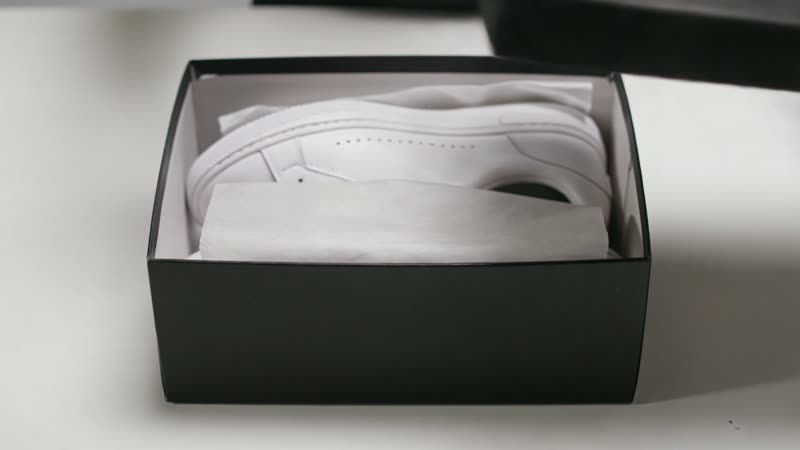
One plain product photo in, one slow rotating showcase clip out — the kind of short video that sits well alongside listing photos. Real, unedited generation:
The mug slowly rotates a full turn on the spot to show it from every angle, background and lighting stay completely still, smooth steady motion, clean product showcase, no camera movement.
Same product, same background, just turning. The rotation is the whole video — nothing else in the frame moves, which is exactly what a listing video needs.
How to make an Amazon product video
Start from a clean product photo
A plain background, even lighting and the whole product in frame gives the AI the clearest read — the same photo you'd use as your main listing image works well as the starting point.
Add it to image-to-video
Load the photo into Kling's image-to-video and prompt the motion you want: a slow rotation, a gentle zoom into a detail, a soft turntable turn. Keep the move slow and simple — a listing video should show the product clearly, not perform tricks.
Keep the background and product stable
Mention what should stay still in your prompt — the background, the product's position in frame — so the motion reads as a clean showcase rather than the whole scene drifting.
Cut to length and match Amazon's spec
A Kling generation is a short clip, and an Amazon product video usually runs longer — so generate two or three angles (a rotation, a detail push-in, a lifestyle beat) and cut them together in an editor. Then export to the spec in the box below and confirm the live requirements in Seller Central before it goes on the listing.
The widely published requirements for a product video on a detail page: MP4 or MOV, at least 1280×720 (1080p recommended), 16:9 landscape, a steady frame rate, no outside logos or branding overlaid, and video upload limited to brand-registered sellers. Keep it product-first and short — a listing video does its job in well under a minute. Amazon tunes limits over time and by marketplace, so treat Seller Central’s current guidelines as the source of truth on the day you upload.
There's no Amazon-specific mode here — this is Kling's ordinary image-to-video, prompted for the slow, simple motion a listing video calls for. The AI doesn't know about Amazon's video length, resolution or branding rules, so that check is on you: confirm the current spec for your marketplace before uploading, and keep the motion slow enough that the product stays the clear focus throughout.