How to animate your logo with AI
Turn a static logo into a short, loopable motion mark — without warping the shape. A locked-off camera and a light or glow effect is the difference between a clean result and a distorted one.
Lock the camera off and animate light, not shape — a shine sweep or a soft glow pulse across the mark, with an explicit "no warping, no morphing" instruction. Anything that implies camera movement or 3D rotation is the most common way a flat logo ends up looking distorted.
Why logos are riskier to animate than photos
Most image-to-video guides are written for photographic scenes, where a little unexpected motion or a soft edge is easy to forgive. A logo is different: it's a precise, flat shape that a brand depends on staying instantly recognizable. Any stretch, wobble, or blur in the outline reads immediately as "broken," not as an acceptable creative choice — so the goal here isn't dramatic motion, it's motion that never touches the shape at all.
How to do it
Start from a clean, high-contrast logo image
A flat vector-style logo on a plain background animates far more predictably than one with complex textures, gradients-on-gradients, or a busy backdrop.
Lock the camera off, explicitly
Say “camera locked completely still” — any implied camera drift or zoom will stretch a flat graphic in ways that read as warping rather than motion.
Ask for light, not shape change
Describe a shine sweep, a glow pulse, or a subtle color-gradient shift passing across the mark — motion that lives on the surface of the logo, not motion that moves its outline.
Explicitly forbid distortion in the prompt
Add a line like “edges and text remain perfectly crisp and sharp, no warping, no morphing” — naming the failure mode you want to avoid measurably reduces it.
Check the first, middle, and last frame before shipping
Step through the result and confirm the logo's silhouette is identical at every point — only the light or glow should be different, never the shape.
For a logo, the safest motion is light passing over the mark — never the mark itself moving through space.
A real example
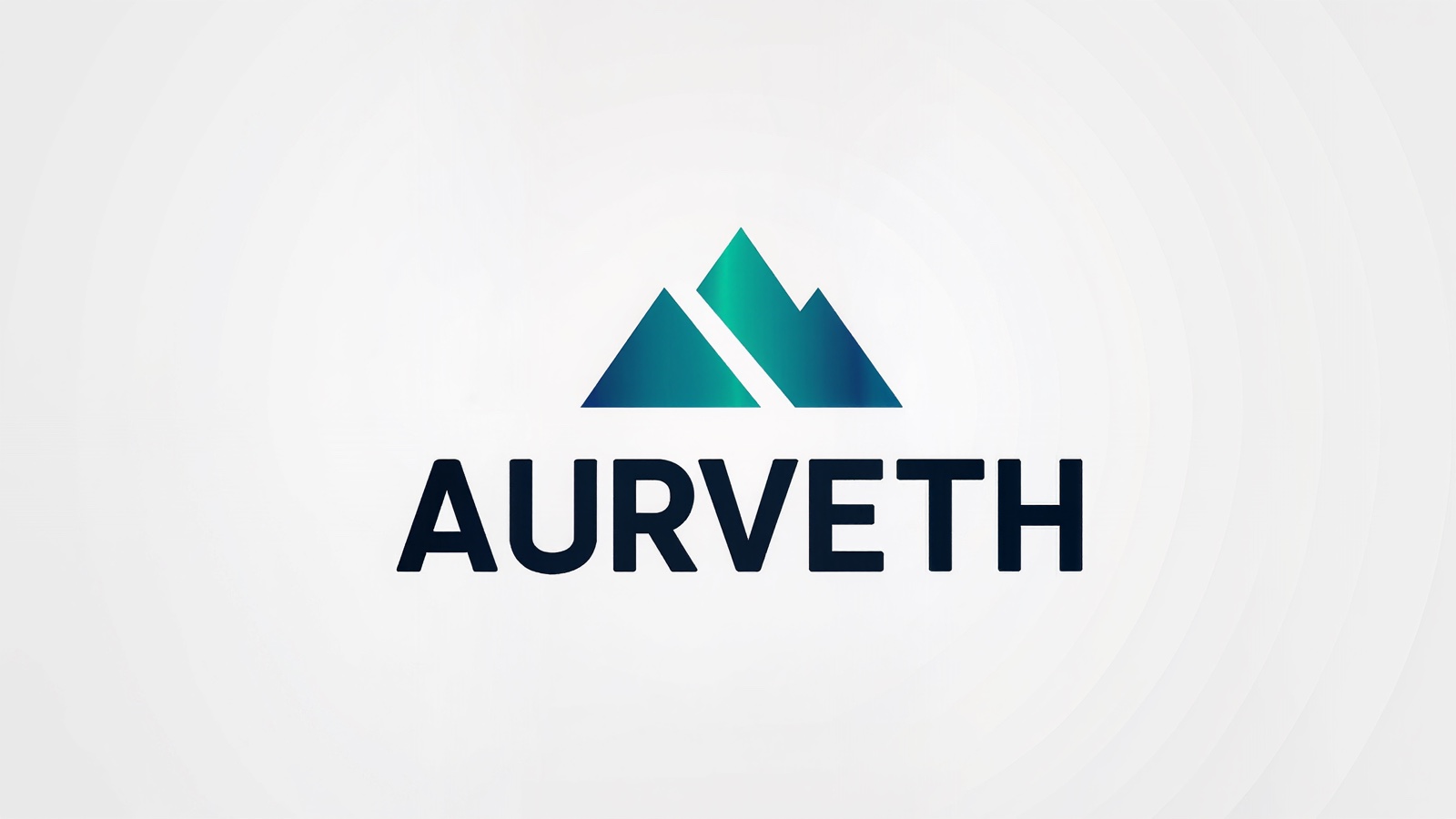
This is an original, fictional logo ("Aurveth" — an invented name with no real company behind it) made specifically for this demo — animated with the camera locked off, a single diagonal light sweep, and a soft gradient glow pulse:
Camera locked completely still. A soft diagonal light sweep glides once across the logo mark and wordmark, creating a subtle shine/glint highlight as it passes, then the gentle teal-to-blue gradient softly pulses with a light glow. The logo edges, shape, and text remain perfectly crisp and sharp with no warping, no distortion, no morphing, plain white background stays static.
Checked frame-by-frame: the silhouette is identical at the start, middle, and end — only the highlight position changes.