CapCut combines timeline editing, captions, templates, and AI tools for social videos and straightforward tutorials. CapCut reviews look at its everyday strengths, Free, Standard, and Pro options, and export restrictions, so you can decide whether it suits your projects. Before choosing a paid plan, consider whether you already have the footage you need or will need to create new scenes.
CapCut Review at a Glance
CapCut brings editing and AI assistance into one accessible product. It suits recurring formats that combine recorded clips, text, and familiar effects. Its value depends on the features your account includes and the demands of your project.
Area | Practical assessment |
Everyday editing | Trimming, captions, effects, and keyframes support routine projects. |
AI creation | Generation tools are available alongside editing. |
Devices | Mobile, desktop, and web versions have different feature access. |
Main consideration | Paid assets, AI credits, and export settings can affect cost. |
What Does CapCut Offer?
CapCut video editor reviews often highlight seven everyday tools:
- Timeline Editing: Trim, split, rearrange, and change clip speed. Color adjustments and keyframes help shape the look and movement of existing footage.
- Effects and Styling: Add titles, filters, transitions, and effects to establish a repeatable visual style.
- Automatic Captions: Generate captions from speech, then check names, punctuation, timing, and line breaks.
- Templates and Assets: Ready-made layouts reduce setup, but check membership labels and export rights before using them.
- AI Assistance: Background removal, noise reduction, and video generation support different stages of production.
- Device Options: Mobile, desktop, and web versions offer different tools and subscription access.
- Cloud Projects: Available storage and sharing benefits depend on your plan and account.
CapCut's Strengths and When to Consider Alternatives
CapCut makes sense for recurring formats such as weekly product clips, tutorials, or social updates. Caption styling and ready-made layouts can carry a familiar look across a series, while timeline controls let you change the pacing without rebuilding the whole video. That combination is useful when you already have footage and want to publish regularly.
You still need to match the plan and creative tools to your brief. Premium assets may affect export access, and membership benefits vary by platform. If your project needs a product scene you haven't filmed, several shots that keep the same character or product recognizable, or a specific camera path, a dedicated AI video creation tool may be worth considering alongside a conventional editor.
That’s where our Kling AI creative platform comes in. Our new Kling 4.0 model brings video generation and prompt-driven editing together. Omni Reference supports up to 15 combined assets to guide appearance, action, camera movement, and style, helping keep characters and products consistent. Stable large-scale motion and complex camera moves help scenes flow. Within Omni Reference, up to 10 keyframe images can guide key moments; Kling 4.0 generates 3–30-second videos and understands and expands prompts up to 8,000 tokens for coherent stories. You can recreate trending videos with your products or characters for your own ads, then edit footage using prompts and references with our AI video editor.
CapCut Free vs. Standard vs. Pro
A CapCut free vs Pro comparison should also account for Standard in supported regions. The main distinctions concern device access, included tools, and allowances:
Option | Relevant benefits | Important boundary |
Free | Core editing without a subscription. | Paid resources or settings can limit export. |
Standard | Mobile-focused membership benefits in supported regions. | Availability, included tools, and storage vary by region and account; Standard benefits do not transfer to desktop or web. |
Pro | Cross-platform membership, advanced tools, and larger allowances. | Verify the offer, AI balance, and included features shown in your account. |
CapCut’s upgraded Pro guidance lists 1,200 AI credits and storage is expanded to 1 TB. These figures describe the upgraded offer, not a guarantee for every account or legacy subscription. Check the billing period and current allowance before budgeting a regular generation workload.
Current CapCut pricing varies by region, device, and promotion. Review the price and renewal terms in your account rather than relying on a single worldwide subscription figure.
Is CapCut Good for Your Workflow and Worth Paying For?
CapCut is a good fit for social videos, product clips, and straightforward tutorials built from footage you already have. The right version depends on where you edit, which tools you use repeatedly, and whether you can complete the finished video within that plan.
- Start with Free for simple edits using your own footage. If you mainly trim clips, add text, and arrange a short video, complete a project with the available free tools first. Free may remain enough even if you post regularly, provided your usual assets and export settings don’t require payment.
- Consider Standard if most of your editing happens on your phone. For recurring mobile projects, compare its included tools and storage with what you currently use. Upgrade when those benefits meet a recurring need. Standard is available in selected regions, and its membership benefits apply to mobile rather than desktop or web.
- Consider Pro when paid features become part of your regular workflow. If your weekly product videos repeatedly use premium templates or AI tools, assess whether that access saves enough work to justify the subscription. Pro also supports membership benefits across mobile, desktop, and web. For client or team projects, confirm asset permissions, sharing options, and who needs paid access.
Before subscribing, take one representative video from import through export. Note every paid feature it needs and check the credits required for any AI actions. If you’re asking “Is CapCut worth it,” compare those recurring benefits with the subscription cost and any additional credits you expect to buy.
Why Consider Kling AI Video Tools Alongside CapCut?
Imagine you're making a short product ad. You have a clean product photo and a presenter clip, but the opening calls for the product moving through a different setting. Before you can finish the edit, you need a shot that connects those assets to the idea.
With our Kling 4.0 model, you can use the product photo as an appearance reference and a reference video to guide camera movement. The examples below show how our reference-guided generation and prompt-based editing can help create missing scenes and develop new versions of existing footage.
Build Product Scenes Around Your References
A product campaign can start with separate references for the item, setting, and camera movement. Omni Reference supports up to 15 combined reference assets in a single generation, combining images, videos, and elements (including a specified voice for an element). Within this limit, you can use up to 10 images, up to 5 videos with a combined duration of no more than 30 seconds (including video elements), and up to 7 elements, including those defined by multiple images or videos.
Give each asset a clear role as you explore different scenes. In the car ads example, one image supplies the vehicle design, another supplies the arena, and a video guides the camera movement. This approach helps you explore different scenes while keeping the intended product details and visual direction in view. Creative Recreation can also use a reference clip's pacing or composition to guide a new version featuring your own product.
For a campaign series, a recurring product reference can anchor a studio reveal and a separate lifestyle scene, while each shot explores a different setting or camera treatment.
Reference Video 1 | Reference Image 1 | Reference Image 2 |
  |
Alt: Four views of a patterned number 07 race car |
Alt: Nighttime drift arena with colored lights and tire marks. |
Generated Video | ||
 | ||
| Prompt: Let @Video1 guide the camera movement and timing. Use the vehicle design shown in @Image1 and place it in the setting from @Image2. | ||


Create Smoother Motion and More Stable Camera Moves
Fast action and complex camera movements can make a video feel disconnected when motion is difficult to control. Kling 4.0 brings greater stability to large-scale movement and complex camera work. Whether you're creating high-speed action, continuous movement, tracking shots, or orbiting camera moves, our model helps scenes flow more smoothly and maintain visual continuity.
This gives creators more room to explore dynamic product reveals, energetic fashion sequences, and cinematic action without losing sight of how the movement fits the overall scene. The same capabilities can also help bring animated characters to life with more expressive actions.

Shape More Cohesive Stories with Greater Directorial Control
A compelling video needs more than a series of attractive shots. Actions, transitions, and important visual moments need to work together to tell a coherent story.
Kling 4.0 supports single-generation videos of up to 30 seconds, giving scenes more time to develop naturally. You can use up to 10 keyframe images to guide important moments, from the opening composition and product reveal to scene changes and the ending. Its enhanced prompt understanding can also expand and refine instructions of up to 8,000 tokens, helping translate detailed creative direction into a more developed visual sequence.
By combining duration, keyframe guidance, and detailed prompts, you can shape the pacing, camera movements, and progression of a scene with greater control. This is useful for product demonstrations, short narrative videos, and animated stories that need a clear beginning, development, and payoff.

Adapt Trending Video Ideas to Your Own Content
Trending videos can offer a useful starting point, whether you want to borrow their pacing, shot composition, or visual style. With Kling 4.0, you can use a reference video to guide a new version, then replace its products or characters with your own—without planning every shot from scratch or repeatedly adjusting prompts. This approach works for social media trends, product ads, fashion and beauty, and consumer electronics campaigns. Explore our AI ad generator or short-video creation tools to develop your ideas.

Edit Existing Footage with Greater Precision
Already have footage you want to keep? Kling 4.0 lets you combine prompts and visual references to add, modify, or remove subjects and background elements, as well as adjust style, weather, colors, materials, shot size, and viewing angle. For example, you can turn a realistic corgi into a blocky 3D character while keeping the snowy setting intact. Explore our AI video editor to refine existing footage to match your creative direction.
Reference Video 1 | Generated Video 2 |
 |
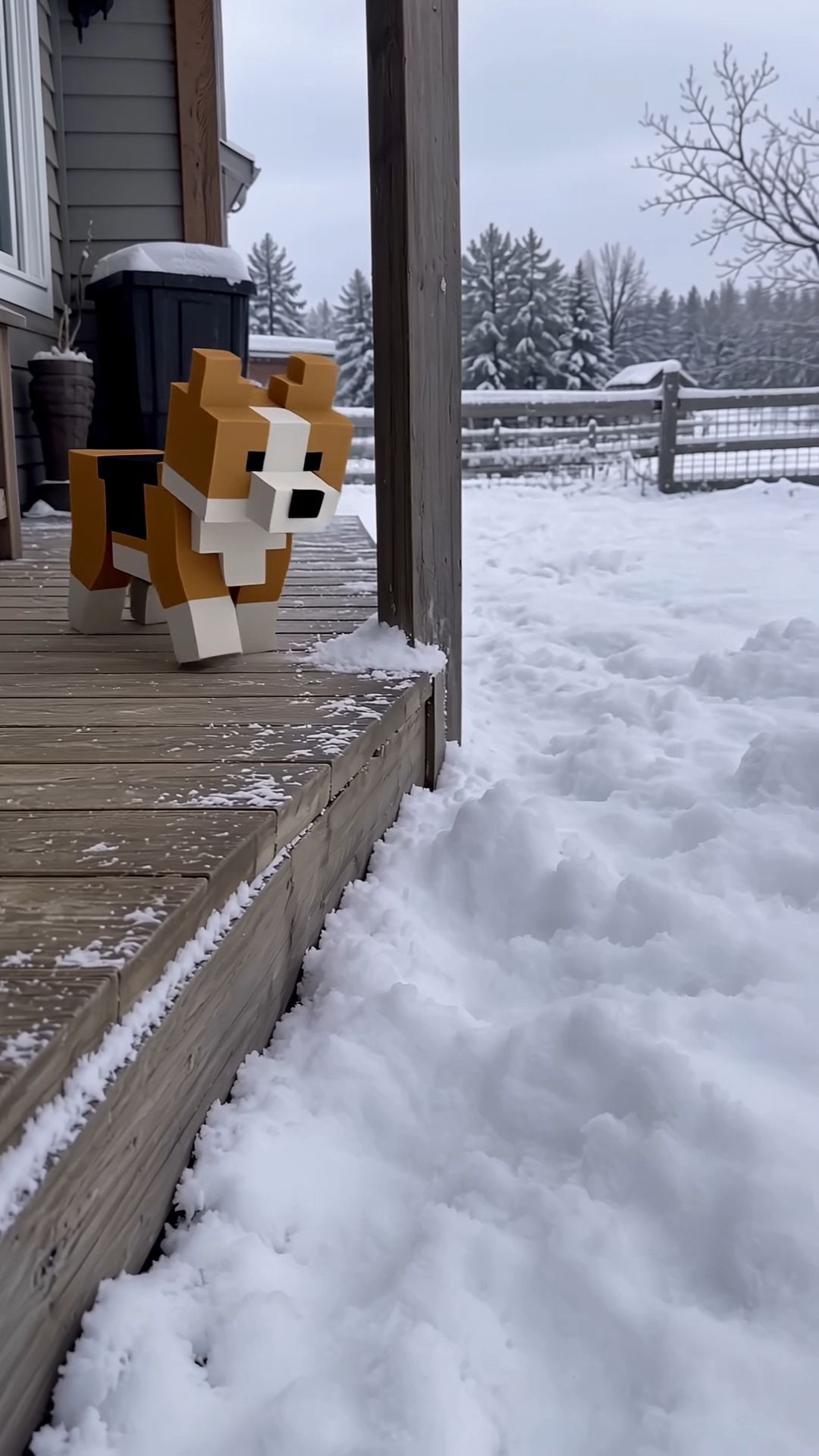 |
Prompt: Edit @Video 1 by replacing the tricolor Corgi puppy hopping in the snow with a 3D blocky pixel-art Corgi. The entire body must be constructed from cubes: a rectangular torso, a cubic head, two upright square triangular ears, four short cuboid legs, and a small block-shaped tail. All edges must have sharp, hard right angles, with no rounded curves. The surface uses low-resolution 16×16 pixel textures, preserving the original Corgi's tricolor distribution: a tan body, a black saddle-shaped patch across the back, a white facial blaze, a white collar, a white chest, and white paws. The eyes are two black square pixels, the nose is a single black cube, and the tongue is a small pink pixel block. Lit surfaces are bright and side surfaces are dark, with flat-shaded, block-based lighting. There must be no fur texture or soft tonal transitions. Keep the Corgi exactly the same size as the original, without scaling it up or down. The blocky Corgi must follow the original Corgi's position, actions, and movement trajectory frame by frame: standing beside the porch, jumping into deep snow and disappearing, leaving a hole in the snow, peeking out with its blocky head, repeatedly leaping forward into the snow, and finally sitting in the snow pit. During jumps, its body and legs should move as rigid blocks, like a creature animation in a video game, without bending. The depth to which it sinks into the snow, the snow kicked up by its paws, the snow settling on its body, and its shadow cast onto the snow must all follow the blocky body accurately. Whenever it reappears after being covered by snow, it must remain the exact same blocky Corgi with consistent textures. Important: Only the Corgi should be transformed into a blocky style. The wooden porch, snowy ground, wooden fence, trees, and gray-white sky must remain completely realistic, as in the original live-action footage. Do not apply any blocky or pixelated effects to the environment. Only one animal should appear in the footage, and no realistic, fur-covered Corgi may appear in any frame. Keep the audio exactly identical to the original video. Do not add any new sounds. Preserve the handheld camera perspective and all camera movements. Everything else must remain unchanged. | |
Who Can Benefit from Kling 4.0?
Kling AI can support a range of creative workflows, particularly when a project needs new footage, more controlled visual storytelling, or targeted changes to existing scenes.
- Social media creators can adapt trending formats, develop recurring content, and create engaging short videos.
- E-commerce and brand teams can turn product references into campaign concepts, explore new product scenes, and develop commercial videos without filming every shot.
- Educators and product trainers can create visual demonstrations, explain processes, and develop tutorial videos with more control over important steps.
- Animators and storytellers can bring illustrations to life, guide character movement, and build visually consistent animated scenes with our AI animation maker.
CapCut remains a practical choice for editing recorded footage, arranging clips, and applying familiar effects. When your project also requires generating new scenes, directing complex movement, adapting existing creative ideas, or making targeted changes to footage, Kling AI offers another set of creative tools to consider.
Conclusion
CapCut reviews can help narrow your shortlist, but your next video provides the clearest test. Choose the editing tools and plan that fit your regular work. When the idea also needs a new scene or a different version of existing footage, explore Kling AI’s reference-guided workflow and refine the result around your brief.
FAQs
Is CapCut Free to Use?
CapCut offers free editing, but access to an item during preview does not necessarily include export rights. Premium resources, certain AI actions, or selected output settings may require payment. Before investing time in a project, try exporting a short version with the tools and assets you intend to use.
Does Every CapCut Video Have a Watermark?
No. Watermarks can come from template endings, branded elements, or restrictions tied to premium content. Inspect the timeline and export screen to identify the cause. Removing a default ending is different from obtaining rights to use a Pro-only resource; avoid assuming that one fix resolves every export restriction.
Can CapCut Standard Benefits Be Used on Desktop?
CapCut’s guidance limits Standard membership benefits to its mobile app in supported regions. You can still access other versions, but logging in does not transfer those premium benefits to desktop or web. Pro covers membership use across those platforms; confirm that you are using the same account.
Can I Create a Video in Kling AI Without Uploading Images?
Yes. With text-to-video AI, describe the scene, action, and camera movement you want. Kling 4.0 can generate a clip without uploaded images. If you have a product photo or another reference, you can add it to guide appearance.
Can Kling AI Change an Existing Video?
Yes. Kling 4.0 supports prompted changes to subjects, backgrounds, actions, and visual style. Upload your clip and begin the prompt with “Edit @Video1,” then describe the change and specify what should stay the same. Preview the result to check for unintended changes before using it.