AI video effects: one-tap templates
No prompt, one tap. Kling's creative effects turn a single photo into a styled, moving clip — here's a real template applied to an AI portrait, plus how to keep your effects brand-safe.
On this page
Kling's Creative Effects are pre-built templates: pick a look, supply one clear single-person photo, and tap generate. The effect applies the transformation, motion and scene for you — no prompt needed. It's the fast lane to a shareable clip, as long as you keep the subject original and skip templates that pull in real brands or characters.
One tap, one transformation
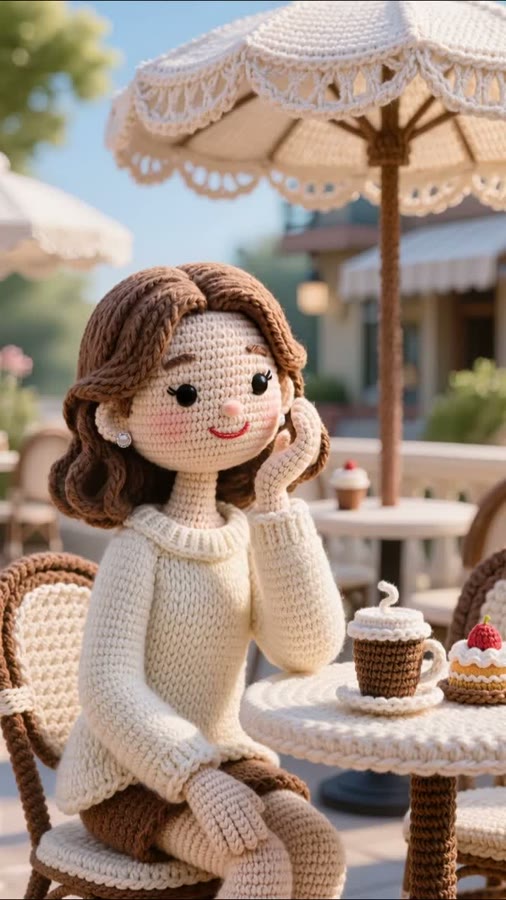
This started as a single ordinary portrait. One tap of the Crochet Diary effect turned it into a moving crocheted-doll scene — no prompt written, no animation set up by hand:
Creative Effects → Chic Look → Crochet Diary · input: one front-facing portrait · no text prompt
One photo in, a whole styled clip out. The transformation, the motion and the scene all came from the template — the only thing supplied was a single clear portrait.
How to use creative effects
Open the Effects gallery
Kling's Creative Effects are pre-built templates grouped by vibe — playful, stylish, dance, and more. Browse the gallery and pick the transformation you want instead of writing a prompt from scratch.
Pick a single-person photo
Most effects ask for one clear, unobstructed, front-facing photo of a person. A clean subject on a simple background gives the effect the best chance of a believable transformation.
Tap the effect and generate
Apply the template and generate — the effect handles the motion, styling and scene for you. One tap does the work of a full prompt plus animation, so you trade fine control for speed and a reliable look.
Regenerate or swap the template
Effects vary run to run. If the result isn't quite right, generate again or try a neighbouring template — and always watch the clip back before posting, since face and hands are where templated effects wobble most.
Effects are templates, not prompts — you trade fine control for a fast, reliable look, and results vary run to run, with faces and hands the usual weak spots. The bigger thing to watch is what an effect puts into your clip: some templates lean on real sports teams, brands or franchise looks. Keep your subject original or generic, avoid anything that stamps a real logo or character onto the shot, and you keep a fun effect from becoming a trademark or likeness problem.