How to make a photo move
Two ways to bring a photo to life. Make the whole subject move — a turn, a wave, a step — or keep the photo frozen except one living detail like curling steam. This guide covers both routes, and the prompt discipline that keeps each one clean.
On this page
Name the ONE small element that should move, then explicitly say everything else should stay frozen — that second instruction is what most people skip, and it's the difference between a subtle living-photo effect and the whole scene animating unpredictably.
What this effect actually is
Most "animate a photo" tutorials bring the whole scene to life — camera movement, several things shifting at once. This is different: the goal is to keep almost everything frozen, exactly as the photo was taken, and move just one small, self-contained detail. It reads as more realistic and less like an obvious AI video, closer to a framed photo that quietly breathes.
How to do it
Choose how much of the photo should move
Two routes. Whole-subject motion: the person turns, waves, takes a step — the photo becomes a short live moment. Or the living-photo effect: everything frozen except one small element — a candle flame, cup steam, drifting snow. Decide first; the prompts differ.
Describe the motion explicitly
Whole-subject route: name the action and its size — “she turns her head and smiles softly”, “he takes one step forward”. Living-photo route: name the ONE element and where it is — “the snow inside the glass globe”, not just “snow”. Vague wording is what produces random drift.
Freeze what shouldn't move — including the camera
On either route, say what stays put: “camera locked off”, “background stays still”, or for the living-photo effect “everything else stays completely still”. The model fills any silence with motion you didn't ask for.
Generate, then check ONLY that element moved
Watch the result closely. If motion shows up somewhere you didn't name, simplify or re-prompt naming the unwanted area explicitly as frozen too.
The instruction that matters most isn't what should move — it's the explicit line telling the model what shouldn't.
A real example
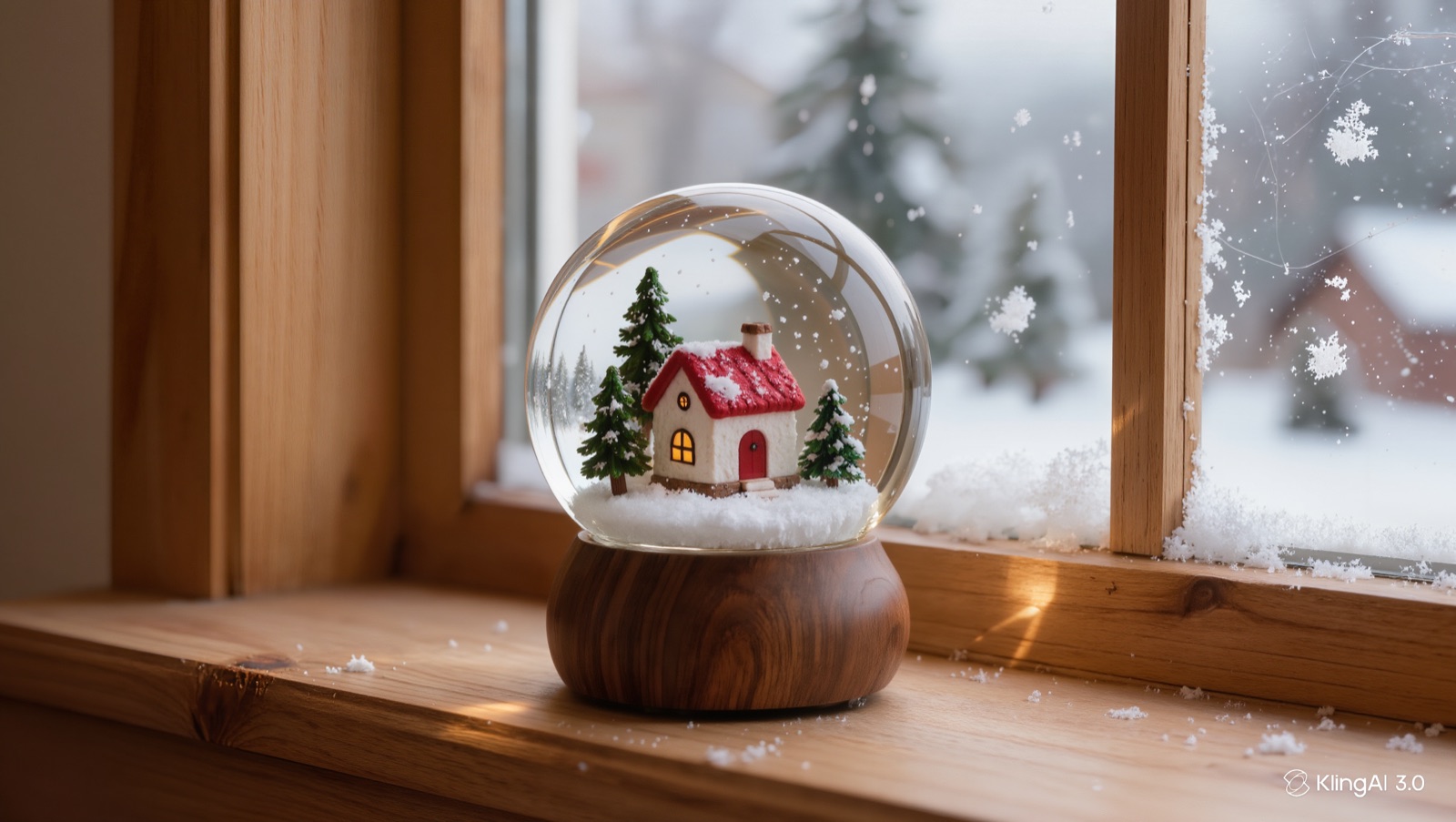
Here's the actual, unedited result — only the snow inside the glass sphere was named as the moving element, with the window and background explicitly named as staying frozen:
Only the tiny snow particles suspended inside the glass sphere drift and swirl slowly downward. The wooden windowsill, the window frame, and the snowy scene visible through the glass outside stay perfectly frozen with no falling snow outside the sphere. Camera locked off.
The motion is intentionally subtle — that's what a genuine "one small thing moves" effect looks like, not a dramatic animation.
Honest limits
This technique reduces unwanted motion elsewhere in the frame — it doesn't guarantee zero drift with total certainty. Our own first attempt at the demo above actually inverted the effect (background snow fell continuously while the globe's interior stayed still) until the prompt explicitly named what should freeze. If your first result moves the wrong thing, that's a normal part of the process, not a sign the technique doesn't work — simplify and be more explicit about what should stay still, then try again.