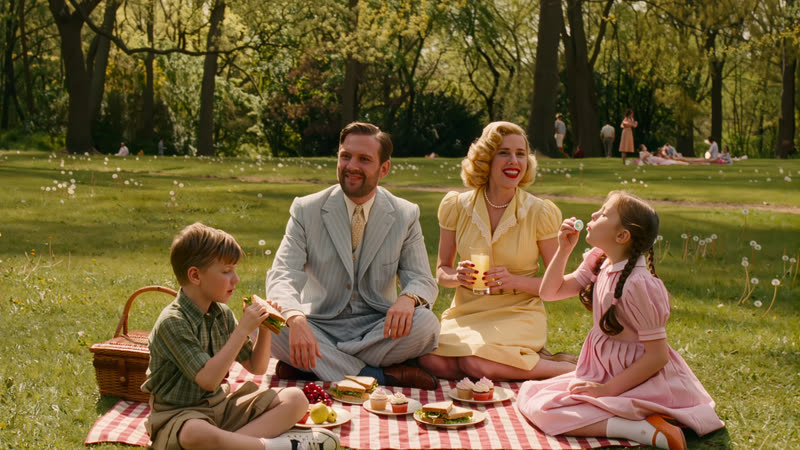
Animate any photo with AI: from still to motion in one click
The right workflow depends on the photo. A portrait, a family memory photo and a product shot don't all animate the same way — this guide routes you to the specific tutorial that fits, with real examples already tested for each.
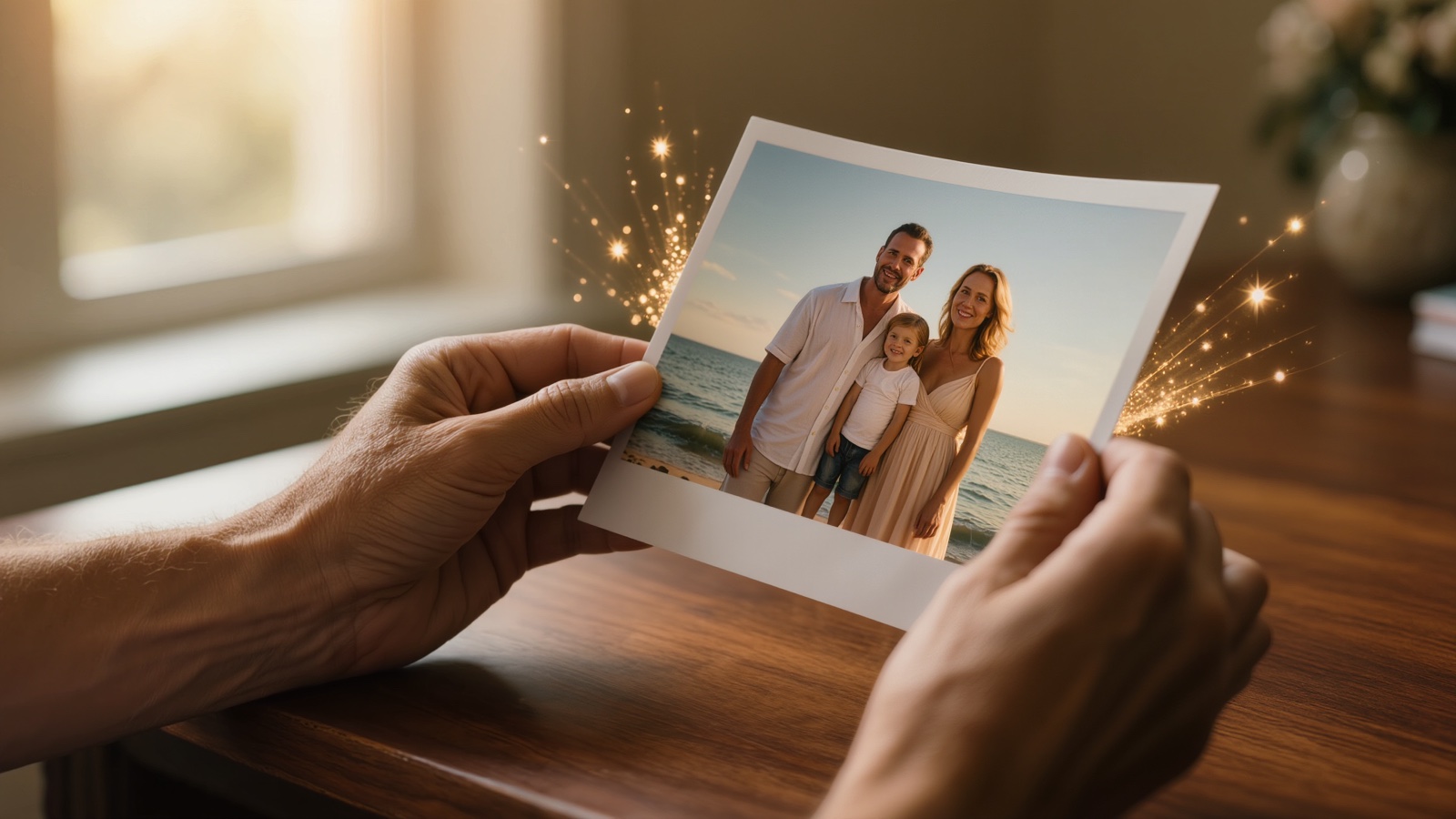
Upload a clear, well-lit source photo, describe one specific motion with the camera locked off, and generate. The exact best workflow depends on what kind of photo it is — use the routing table below rather than one generic approach for every photo.
Which workflow fits your photo
Two common starting points, each with its own tested tutorial:
A portrait or selfie
One person, front-facing, clear background — the most reliable starting point for a first attempt.
A photo you want turned into a specific effect
Named presets like slow-motion or bullet-time rather than a custom-written motion.
The basics behind every method
Whichever workflow fits your photo, the same underlying principles apply:
Start with a clean, well-lit source photo in Image Generation or your own upload
Sharp focus, one clear subject, and simple lighting animate more predictably than busy, cluttered, or heavily shadowed photos — this matters more than resolution.
Describe one motion in Image-to-Video, not the whole photo again
The source image already establishes who and what is in frame — the prompt only needs to say what moves and how, e.g. "hair drifts gently in a light breeze, camera locked off."
Keep the camera locked off for a first attempt
Camera pans and zooms are the least predictable part of any animation prompt. A static camera with one clear motion succeeds far more often than a moving camera.
Match the specific workflow to the specific photo
A portrait, a product shot, and a group memory photo don't animate the same way or need the same tool — use the routing table above rather than defaulting to one generic approach for every photo.
Not every photo animates well. Extreme close-ups, very busy or cluttered scenes, and photos with heavy motion blur or damage all give the model less to work with and produce less predictable results. If a first attempt looks wrong, the fix is usually a simpler, more specific motion description — not a completely different photo.
The tool is the same underneath. The right starting point for each photo is not.
What it costs
| Step | Estimate | Notes |
|---|---|---|
| Animate one photo, single motion | Check the cost shown on the Generate button | Multi-Shot and Native Audio off, 1080p, one locked-off clip |
| Add Native Audio | Raises the cost | Only needed if the clip itself should carry sound, not narration added separately |
| Add Multi-Shot | Varies by shot count | Produces a sequence of shots instead of one — priced per shot, not as a flat add-on |
| Time, one photo start to finished clip | 5–10 minutes | For a single locked-off motion at default settings |