Make a text to speech video with AI
Type it. Hear it said. Kling can turn a written script into a person speaking it on camera — no recording required. Here's a real one, start to finish.
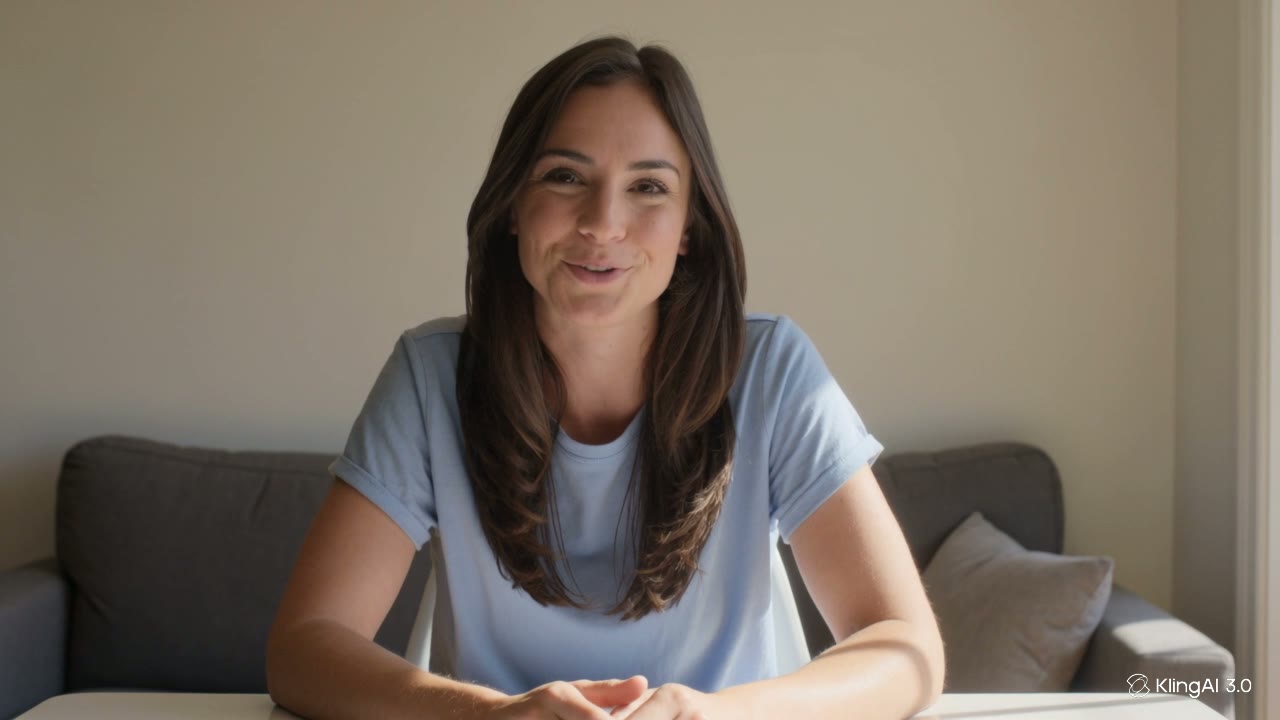
Type the line you want spoken in quotation marks into VIDEO 3.0 and the clip renders already speaking it — picture and voice in one pass, no recording needed; that is the route the demo below uses. For longer scripts with a preset presenter, a chosen voice and an adjustable speech rate, Kling's separate Avatar (Digital Human) tool converts a typed script to speech — it's a heavier generation, so check the cost shown on the generate button before confirming a long script.
A typed script, spoken aloud
Nothing was recorded here. This clip took the fastest route: the line was typed in quotation marks straight into VIDEO 3.0, and the video rendered already speaking it — picture and voice in one pass. Real, unedited generation, sound on:
“Type your script, and the video speaks it for you.” · typed inside quotation marks in the VIDEO 3.0 prompt
Text in, a talking video out. The voice, the pacing and the lip movement were all generated from the quoted line — for longer scripts with a chosen voice, the dedicated Digital Human tool below is built for exactly that.
How to turn text into a talking video
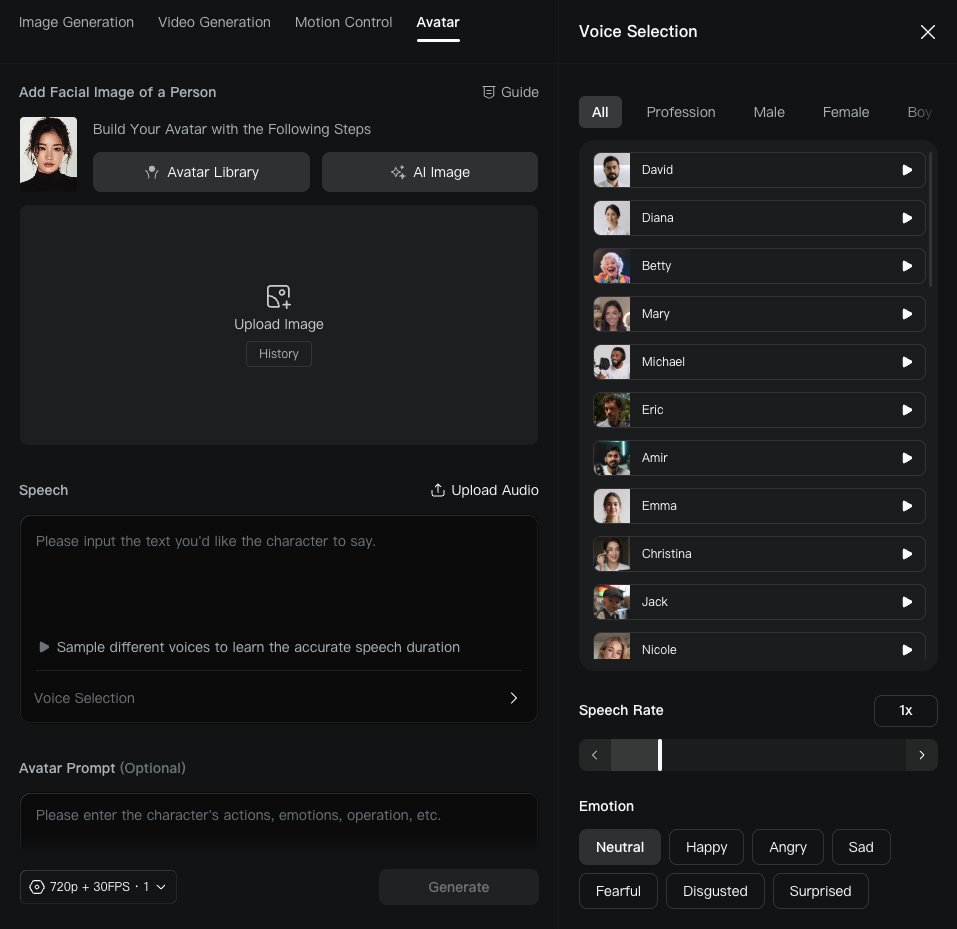
For scripts longer than a line or two, use Kling’s dedicated Avatar (Digital Human) tool — this is its actual interface: the facial image on the left, the Speech box for your script, and the Voice Selection panel with preview, speech rate and emotion:
Open the Avatar (Digital Human) tool and pick a face
The tool lives under the Avatar tab of the generator — the dedicated Digital Human workflow that turns typed text into a speaking video. Choose a preset from the Avatar Library, upload a facial image, or generate one with AI Image. No filming or recording required either way.
Type the script
Write out exactly what you want said, in the Speech box. There's no length limit beyond practicality — write a sentence or a few paragraphs, whatever the video needs.
Choose a voice in Voice Selection
Open Voice Selection and pick from the preset library — organised by profession, gender and age, with a play button to preview each voice before committing. Set the speech rate and an emotion (neutral, happy, serious and more), or upload your own recorded audio instead for full control of the voice and accent.
Generate and check the read
Kling turns the text into speech and animates the face to match — lips, expression, small natural movement. Longer scripts mean longer, heavier generations, so check the credit cost shown before confirming.
The Digital Human tool is one of the heavier generations in Kling — it synthesizes speech and animates a full face to match, not just pixels in a scene. Longer scripts mean longer, heavier runs, and the exact cost is shown on the Generate button before you confirm. Check it before committing a long script — and preview your voice in Voice Selection first, so the read matches what you wrote.