Content creator tools do not need to do everything. Research, writing, visual creation, editing, publishing, and analytics each call for different capabilities, so a tool’s value depends on the job it handles and how well it works with the rest of the content process. Below are 20 tools covering research, writing, search, image and video creation, editing, publishing, and analytics.
20 Content Creator Tools Worth Considering in 2026
We grouped content creation into seven work areas and selected tools that fit each one, from research and writing to visual creation, publishing, and analytics.
Category | Tool | Best For |
Research and Search | Perplexity | AI web research and source discovery |
Google Trends | Tracking topic interest and search trends | |
Semrush | Keyword, SERP, and search visibility research | |
Ahrefs | Competitor research and content gaps | |
Writing and Editing | ChatGPT | Content ideas, outlines, scripts, and drafting |
Jasper | Marketing and blog copy | |
Grammarly | Spelling, grammar, clarity, and tone | |
Planning and Organization | Notion | Content planning, briefs, calendars, and project tracking |
Google Workspace | Collaborative drafting, review, and file sharing | |
AI Visual Creation and Design | Kling AI | AI image and video generation, visual references, and multi-shot creation |
Canva | Social graphics, templates, and quick layouts | |
Adobe Express | Branded social content and quick design work | |
Adobe Photoshop | Detailed image editing, retouching, and compositing | |
Video Editing and Post-Production | CapCut | Short-form and social video editing |
Descript | Transcript-based video and audio editing | |
DaVinci Resolve | Advanced editing, color, audio, and finishing | |
Publishing | Buffer | Social scheduling and multi-channel publishing |
WordPress | Blog and website publishing | |
Analytics | Google Analytics | Website traffic, engagement, and audience behavior |
Google Search Console | Search queries, clicks, CTR, and organic visibility |
Content Creator Tools for AI Visual Creation and Design
Visual content may begin with a prompt, a reference image, a product shot, a character, or a rough idea that has not yet become a finished asset. Kling AI covers both still-image creation and video generation through two separate models, Kling IMAGE 3.0 and Kling VIDEO 3.0.
Kling IMAGE 3.0 for Image Creation
Kling IMAGE 3.0 can turn a written idea into an image or continue from one you already have. Using plain-language instructions, you can change a person or object, camera angle, shot size, expression, lighting, color, composition, or style without remaking the entire image every time one detail needs to change.
Reference Image | ||
.png?x-oss-process=image/resize,w_1872) | ||
| Prompt: Change the shot size to [ ] | ||
Long Shot | Close-up | Extreme Close-Up of Open Eyes |
.png?x-oss-process=image/resize,w_1872) | .png?x-oss-process=image/resize,w_1872) | .png?x-oss-process=image/resize,w_1872) |
When the same character, product, or brand look needs to carry across several images, IMAGE 3.0 can draw on defining visual features from up to 10 reference images. Those references can anchor the subject, character appearance, and overall tone while still leaving room to change the setting, composition, or presentation from one image to the next.
Kling IMAGE 3.0 can also pick up color choices, brushwork, and composition cues from reference images for style continuity, visual variation, and multi-reference blending. A generated image can then be reused for thumbnails, product visuals, campaign assets, character design, storyboard frames, or as visual reference material for later video creation.
Best For: Content creators, marketing teams, and brands creating character series, product visuals, campaign images, thumbnails, storyboards, or other image assets that need consistent subjects and controlled visual changes.
Kling VIDEO 3.0 for Video Creation
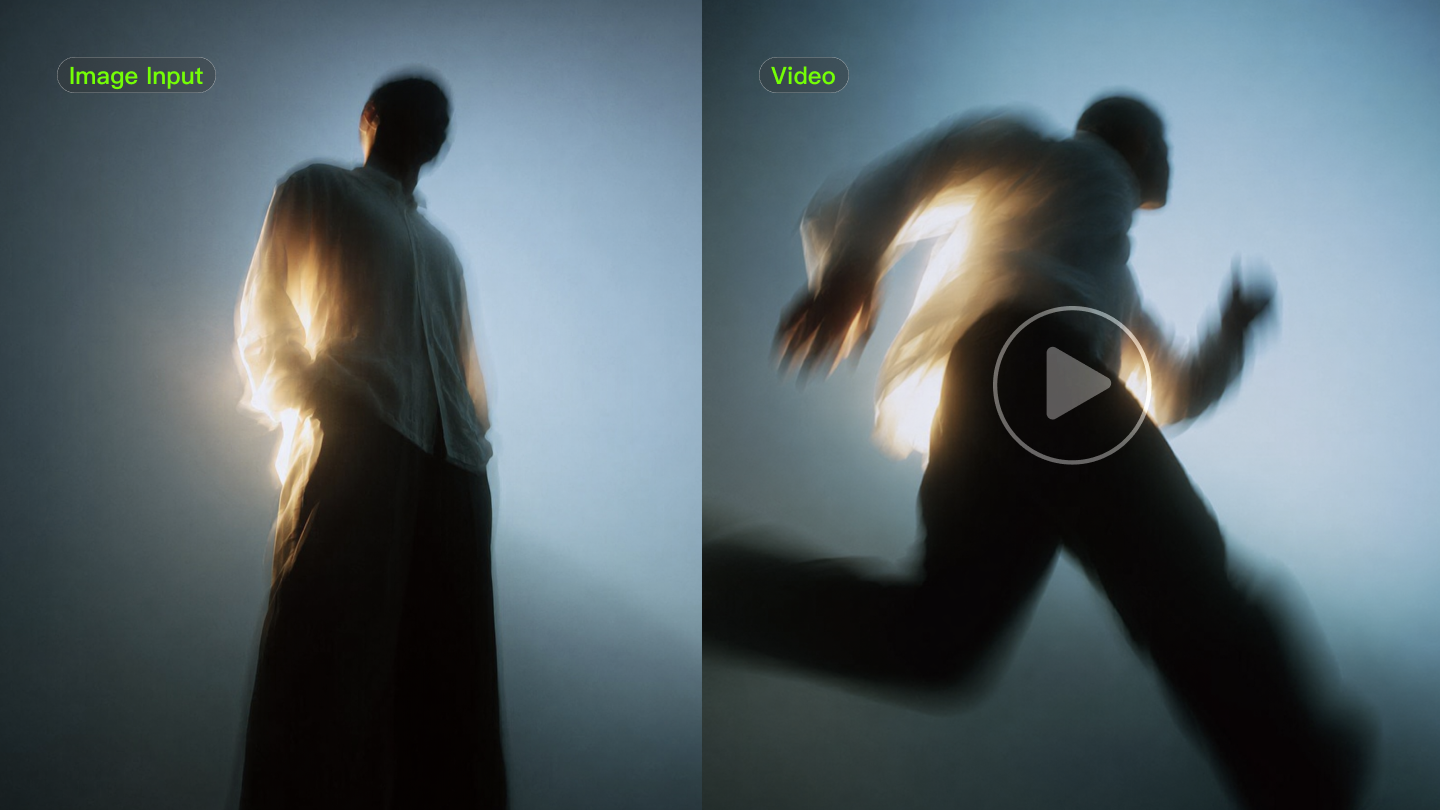
Kling VIDEO 3.0 supports both text to video and image-to-video, giving creators two different ways to start a scene.
- Text to video: Start from a written prompt and describe the action, camera movement, dialogue, and scene changes you want to see.
- Image-to-video: Start from an existing image and add motion while keeping the original visual direction as the basis for the scene.
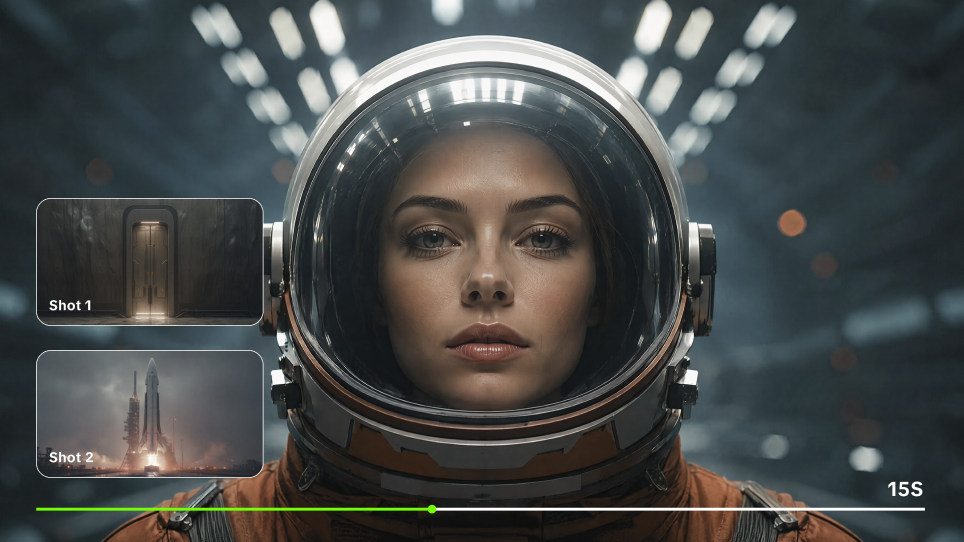
When a scene needs more than one angle, Multi-Shot can plan shot transitions, framing, and camera changes from the prompt. Custom Multi-Shot gives more control over what happens in each shot and how long it lasts. This gives creators room to build a short sequence inside one generation rather than assembling every view separately afterward.
| Prompt: Outdoor terrace of a European villa, by a dining table with a blue and white checkered tablecloth, a young white woman in a blue and white striped short-sleeve shirt and khaki shorts, with a brown belt, sits barefoot, opposite a young white man in a white T-shirt. The camera zooms in, the woman swirls the juice in a glass, her eyes looking at the distant woods, and says "These trees will turn yellow in a month, won't they?" Close-up of the man, he lowers his head and says, "but they'll be green again next summer." Then the woman turns her head, smiles at the man opposite, and says, "Are you always this optimistic? Or just about summer?" Then the man lifts his head, looks at the woman and says, “Only about summers with you.” |
Image |
.png?x-oss-process=image/resize,w_1872) |
Output |
  |
Native Audio generates sound with the visuals, including dialogue, ambience, and sound effects. VIDEO 3.0 can also assign lines to multiple characters and supports dialogue in Chinese, English, Japanese, Korean, and Spanish, along with accents and dialects. With a flexible duration of 3 to 15 seconds, a single output can hold anything from a brief product moment to a short multi-shot scene.
Best For: Content creators, filmmakers, marketing teams, and brands producing short-form stories, product videos, social clips, character scenes, or other video content that needs controlled shot changes, dialogue, and sound within the same generation.
Content Creator Tools for Research and Search
Before production starts, research tools help answer a basic question: is the topic worth covering? Search demand, intent, competing pages, recurring questions, and content gaps can all shape the direction of a brief. When comparing top AI search optimization tools for content creators, it is worth looking beyond keyword volume to see how well each tool surfaces intent, competing pages, and gaps in existing coverage.
Semrush brings keyword research, SERP analysis, competitor data, and content-gap research into one place. Creators can look beyond search volume to understand what people are looking for, which pages already rank, and where existing coverage leaves room for a new angle. It is especially useful for articles, landing pages, YouTube topics, and other content that depends on organic discovery.
Best For: Search-led content that needs keyword, SERP, and competitor data to guide topic selection.
Other Options: Perplexity works well for web research and source discovery. Google Trends shows changes in topic interest over time, while Ahrefs is particularly useful for competitor keywords, backlinks, and content gaps.
Content Creator Tools for Writing and Text Editing
Writing tools can come into play at different stages, from shaping an idea to checking the final copy. Some are better for building outlines and drafts, while others are more useful once the text is already written and needs another pass.
ChatGPT can be used to develop angles, sort notes, sketch an outline, draft a script, rework existing copy, or adapt one piece of content for another format. Its value is highest when the brief and source material are already defined, because the creator still needs to decide what is accurate, what stays, and what needs another edit.
Best For: Content projects that involve frequent outlining, scripting, drafting, rewriting, or repurposing.
Other Options: Jasper is often used for marketing and campaign copy. Grammarly is more focused on spelling, grammar, clarity, and tone before publication.
Content Creator Tools for Planning and Organization
Content projects quickly become harder to manage when briefs, references, drafts, deadlines, and approvals sit in different places. Planning tools give those moving parts a clear structure, especially when several pieces are in production at the same time.
Notion can hold content calendars, briefs, research notes, drafts, references, and project updates within the same project space. Recurring formats can follow a repeatable page structure, while status fields, assignments, and comments make it easier to see what is underway, what is waiting for review, and what is ready to publish.
Best For: Content projects that involve several formats, deadlines, contributors, or approval stages.
Other Option: Google Workspace covers collaborative drafting, comments, document review, and shared files through Docs, Sheets, and Drive.
Content Creator Tools for Video Editing and Post-Production Tools
Generated or recorded footage usually needs another stage before it is ready to publish. Video editing and post-production cover the work done after footage already exists, including cutting, sequencing, color, sound, effects, and final delivery.
DaVinci Resolve is built around this later stage of production. Its editing tools handle everything from basic cuts to more involved timelines, while dedicated color, visual effects, motion graphics, and audio pages allow different parts of post-production to stay within the same project. This makes it a practical option when a video needs more than quick trimming or social formatting.
Unlike generative video tools that create new footage, DaVinci Resolve is primarily used to shape, correct, and finish material that has already been generated or recorded. That distinction keeps the production roles clear: creation determines what footage exists, while post-production determines how that footage comes together in the finished piece.
Best For: Video projects that need detailed editing, color work, audio treatment, or more involved post-production after the footage has been created.
Other Options: CapCut suits short-form and social video editing, with tools for captions, effects, transitions, and vertical formats. Descript takes a text-led approach to spoken video and audio, making it useful for interviews, podcasts, tutorials, and other dialogue-heavy content.
Content Creator Tools for Publishing
Publishing begins once the content itself is ready. At this stage, the main questions are when each piece goes live, where it appears, and how consistently different channels are maintained.
Buffer is designed for social publishing across multiple platforms. Creators can prepare posts ahead of time, place them on a shared calendar, and review upcoming content without returning to each platform separately. This is especially practical when several channels follow the same campaign, launch, or weekly posting plan.
Best For: Social publishing that involves several platforms, regular posting schedules, or advance planning.
Other Option: WordPress handles a different kind of publishing, including blog posts, guides, landing pages, and other content released through an owned website.
Content Creator Tools for Analytics
Publishing is not the end of the process. Once content is live, performance data can show where visitors came from, which pages held attention, and which pieces led to further action.
Google Analytics records how people move through a website after they arrive. Creators can compare traffic sources, engagement, events, and page-level results to see which content attracts visits, keeps people on the site, or contributes to conversions. Over time, those patterns can influence what gets updated, repeated, or dropped from the content plan.
Best For: Website content that needs post-publication data on traffic, engagement, and conversions.
Other Option: Google Search Console looks at performance in Google Search, including queries, impressions, clicks, CTR, indexing, and page-level visibility.
How to Choose Content Creator Tools for the Work You Do
A practical way to narrow down content creator tools is to look at the work you repeat most often and where that work tends to get stuck.
Match the Tool to the Format
An article, a product image, and a short video ask for different things. Search-led writing leans more on research, drafting, and analytics, while video calls for visual creation, editing, sound, and delivery. Give more weight to the tasks that appear most often in your main format.
Find the Bottleneck
Look for the stage that repeatedly delays a project. It may be finding sources, turning notes into copy, creating visuals, cutting footage, reviewing versions, or publishing across several channels. A new product earns its place when it solves a problem that already exists rather than repeating something another tool can do.
Check the Setup Around It
Desktop editing, high-resolution footage, large project files, and complex effects can place heavier demands on memory, graphics, and storage. At the same time, check what the tool exports and where those files need to go next. Format support, resolution, shared access, comments, and cloud storage can affect whether one stage connects cleanly to the next.
Look at Team and Publishing Needs
A solo creator may only need simple file sharing. A team may need comments, approvals, version history, assigned tasks, or shared projects. Publishing adds another layer: social teams may care more about scheduling across channels, while site owners may need stronger website publishing and content management features.
Judge Cost by Use
A tool opened every day has a different value from one used for a single campaign. Pay more attention to how often the product appears in real projects and whether paid limits, storage, export quality, or collaboration features affect that work.
The End
Content creators should first identify what they need to make, then choose the content creator tools that match each part of the job. For image creation, Kling IMAGE 3.0 can establish or refine key visuals; when those ideas need to move, Kling VIDEO 3.0 can turn them into video with motion, multi-shot sequences, visual references, and audio. In the end, the tools should follow the idea, not the other way around.
FAQs
What Are Content Creator Tools?
Content creator tools are the software, apps, and hardware used across different parts of content production, from research and planning to design, recording, editing, publishing, and performance review. They can include writing and search tools, image and video generators, cameras and microphones, editing programs, publishing platforms, and analytics products. The mix depends on the format being produced: a writer may rely more on research and publishing tools, while a video creator may need stronger production and post-production software.
Which AI Tool Is Best for Content Creators?
There is no single “best” AI tool for content creators. The choice depends on the type of work you do most often. Kling AI is suited to image and video creation, ChatGPT to writing and idea development, Perplexity to web research, Grammarly to copy checks, and Jasper to marketing content. Look at what you need to create and which tasks take the most time, then choose a tool that addresses that part of the work first.
Where Can You Find Content Creator Tools News?
Content creator tools change quickly, especially products built around image, video, search, and writing models. For current content creator tools news, check official product blogs, release notes, documentation, and model guides rather than relying on older comparison articles. Updates to generation limits, supported formats, editing controls, integrations, or pricing can change whether a tool still fits the way you work.
How Do I Choose Between Free and Paid Content Creator Tools?
Choosing between free and paid content creator tools comes down to what you actually need. Free tools are usually enough when you are testing a product, working on occasional projects, or only using the basic features. A paid plan starts to make more sense when limits on exports, storage, generation volume, collaboration, or advanced features begin to affect your regular work. Look at how often you use the tool, which limits you actually reach, and whether upgrading solves a problem you already have. If the free version still covers what you need, there is little reason to pay for features you rarely use.