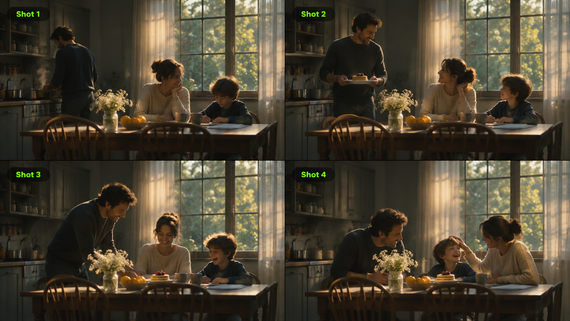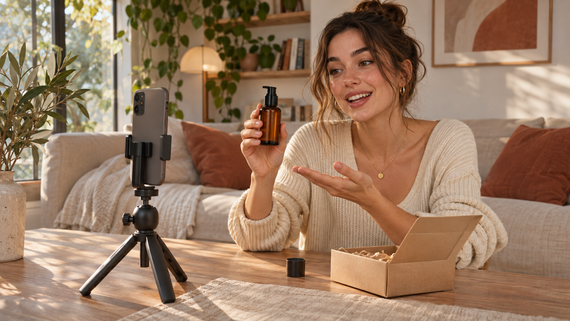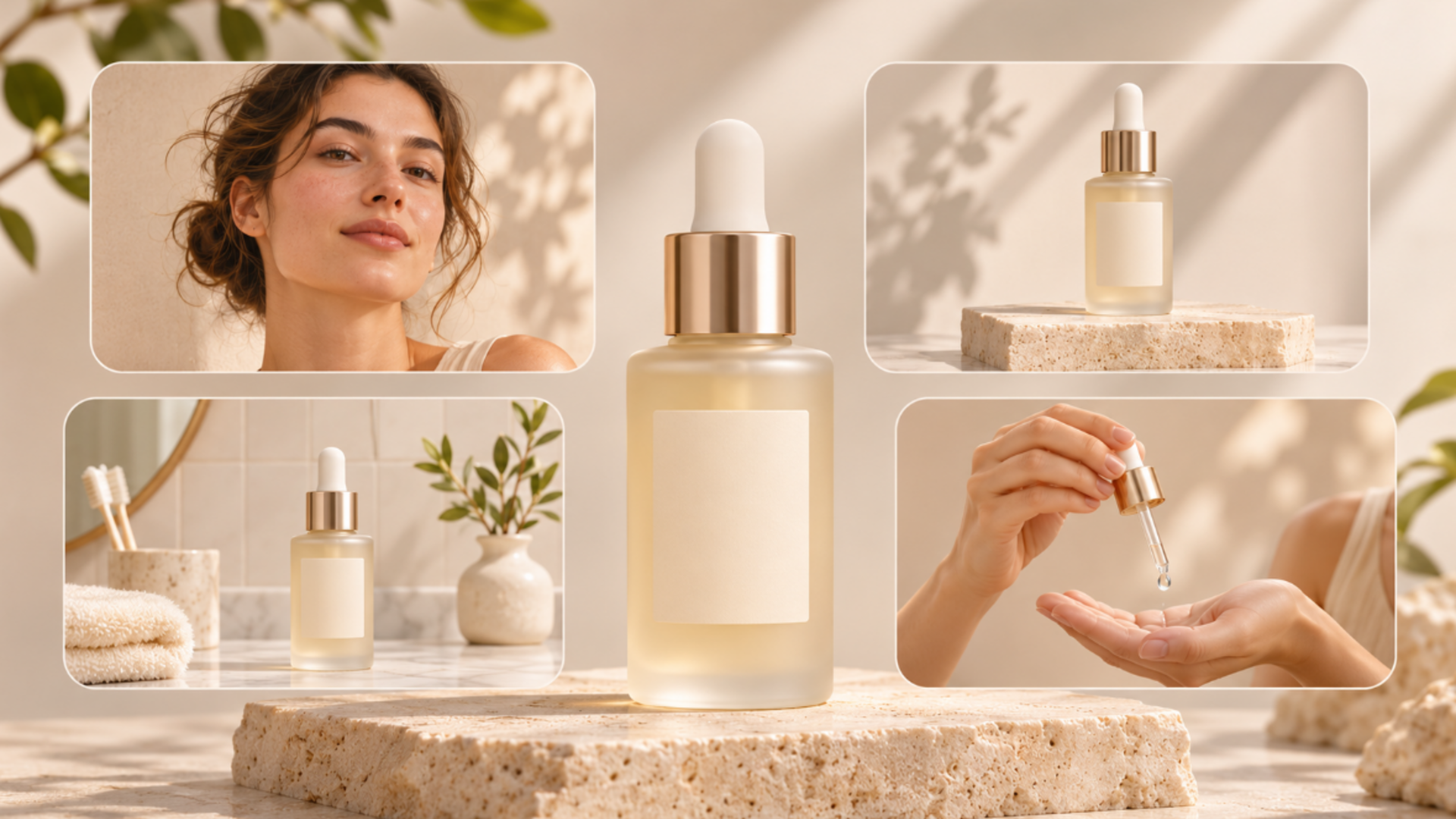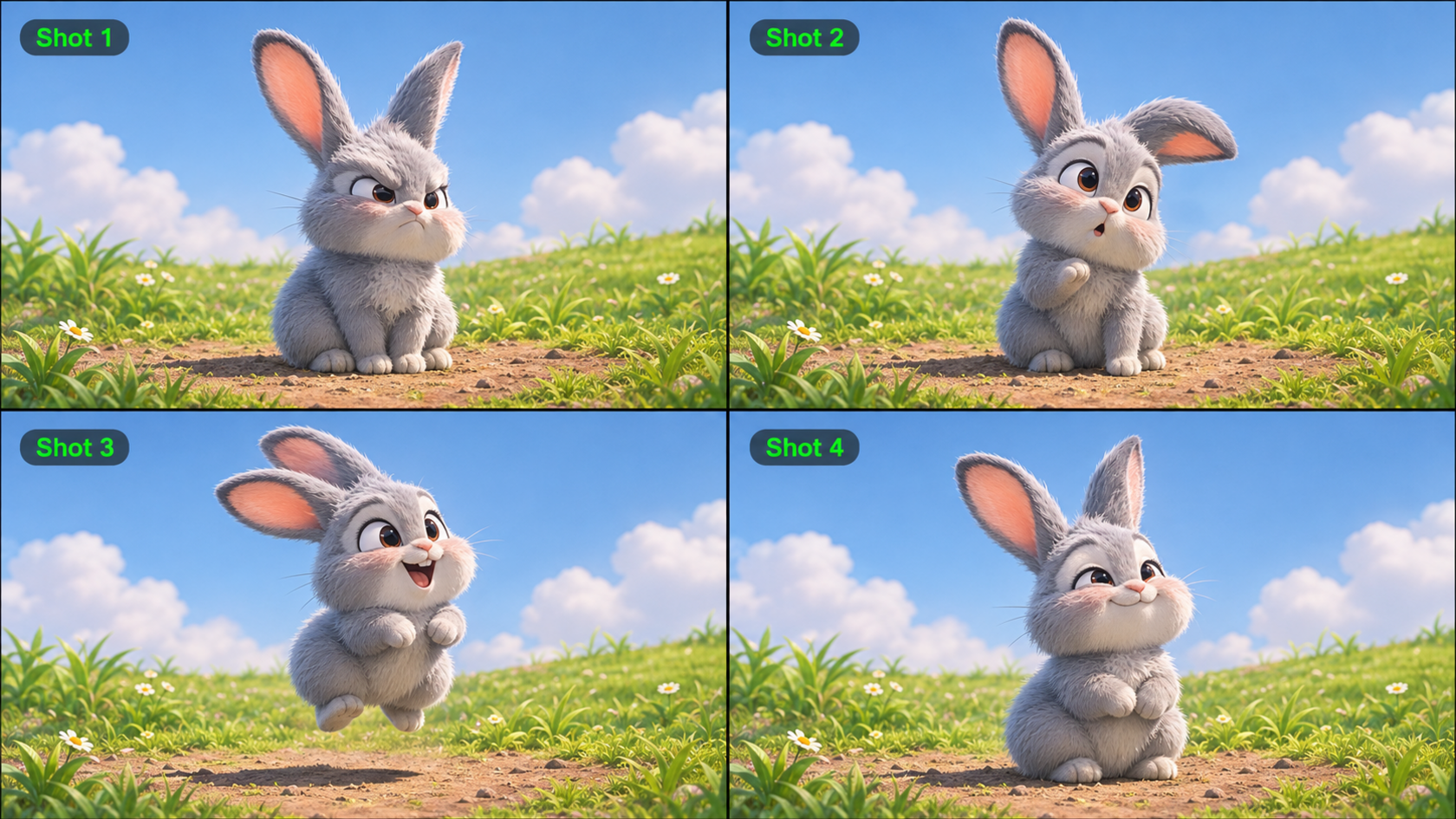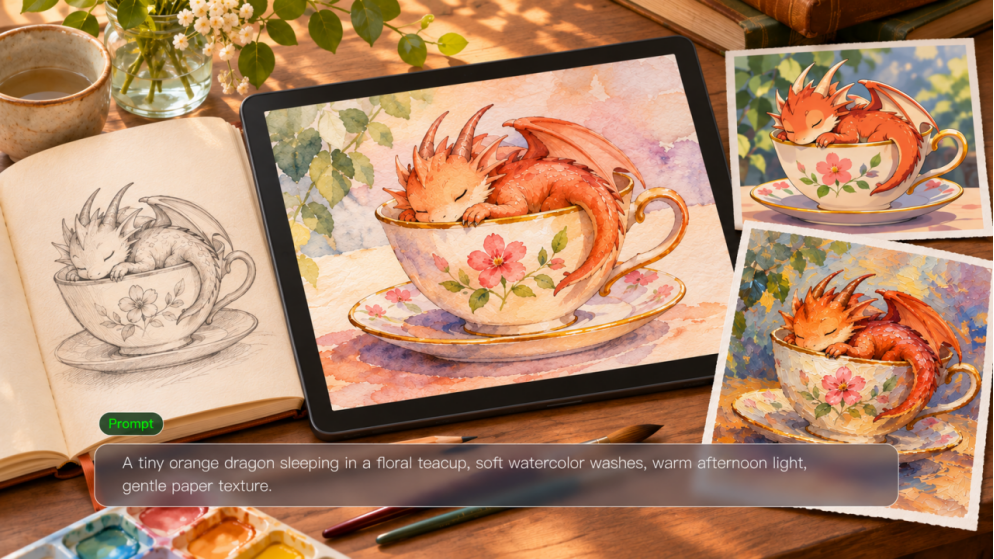
AI art prompts describe the picture you want to create, from the main subject to its setting, composition, and style. A simple idea becomes easier to explore when you decide which visual details matter most. In Kling AI, you can start with text or reference images, compare different interpretations, and refine the result as your concept develops.
How to Choose Art Prompts for Your Project
The most useful art prompts fit what you want to make. A quick experiment needs a manageable starting point, while a character project needs room to develop a personality or story. Decide what you want from the artwork, then choose a direction that supports that goal.
Creative Goal | What to Look for in an Art Prompt |
Explore a New Idea | Choose a prompt centered on one subject or interaction. A focused concept gives you space to explore possibilities without having to develop an entire fictional world. |
Develop a Character | Look for a role, motivation, or relationship that invites further exploration. The idea should give the character something to do or a reason to be in the scene. |
Express a Feeling | Choose a starting point connected to an experience or memory that matters to you. Familiar places, meaningful objects, and personal associations can help give the artwork an emotional focus. |
Build a Connected Series | Look for a concept that can extend across several moments or settings. A recurring character, location, or central idea gives the pieces a connection while leaving room for variation. |
Once you have a purpose in mind, choosing among art prompts becomes easier. You can then explore how different visual styles shape the same idea, using the examples below as starting points.
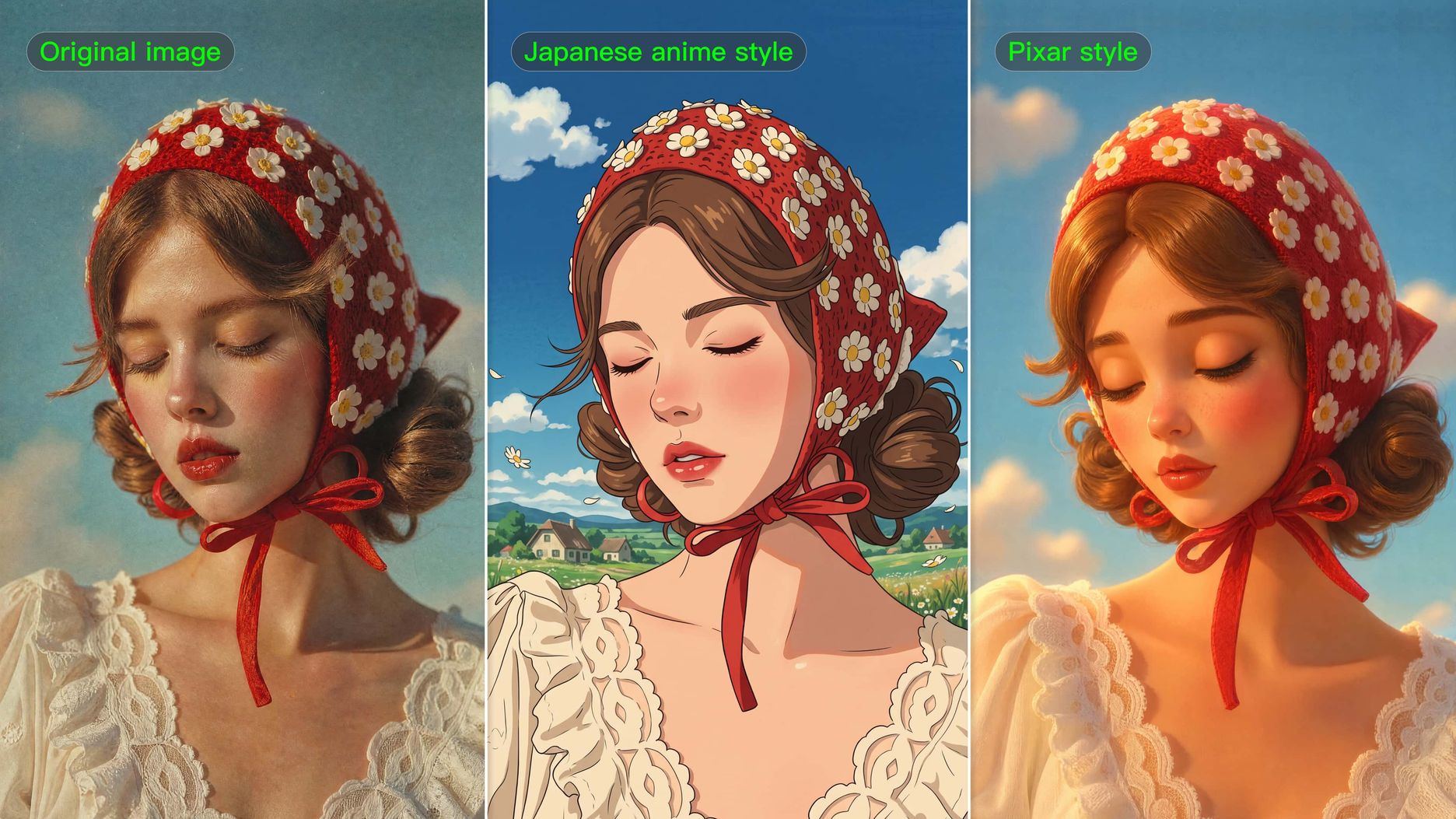
8 AI Art Prompt Examples for Different Styles
An underwater city could become a loose watercolor landscape or a crisp graphic illustration. Both begin with the same theme, but changes in linework, texture, and color lead to very different pictures.
Use these ideas for AI art as starting points. Each example below is a complete prompt you can adapt by changing the subject, setting, or palette.
1. Watercolor Underwater City
| Example Prompt: Create a wide watercolor illustration of a city beneath the ocean. Place glass domes along a curved seabed path, with small fish swimming above. Use translucent blue and turquoise washes, soft pigment edges, visible paper grain, and pale sunlight filtering down from the surface. |
2. Colored-Pencil Pet Portrait
| Example Prompt: Draw a ginger cat stretching on a sunlit windowsill in colored pencil. Show the whole body from a low side view, with one paw reaching forward. Use layered orange strokes, fine whisker lines, textured cream paper, and soft blue shadows beneath the cat. |
3. Anime Greenhouse in Space
| Example Prompt: Create an anime illustration of a gardener watering seedlings inside a greenhouse drifting between planets. Frame the gardener beside a large curved window, with Saturn in the distance. Use clean outlines, cel shading, leafy silhouettes, and warm interior light against a deep blue starfield. |
4. Vintage Comic Robot
| Example Prompt: Illustrate a robot carefully repairing a child’s yellow rain boot at a cluttered workbench. Use vintage comic styling, bold black outlines, limited red and teal colors, and visible halftone shading. Frame the scene at table height so the robot’s hands and the boot are prominent. |
5. Children’s Picture-Book Owl
| Example Prompt: Create a children’s picture-book illustration of a small owl with fox ears delivering a letter to a woodland cottage. Use rounded shapes, gentle gouache-like brushwork, muted greens, and warm ochre accents. Leave open sky above the treetops and give the owl a curious expression. |
6. Crayon Breakfast Still Life
| Example Prompt: Draw breakfast from directly above in a lively crayon style: a mug of milk, two strawberries, and a slice of toast on a blue plate. Use chunky wax marks, uneven outlines, and bright primary colors. Keep the wooden tabletop simple and leave space between the objects. |
7. 3D Clay Garden Scene
| Example Prompt: Create a 3D clay illustration of a tiny robot tending a vegetable garden in a terracotta pot. Give the robot rounded limbs, a matte surface, and a small green watering can. Use soft studio lighting, a pale peach background, and a close view that shows handmade clay textures. |
8. Pixel Art Night Window
| Example Prompt: Create a pixel art scene of a cozy apartment window on a rainy night. Show a reading lamp, stacked books, and a sleeping cat inside, with raindrops on the glass. Use a limited navy, amber, and teal palette, crisp square pixels, and a straight-on composition. |
For more creative possibilities, explore AI cartoon styles for expressive characters and playful illustrations, or try pixel art for retro game-inspired characters and nostalgic scenes.
How to Write Your Own Art Prompts
To make these prompts for AI art your own, change the details that shape the picture. Keep the description focused on what the viewer should see.
Define Your Subject and Setting
Name the main subject, what it is doing, and where it belongs. A robot repairing a rain boot at a workbench tells a clearer story than a robot in a room. Add spatial relationships when they matter, such as the boot between the robot’s hands or tools hanging behind it.
Choose Your Art Style and Composition
Choose a medium, then describe its visible qualities. AI art style prompts become clearer with cues such as translucent washes, cross-hatching, or chunky wax marks. Add the viewpoint and framing: a close view of the hands emphasizes the repair; a wide view reveals the workshop.
Build a Complete Art Prompt
For text-to-image generation, combine the subject and action, setting, style, composition, and lighting in one clear description. Read your prompt again for conflicting directions or repeated adjectives. If you're working from a sketch or existing artwork, explain which details you want to preserve and what you want to change.
How to Create Art With AI
After exploring these eight AI art prompts, you can bring your ideas to life with Kling AI. We provide an AI-powered platform for creating and editing visual content. Kling IMAGE 3.0 Omni is our image generation and editing model, supporting both text-to-image and image-to-image AI workflows. You can start with a written prompt or combine up to 10 reference images to guide subjects, compositions, and artistic styles. Image Series Mode helps create related artworks with a more consistent visual look, while native 2K and 4K output supports detailed image creation. Follow the steps below to turn your art prompts into finished artwork.
Step 1: Upload Optional Reference Images
Open the Kling AI workspace, choose Image Generation, and select IMAGE 3.0 Omni. Upload a sketch, photo, or artwork you want to use as a reference. A sketch can guide the layout, a photo can establish the subject, and an artwork can suggest the style. Use clear images so the important shapes, features, and textures are easy to see. You can also skip uploading reference images and move to the next step to enter a prompt for image generation.
Step 2: Write Your Art Prompt
Type your art prompt into the text box. Describe the main subject, what it is doing, where the scene takes place, and the art style you want. Add any important framing, color, or lighting details. For image-to-image AI, use the prompt to explain what each reference should contribute and which features to retain. If you’re changing the style of an existing image, name the new medium and describe the parts of the original you want to keep.
Step 3: Generate and Refine Your Artwork
Choose the aspect ratio and output resolution, then generate. IMAGE 3.0 Omni supports native 2K and 4K output for detailed artwork. Review the subject, composition, and style; adjust the wording responsible for the biggest mismatch, then generate another version. Download the result you prefer.
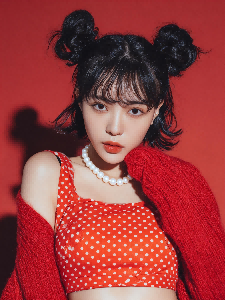
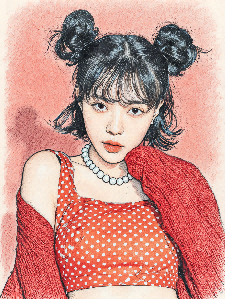
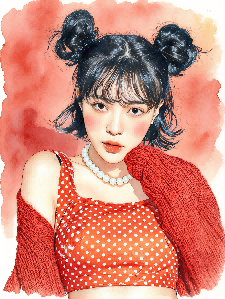
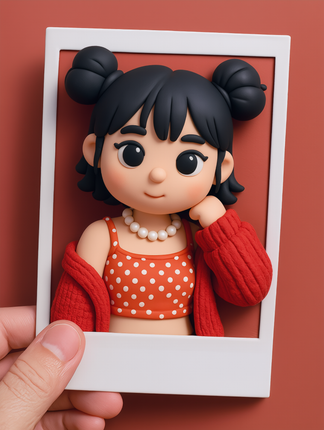
Style transfer example: The same reference image is transformed into colored pencil, watercolor, and 3D clay styles. Each short prompt changes the artistic medium, while the reference image provides the subject matter.
Reference Image | Colored Pencil | Watercolor | 3D Clay |
 |  |  |  |
| Prompt: Convert the image to [ ] style | |||
Compare the fine strokes in the pencil version, the washed edges in the watercolor, and the rounded forms of the clay figure. The change in medium also changes proportions and detail, so check the face, clothing, and framing against the reference before choosing a direction.
How to Improve Your Art Prompts After Generation
Look for the biggest gap between the generated image and your original idea. Use that mismatch to guide your next revision, while keeping the directions that already work.
Make the Main Subject Stand Out
When the main subject gets lost in a busy scene, describe a change in scale, placement, or background detail. “Make the dragon stand out” leaves those decisions open. A clearer revision is: “Bring the dragon and teacup into the foreground. Place them on a plain wooden tabletop, with the background softly blurred.” This tells the model how to direct attention toward the subject.
Describe the Art Style More Precisely
A style mismatch needs more specific material cues. Instead of asking for the image to look “more artistic,” describe the finish you want: “Use translucent watercolor washes, soft pigment edges, and subtle paper texture.” Remove earlier wording that asks for a conflicting finish, such as glossy photographic detail, so the artistic direction stays clear.
Keep the Style Consistent Across Images
For related images that look inconsistent, repeat the qualities that should connect them. “Keep the same style” is less precise than “Use a muted pastel palette, fine watercolor texture, and rounded character shapes in every scene.” Keep those directions stable as the action or setting changes, and reuse the same style reference when appropriate.
Save each prompt beside its result so you can track which wording helped. When refining an existing image with an AI photo editor, describe the specific detail you want to change and the features you want to retain.
The End
Art prompts help you choose a subject and begin creating. To develop one into an AI art prompt, decide what appears, how the scene is arranged, and which medium and mood suit it. Choose an idea from the theme list, shape it into a clear description, and try it in Kling IMAGE 3.0 Omni. Let the result guide your next specific adjustment.
FAQs
How Can Beginners Choose an Art Prompt?
Choose a familiar subject and one skill to practice. A mug works for shading, a leaf for color, and a shoe for texture. Keep the first attempt small enough to finish. Repeating the subject from another angle can be more useful than immediately choosing something more complicated.
What Should I Draw When I Have No Ideas?
Start with something within reach: your hand, breakfast, or the view from your window. Make it less familiar by changing the angle or limiting yourself to three colors. A quick sketch can help you discover a direction without committing to a finished piece.
How Can I Make an AI Art Prompt More Original?
Use details from your own observations, such as an unusual object, a remembered room, or a specific interaction between characters. Give familiar subjects a reason to be together. A robot repairing a child’s rain boot suggests a more particular story than a robot standing in a street.
How Long Should an AI Prompt Be?
There is no single ideal length. A short instruction may suit a style change to a reference image. A scene with several subjects needs more information about their relationships and placement. Add words when they resolve an ambiguity, and remove phrases that repeat an existing direction.
How Can I Keep a Consistent Style Across Several Images?
Write a reusable description of the medium, palette, line treatment, and lighting. Keep that wording stable as the scene changes. If you use a style reference, choose one that clearly shows the qualities you want. Compare the outputs for differences that need further adjustment.
Can I Turn My Sketch Into AI Art?
Yes. Use your sketch as a reference and describe the intended finish, such as watercolor or comic illustration. Explain which shapes, layout, or character features should carry over. Review the result against your drawing, because generated proportions and details may differ from the original.