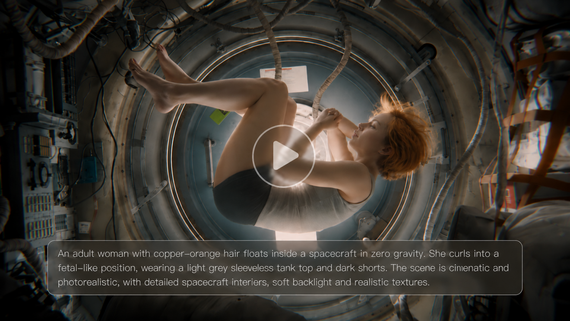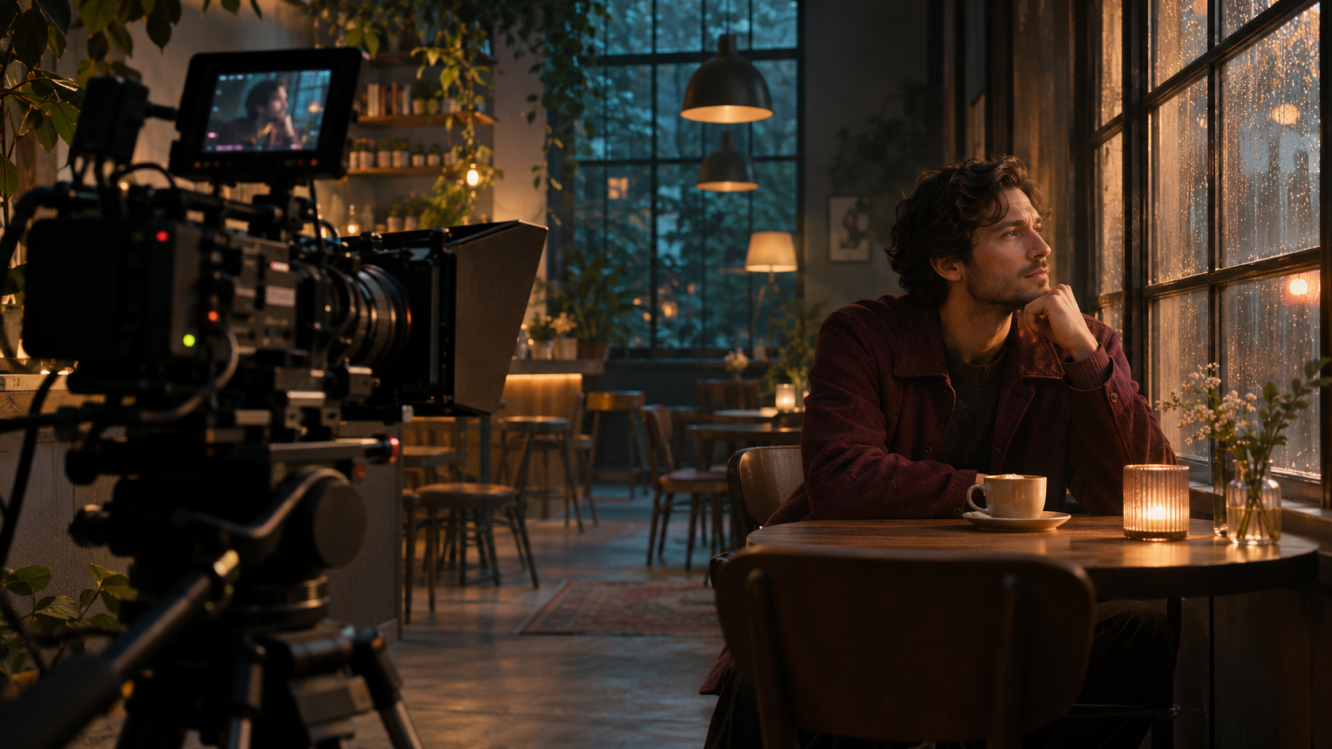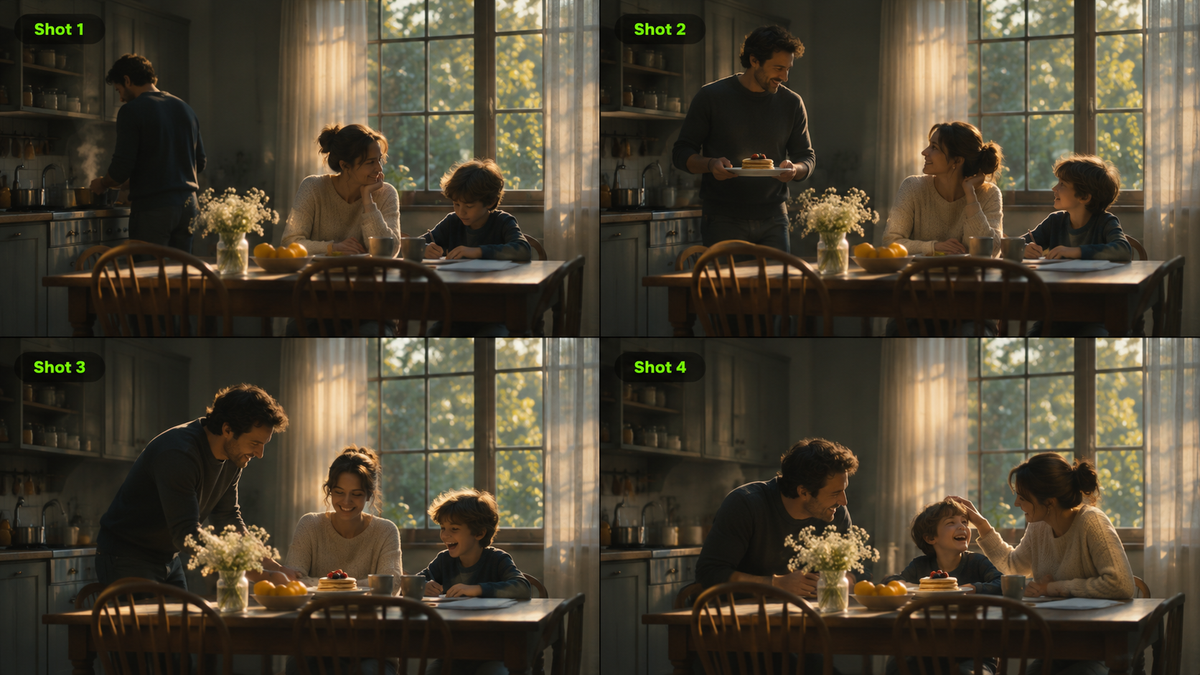
From the iconic doorway framing in The Searchers to the restrained family scenes in Tokyo Story, filmmakers use static shots to direct attention, reveal emotions, and build tension without moving the camera. This guide explains what a static shot is, how it differs from a dynamic shot, and how to create one with Kling AI.
What Is a Static Shot in Film?
A static shot, also known as a fixed shot or locked-off shot, keeps the camera's position, angle, and framing unchanged throughout a take. Unlike a moving-camera shot, it holds a single viewpoint while people and objects can still move within the frame.
In filmmaking, static shots can be used to:
- Direct the viewer's attention: A steady frame gives viewers time to notice performances, key actions, and subtle background details.
- Build emotion and tension: A lingering pause or a slight change in expression can create suspense, anticipation, or a moment of quiet reflection.
- Show relationships through composition: Where characters stand and how much space separates them can suggest closeness, tension, or isolation.
Static shots in film can make even small actions feel significant. These four examples show how directors use fixed framing to shape mood and tell a story.
Static Shot Example 1: The Searchers (1956)
In the opening of The Searchers, John Ford uses fixed compositions to frame Ethan's return across the vast landscape. The distance between Ethan and the homestead builds anticipation as he approaches.
Static Shot Example 2: Tokyo Story (1953)
Yasujirō Ozu frequently uses low camera positions and static framing in Tokyo Story. During family conversations, small gestures and pauses reveal the emotions that characters leave unspoken.
Static Shot Example 3: Stranger Than Paradise (1984)
Jim Jarmusch uses long, static takes in Stranger Than Paradise to capture everyday moments. Silence, waiting, and slow movements create a sense of detachment and stillness.
Static Shot Example 4: A Ghost Story (2017)
In A Ghost Story, David Lowery holds the camera still as a grieving woman eats a pie for several minutes. The uninterrupted shot makes her grief feel intimate and difficult to look away from.
How to Create Static Shots with AI
Traditional static shots may not require camera movement, but they still call for careful planning of composition, actor blocking, lighting, and the timing of each action. AI video generation offers a more flexible way to explore fixed-camera scenes and performances using text prompts and visual references, without setting up a physical shoot.
As a multimodal AI video model, Kling 4.0 offers greater control over characters, movement, and storytelling. It helps guide character consistency, actions, and emotional changes within a fixed frame, allowing the story to unfold without moving the camera. From generating new scenes and maintaining visual consistency to recreating shot concepts and refining existing footage, Kling 4.0 offers flexible support for static-shot creation and editing.
Create Static Shots with a Simple Prompt
With Kling 4.0's Text-to-Video, you can create static shots using simple text prompts, reducing the time and cost of setting up and reshooting scenes.
When writing your prompt, follow this simple formula:
[Subject & Setting] + [Actions & Emotions] + [Shot Composition] + [Camera Restrictions]
Clearly describing character actions, emotional changes, and fixed-camera requirements helps the story unfold naturally within a single frame. For example, the prompt below generates a static shot of an elderly man angrily ranting about AI in his living room.
Prompt | Generated Result |
| An elderly man sits in a cozy living room, angrily ranting about AI. He leans forward, points his finger, and gestures emphatically as he speaks. His facial expressions shift between frustration and disbelief. Warm indoor lighting, realistic cinematic style. One continuous, eye-level medium shot with a locked-off camera. No pan, tilt, zoom, tracking, or cuts. | 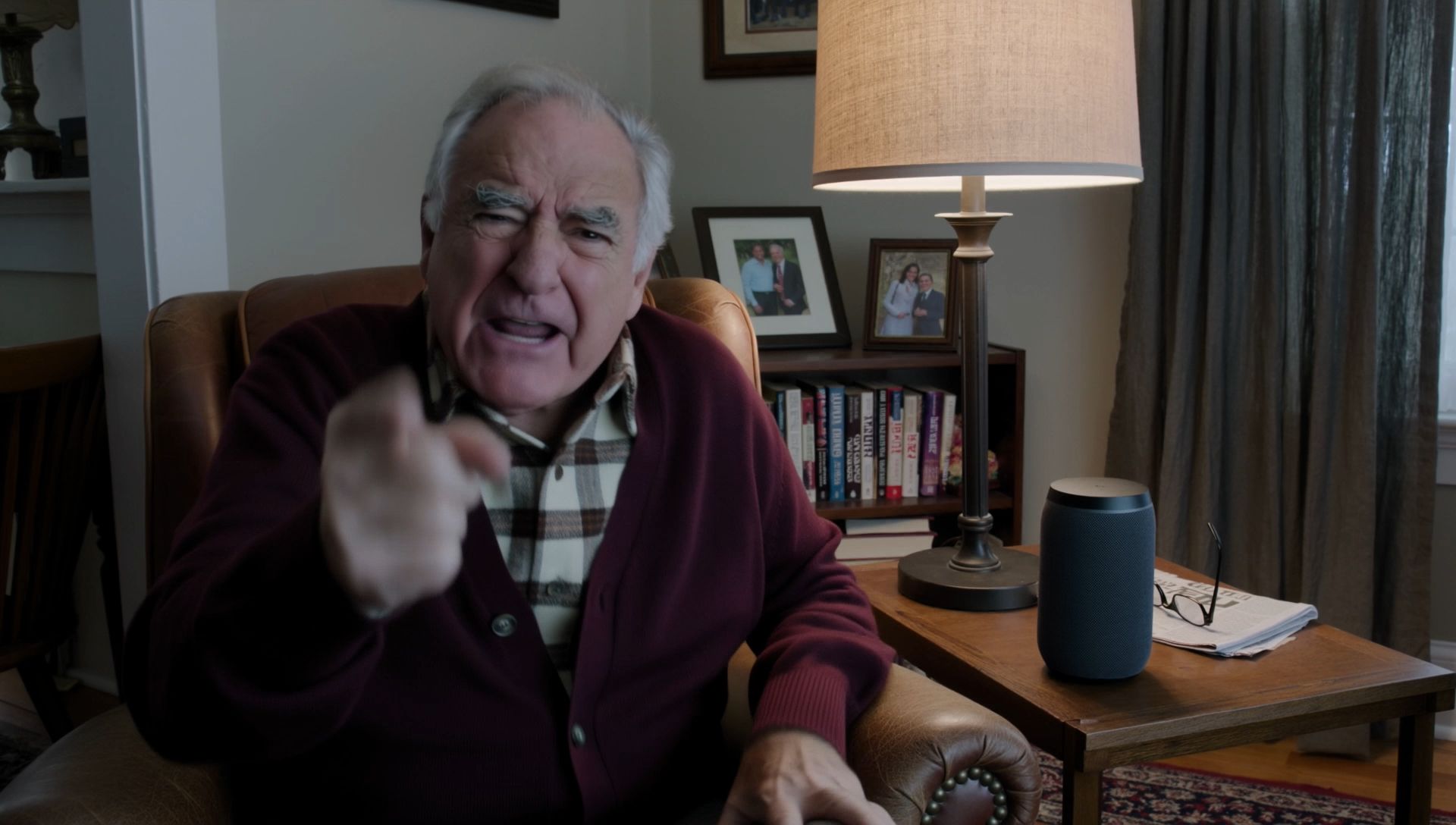  |
Keep Characters and Settings Consistent
In a static shot, the camera position and framing remain fixed, making changes in a character's appearance, clothing, or background details more noticeable. This makes visual consistency especially important.
Kling 4.0's Omni Reference lets you combine up to 15 supported reference assets, including images, videos, Elements, and voice references, to help maintain consistent characters and settings. For the living-room scene below, a reference image can guide the blonde woman's appearance, red outfit, and surroundings, while a separate video guides her speaking performance, gestures, and pacing. Video references can also convey camera motion and spatial information, with white-model and depth-map videos supported for more specific guidance. For a static shot, specify that the reference video should guide performance while the final camera remains locked off.
Multi-Character Reference Images | Reference Video | Generated Result |
| 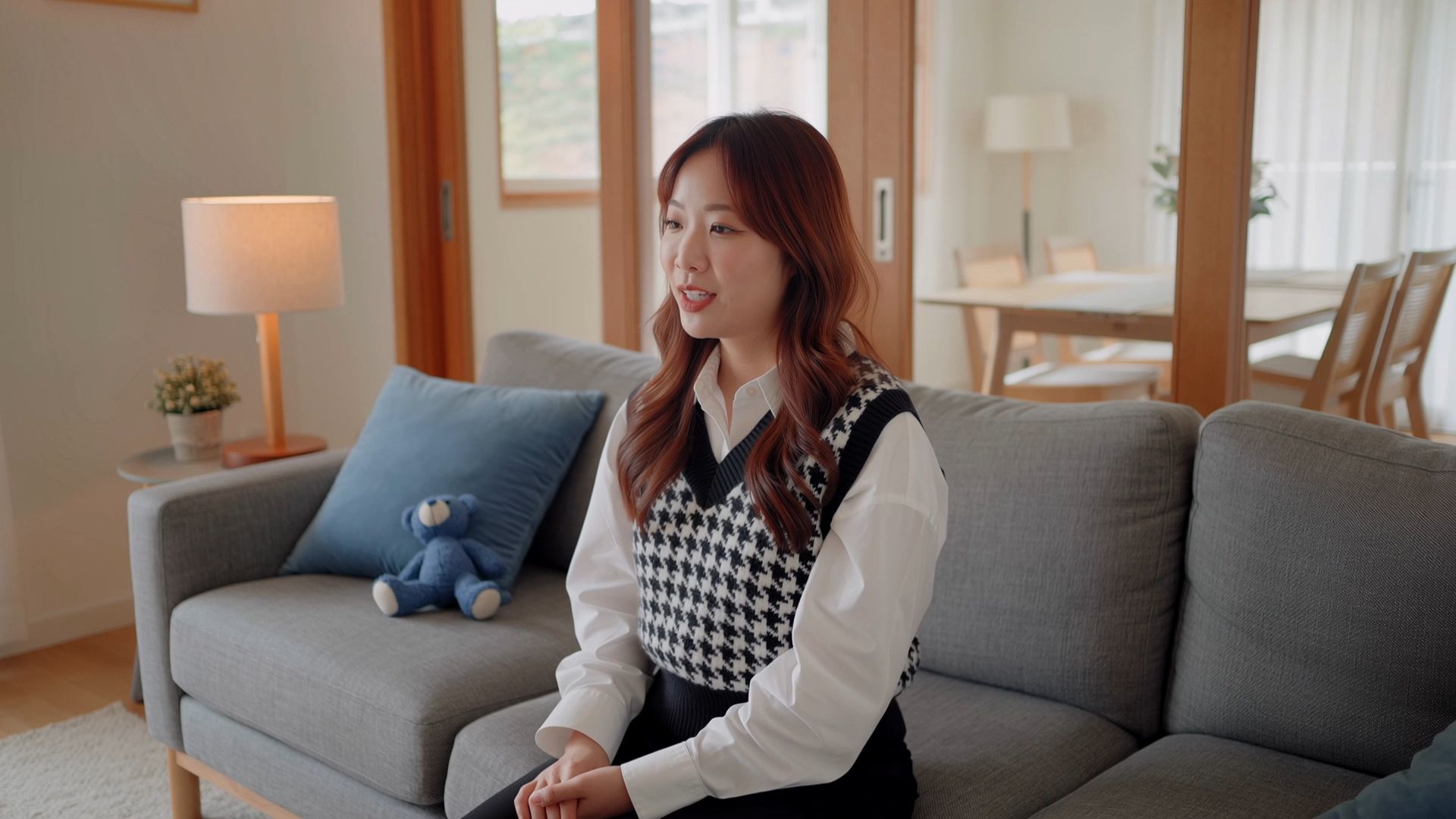 | 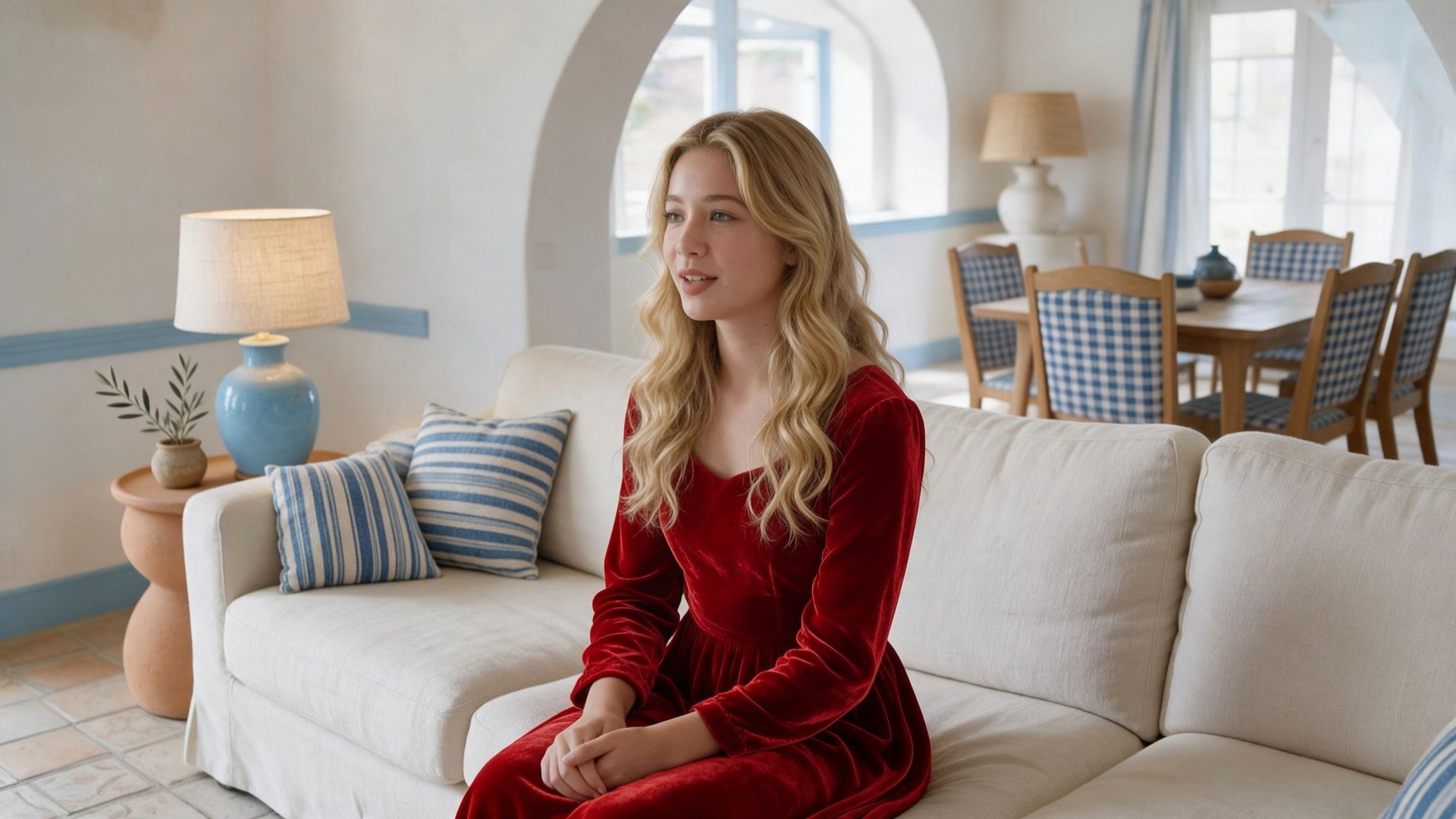 |
Prompt: Create a 12-second cinematic living-room dialogue scene using @Image1 for the character and setting, and @Video1 for the speaking performance. Feature the blonde woman in the red dress seated on a cream sofa in a cozy living room with striped cushions, a blue table lamp, and a dining area in the background. She says, "To be honest, I really love the quiet moments at home," with a gentle expression and natural hand gestures. Soft daylight. Keep her appearance and the setting consistent. Use one continuous, eye-level locked-off medium shot with unchanged framing throughout. | ||
Recreate Fixed-Camera Concepts with Creative Recreation
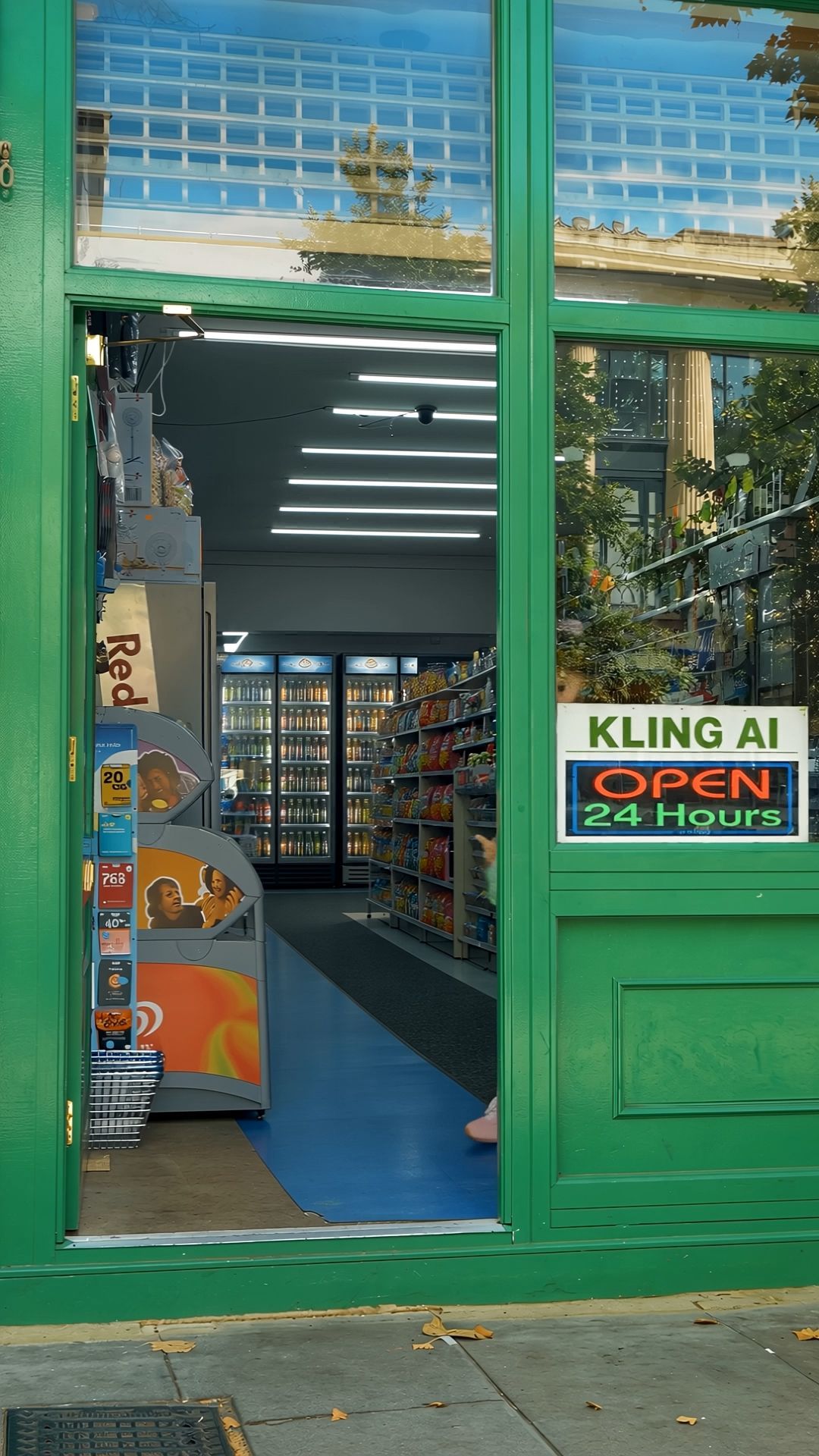
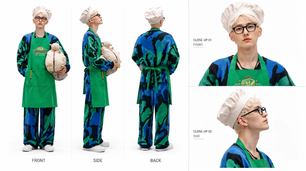
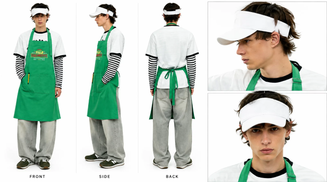
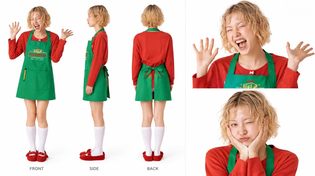
If you have a static shot you'd like to build on, Kling 4.0's Creative Recreation lets you create something new based on an existing video. You can use the original video's composition, pacing, and visual style as references while changing the characters, products, or setting to bring your own fixed-camera concept to life.
Multi-Character Reference Images&Video | Generated Result | |
| 
| 
|
Refine Details While Preserving Framing
Instead of regenerating an entire video, you can make targeted edits to existing footage, reducing unnecessary rework while keeping the original fixed-camera perspective and scene composition as consistent as possible.
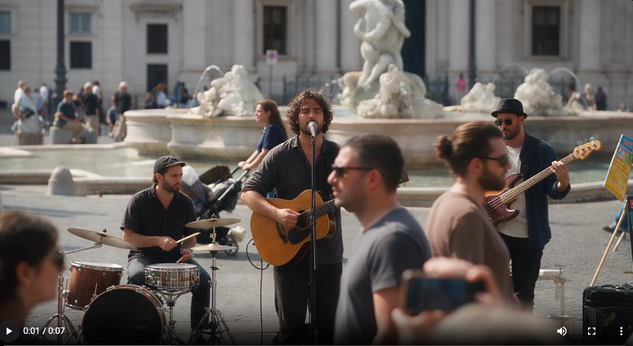
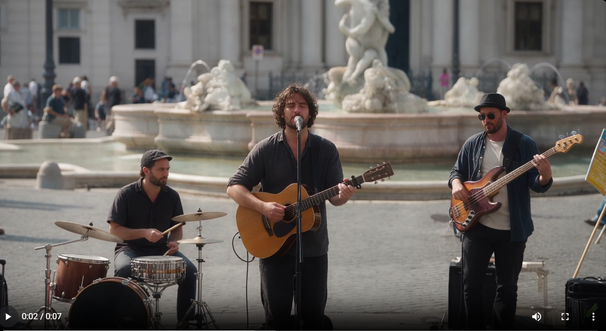
Kling 4.0's AI Video Editor lets you adjust facial expressions, body movements, backgrounds, and visual styles using text instructions while minimizing changes to other elements. For example, in a static shot of a street band performing, you can remove pedestrians blocking the musicians while keeping their performances, the surrounding buildings, lighting, and original framing intact. This creates a cleaner composition that keeps the focus on the performers.
Reference Video | Generated Video |
|
|
Prompt: Edit @Video1. Remove the foreground pedestrians passing in front of the street band. Preserve the singer and guitarist, drummer, bassist, their instruments and performances, the fountain, buildings, background visitors, lighting, original camera behavior, timing, and duration. Reconstruct the areas previously hidden by the removed pedestrians so the band and square remain visually continuous. Keep everything else unchanged. | |
Guide Stable Motion
A static shot doesn't mean everything in the frame has to stay still. With the camera locked in place, character movements, facial expressions, and subtle interactions become essential to moving the story forward.
Kling 4.0 offers improved motion stability for large-scale movements and continuous action, helping dancers, runners, and multiple characters move more smoothly within the same frame. When a scene calls for a dynamic shot instead, Kling 4.0 also supports more stable complex camera movements, including tracking and orbit shots.
How to Make a Static Shot with Kling 4.0: Step by Step
With Kling 4.0, you can create static shots without setting up complex filming equipment. Simply define your scene, character movements, and fixed-camera requirements, then follow these four steps to turn your ideas into static-shot videos.
Step 1: Choose the References for Your Scene
Open the Kling AI video creation workspace and start with Omni Reference. Describe your scene with a text prompt, then add reference images, videos, Elements, or voice references as needed. You can combine up to 15 supported assets in one generation. Specify how each reference should guide character appearance, scene composition, performance, or movement.
Step 2: Define Your Scene and Camera Position
In your prompt, describe the subject, setting, character actions, and emotional changes. For a static camera shot, clearly specify the shot size and camera position. Use instructions such as "locked-off camera," "eye-level medium shot," and "unchanged framing" to help keep the camera stationary and prevent unwanted camera movements.
Step 3: Generate Your Static Shot
Choose the aspect ratio and video duration based on your intended use. For example, select 16:9 for widescreen cinematic scenes or 9:16 for vertical social media videos. Once your prompt and reference materials are ready, click Generate to create your static shot.
Step 4: Review and Refine the Result
Preview your generated video and check these three key areas:
- Camera Stability: Make sure the camera position, angle, and framing remain fixed, with no unintended panning, tilting, or zooming.
- Character Movements: Check that character actions and facial expressions look natural, with smooth transitions between movements.
- Scene Consistency: Make sure backgrounds, props, and character appearances remain consistent, without sudden or unexpected changes.
If you notice unwanted camera movements, reinforce instructions like locked-off camera and unchanged framing in your prompt, then regenerate the video. For other issues, refine the relevant descriptions in your prompt to improve the result.
Tips for Generating Better Static Shots with AI
To create more cinematic static shots with AI, you need more than a fixed camera. Thoughtful composition, character movement, and storytelling pace all play a role. Here are four tips to help you improve your results.
- Build Strong Composition and Visual Depth: In your prompt, clearly define where the subject should appear in the frame. Use architectural lines, doorways, or hallways to guide the viewer's eye. You can also create a sense of depth by layering foreground, middle ground, and background elements, or use the rule of thirds and symmetrical framing to make your static shots more visually engaging.
- Use Movement Within the Frame to Tell a Story: A stationary camera doesn't mean the characters or surroundings have to stay still. Describe character movements, changes in posture, and subtle actions in a clear sequence. For example, have a character stand up, walk toward a window, and pause to look outside. Small environmental details, like gently moving curtains or pedestrians passing in the distance, can also bring the scene to life without adding unnecessary action.
- Keep Prompts and Visual References Aligned: When using multiple references, specify what each one should guide to avoid conflicting instructions. For example, use @Image1 for character appearance and scene layout, and @Video1 for facial expressions and movements. If the reference video includes camera movement, make it clear that you only want to reference the character's performance and keep the camera locked off in the generated video.
- Match Video Duration to the Action: Shorter clips often work well for subtle facial expressions or a single action, while scenes involving character interactions, pauses, or emotional shifts may benefit from more time. Match the shot length to the story's pacing rather than adding unnecessary movements or pauses just to make the video longer.
The End
Static shots invite viewers to notice subtle changes within a fixed frame. By keeping the camera still, they draw attention to character movements, expressions, and the details that shape a scene's mood and meaning. With Kling 4.0, you can explore these storytelling possibilities through text prompts, visual references, and targeted video edits, creating fixed-camera scenes that bring your ideas to life, from movie scenes to short-form storytelling.
FAQs
What Does a Static Camera Mean?
A static camera shot keeps the camera in a fixed position, with its angle and framing unchanged throughout the take. Characters and objects can still move within the frame, making static shots useful for dialogue, emotional moments, and carefully composed scenes.
What Does a Dynamic Shot Mean?
A dynamic shot uses camera movement, such as panning, tilting, or tracking, to follow action, reveal details, or create a sense of energy. Unlike a static shot, which maintains a fixed viewpoint, a dynamic shot changes the camera's perspective as the scene unfolds. It's often used in action sequences, chase scenes, and dramatic moments.
How Do You Get a Static Shot?
To film a static shot, secure your camera on a tripod or stable mount, keeping its position and framing fixed without panning, tilting, or zooming. You can also generate static shots with Kling 4.0 by describing your scene and using prompts like "locked-off camera" and "unchanged framing." Review the result to make sure the camera stays fixed throughout the scene.
What Is a Medium Static Shot?
A medium static shot combines medium framing, typically showing a person from the waist up, with a stationary camera. It captures facial expressions and hand gestures while keeping part of the surroundings visible. In dialogue scenes, this framing helps viewers follow character reactions and subtle body language without changing the camera position.
What Are the Four Types of Shots?
Four common shot sizes in filmmaking are the wide shot, medium shot, close-up, and extreme close-up. A wide shot shows the subject and its surroundings, while a medium shot typically frames a person from the waist up, capturing gestures and body language. A close-up emphasizes facial expressions or important details, while an extreme close-up isolates small features, such as the eyes or a specific object. Any of these shot sizes can be used in static shots or combined with camera movement.