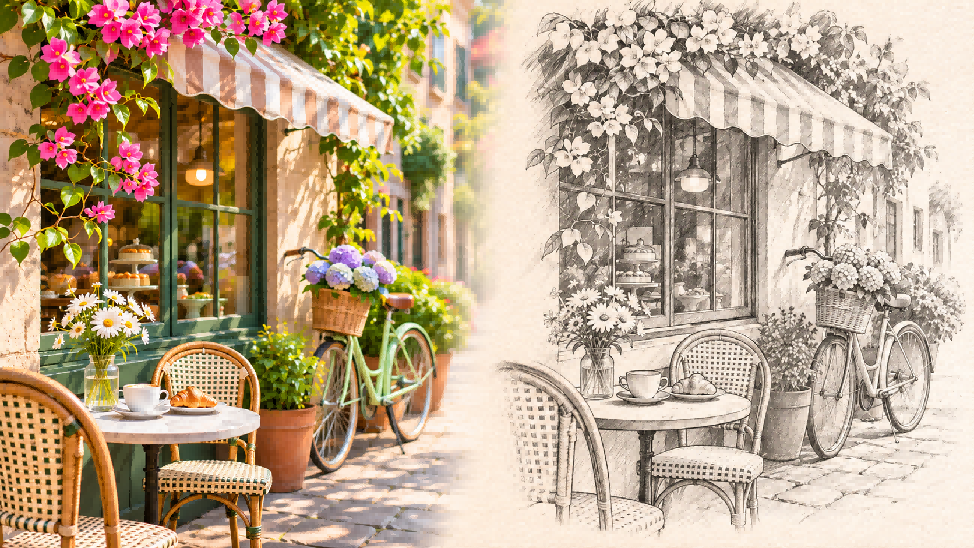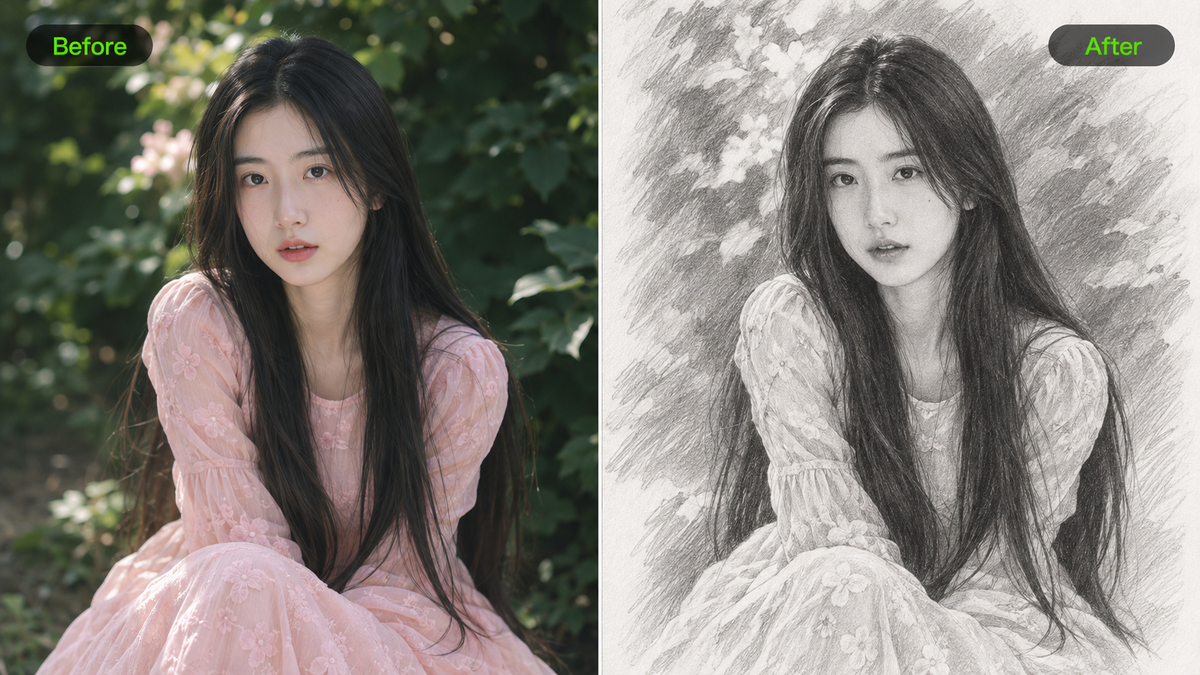
You can turn a photo into a painting with online AI tools, mobile apps, desktop software, or an artist who paints a physical canvas. Each offers a different creative experience. This guide explores those choices and shows how AI can help you give a familiar photo a painterly character.
Ways to Turn a Photo into a Painting
Your choice depends on how you like to create and what you want to receive. A digital image is easy to revisit and share, while a commissioned painting offers an artist's interpretation and a physical work. Some artist services also use digital brushwork and canvas printing, so the production method matters when choosing an original hand-painted piece.
Method | What It Offers |
Online AI tools | Upload a photo, then guide the painting style with a written description or, where supported, a style reference. Explore different artistic looks without recreating each effect by hand. |
Mobile apps | Start with a ready-made painting effect, then adjust the available settings. A convenient choice for quick photo experiments on your phone. |
Desktop software | Combine filters, layers, masks, and brushes to shape individual areas. This suits careful retouching when you enjoy direct control over each change. |
Artist commissions | Agree on the medium, size, and finish with an artist, then allow time for painting and delivery. A fit when you want an original physical work. |
If you want to turn a picture into a painting, consider how much creative control you need. Some tools apply a preset effect, while others let you guide the brushwork, color palette, and details you want to preserve.
Why Use AI to Turn a Photo into a Painting?
AI tools offer a flexible way to explore different painting styles without manually editing every detail. You can start with a photograph, describe an oil painting or watercolor look, or use a style reference where supported. Compared with preset filters, manual editing, or artist commissions, AI makes it easier to experiment with multiple styles and refine digital results without starting from scratch. This makes it easier to compare artistic styles while keeping important details recognizable.
At Kling AI, we provide an AI-powered platform for creating and editing images and videos. Our image generation and editing model, Kling IMAGE 3.0 Omni, lets you combine your original photo with optional style references and text prompts to guide brushwork, colors, and textures. You can also refine specific details and use Image Series Mode to create a collection with a consistent artistic style. Below, we'll explore how these capabilities can help transform your photos into paintings.
Keep Familiar Details with Image-to-Image Generation
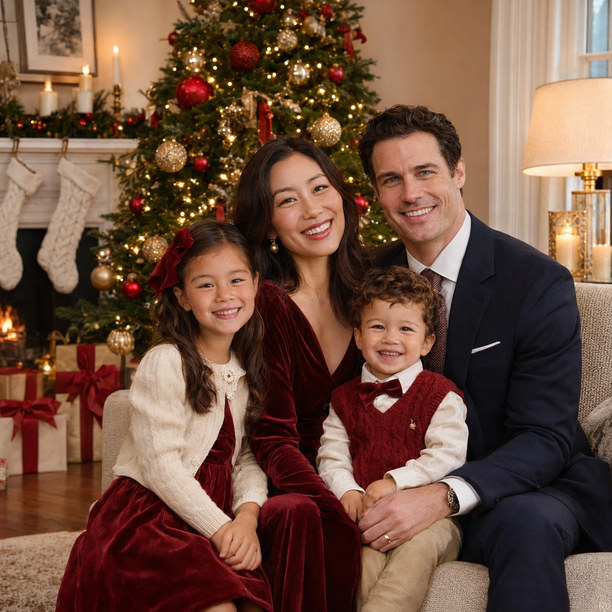
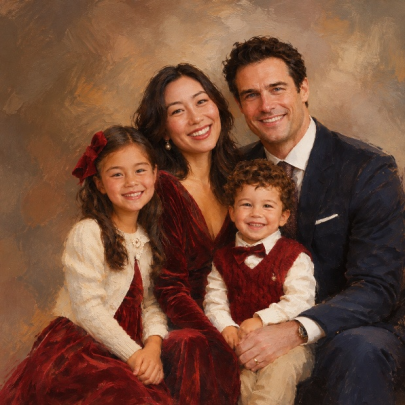
The face, expression, or familiar outline of a place may be what makes your photograph worth painting. With image-to-image generation, the original photo guides the new artwork, while your prompt specifies what should remain recognizable. Facial features, a pet's markings, clothing, or the main arrangement of the scene can all be part of that direction.
It helps to be specific about what carries the memory. The desired painting might keep a person's expression and pose while using looser brushwork in the background. That gives the style room to change without asking the model to reinterpret every part of the picture.
Reference photo | Generated Result |
|
|
| Prompt: Turn this family photo into an oil painting. | |
Guide the Painting Style with References and Prompts
A painting style becomes easier to communicate when you describe what you see in it. Soft washes, visible paper grain, thick pigment, broken color, and expressive outlines each suggest a different treatment. The prompt can connect those qualities to the subject and atmosphere you want to keep.
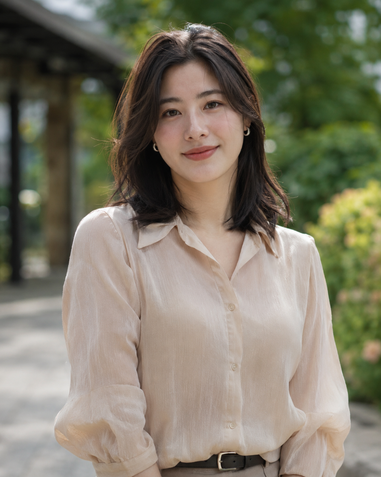
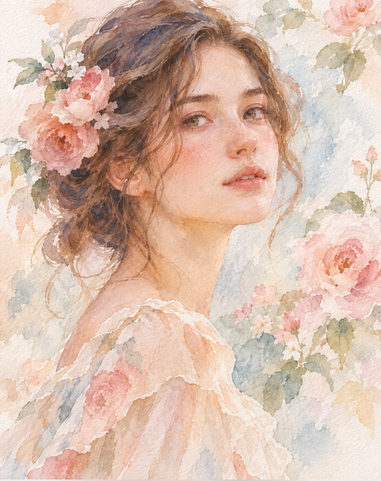
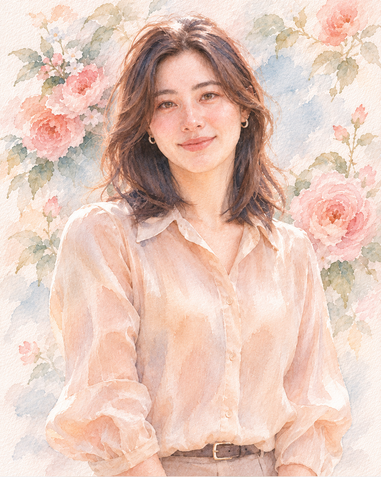
A separate style reference can help communicate the palette and brushwork you have in mind. Your original photo supplies the subject, while the style image guides the visual treatment. Explaining those roles gives IMAGE 3.0 Omni a clearer direction than simply uploading several images and leaving their relationship unstated.
Reference Image 1 | Reference Image 2 | Generated Result |
|
|
|
Prompt: Transform the woman in @Image 1 into a delicate watercolor portrait inspired by the artistic style of @Image 2. Preserve the woman's facial features, hairstyle, gentle expression, pose, and beige blouse from @Image 1. Apply the translucent watercolor washes, soft bleeding edges, delicate brushstrokes, pastel color palette, and textured watercolor paper appearance from @Image 2. Use soft peach, blush pink, cream, sage green, and muted blue tones. Replace the original background with a romantic floral watercolor setting featuring softly painted roses and foliage. Maintain the woman's recognizable identity and original composition while creating an elegant, hand-painted watercolor illustration. | ||
Create a Matching Set with Image Series Mode
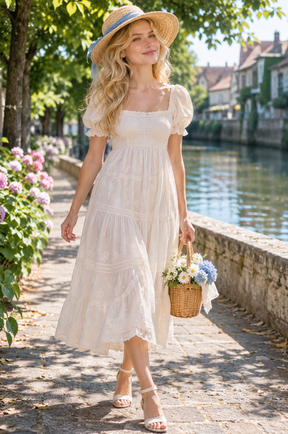
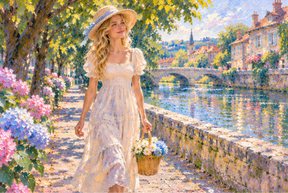
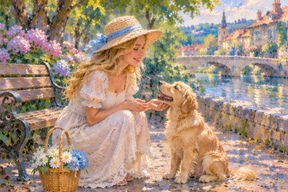
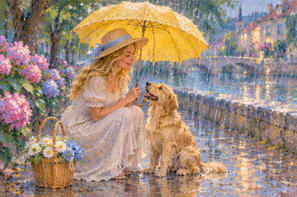
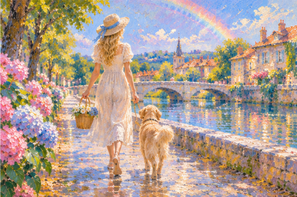
Sometimes the idea grows beyond one picture. Image Series Mode can generate multiple related images in a single session, using references to carry recognizable subjects, style, and atmosphere through the set. That makes room for a collection connected by a shared character, place, or painting treatment.
A series can explore new framing or related scenes while keeping a common palette and visual character. The prompt can describe what connects the pieces and what changes between them, so the collection develops as a coherent idea.
Reference Image | Prompt: Using the woman in the reference photo as the main character, create a series of four paintings in the classic French Impressionist style. Preserve her long blonde hair, facial features, straw hat, and white dress to maintain character consistency across all scenes. Apply expressive broken brushstrokes, soft edges, rich canvas textures, vibrant natural colors, and atmospheric lighting. Maintain a cohesive Impressionist aesthetic throughout the series. Scene 1 – A Peaceful Morning: The woman walks alone along a river in the French countryside. Morning sunlight filters through the trees, illuminating colorful flowers and the sparkling water. Scene 2 – An Unexpected Friend: Beside a wooden bench near the river, she discovers a small golden dog. She kneels down and greets it with a warm smile. Scene 3 – A Sudden Summer Rain: A gentle rain begins to fall. The woman opens a small yellow umbrella to shelter the dog. Soft reflections appear on the wet riverside path. Scene 4 – After the Rain: The rain stops, and a brilliant rainbow appears in the sky. The woman and the dog walk together along the riverside path as warm sunlight returns to the water. Generate four separate but visually connected paintings, not a collage. Maintain consistent character appearances, the dog's features, artistic textures, and color harmony while allowing the lighting, compositions, and emotions to evolve naturally throughout the story. | ||
| |||
Output1 | Output2 | Output3 | Output4 |
|
|
|
|
Which Painting Style Suits Your Photo
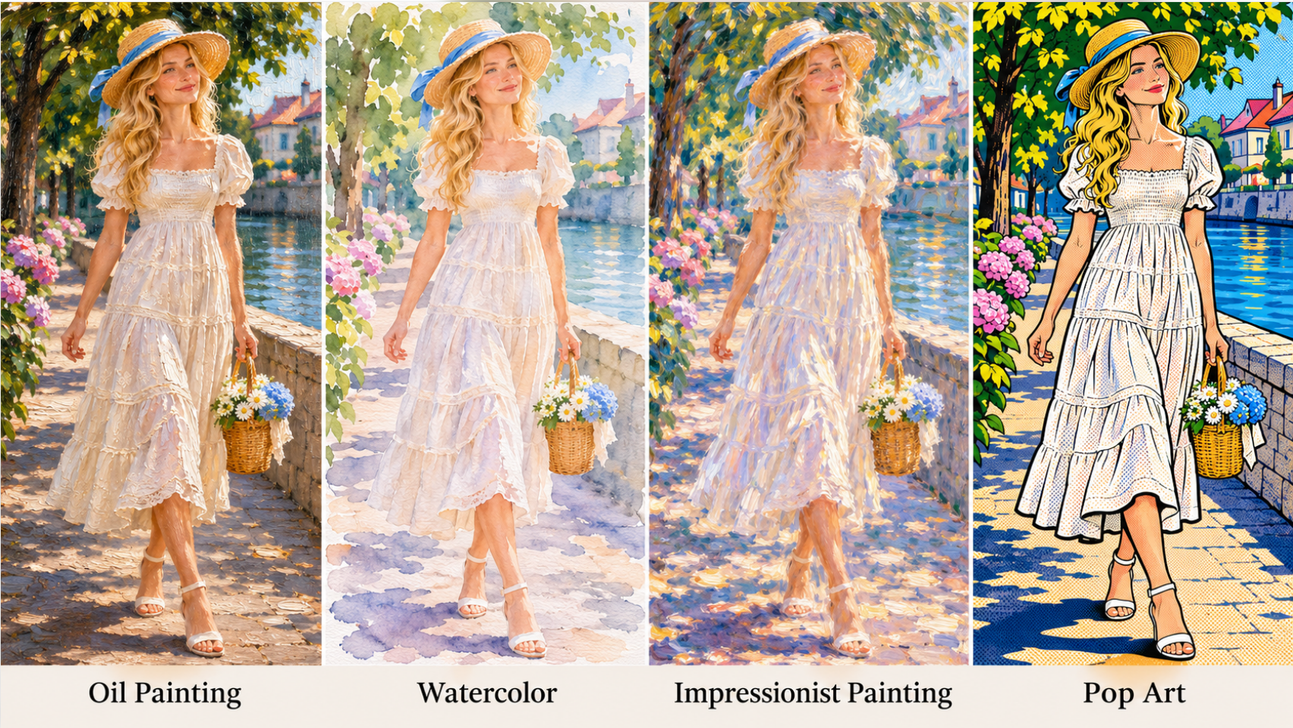
Turning a photo into a painting is also a choice about what you want people to notice. With AI art creation, the medium, palette, and texture become part of your direction. These painting approaches offer a starting point for finding a look that suits the photograph.
Oil Painting for Rich Color and Depth
Oil painting can give a portrait, still life, or landscape a sense of weight and depth. Layered color and visible brushwork let light linger on a face or across a scene. If you want to turn a photo into an oil painting, the description can include the thickness of the pigment, the strength of the shadows, and how much texture you would like to see.
Watercolor for a Softer, Airier Feel
Watercolor leaves room for light. Transparent washes, softened edges, and visible paper can suit a landscape, a familiar building, or a gently treated portrait. The photo's main shapes still give the image structure, while less important details can fade into the wash. A description of delicate color, open paper areas, and flowing edges helps communicate that lighter touch.
Impressionist Painting for Light and Atmosphere
An impressionist treatment can suit a photo you love for the feeling of the moment: sunlight on a street, reflections on water, or changing color in a garden. Loose strokes and broken color suggest the scene without describing every detail. The prompt can focus on the quality of the light and the color relationships you want to carry into the painting.
Pop Art for Bold Graphic Expression
Pop art can give a portrait or a clearly defined object a bright, graphic presence. Broad areas of color, simplified shapes, and strong outlines shift attention toward the subject's silhouette and expression. A quieter background can help those choices stand out. Describing the palette, outline thickness, and level of simplification gives the treatment more direction than asking for bold color alone.
Tips for Preparing Your Photo
A clear starting image. Faces and important details are easier to guide when they are visible in the source. If the photo needs attention, you can improve photo clarity before exploring a painting treatment. A clean source gives you a better view of the features you want to carry forward.
The details that make it yours. A smile, a distinctive coat pattern, or the shape of a familiar building may matter more than every background object. Knowing which details carry the memory helps you describe what should remain recognizable as the painting takes shape.
Room for the medium. Softened edges and simplified background detail can be part of the look you enjoy. When the subject remains clear, a little variation in brushwork or texture can give the image a more expressive treatment without filling the whole frame with competing detail.
How to Turn a Photo into a Painting with Kling AI
With a photograph and a painting direction in mind, you're ready to bring them together. The process follows the same creative rhythm: add your materials, describe the treatment, and review the result.
Step 1: Choose IMAGE 3.0 Omni and Upload Your Photo
Open Image Generation and select IMAGE 3.0 Omni. Upload the photo you want to transform, along with a style reference if you have one. Use materials that clearly show the subject and visual qualities you want to retain. If you're planning a connected collection, enable Image Series Mode and prepare the references for that set.
Step 2: Describe What to Keep and How to Paint It
Explain which image supplies the subject, and which guides the style. Describe the painting medium, brushwork, colors, and atmosphere, then name the facial features, pose, clothing, or composition you want to preserve. For a series, include the shared visual direction and how the images should differ. Keep the instructions tied to the materials you uploaded.
| Prompt: Use @Image 1 as the subject and @Image 2 as the painting style reference. Transform the woman in @Image 1 into a watercolor painting, preserving her facial features, hairstyle, pose, and clothing. Apply the soft brushstrokes, pastel colors, and paper textures from @Image 2. |
Step 3: Generate, Review, and Refine
Choose the aspect ratio, output settings, and number of images, then generate. Review the subject's identity, composition, and painting texture. If one area needs attention, you can refine the painted details by describing what should change and what should stay. Adjust the prompt as needed and download the version that feels right for your project.
Conclusion
Turning a photo into a painting gives you another way to revisit a person, place, or moment you care about. The original photograph provides the connection; your choices of color and brushwork shape its new expression. With Kling AI, you can explore that treatment through references and clear descriptions, then develop one image or a related collection at your own pace.
FAQs
Is There a Free App That Turns Photos into Paintings
Yes, some photo-painting apps and online tools offer free effects or limited trials. Kling AI gives newly registered users trial credits to try image generation. You can explore a painting treatment using those credits and check the available models, generation settings, and credit usage in your account before creating more images.
How Do I Choose a Painting Style for My Photo
If you want to turn a photograph into a painting, choose a style that emphasizes the details and feeling you want to capture. Oil painting can suggest layered pigment and depth, while watercolor can use lighter washes and softer edges. A looser treatment may suit atmosphere, while clearer forms help keep a portrait recognizable. Describing the brushwork, palette, and texture gives AI more direction than a style name alone.
What Is the Best App to Turn Photos into Illustrations
The best choice depends on how much control you want. Preset-based apps suit quick visual experiments, while desktop tools offer hands-on editing. Kling AI is useful when you want to combine photos, style references, and written instructions, or develop connected artwork with IMAGE 3.0 Omni. The right workflow is the one that supports the result and creative involvement you prefer.
Can I Create a Painting Without Uploading a Photo
Yes. With text-to-image creation, you can describe an original subject, painting medium, composition, and mood without supplying a photograph. This creates new artwork from your idea. When you want the painting to depict a particular person, pet, or place from your own life, a reference photo provides a more specific visual foundation for the model.
How Can I Keep Faces Recognizable in an AI Painting
Start with a clear reference photo and identify the features that matter, such as face shape, hairstyle, expression, and distinctive accessories. Describe those details as qualities to preserve while the painting treatment changes. Review the eyes, mouth, proportions, and overall likeness in the result, then refine the relevant instruction if the style has obscured an important feature.