Looking for the best text-to-video AI in 2026? AI video generators can turn your ideas into videos, but finding the right one depends on what you want to create and how you work. Explore the features that matter, which tools suit different projects, and what Kling AI can bring to your creative process.
Best Text-to-Video AI in 2026: Comparison at a Glance
Here’s a quick look at popular text-to-video AI generators in 2026, including their key strengths and the types of projects they are best suited for.
AI Generator | Key Strengths | Common Use Cases |
Kling AI | Professional cinematic video production: multi-shot storytelling, Native Audio, multilingual dialogue, and native 4K. | Cinematic shorts, branded commercials, recurring-character stories, and reference-led audiovisual projects. |
Google Veo | Realistic scene generation, native audio, and cinematic video capabilities. | Realistic visual concepts and audiovisual storytelling. |
Runway | Video generation combined with creative editing workflows. | Generating and refining creative content. |
PixVerse | Fast generation, creative effects, and flexible video workflows. | Short-form videos and creative experiments. |
Luma AI | Cinematic visuals and motion-focused generation. | Visual concept development and creative exploration. |
This overview highlights key capabilities and common use cases. Available features may vary depending on the model, workflow, and plan.
With so many text-to-video AI tools available, the key is finding one that fits the way you create. The most useful features often come down to how much control you have over your ideas, scenes, visuals, and overall workflow.
What Makes the Best Text-to-Video AI?
Every video starts with a different idea. You may want to test a quick concept, build a visual story, or create content around consistent characters and scenes. The best text-to-video AI generator gives you the control and flexibility to turn those ideas into videos.
Prompt Understanding and Creative Direction
A strong AI video tool should understand more than the main subject of your prompt. Details such as movement, camera angles, lighting, mood, and visual style all influence the final result.
A capable text-to-video workflow should help transform your ideas into intentional scenes instead of simply generating separate visual elements.
Scene Control and Story Development
If you're creating a video with several shots, you'll want control over more than just the overall story. Look for tools that let you decide what happens in each shot, how long it lasts, and how the camera moves. The real test is whether characters stay consistent and actions proceed naturally from one shot to the next.
Audio and Complete Video Creation
Visuals are only part of a complete video. Dialogue, sound effects, and background audio can shape the mood and make scenes feel more engaging.
When exploring a text-to-video tool, consider whether audio fits naturally into the creation process or requires additional editing.
Visual Consistency and Reference Control
Already have a character design, product photo, or established brand look? Reference images give you a starting point that text prompts alone may struggle to capture. A useful test is whether the AI can carry those distinctive details into different scenarios without requiring you to describe them all over again.
Workflow Flexibility
Your first generated video might not be exactly what you pictured. A flexible tool makes it easier to adjust prompts, refine individual shots, and compare versions without having to start from scratch each time. Think about how smoothly you can move from your initial idea to a finished video, especially when your project calls for multiple revisions.
Which Text-to-Video AI Is Best for Your Project?
The video you want to make can help narrow your options. A quick social clip, a cinematic scene, and a character-driven story each call for different capabilities from text-to-video AI models. Here's how the five tools fit different creative needs.
Kling AI for Professional Cinematic Video Production
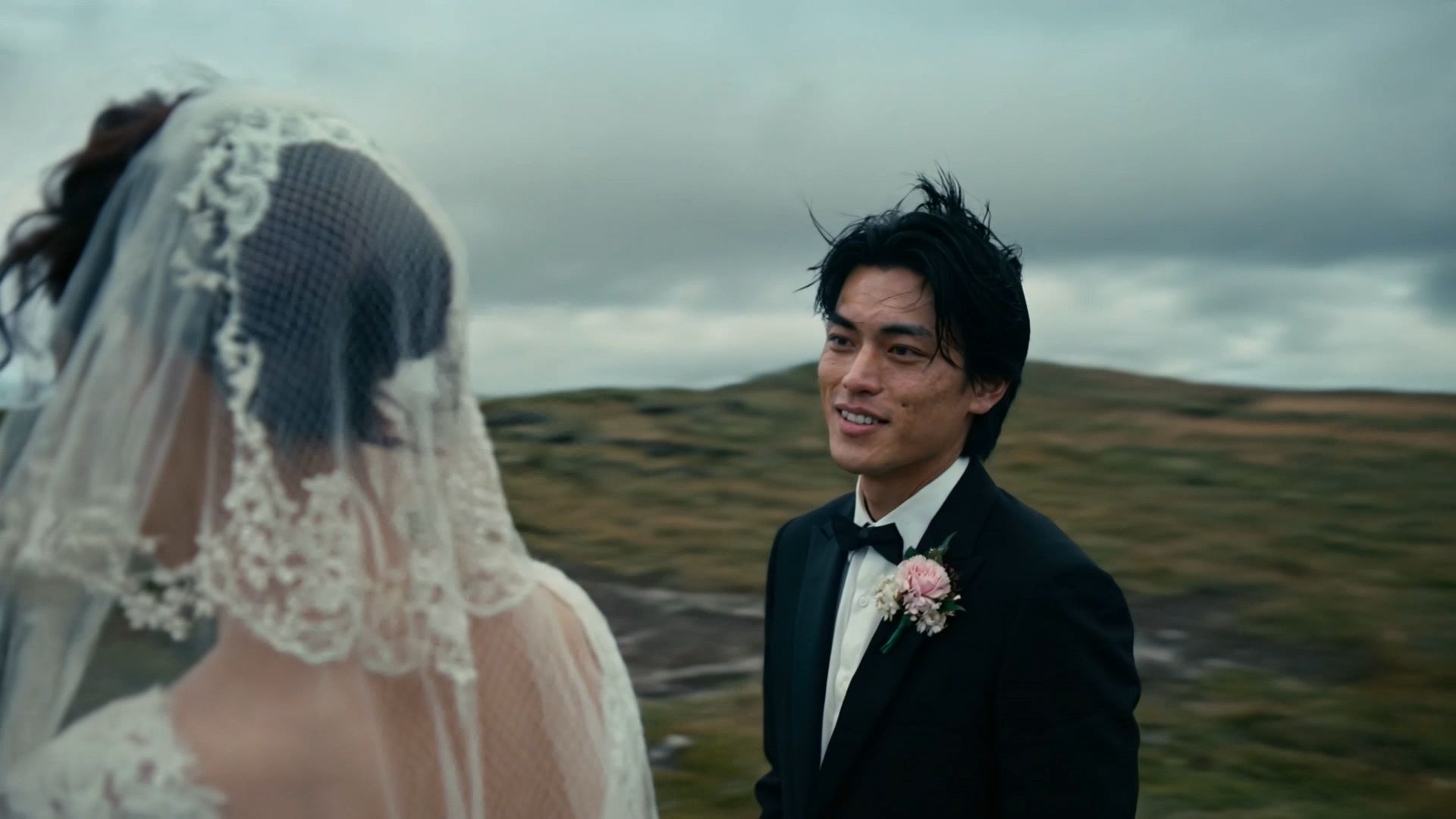
Kling VIDEO 3.0 Omni brings text-to-video generation, Native Audio, Custom Multi-Shot, and reference-based element consistency in a workflow built for professional cinematic video production. Creators can map out connected shots, guide dialogue and sound using simple prompts, and rely on reusable reference assets whenever characters, products, or key visual details need to stay consistent across different scenes. With greater control over shot structure, audiovisual timing, and visual continuity, they can bring these elements together in a single generation of up to 15 seconds. Supported Kling VIDEO 3.0 workflows also offer native 4K output for projects that require higher-resolution video.
- Tell a story from start to finish: Build an opening, develop character interactions, and bring the story to a close across connected shots.
- Make conversations part of the action: Bring dialogue and sound into character interactions, whether you're creating a narrative short or telling a story for your brand.
If you're starting with a text-first project, you can try Kling AI and explore its multi-shot video capabilities.
| Prompt: Long take. On a windy day in an Icelandic mountain range, Male Protagonist says with a barely contained smile, "Do you think our wedding is too simple—like there's no one here to bless us?" The camera circles the subjects to reveal Female Protagonist standing opposite, smiling and replying, "The wind—the wind is their blessing to us." Cinematic, handheld feel. |
Output |
  |
Google Veo for Realistic Scenes
When you're creating a travel scene or an everyday setting, the small details matter. Veo 3.1 lets you develop a scene where visual action and sound work together to establish the atmosphere.
- Capture the setting: Describe bustling streets, moving crowds, or quiet indoor spaces with the visual details your scene needs.
- Include the sounds around you: Add dialogue, traffic, or background chatter to give the generated scene a more complete sense of place.
Runway for Action Sequences
Want to turn a skateboard trick, dance routine, or chase into a video? Runway Gen-4.5 gives you ways to describe how the action should unfold, rather than focusing only on how the scene looks.
- Follow the movement: Develop clips where actions happen in a particular order, from the first move to the final moment.
- Shape the camera work: Describe how the camera follows a moving subject or changes position as the action unfolds.
PixVerse for Social Content
For product teasers, promotional clips, or social posts, PixVerse V6 lets you turn a text prompt into a video and choose an aspect ratio that fits your platform.
- Bring your concept to life: Describe the subject, action, and visual changes. For a product reveal, you might start with a close-up before showing the full product.
- Frame it for your platform: Choose a vertical format for Reels and Shorts or a landscape format for wider screens. Use your prompt to guide how the subject appears in the frame.
Luma AI for Cinematic Concepts
Have a film scene in mind, but aren't ready to shoot it? Luma Ray3.2 can help you visualize a proposed shot from a written description, giving you something to explore during early creative development.
- Explore your scene: Turn ideas for fictional environments, establishing shots, or cinematic moments into moving visuals.
- Develop the visual direction: See how camera movement, framing, and atmosphere could work together before moving further into production.
How Kling VIDEO 3.0 Omni Helps Bring Ideas to Life
If Kling VIDEO 3.0 Omni fits your project, you can take your idea straight into text-to-video creation. These three steps will help you turn a written concept into a video and refine the result.
- Enter Your Text Prompt
Start in Kling AI's AI video generator and enter your text prompt. Describe the main subject and setting, explain what happens in a clear sequence, and add details about lighting, atmosphere, or visual style to shape the result.
- Set Shots and Audio
With Custom Multi-Shot, you can shape how your scene unfolds, from the opening shot to the final moment, within a total of up to 15 seconds. Adjust the action, framing, and timing to suit each moment, while weaving in dialogue, sound effects, or background music that follows what's happening on screen.
- Generate and Refine
Once your video is ready, watch it through to see how everything comes together. If an action feels rushed, a cut seems abrupt, or the audio doesn't quite match, adjust the relevant shot or sound details and generate another version. You can then use the AI Video Editor to make final edits and bring the video together.
Element/Reference Image | ||
@Boxer A | @Boxer B | Scene-Rooftop |
.png?x-oss-process=image/resize,w_1872) | 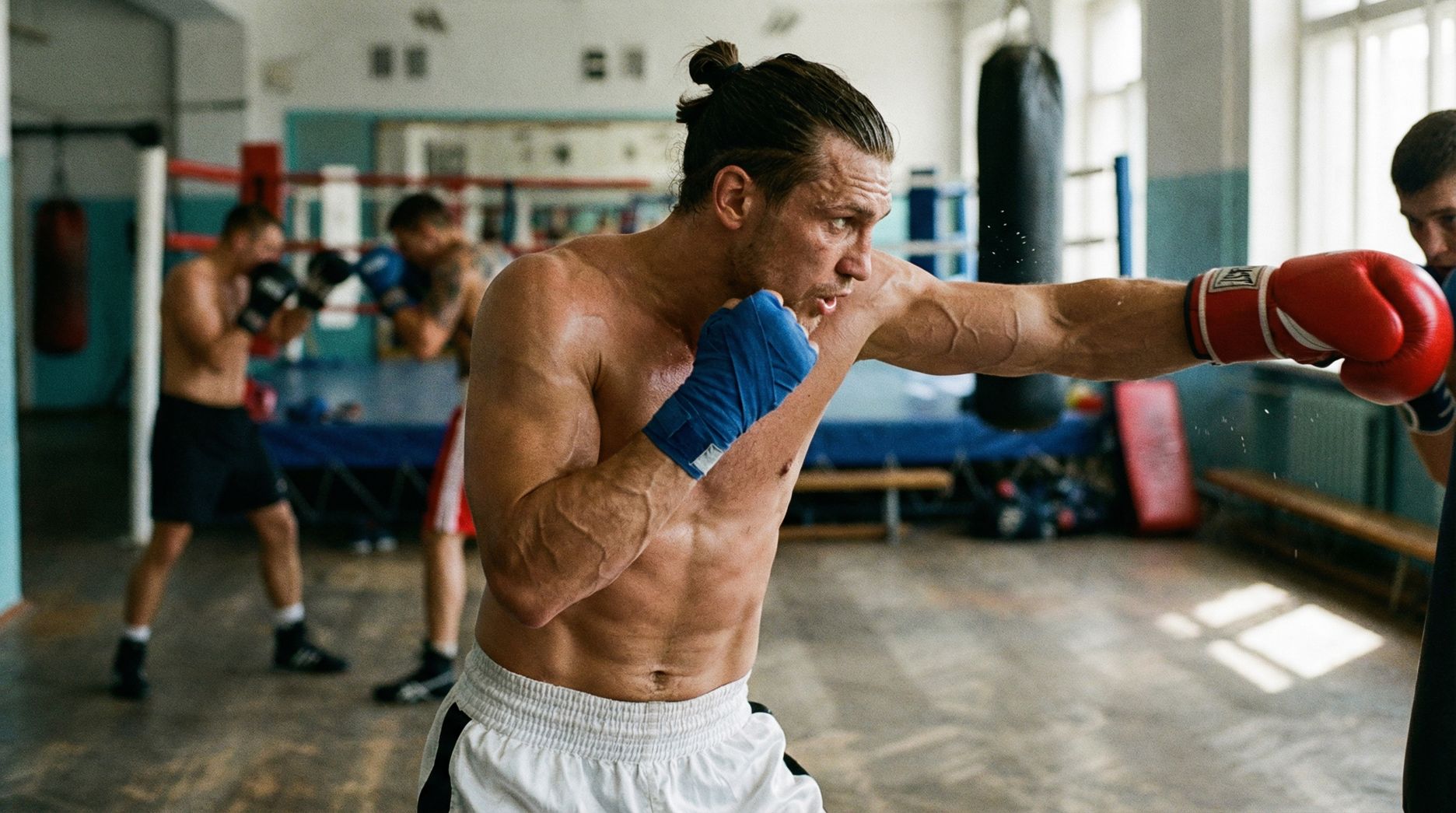 | .jfif?x-oss-process=image/resize,w_1872) |
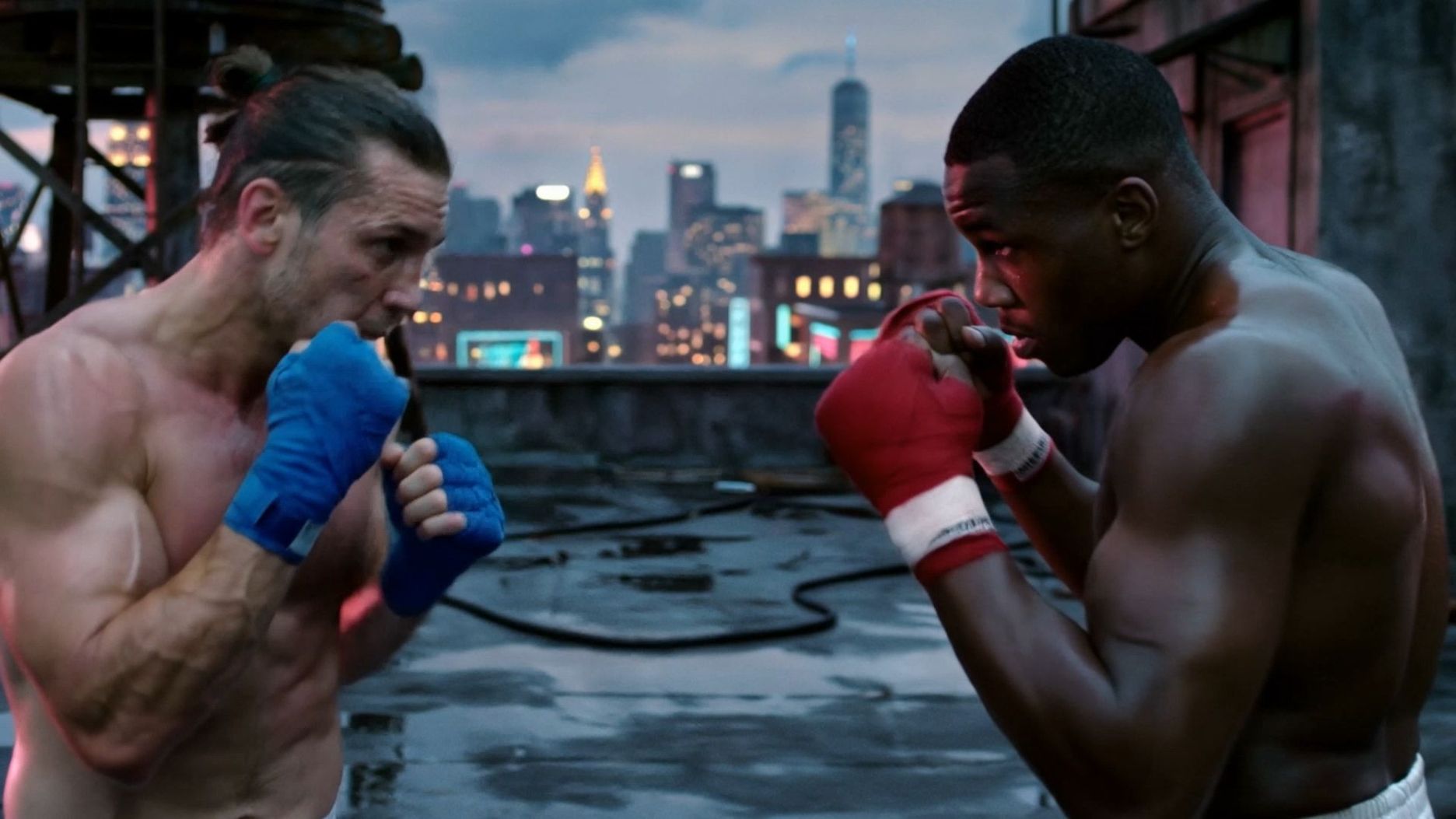
| Prompt: Shot 1 (2s): Wide shot, @Boxer A and @Boxer B face off in the center of the rooftop, feet apart in a boxing stance. Shot 2 (2s): Both move in, testing each other up close: @Boxer A throws a quick punch, @Boxer B sidesteps and blocks. Shot 3 (3s): @Boxer A continues the attack, landing a punch on @Boxer B's head, and @Boxer B retaliates. Shot 4 (4s): Wide shot, the two boxers continue their intense fight. Shot 5 (2s): A bird's-eye view of the scene shows the two separated and having stopped fighting. | ||
Outputs | ||
 | ||
The End
Finding the best text-to-video AI is about more than generating a clip. It’s about having the flexibility to shape the shots, sound, visual consistency, and final quality around your creative vision. Kling VIDEO 3.0 Omni brings text-to-video and image-to-video creation into a professional cinematic workflow, with Custom Multi-Shot for connected scenes, Native Audio for dialogue and sound, and visual references to maintain key details across clips of up to 15 seconds, with native 4K output also available through Kling VIDEO 3.0.
FAQs
Is There an AI That Turns Text Into Video?
Yes. Kling AI lets you generate video clips directly from text prompts. Describe who or what appears in the scene, what happens, and how you want it to look. Kling VIDEO 3.0 and VIDEO 3.0 Omni also support multiple shots and native audio, so you can include camera changes, dialogue, and sound in your video.
How Can I Make Realistic AI Videos From Text?
Start with a believable scene and describe the action clearly. Instead of simply asking for a "realistic video," specify the lighting, camera position, and how the subject moves. For a street scene, you might describe someone walking past storefronts as the camera follows at eye level in natural daylight. Review the result for unnatural movement or changing details, then adjust the specific part of your prompt that needs work.
What Is the Best AI Text-to-Video Generator for Scripted Scenes?
For a script with dialogue, character interactions, and changing camera angles, Kling VIDEO 3.0 Omni is worth considering. Custom Multi-Shot lets you map out key moments, while Native Audio adds dialogue and sound to the scene. When reference assets are part of the workflow, Element references can also help maintain recurring characters across shots.
How Do I Generate Videos Longer Than 10 Seconds?
Kling VIDEO 3.0 and VIDEO 3.0 Omni let you choose a duration of up to 15 seconds per generation, so a 10–15-second clip doesn't need to be split. For a longer video, generate separate scenes and combine them in an editor. You can also check whether Video Extension is available for your selected workflow if you want to continue an existing clip.
Can I Use Text-to-Video AI for Product Videos?
Yes. Describe the product, setting, camera angle, and reveal sequence in your prompt. For a skincare ad, you might start with a close-up of the bottle, then pull back to show it on a bathroom counter in soft morning light. If you need the actual product's packaging or branding to stay recognizable, use reference materials with Kling VIDEO 3.0 Omni and check the finished video for incorrect labels or visual details.