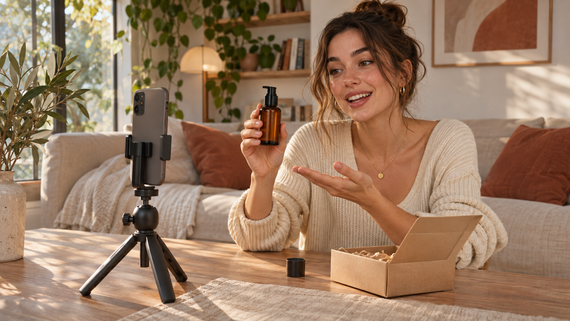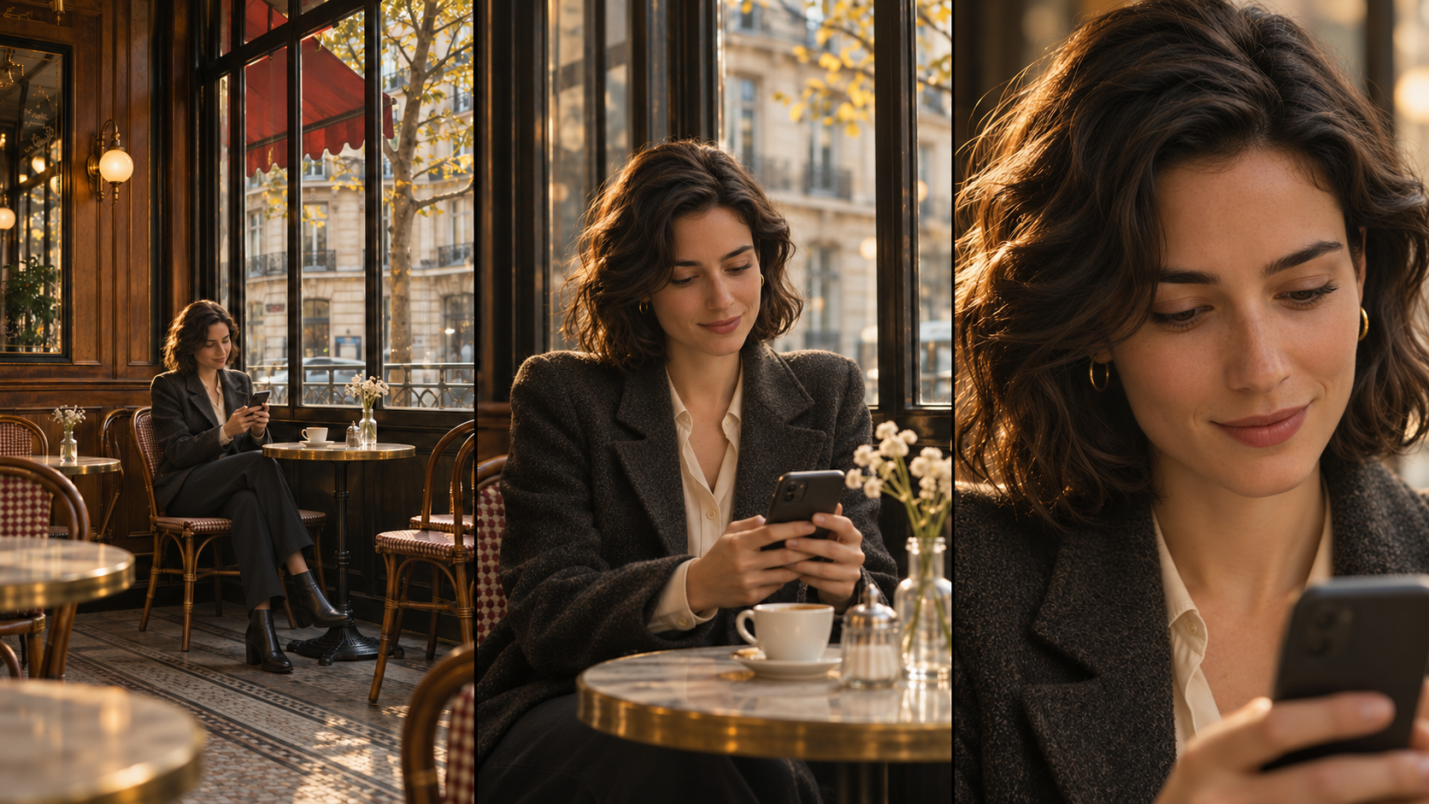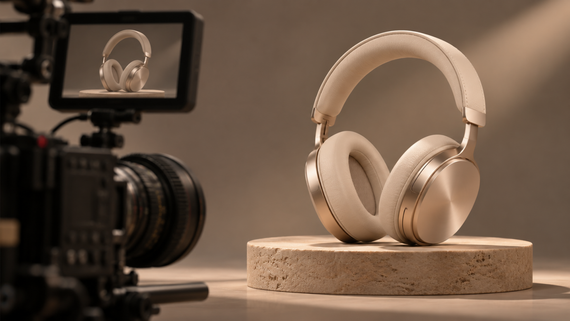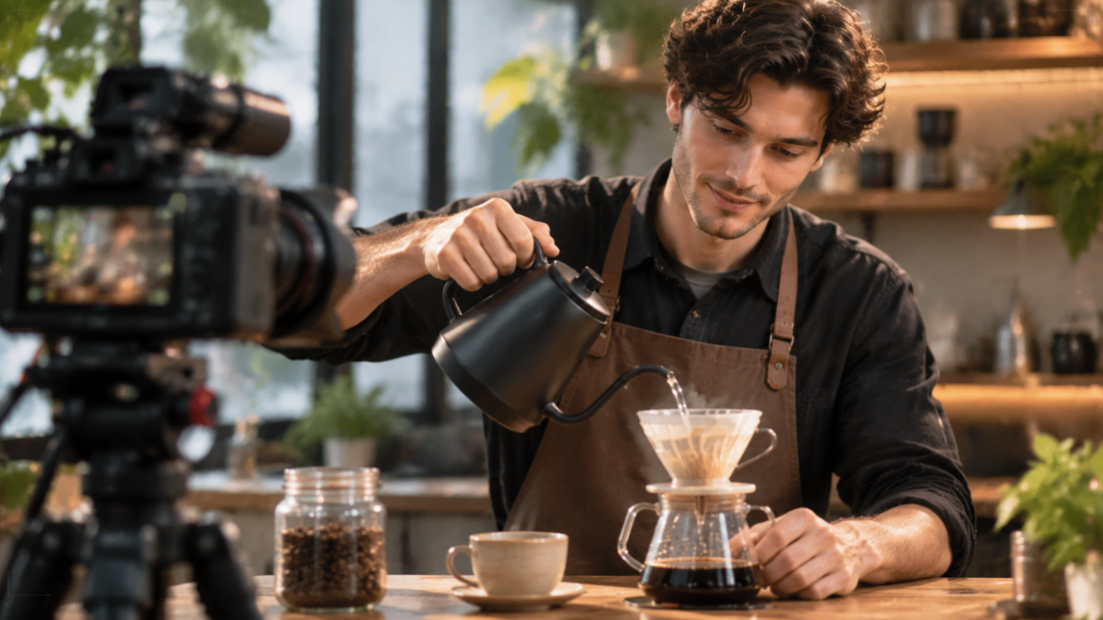
B-roll adds visual context, highlights key details, and creates smoother transitions to make storytelling more engaging. When supporting shots are missing or difficult to capture, you can arrange an additional shoot, source stock or archival footage, or use AI video generation to create visuals that fit the story.
What Is B-Roll in Video Production, and How Is It Different from A-Roll?
B-roll is supplementary footage or visuals that support a video's main content. It adds context, highlights key details, and creates visual variety while working alongside A-roll to make the story clearer and more engaging.
What Is A-Roll? A-Roll vs. B-Roll Explained
A-roll is the primary footage that carries a video's main message, such as an interview, a presenter speaking to the camera, or the central action in a scene. B-roll complements it with supporting visuals.
For example, in a product review, the presenter explaining the product is A-roll, while close-ups of its features and footage of it in use are B-roll. A-roll delivers the message; B-roll brings it to life.
Why Is B-Roll Important in Video Production?
B-roll does more than add extra footage. It helps viewers understand the context, follow the story, and stay visually engaged.
- Provide Visual Context: Establish locations, show surrounding environments, and introduce details that may not appear in the main footage.
- Cover Cuts and Transitions: Hide jump cuts, pauses, and changes between takes. Related cutaway shots can connect different parts of an interview while keeping the main audio flowing.
- Support Storytelling: Illustrate narration with relevant objects, close-ups, and actions. Showing a product in use or someone performing a task helps viewers understand what is being described.
- Keep Visuals Engaging: Introduce different shot sizes, angles, and perspectives to break up long stretches of similar footage, maintain visual variety, and improve pacing.
How Can You Create B-Roll When You Don't Have Enough Footage?
B-roll can come from additional shoots, stock footage, archival material, or existing visual assets. However, these sources may not always provide the right shots, especially when a shoot is finished, a location is no longer accessible, or available clips don't match your main footage.
When reshooting or finding suitable stock footage isn't practical, AI video generation offers another way to fill gaps in your edit. At Kling AI, our video generation and editing model, Kling 4.0, can help you create B-roll that better complements existing footage through consistent subjects and settings, more complete visual storytelling, and smoother dynamic movements. Let's explore how its core capabilities can help you create and refine supporting shots with greater creative control.
Generate Missing B-Roll Shots with Omni Reference
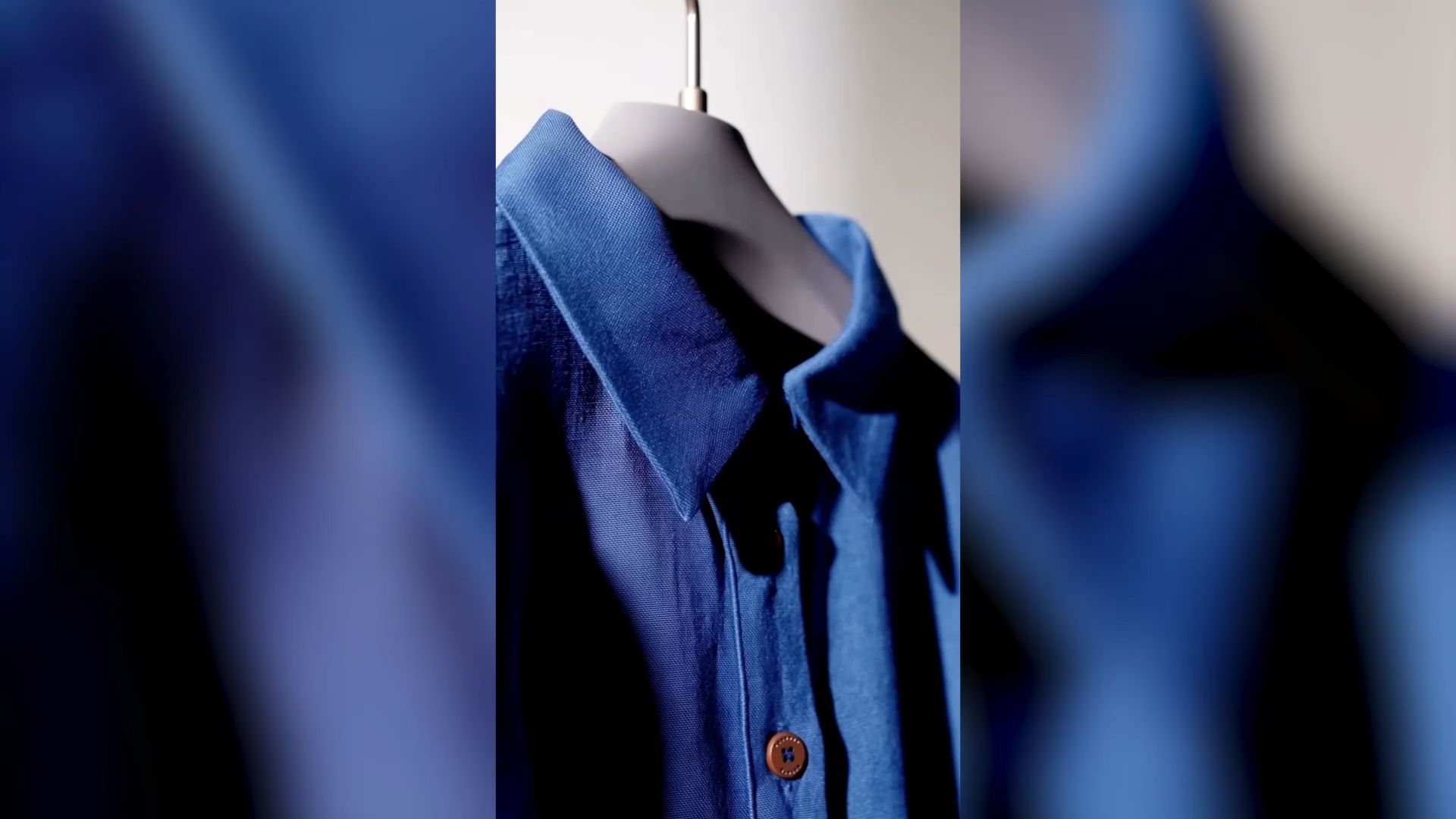
Not every missing B-roll shot can be replaced with generic stock footage, especially when it needs to match an existing character, product, setting, or visual style.
With Kling 4.0's Omni Reference, you can combine up to 15 reference assets, including images, videos, Elements, and voice references, to help maintain subject consistency, establish settings, and guide the overall visual style. Reference videos can also guide character performances, actions, camera movements, and storytelling pace, allowing you to adapt existing creative ideas to your own projects.
For example, when creating B-roll for a product demonstration, you can use product images to maintain its appearance and an authorized reference video to guide how it is handled or filmed. This helps you generate new close-ups or supporting angles that complement your existing A-roll, with greater creative control and less time spent planning every shot from scratch.

Create Story-Driven B-Roll Sequences up to 30 Seconds
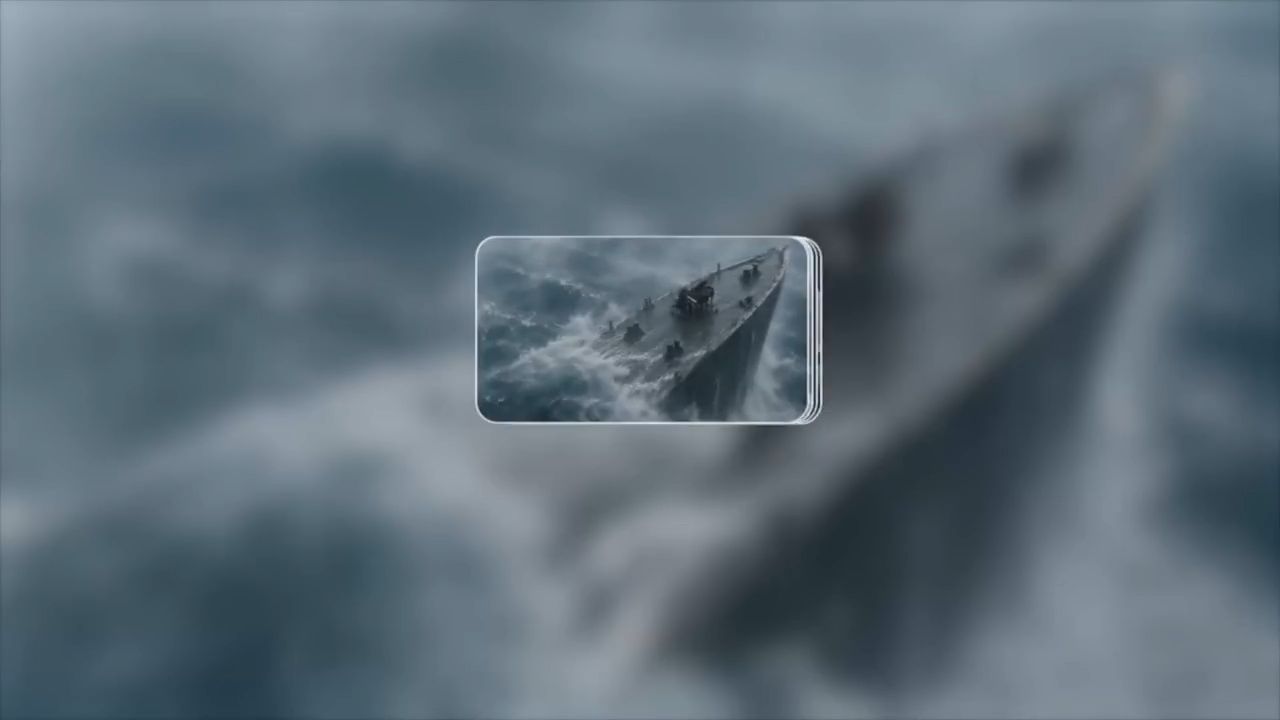
Some B-roll shots need to show how an action develops rather than capture a single moment. A product close-up, for example, may show the item being picked up, turned toward the camera, and put into use. Connecting these moments can provide more useful supporting footage than a single isolated shot.
Kling 4.0 can generate videos lasting up to 30 seconds in a single pass, giving supporting actions and visual sequences more room to develop. With enhanced prompt understanding and support for up to 8,000 tokens, it can help expand and refine shot directions with a director's eye. When you need more control over the visual progression, you can also use up to 10 keyframe images to guide important moments, such as a product being picked up, turned toward the camera, and put into use.
Add Dynamic Camera Movements to B-Roll
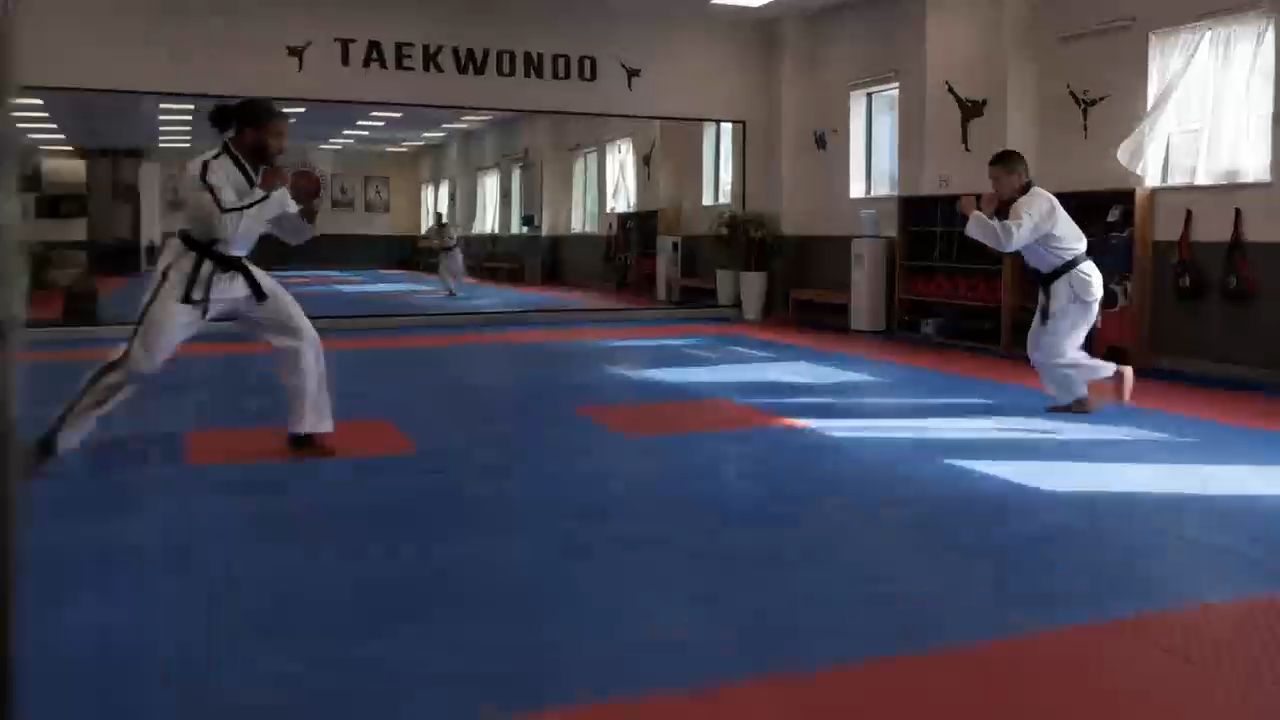
B-roll can do more than show static product details or surrounding environments. Dynamic supporting footage can capture fast-moving subjects, continuous actions, and changing camera perspectives, adding more visual depth to product demonstrations, travel videos, and action-oriented content.
Kling 4.0 has a stronger understanding of prompts describing subject movements and camera directions. Its improved stability helps large-scale actions and complex camera movements, including tracking and orbiting shots, appear smoother and more coherent. This gives creators greater flexibility when developing dynamic B-roll, from following a person through a busy street to showcasing a product from different angles.
For B-roll that focuses on specific character movements, you can also explore Kling AI's separate motion control workflow for more information about guiding subject actions with motion references.
What Are the Common Types of B-Roll Shots?
The right B-roll depends on what the main footage needs to communicate. Common types include:
Shot Type | Example | Purpose |
Establishing Shot | City street, building, room, landscape | Establish the setting |
Cutaway Shot | Related object, hand movement, surrounding detail | Cover a cut or connect ideas |
Detail / Close-Up Shot | Product detail, texture, hands | Highlight specific information |
Action Shot | Product use, walking, movement | Show a process or action |
These categories are not strict rules. An establishing shot can appear in the middle of a sequence, while a close-up can become an important storytelling moment. What matters is how the shot supports the surrounding footage.
How to Plan and Create Effective B-Roll Footage
Effective B-roll starts with understanding what your main footage is missing. Whether you plan to film additional clips or generate them with AI, a clear shot plan helps ensure every supporting visual has a purpose and fits the overall story. Once you know what you need, you can choose the production method that best suits your project.
Create a Shot List Based on Your Main Footage
Review your A-roll, script, or narration and identify the moments that would benefit from additional visuals. Think about what viewers need to see to understand the subject, then turn those gaps into specific shots.
For example, if your video introduces a coffee machine, your shot list might include:
- A wide shot showing the machine in a kitchen.
- A close-up of its buttons and brewing components.
- Hands operating the machine.
- Coffee flowing into a cup.
- A final shot of the prepared drink.
Arrange these shots in an order that follows the information or action in your main footage. Consider the composition, key actions, lighting, and visual style you want to maintain. A clear shot list also helps you decide which clips to film, source from existing footage, or create with AI.
How to Shoot B-Roll Footage
When filming B-roll, vary your shot composition to give yourself more options during editing. Combine wide shots to establish the setting, medium shots to show activities, and close-ups to highlight important details. For example, a product demonstration might include a front-facing view, an overhead shot of the controls, and a close-up of the product in use.
Record each action long enough to get usable footage. Leave a little before and after the main movement so you can decide where to start and end a clip. If you're filming someone picking up a product, capture the hand reaching for it, lifting it, and completing the action rather than recording only the moment it is picked up.
Pay attention to lighting and camera movement. Keep the lighting direction and overall appearance compatible with your main footage. Choose camera movements that serve the shot: a slow push-in can emphasize a product detail, while a tracking shot can follow someone moving through a location.
How to Create B-Roll with AI Video Tools
When certain shots are difficult to capture or find, AI video generation offers another way to create the missing footage. With Kling 4.0, you can generate B-roll from text descriptions or combine reference materials to guide specific subjects, settings, and visual details. Here's how to get started.
Step 1: Select Kling 4.0 and Prepare Your References
Open Video Generation and select Kling 4.0. In Omni Reference, you can add images, videos, or Elements to guide the appearance of characters, products, settings, or camera movements. If you don't have any reference materials, you can also start directly with a text prompt.
Step 2: Describe the Shot and Direct Its Visual Progression
Write a prompt describing the subject, setting, action, composition, lighting, and camera movement. Explain how the shot should unfold and what it needs to show. If you're using reference materials, specify the role of each asset to guide the generation more precisely.
Step 3: Generate and Refine Your B-Roll
Choose your preferred video duration, aspect ratio, and output quality, then generate the video. Preview the result and check whether the subject, actions, and camera movements follow your intended direction.
If the action feels rushed, the camera movement is distracting, or the composition doesn't match your plan, adjust the prompt or references and generate another version. Once you're satisfied, you can incorporate the new B-roll into your larger video edit.
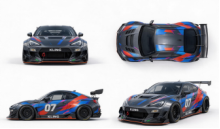
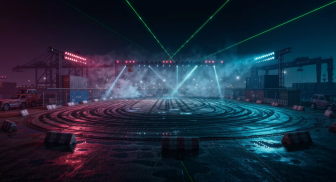
Reference Image 1 | Reference Image 2 | Reference Video |
|
|
 |
Generated Video | ||
 | ||
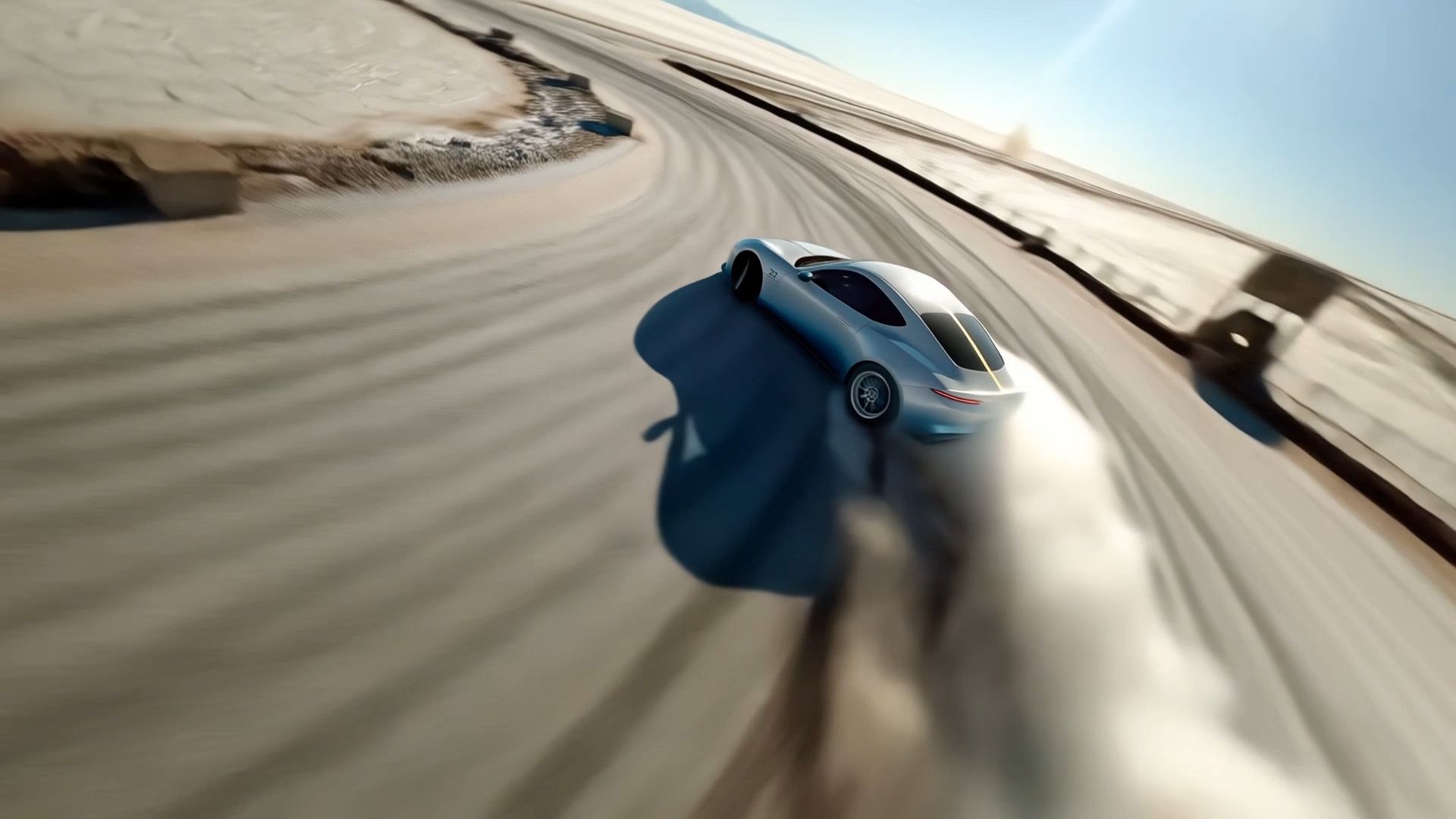
| Prompt: Use @Video 1 as the reference for camera movements and shot pacing. Replace the Element with the car from @Image 1 and the background with @Image 2. | ||
Maintain Visual Continuity Across Shots
Whether your B-roll is filmed or AI-generated, it should feel like part of the same video. Pay attention to the details that connect one shot to the next:
- Subject appearance: Keep clothing, hairstyle, and other recognizable character details consistent.
- Product details: Check product shape, color, position, and orientation across shots.
- Lighting and environment: Match the overall brightness, light direction, background, and time-of-day appearance.
- Action and movement: Make sure the direction and progression of an action make sense between consecutive clips.
- Visual style: Keep color treatment, framing, and overall atmosphere compatible.
For AI-generated B-roll, consistent visual references can help guide subjects, settings, and styles across different shots. Review the generated clips alongside your original footage to identify noticeable differences or unexpected changes.
Good B-roll should do more than fill empty spaces in an edit. It should support the main footage, communicate useful information, and help the story flow naturally.
The End
B-roll helps videos communicate more effectively by adding context, illustrating key details, and connecting different parts of a story. Start with your A-roll to identify what is missing, then decide whether to film, source, or generate the supporting footage. When specific shots are difficult to capture or find, Kling 4.0 offers another way to create B-roll that fits your video's subjects, actions, and visual direction.
Beyond creating B-roll, you can also use Kling AI to produce explainer videos, video ads, UGC-style videos, and more to meet the needs of various creative scenarios.
FAQs
What Is the Difference Between A-Roll and B-Roll?
A-roll is the primary footage that carries the main information or action, while B-roll provides supporting visuals. An interview can serve as A-roll, for example, while footage of the interviewee's workplace, product, or surroundings can serve as B-roll.
What Is an Example of B-Roll?
Examples include an exterior shot of a building during an interview, a close-up of a product during a product review, hands demonstrating a process, or environmental footage showing the location where an event takes place.
Does B-Roll Have to Be Video?
No. B-roll can include still images, photos, and illustrations as well as video clips. Historical photos can add context to documentaries, while product images can highlight details missing from the main footage. You can also use image-to-video to turn still images into moving supporting shots.
How Do You Shoot Good B-Roll Footage?
Start with a shot list based on the main footage, then capture a variety of compositions, angles, and useful details. Leave enough footage around important actions and pay attention to lighting, movement, and visual continuity.
Can You Create B-Roll with AI?
Yes. AI video generation can help create supplemental footage when a specific shot is difficult to capture or source. You can use text-to-video generation to develop a new supporting scene from a written description, or use visual references when you need to guide a particular subject, setting, or action. With Kling 4.0, detailed prompts and reference materials can help shape B-roll around the content of your existing video.