Aspect ratio is the relationship between an image or video's width and height, expressed as width:height. It determines whether a frame is vertical, square, or widescreen and influences how subjects, movement, and surroundings appear on different screens. This guide covers common formats, pixel dimensions, and how to plan videos for different viewing platforms using Kling AI.
Understanding Aspect Ratio
An image aspect ratio shapes the space around your subject. A wide frame opens room for surroundings and movement; a tall frame emphasizes height and the space above and below a person. Those proportions influence where the eye travels and which details carry the story.
Aspect Ratio vs Resolution
Ratio describes shape; resolution describes pixel dimensions. Both 1920 x 1080 and 1280 x 720 are 16:9, with different amounts of detail. Scaling width and height together keeps the shape; changing their relationship changes the frame.
Common Aspect Ratio Types and Uses
Ratio | Common Uses |
1:1 | Square social posts. |
4:3 | Classic television. |
3:2 | Still photography. |
2:3 | Portrait photographs. |
3:4 | Portrait photos and vertical content |
16:9 | Horizontal video. |
9:16 | Vertical mobile video. |
1.85:1 | Widescreen cinema. |
2.39:1 | Wide theatrical films. |
21:9 | Ultrawide displays. |
Which Aspect Ratio Suits Your Video?
The best aspect ratio depends on where your video will be viewed and how you want the story to unfold. Different formats influence subject placement, visual focus, and the space available for movement.
16:9 for Tutorials and Product Demonstrations
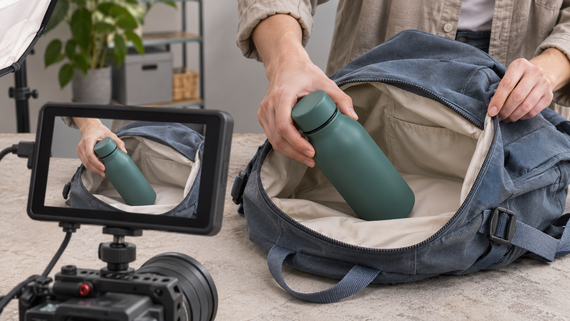
Ideal for YouTube videos, tutorials, and product demonstrations. The horizontal frame keeps presenters, products, and surrounding details visible together, helping viewers follow the action.
9:16 and 3:4 for Vertical Content
9:16 suits full-screen mobile videos, including Reels, Shorts, and vertical ads. The 3:4 format offers a wider portrait composition, leaving more room for subjects and surrounding details.
1:1 and 4:3 for Balanced Compositions
A 1:1 frame works well for centered products and square social posts. The classic 4:3 format creates a more contained composition, suited to conversations and character-focused scenes.
21:9 for Expansive Cinematic Scenes
An ultrawide 21:9 frame gives landscapes, multiple subjects, and horizontal movement more space, making it ideal for cinematic storytelling where the environment plays an important role.
How to Create Videos for Different Aspect Ratios with AI
Traditionally, changing a video's aspect ratio may involve cropping, reframing, or reshooting to keep important details visible. AI video creation offers another approach: generating a new composition for the desired format or using existing footage as a reference to develop an alternative version.
At Kling AI, our Kling 4.0 video generation and editing model helps creators produce videos in different aspect ratios or adapt existing footage to new compositions. With precise prompt understanding, multimodal references through Omni Reference, and improved stability during large movements and complex camera work, it helps maintain visual consistency and coherent motion. Below, we'll explore how Kling 4.0 supports both new video creation and editing existing footage.
Create New Videos in Your Chosen Aspect Ratio
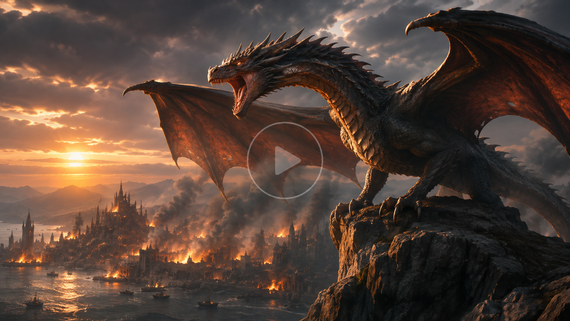
With Kling 4.0, you can choose from multiple aspect ratios, including 9:16, 3:4, 1:1, 4:3, 16:9, and 21:9, or select Auto. For example, a vertical 9:16 frame brings characters and products into focus for mobile viewing, while an ultrawide 21:9 frame provides more space for cinematic scenery and storytelling.
For greater creative control, Omni Reference lets you combine up to 15 reference assets, including images, videos, and Elements. Use images to define characters, products, and settings, and reference videos to guide actions, pacing, and camera movements. You can also generate videos up to 30 seconds and use up to 10 image keyframes to guide important story moments. Improved stability during large movements and complex camera work helps keep the action coherent within your chosen frame.
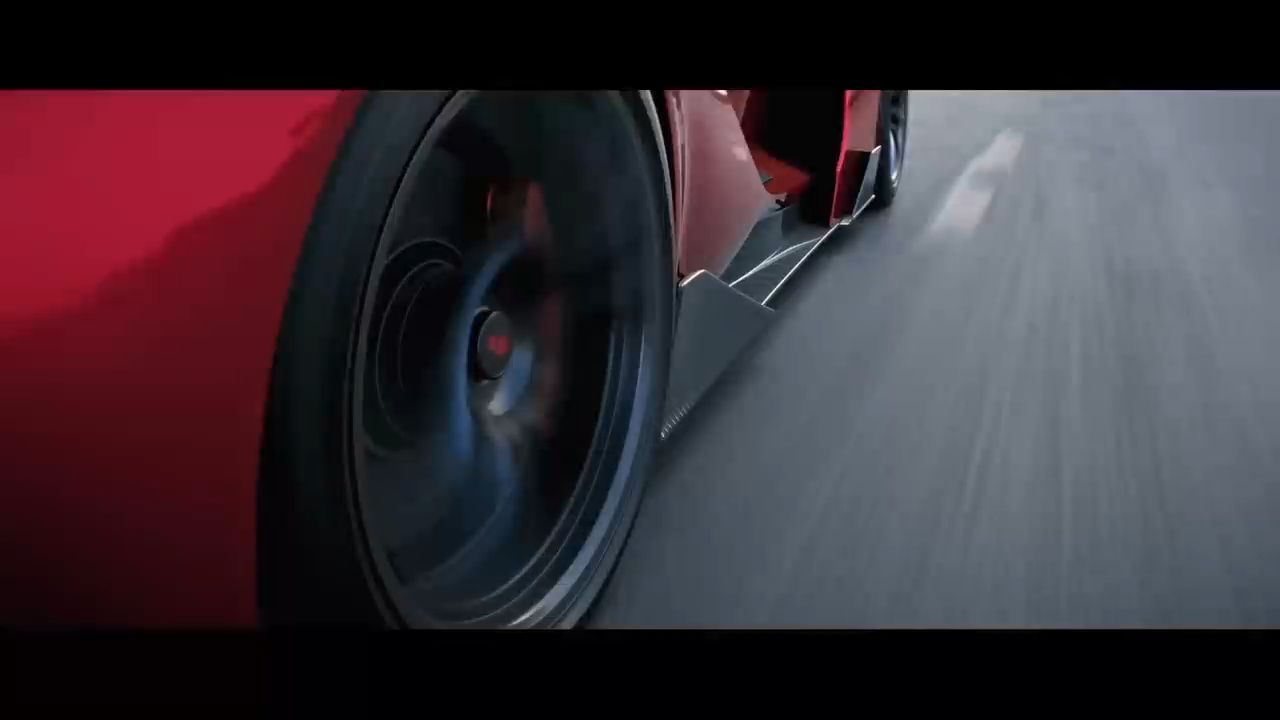

Adapt Existing Videos to Different Aspect Ratios
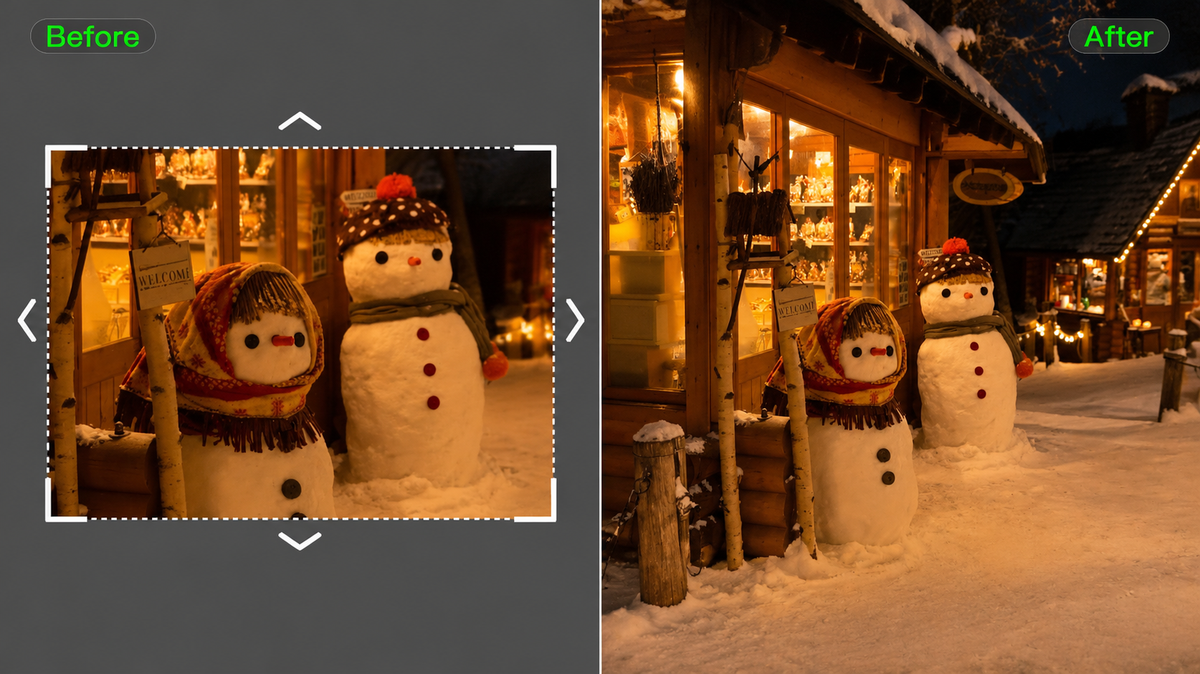
Adapting an existing video to a different aspect ratio often requires more than simple cropping. For example, turning a 16:9 product demonstration into a 9:16 mobile video may require adjusting the composition to keep both the presenter and product visible.
With Kling 4.0's precise video editing capabilities and improved prompt understanding, you can refine camera angles, subjects, backgrounds, and other visual details while specifying which parts of the original scene to preserve. Image and Element references help maintain character or product consistency during these adjustments. Once you've described the changes in your prompt, select your desired aspect ratio and generate the updated video.
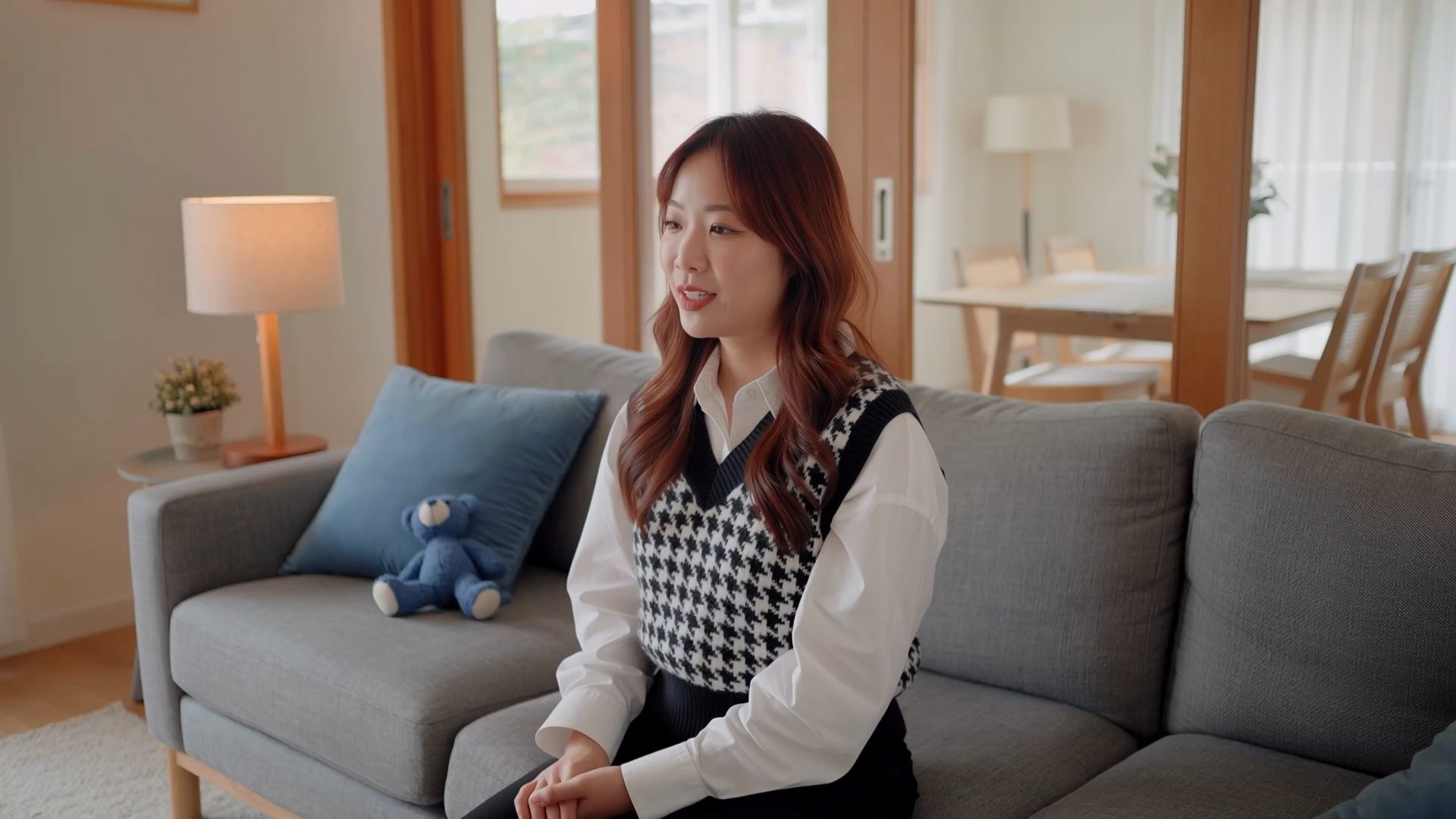
How to Generate Videos in Your Desired Aspect Ratio with Kling AI
Step 1: Add Your Reference Materials
Open Video Generation, select Kling 4.0, and enter Omni Reference. Upload images, videos, or Elements to guide your characters, setting, and visual style. If you have no reference materials, you can start directly with a text prompt.
Step 2: Describe Your Scene and Composition
Write a prompt describing your scene, subject placement, actions, and camera movements. Use @ to reference uploaded assets and specify their roles. Consider your intended aspect ratio and how subjects and movement should fit within the frame.
Step 3: Select the Aspect Ratio and Generate
Choose your desired aspect ratio from Auto, 9:16, 3:4, 1:1, 4:3, 16:9, or 21:9. Set the video duration and output resolution, then click Generate. Preview the result to check the framing, subject placement, and movement. Refine your prompt if needed, then download your video.
Reference Image 1 | Reference Image 2 | Reference Image 3 | Generated Result |
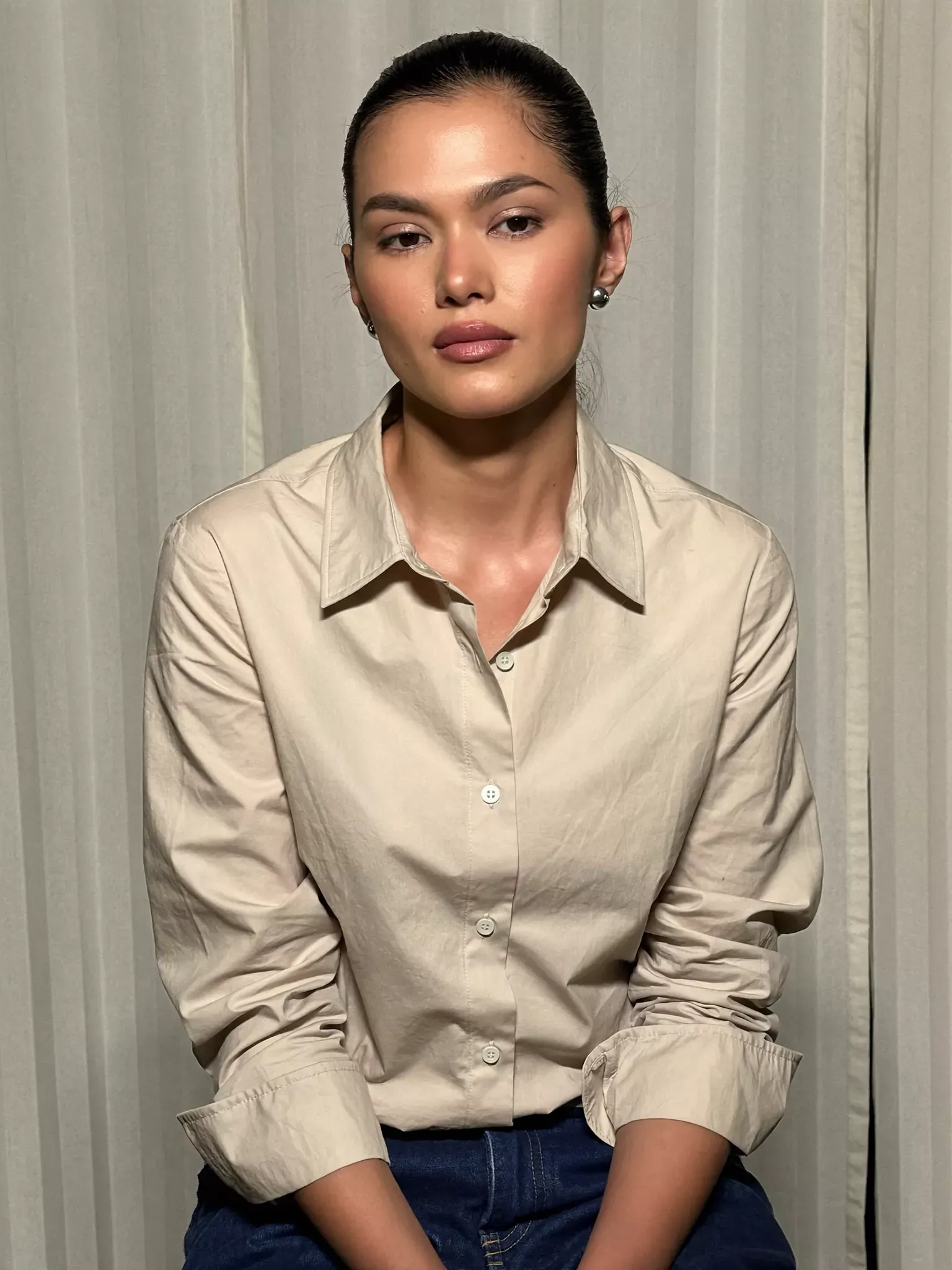 | 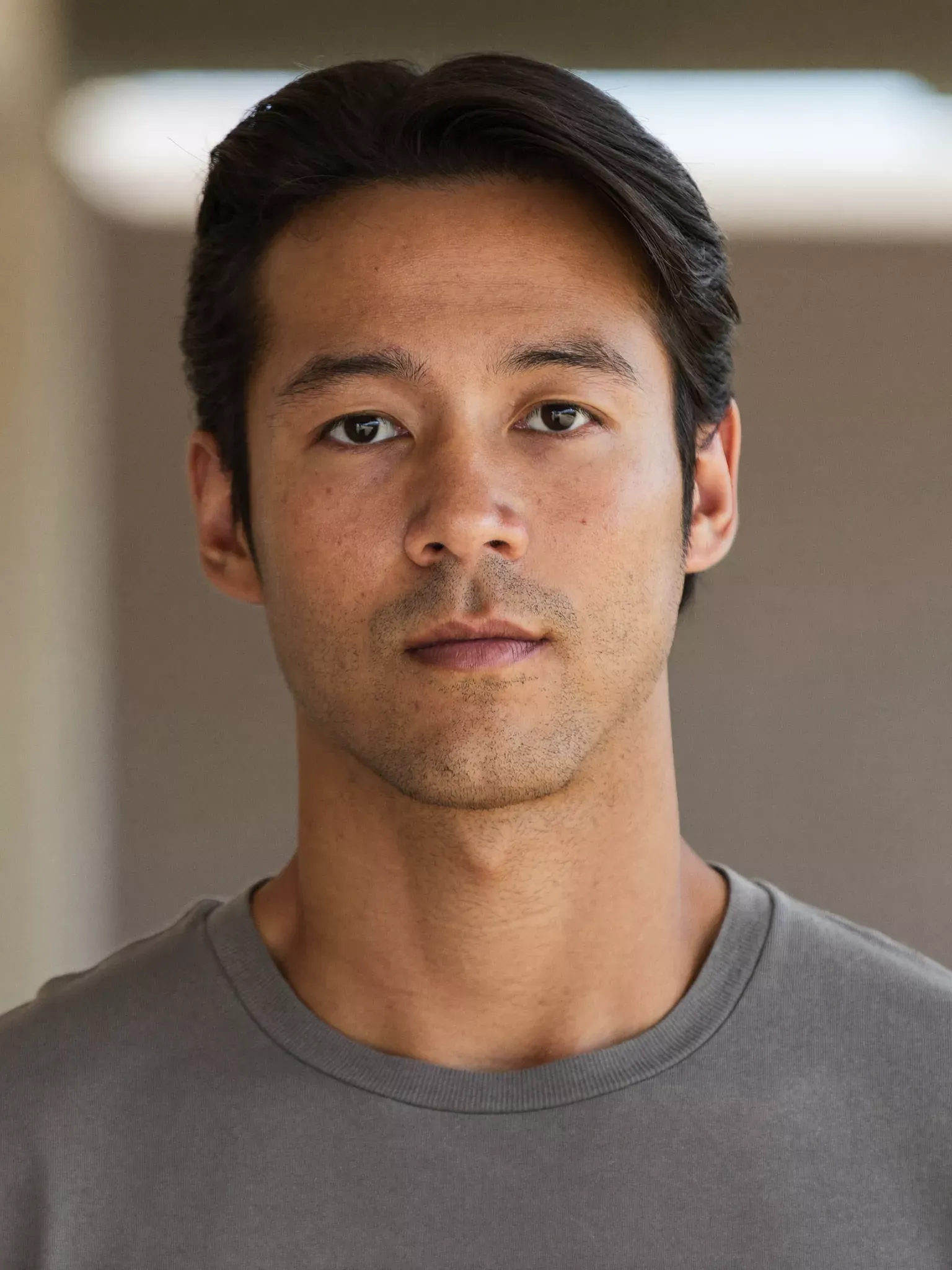 | 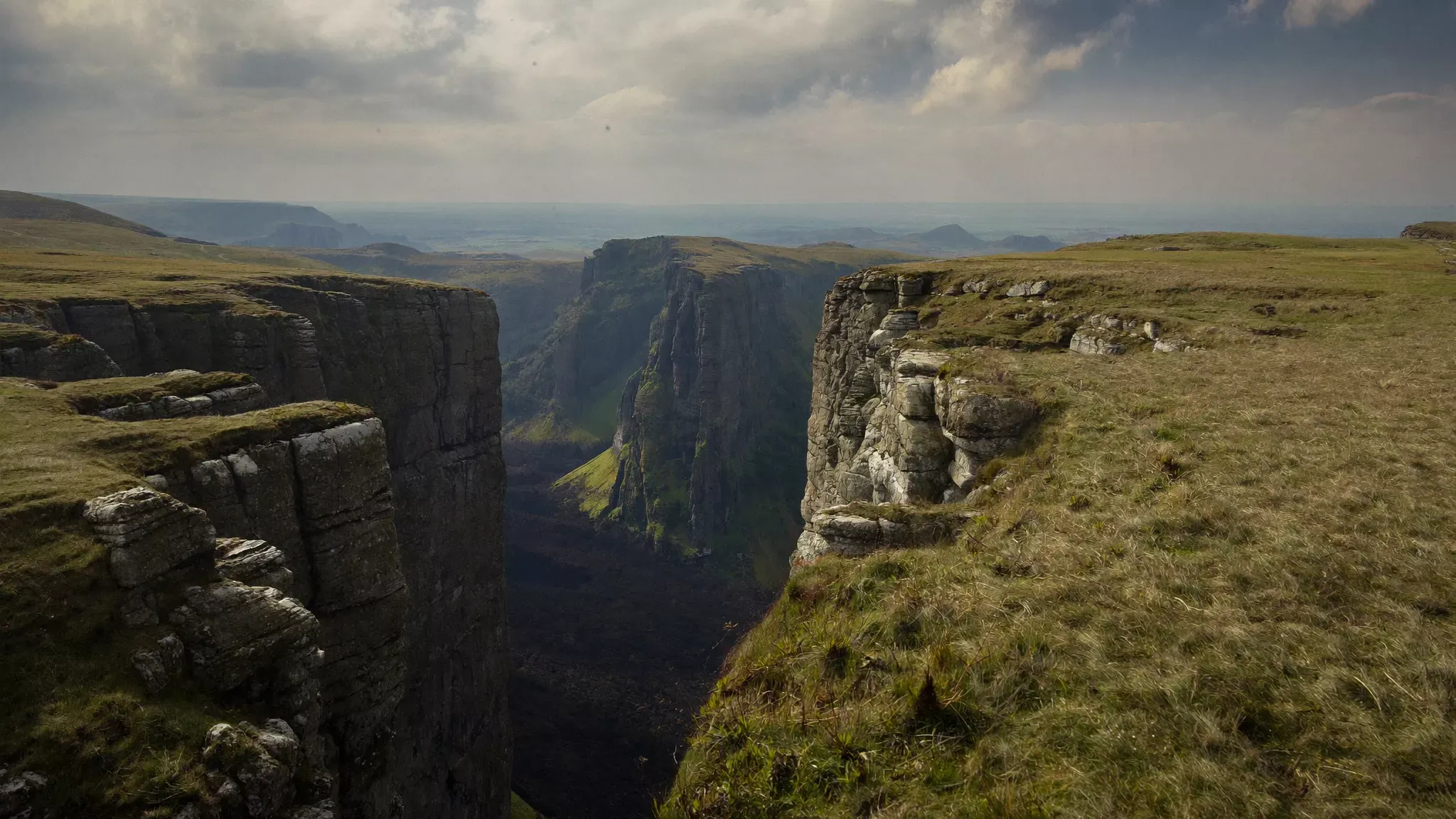 | 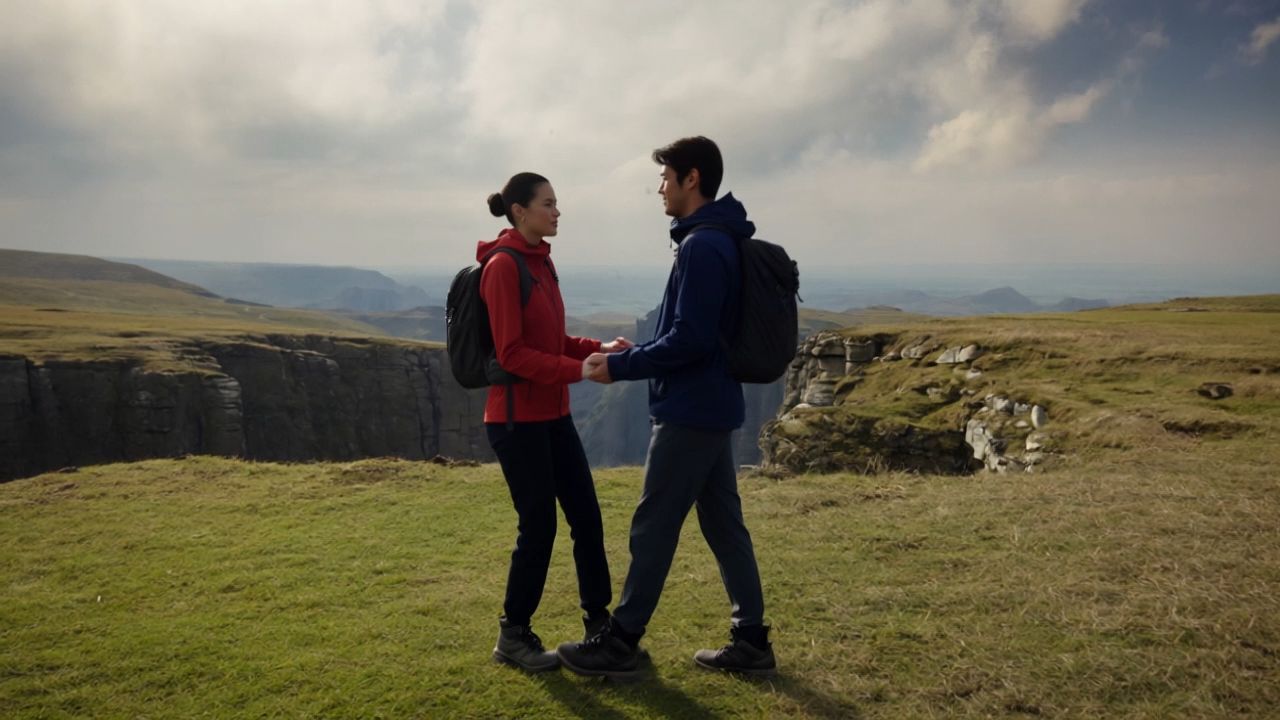 |
| Prompt: Use image1 as the male protagonist, image2 as the female protagonist, and image3 as the background of the video. Have the male and female characters hold hands and smile face-to-face at the top of the cliff. | |||
Tips for Preparing Your Video Frame
A few early choices give the frame a purpose before you start creating. The screen, the subject, and the movement all help you find a shape that feels comfortable for the scene.
Calculate the Ratio and Pixel Dimensions
To find the aspect ratio of an image, simplify its width and height together: 1920 x 1080 becomes 16:9 when both numbers are divided by 120. The same ratio describes the frame at larger or smaller pixel dimensions.
A 2:3 aspect ratio in pixels includes sizes such as 1000 x 1500 and 2000 x 3000. Multiplying the width by 3/2 gives the matching height; multiplying the height by 2/3 gives the width.
The Viewing Experience
The viewing experience is a good place to start. A horizontal frame gives scenery, groups, and side-to-side action room to unfold, while a vertical frame brings faces, full-body poses, and upward movement into focus. The aspect ratio of a film also helps establish its visual language, from a contained composition to an expansive landscape.
Space for Subjects and Movement
It helps to picture where the action begins and ends. Room beside a moving subject gives the camera somewhere to follow, while open areas support titles or graphic details. Thinking about the entire movement, rather than one attractive frame, gives the shot a more comfortable rhythm.
Conclusion
Aspect ratio gives your picture a shape; composition and movement give that shape a purpose. Once you know how the video will be watched, you can plan what fills the frame and how the story moves through it. With an AI video generator, those choices become part of creating the scene, from the first idea to the version that feels right.
FAQs
What Aspect Ratio Is Best for AI-Generated Videos?
The best choice follows the video you are creating: 16:9 for horizontal viewing, 9:16 for mobile shorts, and 1:1 for a square feed. In AI generation, choosing the frame early gives your prompt a clearer visual direction. Describe where the subject sits, how much of the setting appears, and where the movement needs room to unfold.
Does Changing the Aspect Ratio Improve AI Video Quality?
No. Changing the ratio changes the frame's shape rather than adding detail. Choose composition and output resolution as separate decisions when generating an AI video. For footage that needs a clearer visual treatment, video enhancement lets you refine lighting, color, and detail using the existing clip as a starting point.
How Should I Describe Framing in an AI Video Prompt?
Describe the subject's position, how much of the setting is visible, and where the movement travels. For a vertical clip, that means planning the space above and below the subject; a horizontal composition gives more room beside them. In Kling 4.0, connect those directions to the roles of your reference materials so the framing and action work together.
Can I Use the Same References for Horizontal and Vertical AI Videos?
Yes. You can reuse character, product, and style references to guide separate horizontal and vertical generations. Keep the defining visual details in your instructions, then describe a composition and camera path for each frame. In Kling 4.0, give each reference a clear role so the new versions share a visual direction while the subject placement and surrounding space change.
Which Aspect Ratios Can I Use with Kling 4.0?
Kling 4.0 supports multiple aspect ratios, including 9:16, 3:4, 1:1, 4:3, 16:9, and 21:9, along with an Auto option. Choose 9:16 for vertical social media videos, 16:9 for YouTube and product demonstrations, or 21:9 for cinematic storytelling. You can also use 3:4, 1:1, or 4:3 for different portrait, square, and classic compositions. Simply select your preferred aspect ratio in the generation settings before creating your video.