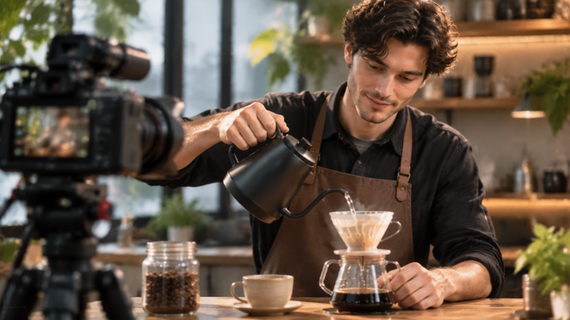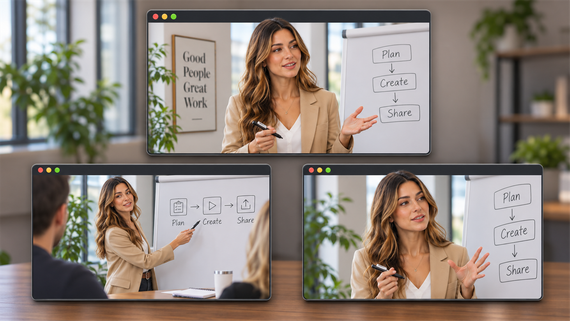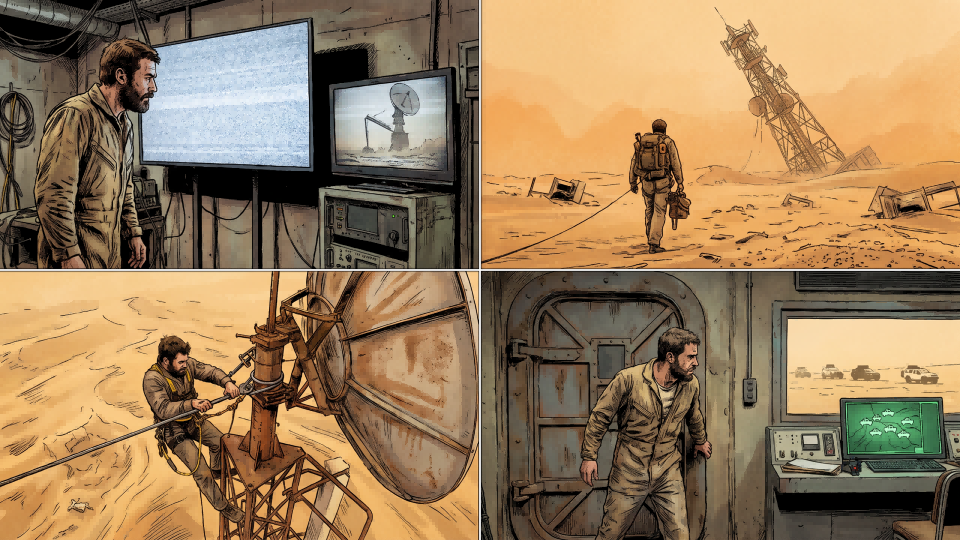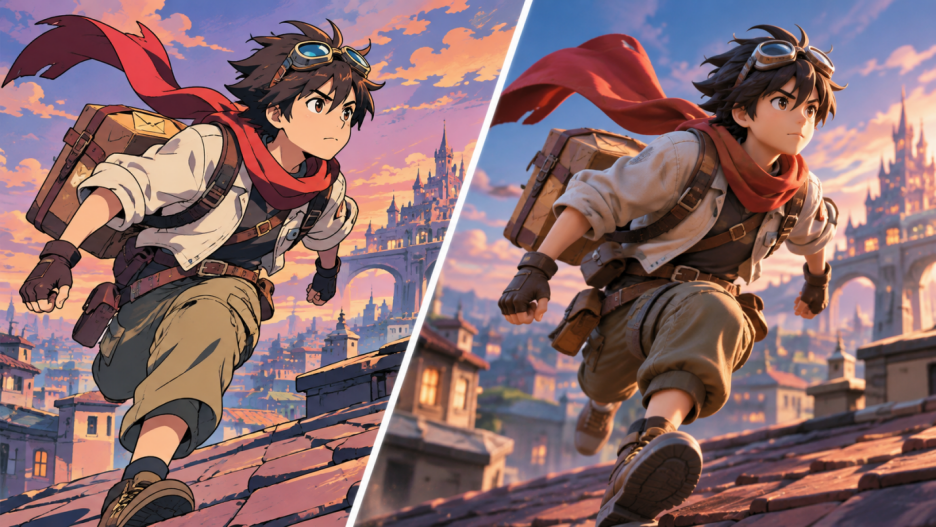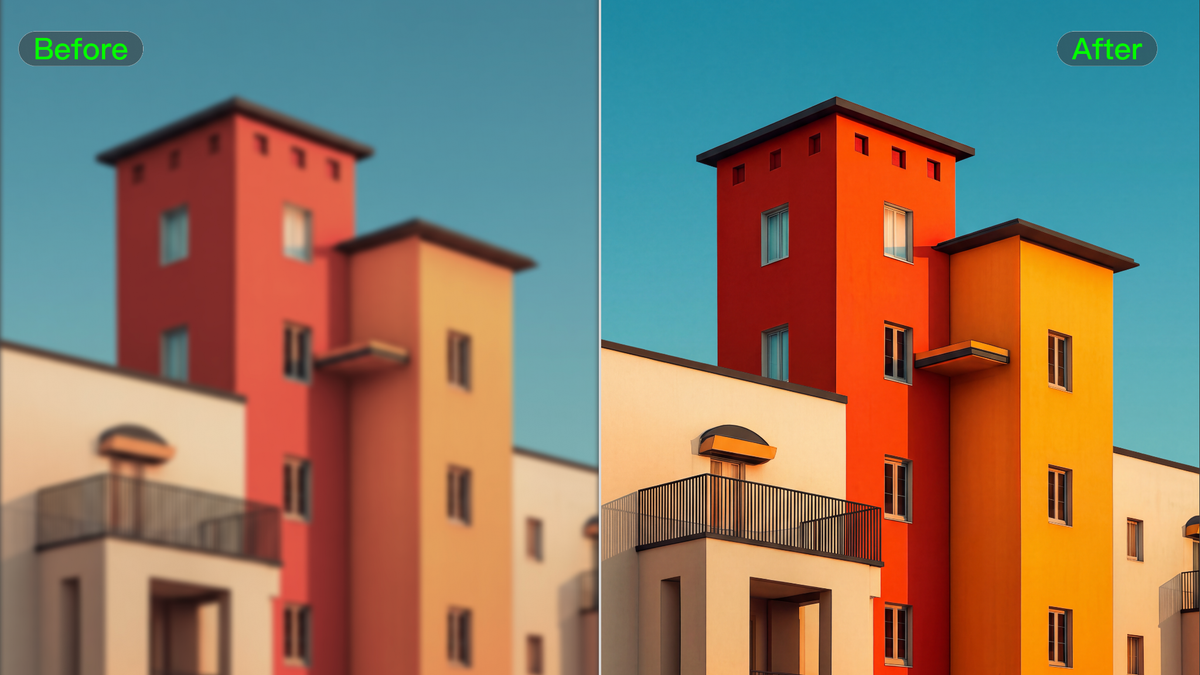
A product photo looks crisp on your phone, then turns soft across a website banner. AI upscaling helps bridge that size gap. This guide explains how it works and when to use it, then explores how Kling AI helps you develop detailed images when the brief also calls for a new composition or finish.
What Is AI Upscaling?
AI upscaling uses a trained model to increase an image's resolution, adding predicted detail as it builds the larger version. It is useful when a photo, illustration, or product image has the composition you want but needs more pixels for its next placement.
How Does AI Upscaling Work?
An AI upscaler analyzes visible edges, shapes, and textures, then predicts additional pixels that fit those patterns. A fabric surface may gain a more defined weave, while a diagonal outline can look cleaner. The output combines a larger pixel grid with estimated detail, so its appearance depends on the source image and the model.
When Is AI Upscaling Useful?
AI image upscaling is useful when the source already has the composition you want and needs more usable resolution. These common projects show where it helps.
When to Use It | Who It Helps | What AI Upscaling Adds |
A product photo is too small for a listing or campaign. | E-commerce and brand teams | More pixels and clearer-looking edges and textures. |
A portrait or illustration needs a larger placement. | Photographers, artists, and designers | A larger image with more defined features or linework. |
An image needs to fit a print or large display. | Print designers and marketing teams | Additional pixels for the intended output size. |
When the composition already works, AI upscaling can help prepare it for a larger placement. A project that also calls for new lighting, a different setting, or a fresh layout gives you another starting point: creating a high-resolution original from references.
When AI Upscaling Alone Isn't Enough
AI upscaling is useful when an existing image simply needs more pixels. However, when facial features lack definition, material textures appear blurry, or small text is difficult to read, increasing resolution alone may not deliver the desired result. You may also need to refine specific details or recreate the image for a new purpose.
At Kling AI, we bring AI image and video generation and editing into one creative platform. Our latest image creation model, Kling Image 4.0, helps you recreate existing images with native output up to 8K, enhanced realism, precise prompt understanding, and multi-image references, giving you greater control over image quality and visual details.
Enhance and Recreate Images in Native 8K with Kling Image 4.0
Beyond increasing image resolution, Kling Image 4.0 gives you greater control over image quality, visual details, and creative expression. Whether you want to recreate a low-resolution image with finer details or transform an existing visual for a new purpose, our model offers several ways to develop high-resolution content.
Create Native 8K Images with Photographic Realism
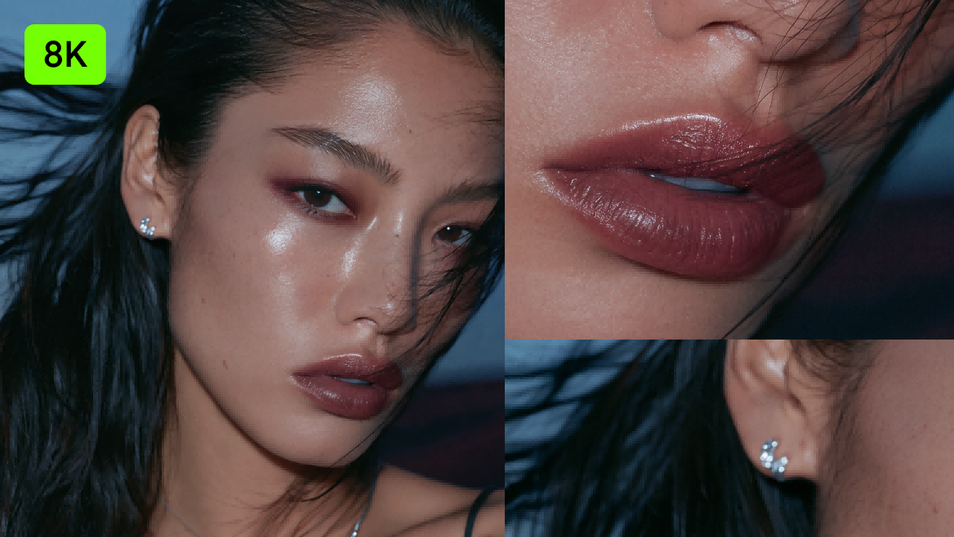
Low-resolution images can lose visual clarity when used for large displays, posters, or close-up crops. Simply increasing their dimensions may still leave facial features, material textures, and fine edges looking soft.
Kling Image 4.0 supports native 2K, 4K, and 8K image generation for standard images, allowing you to recreate existing visuals with finer details. Enhanced photographic realism brings natural lighting, refined skin textures, and realistic material surfaces to the result. Native 8K output also gives you more flexibility for large-format displays, print, and post-production cropping.
Refine Image Details with Precise Prompts
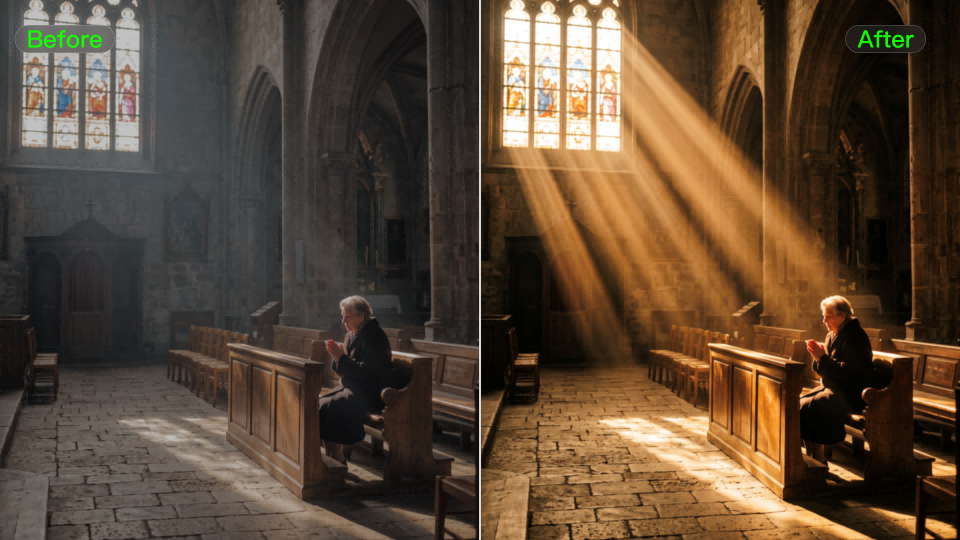
Increasing resolution alone may not address every visual issue. Facial features, individual strands of hair, fabric patterns, product edges, and surface textures may require further refinement to appear clear at larger sizes.
With advanced prompt understanding and support for up to 15,000 tokens, Kling Image 4.0 combines image generation and image editing capabilities to give you greater control over these details. You can specify which areas need improvement, describe the desired textures and lighting, and guide the model to retain the original subject, composition, and other important visual elements.
Preserve and Recreate Visual Details with Multi-Image References
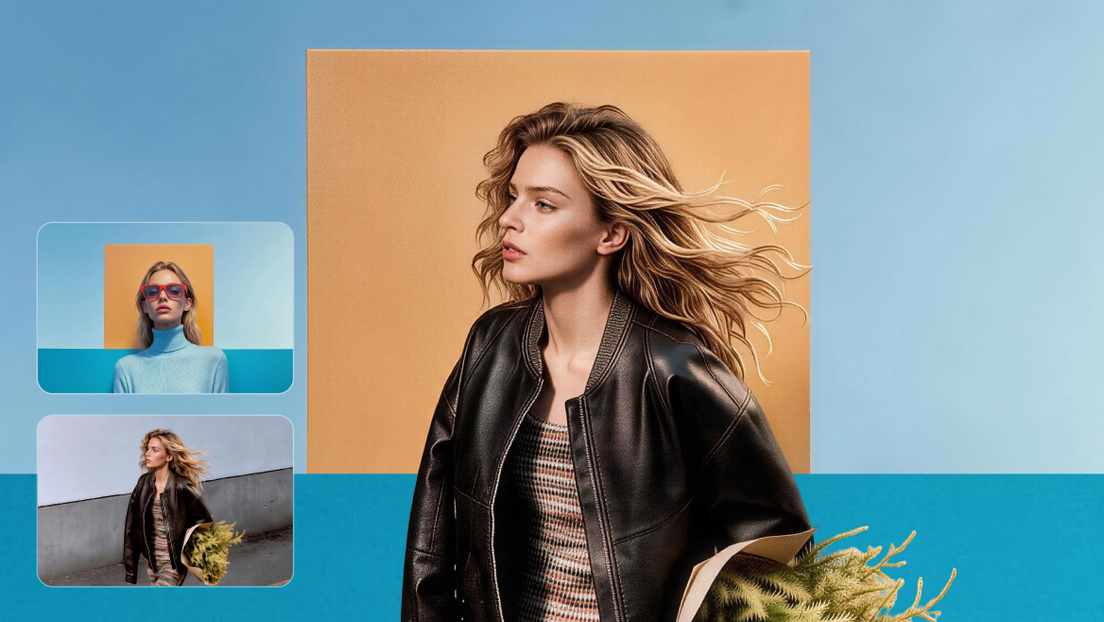
When recreating an existing image at a higher resolution, maintaining recognizable visual features can be just as important as improving clarity. Additional references can help guide details that are difficult to distinguish in the original image.
Our image-to-image generation capabilities with Kling Image 4.0 support up to 10 reference images. Use the original image to establish the overall composition and provide additional close-up references to guide facial features, product shapes, clothing textures, colors, and accessories. You can also combine these references to develop new high-resolution compositions while maintaining recognizable subject features.
Improve Text Clarity and Typography
For posters, product packaging, and promotional graphics, AI upscaling may increase image resolution without fully resolving blurry lettering or poorly defined text. Recreating these visuals with precise text instructions offers another way to improve readability.
Kling Image 4.0 supports up to 2,000 characters of text in a single image, offers 70+ preset fonts, and allows you to upload font references. By specifying the exact wording, font style, text placement, and visual hierarchy, you can recreate high-resolution graphics with clearer small text, refined lettering, and more controlled layouts.
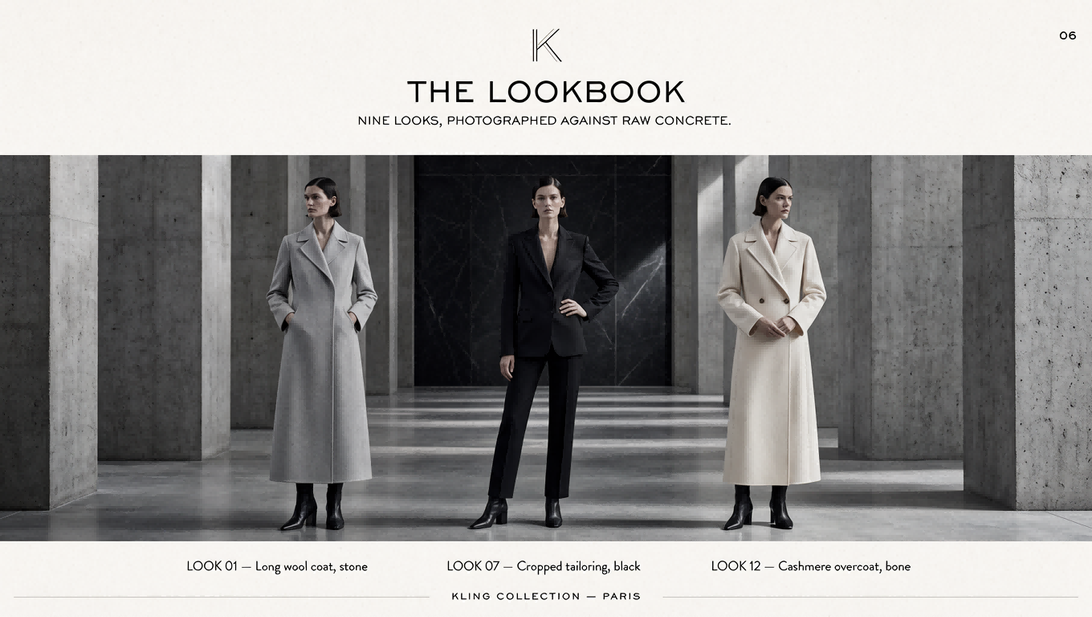
Transform Existing Images for New Creative Uses
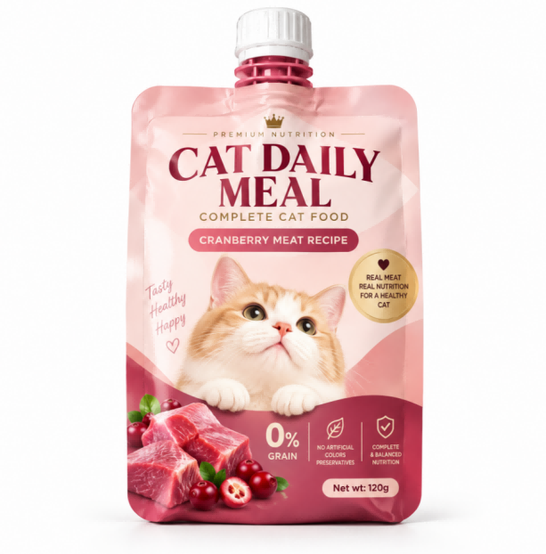
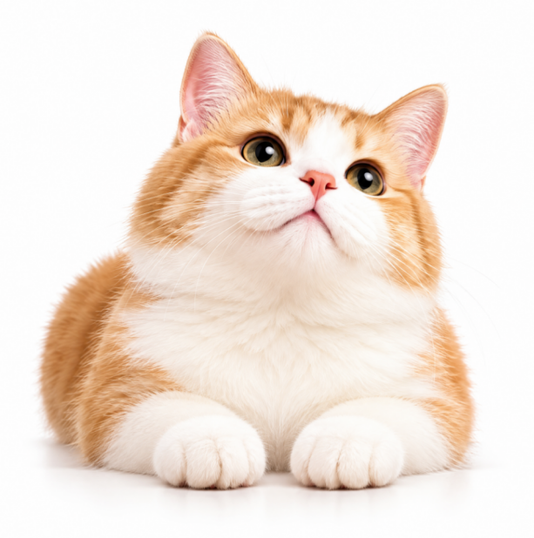
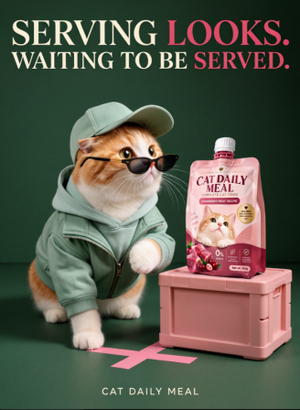
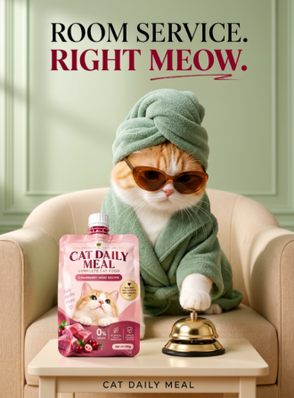
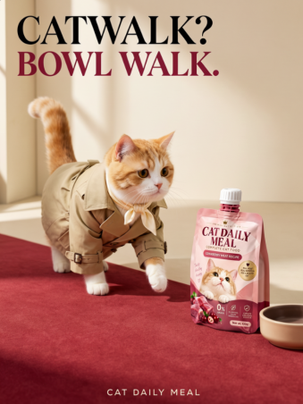
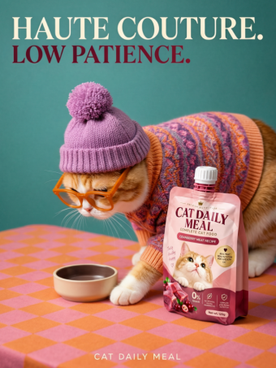
An existing image may need more than a resolution upgrade to suit a new project. A simple product photograph, for example, could become a campaign visual with a new background, refined lighting, supporting props, and a more engaging composition.
With Kling Image 4.0, our AI image generator allows you to transform existing images into new high-resolution visuals by adjusting backgrounds, colors, lighting, compositions, and visual styles. You can also generate a series of up to 10 related images from a single prompt, maintaining consistent subject features and visual styles across different scenes and compositions. This helps you repurpose existing assets into coordinated visual content for marketing campaigns, e-commerce displays, and social media.
Input Images | |||
 |  | ||
Product Showcases | |||
 |  |  |  |
How to Generate High-Resolution Images with Kling AI
Beyond enhancing existing images, you can use Kling Image 4.0 to create entirely new high-resolution visuals from text prompts or image references in three simple steps.
Step 1: Add Reference Images (Optional)
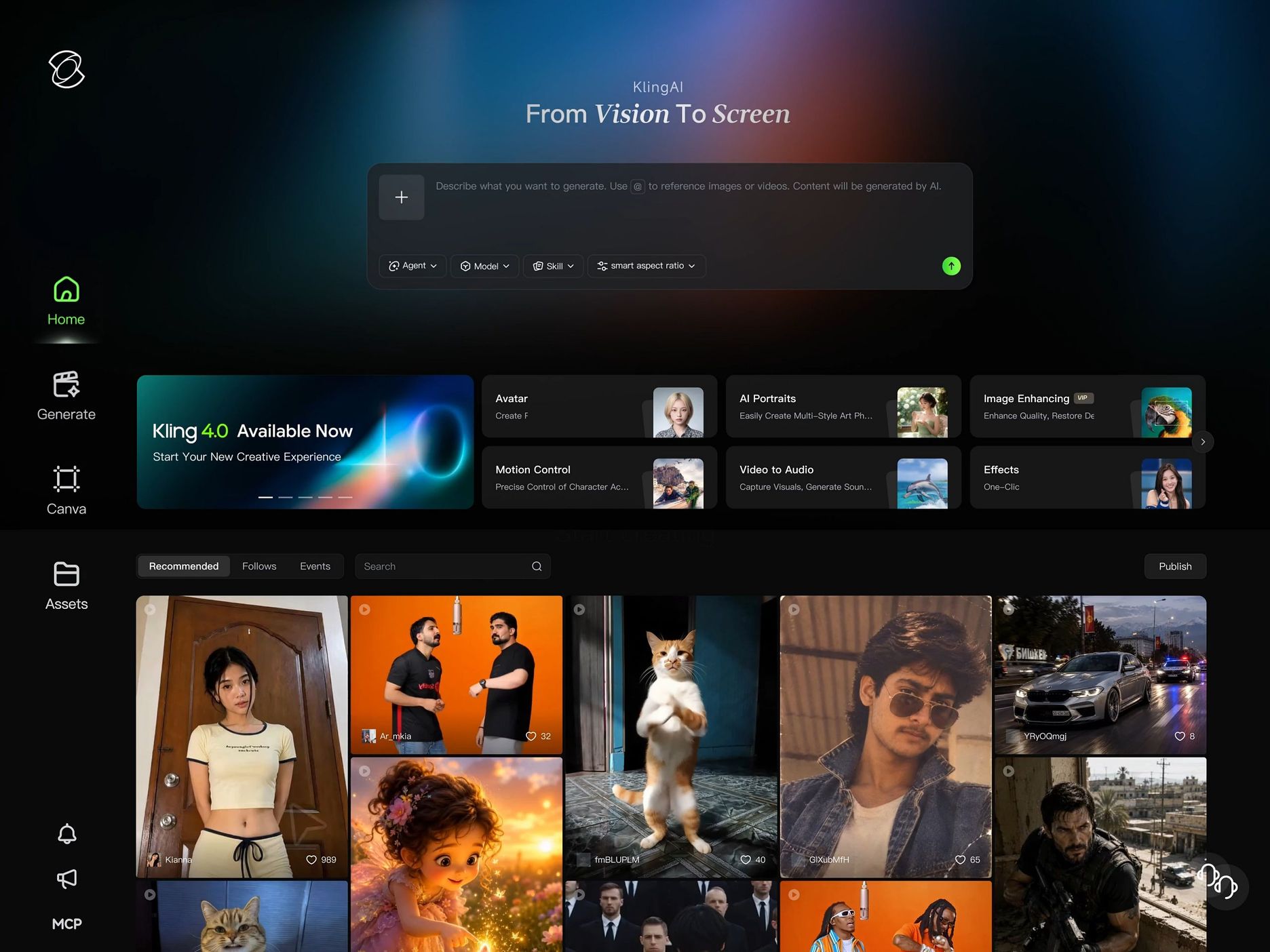
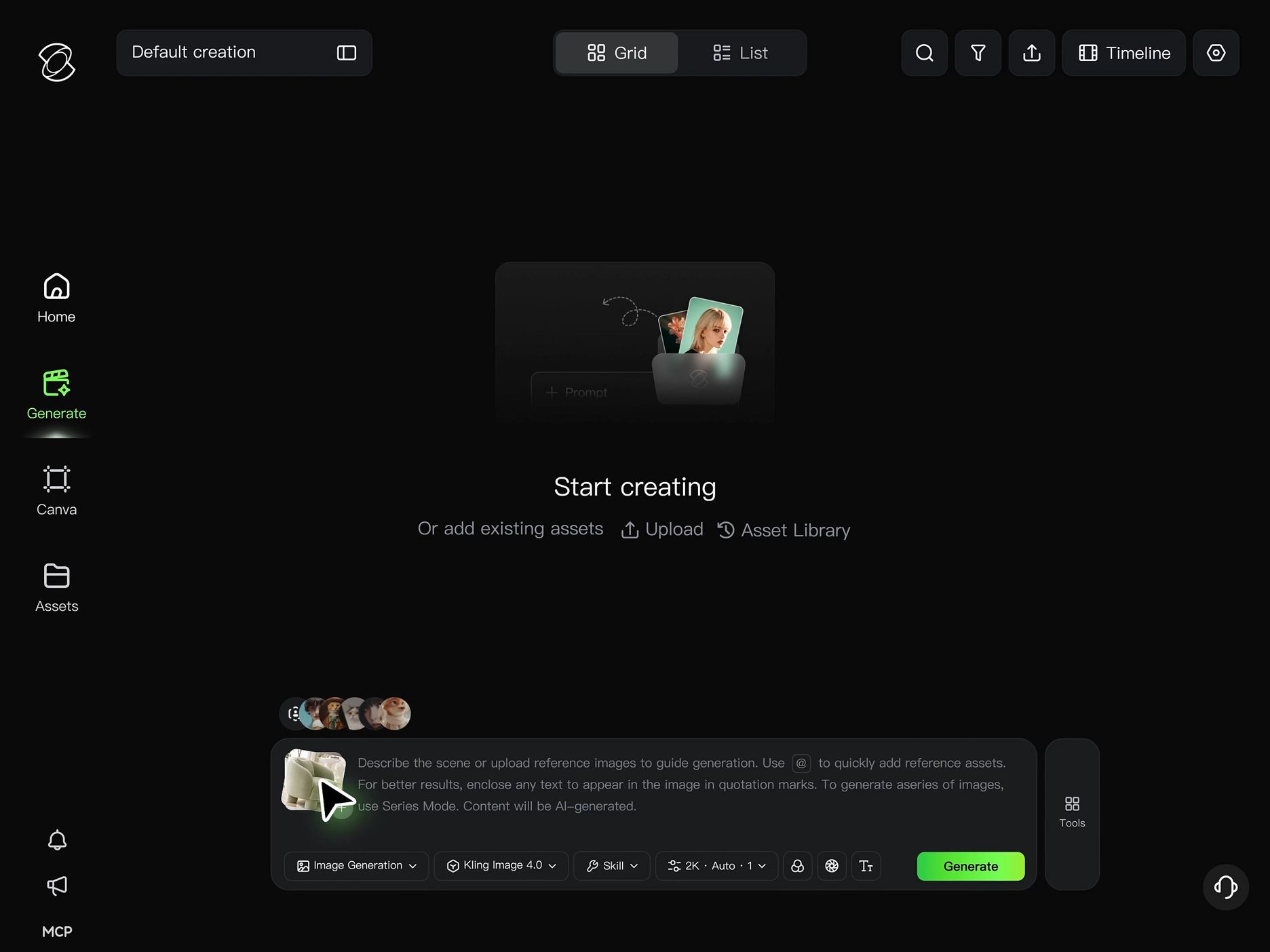
Open Kling AI image generation and select Kling Image 4.0. If you have existing visual materials, upload up to 10 reference images to guide the subject, composition, style, or other details. Otherwise, you can start directly with a text prompt.
Step 2: Write Your Prompt
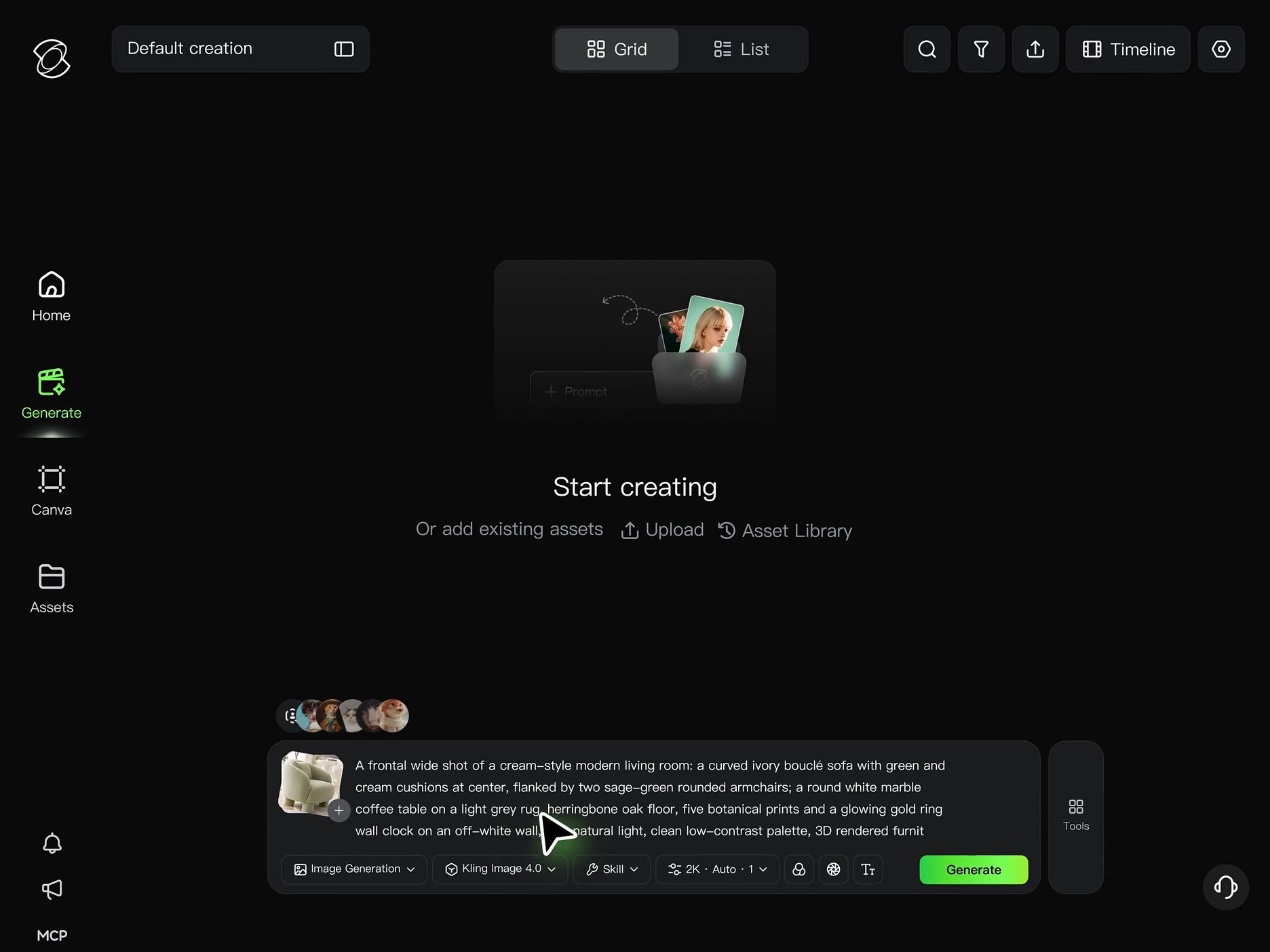
Describe the subject, setting, composition, lighting, textures, and visual style you want to create. If you are using reference images, specify which features to retain or modify. For a series of images, describe the overall theme and the variations you want across the set.
Step 3: Generate and Download Your Images
Choose between single-image and series generation, then select your preferred aspect ratio and available resolution, up to native 8K for standard images. Generate your images, review the visual details, and download the results.
Step1 | Step2 | Step3 |
  |  |  |
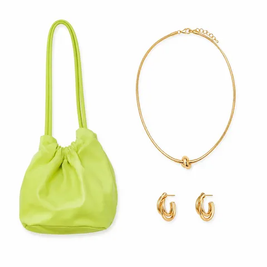
Model and Setting References | Clothing and Accessory References | Generated Result |
 | 
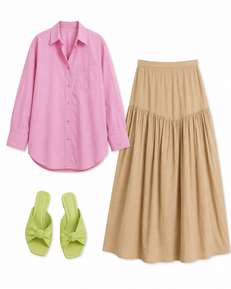 | 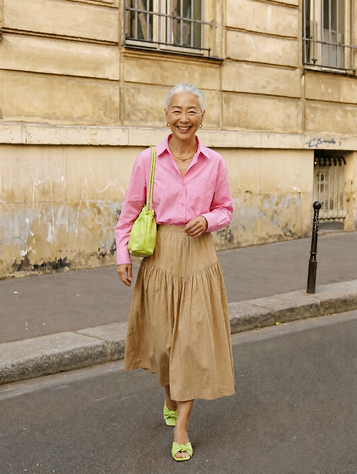 |
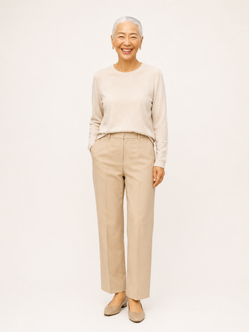
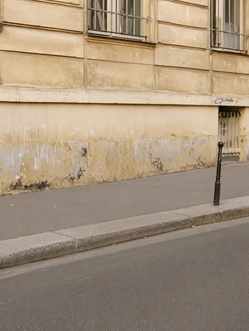
Prompt: Create a full-length fashion campaign photograph. Use Image1 for the woman's face, silver hair, and natural smile, and Image2 for the stone street setting. Dress her in the pink collared shirt and beige tiered skirt from Image4, with the lime-green shoes shown there. Add the lime-green bag, necklace, and earrings from Image3. Keep the garments' colors, cuts, and fabric appearance consistent with their references. Show her walking naturally toward the camera with her entire outfit and both shoes visible. Use soft daylight, realistic skin texture, and clearly defined fabric folds. Compose a vertical 3:4 image. | ||
Tips for Preparing Images for Web and Print
- Prepare the source image. An image enhancer can help improve the clarity of an existing photo. When enlarging a finished image, choose the scale factor around the required output dimensions, then compare faces, lettering, and textures with the original.
- Export a separate web copy. Resize the delivery image to the site's requested dimensions, then adjust compression to reduce file size while keeping garment texture, product edges, and text readable.
- Check pixels against the destination. For 4K AI upscaling intended for a 16:9 UHD screen, the target is 3,840 by 2,160 pixels. For print, multiply the dimensions in inches by the requested pixels per inch: an 8-by-10-inch print at 300 PPI needs 2,400 by 3,000 pixels.
- Check a print proof before the full run. For a product catalog or poster, ask the printer for a proof on your chosen paper. Assess product color, surface texture, and shadow detail at the intended print size.
- Keep a high-resolution master. Retain the original for future crops and print work.
The End
AI upscaling helps an existing image hold up at a larger size. When the next version also needs new lighting, a different setting, or a fresh composition, Kling AI offers a reference-guided creative path with native high-resolution output. Start with the details worth keeping, picture where the image will appear, and build the version your project needs.
FAQs
Is AI Upscaling the Same as Gen AI?
They overlap, but describe different things. AI upscaling is a task that increases an image's resolution; generative AI can create or transform visual content. Some upscalers use generative models. Kling Image 4.0 creates new images from text and references, while our AI photo editor workflow supports creative changes to existing visuals.
Is There a Free AI Upscaler?
Yes. Some online AI upscalers offer free image enlargements, while others provide a limited trial or a small number of free exports. Look at the downloadable result: its pixel dimensions, watermark status, and file format matter more than the preview. A free option is useful when those exports meet your project's needs.
Can You Upscale an Image Without AI?
Yes. Standard image editors enlarge images with resampling methods such as bicubic interpolation, calculating new pixel values from neighboring ones. This is useful for straightforward resizing and does not require a learned model. The best choice depends on the image: clean graphics and photographs may need different resampling settings to keep edges and gradients looking smooth.
Which Is the Best AI Upscaler?
When choosing an AI upscaler, consider the images and workload you handle. For occasional photos, a simple web interface may be enough; large catalogs benefit from batch processing and suitable export formats. Compare tools on the same files, including a portrait, textured product, or illustration relevant to your work, and judge the downloaded result.
Is an AI Image Upscaler Safe?
The relevant question is how a service handles uploaded files. Look for clear information about storage, deletion, sharing, and any use of images for model training. For unreleased products or private portraits, choose a service whose terms fit the project and upload only images you are authorized to use.