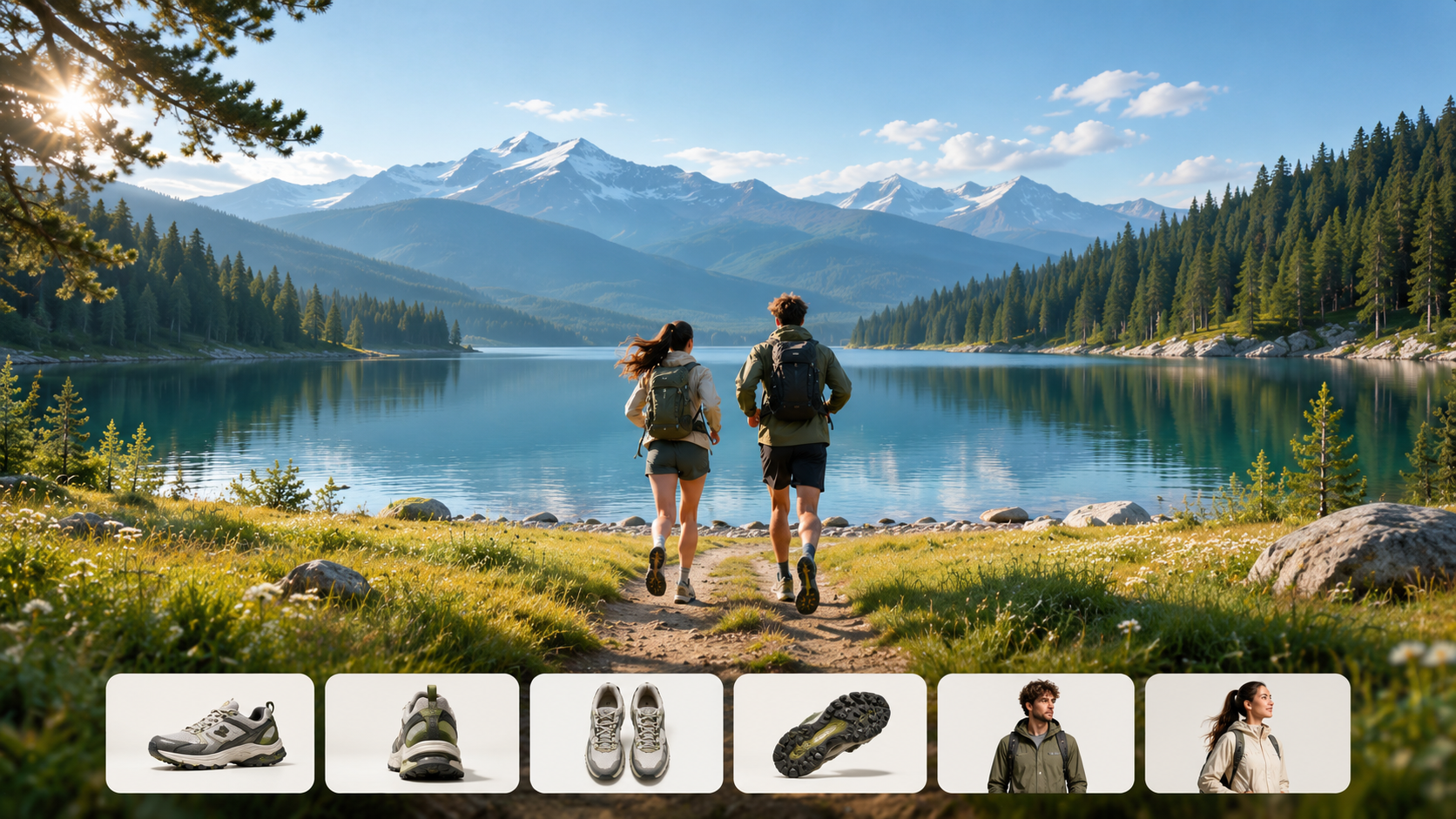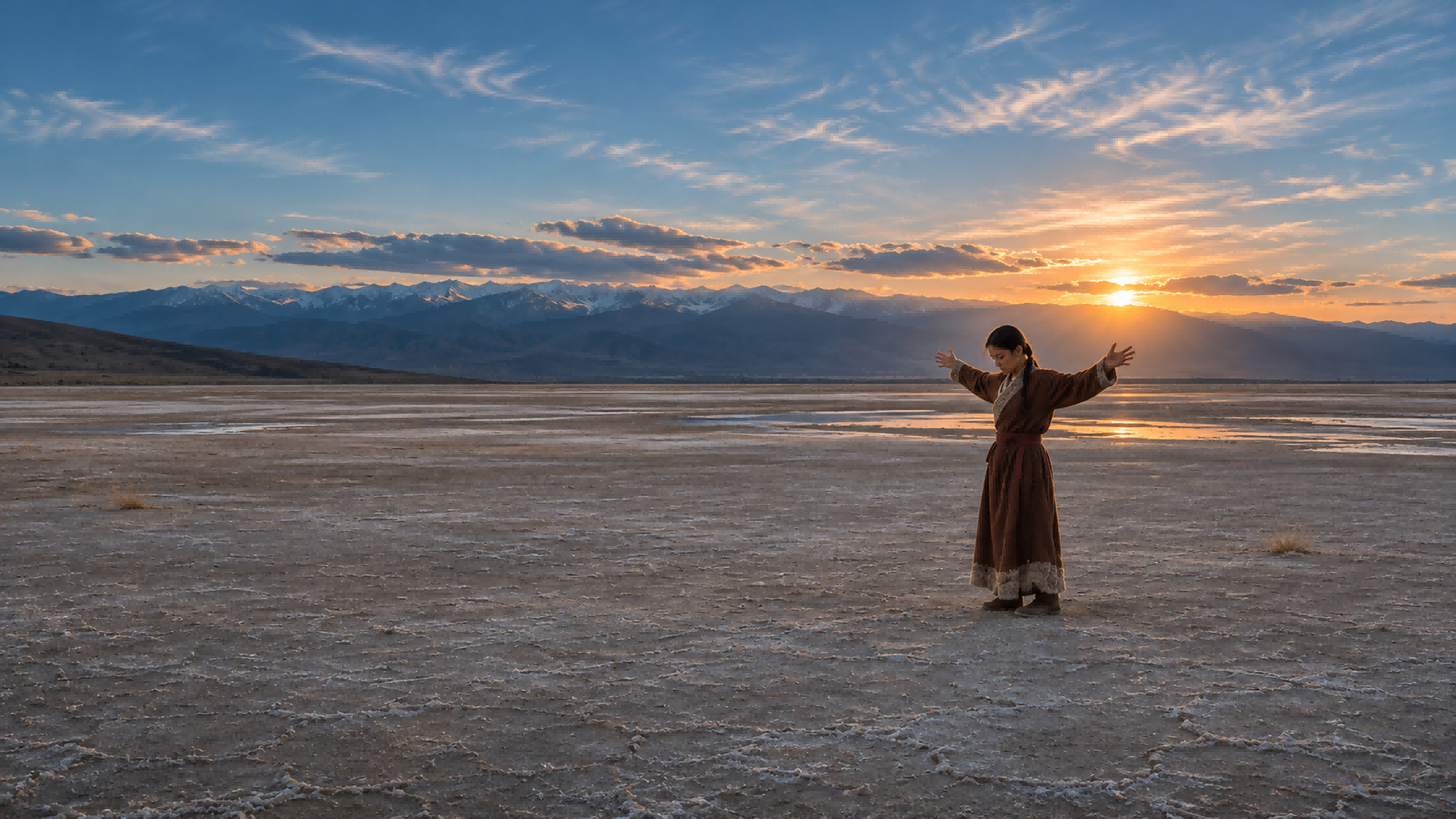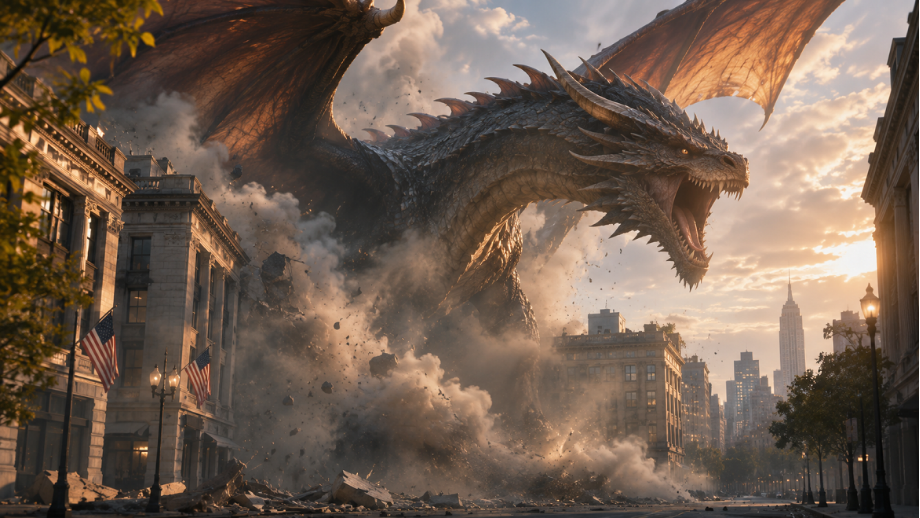
An ordinary street can become a ruined city, and a creature can emerge through a wall of smoke. Both rely on visual effects, but the techniques behind each shot can look very different. If you're wondering what VFX stands for, you'll find the essentials here: how VFX differs from CGI and practical effects, which techniques make shots convincing, how artists build them, and how to generate videos featuring visual effects in Kling AI.
What Is VFX?
VFX stands for visual effects. Artists create, remove, or alter imagery digitally for film and video. They may place a CGI creature beside an actor, extend a real set, or erase a stunt wire. This VFX definition covers spectacular scenes and subtle corrections that audiences rarely notice.
Some of the most common uses of visual effects include:
- Creating locations and characters: Add digital creatures or extend a physical set.
- Enhancing action: Add smoke, fire, rain, crowds, or debris.
- Changing settings: Move a filmed subject into a different environment.
- Cleaning up footage: Erase wires, rigs, or distracting signs.
VFX vs. CGI vs. SFX: What Is the Difference?
These terms describe different parts of filmmaking. CGI refers to imagery created with computer graphics, and crews create practical special effects, or SFX, physically on set. VFX often combines digital imagery with live-action footage, but artists can also create entire digital scenes.
Term | Meaning | Example |
VFX (Visual Effects) | Digital creation or alteration of imagery, often combined with live-action footage | Adding a digital dragon to a filmed mountain scene |
CGI (Computer-Generated Imagery) | Images or objects created digitally using computer graphics | A 3D animated vehicle or fully digital character |
SFX (Special Effects) | Physical effects created during filming | A practical explosion, artificial rain, or a mechanical prop |
How Does the VFX Process Work?
Professional VFX projects usually move through planning, digital asset creation, tracking, and compositing. Teams may combine stages when a shot uses both filmed footage and digital elements.
Alongside traditional workflows, AI video generation offers another way to create and refine scenes featuring visual effects. At Kling AI, we offer AI video generation and editing tools that help you bring complex visual ideas to life. Our Kling 4.0 model can generate effects-rich scenes from prompts and visual references or modify existing footage. With Omni Reference, you can combine up to 15 reference assets, including images, videos, Elements, and voice references, to guide characters, environments, actions, and camera movements while maintaining subject consistency. Improved stability during large-scale action and complex camera movements helps visual effects unfold more coherently. With videos up to 30 seconds long, you also have more room to develop complete visual sequences with a clear beginning, progression, and ending.
1. Plan the Effects Shot
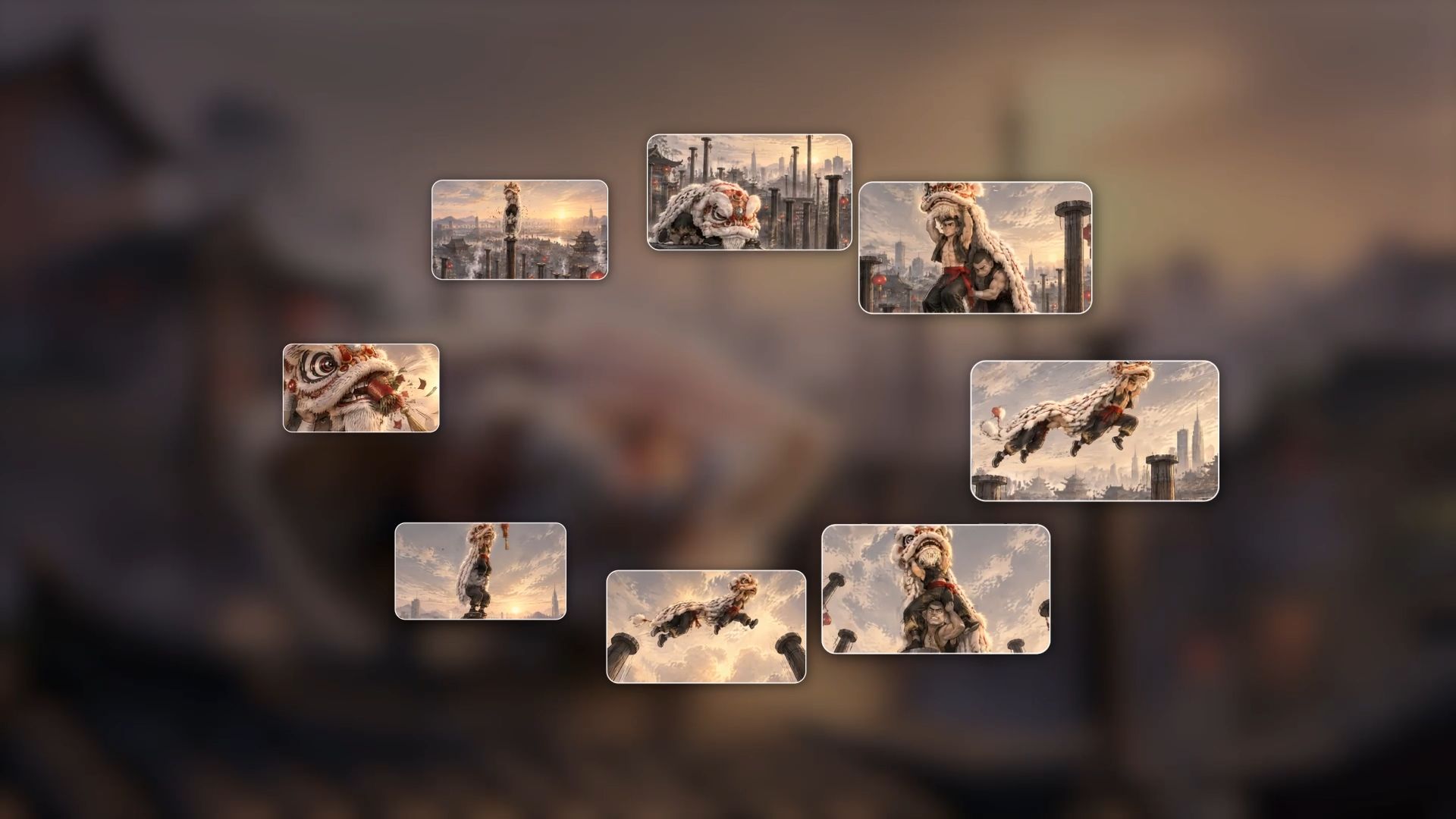
Before a shot begins, teams decide what to film and what to add digitally. Storyboards map the action, lighting, and camera path. AI video generation can help you explore these ideas by turning scene descriptions into moving shots with visual effects. This makes it easier to visualize complex action, experiment with camera movements, and refine your creative direction before finalizing the scene.

2. Build Digital Assets and Effects
For shots built from separate digital elements, 3D artists model and animate creatures, vehicles, props, and environments. Simulation artists calculate how smoke, fire, water, cloth, or destruction moves and interacts. A building collapse, for example, might combine an animated structure with simulated debris and dust.
AI video generation offers an alternative approach. With our Kling 4.0 model, you can generate complete scenes featuring explosions, smoke, collapsing buildings, or fantasy creatures without creating every effect as a separate 3D asset. Prompts and visual references help you guide how these effects appear, move, and interact with their surroundings.
3. Track Footage and Isolate Subjects
Motion tracking follows objects through footage, and matchmoving reconstructs camera movement so a digital element stays in the right place. Rotoscoping separates subjects by refining masks over time; chroma keying isolates footage filmed against a uniform green or blue background.
For short clips that need a different setting, a video background remover can isolate a filmed subject and replace the surrounding scene. AI video editing offers another approach. With our Kling 4.0 model, you can use prompts and visual references to modify existing footage, such as replacing backgrounds, changing subjects, or adjusting the visual style while aiming to preserve other parts of the original scene.

4. Composite and Finish the Shot
Compositors combine filmed plates, animated elements, digital environments, and simulated effects. They adjust lighting, color, perspective, and edges so the layers share the same visual space. The final review checks continuity and unwanted artifacts across the entire shot, including movement between frames.
For AI-generated or edited VFX scenes, you should also review lighting, shadows, character consistency, and how effects interact with the environment. If something looks unnatural, you can refine your prompts or references and generate another version before finalizing the shot.
What Makes Visual Effects Look Real?
Even a well-designed digital creature can look out of place if the lighting or camera movement disagrees with the surrounding footage. When reviewing a VFX shot, pay attention to:
- Perspective and scale: Objects need a believable size and position within the environment.
- Light and shadows: The direction, softness, and color of light should agree across the scene.
- Motion and camera movement: A creature or added object should respond consistently as the camera moves.
- Depth of field and motion blur: Moving and out-of-focus details should resemble the rest of the footage.
- Color and atmosphere: Contrast, grain, reflections, and haze help elements feel like part of one image.
These details also matter during the final review. If a shot looks soft or unevenly lit, a video enhancer can help refine its clarity, lighting, and color. Check the result alongside surrounding footage so the finished scene maintains a consistent look.
VFX Examples in Movies and Advertising
VFX in movies can reshape a location, erase an unwanted object, or place a digital character beside an actor. A detective drama might remove modern signs from a period street, and a science-fiction film can extend a small set into a vast city. In commercial video production, similar techniques can surround a product with drifting particles, changing weather, or an imaginary environment.
Scene | Typical VFX Work | What the Audience Sees |
Science-fiction street | Set extension, CGI assets, tracking | An ordinary street becomes a futuristic city |
Period drama | Object removal and digital cleanup | Modern signs and filming equipment disappear |
Fantasy character | 3D animation, lighting, compositing | A digital creature shares the frame with an actor |
Product commercial | CGI, simulation, color matching | A product appears amid stylized particles or weather |
A futuristic street built through set extension becomes a different VFX challenge when a meteor strikes. The approaching meteor casts a growing glow across the buildings, the impact sends debris through the streets, and the camera follows the shockwave as dust spreads across the city. For the shot to feel convincing, these visual effects need to unfold in a clear order, with each change responding naturally to the action.
In advertising, VFX can turn an ordinary product shot into a more imaginative visual experience. For example, a skincare commercial might show water droplets floating around a serum bottle, forming a swirling wave before dissolving into fine mist. Reflections, lighting, and particle movements need to remain consistent as the camera moves, helping the product stand out while keeping the scene visually convincing.
Whether for movies or advertising, convincing VFX depends on how naturally the effects interact with the subjects, lighting, and surrounding environment.
How to Create Videos with Visual Effects in Kling AI
Once you know how an effect should move through a scene, Kling AI can generate the shot from a description and any visual references you want to use. Give the effect a clear beginning, interaction with the surroundings, and natural progression through the clip.
Step 1: Add Your References
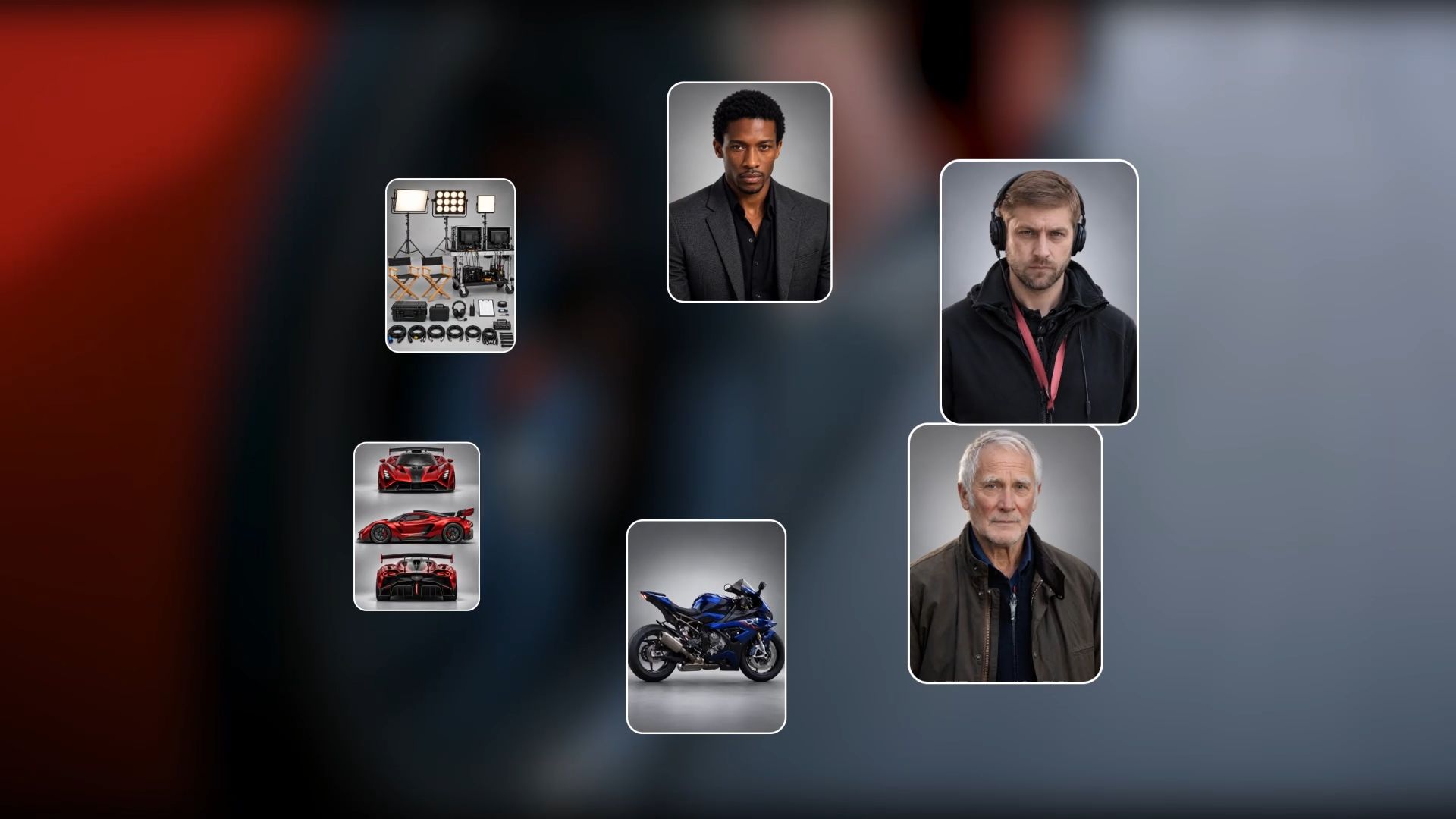
Open video generation in Kling AI and select Kling 4.0. In Omni Reference, a character image can establish a creature's design, a scene image can guide the environment, and a reference video can guide the camera path or action. Choose clear references with useful scale, lighting, and perspective cues so the effect fits the world you want to create. You can also start from text alone when you have no reference material.
Step 2: Write Your Prompt
Describe the effect as an event in the shot: where it begins, how it grows or changes, and what happens when it ends. Explain how the surroundings respond, such as light from a glowing object reflecting on nearby walls or dust spreading after a heavy landing. Include the camera angle and movement so the effect remains easy to follow. If you added references, use labels such as @Image1 and @Video1 to identify what each one should guide. Keep the order of the action clear and focus on effects that belong in the same scene.
Step 3: Generate and Download
Choose your preferred video duration, aspect ratio, and output quality, then generate your video. Preview the result to check that the visual effects, lighting, and movements remain consistent throughout the scene. If anything looks unnatural, refine your prompt or references and generate another version. Once satisfied, download your final video.
Reference Images | Results |
| 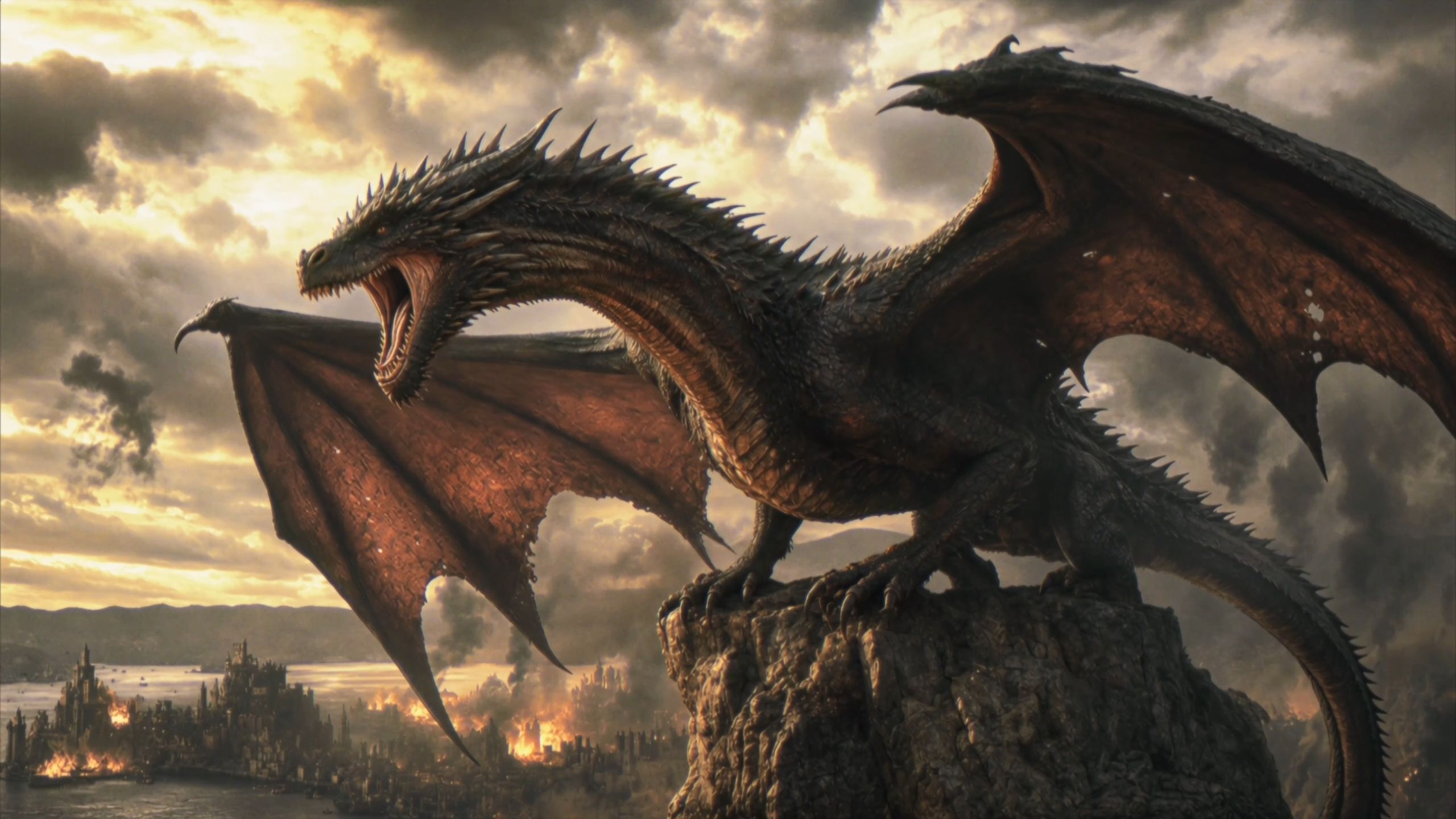 |
Prompt: 1. SCENE CONTEXT: EXACTLY 1 DRAGON — NO DUPLICATES.A 30-second, six-shot dark-fantasy action sequence. A colossal dragon roars, launches from a mountain pinnacle, accelerates toward a burning coastal city, dives between its towers and performs a devastating aerial fire attack. Epic scale, very fast pacing, real-time motion. 2. ACTIVE REFERENCES: controls the burning coastal city, Gothic architecture, harbour, mountain horizon, existing fires, smoke columns, storm clouds and lightning. Controls the dragon’s identity, black-grey scales, red-brown wing membranes, horns, dorsal spines, four legs, two wings, long tail and opening rocky pinnacle. 3. LOCATION MAP: The pinnacle overlooks the coastal city. The harbour lies screen-left, the central castle lies ahead, and the densest burning district lies centre-right. Direction of travel always runs from the mountain toward the city centre. Cameras remain behind, below or on the dragon’s left side without reversing the travel axis. 4. FIRST FRAME AND SPATIAL BLOCKING: The dragon is already crouched on the pinnacle, wings spread, hind legs compressed and head aimed toward the city. Its jaws open for one roar. Fires flicker below; connected smoke columns bend with the wind and the entire storm ceiling visibly moves. 5. FORMAT MODE: Six shots with hard cuts: SHOT 1 — 0.0–4.0s: roar and launch.SHOT 2 — 4.0–9.0s: high-speed pursuit toward the harbour.SHOT 3 — 9.0–13.5s: low flight across the water toward the city.SHOT 4 — 13.5–19.0s: first fire attack between towers.SHOT 5 — 19.0–25.0s: banking pursuit and sweeping fire attack.SHOT 6 — 25.0–30.0s: dragon climbs above the burning city. Cuts are motivated by wing wipes, smoke wipes and close architectural passes. No fades or dissolves. 6. OPTICS SHOT: 1: 24mm, 74° horizontal FOV, low-angle environmental wide.SHOT 2: 18mm, 90° FOV, rear pursuit perspective.SHOT 3: 24mm, 74° FOV, low water-level chase.SHOT 4: 28mm, 65° FOV, roof-height tracking.SHOT 5: 24mm, 74° FOV, close side-rear pursuit.SHOT 6: 18mm, 90° FOV, monumental aerial wide.Moderate-deep focus. Strong natural motion blur on wing tips, water, smoke, embers and nearby buildings. 7. CAMERA: All cameras have obvious physical handheld instability.SHOT 1 rapidly tilts upward as the dragon launches; wing pressure violently jolts the operator.SHOT 2 follows 12 metres behind the tail with intense wind buffeting and rapid vertical vibration.SHOT 3 races just above the water behind the dragon; waves and burning boats whip past the frame edges.SHOT 4 tracks through the street canyon at roof height.SHOT 5 follows the dragon through a hard bank, nearly losing framing as towers pass dangerously close.SHOT 6 pursues upward, then settles into a wide view of the devastated city.No smooth floating or mechanically perfect movement. 8. ACTION TIMING: 0.0–0.8s: The dragon releases one thunderous roar, neck extended and eyes fixed on the city.0.8–2.0s: Hind legs drive into the pinnacle; claws fracture the rock.2.0–4.0s: The dragon launches and performs two powerful wing strokes. Dust and stone explode backward.4.0–6.5s: Hard cut behind the dragon already accelerating at high speed.6.5–9.0s: It folds its legs beneath its body and dives toward the harbour. Smoke streams across its wings.9.0–11.5s: The dragon skims rapidly above rough water. Wing tips nearly touch the waves.11.5–13.5s: It passes burning ships and climbs over the sea wall. A tower wipes across the lens.13.5–15.0s: Hard cut inside the city. The dragon bursts through smoke between Gothic towers.15.0–19.0s: It releases one continuous orange-white fire jet, sweeping across the left row of rooftops while maintaining full speed.19.0–21.5s: The dragon snaps into a hard right bank around the central tower; the tail swings with delayed inertia.21.5–25.0s: Its connected fire stream sweeps across the avenue and strikes the right-side tower. Burning masonry and embers fall behind it.25.0–27.0s: The dragon stops breathing fire, beats its wings powerfully and climbs above the rooftops.27.0–30.0s: It ascends into the storm light and glides over the burning city. The camera widens to reveal spreading flames, smoke columns and the harbour below. 9. PHYSICS: The dragon has immense believable mass despite its speed. Wing strokes originate in the shoulders; membranes stretch under aerodynamic load. The torso, legs and tail react with delayed inertia. Wing wakes tear openings through smoke, disturb water and buffet nearby fires. Fire emerges only from the open mouth as a pressure-driven stream with a white-hot core, orange turbulent edges and visible heat distortion. Buildings ignite progressively at visible impact points. Debris follows gravity and the dragon’s wake. 10. LIGHTING: Cold storm daylight enters from upper-left. Existing fires provide orange underlight beneath the dragon. The fire stream becomes a moving motivated key light, casting travelling highlights over scales, towers and smoke. Sunbeams break through the clouds during the final climb. Preserve detail in the flame core and keep the dragon’s silhouette readable. 11. AUDIO: No dialogue. Synchronized dragon roar, claw scraping, rock fracture, leather-wing thunder, violent wind, wave impacts, burning ships, collapsing masonry, ember hiss and pressurised fire blasts. Epic original score: rapid war drums, low brass ostinato and urgent strings begin immediately. Wordless low choir enters at launch. Percussion accelerates during the chase. Full orchestra strikes with each fire attack, then expands into a dark triumphant finale during the ascent. Roar, wings and fire remain louder than the music. 12. CHARACTER ACTING: The dragon acts with focused predatory intent. Its eyes remain locked on its flight path and successive building targets. During acceleration, its head lowers and shoulders drive aggressively. Inside the city, the neck deliberately guides the fire stream while the tail controls each bank. In the final shot, its chest opens and posture changes from attacking aggression to airborne dominance. 13. STYLE: Grand apocalyptic dark-fantasy cinema, aggressive pursuit photography, monumental scale and battlefield energy. Charcoal and storm blue occupy 60% of the palette, smoke-brown stone 30%, and fire orange 10%. Weathered 35mm film texture with old-photograph softness, organic grain and no digital sharpening. 14. QUALITY: Consistent dragon identity and anatomy through every cut: one head, two wings, four legs and one tail. Stable city architecture, coherent wing cycles, attached mouth fire, volumetric smoke and physically connected destruction. Natural fast-motion blur without ghost copies, anatomy mutation or detached flames. 15. POSITIVE CONSTRAINTS: Exactly one dragon remains visible throughout the sequence. It launches before 2 seconds, reaches the harbour by 9 seconds, enters the city at 13.5 seconds and completes two fast fire-attack passes before climbing away. Every shot preserves the mountain-to-city direction. Strong camera shake communicates extreme speed while the dragon remains readable. City fires continuously emit smoke, clouds visibly travel across the sky, and new destruction appears only where the connected fire stream strikes. | |
The End
Convincing visual effects depend on how naturally digital elements fit the scene, from character movement to lighting and camera motion. Understanding VFX techniques helps you plan these details and create more coherent shots. With Kling 4.0, you can turn creative ideas into effects-rich videos or adjust existing footage to achieve a different visual style. Whether you're working on a fantasy sequence or a product commercial, these possibilities give you more flexibility to shape the final result.
FAQs
What Are the Main Types of VFX?
Common types of visual effects include CGI, compositing, motion capture, and effects simulation. CGI creates digital characters and environments. Compositing combines footage and digital elements, motion capture records performances for digital characters, and simulation creates effects such as fire, smoke, and water.
Will AI Replace VFX Artists?
AI can generate effects-rich videos and modify selected footage. VFX artists still plan shots, create specialized simulations, integrate digital elements with filmed material, and review the final result. Their expertise matters when projects require precise creative and technical control.
Do You Need a Green Screen for VFX?
No. Artists can isolate subjects with rotoscoping, object masks, and other techniques, and many VFX shots use no green screen at all. A clean green- or blue-screen setup can make background separation easier when the scene allows it.
What Software Do VFX Artists Use?
The tools depend on the task. Artists may use Maya or Blender for 3D work, Houdini for procedural simulations, and Nuke or After Effects for compositing and visual effects. Studios often connect several applications in one production pipeline.
Why Can Visual Effects Be Expensive?
A difficult shot may require custom models, animation, simulations, accurate camera tracking, compositing, and repeated reviews. Each added element must work with the original footage. Scope, shot complexity, and the number of revisions affect the final cost.
Can AI Create Visual Effects for a Movie?
Yes. AI video tools can generate complete shots with fantasy creatures, surreal environments, dramatic weather, or action effects. Kling 4.0 can also reshape existing footage, such as giving a recorded street scene a different environment or atmosphere. Filmmakers can combine these clips with other post-production work when a project calls for precise integration with live-action material.