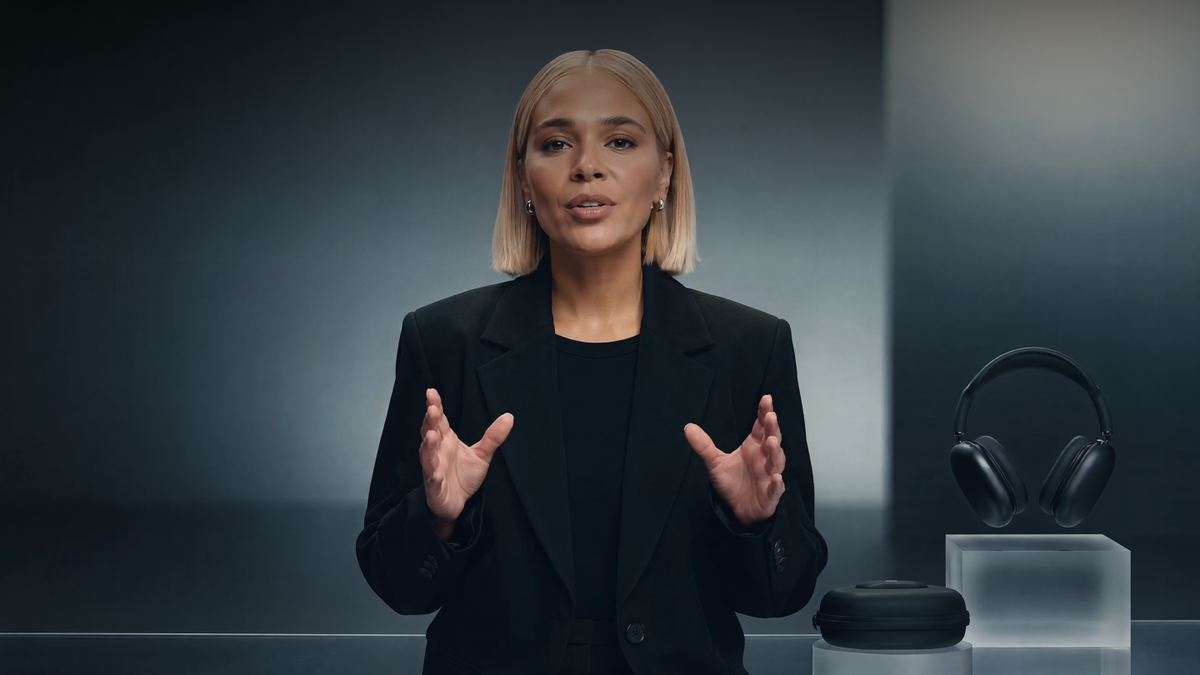
Choosing the best lip sync video AI tool is about more than matching mouth movements with audio. It should help keep faces, expressions, and video details consistent throughout the clip. In this guide, we compare leading AI lip sync tools in 2026 and look at two Kling AI workflows: using the Lip Sync tool to add synchronized speech or singing to an existing character video, and using Native Audio in VIDEO 3.0 series to create new dialogue scenes with synchronized speech, facial performance, and sound from the start.
.png?x-oss-process=image/resize,w_1872)
What Makes a Good AI Lip Sync Tool?
Choosing the best lip sync video AI tool involves more than checking whether the mouth movements match the audio. Key comparison factors include synchronization accuracy, facial consistency, motion handling, input flexibility, language support, and multi-speaker performance.
Comparison Factor | What to Look For | Why It Matters |
Audio-Visual Synchronization | Mouth movements matching speech sounds, pauses, and sentence timing | Small timing issues can make dialogue feel disconnected from the video |
Facial Consistency and Motion Handling | Stable facial features, expressions, head movements, camera angles, and visual details | The speaker should remain recognizable throughout the video |
Input Flexibility | Support for existing videos, characters, avatars, and AI-generated scenes | Different creators start with different materials and production needs |
Multilingual and Voice Support | Support for different languages, voices, and speaking styles | Important for translation, localization, and global audiences |
Multi-Speaker Scene Handling | Accurate speaker matching and dialogue timing in conversations | Helps keep each person’s voice aligned with the correct speaker |
6 Best Lip Sync Video AI Tools in 2026
AI lip sync tools work in different ways. Some are made for adding new speech to existing videos, while others combine lip sync with translation, avatars, or AI-generated scenes. The best option depends on the footage you start with and the type of video you want to make.
The table below compares six AI lip sync tools across video syncing, translation, AI video creation, and multi-speaker scenes.
Tool | Main Use | How Lip Sync Is Used | Multilingual & Localization | Dialogue & Multi-Speaker |
Kling AI | Lip sync for existing character videos and native dialogue generation for new AI videos | Use the dedicated Lip Sync tool to match uploaded or Text-to-Speech audio to an existing supported character video, or use Native Audio in VIDEO 3.0 / VIDEO 3.0 Omni to generate dialogue and synchronized visual performance together in a new video. | VIDEO 3.0 series supports native dialogue generation in Chinese, English, Japanese, Korean, and Spanish, including mixed-language dialogue, dialects, and accents. | VIDEO 3.0 series supports multi-character dialogue with speaker-specific lines and synchronized facial performance. |
Vozo AI | Dubbing and localization for existing videos | New or translated speech is matched to the speaker in the original footage | Built around video translation and localized voice content | Supports multi-speaker localization |
HeyGen | Avatar videos and translated video content | Speech is synchronized with avatars or speakers after voice changes or translation | Strong focus on multilingual video translation | Supports avatar and multi-speaker content |
Sync Labs | Lip sync for production and integrations | Audio can be synchronized with existing video through dedicated lip sync tools | Language support depends on the surrounding production setup | Can be used for dialogue synchronization |
PixVerse | Short-form AI video creation | Lip sync can be added to generated character content | Language options vary by feature | Supports character-based talking scenes |
CapCut | Social video editing and creator content | Lip sync can be handled through editing and AI-assisted features | Translation options vary by tool and region | Depends on the editing features being used |
Which Lip Sync Approach Fits Your Video?
Lip sync serves different purposes depending on the video you are making. Existing footage, translated content, and newly generated scenes each require a different approach.
Your Starting Point | What You Want to Create | Recommended Method | Tools to Consider |
You already have an existing character video | Replace speech, add new dialogue, or sync new audio | Existing video lip sync | Kling AI, Vozo AI, Sync Labs |
You have a video in another language | Create localized versions for different audiences | Translation + voice generation + lip sync | HeyGen, Vozo AI, Kling AI* |
You have a character image or avatar | Make a character speak with synced expressions | Talking character or avatar generation | Kling AI Avatar, HeyGen |
You want to create a new scene from scratch | Generate characters, dialogue, and visuals together | AI video generation with Native Audio | Kling AI |
You are creating a conversation or story scene | Keep dialogue natural between multiple characters | Multi-character dialogue generation | Kling AI |
*Kling Lip Sync can sync prepared target-language audio or available text-to-speech voices to a supported character video.
Two Ways to Create Lip-Synced AI Videos With Kling AI
Option 1: Add Lip Sync to an Existing Character Video
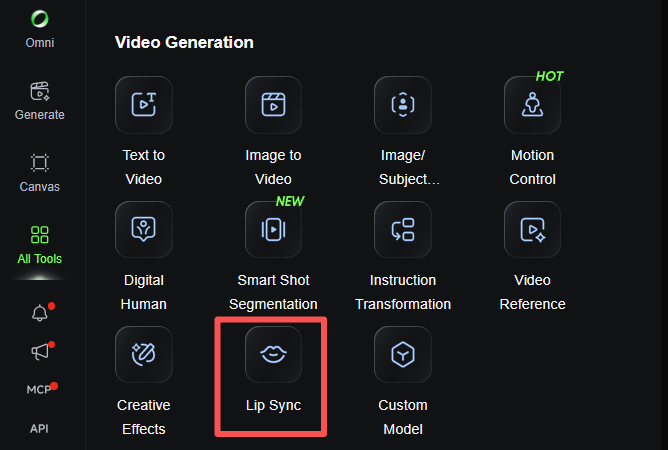
If you already have a supported Kling AI character video, use the Kling AI Lip Sync tool to add new speech or singing without recreating the scene from scratch. You can upload your own audio or use Text to Speech, then synchronize the character’s mouth movements with the new voice.
Step 1: Choose a Clear Character Video
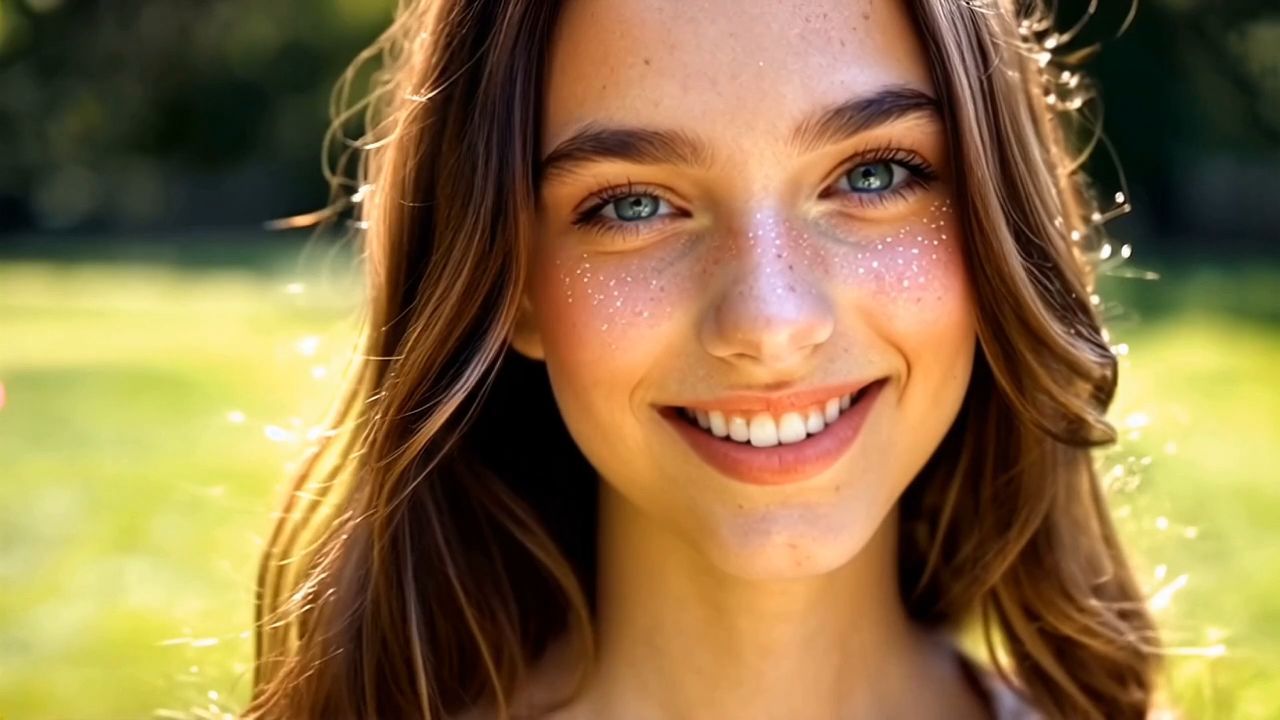
Choose a supported Kling AI clip with a full, clearly visible face. A clear view of the mouth makes it easier to judge whether the new speech stays in sync throughout the clip. Kling AI Lip Sync supports realistic, 3D, and 2D human characters. If the character turns away from the camera or the mouth is partly covered, make sure the main speaking sections still show enough of the face for the sync to work clearly.
 |  |
Step 2: Add Audio or Enter a Script
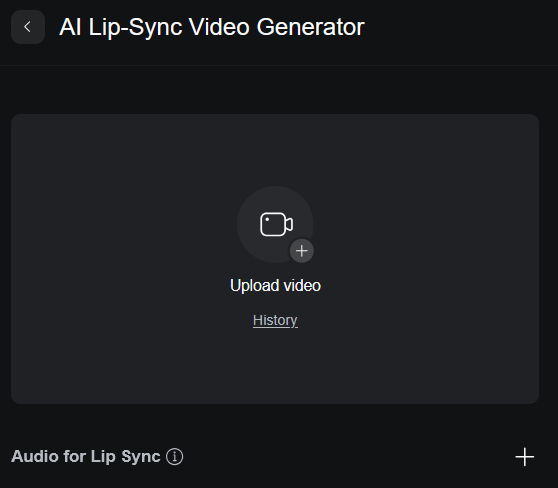
Upload a voiceover or singing track, or use Text to Speech to generate the voice from a script. If the audio is longer than the video, trim it before generation. You can also adjust the Text to Speech speed when a line needs to fit a shorter clip. Keep the script close to the available video time so the delivery does not feel rushed or leave long pauses.
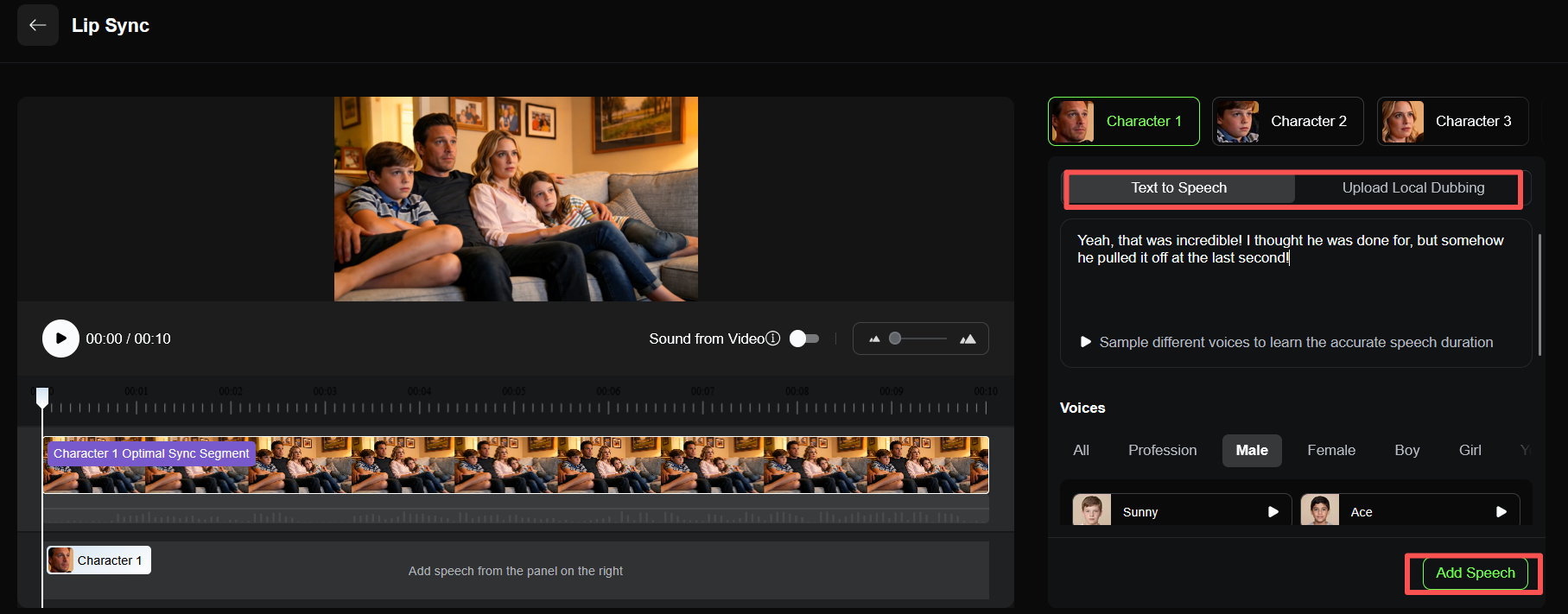
Step 3: Generate and Review the Lip Sync
Generate the lip-synced version and watch the full clip, including faster phrases, pauses, and sentence endings. If part of the speech feels early or late, check the audio length and pacing first. You can remove unnecessary pauses from an uploaded track or adjust the Text to Speech speed before generating again. Watch the character’s full face as well as the mouth, especially when the original video includes stronger expressions or head movement.

Option 2: Generate Lip-Synced Dialogue With the VIDEO 3.0 Series
If you want to create a new dialogue scene rather than add speech to an existing video, Kling VIDEO 3.0 and VIDEO 3.0 Omni can generate dialogue, lip movement, facial expressions, visuals, ambience, and sound effects together through Native Audio. If the scene includes several speaking characters from the start, you can use Text to Video AI and specify:
- who is speaking
- what each character says
- the speaking order
- the language or accent
- what each character is doing while speaking
| Prompt: A man and a woman are sitting across from each other in a quiet modern café at night. The man speaks first in English with a soft American accent, leans slightly forward, and says, “I didn’t think you would come.” The woman looks at him, pauses for a moment, then replies in English with a British accent, “I almost didn’t.” She gives a small smile and slowly sets her coffee cup down. The man looks surprised and starts to respond, but she turns toward the window before he speaks again. Keep the dialogue timing clear, with natural lip movement, subtle facial expressions, and realistic pauses between each speaker. |
VIDEO 3.0 supports multi-character dialogue in Chinese, English, Japanese, Korean, and Spanish, along with mixed-language dialogue, dialects, and accents. Several characters can share one scene without generating each speaker as a separate clip and stitching the pieces together later.
With Native Audio, dialogue, ambience, and sound effects can be generated with the visuals. You can describe spoken lines, room tone, footsteps, or other sounds in the prompt so they become part of the scene instead of being added one layer at a time after the visuals are finished. For short story scenes, conversations, and product videos with spoken lines, this cuts down on separate audio work after generation.
If you want the camera to move with the conversation, use Multi-Shot in the Kling AI video generator. A scene can move from a two-shot to a close-up of the person speaking, then cut to the other character’s reaction. Multi-Shot can arrange shot changes, framing, and camera angles from the prompt. If you already have the sequence planned, Custom Multi-Shot lets you set the content and duration of each shot yourself. VIDEO 3.0 supports 3–15 second generations, so a short sequence can include dialogue, reactions, character movement, and several camera changes.
VIDEO 3.0 Omni extends this workflow for more reference-driven creation, combining Native Audio with Element-based character consistency and broader multimodal inputs.
Taken together, these controls let you build a dialogue scene where speech, lip movement, character reactions, sound, and camera changes are already working within the same sequence instead of being assembled piece by piece afterward.
Image |
.png?x-oss-process=image/resize,w_1872) |
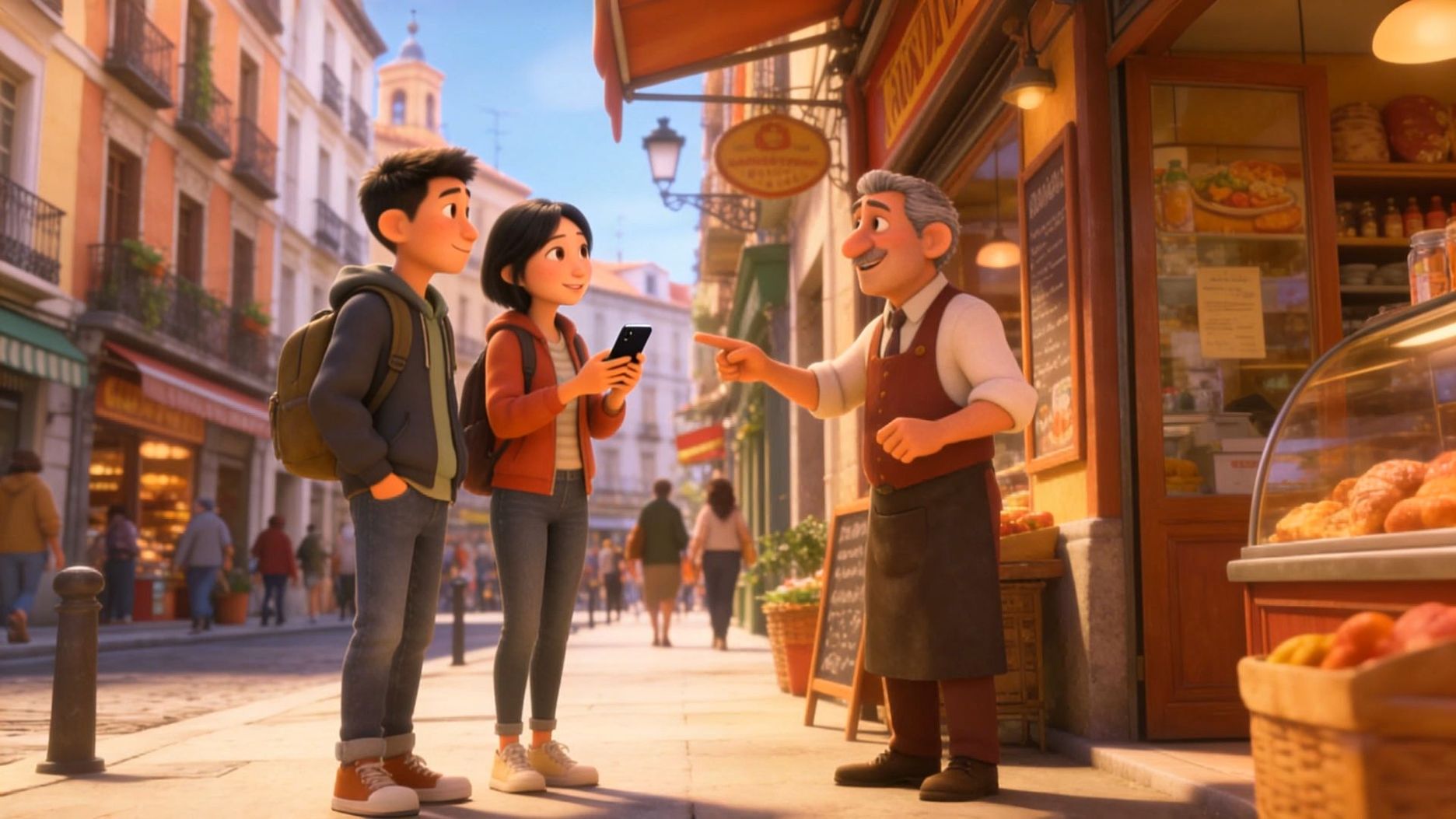
| Prompt: Sunlight fills the old streets of Madrid. In front of a street-side bakery, a Chinese female tourist and a male tourist wearing a gray hoodie walk toward the shop clerk, both wearing polite smiles. Female tourist (speaking slightly slowly, with an awkward accent, in Spanish):Disculpe, ¿dónde está la plaza mayor? A white-haired Spanish shop clerk (turning slightly and pointing forward, with a light and cheerful tone, in Spanish):Por allí, a dos calles. Muy cerca. The female tourist nods to express her thanks. The male tourist also nods in agreement and says (in Spanish): Muchas gracias. The shop clerk smiles and nods in response. The two tourists then turn and walk in the indicated direction. |
Outputs |
 |
What Are the Most Common Lip Sync Problems and How Can You Fix Them?
A few common mismatches can appear during lip-sync generation. They often come from the source footage, audio timing, script length, or speaker direction. Here’s how to spot the cause and adjust it.
The fix depends on the workflow you are using. With the Lip Sync tool, problems usually relate to the source character video, audio timing, or script length. With Native Audio in VIDEO 3.0 or VIDEO 3.0 Omni, multi-character scenes may also depend on how clearly each speaker and line are assigned in the prompt.
Problem | Possible Cause | What to Try |
The mouth moves too early or too late | The new audio does not fit the timing of the original clip, or the delivery is too fast or too slow | Trim long pauses, shorten the line, or adjust the voice speed before generating again |
The face changes while the character is speaking | The source video has limited facial detail, strong head turns, motion blur, or parts of the face are covered | Use footage where the face and mouth stay visible through the main spoken sections |
The jaw or mouth movement looks exaggerated | The line contains rapid or strong articulation that does not fit the visible movement in the source footage | Try a shorter line, slower delivery, or footage with a clearer front or three-quarter view |
The sync starts well but drifts later | A long sentence, uneven pacing, or extra pauses gradually push the audio away from the video timing | Watch the full clip, then shorten the sentence or remove pauses near the point where the drift begins |
The wrong character appears to be speaking | The prompt does not make the speaker order or dialogue assignment clear enough | State who says each line, keep the speaking order explicit, and separate each character’s dialogue clearly |
Translated dialogue feels rushed | The translated sentence takes longer to say than the original line | Rewrite the translation for spoken length rather than matching the source word for word, then adjust the voice speed if needed |
For Lip Sync, first check the source clip, audio timing, and script length. For Native Audio scenes, also check whether each speaker, line, and speaking order is clearly defined before adding more detail to the rest of the prompt.
The End
The Best Lip Sync Video AI should make speech feel like part of the performance, keeping mouth movement accurate as the character moves or delivers longer lines while preserving facial features and natural expression. For an existing supported Kling AI character video, Kling AI Lip Sync lets you add new speech or singing without recreating the scene from scratch. If you are creating a dialogue scene from scratch, Kling VIDEO 3.0 can generate dialogue, lip movement, facial expressions, sound, and shot changes together through Native Audio, multi-character dialogue, and Multi-Shot. This cuts down on the separate work of matching voice, mouth movement, and camera changes in post, while helping the final scene hold together with steadier lip sync and more consistent character performance.
FAQs
Which AI Has the Best Lip Sync?
The best lip sync AI depends on what you are making. For an existing supported Kling AI character video, Kling AI Lip Sync is designed for adding new speech or singing; for translated videos, tools such as HeyGen and Vozo AI focus more on dubbing and localization; and for presenter-style avatar videos, HeyGen is built around avatar-led workflows. If you are creating a new dialogue scene from scratch, Kling VIDEO 3.0 can generate speech, lip movement, facial expression, and sound together in the same scene. Choose the tool based on your starting material and whether you need simple speech replacement, translation, avatar presentation, or a fully generated dialogue scene.
Can AI Lip Sync Software Handle Multiple Languages?
Yes, but language support varies by feature. Kling Lip Sync can sync uploaded speech or singing, while Text to Speech uses the voices available in the tool. For newly generated scenes, VIDEO 3.0 supports dialogue in Chinese, English, Japanese, Korean, and Spanish, including mixed-language conversations. Language options can differ by model version, so check the settings shown in the version you are using.
Can I Use My Own Audio in Kling Lip Sync?
Yes. Kling Lip Sync lets you upload your own voiceover or singing audio. If the audio is longer than the video, you can trim it before generation. Use a clear recording and source footage where the face stays visible during the main speaking sections. After generation, check faster lines, pauses, longer vowel sounds, and moments with more head movement to make sure the mouth still stays in sync with the audio.
What Is the Difference Between Kling Lip Sync and VIDEO 3.0 Native Audio?
Kling Lip Sync adds new speech or singing to an existing supported character video, while VIDEO 3.0 Native Audio creates the video and sound together from the start. With VIDEO 3.0, dialogue, lip movement, sound, and Multi-Shot can all be built into the new scene. Use Kling Lip Sync when you already have a supported Kling AI character video you want to keep; use VIDEO 3.0 or VIDEO 3.0 Omni when the dialogue scene still needs to be created.