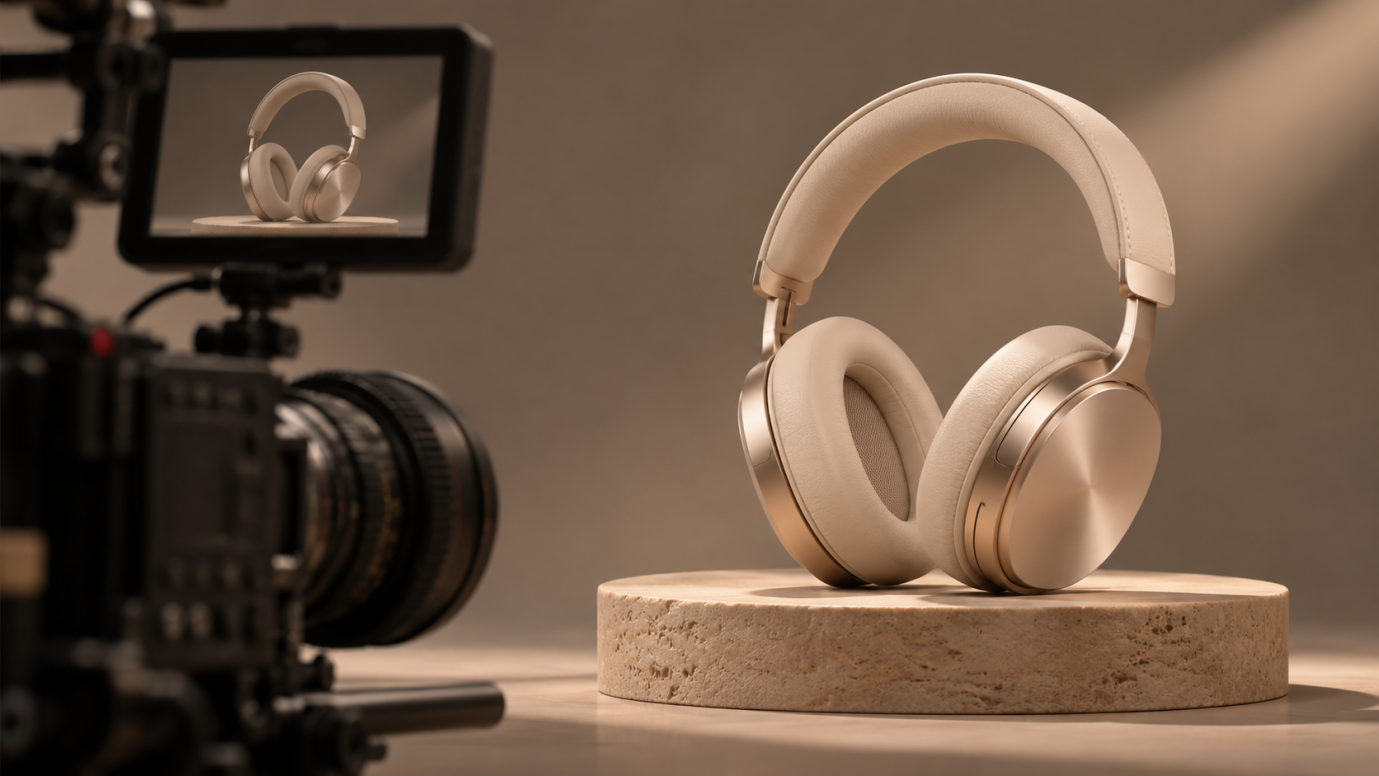
A shopper can read that a bag is spacious, but seeing a laptop slide inside makes the benefit clearer. Good product videos answer these buying questions through visible details and actions. This article covers formats, planning, filming, and ways to develop additional campaign visuals with Kling AI.
Which Types of Product Videos Can You Create?
Choose the format around the question your shopper is asking. Someone discovering a product needs different information from someone preparing to use it.
Type | What It Shows | Best Stage | Example |
Demo | The product performing its core task | Consideration | A vacuum lifting cereal from a rug |
Explainer | How the product solves a problem | Awareness | A budgeting app walking through a month of expenses |
360-degree spin | Every angle on a turntable | Product page | A sneaker rotating to show the sole and stitching |
Unboxing | Packaging and first impressions | Consideration | A coffee grinder revealed layer by layer |
How-to or setup | Installation or first use | After purchase | Mounting a smart doorbell in five minutes |
Lifestyle | The product inside a real routine | Awareness | A water bottle on a morning hike |
Testimonial | A real buyer’s experience | Decision | A runner describing the fit of new shoes |
Feature spotlight | One feature in detail | Consideration | A phone camera’s night mode filmed after dark |
What Makes Good Product Videos?
Before you plan your shots, check that your video has these essentials:
- Accurate details: Match colors, proportions, labels, and materials to your actual product.
- A clear benefit: Show one useful action, such as opening a compartment or adjusting a control.
- Useful views: Combine an overall view with close-ups and an in-use shot where relevant.
- Focused pacing: Introduce your product early and give each shot a purpose.
- A relevant next step: Invite viewers to explore features, choose a variant, or shop.
Before publishing, ask whether your video answers the question most likely to hold up a purchase.
To show a product clearly, you need an overall view, useful details, and an action that communicates its main benefit. You can film these shots with a simple setup, then build additional campaign scenes around the same message.
How Can AI Make Product Videos Easier to Create?
Once you know what your product video needs to show, the next challenge is developing engaging footage without filming every variation. AI can help you explore new settings, camera angles, and creative ideas through text and visual references. At Kling AI, we provide tools for image and video creation and editing. You can use Kling IMAGE 3.0 Omni to refine existing product photos or generate background images for planned scenes. Kling 4.0, our AI video generation and editing model, helps bring these ideas into motion with more consistent visuals, stable complex movement, and stronger storytelling control. Next, we'll explore Kling 4.0's key capabilities and how they help you maintain product consistency, draw on reference videos, guide dynamic camera movements, and refine the final result.
Keep Products Consistent and Recreate Video Concepts
Showing the same product in a studio reveal, a lifestyle scene, and a close-up works best when viewers can recognize its shape, packaging, and details. With Kling 4.0's Omni Reference, you can combine up to 15 reference assets, including product photos, character references, and video clips, to help maintain product and subject consistency across different shots.
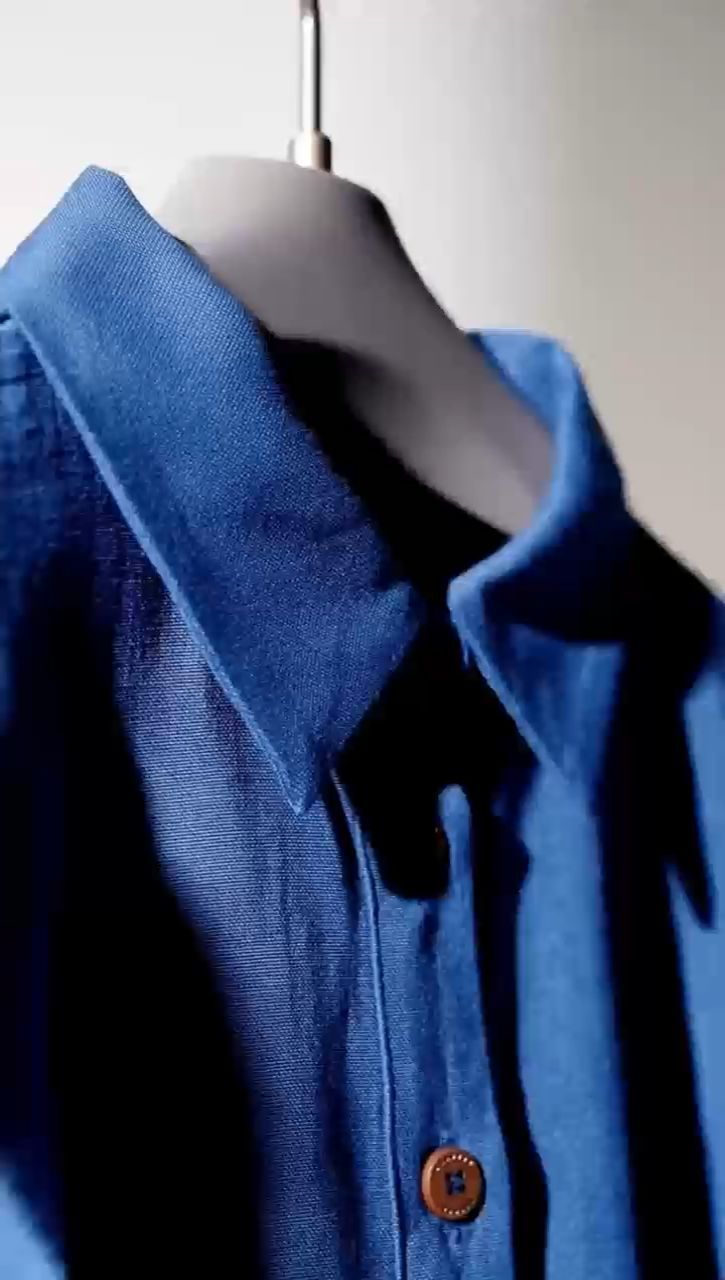
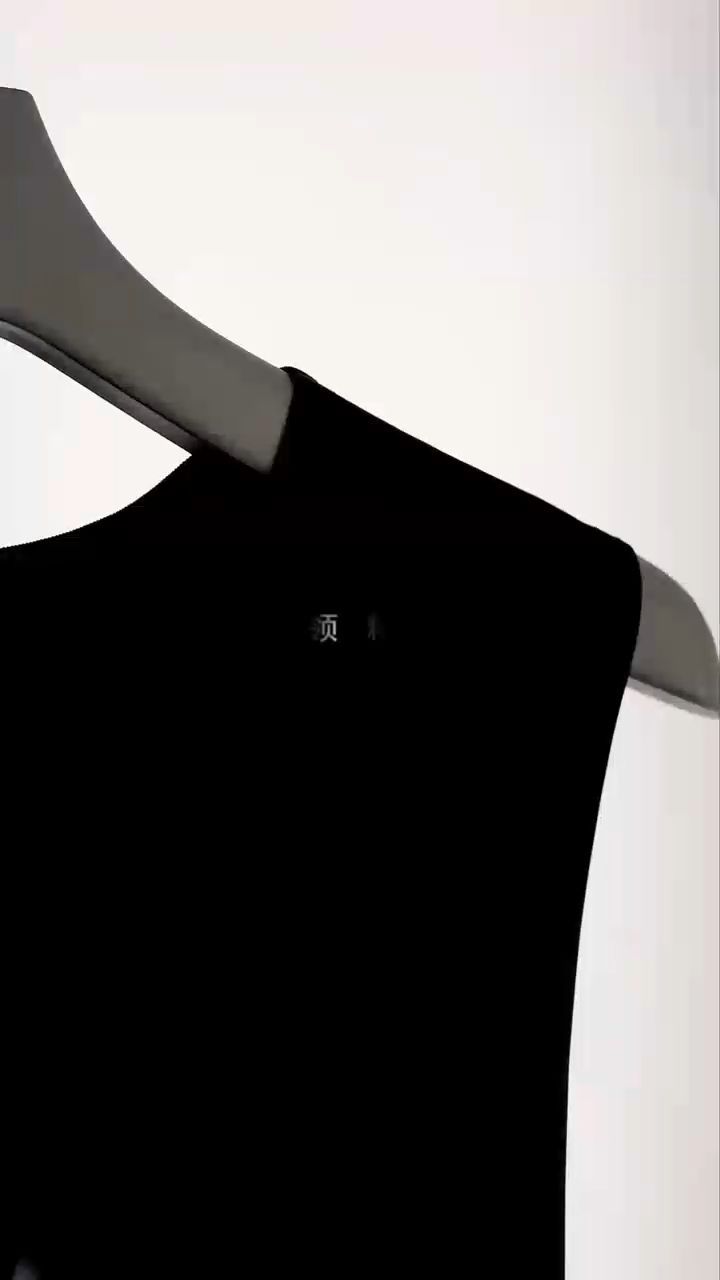
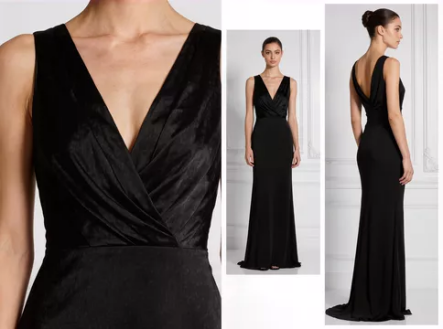
You can also draw on a reference video's pacing, camera movements, or shot composition as a starting point for your own creative concept. For example, you can follow the camera movements and presentation style of a fashion showcase video and apply them to your own clothing collection without planning every shot from scratch. Specify the role of each reference asset and make sure you have permission to adapt the materials you use.
Reference Video | Reference Image | Generated Result |
|
| 
|
Prompt: Use @Video1 as the reference for camera movement, framing, pacing, and the sequence of product shots. Replace the blue garment with the black dress shown in @Image1. Preserve the black dress’s original silhouette, fabric texture, neckline, and design details. Recreate the clothing showcase with similar close-ups and smooth camera movements, keeping the black dress as the main focus throughout the video. | ||
Show More Energetic Action With Stable Motion
Use movement to show your product from a more engaging perspective. Track a runner to keep attention on your shoes, or orbit around a backpack to reveal its profile and construction.
With Kling 4.0, we’ve improved stability during high-speed action, continuous movement, and complex camera moves, including tracking and orbit shots. You can explore more dynamic product videos while keeping the action easy to follow. For a footwear campaign, follow a runner through a turn before settling on a close-up of the shoe. Review the generated movement and product shape to make sure the result matches your intended presentation.
Build a Connected Product Story With Longer Sequences
A short product video can tell a complete story through a few carefully chosen shots. A coffee grinder reveal, for example, might begin with the product on a kitchen counter, follow the preparation of coffee, and end with a close-up of the grinder beside a finished espresso. Each moment gives the viewer another reason to pay attention.
With Kling 4.0, you can generate videos up to 30 seconds long, giving you room to develop a connected sequence of actions and camera movements. Its improved prompt understanding helps translate a planned opening, product action, and closing shot into a visual progression. You can also set up to 10 images as keyframes to guide important moments in the story, such as a product reveal, a change in camera angle, or the closing shot. A script to video AI workflow can help organize that written sequence into a clearer visual story.
Make Targeted Revisions With Precise Video Editing
If you like a clip’s overall direction but need a different background or camera angle, use our AI video editor to make a targeted revision with text, images, and other reference inputs.
You can add, modify, or remove subjects and backgrounds, as well as adjust elements such as color, material, style, and viewpoint. For a bottle reveal, change a bright tabletop scene to a warmer evening setting while keeping your product as the focus. Describe the change and the details you want to preserve, then check the surrounding frames for consistency. You can refine the selected concept through focused revisions.
Product Video Production Brief Best Practices
A short brief keeps filming, generation, and review focused on the same result. These product video production brief best practices help turn a broad campaign idea into usable direction.
Define One Buyer Question and One Main Message
Write down who will watch the video and what they need to understand. “Can this backpack hold my work essentials?” is more useful than “Show all the features.” The main message then becomes a visible demonstration: a laptop, charger, and notebook fitting into the correct compartments.
Specify the Deliverables and Product Facts
List the intended placement, target length, aspect ratio, and required versions. Include verified product details, approved claims, packaging references, and any mandatory captions or branding. A website demonstration and a vertical social reveal may use the same assets but need different framing and pacing.
Give Every Reference a Clear Purpose
Separate references for product identity from references for lighting, setting, or motion. When working with an AI video generator, specify what each asset contributes: the front photograph establishes the product’s appearance, while the reference clip supplies the camera path. Add approval criteria so reviewers know which details must match.
How to Create a Product Video
With your brief and references ready, you can turn the main message into a short visual sequence. Use Kling AI as an example: upload your assets, describe the scene, then generate and refine your product video.
Step 1: Upload Your Product and Creative References
Open Video Generation in Kling AI and select Kling 4.0. In Omni Reference, upload clear product photos showing the item's shape, colors, packaging, and important details. You can also add model images, brand visuals, or a reference video whose camera movements or creative structure you want to follow. Choose materials that support your main message and give each reference a clear purpose.
Step 2: Write Your Prompt
Write a prompt describing your product's key selling point, the setting, actions, camera movements, and how the video should unfold. For example, use @Image1 to preserve the product's appearance and @Video1 to guide the camera path, pacing, or transitions. Specify what to borrow from the reference video and what to replace with your own product or setting. Finally, describe the opening shot, key product moments, and closing scene to guide the overall sequence.
Step 3: Generate, Review, and Refine
Choose a duration and aspect ratio for your placement, then generate the clip. Check your product videos against the original references for accurate colors, proportions, materials, and labels. Revise the relevant instruction or make a targeted edit where needed. Review your final captions, branding, audio, and mobile crop before downloading the approved version.
Reference Image 1 | Reference Image 2 | Reference Video |
|
| 
|
Generated Video | ||
 | ||
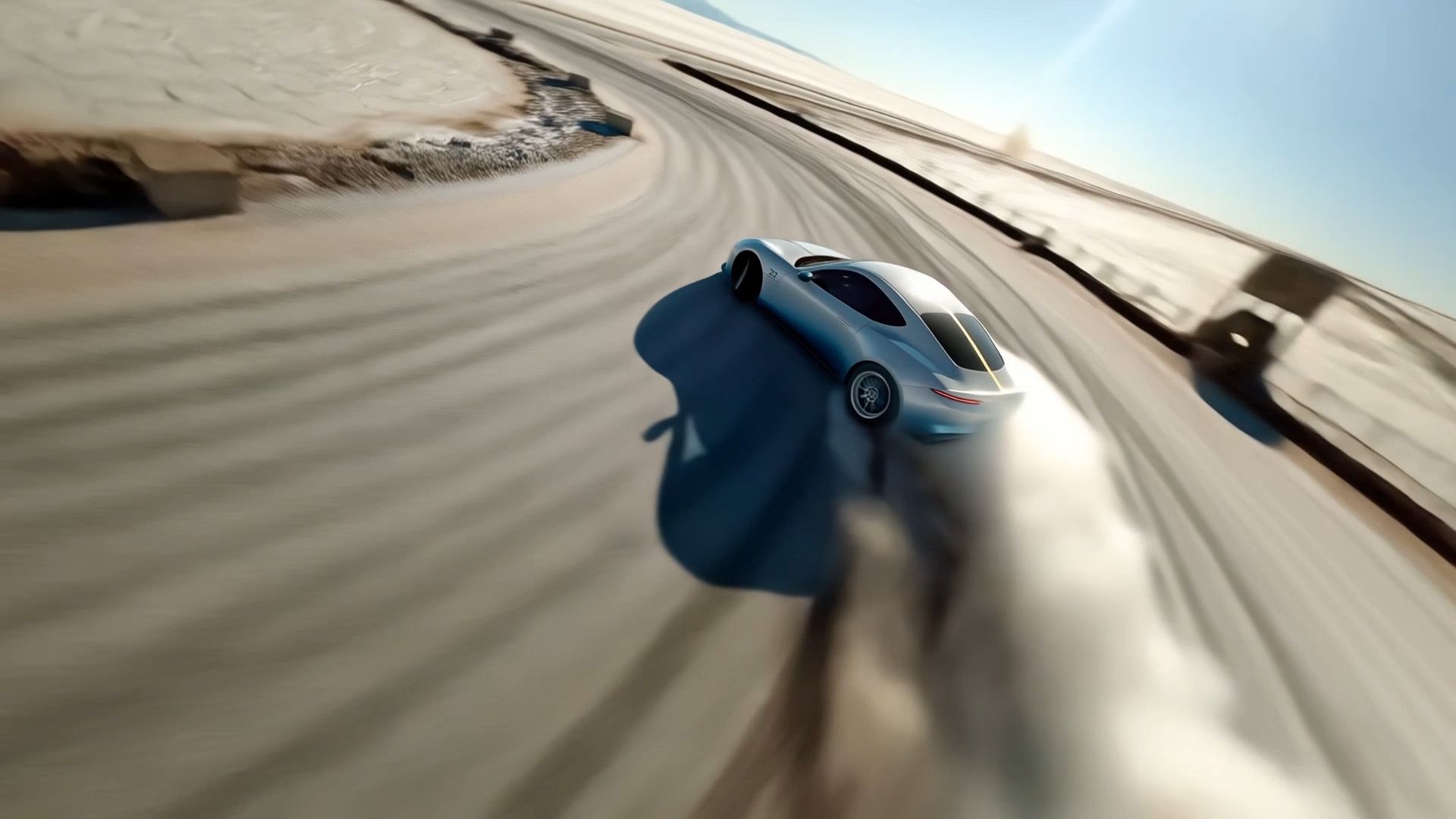
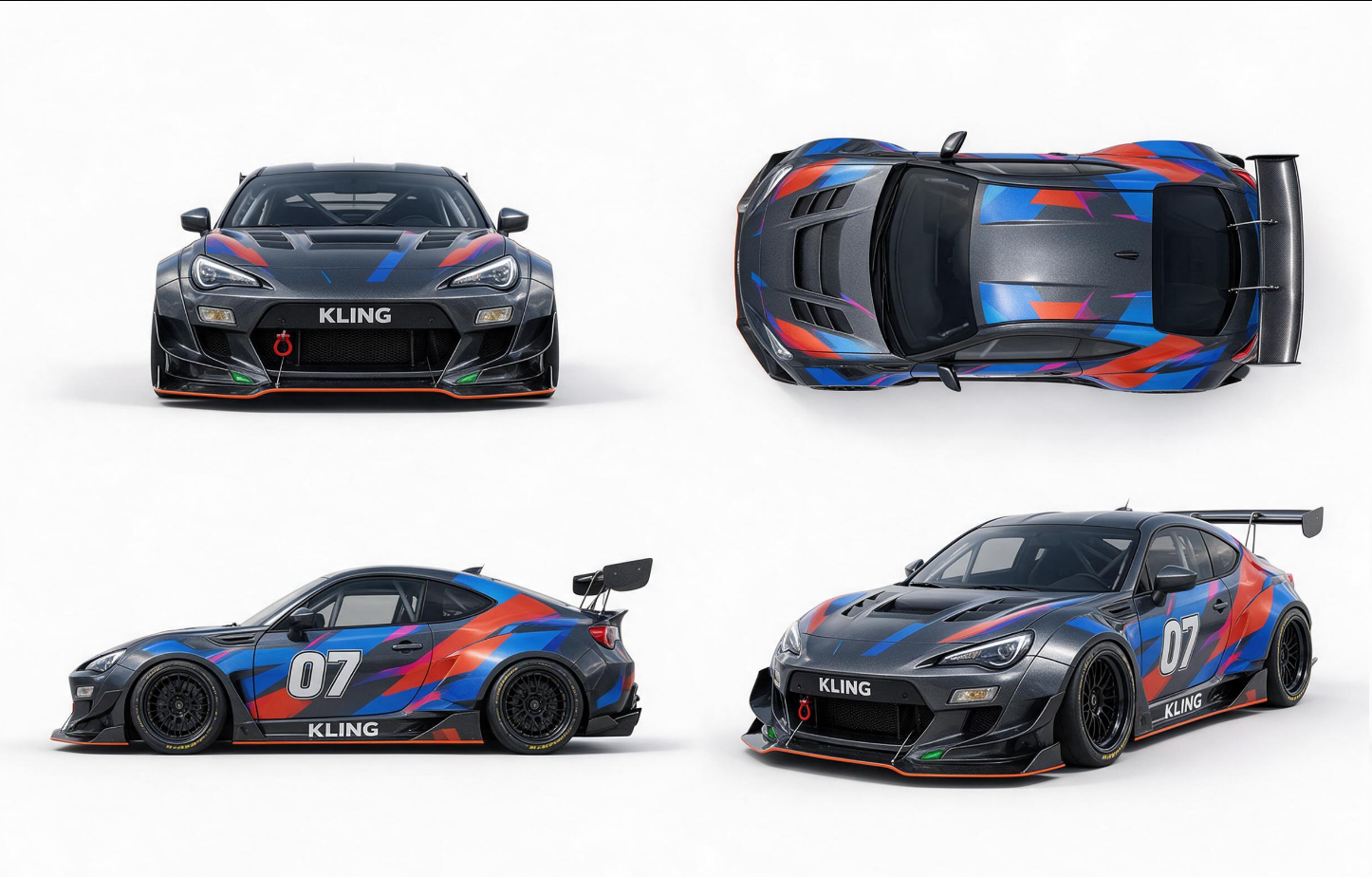
| Prompt: Use @Video 1 as the reference for camera movements and shot pacing. Replace the Element with the car from @Image 1 and the background with @Image 2. | ||

Practical Tips for Clearer Product Videos
- Show the Benefit Before Adding More Detail:Open with the action or view that matters most to the shopper. A bag’s capacity is easier to understand when the viewer sees familiar items being packed. Follow that demonstration with the close-up that supports it.
- Write Prompts Around Visible Actions:Replace broad instructions such as “make it premium” with details the viewer can see: soft side lighting, a matte stone surface, and a slow camera move toward the product. Give each part of the sequence a purpose so the generated motion supports the message.
- Change One Variable During Revision:If the product looks right but the camera moves too quickly, revise the camera direction first. Keeping the other instructions steady makes it easier to judge whether the change improves the clip.
- Check the Product Throughout the Sequence:Inspect the middle of the action as well as the opening and closing frames. Watch for changing packaging, distorted hardware, unreadable labels, or movement that suggests an unsupported product benefit. Approve the version that communicates the idea while representing the item accurately.
The End
Effective product videos make a product easier to understand. Choose one buyer question, plan the shots that answer it, and keep the visual story focused.
At Kling AI, we help you turn product photos, written concepts, and creative references into engaging product videos. Whether you're creating product ads for social media, developing promo videos for a new launch, or planning a larger commercial video production, our AI video generation and editing tools help you explore different scenes, adapt creative ideas, and refine your message. Review the final visuals against your actual product to ensure accuracy before sharing your next product story.
FAQs
What Is a Product Video?
A product video shows what an item looks like, how it works, or how it fits into everyday life. Common formats include demonstrations, unboxings, tutorials, and lifestyle clips. Effective product videos answer a specific buying question through visible details and actions, such as showing how much a backpack holds or how a lamp adjusts.
What Should a Product Video Include?
Include a clear view of the item, one useful benefit, supporting close-ups, and a relevant next step. When planning, decide what viewers need to understand before choosing your shots. Following product video production brief best practices helps you define the audience, main message, verified product facts, and required deliverables before production begins.
How Long Should a Product Video Be?
A product video should be long enough to answer the viewer’s question without repeating information. A quick reveal may need only a few shots, while a setup tutorial needs enough time to explain each action. Choose the placement and purpose first, then trim anything that does not help viewers understand the item or its benefit.
How Do You Shoot a Product Video With a Phone?
If you’re learning how to shoot a product video, start with a stable phone, soft window light, and a simple background. Lock focus and exposure on the item, then capture an overall view, useful close-ups, and one clear demonstration. Check sharpness, color, reflections, and label readability before dismantling your setup, and preview the final crop on mobile.
Can AI Create Product Videos From a Single Photo?
Yes. With our image-to-video workflow, you can use one clear product photograph and describe the action, setting, and camera movement you want. Add supporting references when important details are not visible in the original image. Kling 4.0 video generation guide explains how to assign reference roles and describe the sequence. Compare the generated result with your actual item before publishing.
Can AI Replace Filming for Every Product Demonstration?
AI can help you create styled reveals, explore campaign settings, and develop creative transitions. For product videos that demonstrate actual capacity, fit, installation, or performance, film the item completing the relevant task. You can combine that footage with generated campaign scenes, checking that the finished sequence represents your product accurately and supports the benefit you describe.