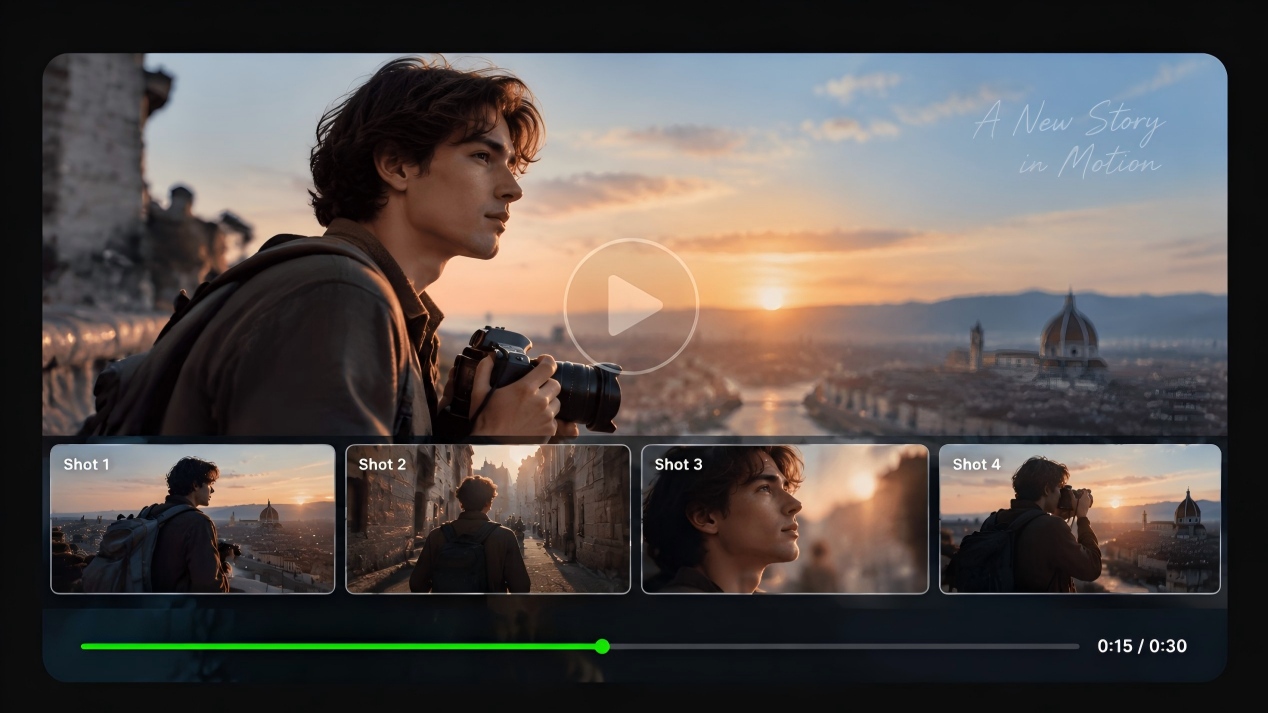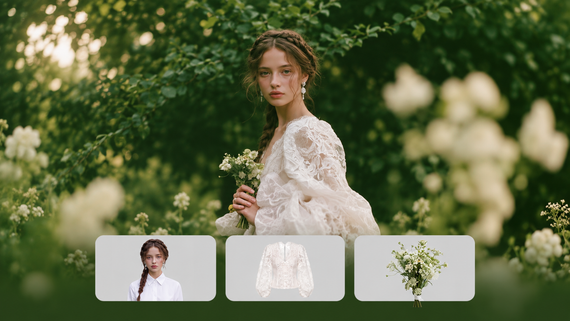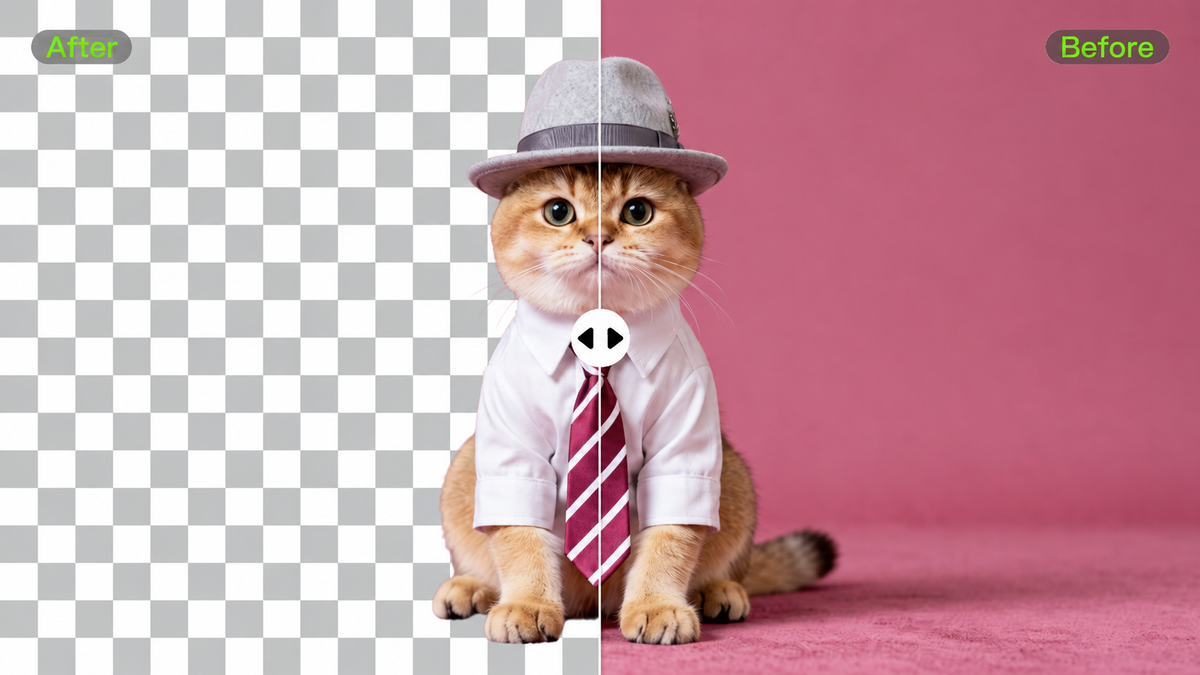
Choosing the best background remover depends on what you want to keep and what should replace the background. A product cutout, a moving video subject, and a completely new scene place different demands on a tool. This guide compares four options, including Kling AI, to help you find a workflow that fits your next image or video.
Best Background Remover Tools at a Glance
A clean cutout can be the start of many things: a product listing, a fresh layout, or a video that keeps the focus on your subject. Think about what you want to create, then use the comparison below to see how each tool fits into the process.
Tool | Media | Editing Approach | Typical Use |
Kling AI | Images and videos | Prompts and reference images | Cutouts and creative scene changes |
Leonardo | Images | Automated removal; API integration | Image assets and processing workflows |
Canva | Images and videos | In-editor removal and layout editing | Social graphics and presentations |
CapCut | Videos | Auto removal, manual adjustments, chroma key | Presenter clips and social videos |
Four Background Remover Tools Compared
Kling AI
Kling AI brings image and video background editing into one creative workflow. Instead of stopping at a basic cutout, creators can remove a background, replace it with a new setting, or use prompts and reference images to guide how the final scene should look.
For images, Kling IMAGE 3.0 Omni can isolate a subject for a transparent cutout or rebuild the surrounding scene while preserving important product or subject details. Prompt-based editing makes it easier to describe the background you want, while reference images can guide the visual direction. IMAGE 3.0 Omni also supports 2K and 4K output, making it suitable for product visuals, campaign assets, and other high-resolution creative work.
For existing footage, Kling VIDEO 3.0 Omni lets creators remove, replace, or rework video backgrounds with natural-language instructions, without requiring footage shot against a green screen. A reference image can also help define a new environment while the original subject, movement, and camera perspective remain central to the edit. This makes Kling especially useful when the goal is not simply to erase a background, but to turn an existing image or video into a more complete visual scene.
Leonardo
Leonardo provides image background removal alongside its broader image tools. A cutout can prepare a product for a layout or leave room for a different scene. Its documented background-removal API also provides a way to integrate this step into an application or image-processing workflow.
Background removal, generation, and upscaling serve different purposes: separating a subject, creating a setting, or adding image detail. Choose the operation that fits the asset, and check the features available in your chosen interface. API capabilities do not necessarily appear in the visual editor, particularly when planning bulk processing.
Canva
Canva brings background removal into the design editor, where a cutout can sit alongside text and graphics in a social post or presentation. Photo editing includes erase and restore brushes for refining edges or recovering details. The editor also supports background removal for video design.
Access depends on the plan and entry point; Canva AI does not currently support the video background removal feature available in the editor. Check the workflow for your media type, then review the cutout in its final layout. Scale and background color can make missed edges easier to see.
CapCut
CapCut places video background removal within the editing process. Separate the subject, then use a color, image, or another video as the backdrop. Automatic removal detects the subject, while custom controls help refine selected areas. For suitable green-screen or blue-screen footage, chroma key removes a selected background color.
The source footage helps determine which method to use, and controls can differ across desktop, web, and mobile. Before exporting, play through the clip and watch the edges around hair, hands, and moving objects. The background should sit naturally behind the subject as the action unfolds.
Remove Image Backgrounds with Kling AI
A clean cutout gives a subject room to work across different layouts. A product can sit beside campaign copy; a portrait can become part of a presentation without bringing the original room along.
The best way to remove a background from an image starts with a clear source file. Strong subject contrast, even lighting, and sharp edges make the boundaries easier to assess. Use the original image where possible, rather than a compressed copy.
With Kling AI background remover, upload the image and describe what should stay and what should be removed. When you need to remove image background distractions for a reusable cutout, make the goal of a transparent background explicit.
Choose the output size for your layout; Kling IMAGE 3.0 Omni supports 2K and 4K images. Check hair, thin straps, glass, and small gaps, and compare product shape, color, label, and texture with the original. Before using the cutout, confirm that the saved file is transparent, rather than simply showing a checkerboard pattern.
Original Image |
.png?x-oss-process=image/resize,w_1872) |
| Prompts: Remove the entire background from the image while preserving the woman and the green vintage car exactly as they are. Keep all edges clean and natural, especially around the hair, clothing, car windows, mirrors, and body contours. Do not crop, resize, distort, or alter the subjects. Remove all sky, mountains, trees, and scenery, and replace the background with transparency. |
Generated Image |
.png?x-oss-process=image/resize,w_1872) |
Rework Video Backgrounds with Kling VIDEO 3.0 Omni
A good shot can have a little too much happening around it. Someone passing behind a presenter or an unwanted object beside a product may draw attention away from the moment. Clearing those distractions gives the subject more room to be seen, while a different backdrop can bring a fresh mood to the same footage.
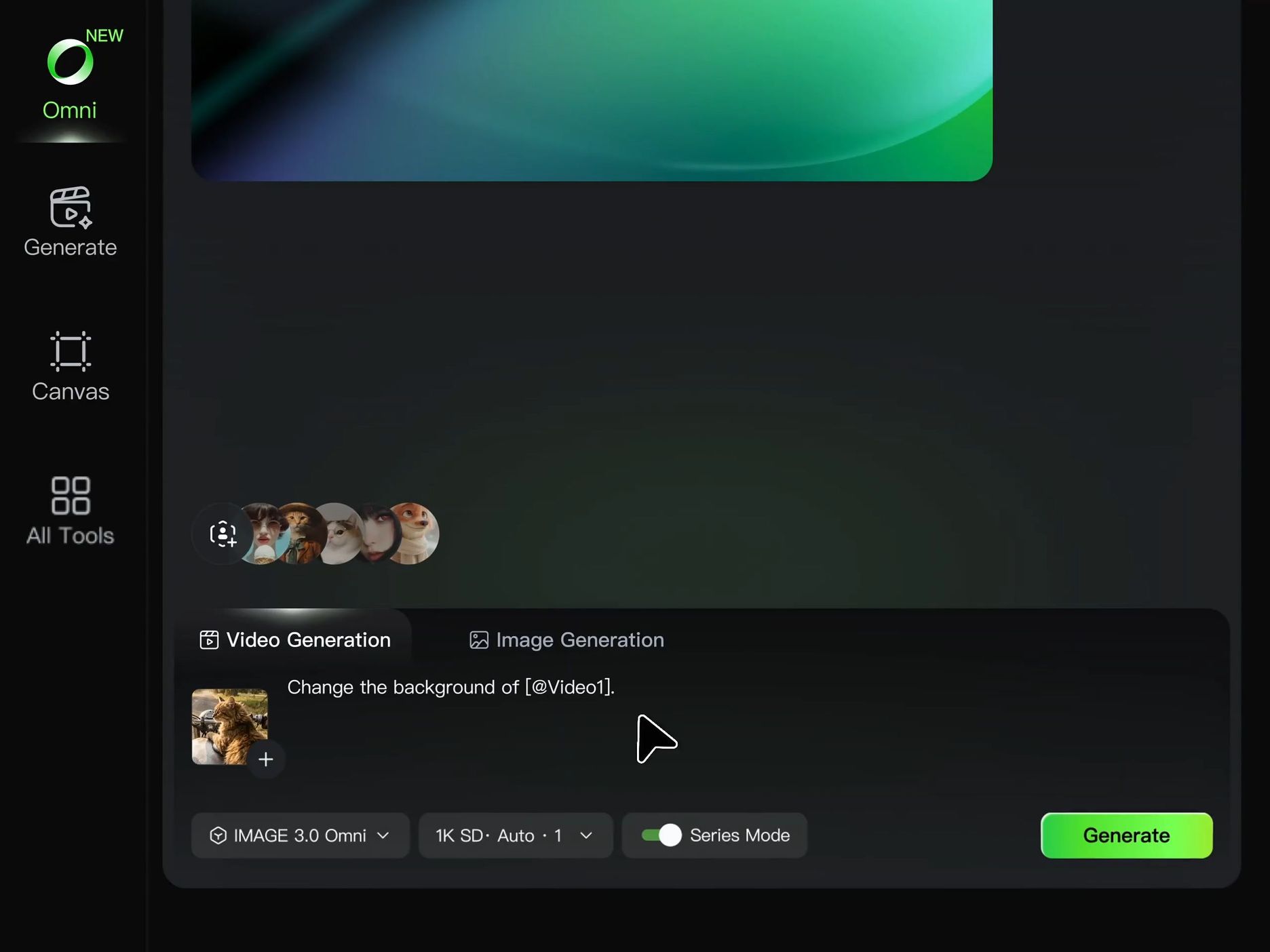
Once you have chosen the clip you would like to edit, upload it to Kling VIDEO 3.0 Omni. A short description can explain which subject should stay and which parts of the background you would like removed or changed. There is no need for footage filmed against a green screen, and a reference image can help guide the look when a new setting is part of the idea.
For creators exploring how to remove background from video, the description gives the edit its direction. That might mean clearing distractions from behind a presenter or replacing the surroundings while keeping the subject recognizable. After generating the edit, playing the clip through helps reveal how the subject’s movement, fine edges, and visible details hold together. A more specific description can guide another version where something needs a little care.
Video |
|
| Prompt: Edit the uploaded video so the cat’s motorcycle ride moves through five settings in sequence: a country road at dusk, a country road at night, a road lined with golden autumn trees, a snow-covered road, and a coastal road beside the sea. Use quick transitions between settings while maintaining the continuous forward motion of the ride. Keep the cat, motorcycle, rider’s gloved hands, and original camera perspective consistent. Preserve the cat’s appearance, position, and natural movement, adapting the lighting and reflections to each setting. |
Choosing a Background Remover for E-commerce Images
In e-commerce, one product photo with the background removed can go a long way. The same cutout can sit on a clean listing page, fit into a store banner, or become part of a seasonal campaign. Choosing the best background remover for ecommerce images starts with how you plan to use that asset across your day-to-day work.
Product listings. Keep attention on the item itself. A clean background can help, but product shape, color, packaging, and visible text still need to match the original. Check the marketplace’s image requirements before preparing the final file.
Design assets. A transparent cutout lets you place the same subject across layouts. Review the edges against both light and dark backgrounds so missed areas are easier to spot.
Campaign visuals. A new setting can give a simple product shot a different mood. Use Kling AI to explore background directions, then assess whether the scene supports the product and whether its defining details remain accurate.
.png?x-oss-process=image/resize,w_1872)
Across these tasks, pay particular attention to fine hair, transparent materials, reflective surfaces, and narrow openings. Glass can blend into the backdrop, while glossy products may retain reflections from the original surroundings. Review those areas before moving on to further edits.
For a collection of images, keep the crop, scale, and background treatment consistent. If you need automated batch processing, verify that capability separately rather than assuming every background editor provides it.
Conclusion
The best background remover depends on whether you need clean cutouts, product photos, a finished design, or a new setting for existing footage. Start with the final use, then compare the editing method, output requirements, and details you need to preserve.
Kling AI brings image and video background workflows into the same creative studio. Use IMAGE 3.0 Omni to separate a subject or explore a new image setting, and VIDEO 3.0 Omni to rework the background of a shot you already have. Start with one clear idea, review the details, and give the subject a setting that suits the story.
FAQs
What Is the Best AI Background Remover?
The best AI background remover depends on your media, output needs, and editing workflow. Compare transparent image output, background replacement, detail controls, and video support rather than relying on one overall ranking. Kling AI supports image and video background workflows, while other tools may connect removal with design layouts, image-processing APIs, or video editing.
What Is the Best Way to Remove a Background From an Image?
Start with a source image where the subject is sharp and clearly separated from the background, then use a background-removal tool. Check hair, glass, reflective surfaces, and fine gaps afterward. If you need a reusable cutout, verify transparency in the saved file. If a new setting is the goal, consider a direct background-replacement workflow.
Which Background Remover Should I Use for E-commerce Images?
Choose a background remover that matches the intended use of your product images and preserves the details buyers need to see. Listings may call for a clean, consistent backdrop, while campaigns may benefit from a new setting. Check product shape, color, text, and edges after editing, and verify batch-processing support separately if you manage a large catalog.
Can AI Remove a Video Background Without a Green Screen?
Yes. AI tools can remove or change video backgrounds without footage being filmed against a green screen. Kling VIDEO 3.0 Omni supports prompt-based background editing for existing clips. Tell it which subject to keep and what setting you want, then review the full result for changes around moving edges, fine details, and the subject’s appearance.
Can Kling AI Export Images and Videos With Transparent Backgrounds?
Kling documents transparent image backgrounds, but transparent video export with an alpha channel is not currently documented for VIDEO 3.0 Omni. IMAGE 3.0 Omni supports image cutout workflows and 2K or 4K output. For video, the documented capabilities focus on removing, modifying, or replacing the visible background, so confirm export requirements before starting a compositing project.