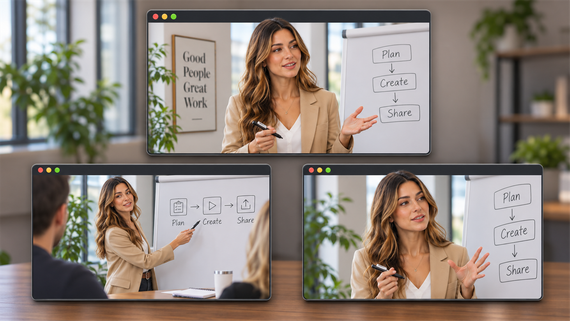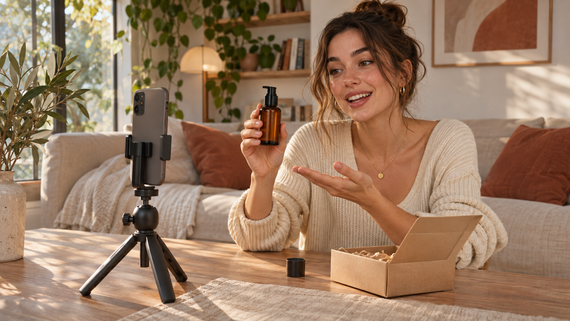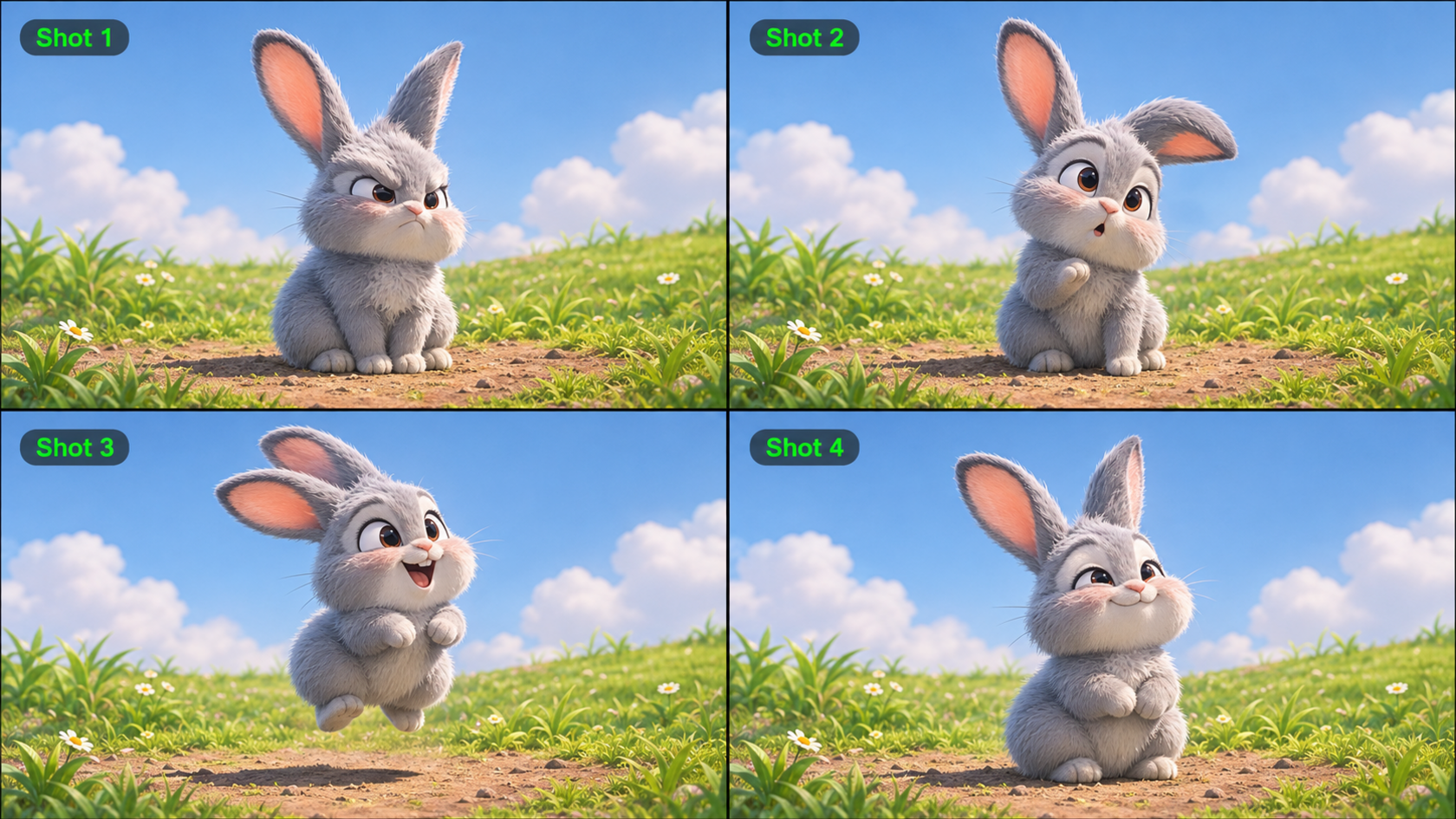
An old family recording may need noise reduction, while a compressed social clip may need cleaner edges. An AI-generated product shot might also need changes to lighting or color. The best video upscaler for your footage depends on which problems you need to solve and where the finished video will be shown. This guide compares six tools, including Kling 4.0, to help you choose the right workflow.
Which Is the Best Video Upscaler in 2026?
All six tools use AI, but they serve different needs. Some focus on restoring existing footage through upscaling, noise reduction, and detail enhancement, while others offer broader editing capabilities. Kling 4.0 takes a generation-based approach, making it suitable for short videos that need higher-resolution output alongside creative adjustments. Compare these video upscalers based on your footage, desired improvements, and workflow.
Tool | Best For | Supports 4K Output |
Kling 4.0 | Short, low-resolution product videos and AI-generated clips that need 1080p or 4K output, with prompts and references for refining visual details and maintaining subject consistency. | Yes |
Topaz Video | Archival or compressed footage needing adjustable restoration controls, noise reduction, and face enhancement | Yes |
HitPaw VikPea | Noisy or low-light recordings needing task-specific models for sharpening, portrait enhancement, and color correction | Yes |
AVCLabs Video Enhancer AI | Old home videos needing noise reduction, face enhancement, or black-and-white colorization | Yes |
TensorPix | Footage that needs browser-based cloud processing, with denoising, stabilization, and frame interpolation options | Yes |
CapCut | Social videos needing quality enhancement and access to video editing within the same desktop project | Yes |
Kling 4.0
Kling 4.0 helps upscale low-resolution clips by generating a higher-resolution version in 1080p or 4K. Beyond the output setting, you can combine prompts and Omni Reference to refine lighting, colors, materials, and backgrounds for cleaner, more polished visuals. Omni Reference supports up to 15 assets per task—including videos, images, Elements, and voice styles—so you can guide different parts of the result with the right sources. These references also help maintain consistent faces, products, and visual style across shots. More stable fast action and complex camera moves, from tracking to orbit shots, make Kling 4.0 useful for dynamic footage as well as product and social videos.


Topaz Video
Topaz Video focuses on restoring archival recordings and footage with visible quality problems. Proteus, Iris, and Nyx address different issues, with settings you can adjust to suit the source. Many tasks can run locally, with cloud rendering available for selected jobs. Check the hardware requirements for the models you intend to use before choosing it for a project.
HitPaw VikPea
HitPaw VikPea uses task-based models for noisy, compressed, or soft footage, with options for faces, low-light scenes, and color. AI Pilot can recommend a suitable model. Other features include upscaling, batch processing, stabilization, and frame interpolation. The trial lets you preview results; check export access and cloud credit costs before committing to regular use.
AVCLabs Video Enhancer AI
For older recordings that need restoration as well as upscaling, AVCLabs Video Enhancer AI includes denoising, deinterlacing, colorization, face refinement, stabilization, and frame interpolation. There’s also local batch processing for multiple recordings.
The trial limits exports to 30 seconds and adds a watermark. How long processing takes depends on your hardware, selected features, and target resolution.
TensorPix
With TensorPix, you upload footage through a browser and leave the processing to remote GPU servers. That makes it an option when your computer lacks powerful graphics hardware. Available tools include upscaling, denoising, deblurring, stabilization, and frame interpolation. Input limits depend on the plan: up to 720p on the Free plan and up to 4K on paid plans. For a larger project, check the upload time and how many credits the footage will take to process.
CapCut
On desktop, CapCut’s Enhance quality feature includes HD, UHD, and 4K options. It sits alongside trimming, color adjustments, effects, and Auto Reframe for social video projects. Bring in footage from local storage, CapCut Cloud, Google Drive, or Dropbox, then edit the clip and choose your export settings in the same project. Enhancement and export options vary by device, platform, and plan.
Best Video Upscalers for Different Use Cases
Restoring Old Family Recordings
A home video saved from an old tape may have grain, faded colors, and interlacing artifacts. Preparing it for a family screening calls for restoration as well as a higher resolution. Topaz Video and AVCLabs are useful options when you need controls for several quality problems. The goal is to make faces and actions easier to see while keeping textures natural and preserving the recording’s original feel.
Refining Short Product Videos
A low-resolution product teaser can look soft on larger displays, particularly around packaging, labels, and surface textures. With Kling 4.0, upload the clip and choose 1080p or 4K output to generate a higher-resolution version. Add product images or lighting references if you also want to adjust the background, colors, or reflections while guiding the product's appearance.
Enhancing AI-Generated Character Clips
An AI-generated character clip may need a higher-resolution output without losing recognizable faces, clothing, or movement. Kling 4.0 lets you upload the clip and generate a 1080p or 4K version. Add clear character images or video references when you need to guide facial appearance, lighting, and visual consistency.
If you only have a still image, use Kling's image to video tool to create a new clip, then select your preferred output resolution.
Enhancing Fast-Moving Video Clips
Fast action, sudden turns, and complex camera movements can make video quality harder to maintain across frames. Kling 4.0 is designed to handle dynamic motion and camera work more consistently, making it useful for sports clips, action sequences, and fast-paced AI-generated footage. Upload your source video, add references for the subject or camera movement when needed, and generate a higher-resolution version. Review the result at normal playback speed to check motion continuity and visual details.
How to Upscale Video to 4K with Kling 4.0
Want to improve the resolution of an existing short video? Follow these steps to prepare your footage, generate a higher-resolution version with Kling 4.0, and review the result before downloading.
Step 1. Upload Your Video and Reference Materials
Open Kling AI's video generation workspace and select Kling 4.0. Upload the low-resolution video you want to improve as your main video. You can also add images or short videos as references for preferred lighting, color tones, backgrounds, or visual styles. For more consistent results, include clear references showing important subjects or product details. Kling 4.0 supports video inputs from 3 to 30 seconds, with up to five videos totaling no more than 30 seconds.
Step 2. Describe the Improvements You Want
Use a prompt to explain how you want to refine the video. You can adjust lighting, colors, materials, backgrounds, or other visual details while specifying which parts of the original footage should remain unchanged. If you uploaded reference images or videos, explain what each should guide. For example, use one image for warmer lighting and another for product appearance. When editing the original clip, start with "Edit @Video1" and clearly describe the intended changes.
Step 3. Generate and Review Your 4K Video
Select 1080p or 4K as the output resolution and generate a higher-resolution version of your video. The output setting determines the resolution, while your prompt and reference materials guide the visual appearance. Review the result for clarity, natural textures, consistent subjects, and smooth motion. If needed, refine your instructions or references and generate another version before downloading.
Kling 4.0 Ultra-High-Definition Video Examples

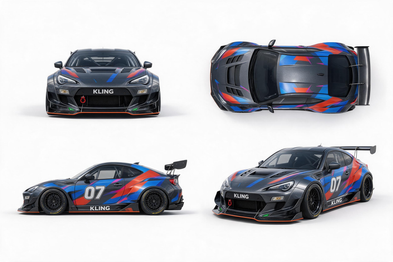
Example of how to use Omni Reference | ||
Reference Image 1 | Reference Image 2 | Video1:Camera Movement Reference |
|
| 
|
| Prompt: Use @Video 1 as the reference for camera movements and shot pacing. Replace the Element with the car from @Image 1 and the background with @Image 2. | ||
Video | ||
 | ||

Common Video Upscaling Problems and Quick Fixes
Use the checks below to address common enhancement problems. For a larger change, such as replacing a background or subject, make the edit with an AI video editor before upscaling.
Problem | What to Try |
Faces Look Artificial | Reduce face-reconstruction strength where available, or use a clearer reference image in workflows that support references |
Video Becomes Oversharpened | Reduce sharpening strength; in a prompt-based workflow, request natural texture and softer detail |
Texture Flickers Between Frames | Check the source for motion or compression problems, then compare another model or generation |
4K Output Still Looks Soft | Review source detail, compression, and enhancement settings. A larger frame size alone will not recover missing detail |
Noise Becomes More Visible | Apply suitable denoising before or during upscaling |
Export File Is Too Large | Choose an appropriate bitrate and a more efficient codec when export controls allow |
Conclusion
The best video upscaler depends on whether you need detailed restoration controls, a convenient editing workflow, or high-resolution generation. For short, low-resolution clips, Kling 4.0 lets you create a 1080p or 4K version and use prompts and references to refine lighting, colors, and visual consistency.
FAQs
What Is the Best AI Video Upscaler?
The best AI video upscaler depends on your footage and workflow. Topaz Video suits detailed desktop enhancement, AVCLabs focuses on restoration, and TensorPix offers browser-based processing. Kling 4.0 is suited to short clips that need higher-resolution generation, with 1080p or 4K output and optional prompt-guided visual refinements.
Can AI Upscale a Video to 4K?
Yes. AI video upscalers can increase a clip’s resolution to 4K, though the visible improvement depends on the source and processing method. Check facial features, text, and product shapes for generated details that differ from the original.
Will Upscaling Change Faces or Products?
It can, especially when the source does not clearly show faces, labels, or clothing. In Kling 4.0, use reference images, videos, or subject references through Omni Reference to guide the appearance you want to retain. Check defining features across frames before using the result.
What Is the Difference Between a Video Enhancer and a Video Upscaler?
A video upscaler increases resolution. AI upscalers may also infer additional detail, while a video enhancer can address noise, color, lighting, sharpness, and other quality issues. Some tools combine these functions.
Should I Upscale Video to 1080p or 4K?
Choose 1080p for everyday social media videos or smaller displays when file size and processing efficiency matter. Consider 4K for larger screens, product close-ups, or projects that need more flexibility for editing and reframing. Keep in mind that higher resolution does not automatically restore every missing detail. With Kling 4.0, select the resolution available in your workspace and review the generated result before downloading.