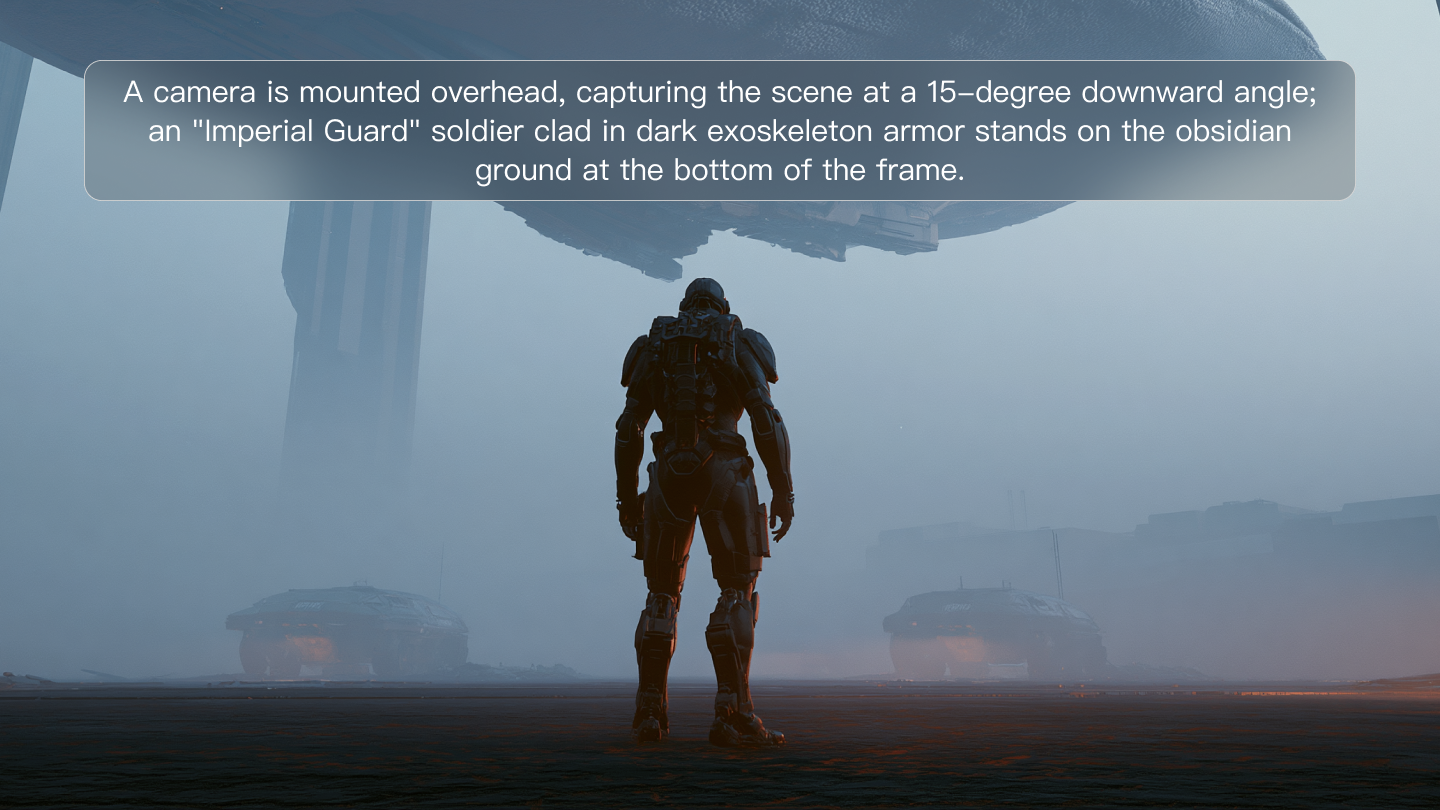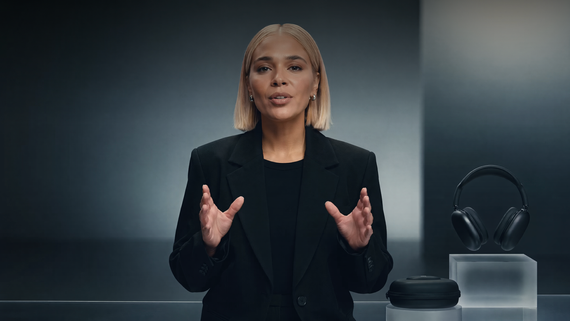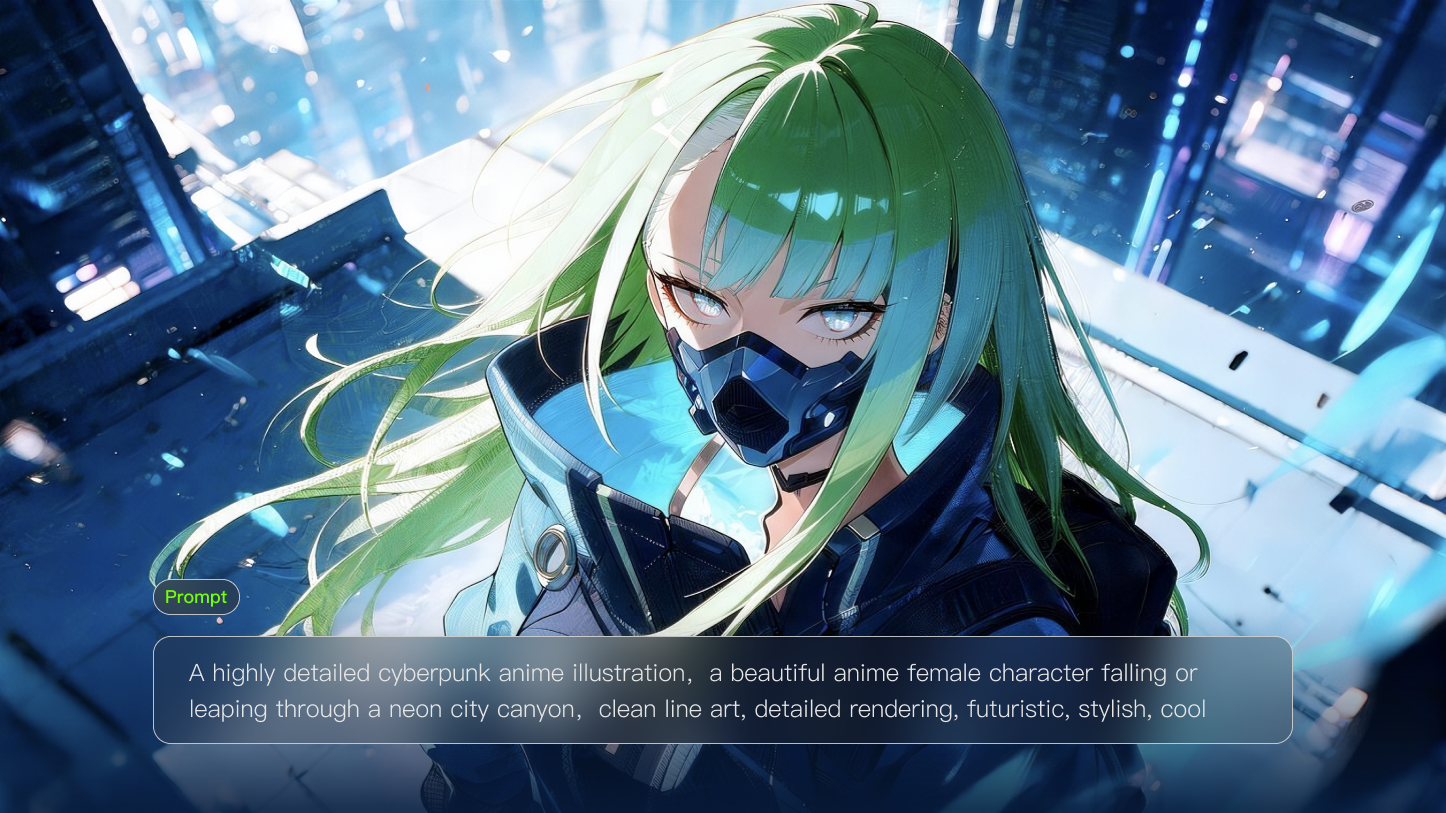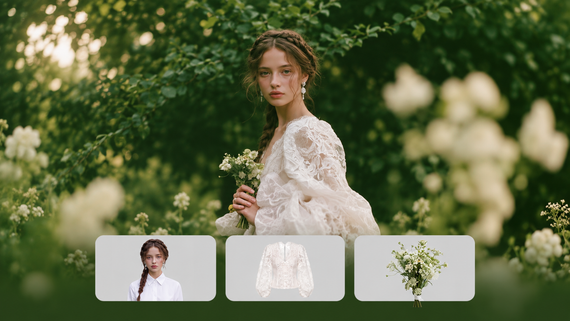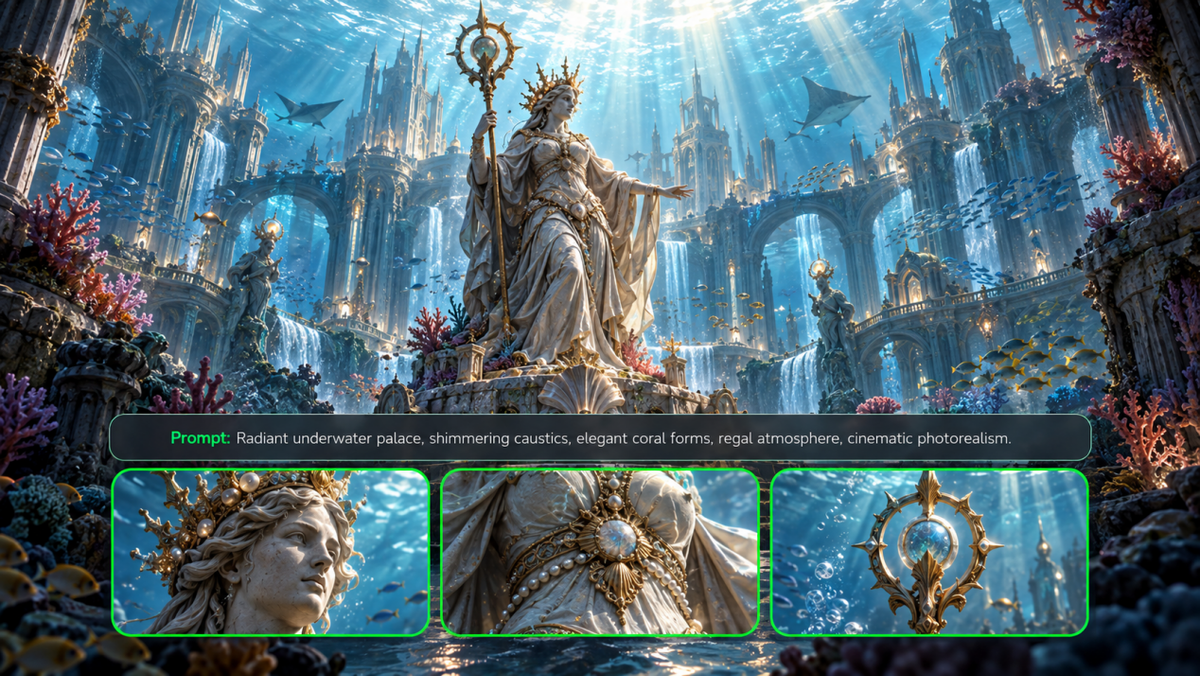
To help you find the best text-to-image AI for the work you actually do, we compare leading tools on the market and look more closely at how Kling IMAGE 3.0 Omni fits projects ranging from ad concepts and IP design to film previsualization, product imagery, and social media assets.
.png?x-oss-process=image/resize,w_1872)
What Are the 10 Best Text-to-Image AI Tools in 2026?
Before we go further, one point is worth making: no text-to-image AI tool is right for every creative need. The best choice depends on the kind of work you want to create.
To help you find the right AI Image Generator, we compare tools based on real creative scenarios and focus on the factors that influence output quality, control, and everyday use:
What Matters When Choosing a Text-to-Image Tool?
- Prompt Accuracy: In text-to-image generation, can the model accurately interpret and render your prompt, including the subject, setting, style, and specific details?
- Visual Quality: How strong are the results in terms of realism, detail, composition, image enhancer performance, and overall visual quality?
- Text Rendering: Can the tool produce clear, accurate text inside an image? This matters for posters, ad creatives, thumbnails, and other visuals that include readable text.
- Reference Control & Consistency: Can it use reference images to guide characters, products, style, and other visual elements while keeping them consistent across multiple outputs?
- Editing & Workflow Control: Does it support selective edits, composition changes, background removal, and other adjustments that help refine an image without starting over?
- Output Options: What image sizes, formats, series-generation features, and other output settings does it support for real-world use?
10 Best Text-to-Image AI Tools Compared
Using these criteria, we compared 10 leading text-to-image AI tools to understand their strengths and where they fit best across different creative projects.
Tool | Best For | Prompt Accuracy | Visual Quality | Text Rendering | Reference Control & Consistency | Editing & Workflow Control | Output Options |
Kling IMAGE 3.0 Omni | Professional storyboards, image series, cinematic previsualization, and scene design | Complex scenes, subject relationships, and continuity | Professional cinematic visuals with precise composition, perspective, lighting, depth of field, and fine-detail consistency | Visual storytelling rather than typography-heavy designs | Multi-image references and Image Series for stronger subject, style, and scene consistency | Structured workflows for concepts, brands, and scenes | Native 2K/4K output, multiple ratios, batch generation, and Image Series |
ChatGPT Image Generation | Conversational image creation, quick concepts, and iterative edits | Natural language instructions and step-by-step refinement | Concept images, visual exploration, and general image creation | Supports image generation and instruction-based editing, including poster and logo creation workflows | Uploaded images and instruction-based edits | Conversational adjustments and iterative changes | Image creation, editing, and output adjustments |
Midjourney | Artistic visuals, creative direction, and stylized imagery | Visual styles and artistic direction | Distinctive aesthetics, atmosphere, and stylized results | Supports text generation, but works best with shorter words and phrases rather than text-heavy layouts | Image references, style references, and personalization | Variations, style control, and image refinement | Variations, upscaling, aspect ratio control, and personalization |
Adobe Firefly | Commercial design workflows and Adobe-based projects | Design-oriented prompts and Adobe workflows | Practical design assets and guided image editing | Design assets with text refinement through Adobe tools | Reference images and Adobe editing features | Generative Fill and Photoshop-based workflows | Image generation, multiple ratios, and Adobe asset use |
Google Gemini | Conversational editing and refining existing images | Multi-step instructions and conversational adjustments | General image creation and conversational image editing | Supports text in generated visuals, including posters, logos, invitations, and other design-oriented images | Image uploads and instruction-based changes | Conversational image modifications | Image generation and editing with options depending on access |
Ideogram | Posters, logos, typography, and text-based graphics | Layouts and written elements in prompts | Graphic-focused image creation | Readable text generation inside images | Style and character references | Editing and canvas-based workflows | Image generation, variations, canvas editing, and different sizes |
FLUX.2 | Custom workflows, APIs, and flexible deployment | Depends on the selected model and workflow | Flexible generation across different setups | Improved text rendering, including complex typography and UI mockups | Multi-reference editing with up to 8–10 images, depending on the model and workflow | Hosted workflows, APIs, and local deployment | Up to 4MP output with flexible aspect ratios, depending on the model and workflow |
Recraft | Brand assets, graphic design, and vector-based work | Design-focused prompts | Brand visuals and structured design assets | Design layouts rather than long text passages | Reference images, styles, and design direction | Design editing and vector workflows | Raster images, SVG, PNG, JPG, PDF, and vector export |
Reve | Detailed prompts, image editing, and layout-focused creation | Detailed instructions and visual adjustments | Controlled image creation and refinement | Layouts with visual text elements | References for people, objects, style, and composition | Image editing and refinement workflows | Image generation, editing, variations, and high-quality outputs |
Canva Magic Media | Social graphics, presentations, and marketing visuals | Simple prompts within design workflows | Everyday marketing materials and social content | Text and layout support through Canva | Basic reference and style guidance | Canva editing and publishing workflows | Image generation across Canva designs, templates, and sizes |
How to Choose the Best Text-to-Image AI Tool for Your Creative Workflow?
Each tool takes a different approach to text-to-image creation. The right choice depends on the type of content you want to create and the workflow you need.
Creative Goal | What Matters Most | Tools to Consider |
Cinematic visuals, storyboards, and connected image series | Visual continuity, reference control, and structured workflows | Kling IMAGE 3.0 Omni |
Artistic style exploration and creative visuals | Style direction, atmosphere, and visual experimentation | Midjourney / Kling IMAGE 3.0 Omni |
Posters, logos, and visuals with clear text | Text accuracy, layouts, and graphic elements | Ideogram |
Commercial design workflows within the Adobe ecosystem | Editing control and integration with design tools | Adobe Firefly |
Brand assets and vector-based designs | Vector output, brand consistency, and design flexibility | Recraft |
Social media graphics and presentation visuals | Templates, formats, and fast content creation | Canva Magic Media |
Flexible model access and custom workflows | Model choice, deployment options, and workflow control | FLUX |
Conversational editing and general image creation | Natural language editing and iterative refinement | ChatGPT Image Generation / Google Gemini |
What Can You Create With Kling IMAGE 3.0 Omni?
For projects that require stronger visual control and the ability to develop connected visuals, Kling IMAGE 3.0 Omni provides a workflow that extends from single-image creation to series-based visual development. It can interpret complex scene descriptions, subject relationships, and visual requirements, while using reference images to guide the creation process. This allows creators to better control character details, product features, visual style, and scene direction. With Image Series Mode and native 2K/4K output, creators can build cohesive visual content and develop images with stronger narrative connections.
From product visuals and marketing assets to character design and cinematic pre-visualization, Kling IMAGE 3.0 Omni helps creators turn early concepts into more complete visual solutions.
Create Consistent Product Visuals for E-commerce and Marketing
Product marketing often requires placing the same product in different settings while maintaining its appearance, materials, details, and overall visual direction. For categories such as fashion, beauty, and home products, brands often need to combine multiple elements into complete commercial visuals that showcase different combinations and use cases.
Kling IMAGE 3.0 Omni supports creation with multiple reference images. Creators can upload references for people, products, accessories, or environments, then use text descriptions to define the setting, composition, and visual style. It can recognize the relationship between different reference elements, combine them into a complete marketing scene, and preserve the key features of both the product and the main subject.
For example, brands can upload references of a model, clothing, shoes, bags, and a location to create lifestyle marketing images that match their brand direction, showcase product combinations, or explore different advertising concepts.
Suitable for:
- Product detail pages
- Landing pages
- Marketing campaigns
- Concept testing
- Brand visual assets
- Logo and brand element design
For e-commerce teams, marketers, and brands, this approach helps them create more commercial visuals from existing product and brand assets, while exploring new creative directions and maintaining product recognition and brand consistency.
Reference |
.png?x-oss-process=image/resize,w_1872) |
| Prompt: Place the woman from image 2 on the seaside terrace from image 1. Dress her in the shirt from image 3, trousers from image 4, sandals from image 5, and hat from image 6. Seat her on the low white wall, with the tote from image 7 beside her and the dog from image 8 at her feet. Preserve her facial features and the distinctive details of each item. Create a sunlit coastal fashion photograph with natural textures, soft sea-blue tones, and a full-body composition. |
Outputs |
.png?x-oss-process=image/resize,w_1872) |
Develop Advertising Concepts and Campaign Visuals
Advertising teams often need to turn an early campaign idea into a clear visual direction before production begins. This may involve defining the product, cast, setting, shot progression, and overall creative style across a commercial or branded campaign.
Kling IMAGE 3.0 Omni supports both text-to-image and reference-based creation, allowing creators to combine character, product, and scene references while defining composition, style, and visual direction through prompts. With Image Series workflows, teams can develop multiple connected images that maintain stronger continuity across subjects, scenes, and overall presentation.
For example, an advertising team can upload references for a product and key characters, then use a prompt to develop a sequence of related shots for a TVC concept—from driving scenes and character close-ups to lifestyle moments and a final hero shot. This helps turn an initial campaign idea into a more complete visual proposal before video production begins.
Suitable for:
- Advertising campaign concepts
- TVC storyboard development
- Creative pitch presentations
- Commercial previsualization
- Branded visual storytelling
For agencies, marketing teams, and creative directors, this workflow makes it easier to explore campaign ideas, communicate visual direction, and present a connected sequence of scenes before committing to full production. It can also help teams compare different creative approaches while keeping key products, characters, and visual elements more consistent across the proposal.
Reference | |||
.png?x-oss-process=image/resize,w_1872) | .png?x-oss-process=image/resize,w_1872) | .png?x-oss-process=image/resize,w_1872) | |
| Prompt: Auto TVC: Consistent car/cast. S1: Driving. S2: Man driving POV. S3: Woman at villa checking watch. S4: Couple face-off by car. S5: Couple cruising. S6: Cliffside ocean view. TVC storyboard. | |||
Image Series | Shot 1 | Shot 2 | Shot 3 |
.png?x-oss-process=image/resize,w_1872) | .png?x-oss-process=image/resize,w_1872) | .png?x-oss-process=image/resize,w_1872) | |
Shot 4 | Shot 5 | Shot6 | |
.png?x-oss-process=image/resize,w_1872) | .png?x-oss-process=image/resize,w_1872) | .png?x-oss-process=image/resize,w_1872) | |
Design Characters, IP Assets, and Illustrations
Character and IP projects require more than creating a single AI character. The same character needs to remain recognizable across different poses, outfits, environments, and visual styles.
Kling IMAGE 3.0 Omni supports creation with multiple reference images. Creators can upload character references from different angles or other visual materials to guide character development while preserving key appearance details and the overall visual direction. Based on these references, creators can further explore different expressions, actions, outfit designs, environments, and art styles, such as cartoon styles, illustration styles, or other visual approaches for character design, IP development, and illustration projects.
Suitable for:
- Character design
- IP development
- Illustration
- Concept art
- Visual storytelling
For illustrators, designers, and IP creators, this approach helps expand a single character concept into a more complete visual system while exploring different artistic directions and reducing repeated adjustments across different versions.
Reference | Prompt | Outputs |
.png?x-oss-process=image/resize,w_1872) .png?x-oss-process=image/resize,w_1872) .png?x-oss-process=image/resize,w_1872) .png?x-oss-process=image/resize,w_1872) | Use the uploaded character references to create a realistic portrait version of the same adult woman. Preserve her chestnut bob, amber glasses, freckles, mustard-yellow jacket, sage-green overalls, and orange fox-shaped bag. | .png?x-oss-process=image/resize,w_1872) |
| Use the uploaded character references to create a hand-drawn 2D animated version of the same adult woman. Preserve her chestnut bob, amber glasses, freckles, mustard-yellow jacket, sage-green overalls, and orange fox-shaped bag. | .png?x-oss-process=image/resize,w_1872) | |
| Use the uploaded character references to create a watercolor storybook illustration of the same adult woman. Preserve her chestnut bob, amber glasses, freckles, mustard-yellow jacket, sage-green overalls, and orange fox-shaped bag. | .png?x-oss-process=image/resize,w_1872) | |
| Use the uploaded character references to create a stylized 3D animated version of the same adult woman. Preserve her chestnut bob, amber glasses, freckles, mustard-yellow jacket, sage-green overalls, and orange fox-shaped bag. | .png?x-oss-process=image/resize,w_1872) |
Plan Storyboards and Cinematic Concept Visuals
Before production begins, film and creative teams often need to explore scenes, camera design, and the overall visual direction to build a clearer production plan.
Kling IMAGE 3.0 Omni can generate concept visuals from text descriptions and visual references, giving creators control over composition, perspective, lighting, spatial relationships, and scene design to explore cinematic visual directions more efficiently. With native 2K/4K output, these visuals can also be used for presentations, creative reviews, and pre-production references.
Reference | ||
.png?x-oss-process=image/resize,w_1872) | ||
Prompt: Cinematic film still set in the 1920s, inside an opulent European mansion with a vintage aristocratic atmosphere. Grand interiors with dark polished wood, marble floors, velvet curtains, antique furniture, crystal chandeliers, and elegant table settings. Characters wear authentic 1920s formal evening attire, including tailored tuxedos, beaded gowns, vintage jewelry, and classic hairstyles. Use warm candlelight and chandelier illumination mixed with deep shadows to create a luxurious yet mysterious mood. Rich golden-brown color grading, subtle film grain, realistic skin texture, natural facial expressions, and detailed period costumes. Shot with a cinematic 35mm film camera, shallow depth of field, dramatic composition, realistic lighting, and a classic mystery movie aesthetic. Maintain the same characters, costumes, mansion architecture, lighting style, color palette, and cinematic atmosphere across all scenes. | ||
Shot 1 | Shot 2 | Shot 3 |
.png?x-oss-process=image/resize,w_1872) | .png?x-oss-process=image/resize,w_1872) | .png?x-oss-process=image/resize,w_1872) |
Shot 4 | Shot 5 | Shot6 |
.png?x-oss-process=image/resize,w_1872) | .png?x-oss-process=image/resize,w_1872) | .png?x-oss-process=image/resize,w_1872) |
How to Get Better Results From Text-to-Image AI?
Choosing the right Text-to-Image AI tool is only the first step in the creative process. To get results closer to your goal, you also need a clear Prompt that explains the subject, visual direction, and important details you want to control.
Describe the Subject Before the Style
When writing a text-to-image prompt, start by defining what should appear in the image before adding artistic direction. First describe what is in the scene, then explain how you want it to look.
A useful prompt structure is:
Subject + Action + Environment + Composition + Lighting + Visual Style
Prompt Element | What to Describe | Example |
Subject | The main person, product, or object | A vintage camera on a wooden table |
Action | What the subject is doing or how it appears | Resting beside an open notebook |
Environment | The surrounding space and setting | A warm studio with natural light |
Composition | The framing and camera perspective | Close-up view with centered composition |
Lighting | The atmosphere created by light | Soft morning sunlight |
Visual Style | The overall visual direction | Cinematic photography style |
Starting with clear information about the subject gives the model a stronger foundation before adding style details.
Be Specific About Composition
An effective Prompt should describe not only what appears in the image, but also how the scene should be framed. Rather than simply writing “cinematic portrait,” describe the composition more specifically, such as:
- Close-up: Highlight facial details or product features
- Wide shot: Show larger environments and storytelling scenes
- Eye-level view: Create a natural viewing perspective
- Low-angle shot: Add a stronger visual presence
- Centered composition: Create a balanced layout
- Shallow depth of field: Keep the subject clear while softly blurring the background
Composition details help define the relationship between the subject, surroundings, and the overall frame.
Use References When Important Details Already Exist
If a character, product, or visual direction has already been established, describing every detail again through text may not be the most suitable approach.
Reference images are useful when certain elements need to remain consistent, such as:
- Character appearance
- Product shape and design
- Existing visual style
- Brand-related elements
Using references allows you to create new variations while keeping key visual details consistent across different outputs.
Change One Variable at a Time
When a generated image is close to the desired result but still needs adjustments, changing multiple Prompt elements at once makes it harder to understand which change affected the outcome.
A more controlled approach is to refine one area at a time:
- Composition: Adjust framing, camera angle, or subject placement.
- Subject details: Refine appearance, materials, or specific features.
- Lighting: Modify the atmosphere, contrast, or overall mood.
- Visual style: Adjust artistic direction, realism, or rendering approach.
- Fine details: Improve smaller elements after the main structure is established.
This approach makes it easier to identify which adjustments improve the final image.
Consider Consistency When Creating Multiple Images
Creating a single image and developing a connected visual series require different levels of control.
For projects that involve multiple related images, consider tools that support:
- Reference images
- Character consistency
- Series generation
- Reusable visual direction
These capabilities are useful for character development, product campaigns, brand content, and visual storytelling, where multiple images need to share the same subject, style, or creative direction.
Instead of creating each image separately, a consistent workflow helps build a more connected visual series.
The End
The best text to image AI tool depends on what you want to create and the level of control your project requires. Some tools are designed for artistic exploration, while others offer stronger capabilities for reference-based creation, editing, commercial visuals, and connected image series. For creators working on characters, products, brand assets, or cinematic concepts, Kling IMAGE 3.0 Omni provides a more controlled workflow with text prompts, reference images, Image Series, and native 2K/4K output, helping turn initial ideas into more complete visual directions while maintaining consistency across different creative projects.
FAQs
What Is the Best Text to Image AI in 2026?
There is no single best choice for every project. The right tool depends on what you want to create and which capabilities matter most, such as prompt understanding, composition, reference guidance, editing flexibility, text rendering, output quality, and revision efficiency. Kling IMAGE 3.0 Omni can be a suitable option for projects that require related image series, cinematic visual structure, native 2K/4K output, and more consistent control across multiple images.
What Should I Test in a Text-to-Image Tool?
Use the same prompt set across different tools to make comparisons more meaningful. Test areas such as object count and placement, camera angle, negative space, realistic textures and details, text rendering, recurring subjects, and targeted edits. You can also create a small image series and compare how many revisions are needed before reaching the desired result. This reveals prompt understanding, consistency, and editing efficiency more clearly than comparing unrelated showcase images.
What Makes IMAGE 3.0 Omni Different for Multi-Image Work?
Kling IMAGE 3.0 Omni is designed for workflows that go beyond creating individual images. Its Image Series Mode supports Text-to-Image Series, Image-to-Image Series, and Multi-Image-to-Image Series workflows, allowing creators to build related visuals from prompts, existing images, or multiple references. Combined with native 2K/4K output and detailed visual control, it helps creators develop connected visual content instead of separate standalone images.
Can Text to Image AI Tools Use Reference Images?
Yes. Many text-to-image AI tools support reference images to guide elements such as characters, products, composition, or visual style. References are especially useful when certain details need to remain recognizable while exploring new scenes, variations, or creative directions. The level of control varies between tools. Some focus mainly on style guidance, while others provide stronger support for subject references, multiple images, or connected visual creation.