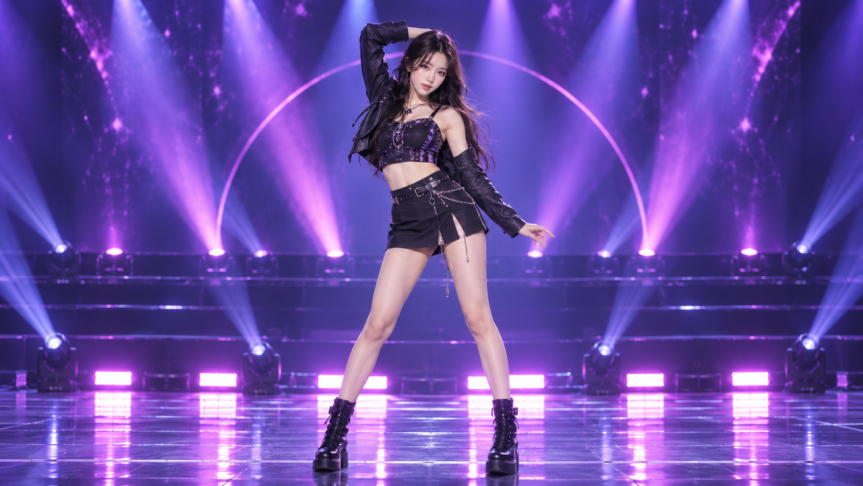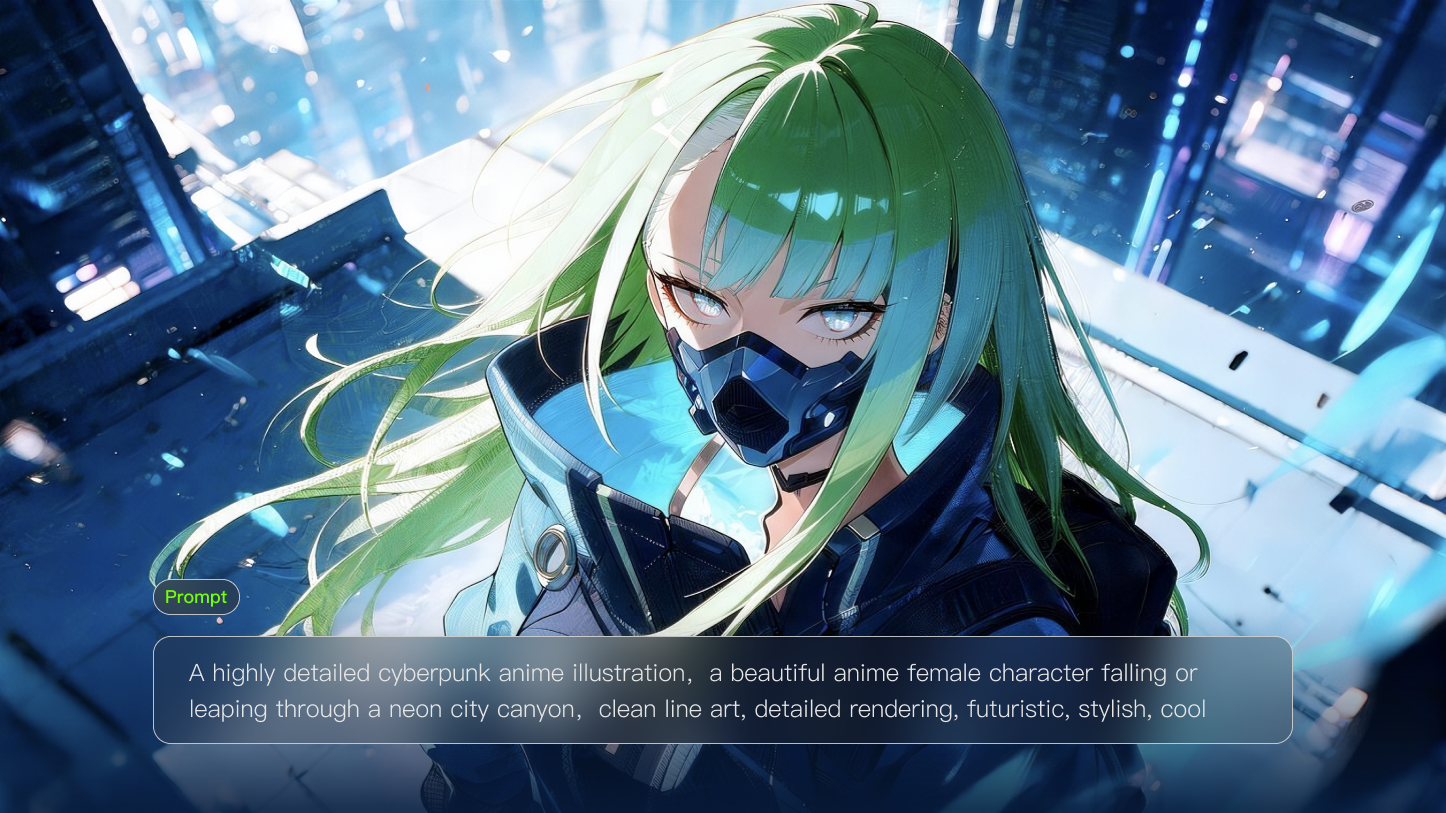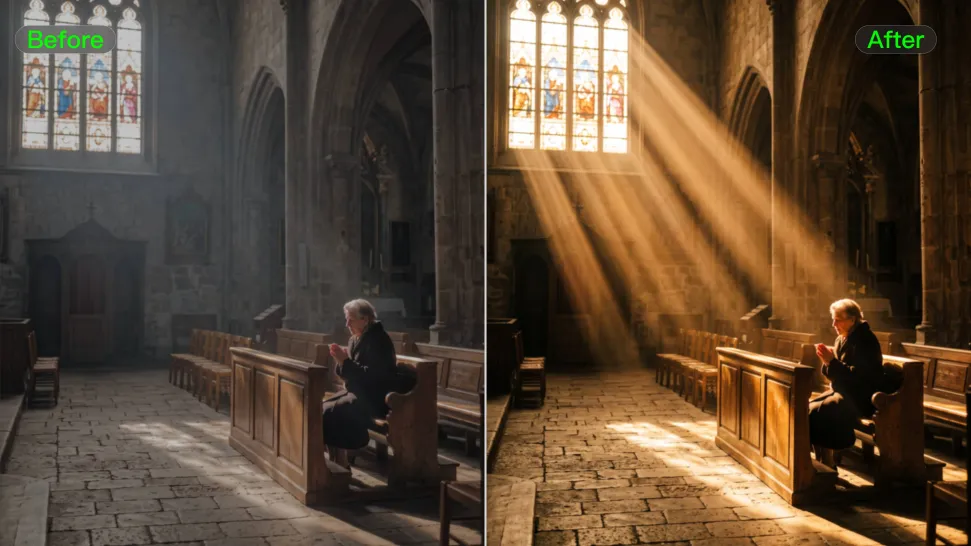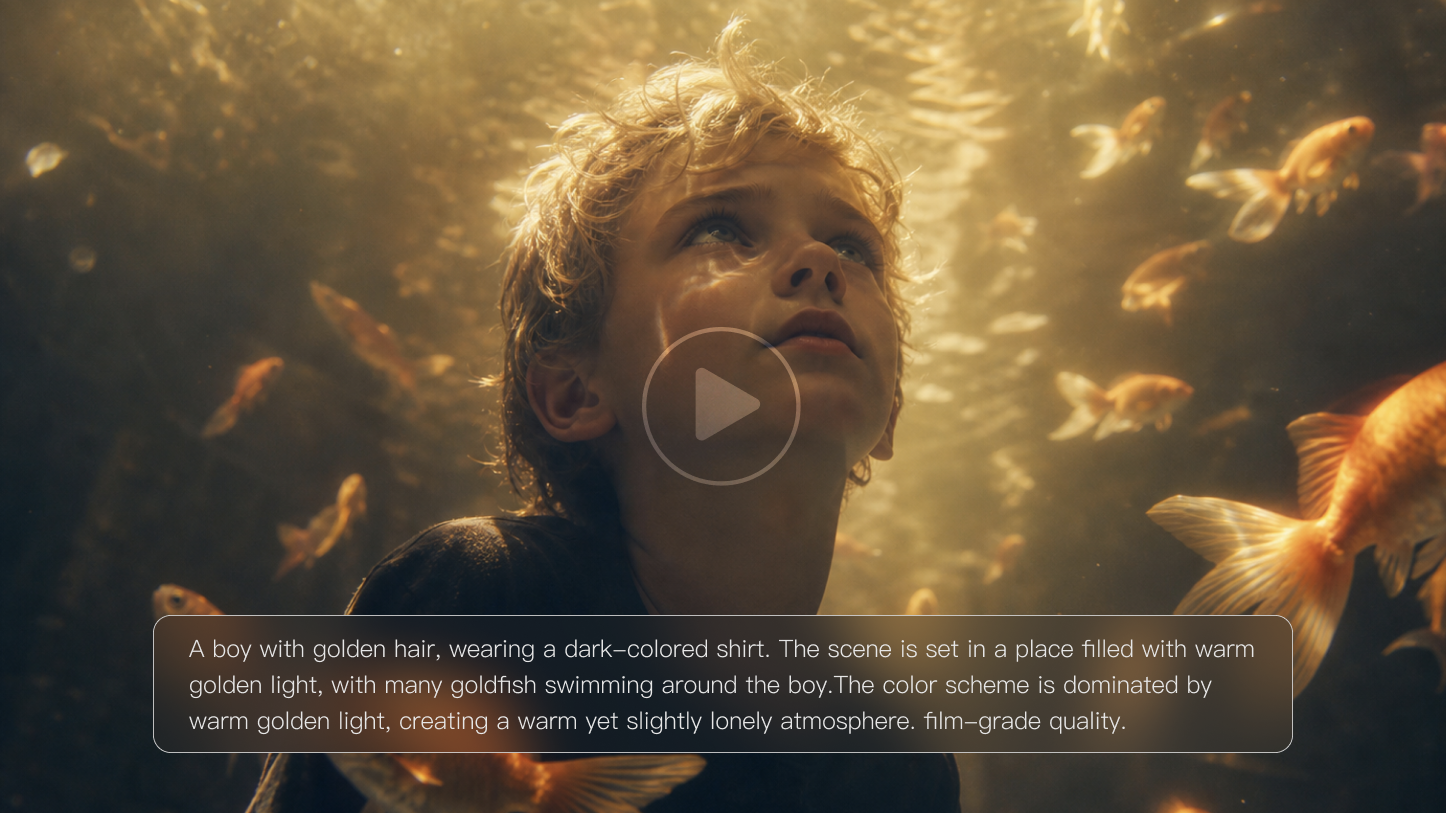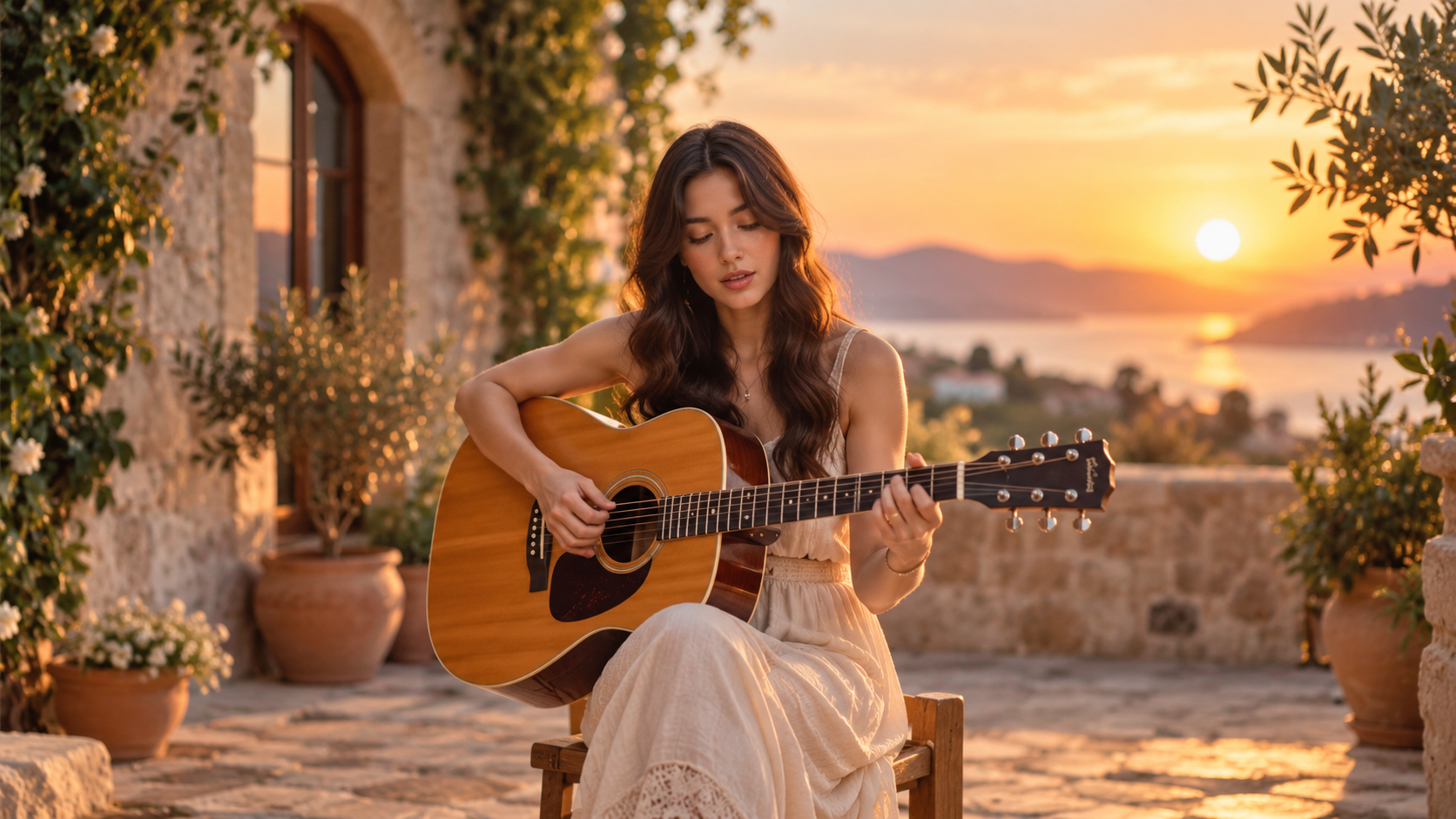
If you add a background to a music performance with AI, the setting should feel like part of the performance, not a separate layer. The music, framing, and on-screen action need to point in the same direction. Kling VIDEO 3.0 Omni can help you update the setting around existing performance footage while keeping the performer at the center of the scene. We’ll also cover copyright and the choices that most often affect the final result.
What Kind of Background Works Best for a Music Performance?
If you want to add a background of a music performance on AI, start with the role the setting should play in the performance. A useful background reinforces the music and provides a clear sense of place. It does not need to look like a concert stage every time. A few factors can narrow down the right direction:
- Match the setting to the performance style: A rock band can suit a club, concert venue, or festival backdrop. Acoustic performances often work better in studios, rehearsal spaces, or smaller venues. DJ sets can work well with club, festival, or more stylized settings.
- Follow the mood of the music: Genre helps, but the track itself matters more. A quiet vocal performance may call for a restrained setting, whereas an energetic track can support a larger or more expressive environment.
- Keep the performer as the visual focus: Crowds, screens, architecture, and stage elements can add context, but too many competing details can pull attention away from the singer, musician, or band.
- Work with the original framing: Close-ups leave less room for a large venue to read clearly. Full-body shots, seated musicians, and performers with instruments each need enough surrounding space for the background to make visual sense.
How to Add a Background to a Music Performance with AI
If you already have a recorded performance, Kling VIDEO 3.0 Omni lets you work from the existing footage and place the performer in a new setting. Start with the original clip, describe or reference the background you want, then review the full scene and refine the result.
Step 1: Upload Your Music Performance Video
Upload the performance footage you want to edit in Kling VIDEO 3.0 Omni. The video does not need to be recorded against a green screen. For better results, choose footage where the performer, clothing, instruments, and main movements are clearly visible.
Step 2: Describe or Reference the New Background
Tell Kling which performer or subject should stay, then describe the new setting you want, such as a concert stage, rehearsal studio, festival, intimate club, or stylized performance space. You can also add a reference image when you already have a specific visual direction in mind.
Step 3: Generate, Review, and Refine the Scene
Generate the edited video and review the performer and new background together. Check whether the subject stays clear, the setting matches the performance, and the lighting, framing, and movement feel connected. If needed, simplify the background or refine your instruction and generate another version.
Original video | Out Put |
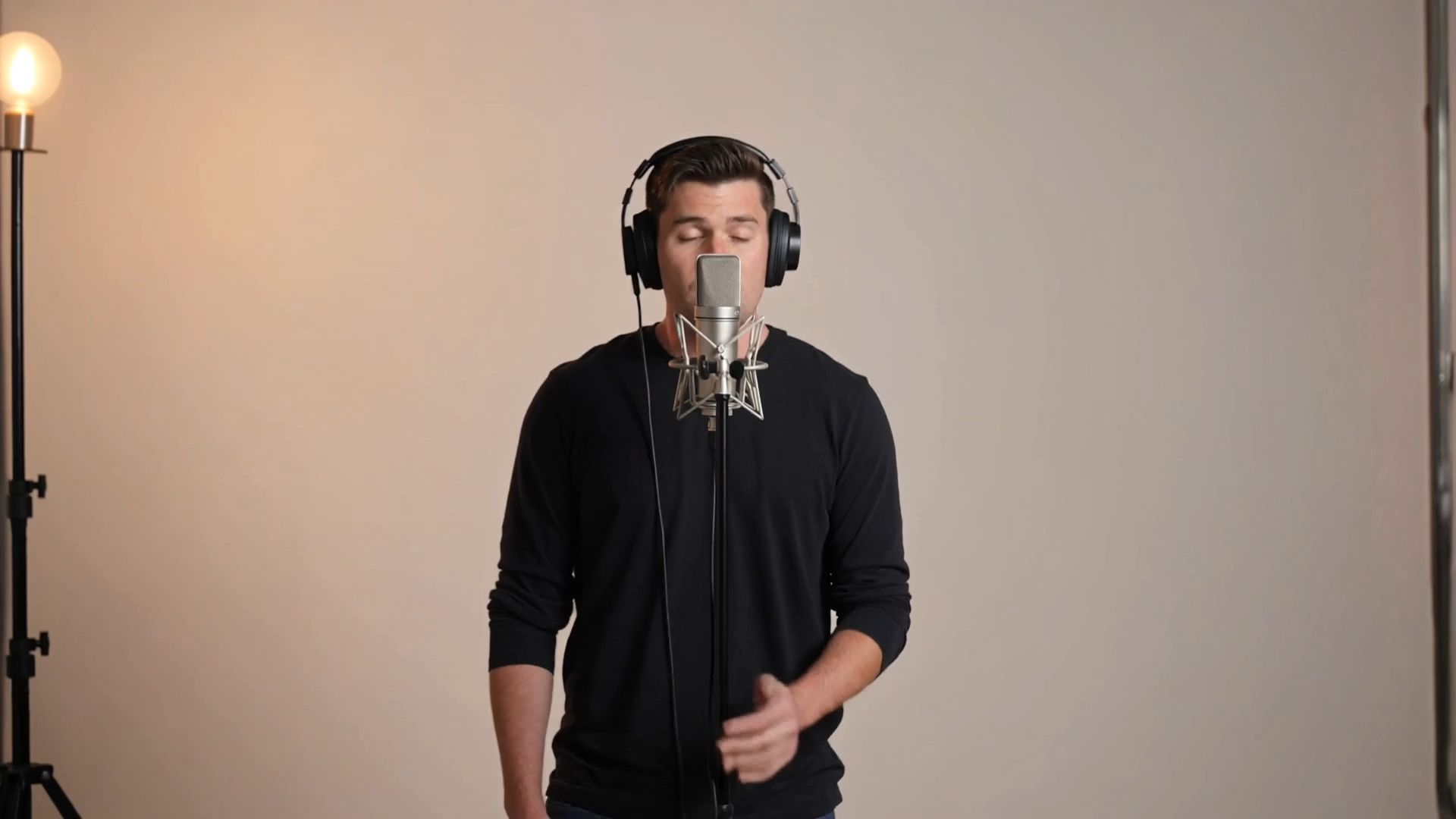  | 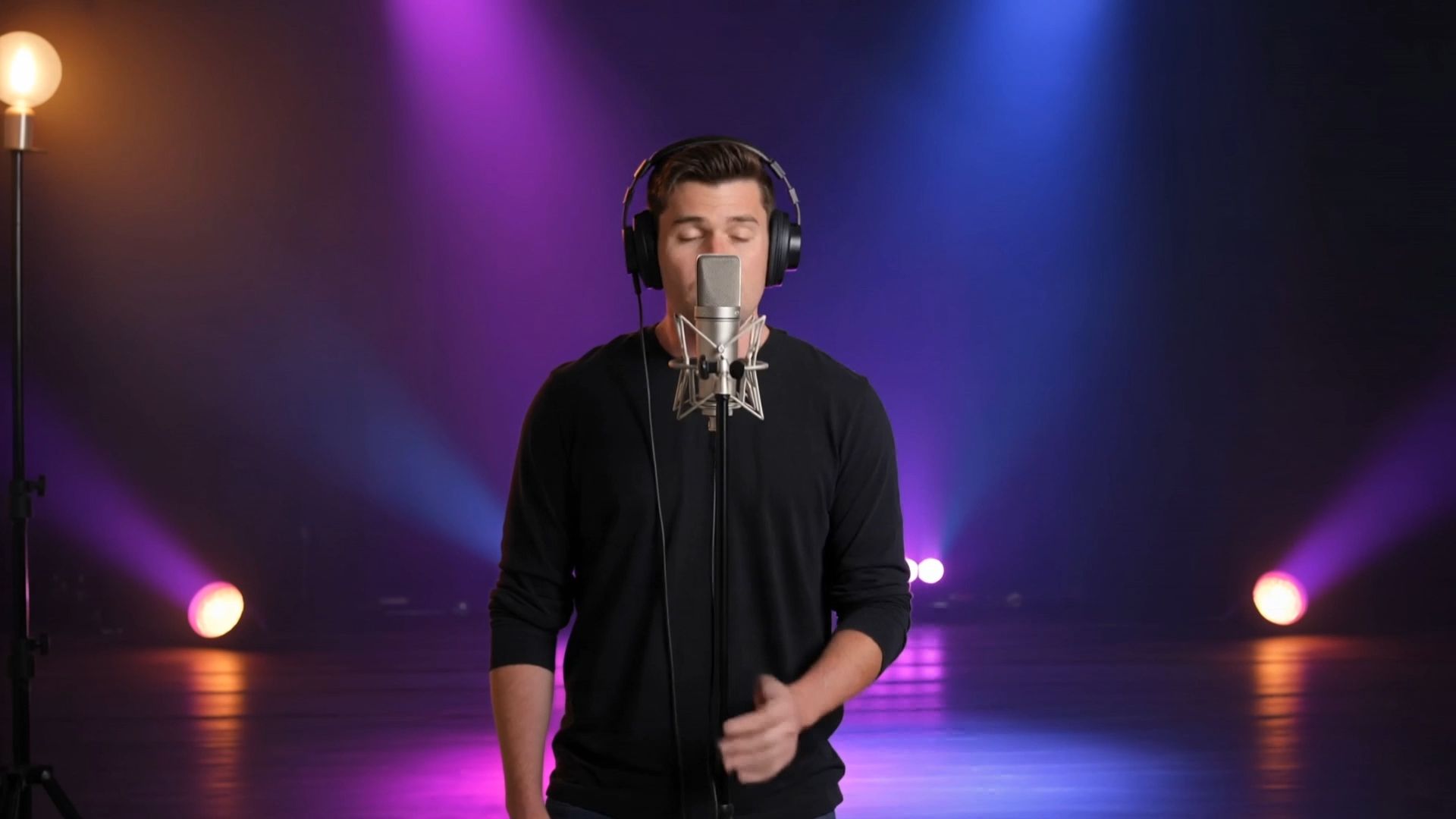 |
| Prompt: Change only the background. Replace the original plain studio background with a professional live performance stage. Create a stylish music stage with a dark stage backdrop, soft atmospheric haze, warm spotlights, subtle colored stage lights in blue and purple tones, and a few blurred LED light beams in the background. Add a realistic concert-style environment, but keep it clean and not overcrowded. The singer should remain the clear visual focus. Do not change the singer, microphone, headphones, clothing, performance, lip movements, body proportions, camera position, or timing. Do not add other clear foreground people. No scene cuts, no camera movement changes, no distortion, no flickering background, and no changes to the original performance. | |
Create a New Music Performance from Text or an Image
If you do not already have a recorded performance, you can also create a new music performance scene from text or a source image with Kling VIDEO 3.0. This works well when you want to build the performer, setting, and overall visual direction from the beginning rather than edit an existing clip.
Have a performer photo ready? Upload the clearest version you have. A strong source should show the face, pose, clothing, and any important instrument clearly enough to establish the look of the performer before the scene begins to move. Kling VIDEO 3.0 can use the image as the visual basis for the generated clip.
Starting from an idea only? Skip the upload and start with a text description in the AI video generator. VIDEO 3.0 can create both the performer and the setting from that description. It supports both text-based and image-based generation, so an uploaded image helps when you already have a specific performer or composition in mind.
Describe How the Performance Should Look and Move
Use the prompt to add what your starting material cannot show on its own.
- With text-to-video, give enough detail to establish the performer, action, and setting.
- With image-to-video, the source image already provides much of the visual foundation, so you can focus more on what happens in the scene and how the performance should develop.
Useful details can include:
- Performer action: singing, playing drums, strumming a guitar, dancing, or interacting with the crowd.
- Performance setting: a club stage, festival, rehearsal studio, intimate venue, or another background that suits the music.
- Atmosphere: energetic, intimate, dramatic, dreamy, or understated.
- Camera direction: add framing or camera movement when it helps define how the performance should appear on screen.
- Sound cues: include relevant music, ambience, dialogue, or other sounds when they contribute to the scene.
Kling VIDEO 3.0 can use these details to shape the performer’s action, setting, camera movement, and sound within the same generated scene. You can keep the description simple for a straightforward performance, then add camera or audio cues when the shot needs more direction.
When sound is part of the creative direction, Kling VIDEO 3.0 can also generate audio together with the visuals through Native Audio. You can describe music, venue ambience, crowd reactions, dialogue, or other relevant sounds in the prompt to help the generated performance scene feel more complete.
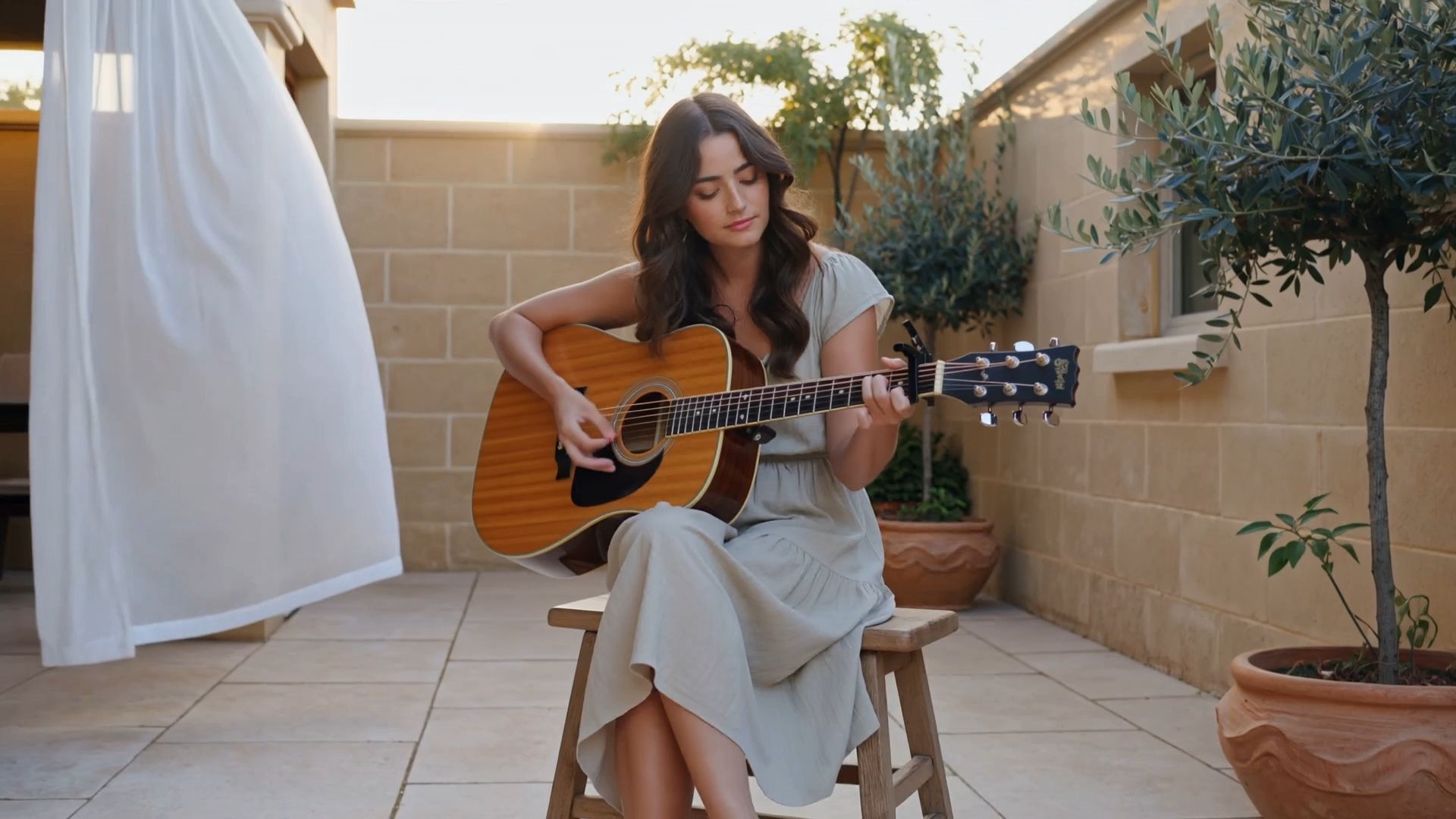 |
| Prompt: A young female singer-songwriter performs an intimate acoustic song in a sunlit Mediterranean courtyard during golden hour. She sits on a simple wooden stool and gently strums an acoustic guitar while singing with a calm, expressive performance. The courtyard is bright and airy, surrounded by warm stone walls, green climbing plants, small olive trees, and soft white fabric moving slightly in the breeze. Golden sunlight filters naturally across the scene, creating warm highlights and soft realistic shadows. The atmosphere feels peaceful, personal, and authentic rather than like a large concert. Audio: gentle acoustic guitar with a soft indie-folk melody, warm female vocals, subtle natural courtyard ambience, light breeze, and faint birds in the distance. The vocals and guitar should remain the main focus, with the environmental sounds kept soft and natural. |
What to Know About Music Copyright Before You Publish
Changing or generating a new background does not change the rights attached to the music itself. If your video includes someone else's song, recording, footage, or reference material, check that you have permission for the way you plan to use it.
What to Check | Why It Matters |
The song or composition | A songwriter or publisher may control the music and lyrics. Pairing that composition with video can require permission for audiovisual use. |
The sound recording | A commercial recording carries its own rights. Using that recording in a video can require permission from its rights holder as well. |
Photos, video, and reference material | Make sure you have the right to upload and use the images, footage, audio, or other material that appears in your project. |
Where you plan to publish | YouTube and other platforms apply their own copyright and licensing rules, so check the requirements for the destination you plan to use. |
Common Mistakes When Adding a Background to a Music Performance
A background can look impressive on its own and still feel wrong once it meets the performer. Most problems come from a mismatch between the source framing, visual complexity, or the type of scene you ask for.
- Choosing a background that does not fit the framing: A close-up leaves less room for a large venue to read clearly. Match the scale of the setting to the space already visible around the performer.
- Adding too many competing details: Crowds, screens, props, and scenery can quickly crowd the frame. Keep the main setting clear and remove details that do not strengthen it.
- Letting the background take over the shot: A busy setting can pull attention away from the singer, musician, or band. Tone down secondary activity when the performer starts getting lost.
- Giving the shot conflicting directions: An intimate close-up and a sweeping arena view call for very different compositions. Keep the setting, framing, and camera direction aligned around one visual idea.
- Forgetting the final format: A wide stage composition may not translate cleanly to a vertical social video. Think about the intended aspect ratio before filling the edges of the frame with important details.
The End
To add a background to a music performance with AI, start with a setting that fits the performer, framing, and mood of the track. Keep the scene focused, then refine anything that makes the background feel disconnected from the performance. Before publishing, check the music and any source material you used. With Kling VIDEO 3.0 Omni, you can work from existing performance footage and rebuild or replace the background around the performer without reshooting the original scene.
FAQs
Can I add a stage background to a video I already shot?
Yes. If the performance is already recorded, an AI video background changer can help you replace or rebuild the setting around the existing footage. This lets you use the existing performance as your source and focus the edit on the background and setting.
Do I need a green screen for this?
Not necessarily. Many AI editing tools can separate the performer from the surrounding scene without a solid-color backdrop. Clear footage still helps, especially when the subject stands out from the background and the shot has limited motion blur.
What is the difference between a background remover and a background changer?
A background remover clears or isolates what sits behind the subject. A background changer replaces that setting with something new. If your goal is to move a performer onto a stage, into a studio, or into another environment, a changer usually fits the task more directly.
Can I add a music performance background to a photo?
Yes. If you want to add an AI background to a photo, start with a clear performer image and decide what kind of setting should replace or extend the original scene. Kling IMAGE 3.0 can then make targeted background changes while preserving the original style, lighting, and texture. The finished still can also serve as source material if you later turn it into video.
How do I keep the face consistent across several shots?
Use the same clear reference whenever possible and keep defining features consistent across shots. Avoid unnecessary changes to hairstyle, clothing, facial details, or other recognizable traits, especially when you want several clips to look like the same performer.