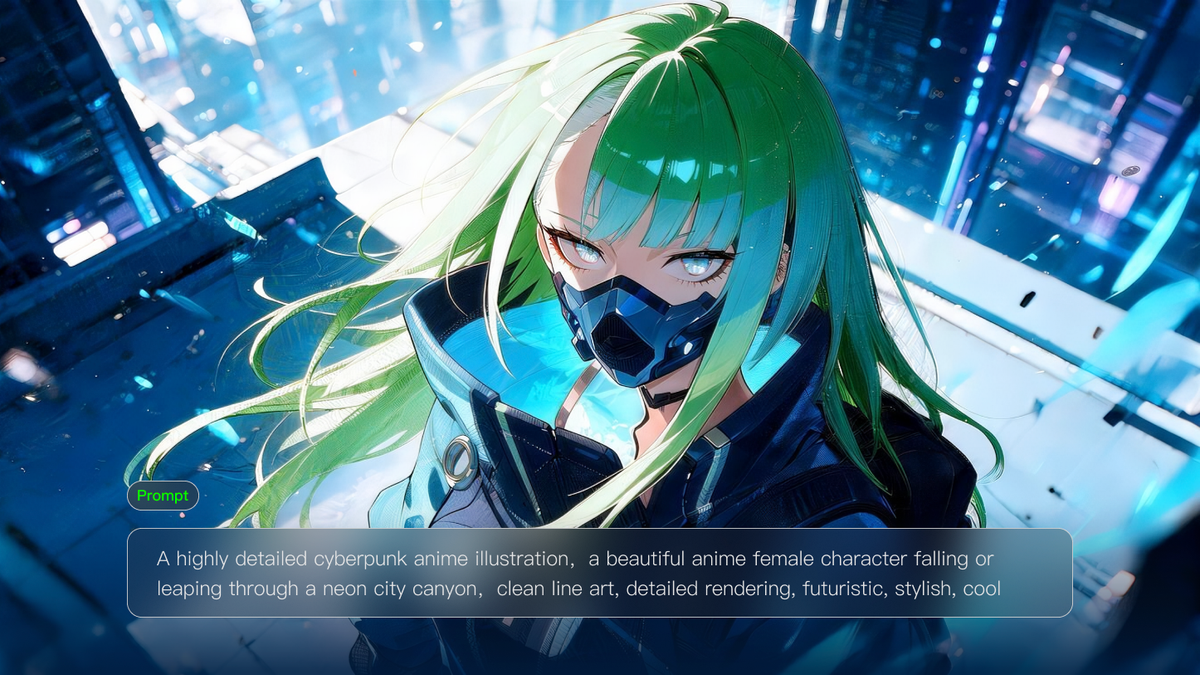
Have an idea for an artwork, but aren't sure where to begin? This guide shows you how to make AI art, from understanding different creation methods to following a simple three-step tutorial with Kling AI image generator. You'll also find practical tips for fixing common issues along the way
What Do You Need to Make AI Art?
You don't need drawing skills or professional design software to get started. Just have these three things ready:
- An Idea or Image: Pick something you'd like to create, such as a fantasy castle or a character portrait. If you have a photo or sketch you want to work from, keep it handy. Otherwise, an idea is enough.
- An AI Art Generator: You'll need a tool that can turn your ideas into images. Kling AI lets you create artwork from text prompts, photos, sketches, and visual references in one image-generation workflow.
- A Creative Goal: Think about what you'd like to do with your artwork. It could be a personal illustration, a gift, or a poster. You don't need to settle on every detail just yet.
If you're still comparing tools, the best AI art generator is one that fits your creative needs and gives you room to experiment.
What Are the Different Ways to Create AI Art?
AI art isn't limited to generating images from text. You can also build on a photo, use a sketch as a starting point, or give an existing image a new artistic look. The right approach depends on what you want to create.
AI Art Method | When to Use It |
Create original artwork from a written description when you have an idea but no starting image. | |
Use a photo, sketch, or existing artwork as a reference to create a new image while retaining key visual details. | |
Style Transfer | Give an existing image a new artistic style, such as turning a photo into a watercolor painting while keeping its main subject recognizable. |
These approaches can also work together. You might start with a text prompt, then use the generated image as a reference to explore new variations or different AI art styles.
Why Use Kling IMAGE 3.0 for AI Art?
Kling IMAGE 3.0 brings text-to-image generation, reference-based creation, style control, and precise image editing into one flexible workflow. You can start from a written idea, photo, sketch, or existing artwork, then guide the result through clear prompts and visual references. IMAGE 3.0 can draw features from up to 10 reference images, helping retain important subjects, objects, styles, and visual details while you change the setting, composition, or artistic treatment. This makes it useful for everything from character art and illustrations to posters and stylized photo transformations. For projects that require a connected set of visuals, IMAGE 3.0 Omni extends the workflow with Image Series generation and native 2K/4K output, making it easier to create more consistent, detailed visual storytelling across multiple images.
.png?x-oss-process=image/resize,w_1872)
How to Make AI Art With Kling IMAGE 3.0
Whether you have a photo ready or just an idea in mind, Kling IMAGE 3.0 lets you turn it into artwork in three simple steps
Step 1. Prepare Your Reference Image (Optional)
If you're working from a photo, sketch, or existing artwork, choose an image that clearly shows the subject you want to keep. For portraits, make sure facial features are visible; for sketches, keep the important lines and shapes in frame. Crop out distracting elements if needed, then upload your image as a reference. You can also add multiple reference images when you want to combine different visual elements. IMAGE 3.0 can draw features from up to 10 reference images, giving you more control over subjects, styles, objects, and other details.
Step 2. Write Your AI Art Prompt
Good AI art prompts focus on the details that shape your finished image. What you describe will depend on your creative approach:
| Prompt example: A floating castle above the clouds at sunset, soft watercolor textures, warm pastel colors, and a wide composition. |
· Text-to-Image: Build your scene with a clear subject, setting, art style, and a few visual details, such as lighting or composition. For a fantasy illustration, you might write:
.png?x-oss-process=image/resize,w_1872)
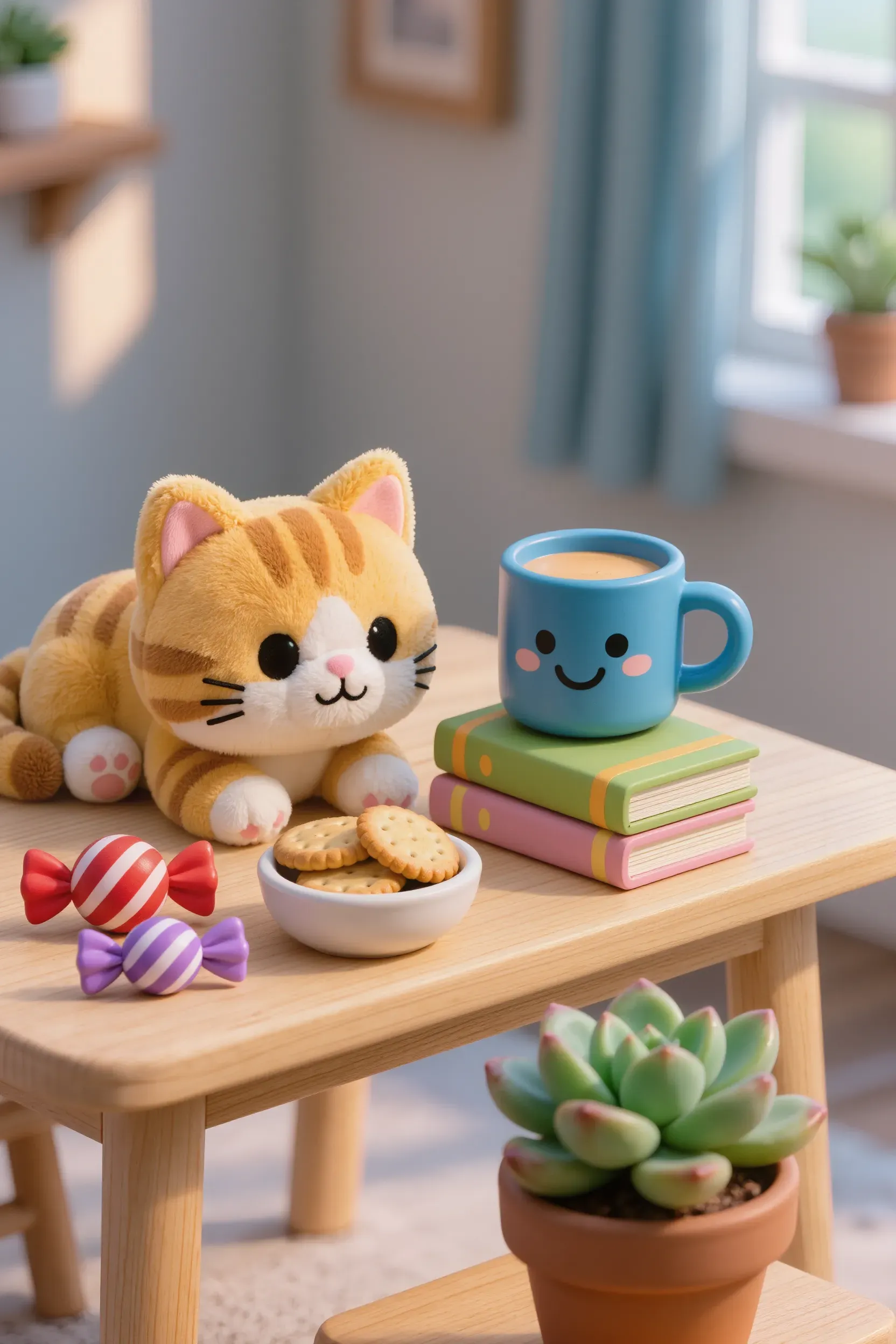
· Reference-Based Creation: Identify which features to retain, then describe the new outfit, pose, background, or other changes you want.
Reference Image | Generated Image |
 | .webp?x-oss-process=image/resize,w_1872) |
| Prompt: Change the background to the inside of a spaceship, with the table turning into a control desk. The kitten is wearing a spacesuit, and remove the flowerpot and books, leaving only the cup and small biscuit bowl. | |
· Style Transfer: Name your desired artistic medium and its defining features, such as watercolor washes or oil-painting brushstrokes, while keeping the original subject and composition.
Stick to the details that shape your artwork. For more on prompt structure, see how to write AI prompts.
Reference Image 1 | Reference Image 2 | Generated Image |
.webp?x-oss-process=image/resize,w_1872) | .webp?x-oss-process=image/resize,w_1872) | .webp?x-oss-process=image/resize,w_1872) |
| Prompt: Change the style of Image 1 to that of Image 2 | ||
Step 3. Generate and Refine Your Artwork
Choose an aspect ratio that fits your project, such as a square image for a social post or a wider format for a landscape illustration. Adjust the available output settings and click "Generate."
Check whether the subject, composition, and artistic style match what you pictured. If the overall result feels off, revise your prompt and try again. For smaller issues, use the editing tools to adjust the affected areas. Once you're happy with your artwork, download the finished image.
How to Make Good AI Art: Common Problems and Fixes
Many disappointing AI results can come from unclear descriptions, conflicting instructions, or limitations in how the model interprets the request. Improving AI art prompts can fix common issues with style, details, and composition.
What Can Go Wrong With Your AI Art?
Take a closer look at your generated artwork. Does any of this sound familiar?
· Generic or Artificial Appearance: The scene feels ordinary, or the textures look unnaturally smooth and glossy.
· Style Mismatch: Your watercolor painting ends up looking like a photograph or digital illustration.
· Poor Composition: The subject is awkwardly cropped, too small, or positioned incorrectly.
· Inconsistent Characters: Facial features, hairstyles, or outfits change unexpectedly between images.
· Missing or Distorted Details: Objects disappear, hands look unnatural, or background elements become misshapen.
How Can You Fix These AI Art Problems?
Once you've identified what's off, try these targeted adjustments instead of rewriting everything.
Problem | Quick Fix |
Generic or Artificial Appearance | Add a distinctive setting or color palette. Use natural textures or visible brushwork to suit your art style. |
Style Mismatch | Name the medium and its key traits, such as "watercolor with soft washes and paper grain." |
Poor Composition | Specify the framing and placement: "full-body portrait, centered, with space above the head." |
Inconsistent Characters | Reuse the same character reference and identify key features to retain. |
Missing or Distorted Details | Name and position missing objects. For distorted details, edit only the affected area. |
The End
A finished piece of AI art is more than just the first image you generate. Understanding how to make AI art with Kling IMAGE 3.0 gives you the flexibility to explore different creative approaches and shape the result around your vision. From artistic style to finer details, each creative choice helps make the final artwork feel more personal and intentional.
FAQs
Can I Turn a Sketch Into AI Art?
Yes. Take a clear photo or scan of your drawing, then upload it to Kling's AI image generator. You could ask IMAGE 3.0 to "Color this line drawing as a storybook illustration while keeping the original outlines and proportions." This lets you develop your sketch into finished artwork without redrawing it from scratch.
How Do I Write a Good AI Art Prompt?
Start with a clear subject and scene, then add a few details that define the artistic look. Instead of "a beautiful fox," try "A fox reading beside a cabin window, watercolor illustration, muted autumn colors, and visible paper texture." Focus on details that influence the image rather than filling your prompt with general quality words.
What Are the Best AI Art Styles?
It depends on what you're creating. Watercolor works well for soft, painted illustrations, while anime uses expressive characters and clean outlines. Oil painting brings richer colors and visible brushwork to landscapes or portraits. Pick a style that suits your subject and describe its defining features for a clearer result.
How Can I Make AI Art Look Less AI-Generated?
Look for details that feel out of place. For watercolor art, try adding "uneven pigment washes and visible paper grain" instead of a glossy finish. Realistic portraits may benefit from natural lighting and believable skin texture. If a specific area looks wrong, you can use Kling IMAGE 3.0's editing tools to refine it.