With Runway, an early pioneer in generative AI video, you can turn text and images into video clips and refine existing footage. But how well do its tools fit your creative workflow, and how much might repeated generations cost? In this Runway review, we'll explore its capabilities, pricing, and practical trade-offs to help you decide whether it's worth using.
Runway AI Reviews: Features, Pricing, and Verdict
With Runway AI, formerly known as Runway ML, you can choose from different video generation and editing models based on your creative goals, video length, and credit budget.
Runway's Core Video Features
Model & Feature | Core Capabilities | Best Use Cases |
Gen-4.5 Text-to-Video | Generate 2–10-second videos from text prompts, guiding subject movement, scene changes, and camera motion. | Concept development, storyboarding, short videos |
Gen-4.5 Image-to-Video | Turn still images into videos and use prompts to guide subject and camera movement. | Product showcases, character animation |
Aleph 2.0 Video Editing | Modify people, objects, backgrounds, or visual styles in existing footage, with support for clips up to 30 seconds. | Ad revisions, visual effects |
Gen-4 Turbo | Generate 5- or 10-second videos from images at a lower credit cost. | Concept testing, rapid iteration |
Runway Pricing Plans
With Runway, you can choose from free and paid plans based on credit allowances, model access, and collaboration needs.
Plan | Monthly Price | Annual Billing (per Month) | Best For |
Free | $0 | — | First-time AI video exploration |
Standard | $15 | $12 | Individual and occasional creators |
Pro | $35 | $28 | Regular video production |
Max | $95 | $76 | High-volume and professional creators |
Team | $69/seat | $55/seat | Video production teams |
Annual rates require yearly billing, and the Team plan requires at least two seats. Runway uses a credit-based system, with credit usage varying by model, video length, and the number of generations or edits. Check Runway's official pricing page for current credit allowances, model access, and plan terms.
Is Runway AI Worth It? What Are the Alternatives?
If you mainly create short videos, test advertising concepts, or refine existing footage, Runway AI is worth considering. Its video generation and editing tools support different creative needs. However, longer projects may require additional editing and consistency checks, while frequent revisions can increase credit usage. Before choosing a paid plan, consider your expected output and production budget.
If you want to explore another creative workflow, Kling AI offers both image and video generation and editing tools. Our latest video model, Kling 4.0, supports reference-guided creation, more stable complex motion, videos up to 30 seconds long, and precise video editing. We also offer Kling Image 4.0, our latest image generation model, with native 8K output and consistent image sets to help you create product visuals, character designs, and storyboards.
Why Consider Kling 4.0 as an Alternative for AI Video Creation?
Choosing an AI video tool involves more than generating individual clips. Creators also need to maintain visual consistency, guide complex actions and camera movements, and refine existing footage efficiently. At Kling AI, we've designed Kling 4.0 around these needs. Below, we'll explore how its capabilities can support product advertising, cinematic storytelling, and social media video creation.
Create Dynamic Product Ads with Multiple References
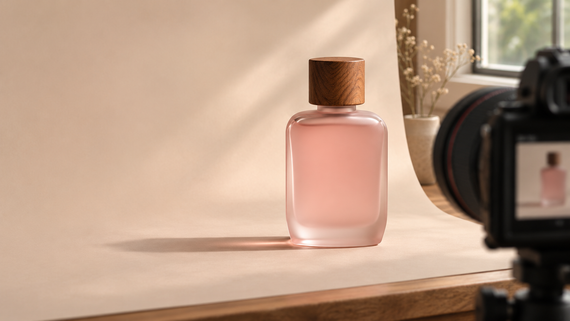
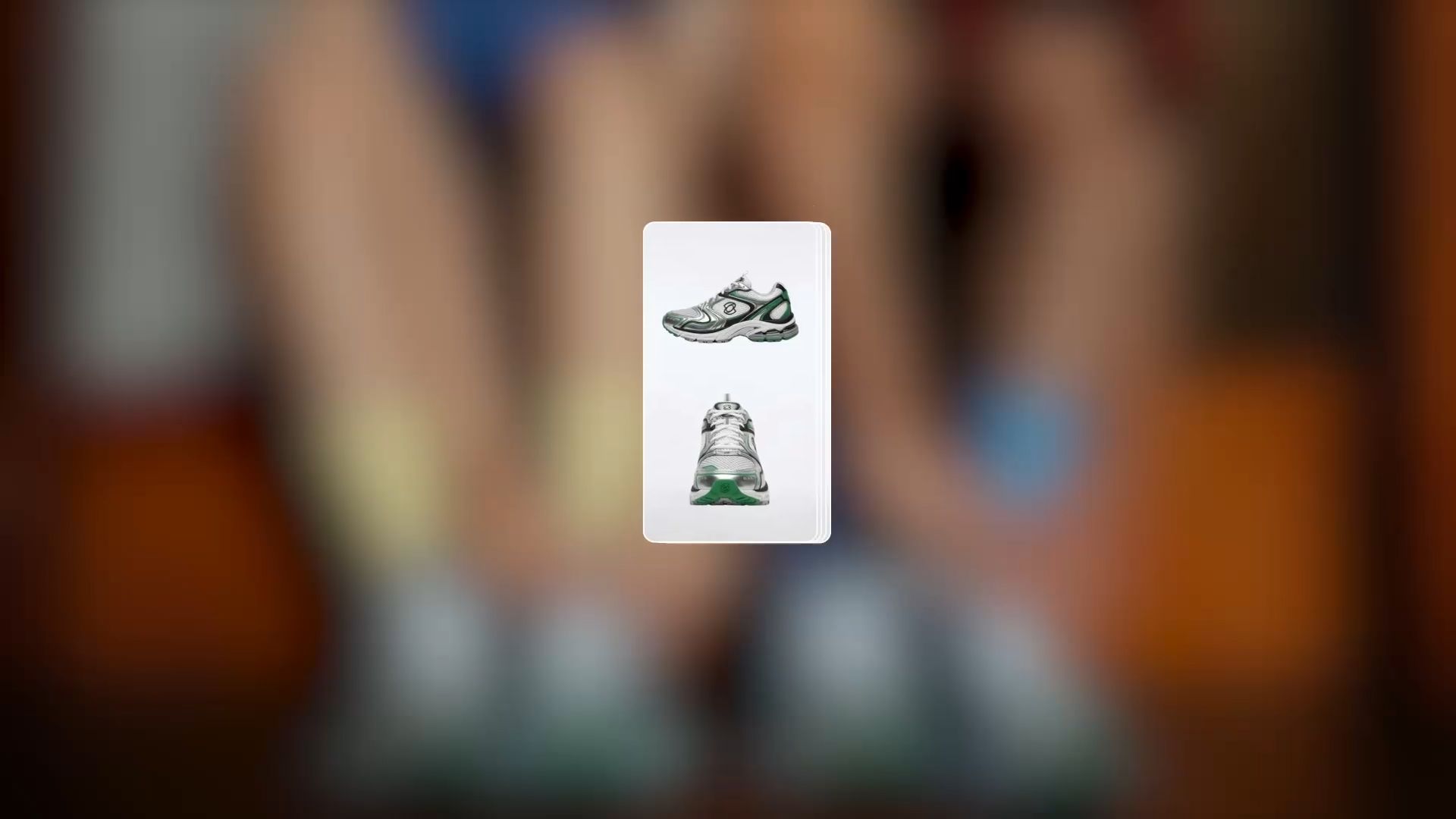
If you want to turn product photos into dynamic ads, you can use Kling AI's image-to-video to create rotating product shots, close-up details, or scenes that showcase your products in real-world settings.
If you have additional assets and want more control over product appearance, scene atmosphere, and camera movements, you can use Omni Reference in Kling 4.0. You can combine up to 15 reference assets, including images, videos, and Elements, in a single generation. For example, use product photos to guide appearance and materials, location images to establish the setting, and reference footage to guide character actions or camera movements.
With this multi-reference workflow, you can explore different ad concepts using the same product assets while maintaining greater visual consistency as you adjust camera angles and settings. You can create video ads for e-commerce product pages, brand campaigns, and social media promotions.

Create Cinematic Stories with Stable Motion and Ultrawide Framing
If you're creating a character-driven short film or cinematic scene, you need more than high-quality visuals. You also need consistent character movement, smooth camera work, and thoughtful composition. In fight sequences, fast-paced action, or continuous tracking shots, you need to keep character movements, spatial relationships, and camera movements in sync to create more compelling action scenes.
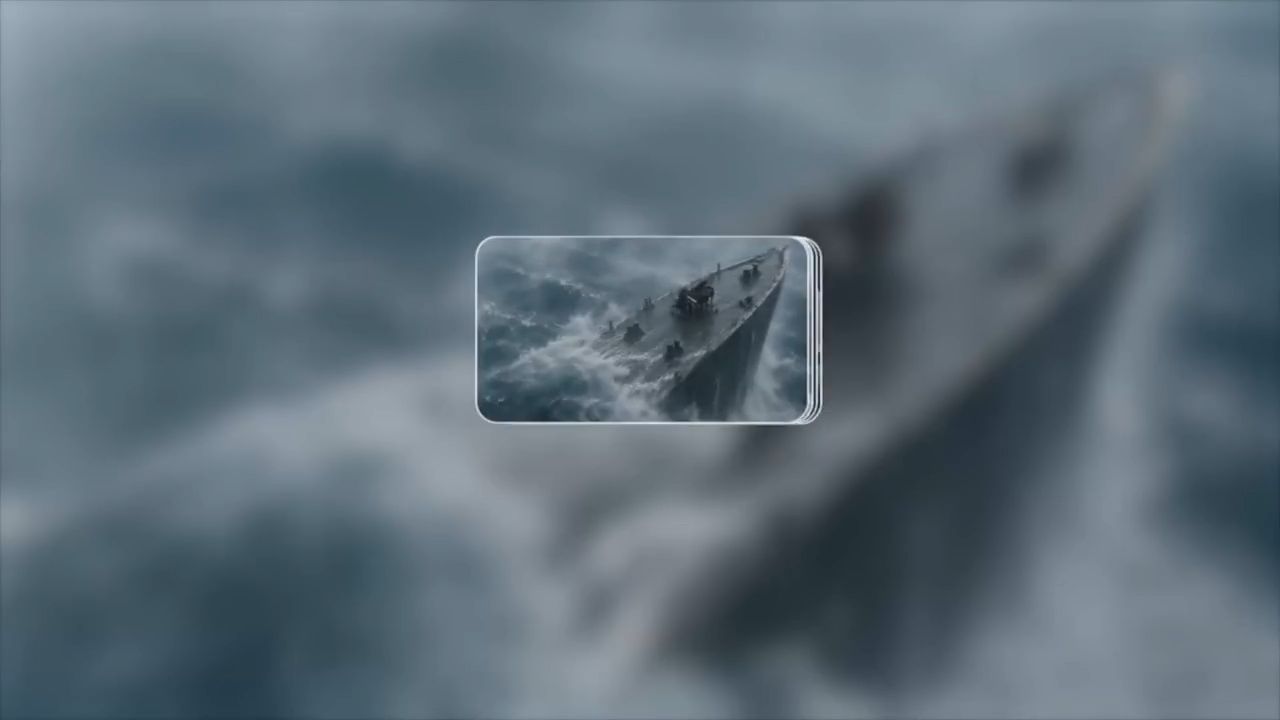
For example, when a female character faces multiple opponents, you can use prompts to choreograph dodges, counterattacks, and tracking shots. With Kling 4.0, you can achieve greater stability during complex actions and sweeping camera movements, helping you maintain more fluid and coordinated motion throughout the scene.
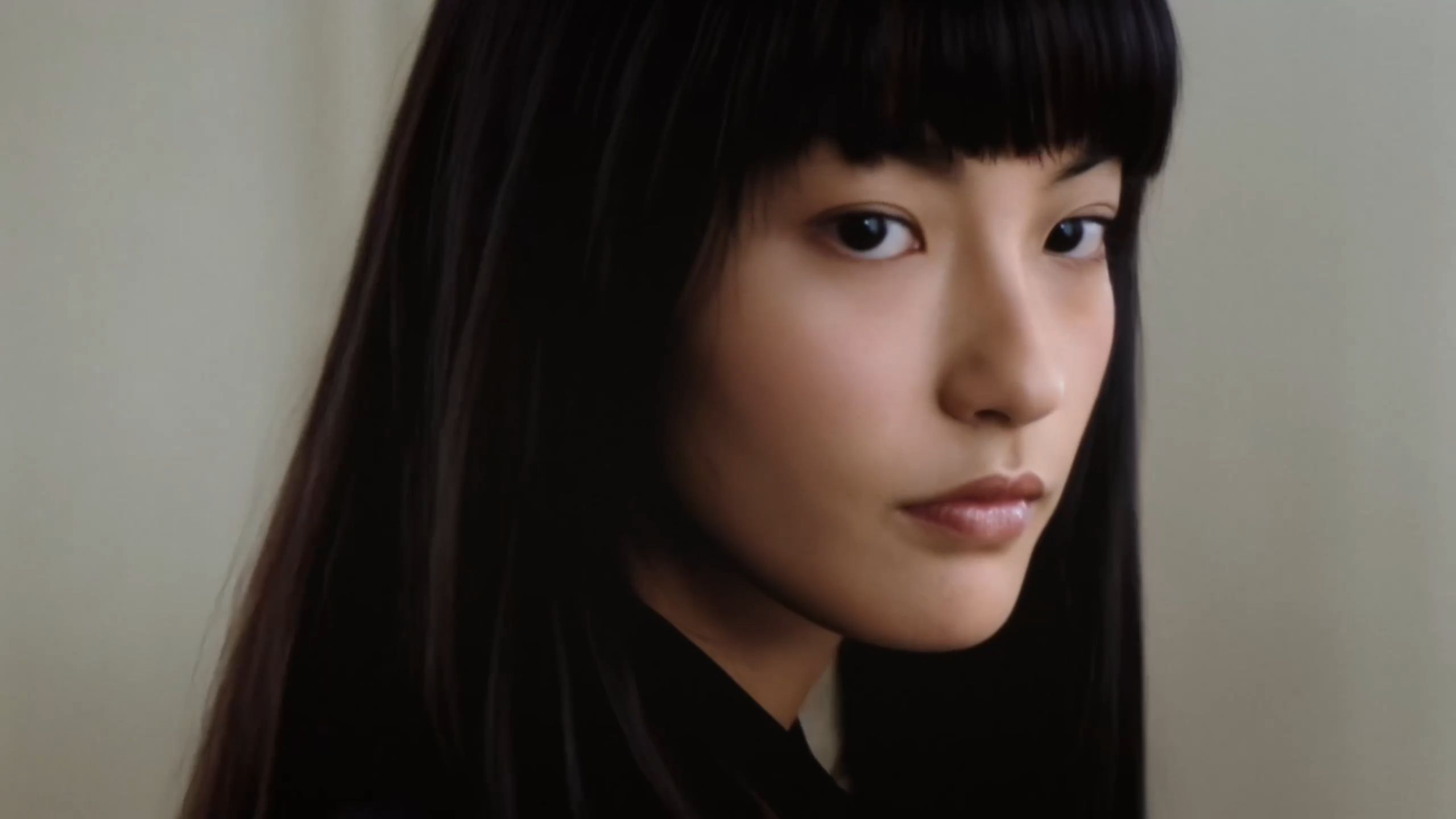
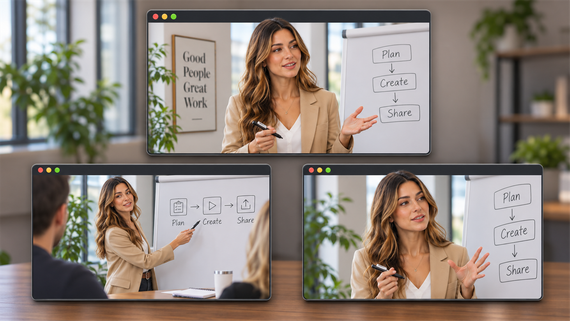
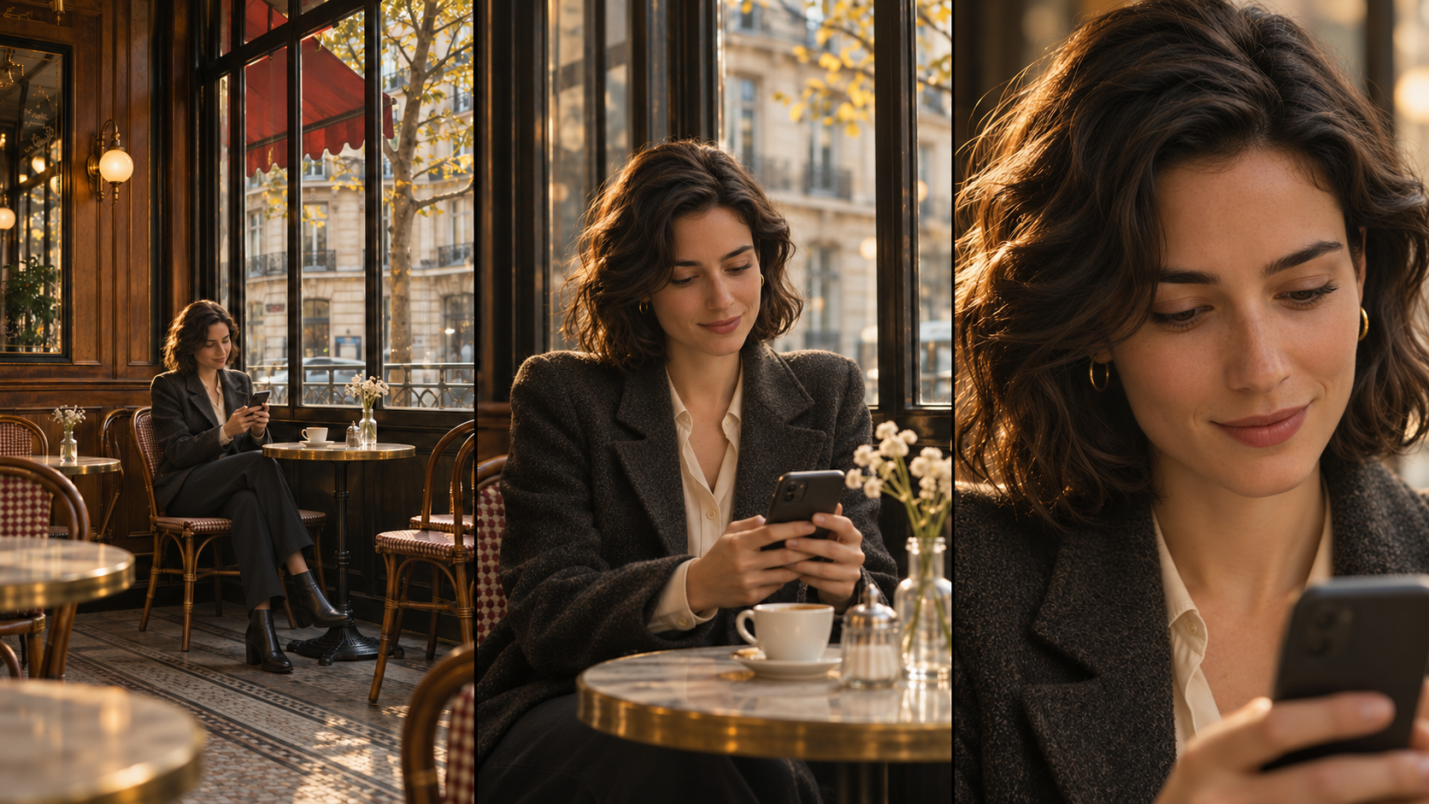
When planning your shots, you can use prompts to specify framing, camera direction, and pacing if you already have a storyboard in mind. You can also use image or video references to guide the visual composition. Even without a complete storyboard, you can start by describing the atmosphere and key story moments you want to capture. With Kling 4.0, you can explore tracking shots, orbiting movements, push-ins, and pullbacks to direct your audience's attention and emphasize character actions or dramatic moments. You can also use the 21:9 ultrawide aspect ratio to create more room for character blocking, horizontal movement, and environmental composition. With up to 4K video output, you can bring sharper details and a more cinematic look to your scenes.
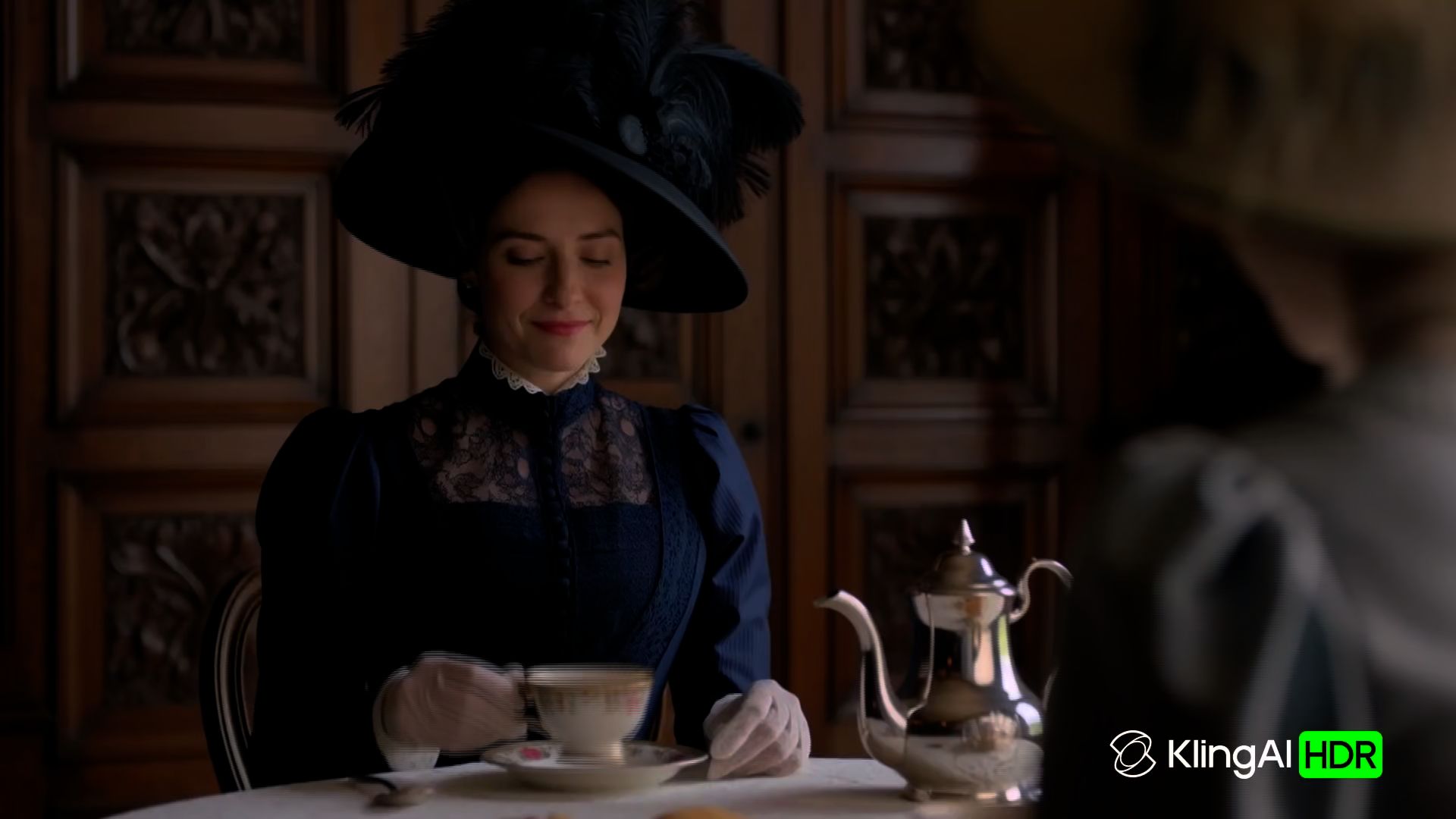
With Kling 4.0, you can generate clips up to 30 seconds long in a single generation, giving you more room to develop continuous action, character interactions, and story progression. If you've already planned your story's opening, turning points, and ending, you can use up to 10 uploaded images as keyframes within Omni Reference to guide how these important moments unfold. You can also add native dialogue, ambient sounds, and sound effects to create a richer audiovisual experience. For longer projects, use Timeline to arrange multiple clips, refine shot order, transitions, and narrative pacing, and bring a more complete cinematic story to life.
Refine and Recreate Videos for Social Media
Trends on TikTok, Instagram Reels, and YouTube Shorts change quickly, but standing out takes more than following what's popular. If you find a short video with a creative approach you'd like to explore, you can use Creative Recreation in Kling 4.0 to draw inspiration from the pacing, shot sequences, and movements of a video you have permission to use. Then, bring in your own characters, settings, and assets to put a fresh spin on the concept without planning every shot from scratch.
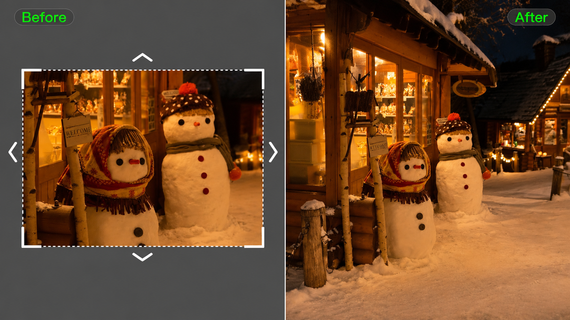
If you already have footage you like but want to change a character, background, or visual detail, you can use Kling AI's video editing. With text prompts and reference assets, you can make targeted changes while preserving as much of the original action and camera work as possible.
Reference Video | Generated Video |
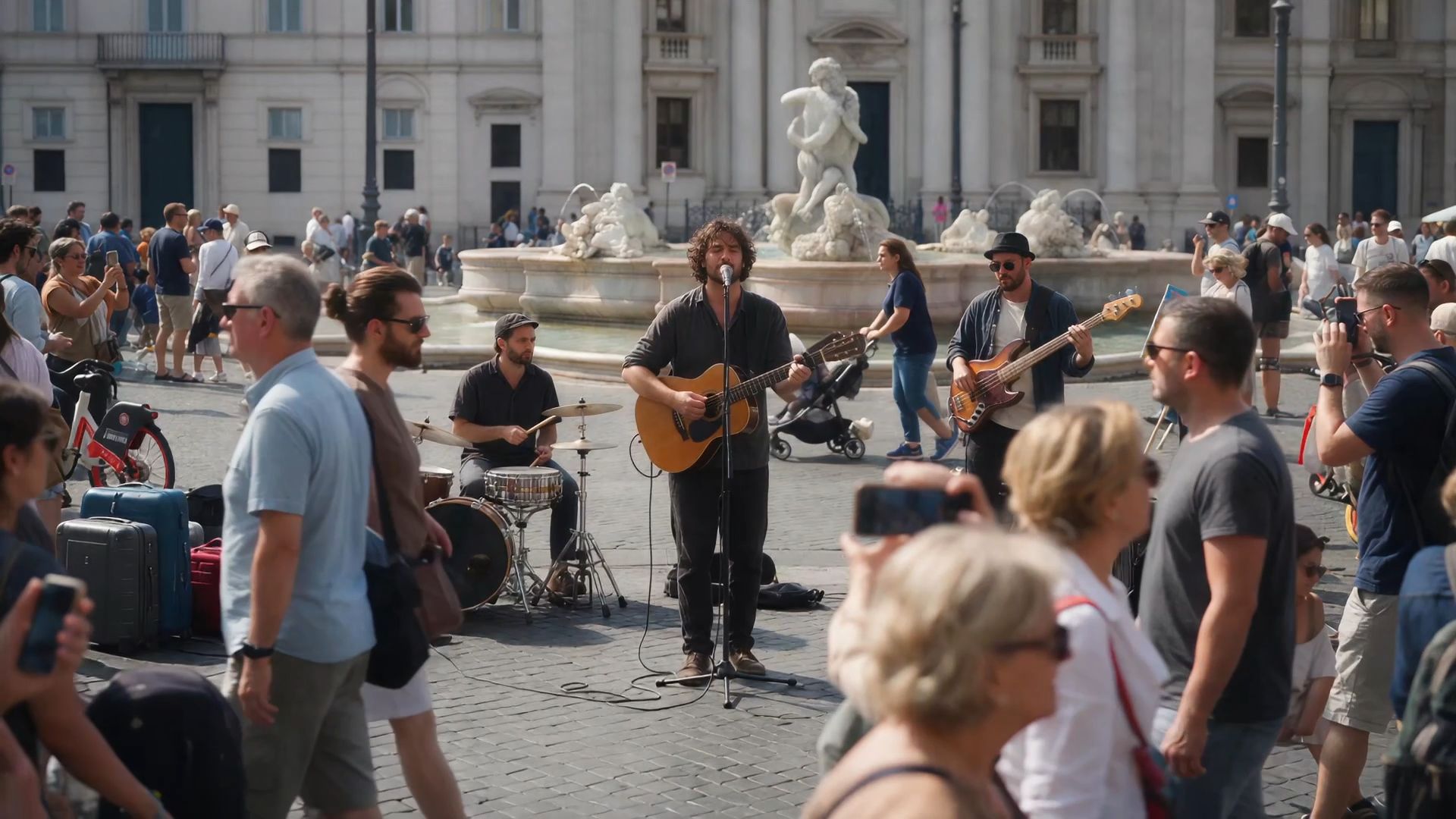 | 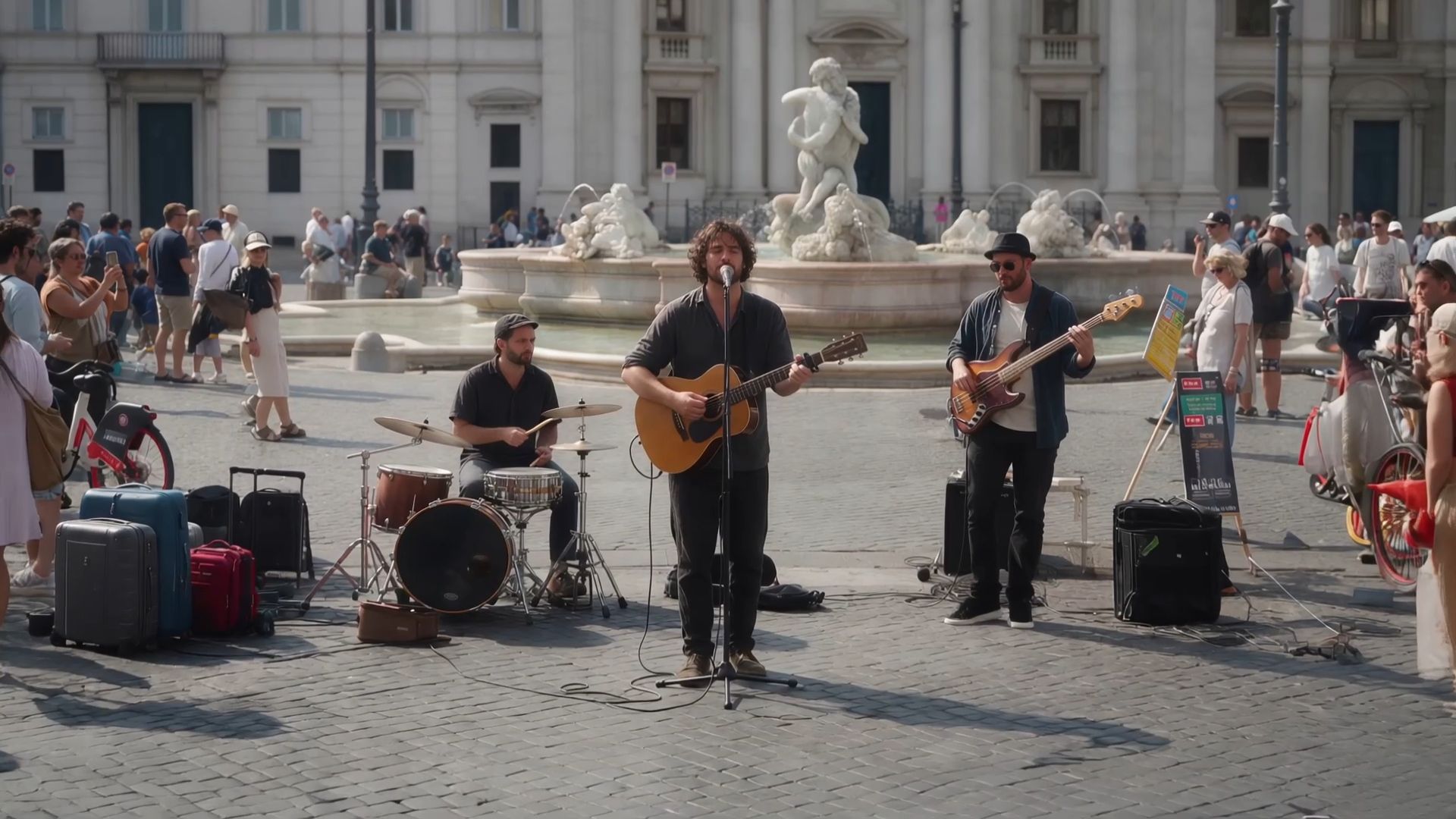 |
| Prompt: Remove the person in the foreground from the video. Naturally reconstruct the background behind them while preserving the original scene, lighting, camera movements, and all other elements. Ensure the removal looks seamless, with no visible artifacts or traces of the person. | |
You can also experiment with different content formats, from vlogs to realistic documentary-style videos, or explore visual styles such as clay animation, felt art, glitch art, and 3D cyberpunk. These options help you create more distinctive social media videos that suit different content themes and publishing needs.
How to Use Kling AI to Create Videos
Ready to turn your ideas into videos? With Kling 4.0, you can create videos using text prompts, images, and reference clips in just a few steps.
Step 1: Choose Kling 4.0 and Add References
Open Video Generation and select Kling 4.0. In Omni Reference, upload images, videos, or Elements to guide your creation. You can also start with just a text prompt.
Step 2: Describe Your Video
Write a prompt describing the scene, subject actions, camera movements, and visual style. Use @ to reference uploaded assets and specify how each should influence the result.
Step 3: Generate and Refine
Choose your video duration, aspect ratio, and output resolution, then click Generate. Preview the result, adjust your prompt or references if needed, and download your video.
Reference Image | Generated Video |
 | 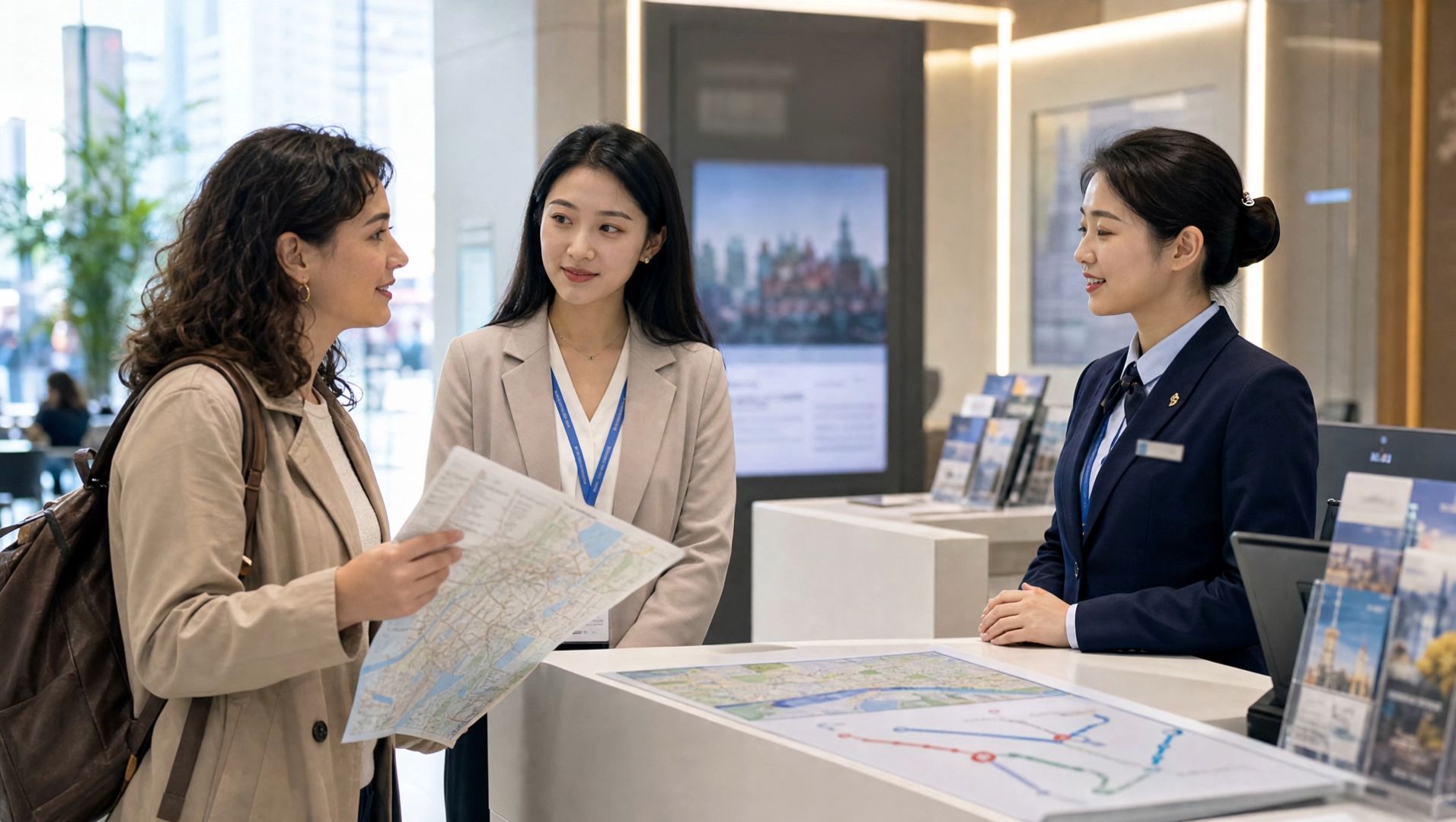 |
Prompt: SCENE CONTEXT EXACT 3 UNIQUE HUMAN CHARACTERS ACROSS THE VIDEO: Three people are in a bright, clean, fictional city tourist information center. Maintain consistent color tones throughout. The tourist stands on the left, the interpreter stands in the middle, and the tourism staff member stands on the right. A city map and route diagram are placed on the information desk. Background text and map labels must be blurred and unreadable. No real brands, organization names, logos, or watermarks may appear. ACTION TIMING: 0–3 seconds: Medium shot of all three people. The Spanish female tourist looks at the interpreter in the middle, raises the map in her hand, and speaks in natural, clear, slightly slow Spanish: “¿Dónde está la estación de metro más cercana?” After she finishes speaking, pause for approximately 0.5 seconds. The interpreter turns to the tourism staff member and translates into Chinese: “她想知道最近的地铁站在哪里。” 3–7 seconds: Cut to the interpreter and the tourism staff member. The tourism staff member looks at the map (do not use a close-up of the map) and answers in natural, clear Chinese: “沿这条路直走,步行大约五分钟就能到。” After the staff member finishes speaking, pause for approximately 0.5 seconds. The interpreter confirms understanding and turns toward the tourist. 7–11 seconds: The interpreter translates the staff member's answer into natural, clear, slightly slow Spanish: “La estación de metro está a unos cinco minutos a pie. Siga recto por esta calle.” While speaking, the interpreter points to the route on the map, and the tourist studies it attentively. 11–15 seconds: Return to a medium shot of all three people. After understanding the directions, the Spanish tourist smiles, nods, and says in Spanish: “Muchas gracias.” All three maintain a natural service interaction as the scene ends. AUDIO: - The Spanish tourist speaks only Spanish. - The Chinese tourism staff member speaks only Chinese. - The Chinese interpreter speaks Chinese first, then Spanish. - Each person has a distinct voice. - When one person is speaking, the others remain silent. No interruptions or overlapping dialogue. - All dialogue must have clear vocals, with lip movements synchronized to the corresponding language. - Spanish pronunciation must be natural and standard, without English-accented pronunciation. - Speech should be slightly slow, with natural pauses between sentences. - Retain subtle ambient sounds from a tourist information center. Do not add background music. Ambient sounds must not overpower the dialogue. CAMERA: Begin with a medium shot of all three people to establish their relationships. When the tourist speaks, cut to a two-shot of the tourist and interpreter. When the interpreter relays the question, cut to the interpreter and staff member. During the staff member's response, include a close-up of the map route. When the interpreter translates into Spanish, return to a two-shot of the interpreter and tourist. End with a medium shot of all three people. Maintain consistent character positions, eyelines, and clothing throughout. Do not abruptly replace characters or change their spatial relationships. STYLE: Realistic, natural, professional travel-service documentary style. Bright, clean lighting, natural facial expressions, and restrained movements. The scene should resemble an authentic interaction at an airport or city tourist information center. | |
The End
If you want to explore cinematic concepts, transform existing footage, or refine individual shots, Runway AI is worth considering. However, frequent revisions can increase credit costs, while longer, multi-shot projects may require additional editing. If you want another workflow for guiding scenes with visual references and developing longer stories, Kling AI offers an option worth exploring. Choose the tool that best fits your creative goals, available assets, and production budget.
FAQs
Is Runway AI free or paid?
Runway AI offers both free and paid plans. The Free plan includes 125 one-time credits to try selected AI creation features, but the credits don't renew each month, and you have limited access to models and features. Videos you generate on the Free plan also include a watermark. If you need monthly credits, access to more models, or watermark-free exports, you can upgrade to a paid plan. Check Runway's official pricing page for the latest prices and feature availability.
Is Runway AI Good for Video Creation?
Yes. Runway AI works well for developing cinematic concepts, testing ad ideas, and editing existing footage. You can use Gen-4.5 to generate short video clips and video editing tools to adjust characters, backgrounds, and visual styles. However, your results will depend on your prompts, reference assets, and chosen model. If you're creating complex action sequences or longer, multi-shot stories, you may need to check character consistency, motion continuity, and scene details, then make further adjustments based on the results.
Is Runway AI worth paying for?
If you regularly create AI videos, need access to models that the Free plan doesn't offer, or frequently revise existing footage, a paid Runway AI plan may be worth considering. However, different models and editing tasks consume credits at different rates, so repeated generations and revisions can use up your credits quickly. Before subscribing, estimate how many videos you'll create and how often you'll revise them each month. Then, check whether your preferred models are available on the plan and whether it fits your creative needs and budget.
What Is a Good Alternative to Runway AI?
If you're looking for an alternative to Runway AI, Kling AI is worth considering. With Kling 4.0, you can create videos from text, images, and multiple reference assets. Use visual references to guide character appearances, complex actions, and camera movements as you develop product ads, cinematic scenes, or social media videos. You can also use Kling AI's video editing tools to refine existing footage. Consider your creative goals, preferred workflow, editing needs, and budget when choosing the right platform.
How Do You Choose Between Runway AI and Kling AI?
Start with a short project that reflects your creative goals. Try the same video concept on both platforms, then compare how well each handles visual references, character consistency, motion, and camera direction. You should also consider how much editing each result needs and how many credits or resources you spend on revisions. Choose the workflow that delivers the results you want within your budget.